


Connecting Asana to Dropbox is the most practical way to keep project context (tasks, owners, deadlines) and file storage (folders, versions, sharing) aligned, because teams can attach Dropbox files to Asana work and automate where attachments get stored.
Next, this integration becomes far more valuable when you move past “manual attaching” and design repeatable folder workflows—like uploading task attachments to a specific Dropbox folder or generating a Dropbox folder every time a new Asana project starts.
Then, successful teams also plan for governance and reliability: permission scope, shared/team folder access, naming conventions, and a clear troubleshooting path when rules stop firing or upload to the wrong destination.
Introduce a new idea: once you understand the “connect + attach + automate” foundation, you can expand into advanced scenarios like Dropbox Dash for unified search and specialized edge cases for team folders and developer constraints.
What does it mean to integrate (connect) Asana to Dropbox for project teams?
The Asana-to-Dropbox integration is a workflow connection that lets project teams attach Dropbox files to Asana tasks and—when configured—automatically upload Asana task attachments into chosen Dropbox folders for consistent storage and collaboration.
To better understand what that “connection” really changes, think of it as replacing scattered file sharing with a single system: Asana provides the work context, while Dropbox remains the source of truth for files and folders.
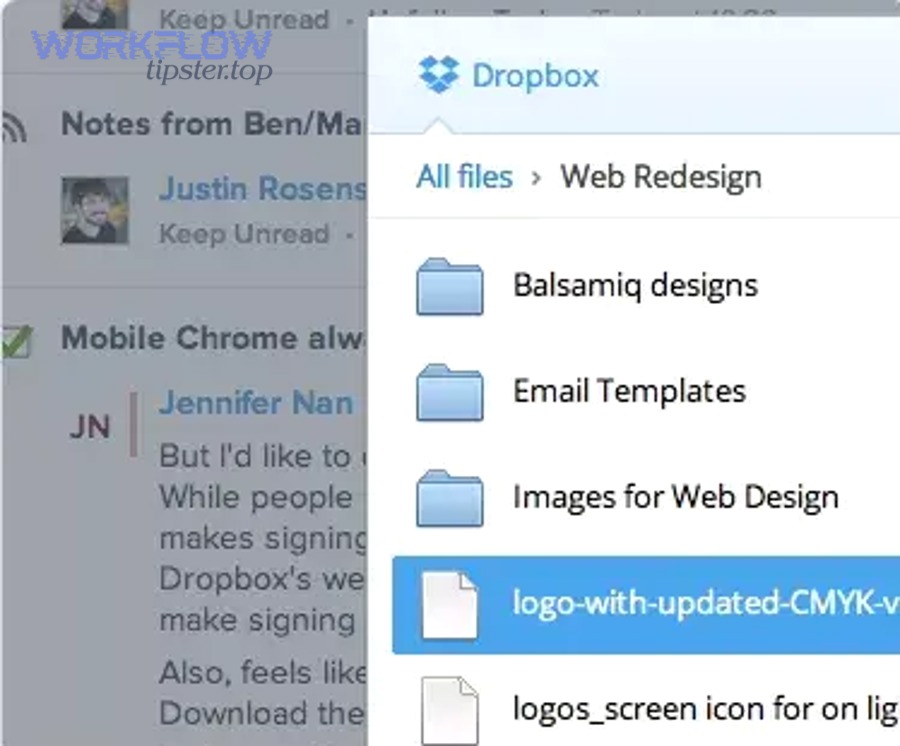
What Asana-to-Dropbox workflows are teams trying to automate most often?
There are 4 main types of Asana-to-Dropbox workflows teams automate most often: attaching files to tasks, uploading task attachments to a designated folder, creating a folder per project, and triggering task creation from new files—based on whether the workflow starts in Asana or in Dropbox.
Specifically, these are the patterns that show up again and again in real project operations:
- Attach Dropbox files to Asana tasks (context-first workflow). Teams want files visible where decisions happen: within a task, next to requirements, comments, and deadlines. This reduces “where is the latest file?” questions and keeps work review tight.
- Upload Asana task attachments to a specific Dropbox folder (storage-first workflow). Teams accept files in Asana (from clients, contractors, or internal contributors) but need everything archived and organized centrally in Dropbox for long-term storage, permissions, and internal reuse.
- Create a Dropbox folder automatically when a new Asana project is created (project scaffolding). This avoids manual folder creation and inconsistent naming. It also makes onboarding smoother because every project starts with a predictable file home.
- Create Asana tasks from new Dropbox files (file-triggered intake). This is common in creative pipelines: when a file lands in a review folder, a task is created automatically to assign reviewers and record approval steps.
Evidence: According to a study by the University of California, Irvine (Department of Informatics), in 2008, workplace interruptions and task switching were associated with measurable resumption delays and increased stress—making a strong case for reducing “tool hopping” via integrated workflows.
Is “integrate” the same as “connect” when setting up Asana and Dropbox?
Integrate wins for describing the full outcome, while connect is the setup step—because “connect” usually means authorizing the app, and “integrate” means designing repeatable workflows (attachments, rules, folder standards) that teams actually follow.
However, the words are used interchangeably in many guides, so it helps to pin down the meaning inside your team:
- Connect = enable access. Someone installs/authorizes the Dropbox app in Asana, granting permissions so Asana can reference Dropbox files and (optionally) upload attachments.
- Integrate = operationalize the workflow. You define where files should live, when uploads occur, how folders are named, and who is responsible for keeping the workflow healthy over time.
A practical rule of thumb is: if your team can explain “what happens automatically” and “where files end up,” you’ve integrated—not merely connected.
Can you connect Asana to Dropbox natively without third-party tools?
Yes, you can connect Asana to Dropbox natively because Asana supports attaching Dropbox files directly in tasks and also supports rules-based Dropbox uploads—without requiring external automation platforms for the core attach-and-store workflow.
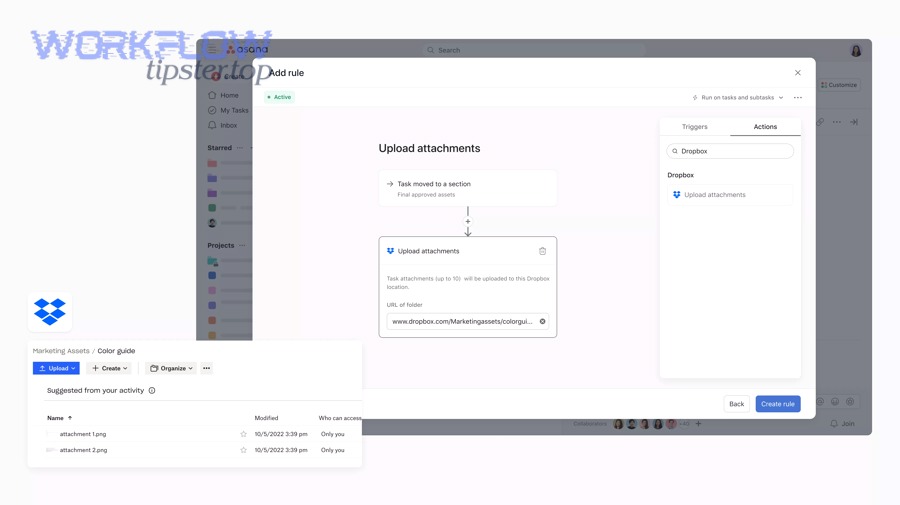
Then, once you confirm the native connection works for your day-to-day needs, you can decide whether you even need additional automation tooling.
How do you attach a Dropbox file to an Asana task or project?
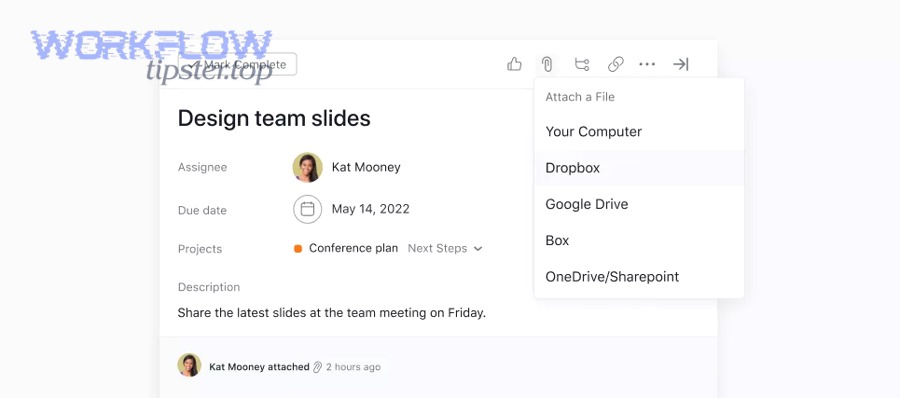
Attaching a Dropbox file to an Asana task is a simple in-task action: open the task, choose the attachment option, select Dropbox, and pick the file—so the task contains a live reference to the Dropbox file for everyone collaborating.
More specifically, a reliable team-friendly flow looks like this:
- Open the task that represents the work. Use the task title to mirror the deliverable (e.g., “Landing page hero copy v1”).
- Attach from Dropbox rather than uploading a local copy. This keeps Dropbox as the file system of record and helps avoid duplicate versions.
- Confirm access expectations. If the file is restricted in Dropbox, the Asana attachment won’t magically grant access; teammates will still need appropriate Dropbox permissions.
- Use the task description and comments to lock “why this file exists.” This is how you prevent a folder full of files with unclear purpose—Asana keeps the “why,” Dropbox keeps the “what.”
Evidence: According to Asana’s own announcement of the Dropbox integration, attaching from Dropbox is designed to give one-click access to your Dropbox library from within the task attachment flow.
What permissions does Asana request from Dropbox, and why do they matter?
Asana requests permissions so it can access Dropbox files for attaching and—when you enable rule-based uploads—write attachments into the Dropbox folder you specify, which matters because permission scope determines what folders can be selected and who can rely on the automation.
Moreover, permissions matter for three operational reasons:
- Folder targeting and reliability: if the connected account can’t see the destination folder (especially team folders), uploads may fail or land in an unexpected location.
- Security and governance: organizations often require least-privilege access and a clear owner for the connected integration account.
- Collaboration experience: teams get frustrated when they can see a file “attached” but can’t open it because Dropbox access wasn’t planned.
A practical best practice is to decide upfront whether you’ll connect via a personal Dropbox account or a managed organization account, then test with real team permissions—not only the admin’s access.
How do Asana Rules upload task attachments to a specific Dropbox folder?
Asana Rules upload task attachments to a specific Dropbox folder by letting you define a trigger (like “attachment added” or “task completed”), add the Dropbox “upload attachments” action, and point that action to a target Dropbox folder URL.
To illustrate how this works in a way teams can maintain, treat the rule as a policy: “When a deliverable is submitted, store it in the project’s Dropbox folder automatically.”
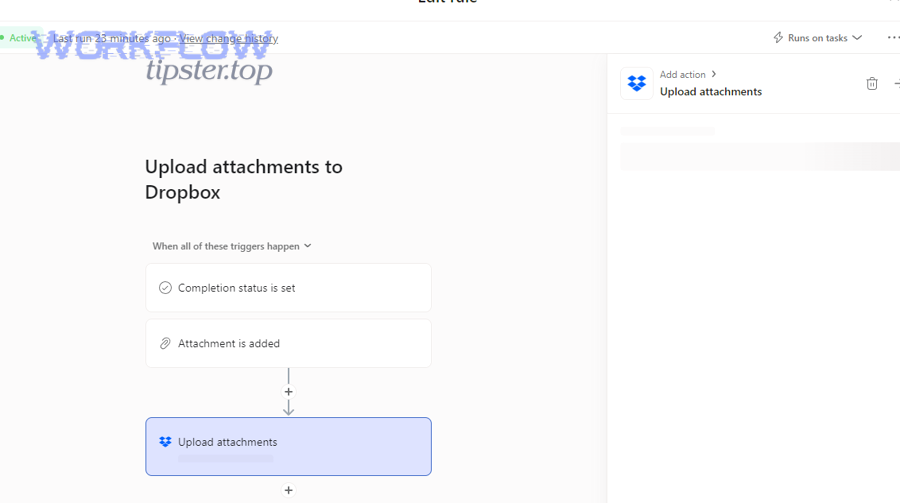
Which rule triggers and conditions are best for “upload to Dropbox” workflows?
There are 4 main types of triggers and conditions that work best for “upload to Dropbox” workflows: completion-based handoff, attachment-based intake, metadata-based routing, and approval-based gating—based on how strictly you want to control what gets uploaded.
Specifically, here’s how to choose the trigger based on the workflow behavior you want:
- Completion-based handoff (cleanest for project governance)
Trigger: “Task is marked complete”
Why it works: upload happens only when the work is “done enough” to archive.
Best for: final assets, client-ready deliverables, approved docs.
Risk: if contributors forget to complete the task, uploads won’t happen. - Attachment-based intake (fastest for creative reviews and external submissions)
Trigger: “Attachment is added”
Why it works: every submitted file is captured immediately in Dropbox.
Best for: contractor uploads, client submissions, draft design reviews.
Risk: you may upload junk unless you add conditions. - Metadata-based routing (most scalable for multi-client operations)
Trigger: custom field value, section change, or task moved
Why it works: you route uploads based on structured info (client name, project phase).
Best for: agencies, operations teams, standardized project templates. - Approval-based gating (best for compliance-heavy teams)
Trigger: approval completed / status changed to “Approved”
Why it works: only approved materials are stored into the “official” Dropbox folder.
Best for: regulated docs, brand governance, legal review deliverables.
Evidence: Asana’s Dropbox app listing and help documentation describe using rules to automatically upload task attachments to a specified Dropbox folder, reducing manual file transfers.
What should you standardize (folder naming, project structure, task fields) before enabling upload rules?
You should standardize folder naming, project structure, and task fields before enabling upload rules because automation amplifies inconsistency—so a small naming mismatch today becomes a recurring “where did the file go?” problem tomorrow.
In addition, standardization gives you three long-term benefits: predictable storage, easier onboarding, and fewer broken rules when teams scale.
A practical standardization checklist:
- Dropbox folder naming template (one pattern, everywhere). Example: Client – Project – YYYY – Phase. This makes folder scanning and search far easier.
- Asana project template structure with stable phases or sections (e.g., Intake → Drafts → Review → Approved → Delivered) so rules can key off consistent milestones.
- Task metadata that rules can depend on such as custom fields (Client, Phase, Deliverable Type, Priority) and consistent task naming that starts with the deliverable noun.
- Ownership of the integration so someone audits rule health, maintains folder links, and manages access changes.
If you do this early, the rule “Upload attachments to Dropbox” becomes a reliable system rather than a fragile experiment.
Should you use native Asana Rules or automation tools like Zapier/Relay for Asana ↔ Dropbox workflows?
Native Asana Rules win for simple, in-project file routing, Zapier is best for broad cross-app workflows, and Relay-style recipe automation is ideal when you want guided multi-step logic—so your choice should match workflow complexity, governance needs, and how many apps participate.
Meanwhile, the easiest way to decide is to compare them against the workflows you identified earlier: attach, upload, create folders, and task-from-file intake.
Before the table, here’s what it contains: the table compares when to use native Asana Rules vs Zapier vs workflow-recipe automation for Asana ↔ Dropbox, focusing on triggers, setup effort, and best-fit use cases.
| Option | Best for | Typical trigger | Typical action | Setup effort | Where it runs |
|---|---|---|---|---|---|
| Native Asana Rules | In-project automation and attachment routing | Task completed / attachment added | Upload attachments to Dropbox folder | Low | Inside Asana |
| Zapier | Cross-tool Automation Integrations across many apps | New project/task/file | Create folder, create task, add link | Medium | In Zapier |
| Recipe workflow tools (e.g., guided automation) | Multi-step flows with structured logic | Project created / status changed | Create folder + shared link + update task | Medium | In automation tool |
Evidence: Asana’s Dropbox app listing highlights rule-based attachment uploads to a selected Dropbox folder, while Zapier publishes templates for creating Dropbox folders when new Asana projects are created—demonstrating each option’s “sweet spot.”

What are the best “Asana project → Dropbox folder” automation patterns?
There are 3 main “Asana project → Dropbox folder” automation patterns: create a project folder on project creation, create a standardized subfolder set on kickoff, and generate a shared link back into Asana—based on whether you want basic organization or full bidirectional usability.
More specifically, these patterns are high-ROI and easy to maintain:
- New Asana project → create a Dropbox folder to ensure every project has a file home automatically and remove a manual step that often gets skipped.
- New project → create a standard folder structure like /Brief, /Drafts, /Approved, /Exports so organization is consistent across teams and clients.
- Create folder → create shared link → update the Asana project/task so the project/task contains a clickable “Project folder” link and nobody has to search.
This is also a great place to reference other integration patterns your team may already know, such as box to airtable workflows for document intake or freshdesk to hubspot handoffs for support-to-sales pipelines—because the underlying design principle is the same: automate the “boring but essential” routing step, then write the destination back into the system where people work.
When does third-party automation beat native rules for teams?
Third-party automation beats native rules when your workflow crosses multiple apps, requires multi-step actions (like creating links and writing them back), or needs conditional branching beyond a single project—because external automation platforms are built to orchestrate processes across systems.
Especially, third-party automation is a better fit in these scenarios:
- Multi-app pipelines: Dropbox → Asana → Slack → Google Sheets, where each step updates a different tool.
- Standardization at scale: you need folder naming tokens, templated subfolders, or writing back URLs to tasks automatically.
- Inbound file-driven work: a new file lands in Dropbox, and you want a task created with assignee, due date, and a structured checklist.
- Cross-project governance: you want the same logic applied across many projects without configuring rules repeatedly.
If your team only needs “upload attachments from this project into that Dropbox folder,” native Asana Rules are usually cleaner. If you want a full orchestration layer, third-party automation becomes the strategic choice.
How do you verify the integration works end-to-end before rolling it out to a whole team?
You verify the integration end-to-end by running a short pilot with real permissions, testing both “attach from Dropbox” and “upload to Dropbox” paths, confirming folder destinations, and documenting the expected behavior so the rollout doesn’t depend on tribal knowledge.
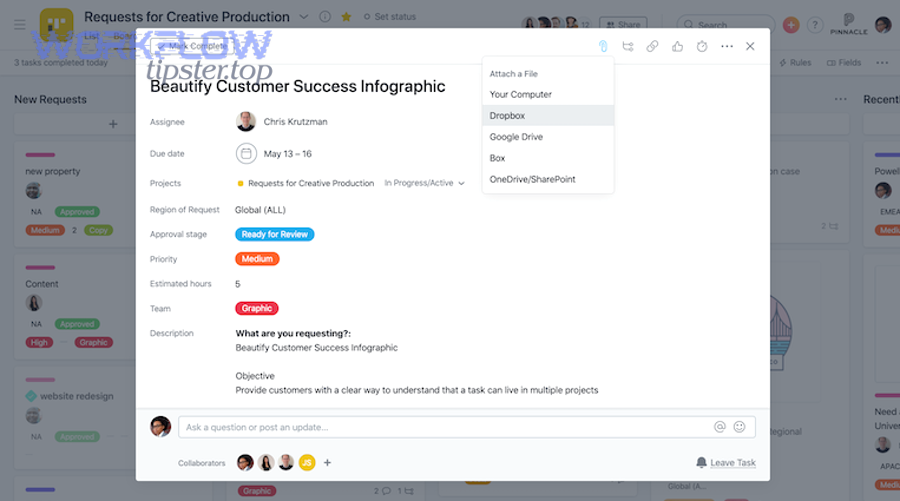
Then, once you validate the workflow in a controlled project, you can confidently replicate it across templates and teams.
What is the quickest test plan for “attach in Asana” and “upload to Dropbox” scenarios?
There are 6 quick test steps for “attach in Asana” and “upload to Dropbox” scenarios: connect, attach, verify access, enable rule, trigger upload, and confirm destination—based on proving both user experience and automation reliability.
To begin, use a dedicated sandbox project and a sandbox Dropbox folder:
- Connect the integration using the intended account type (personal vs organization-managed).
- Attach a Dropbox file to a task and confirm at least two teammates can open it (one editor, one viewer).
- Enable the upload rule (e.g., “when attachment is added → upload attachments to Dropbox”) and paste the target folder URL.
- Trigger the rule intentionally (add an attachment or mark complete).
- Confirm the file appears in the correct Dropbox folder and that the filename is understandable without context.
- Repeat once with a different user to catch permission-dependent failures.
If you run this test with real roles (not just admins), you uncover most issues before rollout.
What are the most common failure points (and what do they usually indicate)?
There are 5 common failure points: authorization issues, folder access problems, incorrect folder URLs, overly broad triggers, and team-folder edge cases—each indicating a specific fix path rather than a mysterious “it’s broken” situation.
More importantly, treat each failure like a diagnostic signal:
- “Attach from Dropbox” is missing → the app is not installed/connected in the workspace or permissions were not granted.
- Uploads don’t happen at all → the rule trigger is not firing, the integration authorization expired, or the rule is configured in the wrong project context.
- Uploads happen but go to the wrong folder → incorrect folder URL, wrong connected account, or team-folder path confusion.
- Only some people can access the attached file → Dropbox permissions are not aligned with the Asana collaborators who need access.
- Rules work in one project but not another → project-level rule configuration differences or inconsistent template structure.
Evidence: According to UC Berkeley’s People & Culture summary referencing UC Irvine research, office work is frequently interrupted and returning to the original task can take substantial time—so validating automation reliability early protects productivity during rollout.
What should you do if Asana-to-Dropbox upload rules stop working or upload to the wrong place?
If Asana-to-Dropbox upload rules stop working or upload to the wrong place, you should first validate the rule trigger and folder URL, then deauthorize and reconnect Dropbox, and finally test in a separate project to isolate whether the issue is account-level or project-level.
Next, use a consistent troubleshooting flow so the fix is repeatable and doesn’t rely on guesswork.
Does deauthorizing and reconnecting Dropbox fix broken rules?
Yes, deauthorizing and reconnecting Dropbox often fixes broken rules because it refreshes the authorization state and permissions, and community troubleshooting guidance commonly recommends this as an early step when Dropbox upload automations malfunction.
However, it won’t solve everything, so use it as part of a structured checklist:
- Confirm the rule is enabled and matches current workflow reality. If your team changed sections, statuses, or custom fields, the trigger may never fire.
- Re-check the Dropbox folder URL. A copied link from the wrong folder (or from a personal path instead of a team folder) is a common cause of misrouting.
- Deauthorize Dropbox inside Asana settings and reconnect. This often resolves token or permission scope issues.
- Test in another Asana project. If it works elsewhere, your issue is likely project configuration rather than global connection.
If you document this as a “tier-1 support” runbook, your team can self-heal most issues quickly.
Why do Dropbox Team folders sometimes route to unexpected “/home/…” paths?
Dropbox Team folders can route to unexpected “/home/…” paths because the connected account context and how the folder is referenced (personal vs team namespace) can influence the resolved destination—especially when rules rely on pasted folder URLs and organization-managed Dropbox structures.
To better understand the practical impact, consider what happens during rollout:
- An admin tests the rule using a folder they can access.
- A contributor triggers uploads, but their account context differs.
- The integration resolves the destination differently, creating confusion and “missing files.”
Mitigation strategies that work in real teams:
- Use a dedicated integration owner account with stable access to the target team folder.
- Pilot with non-admin users before rollout to catch namespace differences early.
- Write the expected destination path into the project documentation so people can confirm where files should be.
- If misrouting persists, re-create the rule after reconnecting Dropbox and copying the folder URL again from the correct folder context.
At the end of troubleshooting, your goal is not only “make it work once,” but “make it predictably work for every role.”
What advanced Asana ↔ Dropbox scenarios expand beyond basic file attachments and folder automations?
Advanced Asana ↔ Dropbox scenarios go beyond attachments and folder uploads by adding unified search with Dropbox Dash, admin-level rollout controls, and specialized considerations for team governance and developer constraints—so teams can scale access and discoverability, not just storage.
In short, this is where the integration shifts from “workflow convenience” to “organizational capability.”

How is Dropbox Dash + Asana different from the standard Asana↔Dropbox integration?
The standard integration wins for attaching and routing files, while Dropbox Dash + Asana is best for discovery because Dash is designed to search across connected services so you can quickly find Asana tasks and projects from a unified search interface.
However, teams often confuse these, so the simplest distinction is:
- Standard Asana↔Dropbox integration: helps you work (attach files, automate storage).
- Dropbox Dash + Asana: helps you find (search tasks/projects via Dash).
If your problem is “people can’t locate the right project quickly,” Dash may matter. If your problem is “files aren’t consistently stored,” the standard integration and rules matter more.
What should admins configure when enabling Asana for a team in Dropbox Dash?
Admins should configure app connections, permissions review, and team-wide enablement pathways when enabling Asana for Dropbox Dash, because Dash supports both individual connections and admin-managed rollout via an admin console depending on the organization’s setup.
Specifically, an admin-friendly approach includes:
- Decide whether connections are user-driven or admin-driven. Some organizations allow anyone to connect apps, while admins can connect apps for an entire team via an admin console flow.
- Review permission prompts and access scope. Treat this as a governance decision: what does Dash index, who can search what, and how is access enforced?
- Create a rollout message and a usage policy. Provide a short internal guide that explains what Dash is for, how to connect, and what to do if content doesn’t appear.
This is also where teams often formalize their broader “integration catalog,” documenting which systems are authoritative for which assets.
Are there API or developer limitations teams should know when working with Dropbox attachments?
Yes, teams should be aware of developer limitations because some API-based attachment flows may not support attaching third-party hosted file links the same way the native UI integrations do, which can affect custom tooling or internal automations built on top of Asana.
More specifically, if your team is building custom integrations, plan for:
- Differences between UI-native integrations and API behavior.
- Permission scope and token lifecycles, which can cause “it worked last week” failures.
- A fallback plan when attachments must be stored as links versus uploaded binaries.
If you’re not building custom code, this may not matter—but for technical teams, it prevents expensive rework.
What rare Dropbox Team folder edge cases can break automations, and how do you mitigate them?
There are 4 rare edge cases that can break automations: mismatched personal vs team folder context, unstable permission membership, copied folder URLs from the wrong namespace, and rule ownership changes—mitigated by standardizing ownership, piloting with real roles, and documenting destinations.
To sum up, treat advanced scenarios as a maturity layer:
- Level 1: attach from Dropbox in Asana reliably.
- Level 2: upload attachments to the correct Dropbox folder automatically.
- Level 3: auto-create folders and write links back to Asana.
- Level 4: unify discovery (Dash), governance (admin policies), and resilience (runbooks).
If you want to make the “rules + upload to Dropbox” part even easier for teammates, here’s one short walkthrough video on creating rules in Asana: