


If your team needs to turn Airtable records into timely Gmail messages (and keep a clean log of what was sent), an Airtable to Gmail automation is the fastest path: you define a trigger in Airtable, map fields into an email template, and let the system send or draft messages consistently—without manual copy/paste.
Next, you’ll learn whether you can do Airtable to Gmail automation without code, what “no-code” really means in this context, and where tools like Zapier or Make fit when Airtable’s native automation isn’t enough for your workflow.
Then, we’ll break down the most valuable workflows teams automate between Airtable and Gmail—sales follow-ups, support triage, onboarding sequences, approvals—so you can choose the right trigger/action pattern instead of automating the wrong thing.
Introduce a new idea: once you understand the intent behind the integration, you can design a safe connection method, pick the best integration tool, and build two core automations (send from Airtable + log back into Airtable) that scale.
What does an Airtable to Gmail integration automate in real workflows?
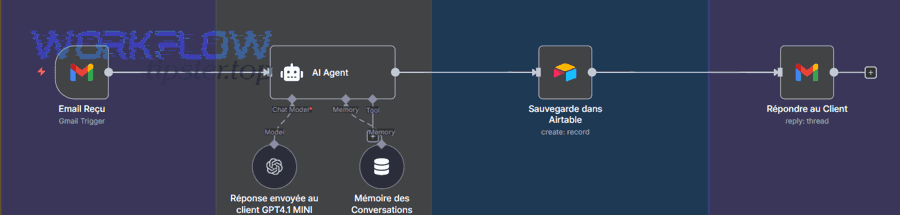
An Airtable to Gmail integration automates the movement of structured data (records/fields) into email actions (draft/send/label/log) so teams can communicate faster, consistently, and with fewer mistakes.
To better understand what this means in practice, think in “parts” : triggers decide when to act, actions decide what to do, and workflows connect multiple steps into an outcome.

What are the most common triggers used for Airtable to Gmail?
The most common triggers are new record created, record enters a view, and field changes to a specific value (for example, “Status = Ready to Email”).
Then, those triggers become reliable only when you make them explicit:
- Use a dedicated “Status” field (e.g., Draft → Ready → Sent) so humans don’t accidentally trigger sends.
- Use a “Send Email?” checkbox to force an intentional action.
- Use a filtered view like “Ready to Send” to keep the trigger criteria visible to the team.
What Gmail actions do teams automate from Airtable?
Teams typically automate send email, create draft, apply label, and sometimes route/forward messages.
Next, match the action to risk:
- Create draft when humans must review tone, pricing, or legal language.
- Send email only when the content is templated and safe (confirmations, internal alerts, standard follow-ups).
- Apply label when you want Gmail to organize inbound/outbound without changing the message body.
What does “logging emails back to Airtable” mean?
Logging means capturing a structured summary of the email event in Airtable—timestamp, recipient, subject, status, message ID/thread, and key metadata—so the base becomes the system of record.
In addition, logging enables reporting (response rate, SLA compliance) and reduces “Where did that email go?” confusion.
Can you automate Airtable to Gmail without code?
Yes—you can automate Airtable to Gmail without code because (1) Airtable Automations and no-code platforms provide UI-based triggers/actions, (2) field mapping replaces scripting for most templates, and (3) built-in logs help you validate runs before scaling.

However, “no code” still requires careful structure, so let’s explore what “no code” really includes—and what it doesn’t.
Which “no-code” options count for Airtable to Gmail?
Most teams fall into three no-code paths:
- Airtable Automations (inside Airtable): best when the logic is simple and the email content comes directly from fields.
- Zapier (third-party): best for fast setup, lots of templates, and broad app connectivity.
- Make (formerly Integromat): best when you need more complex routing/branching and data shaping.
When is “no-code” not enough?
No-code tools struggle when you need:
- Highly custom HTML email layouts with conditional sections.
- Advanced attachments logic (dynamic files, merging docs into PDFs).
- Complex deduplication across multiple tables and threads.
- High-volume sending that requires strict rate controls (and sometimes alternative sending infrastructure).
If your workflow hits these limits, you can still keep the core no-code approach and add “light code” only where required (for example, in a single transform step).
Is it safe to send emails automatically from a database?
Yes, but only if you control the risk with three safeguards: (1) explicit send gates (Status + Checkbox + View filter), (2) audit trail (log every send with record ID, timestamp, and outcome), and (3) permission boundaries (who can edit recipients vs who can trigger “Ready”).
Then, your automation becomes predictable instead of fragile.
Which workflows should teams automate between Airtable and Gmail?
There are 5 main workflows teams automate between Airtable and Gmail: (A) record-driven outbound emails, (B) inbound-to-record capture, (C) status/approval alerts, (D) reminders and follow-ups, and (E) labeling and routing—based on the criterion “where the source of truth lives and who acts next.”
Next, choose workflows that reduce repeated work and reduce coordination overhead.
Which outbound workflows are highest ROI?
Outbound workflows usually win first because they remove repetitive sending:
- Lead follow-up: when a lead is assigned → draft/send a follow-up to the lead and notify the owner.
- Client onboarding: when a deal closes → send checklist email with next steps.
- Event confirmations: when a registration record is created → send confirmation and calendar info.
A practical rule: automate outbound when the email body is mostly templated and the data is already clean in Airtable.
Which inbound workflows matter most?
Inbound workflows are about capturing emails into Airtable as structured data:
- When a Gmail message matches a search/label → create a record (ticket, inquiry, request).
- When an email arrives from a VIP domain → create a “Priority” record and assign an owner.
- When a reply arrives → update the record’s “Last Contacted” field.
This is where Gmail search operators + labels become powerful filters rather than manual triage.
Which team workflows improve coordination?
Coordination workflows reduce Slack pings and “did you see this?” loops:
- Approval requests: when status changes to “Needs Approval” → email approver with record link.
- Internal alerts: when a high-priority record is created → email the duty owner and backup.
- Reminder sequences: when due date is approaching → email assigned owner and stakeholder.
This is also a good place to reference Automation Integrations as a strategy: you’re connecting systems so people can focus on decisions, not notifications.
How do you connect Airtable to Gmail in the safest way?
The safest way to connect Airtable to Gmail is to use a principle-of-least-privilege account + OAuth-based connection + scoped automation in 4 steps: (1) choose an integration path, (2) connect a dedicated Gmail identity, (3) limit triggers to gated views/fields, and (4) validate runs in a test base before production.
Then, you reduce security risk and operational risk at the same time.
Step 1: Which integration path should you choose first?
Start with the least complex path that meets your needs:
- If you only need simple sends from Airtable fields → try Airtable Automations.
- If you need rich workflows across tools → Zapier or Make.
- If you need enterprise governance → consider standardization with a single platform across teams.
Step 2: Why should you use a dedicated Gmail account?
A dedicated Gmail/Workspace mailbox (like ops@ or notifications@) makes automation safer because:
- Access is controlled and auditable.
- Branding and templates stay consistent.
- You avoid personal inbox limits and accidental account disruption.
Also, keep Gmail sending limits in mind: Google Workspace accounts have documented daily sending quotas (for example, 2,000 messages/day per user account in Workspace, with other quota details).
Step 3: How do you prevent accidental sends?
Use a “three-lock” pattern:
- Status field (Draft → Ready → Sent)
- Send Approved checkbox
- Filtered view (Only records with Status=Ready and Approved=true)
Next, your trigger becomes “record enters view,” which is easier to reason about than “any update anywhere.”
Step 4: How do you test before going live?
Test in layers:
- Use a sandbox base with fake recipients.
- Send to an internal test inbox first.
- Validate field mapping (names, dates, formatting).
- Confirm logging: success + failure states.
Finally, only move to production after you can predict what happens when any field changes.
Which integration method is best: Zapier vs Make vs native Airtable Automations?
Zapier wins in speed-to-launch and templates, Make is best for advanced branching and data shaping, and native Airtable Automations are optimal for simple in-base workflows with minimal moving parts.
However, the “best” method depends on criteria—so compare them using the same rubric.
Before the table below, note: it contains the most decision-relevant criteria teams use when choosing an Airtable to Gmail integration method (setup effort, complexity, governance, and scalability).
| Criteria | Airtable Automations | Zapier | Make |
|---|---|---|---|
| Best for | Simple in-base email actions | Quick setup + lots of templates | Complex routing + transformations |
| Setup speed | Fast if requirements are simple | Very fast with templates | Moderate (more configuration) |
| Complexity tolerance | Low–Medium | Medium | High |
| Debugging/logs | Basic in Airtable | Strong step-by-step history | Strong scenario run history |
| Scaling workflows | Limited by native features | Good across many apps | Great for multi-step logic |
| Team governance | Good inside Airtable | Good with shared Zaps | Good with shared scenarios |
When should you prefer Airtable Automations?
Choose Airtable Automations when:
- The trigger is inside Airtable (view/field change).
- The email template is straightforward.
- You don’t need heavy branching or multi-app orchestration.
- You want fewer external dependencies.
This approach also keeps the mental model simple for teams who live in Airtable daily.
When should you prefer Zapier?
Choose Zapier when:
- You want proven templates for Airtable ↔ Gmail quickly.
- Your workflows include other apps (CRM, forms, scheduling, helpdesk).
- You want non-technical teammates to maintain automations easily.
This is also a natural spot to connect related playbooks like docusign to slack (contract signed → notify team) or box to google sheets (file uploaded → log row) as part of a broader automation ecosystem—without forcing everything into one base.
When should you prefer Make?
Choose Make when:
- You need conditional paths (if/else), iterators, aggregations, and complex parsing.
- You need robust error handling and retries.
- You want more control over payloads and transformations.
Make often becomes the “workflow engine” when your Airtable is the data hub but logic needs to be richer.
How do you build the two core automations: send emails from Airtable and log emails into Airtable?
Build the two core automations by implementing 2 methods with 7 factors (trigger gate, template mapping, identity, rate control, error handling, logging schema, and QA checks) to achieve a reliable loop: Airtable → Gmail (send/draft) → Airtable (log/update).

Next, treat these as a paired system: sending without logging creates chaos, and logging without sending misses the point.
How do you send Gmail emails from Airtable records?
To send emails from Airtable records:
- Trigger: record enters a “Ready to Send” view.
- Action: create draft or send email (depending on risk).
- Mapping: map fields into:
- To: {Email}
- Subject: “Update for {Company}: {Topic}”
- Body: include {Name}, {Status}, {Next Step}, and a record link.
Then, harden the send with practical guards:
- Add a “Sent At” timestamp field; only trigger when it’s empty.
- Add a “Send Attempt Count” and stop after 2–3 retries.
- Add a “Last Error” field to store failure reasons.
According to a study by MIT from the Department of Economics, in 2023, workers using generative AI for writing tasks finished about 37% faster (roughly 10 minutes saved on a ~27-minute task).
How do you log Gmail emails back into Airtable?
To log emails back into Airtable, create a second automation that captures a send event:
- Create a Log table (recommended) with fields:
- Record ID (linked)
- Recipient
- Subject
- Sent/Failed status
- Timestamp
- Provider message ID (if available)
- Error details
- Write logs on both outcomes:
- On success: write “Sent” + timestamp
- On failure: write “Failed” + error + next action
Next, connect logs to reporting:
- SLA tracking: time from “Ready” → “Sent”
- Quality checks: number of failures by template
- Audit: who approved and what was sent
How do you test, launch, and maintain these automations?
Use a simple lifecycle:
- Test with 5–10 sample records (internal recipients).
- Validate edge cases (missing email, missing name, long notes).
- Launch with “Draft mode” first for a week.
- Switch to “Send mode” once the template and gating are stable.
- Review logs weekly and refine triggers.
Also, if your process includes documents or collaboration, connect the ecosystem thoughtfully—like asana to google docs for automatically generating a doc from a task and then using Airtable to trigger stakeholder emails.
What are the most common Airtable–Gmail integration problems, and how do you fix them?
There are 6 common Airtable–Gmail integration problems—duplicates, missed triggers, auth failures, bad field mapping, quota/limits, and deliverability—and you fix them by diagnosing the trigger condition first, then validating the Gmail action, then tightening your logging and idempotency.
More importantly, most “automation bugs” are actually “data quality” or “trigger design” issues.
Why do duplicates happen, and how do you stop them?
Duplicates happen when the trigger fires multiple times for the same record (for example, multiple field edits cause the record to re-enter the view).
Fix it with idempotency:
- Only trigger when Sent At is empty
- Write Sent At immediately after a successful send
- Lock the record with a “Processing” status while the automation runs
Why does the automation miss records?
Misses usually occur because:
- The view filter doesn’t match the record state.
- A required field is blank at trigger time.
- The trigger is “record updated” but the condition is too broad or too narrow.
Fix it by tightening the gate:
- Use a “Ready” checkbox that users must click intentionally.
- Show a “Ready to Send” view so humans can see what will trigger.
- Add validation fields (“Email Valid?”) before allowing Ready=true.
Why do authentication and permission errors happen?
Auth errors usually happen when:
- OAuth is revoked.
- The connected account changed password/2FA settings.
- A shared automation was built under a personal account.
Fix it by standardizing identity:
- Use a dedicated Workspace account for automation.
- Restrict who can reconnect credentials.
- Document the owner and recovery steps.
How do you fix broken templates and bad formatting?
Formatting issues happen when:
- Fields contain unexpected characters.
- Empty values create awkward sentences.
- Newlines and rich text don’t render as expected.
Fix it with template discipline:
- Use fallback values (e.g., “Hi there” if {First Name} is blank).
- Keep the template modular (short sections).
- Validate with real-ish records before scaling.
How do you avoid quota issues and sending limits?
Quota issues happen when you send too many messages too quickly, or exceed daily caps. Google documents sending limits for Workspace accounts (and Gmail also enforces limits to prevent spam).
Fix it by controlling volume:
- Batch sends (e.g., digest every 15 minutes instead of instant sends).
- Use “Create draft” for high volume and send manually in smaller batches.
- Use a proper email platform when you’re doing marketing-scale sends (instead of Gmail).
Why do emails land in spam, and what helps?
Spam placement increases when:
- You send repetitive, similar content at scale.
- You include too many links or suspicious phrasing.
- Recipients don’t engage (opens/replies).
Fix it by improving legitimacy:
- Use consistent sender identity and signatures.
- Keep templates human and specific.
- For outreach campaigns, use a tool designed for compliant sending rather than raw Gmail automation.
Contextual Border: Up to this point, you’ve learned how to fulfill the primary intent—set up an Airtable to Gmail integration, choose the method, build the two core automations, and troubleshoot failures. Next, we shift into micro semantics: reliability, governance, and scaling patterns that keep the system healthy long term.
How do you make Airtable to Gmail automation reliable, secure, and scalable long term?
Airtable to Gmail automation becomes reliable, secure, and scalable when you standardize (1) governance, (2) monitoring, and (3) failure recovery—so the system behaves predictably even as volume, teammates, and workflows grow.
Next, think in antonyms: “manual” is flexible but inconsistent; “automated” is consistent but needs guardrails.
What governance rules should teams set?
Set simple rules that prevent chaos:
- One shared “automation owner” per base (or per workflow).
- Naming conventions: “ATB→Gmail: Send Follow-up (v1)”.
- Change control: edits only by owners, with a short changelog in a Notes field.
How do you protect data and permissions?
Security is mostly about limiting who can change what:
- Separate “data editors” from “automation editors.”
- Store sensitive fields (like personal emails) with controlled access.
- Use dedicated service accounts for connectors.
How do you monitor failures without babysitting?
Monitoring should be lightweight but real:
- Create a “Failed Sends” view and review daily.
- Send a daily digest email to admins (ironically, via the automation).
- Track failure rate over time in a dashboard table.
What scaling patterns work when volume grows?
When volume increases:
- Prefer “draft then approve” for risky or high-impact emails.
- Use queues: set Status=Queued, process in batches.
- Split large bases into stable, smaller workflows rather than one mega-automation.
If you’re building a broader system, you can chain related automations (without bloating one workflow): for example, a contract step (docusign to slack) can notify the team, while the Airtable record triggers a Gmail summary to the client, and a supporting doc flow (asana to google docs) generates the next-step document—each automation stays focused and maintainable.