


To connect Airtable to Kit (ConvertKit), you build an automation that moves subscriber data between your Airtable base and your Kit audience so new leads get added, tagged, and routed into the right sequences without manual copy-paste.
Next, you’ll learn how to choose the best integration method—such as a no-code connector or a workflow builder—based on how complex your creator workflow is and how much control you need over routing, mapping, and error handling.
Then, you’ll follow step-by-step instructions for both directions: Airtable → Kit (to add/tag subscribers from records) and Kit → Airtable (to log signups, tags, and purchases back into your database for reporting and operations).
Introduce a new idea: once the connection is live, reliability becomes the real win—so we’ll also cover testing, monitoring, and scaling patterns that keep your Automation Integrations stable as your list and workflows grow.
What does it mean to connect Airtable to Kit (ConvertKit) with an “automation integration”?
Connecting Airtable to Kit (ConvertKit) means linking a database and an email marketing platform through triggers and actions so subscriber information automatically moves, updates, and tags itself based on rules you define—without manual data entry.
To better understand what you’re building, it helps to separate three ideas: integration (the technical connection), automation (the “if this, then that” logic), and sync (ongoing updates that keep data aligned).
Integration is the connection between Airtable and Kit that allows data to be exchanged. In practice, this happens through a connector tool (or an API) that can “read” from one platform and “write” to the other.
Automation is the logic that decides when and how the exchange happens. For example, “When a record enters the ‘Ready to Send’ view, add that email to Kit and apply the ‘Lead Magnet: Checklist’ tag.”
Sync is the concept of keeping data consistent over time. Many creator workflows do not need full two-way sync. They need reliable, controlled updates in one direction, plus selective updates in the other direction when important events occur (like new form signups or purchases).
In creator terms, Airtable usually becomes your operational source of truth (content pipeline, launch status, segment logic), while Kit becomes your messaging and automation engine (tags, sequences, broadcasts). A good Airtable ↔ Kit setup makes your database “drive” your email actions, and your email events “feed back” into your database for tracking and decisions.
What data should be shared between Airtable and Kit to support a creator newsletter workflow?
There are 4 main groups of data to share between Airtable and Kit—identity, profile, marketing state, and lifecycle—based on whether the information helps you deliver the right email and measure the result.
Start with a minimal data model that works on day one, then expand only when you feel pain. A simple v1 schema reduces bugs, avoids duplicates, and keeps your list clean.
- Identity (required): Email address (primary identifier), optional subscriber ID if your tool provides it.
- Profile (helpful): First name, lead source, acquisition channel, location/timezone if you truly use it.
- Marketing state (core): Tags applied, segment membership rules (often modeled as tags), consent status.
- Lifecycle (operational): Current stage (New lead → Onboarding → Nurture → Offer → Customer), last synced timestamp, last key event (signup/purchase).
In Airtable, you can store tags as a multi-select field for simplicity, or as linked records if you want more reporting power. In Kit, tags are often the most practical “bridge” between database logic and email automation logic because tags are fast, flexible, and readable.
Do you need two-way sync between Airtable and Kit, or is one-way automation enough?
Airtable-to-Kit one-way automation is enough for most creators, while two-way sync is best only when you truly need real-time updates in both directions and can handle conflict resolution and loop prevention.
However, the decision should be based on workflow risk, not on what feels “more advanced.” Two-way sync can create accidental loops (“A updates B, B updates A, repeat”) and can overwrite good data with stale data.
Use this practical rule:
- Choose one-way automation if Airtable is your source of truth for segmentation and you only need Kit to receive subscribers/tags/sequences.
- Add selective reverse updates if you want to log important Kit events (new subscriber, form signup, purchase) into Airtable.
- Consider full two-way sync only if both platforms must stay aligned at the field level and you have a clear “winner” when conflicts happen.
For most creator newsletter systems, the best architecture is: Airtable drives actions, and Kit sends back key events.
Which integration method should you use to connect Airtable to Kit (ConvertKit)?
Zapier wins in simplicity, Make is best for advanced routing and data transformation, and n8n is optimal for creators who want self-hosting or deep control over logic and execution.
Meanwhile, the right choice depends on your constraints—budget, complexity, governance, and how much you value “click-and-go” versus “build-and-control.”
This table contains a quick comparison of the most common integration methods so you can choose the best fit for your creator workflow without overbuilding.
| Method | Best for | Strengths | Tradeoffs |
|---|---|---|---|
| No-code connectors (e.g., Zapier) | Fast setup, common use cases | Easy UI, templates, quick wins | Costs can rise with volume; complex logic can get messy |
| Workflow builders (e.g., Make) | Complex routing & transformations | Powerful branching (“routers”), data shaping, scenario design | Steeper learning curve; more moving parts |
| Self-host / automation platforms (e.g., n8n) | Control, privacy, advanced logic | Custom logic, self-hosting, flexible integrations | Requires ops maintenance; setup time is higher |
| Direct API / Webhooks | Engineering-grade integrations | Maximum control and performance | Requires development skills and ongoing maintenance |
Before choosing, define your non-negotiables:
- Complexity: Do you need branching logic, multiple paths, or multi-step transformations?
- Volume: How many subscribers/events per day will flow through the automation?
- Reliability: Do you need replay, retries, and good logging?
- Governance: Who will maintain it—solo creator, VA, ops manager, or developer?
Is Zapier the easiest way to connect Airtable to Kit for non-technical creators?
Yes—Zapier is often the easiest Airtable to Kit (ConvertKit) option because it offers fast setup, guided steps, and common templates, and it reduces the chance of configuration mistakes for non-technical creators.
Specifically, Zapier tends to be the fastest path when your workflow is straightforward: “New Airtable record” → “Create or update subscriber” → “Add tag” → “Start sequence.”
Zapier is usually the best fit when:
- You want a single workflow that just works.
- You prefer simple conditional filters over complex branching paths.
- You want a wide ecosystem of apps beyond Airtable and Kit (so you can later expand into other tools).
On the other hand, Zapier can become costly if you push high volume or require many steps and branches. If you find yourself splitting your logic across multiple Zaps just to keep it readable, that is a signal to consider a more visual workflow builder.
Is Make better than Zapier for multi-step routing and complex mapping?
Yes—Make is typically better for complex Airtable-to-Kit automations because it supports richer routing, flexible data transformation, and multi-path scenarios that handle real-world creator segmentation without duplicating workflows.
More specifically, Make shines when you want one scenario that routes subscribers into multiple outcomes based on Airtable fields, calculated formulas, or multiple conditions.
Make is especially strong for:
- Branching: Different flows for different lead magnets, interests, or lifecycle stages.
- Data shaping: Cleaning and transforming text, formatting names, or merging fields before sending to Kit.
- Multi-table logic: Pulling linked record data (like “Offer” or “Campaign”) and translating it into tags.
If your creator business uses Airtable as a true operations hub, Make often keeps the automation in one coherent “map” rather than scattering logic across multiple smaller automations.
Is n8n a good choice if you need self-hosting or advanced control?
Yes—n8n is a strong choice for Airtable ↔ Kit integration when you need self-hosting, deeper customization, or advanced logic that no-code tools cannot express cleanly, and you want long-term control over execution and data.
Besides, n8n is attractive when privacy, compliance, or internal governance requires tighter control over where data is processed and stored.
n8n is a fit when:
- You can manage (or hire someone to manage) deployment and maintenance.
- You need custom logic, such as idempotency, queueing, or complex branching with safeguards.
- You want to build an internal “automation backbone” that can also handle other workflows (beyond email).
The tradeoff is operational overhead. If you want a tool that a VA can safely adjust without breaking production workflows, a guided no-code connector may still be the best baseline.
How do you choose the “best” tool if you only want one automation that works reliably?
The best tool is the one that matches your workflow complexity, expected volume, and maintenance capacity—so choose a connector that can do your v1 use case with clear logs, safe retries, and easy editing by the person who will maintain it.
To illustrate, use this simple decision framework:
- Pick Zapier if your workflow is linear (few steps) and you want the fastest time-to-live.
- Pick Make if you need multiple branches, transformations, or multi-table logic and want a single “scenario map.”
- Pick n8n if you need self-hosting, advanced control, or engineering-style workflow safeguards.
A practical creator rule is: start with the simplest tool that can support your segmentation model, then upgrade only when complexity forces you to.
How do you set up Airtable → Kit (ConvertKit) step-by-step to add or tag subscribers from records?
The best method is a 7-step workflow—prepare Airtable fields and a “Ready to sync” view, choose a trigger, map identity fields, apply tags, add safety filters, test with a seed contact, and publish—so records reliably become correctly tagged Kit subscribers.
Next, the key is to build the automation around controlled entry points so Airtable does not send messy data or partial records into your email list.
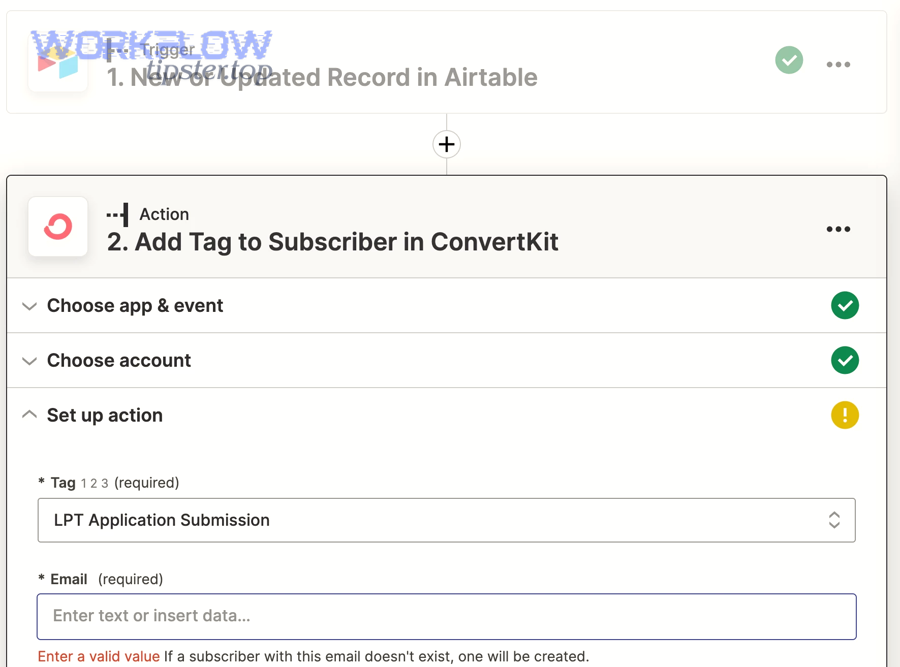
Here is the creator-friendly sequence that keeps your automation clean:
- Decide your direction: Airtable is the driver; Kit receives subscribers and tags.
- Define a “Ready” gate: A view or status field that explicitly marks records eligible for sending.
- Choose your trigger: New record in view, record updated, or scheduled scan of a view.
- Map identity fields first: Email, then name; avoid sending incomplete records.
- Apply tags and sequence entry: Use tags as stable automation switches in Kit.
- Add safeguards: Prevent duplicates and repeated runs by tracking “Last synced.”
- Test and publish: Use test contacts, then monitor logs for the first 48 hours.
What Airtable fields and views should you create before building the automation?
There are 2 main groups of Airtable setup elements—core subscriber fields and control fields—based on whether the field describes the subscriber or controls the automation flow.
More specifically, your Airtable base should make it impossible for bad data to “accidentally” become a subscriber.
- Core subscriber fields (data): Email, First name, Last name (optional), Source, Lead magnet, Interest, Notes.
- Control fields (automation): Status (e.g., New/Ready/Synced/Paused), Consent (Yes/No), Tags to apply, Last synced (timestamp), Sync errors (text), External ID (optional).
Create a dedicated view such as “Ready to Send to Kit” that filters records where:
- Email is not empty and looks valid (you can use validation patterns or strict processes).
- Status equals “Ready.”
- Consent equals “Yes” (or the appropriate consent state for your audience).
- Last synced is empty (or “Needs update” is true).
This “view gate” is a simple but powerful safeguard. It reduces accidental imports, and it makes troubleshooting easier because you can see exactly which records are queued.
How do you map Airtable fields to Kit subscriber fields and tags without breaking your list hygiene?
Mapping Airtable to Kit works best when you treat email as the stable identifier, map only essential profile fields, and use a small set of consistent tags that represent meaningfully different states—so segmentation stays clean and automations remain understandable.
Specifically, your goal is not to mirror your entire Airtable table inside Kit; your goal is to send only the data that Kit needs to deliver correct messaging.
This table contains an example field-to-field mapping that keeps hygiene intact and avoids tag sprawl.
| Airtable field | Kit target | Mapping rule | Why it matters |
|---|---|---|---|
| Subscriber email | Trim spaces; lowercase; block blank | Prevents duplicates and errors | |
| First name | First name (custom field or profile) | Fallback to “there” if blank in emails (optional) | Improves personalization safely |
| Lead magnet | Tag | Tag like “LM: Checklist” | Explains why they joined |
| Interest | Tag(s) | Use a controlled vocabulary (few options) | Avoids exploding tag count |
| Status | Internal (Airtable only) | Do not send unless used for Kit logic | Keeps Kit clean |
For tags, use conventions that communicate meaning:
- Source tags: “SRC: YouTube,” “SRC: Webinar,” “SRC: Referral.”
- Lead magnet tags: “LM: Checklist,” “LM: Template,” “LM: Free Course.”
- Lifecycle tags: “STAGE: Onboarding,” “STAGE: Customer.”
When you keep tag categories distinct, your automation rules stay readable, and you avoid the trap of creating dozens of near-duplicate tags that no one trusts.
How do you prevent duplicates when multiple Airtable updates happen to the same contact?
You prevent duplicates by using email as the unique identifier, using “create-or-update” actions instead of “create only,” and adding at least three safeguards—status gating, last-synced timestamps, and change-detection rules—so repeated record edits don’t produce repeated subscriber actions.
More importantly, duplicates are usually a process problem, not a tool problem, so your Airtable workflow must control when a record becomes “ready.”
Use these practical safeguards:
- Status gating: Only send when Status = Ready, then automatically set Status = Synced.
- Last synced timestamp: Write back a timestamp after a successful run, and filter out already-synced records.
- Upsert behavior: Prefer “Create or Update Subscriber” so the same email updates instead of duplicating.
- Single source of truth for tags: Decide whether Airtable or Kit owns the tag set for that workflow, not both.
If you need finer control, store an “External ID” field in Airtable that contains Kit’s subscriber ID (when available). That gives you a second stable key and makes event logging easier later.
How do you set up Kit (ConvertKit) → Airtable step-by-step to log new subscribers, form signups, and purchases?
The best method is a 6-step reverse-flow setup—choose a Kit event trigger, map identity fields, decide create vs update, store event metadata, write a clear audit trail, and validate dedupe rules—so Airtable becomes a reliable operations dashboard for your email growth.
Then, instead of trying to mirror everything, you capture the events that matter for decisions: who joined, what they requested, and what they bought.
Here’s the step-by-step flow creators commonly use:
- Select a trigger: New subscriber, form submission, tag added, purchase completed.
- Normalize identity: Email, name, and any unique IDs your tool provides.
- Choose record behavior: Create a new subscriber record or update an existing one.
- Record the event: Store event type, timestamp, source form/offer, and tags.
- Write an audit trail: Keep a log table so you can debug “why did they get tagged?”
- Test and validate: Run test signups and ensure no duplicate records are created.
Which Kit events should trigger Airtable record creation vs record updates?
There are 2 main types of Kit events—identity events and lifecycle events—based on whether the event introduces a brand-new person or changes the state of an existing person.
Specifically, this separation prevents Airtable from creating duplicate subscriber rows for the same email.
- Create a record (identity events): New subscriber, first-time form signup, first-time lead magnet delivery.
- Update a record (lifecycle events): Tag added/removed, sequence started/completed, purchase completed, subscriber became inactive/unsubscribed (if available).
Creators often get the best results by using two Airtable tables:
- Subscribers table: One row per email with current status and current key tags.
- Events table: Many rows per email recording signups, purchases, tag changes, and timestamps.
This structure supports clean reporting. You can see a subscriber’s current state in one place, but you can also explain how they got there by reading the event history.
Should you store Kit tags in one Airtable field or in a linked table?
Multi-select fields win for speed and simplicity, while a linked Tags table is best for reporting, normalization, and consistent naming across teams—so choose multi-select for v1 and switch to linked records if you need analytics or scalable governance.
However, the decision depends on how you use tags in Airtable, not on what looks “more database-like.”
Use one field (multi-select) when:
- You only need tags for quick filtering and manual ops.
- You have a controlled set of tags (dozens, not hundreds).
- You do not need tag-level analytics across campaigns.
Use a linked Tags table when:
- You want to measure performance by tag (growth, conversion, lifecycle movement).
- You need metadata per tag (category, owner, meaning, automation rules).
- You want to prevent spelling drift (e.g., “LM: Checklist” vs “LM Checklist”).
If you choose linked records, standardize tag categories early. That makes it easier to translate Airtable segmentation into Kit automations without confusion.
What are the most useful Airtable ↔ Kit automation recipes for creators?
There are 2 main sets of Airtable ↔ Kit automation recipes—starter recipes and advanced launch recipes—based on whether the automation solves everyday list-building or supports complex segmentation and revenue workflows.
In addition, once these recipes work, you can expand into adjacent workflows such as “google docs to datadog” monitoring notes or “google forms to zendesk” support triage flows as part of your broader Automation Integrations strategy.
A “recipe” is a repeatable pattern that you can clone. The best recipes keep three things stable: the trigger, the identifier (email), and the state change (tag/status update).
Which 5 beginner automations cover 80% of creator workflows?
There are 5 main beginner automations creators use most often: Airtable-to-Kit subscriber creation, tag-based segmentation, lead magnet onboarding, purchase tagging, and database updates from key Kit events—based on the core lifecycle stages of a newsletter business.
To begin, pick one recipe, implement it end-to-end, and only then add the next, so you don’t create a fragile web of half-tested workflows.
- New Airtable record → Create/Update subscriber in Kit: Sends approved contacts from Airtable into Kit with the right baseline tags.
- Airtable status change → Apply/Remove a Kit tag: Example: Status = “Webinar Attended” adds “EVENT: Webinar” tag.
- Lead magnet field → Start onboarding sequence: Lead magnet choice determines which onboarding sequence is triggered.
- Purchase recorded → Apply customer tag: Moves subscribers into a customer segment and prevents prospect-only promos.
- New Kit subscriber/form signup → Update Airtable subscriber record: Captures source and signup date for reporting.
These recipes reduce manual work, keep segmentation consistent, and create a reliable bridge between database truth (Airtable) and messaging actions (Kit).
Which advanced automations help with launches and audience segmentation?
There are 4 main advanced automations for launches—multi-path routing, interest scoring, reactivation flows, and VIP segmentation—based on how they move subscribers through a campaign with minimal manual effort.
More specifically, advanced automations are about controlling timing and state at scale while keeping your messaging relevant.
- Multi-path routing by interest: Airtable fields determine tags and sequences so each subscriber enters the correct path.
- Engagement or interest scoring: Airtable calculates scores (e.g., “clicked offer link”) and Kit tags reflect those scores for segmentation.
- Reactivation loop: Inactive subscribers get tagged and routed into a re-engagement sequence; outcomes update Airtable status.
- VIP / early-access automation: High-intent leads or customers get VIP tags and early access notifications based on Airtable criteria.
Advanced recipes work best when you log events into Airtable so you can debug why someone went down a path. Without logging, advanced branching becomes hard to trust.
How do you test, monitor, and troubleshoot an Airtable to Kit integration?
Testing and troubleshooting an Airtable to Kit integration works best with a checklist approach—validate triggers, confirm mapping, inspect logs, replay failures, and monitor duplicates—so you can quickly isolate the exact step where data stops moving.
Especially when you are dealing with subscriber data, a disciplined testing routine prevents silent failures that cost you leads and erode trust in your system.
Use a three-layer safety system:
- Pre-flight checks: Airtable view gates and required fields block bad records from entering the automation.
- In-flight checks: Connector logs show each step’s request and response, including errors.
- Post-flight checks: Airtable “Last synced” and “Sync errors” fields show outcomes at the record level.
What should you check first if the automation “runs” but subscribers aren’t added or tagged?
There are 6 main checks to run first—trigger, filters, email validity, action mapping, tag existence, and permissions—based on the most common failure points that allow an automation to run while still producing no subscriber change.
Then, work from the top of the workflow downward so you don’t waste time debugging the wrong layer.
- Trigger firing: Confirm the record actually entered the “Ready” view or met the update condition.
- Filters and paths: Check if a filter blocked the record (for example, Consent was not “Yes”).
- Email validity: Ensure the email field is not blank, does not contain spaces, and matches a valid structure.
- Action mapping: Verify the email field is mapped to the email input in Kit, not to a name field by mistake.
- Tag existence and spelling: Confirm the tag exists in Kit and your automation uses the correct exact name.
- Auth and permissions: Reconnect the account if the connector lost access or credentials changed.
A fast way to debug is to run a single known-good test record with a clean email and minimal fields, then gradually add complexity until the failure repeats.
How do you handle rate limits, timeouts, and partial failures safely?
You handle rate limits and partial failures safely by adding throttling, retries, and replay mechanisms, plus at least three protections—batching, backoff delays, and a “failed items” queue—so the system recovers without duplicating subscribers or losing events.
More importantly, resilience is designed, not hoped for, so your automation must have a plan for “what happens when a step fails.”
- Batching: Process records in manageable groups instead of triggering hundreds of updates at once during a launch.
- Backoff delays: Add short delays between requests when sending multiple actions to Kit in a row.
- Retries: Enable safe retries for transient errors (timeouts), but avoid repeating “create” actions without an upsert key.
- Replay queue: Write failed records into a “Needs Retry” Airtable view with an error message so you can reprocess intentionally.
If you adopt an event-log table in Airtable, you can replay missed events by rerunning only the failed event rows rather than rerunning your entire subscriber table.
According to a study by Carnegie Mellon University from the Department of Engineering & Public Policy, in 2010, structured checklist use in complex processes significantly reduced errors and improved consistency—an approach that translates well to automation testing and monitoring.
How can you make Airtable ↔ Kit integrations more robust as you scale?
You make Airtable ↔ Kit integrations more robust by improving data modeling, designing idempotent workflows, tightening consent handling, and setting clear rules for when to use connectors versus webhooks or direct APIs—so growth increases reliability instead of breaking it.
In short, scaling is not only about processing more events; it is about preventing the same event from being processed twice and making it easy to explain every subscriber state change.
As your list grows, the most common “scaling pain” is not volume itself; it is ambiguity. Ambiguity creates duplicate tags, inconsistent lifecycle stages, and automations that nobody dares to touch. Robustness comes from a few disciplined design choices.
What’s the best Airtable data model for subscribers, events, and tags?
A single Subscribers table wins for speed, while a Subscribers + Events model is best for auditability, and a fully normalized Subscribers + Events + Tags model is optimal for analytics and governance—so choose the simplest model that supports the decisions you need to make.
However, the right model depends on whether you need history, not just current state.
Model 1: One table (v1 simplicity)
- One row per subscriber
- Current tags as multi-select
- Last signup date and last purchase date fields
Model 2: Subscribers + Events (best balance for creators)
- Subscribers table: current status, current key tags, acquisition source
- Events table: form submissions, tag changes, purchases, timestamps
- Benefit: you can explain “why” a subscriber is in a state
Model 3: Subscribers + Events + Tags (analytics and governance)
- Tags become linked records with metadata
- Benefit: consistent naming, reporting by tag category, clearer ownership
If you want robust segmentation and trustworthy reporting, Model 2 is often the sweet spot for creators.
How do you design idempotent automations to avoid double-sends and infinite loops?
Idempotent automation means the same event can run multiple times but produces the same final result, and you achieve it by using stable identifiers, “create-or-update” actions, processing flags, and loop breakers—so retries and edits never duplicate subscribers or spam tags.
More specifically, idempotency is the difference between an automation you trust and an automation you fear during a launch.
Use these proven safeguards:
- Stable key: Use email and, when available, store the Kit subscriber ID as a secondary key.
- Upsert actions: Prefer create-or-update patterns over create-only patterns.
- Processing flags: Add fields like “Synced = Yes,” “Last synced,” and “Last event ID processed.”
- Loop breakers: If Kit events update Airtable, ensure Airtable-to-Kit triggers ignore changes made by the integration (for example, a “Updated by integration” flag).
- Event log replay control: Reprocess only events that failed, not the entire subscriber table.
When you implement idempotency, retries become safe, and monitoring becomes simpler because “duplicate outcomes” stop being a constant threat.
What are common privacy and consent pitfalls when syncing emails between Airtable and Kit?
There are 4 common privacy pitfalls—unclear consent, over-collection, poor unsubscribe handling, and uncontrolled access—based on how creator teams accidentally treat subscriber data like internal notes instead of regulated personal information.
Moreover, a robust system respects the subscriber as a person, not just a record.
- Unclear consent: Sync only contacts who have consented, and represent consent explicitly in Airtable.
- Over-collection: Do not push unnecessary fields into Kit if you will not use them for messaging.
- Unsubscribe mismatch: Decide how unsubscribes should be represented in Airtable and avoid re-adding unsubscribed contacts through Airtable triggers.
- Access sprawl: Limit who can edit fields that control automation, such as “Ready,” tags to apply, or consent flags.
If you rely on lead magnets and opt-ins, keep a clean audit trail of when and how the subscriber joined. That protects both deliverability and trust.
According to a study by the University of California, Berkeley from the School of Information, in 2019, clearer data governance practices were associated with fewer data handling mistakes in organizational workflows—reinforcing the value of explicit consent and controlled access in subscriber systems.
When should you switch from no-code connectors to webhooks or direct API integration?
No-code connectors win for speed, webhooks are best for real-time event capture, and direct APIs are optimal for high-volume or highly customized workflows—so you should switch when volume, complexity, or governance requirements exceed what a click-based connector can manage safely.
Besides, switching does not mean abandoning your existing system; it often means moving only the fragile or high-volume parts to a more controlled method.
Switch to webhooks or APIs when:
- You need real-time events: Immediate updates on form signups or purchases.
- You need reliability at scale: Better retry control, queueing, and observability.
- You need custom logic: Complex transforms, multi-base lookups, strict idempotency, or conflict resolution.
- You need governance: Auditing, permission management, and controlled deployments.
In practice, a common growth path is: start with a no-code connector for rapid validation, then evolve into a hybrid system where core subscriber flows remain simple while advanced event logging and scaling safeguards move to webhooks or API-driven automation.
To sum up, if you build the Airtable ↔ Kit connection with clean data gates, consistent tags, reliable logging, and idempotent safeguards, you get a creator system that scales with your audience—without losing segmentation clarity or operational control.