


Connecting ActiveCampaign to Notion is a practical way for marketers to automate lead tracking, campaign operations, and sales handoffs by turning ActiveCampaign events (triggers) into Notion updates (actions)—so your team stops copying data manually and starts working from a single, organized system.
Then, once you understand the basics, the real leverage comes from choosing the right triggers, mapping fields cleanly, and designing Notion databases that match how marketers actually triage leads, manage deals, and coordinate campaigns—without creating chaos or duplicates.
Moreover, you’ll get better results when you prioritize high-ROI workflows first (like “new lead → create Notion page” and “tag added → update status”) and bake in consistent rules for identifiers, property types, and data hygiene from day one.
Introduce a new idea: below, you’ll follow a structured path—from defining what the integration really means, to building workflows step by step, and finally optimizing reliability, governance, and scale.
What does it mean to connect ActiveCampaign to Notion for automation workflows?
Connecting ActiveCampaign to Notion is a workflow automation setup that sends marketing events from ActiveCampaign (origin) into structured Notion databases (destination) by using triggers and actions to create or update pages with consistent properties.
Next, to make this connection useful for marketers, you need to understand the moving parts and how data flows between them.
What are “triggers” and “actions” in ActiveCampaign-to-Notion automation?
Triggers and actions are the cause-and-effect engine of your automation: a trigger is the ActiveCampaign event that starts the workflow, and an action is what your automation tool performs in Notion, such as creating or updating a database page.
Specifically, marketers should treat triggers as “intent signals” and actions as “operational outputs” that keep the team aligned.
Common ActiveCampaign triggers marketers use
- A new contact is created (lead capture, imports, or API-created contacts)
- A tag is added to a contact (segmentation, lifecycle stage changes)
- A contact subscribes to a list (newsletter, product updates)
- A deal is created or moves stage (pipeline progress, handoff moments)
- A custom field changes (qualification score, persona, region)
Common Notion actions that matter operationally
- Create a page in a Notion database (e.g., “Leads”)
- Update an existing page’s properties (e.g., status, owner, last activity)
- Append notes or timeline fields (e.g., last email clicked, last tag added)
- Link records via relations (advanced teams)
To keep terminology consistent, use this simple mental model:
- Trigger = “What happened?” (in ActiveCampaign)
- Action = “What should we change?” (in Notion)
Is ActiveCampaign-to-Notion automation usually one-way or two-way?
One-way wins in reliability, two-way is best for shared editing, and hybrid is optimal for governance: one-way (ActiveCampaign → Notion) is the safest default, two-way only works well when you tightly control edits, and hybrid splits responsibilities between systems.
However, your decision should be based on what you want Notion to be: a reporting workspace, or a true operational source of truth.
One-way (ActiveCampaign → Notion) typically wins for marketers because:
- ActiveCampaign remains the system of record for contact truth (email, tags, automations).
- Notion becomes the marketing workspace for planning, triage, and collaboration.
- Fewer conflicts and fewer edge cases (less chance of overwriting correct data).
Two-way can be valuable when:
- Your team updates lead status, notes, and assignments in Notion first
- You need those updates to drive ActiveCampaign automations (more advanced)
Hybrid often becomes the “best of both worlds”:
- ActiveCampaign → Notion for event logging and lifecycle updates
- Notion → ActiveCampaign only for a limited set of fields (e.g., “assigned owner,” “qualified = yes/no”) with strict rules
What outcomes are marketers trying to achieve by sending ActiveCampaign data to Notion?
There are two main outcome groups marketers aim for—pipeline visibility and campaign operations—based on whether the Notion database is used to manage leads/deals or to coordinate content and launches.
To better understand what to build, let’s group outcomes by how marketing teams actually work day to day.
Which lead and CRM-style use cases fit Notion best?
There are 5 core CRM-style use cases that fit Notion best—Lead Inbox, Qualification Queue, Owner Assignment, Deal Tracker, and Handoff Hub—based on how structured databases support filtering and workflow views.
- Lead Inbox (triage)
- Goal: every new inbound lead lands in a single Notion view
- Useful views: “New today,” “Unassigned,” “Needs follow-up”
- Qualification Queue
- Goal: route leads to “Qualified / Not Qualified / Needs info”
- Properties: lead score, persona, company size, region
- Owner Assignment + SLA tracking
- Goal: assign a lead owner and track response deadlines
- Properties: owner, priority, due date, last activity timestamp
- Deal Tracker (marketing-to-sales visibility)
- Goal: reflect deal stage changes in Notion
- Properties: pipeline stage, expected value, close date, last stage change
- Sales handoff hub
- Goal: package the lead’s context in Notion (notes, campaign source, behavior)
- Properties: source campaign, key tags, last link clicked, key pages visited (if available)
The key is consistency: the moment your Notion database has stable properties and views, the integration becomes a reliable operational layer rather than a messy mirror.
Which content and campaign ops use cases fit Notion best?
There are 4 campaign ops use cases that fit Notion best—Campaign Calendar, Asset Production, Email Sequence Planning, and Performance Notes—based on Notion’s strength in collaboration, linked context, and repeatable templates.
- Campaign Calendar + launch checklist
- Connect: campaign tag applied → add campaign row/page
- Use: dates, milestones, owners, approvals
- Asset production tracking
- Connect: “creative requested” tag → create task page
- Use: brief, spec, copy, design status, links
- Email sequence planning tied to segments
- Connect: segment tag added → update “Target segment” property
- Use: sequence name, offer, hypothesis, CTA links
- Performance notes database
- Connect: key events (e.g., “clicked pricing”) → append a note
- Use: lightweight analysis and learning capture
This is where your broader ecosystem matters: marketing teams often build a hub of Automation Integrations across tools, so Notion becomes the “coordination spine” while ActiveCampaign stays the “delivery engine.”
Do you need Notion databases to connect ActiveCampaign to Notion effectively?
Yes—you generally need Notion databases for ActiveCampaign-to-Notion automation because databases provide consistent properties, searchable structure, and scalable views that prevent messy page sprawl and enable reliable create-or-update logic.
Moreover, the database decision directly affects whether your workflows stay clean at 100 records or fall apart at 10,000.
Three reasons databases are the marketer-friendly default
- Structure: properties (email, status, owner) keep fields consistent
- Search & matching: you can locate existing records for “update” workflows
- Operational views: filters, kanban boards, and grouped lists support daily work
What Notion database structure works best for leads and deals?
There are 2 main database structures that work best—Single Database and Two-Database Model—based on whether your pipeline complexity requires separating leads from deals.
Option A: Single database (simpler teams)
- Database: Leads
- When it fits: early-stage marketing, lightweight pipeline, fewer handoffs
- Core properties:
- Email (text) — unique matching key
- Name (title)
- Status (select): New / Contacted / Qualified / Disqualified
- Source (select): Form / Webinar / Ad / Referral
- Tags (multi-select)
- Owner (people or text)
- Last Activity (date)
- Created At (date)
Option B: Two-database model (marketing + sales alignment)
- Databases: Leads + Deals/Opportunities
- When it fits: real pipeline stages, deal values, multiple opportunities per contact
- Extra Deal properties:
- Stage (select): Discovery / Proposal / Negotiation / Won / Lost
- Value (number)
- Close Date (date)
- Related Lead (relation)
If your Notion workspace supports relations well, the two-database model gives cleaner analytics and avoids forcing “deal logic” into lead rows.
What is the minimum set of properties you should create before mapping fields?
There are 8 minimum properties you should create—based on what most workflows need for triage, deduplication, and lifecycle tracking.
- Title (Name or Company)
- Email (text) — your primary match key for most marketing teams
- Status (select) — your operational workflow driver
- Source (select) — attribution at a glance
- Tags (multi-select) — segmentation and intent signals
- Owner (people or text) — accountability
- Created At (date) — baseline reporting
- Last Activity (date) — recency and follow-up priority
Before you map anything, decide which system “owns” each property:
- ActiveCampaign should own: email, tags, core lifecycle signals
- Notion can own: internal notes, assignments, task states
How do you set up an ActiveCampaign → Notion workflow step by step?
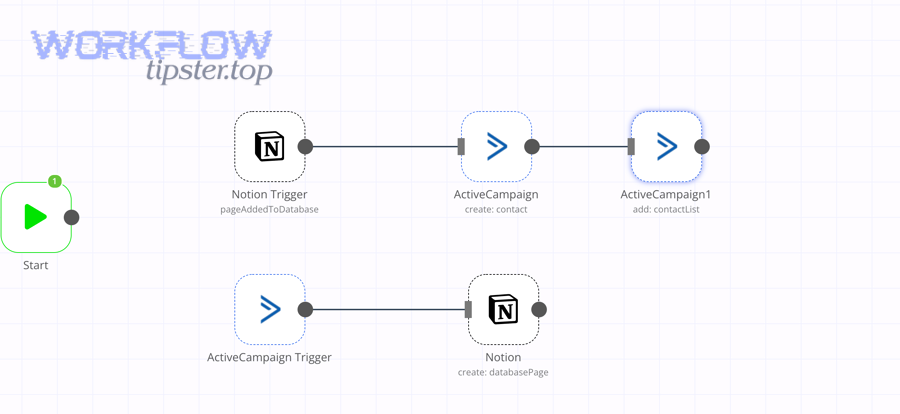
Setting up an ActiveCampaign → Notion workflow is a repeatable integration method that includes connecting accounts, selecting a trigger, mapping fields to Notion properties, testing with sample events, and publishing a monitored automation so new events consistently update your Notion database.
Then, once the workflow is live, you refine it by choosing the right trigger type and mapping rules that match your marketing goal.
Step-by-step setup (tool-agnostic)
- Define the outcome: what should appear/change in Notion? (e.g., create a lead row)
- Prepare the Notion database: create the minimum properties and views
- Connect accounts: authorize ActiveCampaign and Notion in your automation tool
- Choose the trigger: pick the event that best represents real intent
- Add “search/match” step (recommended): find an existing Notion page by Email or ID
- Create or update: create if not found, update if found
- Map fields: align ActiveCampaign fields/tags to Notion properties
- Test with controlled data: run a test contact and verify properties
- Publish + monitor: watch logs, handle failures, refine
A practical way to reduce mistakes is to document your mapping in a simple table. This table contains a “field mapping blueprint” so you avoid mismatched property types and unclear ownership:
| ActiveCampaign field | Notion property | Property type | Ownership rule |
|---|---|---|---|
| Text | ActiveCampaign is source of truth | ||
| Tags | Tags | Multi-select | ActiveCampaign updates; Notion views filter |
| Lead score | Score | Number | ActiveCampaign updates |
| Lifecycle stage | Status | Select | ActiveCampaign updates; Notion team can add internal status if needed |
| Assigned owner | Owner | People/Text | Decide: Notion owns assignment or ActiveCampaign owns assignment |
How do you choose the right trigger in ActiveCampaign for your marketing goal?
A “tag added” trigger wins for segmentation accuracy, a “new contact” trigger is best for universal capture, and a “deal stage change” trigger is optimal for pipeline handoff visibility.
However, the best trigger is the one that fires at the exact moment your team needs something to change in Notion.
Trigger decision framework (marketer-focused)
- Use “New contact created” when you want every lead logged in Notion
- Use “Tag added” when your team relies on tags for lifecycle, segments, and intent
- Use “Subscribes to list” when list membership is the key milestone
- Use “Deal created/stage changed” when your Notion workspace mirrors pipeline stages
Avoid unreliable triggers if they create noise:
- Triggering on “any field updated” can flood Notion with low-value changes
- Triggering on email opens can create volume without real intent
How do you map ActiveCampaign fields to Notion properties without losing data?
Mapping fields without losing data means matching each ActiveCampaign value to the correct Notion property type, normalizing formats (like tags), and preventing overwrites by applying rules for empty values, controlled vocabulary (select options), and consistent naming.
More specifically, marketers should treat property types as “contracts” that keep automation stable.
Practical mapping rules
- Text → Text: safest default for unpredictable values
- Tags → Multi-select: normalize tag names to consistent casing
- Status/stage → Select: pre-create select options so updates never fail
- Dates → Date: ensure timezone expectations are clear
- Numbers → Number: lead score, deal value, engagement score
Avoid “silent breakage”
- If Notion expects Select options that don’t exist, your workflow can fail or drop values
- If you map tags into a single Select, you lose multi-tag reality
- If you overwrite Owner with an empty value, you break accountability
Which automation workflows should you build first for the fastest marketing ROI?
There are 5 best-first workflows for fast ROI—Lead Capture, Tag-Based Status Update, Owner Assignment, Deal Stage Mirror, and Follow-Up Task Creation—based on impact-to-effort ratio for marketing operations.
Next, you should start with “create page” workflows and then layer in “update page” workflows to prevent duplicates and maintain data quality.
Which “create page” workflows are best for beginners?
There are 3 beginner-friendly create-page workflows—New Lead, New Subscriber, and New Deal—based on how easily they map to clear Notion outcomes.
- New lead (form submission or contact created) → Create Notion Lead page
- Outcome: marketing gets an instant triage queue
- Notion properties: email, source, created at, status = “New”
- New subscriber → Create/Update Notion Lead page
- Outcome: newsletter growth becomes visible in a shared workspace
- Notion properties: list name, subscription date, engagement notes
- New deal created → Create Notion Deal page
- Outcome: pipeline visibility without asking sales for screenshots
- Notion properties: stage, value, close date, related lead
A quick win is using Notion views:
- “New leads today”
- “Unassigned leads”
- “Hot leads (score > X)”
Which “update page” workflows reduce duplicate records?
There are 4 update workflows that reduce duplicates—Tag Added Update, Status Update, Deal Stage Update, and Field Update—based on “search then update” logic.
- Tag added → Update Tags + Status
- Example: tag “MQL” updates status to “Qualified”
- Lifecycle change → Update Status
- Example: lead becomes “SQL” → status changes automatically
- Deal stage changed → Update Deal Stage
- Example: Proposal sent → stage = “Proposal”
- Key custom field updated → Update corresponding Notion property
- Example: “Region = US” updates Region select
If you also build automations beyond this integration, you’ll notice a pattern: a clean “search then update” approach applies just as well to workflows like gmail to jira (create an issue from a labeled email) or asana to box (create a folder when a task enters a production stage)—the logic is universal even though the apps differ.
How do you prevent duplicates and keep records consistent between ActiveCampaign and Notion?
Preventing duplicates means establishing a unique identifier, using search-before-create logic, and defining a source of truth so ActiveCampaign events update the correct Notion page instead of generating multiple pages for the same person.
Moreover, duplicate prevention is not a “nice-to-have”—it directly affects your team’s trust in the system and the time spent cleaning data.
Core duplicate-prevention system (marketer version)
- Pick a match key (usually email)
- Add a search step: find Notion page where Email = trigger email
- If found → update
- If not found → create
- Log what happened (optional): “last sync status” property
Why this matters: Notion’s API is rate-limited, so inefficient duplicate behavior can create unnecessary calls and failures at scale. Notion’s developer documentation describes request limits as an average of three requests per second per integration.
Should you use email as the unique key for matching records?
Yes—email is usually the best unique key for matching records in ActiveCampaign-to-Notion workflows because it is stable, human-recognizable, and commonly available in every lead event, but you should also prepare fallbacks to handle missing or changing emails.
However, the best key depends on how your leads enter the system and how strict your identity rules are.
Three reasons “email” works well
- Availability: nearly every marketing trigger includes email
- Uniqueness: most marketing databases treat email as a unique identity anchor
- Operational clarity: team members can spot errors quickly
When email becomes risky
- Leads enter without email (top-of-funnel forms)
- People change emails (rare but real for B2B)
- Shared inboxes (info@) create multiple “people” behind one address
Fallback strategy
- Use email as primary
- Store ActiveCampaign contact ID as a secondary identifier
- If email is missing, create a temporary Notion record and update later
What is the difference between “create,” “update,” and “upsert” for Notion pages?
Create wins for brand-new leads, update is best for known leads, and upsert is optimal for automation stability because upsert combines search + create/update logic to prevent duplicates while keeping workflows reliable.
On the other hand, using “create only” for every trigger is the fastest way to generate messy databases and waste time.
Create
- Always makes a new Notion page
- Best for: one-time objects (like campaign notes)
Update
- Requires you to already have the page ID or a match method
- Best for: lifecycle tracking, ongoing lead enrichment
Upsert (recommended pattern)
- Search for an existing record
- If found: update
- If not: create
- Best for: lead databases, deal databases, any growing dataset
Evidence that hygiene matters operationally: Gartner research has reported that poor data quality costs organizations an average of $12.9 million annually.
What are the most common setup issues, and how do you troubleshoot triggers and actions?
There are 6 common setup issue categories—Trigger Configuration, Authentication, Permissions, Property Type Mismatch, Filters/Conditions, and Rate Limits—based on where workflows typically break between ActiveCampaign events and Notion updates.
To better troubleshoot quickly, you should diagnose from the trigger outward and validate each step with a controlled test event.
A helpful way to speed up troubleshooting is to use a checklist table. This table contains the most common failure symptoms, likely causes, and the fastest fix.
| Symptom | Likely cause | Fastest fix |
|---|---|---|
| Trigger never fires | Wrong event type or missing conditions | Create a test contact + apply the exact tag/stage |
| Trigger fires, Notion doesn’t change | Auth/permission issue | Reconnect Notion integration; re-share database access |
| Notion page created but fields blank | Field mapping mismatch | Verify property types; ensure select options exist |
| Duplicate pages created | No search-before-create step | Add match step on Email or contact ID |
| Frequent “rate limited” errors | Too many requests | Add throttling/retries; batch updates |
| Owners/status overwritten incorrectly | No ownership rules | Protect internal fields; only update agreed fields |
ActiveCampaign also documents that hosted accounts have an API rate limit of 5 requests per second per account, which matters if you build custom integrations or high-volume workflows.
Why does a trigger fire but the Notion page doesn’t get created?
A trigger can fire without creating a Notion page when the workflow fails after the trigger step due to permissions, missing required properties, invalid property types, filtered conditions, or tool-level task failure—even though the initial event was captured correctly.
More specifically, marketers should treat this as a “middle-step failure” and inspect logs step by step.
Most common causes
- Notion integration doesn’t have access to the specific database
- Required property mismatch (e.g., Notion expects Select, but you send free text)
- Select option doesn’t exist (Notion rejects unknown select values)
- Workflow filter blocks it (e.g., only leads with “MQL” tag should pass)
- Rate-limited response (HTTP 429) that wasn’t retried properly
Fast fix sequence
- Confirm the trigger event includes the fields you think it includes
- Confirm Notion database is shared with the integration
- Validate each property type and mapping
- Run a single test event and watch the log line-by-line
- Add retry/backoff for rate limits
How do you validate the workflow with test data before going live?
Validating a workflow means creating controlled test contacts and tags, running the automation, and confirming that Notion pages and properties match expected values, including edge cases like missing fields and multiple tags.
Then, once the test is consistent, you publish with monitoring so failures don’t go unnoticed.
A marketer-friendly test plan
- Create 3 test contacts:
- Normal lead with full data
- Lead missing optional fields (company, phone)
- Lead with multiple tags and a lifecycle change
- For each contact:
- Apply the trigger condition (e.g., add tag “MQL”)
- Confirm Notion record created/updated exactly once
- Verify properties: Email, Status, Tags, Created At, Last Activity
- Run a “duplicate stress test”:
- Fire the trigger twice and ensure it updates, not creates
How do you optimize ActiveCampaign → Notion automation for scale, governance, and edge cases?
Zapier wins for ease of use, Make is best for visual complexity, and n8n is optimal for maximum control because each tool trades off simplicity, flexibility, and maintainability differently as your workflows grow.
Moreover, optimization is where you stop thinking like a “workflow builder” and start thinking like a systems owner: rate limits, retries, schema constraints, and governance policies become the real success factors.
What are the key differences between Zapier, Make, and n8n for ActiveCampaign-to-Notion automation?
Zapier wins for speed-to-launch, Make is best for complex branching, and n8n is optimal for engineering-led customization because they differ most in user experience, logic depth, and ownership model.
However, the best choice depends on whether marketing owns automation alone or partners with ops/engineering.
Zapier (best for marketers who want speed)
- Strengths: fast setup, huge app ecosystem, straightforward logic
- Watch-outs: advanced logic can require more paid features and careful task budgeting
Make (best for complex flows with visual clarity)
- Strengths: visual scenarios, iterators, routers, structured transformations
- Watch-outs: complexity can grow quickly; requires disciplined scenario design
n8n (best for full control and custom logic)
- Strengths: deep logic, self-hosting options, strong customization patterns
- Watch-outs: needs technical ownership and maintenance discipline
At scale, cost and error handling matter: a recent comparison discussion of Zapier/Make/n8n notes differences in branching and scaling cost models (tasks vs operations vs executions).
What rare Notion database properties can break mappings (relation, rollup, people), and how do you handle them?
Rare Notion properties break mappings because they depend on internal page IDs, permissions, and derived calculations, so sending plain text often fails; relations need valid related page IDs, rollups need the relation to exist, and people fields require valid users.
In addition, marketers can reduce breakage by using “simple mirror fields” as intermediates.
Relation property (rare-ish in marketing workflows)
- Problem: you can’t reliably link without knowing target page IDs
- Workaround:
- Store a “Related Lead Email” text field first
- Later resolve to relations via a separate enrichment workflow
Rollup property
- Problem: rollups aren’t directly writable; they derive values from relations
- Workaround:
- Ensure relations are set properly; rollups update automatically
People property
- Problem: people fields require specific Notion users and access
- Workaround:
- Start with “Owner (text)” for automation
- Upgrade to People property once governance is clear
Notion’s developer FAQ also highlights rate limits and the need to gracefully handle HTTP 429 responses for integrations.
When do rate limits and batching matter, and how do you design around them?
Rate limits and batching matter when you process many events quickly—such as imports, campaign blasts, or bulk tag updates—because APIs will throttle your requests, causing failures unless you implement retries, backoff, and batching.
More importantly, understanding rate limits helps you design workflows that scale without constant firefighting.
Notion rate limits (practical takeaway)
- Notion documents an average limit of about 3 requests per second per integration and recommends handling 429 responses with Retry-After.
ActiveCampaign rate limits (practical takeaway)
- ActiveCampaign’s API overview describes a hosted limit of 5 requests per second per account, which matters for custom calls and high-volume flows.
Design patterns that work
- Batch updates: update fewer properties per event; consolidate updates
- Queue + throttle: process events in a controlled rate (especially for bulk imports)
- Retry with backoff: if 429 occurs, wait and retry rather than failing
- Reduce write frequency: avoid updating Notion on low-value events (like email opens)
Should you store PII from ActiveCampaign in Notion, and what governance rules reduce risk?
No—you should not store unnecessary PII from ActiveCampaign in Notion unless you have a clear operational need, strict access controls, and data minimization rules, because it increases compliance risk, expands exposure, and complicates retention and audit responsibilities.
However, if you must store some PII, governance can reduce risk substantially.
Three reasons to avoid unnecessary PII in Notion
- Risk surface increases: more tools holding PII means more potential exposure
- Access expands: Notion workspaces often include broader teams than CRM access
- Retention becomes unclear: marketing workspaces can preserve data longer than intended
Governance rules that reduce risk
- Minimize: store only what you need (often email + name is enough)
- Role-based access: limit who can view lead databases
- Redaction policy: avoid storing sensitive fields (phone, address) unless required
- Retention schedule: archive/delete stale leads after a defined period
- Field ownership rules: decide which fields can be edited in Notion vs ActiveCampaign
A practical governance mindset is especially important if you run multiple “spoke” workflows—like WorkflowTipster-style automation stacks where several systems write into the same workspace—because governance breaks before the automation does.