



Connecting ActiveCampaign to Google Sheets lets you automatically capture contact details and tag changes in a spreadsheet—so your team can track leads, run lightweight reporting, and reduce manual copy-paste without breaking the automation flow.
Next, you’ll learn what “automated contact syncing” really means in practice—what data moves, what doesn’t, and why marketing teams typically treat Google Sheets as a clean, shareable “single view” of the activity they care about.
Then, you’ll see whether the native Google Sheets integration inside ActiveCampaign can add rows automatically, what you need before you set it up, and how to connect your Google account so your automation can write to the right sheet confidently.
Introduce a new idea: once the connection works, your results depend on mapping and workflow design—so we’ll build a simple, repeatable schema for contacts and tags, choose the best triggers, prevent duplicates, and troubleshoot the fastest failure points before you scale.

What does it mean to connect ActiveCampaign to Google Sheets for automated contact syncing?
Connecting ActiveCampaign to Google Sheets is a marketing automation setup that routes contact data (like email, fields, and tags) into spreadsheet rows so teams can track, share, and act on updates without manual entry.
Next, to make this useful beyond a “cool integration,” you need to understand what data is typically written, how it changes over time, and what your sheet should represent.
When marketers say “sync,” they often mean one of two spreadsheet outcomes:
- A log of events (append-only): “Every time something important happens, add a row.”
- A current-state table (update-in-place): “Keep one row per contact and update it.”
In most real campaigns, the first approach (append-only) is easier to trust and troubleshoot because you can see the history and confirm that triggers fired. The second approach is powerful for reporting, but it requires stronger deduplication rules and consistent keys.
To keep terminology consistent throughout this guide, we’ll use these working definitions:
- Contact syncing = writing contact attributes into columns (email, name, phone, company, custom fields).
- Tag syncing = writing tag state into a structured format (a “Tags” column or a set of tag columns).
- Automation write = the moment your ActiveCampaign automation sends data to your Google Sheet action.
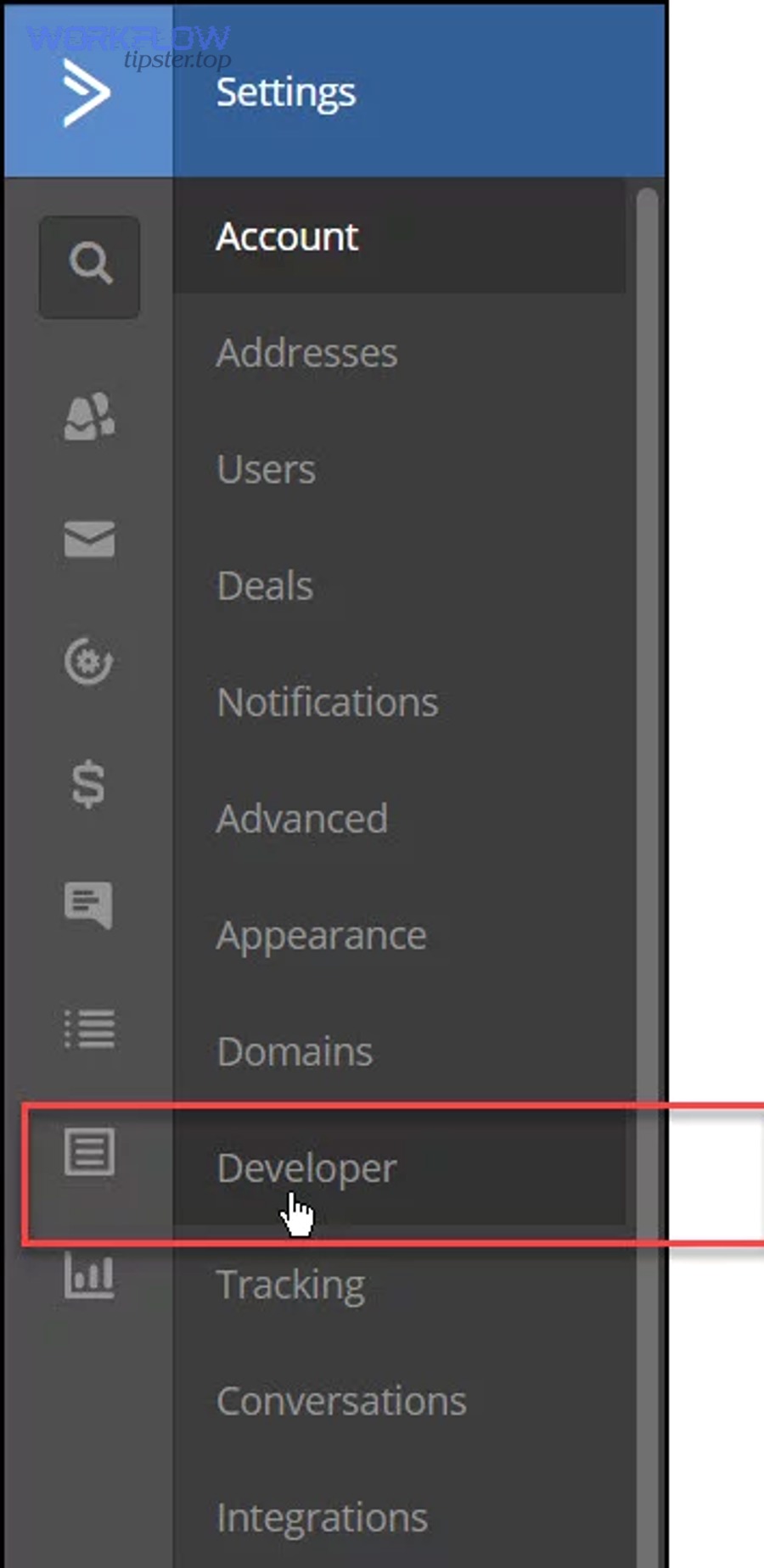
What data from ActiveCampaign typically goes into Google Sheets?
There are 6 main types of ActiveCampaign data that typically go into Google Sheets—Identity, Contact Methods, Segmentation, Source/Context, Timing, and Ownership—based on what marketers most often need to sort, filter, and share.
1) Identity (who is this?)
- Email (often your best unique key)
- First name / last name
- Contact ID (if available and you choose to store it)
2) Contact methods
- Phone number
- Company name
- Website
- Location fields (country/region) if you collect them
3) Segmentation
- Tags (e.g., “Lead Magnet: Checklist,” “Qualified,” “Webinar Attended”)
- List status (subscribed/unsubscribed) if you export it
- Lead status fields (custom field values)
4) Source/context (why are they here?)
- Form name / landing page name (if passed into fields)
- UTM fields (if you store UTMs in custom fields)
- Campaign name or offer identifier
5) Timing (when did it happen?)
- Created date
- Last updated date
- “Event timestamp” you create (recommended) for each row write
6) Ownership (who is responsible?)
- Assigned owner or pipeline owner (if your setup uses it)
- Sales stage label (if you store it in fields)
The practical rule is simple: only write what someone will actually use within a week. Every extra column increases mapping complexity and raises the chance your sheet becomes inconsistent.
What automation outcomes do marketing teams expect from this connection?
There are 5 common outcomes marketing teams expect from connecting ActiveCampaign to Google Sheets—Lead logging, Handoff clarity, Fast reporting, Workflow triggers, and Audit visibility—based on how spreadsheets function as lightweight operations hubs.
1) Lead logging
- Every new lead goes into a sheet automatically, with tags that describe their intent.
2) Handoff clarity
- A team can quickly filter “Qualified” leads and assign follow-up—without giving everyone access to the CRM.
3) Fast reporting
- You can build quick pivot tables: leads per source, tag conversions, response rates by campaign.
4) Workflow triggers outside the CRM
- Sheets can feed other processes: outreach lists, budget tracking, scheduling, and internal checklists.
5) Audit visibility
- When someone asks “Did the automation fire?”, you can point to the row and timestamp.
If you align the sheet outcome with one of these goals, your “sync” becomes a reliable operational system, not just a data dump.
Can you use ActiveCampaign’s native Google Sheets integration to add rows automatically?
Yes, you can use ActiveCampaign’s native Google Sheets integration to add rows automatically because it provides an “Add a Row” automation action, uses direct Google account authorization, and lets you map contact information into a selected spreadsheet.
Then, the key is to prepare permissions and a stable sheet structure first—because most failures come from access mismatches or column/header changes, not from the automation itself.
At a high level, the native flow looks like this:
- You open an ActiveCampaign automation.
- You add the Google Sheets “Add a Row” action.
- You connect a Google account and select the target sheet.
- You map contact fields/tags to columns.
- You test a single contact event and confirm the row appears.
This approach is popular with marketing teams because it keeps everything in one place: the trigger logic lives in ActiveCampaign, and the spreadsheet becomes the reporting layer.
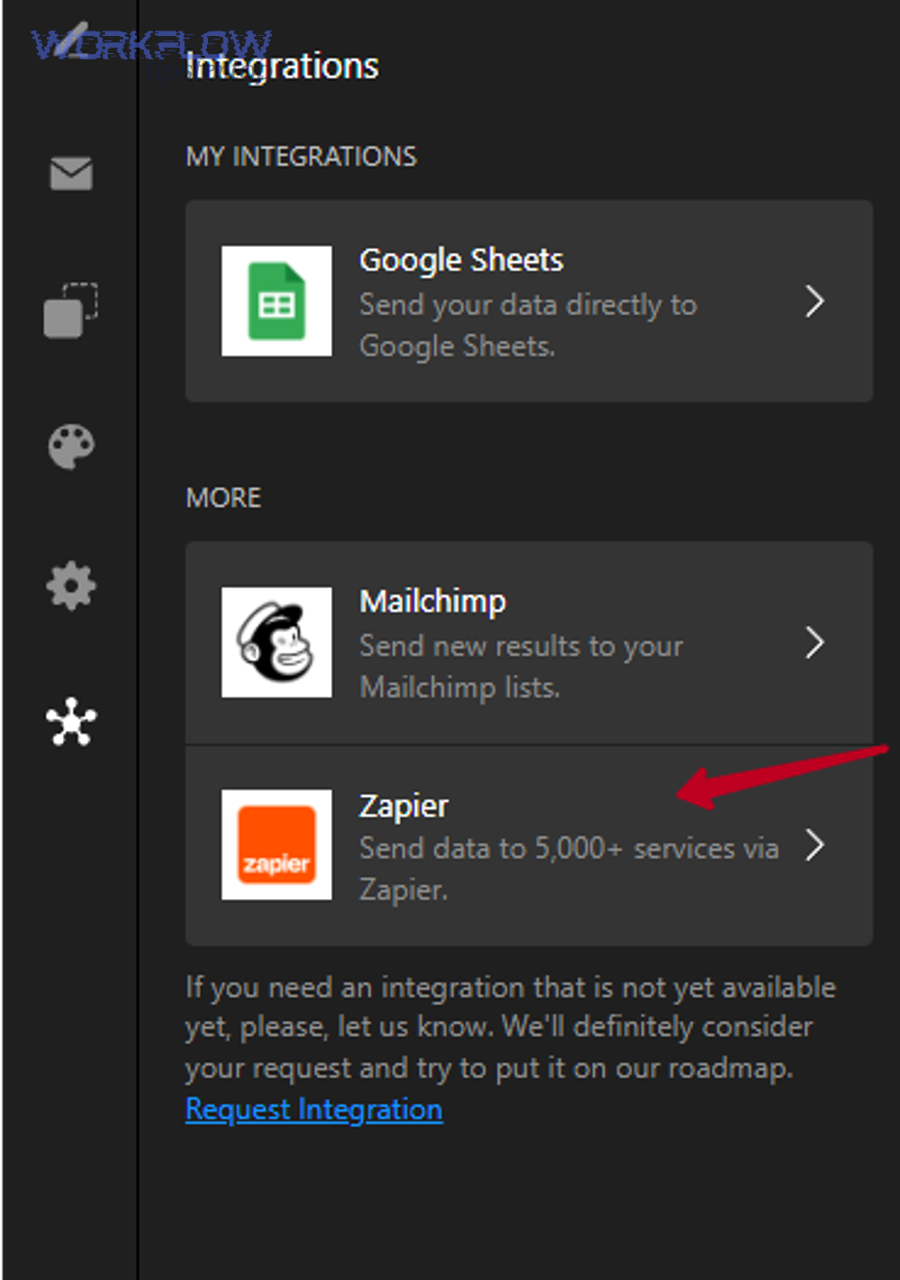
What do you need before setting up the native connection?
There are 7 essentials you should have in place before setting up the native connection—based on preventing the most common “it connected but nothing writes” scenarios.
- A Google account with edit access to the target spreadsheet
- A spreadsheet with a dedicated tab for ActiveCampaign writes
- Stable column headers (Row 1)
- A clear unique identifier column (usually “Email”)
- A tag strategy (one column or multiple columns)
- An ActiveCampaign automation plan (which triggers matter)
- A testing contact for controlled validation
If you prepare these upfront, the integration behaves predictably and you won’t spend time debugging issues caused by sheet edits.
How do you connect Google Sheets inside ActiveCampaign step-by-step?
Connecting Google Sheets inside ActiveCampaign is a setup process where you add the Google Sheets action to an automation, authorize a Google account, choose a spreadsheet and sheet tab, and map contact fields so ActiveCampaign can write a row on trigger.
To begin, follow a disciplined sequence so you know exactly where a failure occurs if something doesn’t work.
Step-by-step setup (native “Add a Row” approach)
- Open the automation that will send data to Sheets.
- Add the “Add a Row in Google Sheets” action.
- Click Connect and choose the Google account.
- Grant Google permissions, then return to ActiveCampaign.
- Select the spreadsheet and the specific tab to write into.
- Map fields (email/name/custom fields/tags) to the right columns.
- Save, activate, and run a controlled test.
One operational tip: create a dedicated sheet tab like AC_Events_Log so your team knows this tab is automation-owned and shouldn’t be restructured casually.
How do you map ActiveCampaign contact fields and tags to Google Sheets columns correctly?
Mapping ActiveCampaign contact fields and tags to Google Sheets columns correctly means assigning each field to a stable header, choosing a tag representation that matches your reporting needs, and keeping a consistent schema so the same trigger always writes the same structure.
Specifically, mapping is where “syncing” becomes reliable—or where it quietly becomes messy and untrustworthy over time.
A good mapping design answers three questions:
- What does one row represent? (an event, or a contact record)
- What is the unique key? (email/contact ID/event ID)
- How will tags be stored? (single cell list vs tag columns)
If you define those three, every future decision becomes simpler: which triggers to use, how to prevent duplicates, and how to build reports.
Which mapping approach prevents broken rows and messy data?
A stable-header schema wins in consistency, a dynamic “new column per new idea” approach is best for quick experiments, and a structured event-log schema is optimal for long-term auditability.
However, the wrong schema choice is the fastest way to create “broken rows” where data lands in the wrong columns after someone edits headers.
Option A: Stable headers + fixed schema (recommended for most teams)
- You define headers once: Email, First Name, Last Name, Tags, Source, Event, Event Timestamp.
- Every automation write maps into the same positions.
- Benefits: easy filtering, fewer mapping failures, consistent reporting.
Option B: Dynamic columns per new tag/field (risky but tempting)
- Someone adds columns like Tag: Webinar, Tag: Qualified, Tag: Cold.
- Benefits: easy pivoting for specific tags.
- Risks: constant schema changes, mapping breaks when headers change, and you end up with hundreds of columns.
Option C: Event-log schema (best when you want accountability)
- A row = a specific event (“Tag added,” “Form submitted”).
- You keep a small, stable set of columns and log the change.
- Benefits: you can reconstruct history and prove what happened.
A practical hybrid that works well: Event-log sheet + Current-state master sheet. The event log is automation-owned and append-only, while the master sheet is built with formulas or periodic transformations.
According to a study by the University of Hawaii from information systems research, in 1998, researchers found that even relatively simple spreadsheet models built by students had a substantial error rate, with 35% of models being incorrect.
How should you represent tags in Google Sheets: one column or multiple columns?
A single “Tags” column wins in maintainability, multiple tag columns are best for direct pivoting, and a separate “Tags table” is optimal for advanced analytics.
Meanwhile, the best choice depends on whether your sheet is primarily for humans scanning lists or for structured reporting.
Approach 1: One “Tags” column (comma-separated list)
- Example cell value: Lead Magnet, Webinar Attended, Qualified
- Pros: simple mapping, fewer columns, easy to audit.
- Cons: pivoting tag frequency requires splitting or helper formulas.
Approach 2: Multiple tag columns (one-hot encoding)
- Columns like Tag_Qualified, Tag_Webinar, values TRUE/FALSE.
- Pros: easiest pivot tables.
- Cons: your schema grows forever; mapping becomes fragile.
Approach 3: Separate “Tags table” (recommended for scale)
- Table columns: Email, Tag, Tag Added Timestamp.
- Pros: clean analytics; one tag per row is database-like.
- Cons: slightly more complex to build, often easier with connectors or transformations.
For most marketing teams using the native “Add a Row” action, Approach 1 is the most stable starting point. If you later need serious tag analytics, you can transform that tags column into a normalized table.
What are the best automation workflows to sync ActiveCampaign contacts to Google Sheets?
There are 5 best automation workflows to sync ActiveCampaign contacts to Google Sheets—New Lead Logging, Segmentation Tracking, Form-to-Sheet Capture, Pipeline Handoff, and Re-engagement Monitoring—based on the trigger types that produce clear, high-signal rows.
Next, once you pick a workflow, the success factor becomes precision: choose triggers that match intent, and write rows that match your sheet’s meaning.
Here’s a principle that keeps your data clean: use fewer triggers, but make each trigger produce a row you can explain in one sentence.
Which triggers should you use to add a row: new contact, tag added, form submitted, or deal stage changed?
New contact wins for simple lead capture, form submitted is best for source-specific attribution, tag added is optimal for intent milestones, and deal stage changed is best for sales handoff tracking.
However, the trigger you choose should match what your row represents—otherwise you’ll log too many low-value rows and bury the events that matter.
1) New contact → Add a row (best for “all leads” logging)
- Use when: you want every new entry in one place.
- Row meaning: “A new contact exists.”
2) Form submitted → Add a row (best for campaign/source clarity)
- Use when: you want to compare lead magnets or landing pages.
- Row meaning: “A contact took a specific action (this form).”
3) Tag added → Add a row (best for lifecycle milestones)
- Use when: tags represent meaningful state changes like “Qualified,” “Booked Demo,” “Webinar Attended.”
- Row meaning: “A contact crossed a meaningful threshold.”
4) Deal stage changed → Add a row (best for CRM pipeline reporting)
- Use when: you need handoff visibility between marketing and sales.
- Row meaning: “A contact’s deal moved forward (or stalled).”
Default recommendation for most marketing teams
- Start with Form submitted (high signal) + Tag added for one or two milestone tags.
- Avoid logging every tag in the beginning; you’ll create noise and duplicates.
How do you avoid duplicate rows when the same contact triggers multiple times?
Avoiding duplicate rows means designing your sheet as either an event log (duplicates are acceptable because they are events) or a current-state table (duplicates are prevented using a unique key like email and a controlled update strategy).
To illustrate, duplicates are only a “problem” when your sheet’s meaning is unclear.
If your sheet is an event log (recommended early):
You do not “avoid duplicates”—you label events.
- Add Event Type column: New Contact, Form Submitted, Tag Added, Stage Changed
- Add Event Timestamp column (always write it)
- Add Trigger Name column: the specific automation path that wrote the row
If your sheet is a current-state master table:
You must enforce a “one row per contact” rule.
- Use Email as the unique key column.
- Choose an update approach:
- Update-in-place via connector tooling (often easier outside native “Add row”).
- Append + dedupe using a secondary process (queries, scripts, or scheduled cleanups).
A practical compromise:
- Keep an append-only log for reliability.
- Build a “Master” sheet tab using formulas or periodic transforms that select the latest row per email.
This approach gives you both auditability and clean reporting without fighting duplicates at the automation layer.
Should you use the native integration or a no-code connector for ActiveCampaign → Google Sheets?
Native integration wins in simplicity and low maintenance, no-code connectors are best for multi-step workflows and data enrichment, and custom/API approaches are optimal for teams that need full control over updates, idempotency, and scaling.
In addition, your decision should be based on workflow complexity—not on what looks easiest to set up today.
Before the table below, here’s what it contains and why it helps: the table compares three connection approaches so you can quickly match your team’s needs (simple logging vs complex operations) with the right tool level.
| Approach | Best for | Strengths | Trade-offs |
|---|---|---|---|
| Native “Add a Row” action | Straightforward logging | Fast setup, fewer moving parts, works inside automations | Harder to “update row” logic; schema must stay stable |
| No-code connectors (e.g., Zapier/Make-style) | Multi-step processes | Lookups, conditional routing, enrichment, multi-app chains | More configuration, more points of failure, ongoing monitoring |
| Custom/API + Sheet logic | Advanced teams | Idempotency, event IDs, robust updates, scalable pipelines | Requires technical resources and governance |
To keep your content operations consistent, treat this choice as part of your broader Automation Integrations strategy: you want a small set of integrations that are reliable, documented, and easy to debug—not dozens of fragile one-offs.
When is the native integration enough for most teams?
Yes, the native integration is enough for most teams because it supports simple append workflows, keeps the automation logic in one platform, and reduces operational overhead compared to maintaining multi-app connector chains.
Moreover, “enough” usually means you can produce a trustworthy sheet that answers daily questions without needing technical maintenance.
Use the native approach when you want these outcomes:
- Append-only event logging: “Every form submission adds a row.”
- Lightweight operational visibility: “Sales can see new qualified leads in a shared sheet.”
- Simple reporting: “We can count leads by campaign, source, or tag.”
A quick self-check: if your team’s next sentence is “and then we need to look up another sheet, enrich data, and update an existing row,” you’re probably crossing into connector territory.
When do tools like Zapier/Make become the better option?
Yes, tools like Zapier/Make become the better option because they can perform lookups and updates, chain multiple actions across apps, and standardize event handling when you need more than “add a row” behavior.
Especially, connectors shine when your workflow is not just “log data,” but “operate a process.”
Typical connector-driven needs include:
- Update an existing row rather than append: find the row by email, then update status and last-touch date.
- Enrich data: append additional fields from another system before writing.
- Branching logic: if tag = “Qualified,” notify Slack + update sheet + create task.
- Cross-application patterns: if you already manage multiple integrations like google docs to gitlab, airtable to evernote, or airtable to quickbooks, then a unified connector layer can improve consistency across how data moves and how failures are handled.
The critical practice here is governance: once you adopt connectors, treat workflows like production assets—name them clearly, document triggers, and test with controlled contacts.
What should you check first if the ActiveCampaign → Google Sheets automation isn’t working?
There are 6 first checks you should run when ActiveCampaign → Google Sheets isn’t working—Automation Status, Trigger Reality, Permissions, Sheet Targeting, Mapping Stability, and Test Evidence—based on the fastest root causes that stop row writes.
Then, you’ll isolate the failure into one of three buckets—permissions, mapping, or triggers—so you can fix the right layer instead of guessing.
The “first 10 minutes” checklist
- Is the automation active? If it’s in draft, nothing will fire.
- Did the trigger actually happen? If you use “Tag added,” confirm the tag was added by the method you expect.
- Does the connected Google account still have access? The sheet might have been moved, permissions changed, or the account disconnected.
- Are you writing to the exact correct spreadsheet and tab? It’s easy to select the wrong sheet when multiple look similar.
- Did someone change column headers or reorder columns? Mapping can break silently when the schema changes.
- Can one controlled test contact write one controlled row? A clean test removes noise and reveals the real failure point.

Is it a permissions problem, a mapping problem, or a trigger problem?
Permissions issues are most likely when nothing writes at all, mapping problems are most likely when the wrong values land in the wrong columns, and trigger problems are most likely when only some contacts write rows while others never do.
However, you can confirm the category quickly using observable signals.
Permissions problem signals
- The action prompts reconnection.
- The sheet can’t be selected anymore.
- It worked yesterday, then stopped after sheet sharing changes.
Mapping problem signals
- Columns are shifted (emails appear in name fields).
- Tags column is blank even when tags exist.
- Certain custom fields never populate.
Trigger problem signals
- Your test contact does nothing.
- Only specific entry points work.
- A tag added by an import behaves differently than a tag added by a form/automation.
A disciplined approach: test one trigger, one contact, one sheet tab, one row. Once that works, expand scope.
What test case proves your setup is correct end-to-end?
An end-to-end proof test case is a controlled contact scenario where you create or select one test contact, apply exactly one triggering action (like submitting one form or adding one tag), and confirm a new sheet row appears with correct mapped values and a timestamp.
To better understand reliability, the test should be repeatable and isolated from real campaigns.
A strong end-to-end test (repeatable)
- Create a test contact with a unique email like test+gsync@yourdomain.com.
- Ensure required fields exist (first name, last name, and one custom field if you map it).
- Trigger the automation exactly once: submit the test form OR add the Test: Sheets Sync tag.
- Confirm one new row appears in the correct tab.
- Validate these columns explicitly:
- Email matches exactly
- Tags show expected values
- Timestamp exists
- Any custom fields are populated correctly
If the row appears but fields are empty, that’s almost always mapping or field availability—meaning the automation wrote successfully, but you mapped a field that isn’t present on the contact, or the tag logic differs from what you assumed.
At this point, you have the core system working: you can connect, write rows, map fields and tags, choose triggers, and debug the most common breakpoints. The next section moves beyond “it works” into “it scales safely.”
How do you handle advanced edge cases and governance for ActiveCampaign → Google Sheets syncing?
Handling advanced edge cases and governance means designing your ActiveCampaign → Google Sheets sync to stay reliable under high volume, protect sensitive contact data, separate event logs from master records, and remain auditable even when workflows evolve.
Next, you’ll tighten micro-details—because edge cases don’t show up during your first test, they show up after weeks of real usage.
When teams scale this integration, problems usually appear in four forms:
- The sheet becomes noisy and hard to trust.
- Multiple automations write conflicting rows.
- Data access becomes a compliance risk.
- Large bursts cause missing or delayed entries.
The fix is governance: define what the sheet represents, who can change it, and how you verify it.
How do you design the sheet for event logs vs a single up-to-date contact record?
An event log wins for traceability, a single master record table is best for quick “current state” reporting, and a dual-sheet model is optimal for teams that want both audit history and clean analytics.
Meanwhile, choosing the wrong model is why teams either drown in duplicates or lose context.
Event log design (append-only)
- Columns: Event ID, Event Type, Event Timestamp, Email, Tags, Source, Automation Name
- Benefits: you can prove exactly what fired and when.
Master record design (one row per contact)
- Columns: Email, Name, Current Tags, Latest Source, Latest Event Timestamp, Owner
- Benefits: easy filtering and reporting.
Dual-sheet model (recommended for scale)
- Tab 1: AC_Events_Log (automation writes here only)
- Tab 2: AC_Master (computed/maintained from events)
A practical workflow: the automation writes to the event log, and the master view is generated using spreadsheet functions, queries, or scheduled transforms.
What do you do about rate limits, batching, and high-volume bursts?
There are 4 main strategies to handle high-volume bursts—Reduce Trigger Noise, Batch Writes, Segment by Sheet, and Add Backoff/Retry Logic—based on how burst traffic amplifies small weaknesses in automation design.
1) Reduce trigger noise
- Log only milestone tags, not every minor tag.
- Prefer “form submitted” events for high-signal tracking.
2) Batch writes (when possible)
- If your process allows, write one “daily summary” row per segment instead of one row per micro-event.
3) Segment by sheet/tab
- Split high-volume streams:
- Leads_Form_Submissions
- Lifecycle_Tag_Events
- Sales_Stage_Changes
4) Use connector logic when burst control is required
- Connector platforms can add buffering, retries, and conditional routing more easily than a simple append action.
The goal isn’t just fewer rows—it’s predictable row meaning, so your team can trust what they see even when volume spikes.
How do you protect PII and stay compliant when exporting contacts to Sheets?
There are 4 core protections for PII in Sheets—Least-Privilege Access, Column Minimization, Controlled Sharing, and Retention Rules—based on reducing who can view sensitive data and limiting what data exists in the first place.
1) Least-privilege access
- Share the spreadsheet only with roles that need it.
- Avoid “anyone with the link” settings for contact exports.
2) Column minimization
- Don’t export phone numbers or addresses unless they are essential.
- Prefer a minimal schema for marketing reporting.
3) Controlled sharing
- Use separate views (or separate spreadsheets) for different teams.
- Keep the automation-owned tab restricted from casual edits.
4) Retention rules
- Decide how long event logs should exist.
- Periodically archive old rows if they are not needed for operations.
A simple mindset: if the spreadsheet gets forwarded accidentally, what would you regret having included? Remove that column now.
How do you make the sync idempotent and auditable over time?
Making the sync idempotent and auditable means assigning stable identifiers to events, writing timestamps consistently, and ensuring repeated triggers either produce clearly labeled event rows or update the same record deterministically—so you can verify correctness after weeks or months.
To sum up, this is how you keep trust as complexity grows.
Idempotency (prevent “double counting” confusion)
- Add an Event ID column by combining Email + Event Type + Date/Time or by storing a unique automation run marker.
- If you append events, duplicates become “known events,” not “mystery errors.”
Auditability (prove what happened)
- Always write: Event Timestamp, Automation Name, Trigger Type.
- Keep a consistent naming standard for automations like:
- GSYNC | Form Submission | Lead Magnet A
- GSYNC | Tag Added | Qualified
Reconciliation checks
- Weekly spot-check: compare ActiveCampaign counts for a tag or form with sheet counts for the same period.
- If the numbers diverge, investigate triggers, permissions, or schema changes before the gap becomes untraceable.
When you treat your ActiveCampaign → Google Sheets connection as an operational system—with definitions, schema discipline, and governance—you get what marketing teams actually want: a spreadsheet that reflects reality, not a spreadsheet that “usually works.”