


To sync ActiveCampaign to Airtable, you typically connect ActiveCampaign events (new/updated contacts, tags, deals, automation webhooks) to Airtable record create/update actions using an automation platform like Zapier, Make, or n8n, then standardize field mapping so the same contact stays one row over time.
Most teams also need to decide whether this is a one-way feed (ActiveCampaign → Airtable for reporting and ops) or a true two-way sync (Airtable ↔ ActiveCampaign for enrichment and workflow control), because the “right” direction depends on ownership of truth, deliverability risk, and how frequently each system changes.
After direction, the core work is defining what to sync (identity keys, lifecycle stage, tags, list status, consent, deal stage) and how to keep it clean (dedupe rules, update strategy, rate-limit handling, error alerts) so your automation doesn’t silently drift.
Introduce a new idea: below is a practical, tool-by-tool blueprint you can follow to build a stable ActiveCampaign-to-Airtable sync that your marketing and ops team can actually trust.


What does “ActiveCampaign to Airtable” mean in workflow automation?
“ActiveCampaign to Airtable” means a workflow automation pattern where ActiveCampaign becomes the event source (contacts, tags, automations, deals) and Airtable becomes the structured destination (records) used for reporting, enrichment, routing, or downstream ops.

To begin, the most important detail is that this is not a single “sync button”—it’s a repeatable data pipeline made of triggers, transforms, and write actions, so you must define ownership, keys, and update rules before you connect anything.
In practice, it usually looks like this:
- Trigger: “Contact created/updated,” “Tag added,” or an automation webhook fired from ActiveCampaign.
- Transform: normalize email/phone, standardize picklists, convert tags to multi-select, calculate lifecycle stages, flatten arrays.
- Action: create or update a matching Airtable record (one row per person, deal, or event).
Why teams do this: Airtable is often the “single pane” where marketing ops can audit segmentation, handoffs, enrichment, and campaign readiness without digging through multiple ActiveCampaign screens or exporting CSVs repeatedly.
Where this goes wrong: if you treat Airtable as a second CRM but don’t define an identity key and update strategy, you’ll create duplicates, overwrite clean data with stale values, or violate consent rules by re-activating unsubscribed contacts.
Do marketing teams need a one-way sync or a two-way sync?
Yes—marketing teams need to choose one-way vs two-way sync because it determines data ownership, conflict handling, and the risk of “automation loops,” and those three factors decide whether your pipeline stays stable or becomes a constant firefight.
Next, the safest starting point is almost always one-way (ActiveCampaign → Airtable) until you can prove your mapping and dedupe rules work under real update frequency.
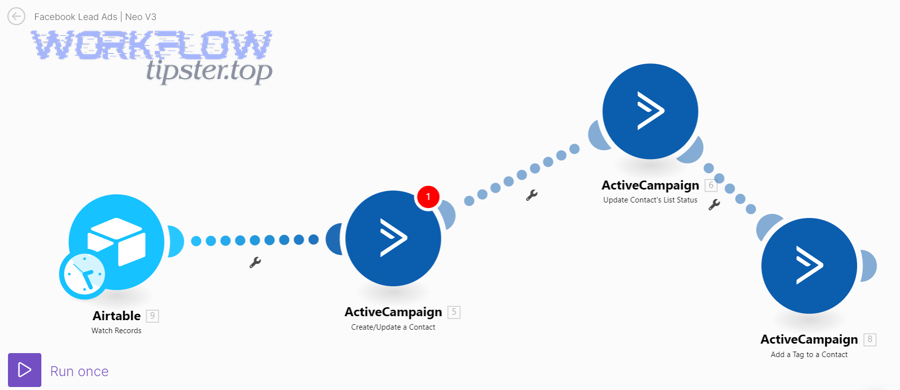
Is one-way sync (ActiveCampaign → Airtable) enough for most use cases?
Yes—one-way sync is enough for most use cases because it reduces conflicts, prevents feedback loops, and keeps ActiveCampaign as the system of record for deliverability-sensitive fields like subscription status and consent.
Specifically, one-way sync works best when Airtable is used for:
- Campaign readiness dashboards: “Who has tag X but missing field Y?”
- Ops routing: assigning owners, queues, or follow-up tasks based on segment rules.
- Data QA: spotting duplicates, missing emails, invalid domains, or inconsistent lifecycle stages.
- Attribution helpers: joining ad spend data or form metadata to contacts without polluting CRM fields.
Implementation rule of thumb: One-way means Airtable never changes ActiveCampaign directly. If someone edits Airtable, it’s treated as “notes” or “ops-only fields,” not a command back to ActiveCampaign.
When is two-way sync (Airtable ↔ ActiveCampaign) actually necessary?
Two-way sync is necessary when Airtable is the “control plane” for operations—meaning Airtable updates must reliably drive ActiveCampaign fields, tags, or automation entry conditions.
However, two-way should be used only when you can clearly separate “owned fields” to avoid conflicts, for example:
- Airtable-owned: lead score overrides, manual review status, enrichment results, sales territory.
- ActiveCampaign-owned: subscription status, email engagement metrics, automation membership, tag history.
Non-negotiable safeguards:
- Field-level ownership (who can write what).
- Conflict policy (last-write-wins is risky; prefer “only write when blank” or “only write when approved”).
- Loop protection (store a “source” flag or a last-sync token so updates don’t bounce back and forth).
What contact data should you sync from ActiveCampaign into Airtable?
There are 5 main types of contact data you should sync from ActiveCampaign into Airtable: identity keys, segmentation fields, lifecycle fields, engagement signals, and compliance fields—because those categories cover matching, targeting, prioritization, and risk control.
Then, to keep the sync reliable, you should pick a “minimum viable dataset” first, confirm dedupe and updates work, and only then expand into deeper fields like custom objects or multi-step attribution.
Which identity fields prevent duplicates in Airtable?
The identity fields that prevent duplicates are the ones that let you match “the same human” consistently—usually email as the primary key plus a secondary key for edge cases (phone, external ID, or ActiveCampaign contact ID).
For example, a practical identity set looks like this:
- Primary key: Email (normalized to lowercase, trimmed)
- Secondary match: ActiveCampaign Contact ID (stored as a number/text)
- Optional: Phone (E.164 formatting), company domain, external user ID
Best practice: use “Find record by Email” first; if not found, create record; then write back the ActiveCampaign Contact ID into Airtable so future updates don’t rely on email alone.
Which segmentation and lifecycle fields matter most for marketing ops?
The most important segmentation and lifecycle fields are the ones your automations already depend on—tags, list memberships, lead/source fields, lifecycle stage, and owner/region—because those fields drive “who gets what next.”
Common high-value fields to sync:
- Segmentation: tags (as a list), list status, interest categories, product line, language/region
- Lifecycle: stage (Lead/MQL/SQL/Customer), first conversion date, last stage change date
- Routing: owner, pipeline, deal stage, next action date
Tip: if you store tags in Airtable, also store a computed “Tag Snapshot Updated At” timestamp so your team can see freshness.
Should you sync engagement metrics (opens/clicks) into Airtable?
No—syncing raw opens/clicks into Airtable is usually not worth it because it inflates rows, triggers rate limits, and creates constant churn; instead, sync summarized engagement signals (last engagement date, engagement tier) when you truly need them.
More specifically, prefer these summaries:
- Last engaged date (or last campaign interaction date)
- Engagement tier (Hot/Warm/Cold)
- Deliverability risk flags (hard bounce, complaint, invalid email)
Evidence: According to a study by the University of South Florida College of Medicine, in 2008, error rates in real-world transcription workflows were measured at the “errors per field” level, showing how quickly frequent, granular updates can amplify data quality risk when processes aren’t controlled.
How do you connect ActiveCampaign to Airtable using Zapier?
To connect ActiveCampaign to Airtable using Zapier, you set 1 trigger (ActiveCampaign event or automation webhook), add 2–4 mapping steps (format/lookup/dedupe), and finish with an Airtable “create/update record” action to keep one row per contact.
Below, the key is to design the Zap around an identity lookup first—because without lookup, Zapier will happily create duplicates forever.
What triggers in ActiveCampaign work best for Zapier?
There are 3 practical trigger styles that work best: contact-based triggers (new/updated contact), tag-based triggers (tag added/removed), and automation webhook triggers (webhook fired inside an ActiveCampaign automation) based on how precisely you need to control timing.
More specifically:
- Contact created/updated: best for always-on sync of core fields.
- Tag added: best for segment-driven sync (only sync “Marketing Qualified” contacts, for example).
- Automation webhook: best for “sync only when the automation reaches this step.” This is often the cleanest way to avoid over-syncing.
How do you update an existing Airtable record instead of creating duplicates?
You update an existing Airtable record by searching Airtable for a matching key (usually Email), branching on “found vs not found,” and only creating a record when no match exists.
In Zapier terms, the stable pattern is:
- Step 1: Trigger (ActiveCampaign contact/tag/webhook)
- Step 2: Airtable “Find Record” by Email (or Contact ID)
- Step 3: If found → “Update Record”; if not found → “Create Record”
- Step 4: (Optional) Write back the Airtable Record ID or a “Synced” flag into ActiveCampaign for auditing
Operational note: if your email can change, do not use email-only matching forever—store ActiveCampaign Contact ID in Airtable and prefer matching by that ID after the first sync.
How do you connect ActiveCampaign to Airtable using Make?
To connect ActiveCampaign to Airtable using Make, you build a scenario with a trigger module (ActiveCampaign) followed by tools for transformation and routing, then an Airtable module to search and upsert records, which gives you tighter control over batching and error handling than many basic zaps.
Next, the Make advantage is visibility: you can see each operation, branch, and retry, which becomes critical once your sync grows beyond a single contact pipeline.
Which Make modules handle contacts, tags, and deals reliably?
The most reliable Make modules are the ones that align with stable objects: Contacts (create/update/get), Tags (apply/remove), and Deals (create/update) because those objects map cleanly to Airtable tables.
To illustrate a clean architecture:
- Airtable base: “Contacts” table + “Deals” table (linked)
- Make scenario A: ActiveCampaign contact updates → Airtable contact upsert
- Make scenario B: ActiveCampaign deal stage changes → Airtable deal upsert
If you’re using Make’s ActiveCampaign + Airtable integration library, you can start from their connector pairing and customize mapping and filters to your dataset.
How do you control rate limits and retries in Make?
You control rate limits and retries in Make by throttling operations, using “sleep”/delay and queue patterns, and grouping updates into batches—because Airtable’s API enforces strict per-base request limits.
More importantly, Airtable’s Web API is limited to 5 requests per second per base, so bursting updates (especially during backfills) can trigger 429 responses.
Practical Make tactics:
- Batch writes: group multiple updates into fewer API calls when possible.
- Delay on spikes: add a short delay after each record update during backfills.
- Retry on 429: use Make’s error handler to retry after a wait, not immediately.
- Split scenarios: separate “realtime updates” from “nightly enrichment” to keep peaks predictable.
How do you connect ActiveCampaign to Airtable using n8n?
To connect ActiveCampaign to Airtable using n8n, you create a workflow with an ActiveCampaign trigger or webhook, pass data through transform nodes, and then use the Airtable node to upsert records—ideal for teams that want self-hosting, version control, and deeper customization.
Then, the n8n edge is control: you can add branching, code steps, and long-running workflows without the same per-task pricing constraints that sometimes appear in other tools.
Is n8n better for self-hosted automation and data control?
Yes—n8n is better for self-hosted automation and data control because you can run workflows inside your infrastructure, keep credentials and logs under your policies, and customize workflows with code when needed.
However, “better” only applies if your team can own basic ops (updates, backups, secrets), so you should treat self-hosting as an ops decision, not only a marketing ops decision.
What is the simplest n8n workflow for “upsert contact into Airtable”?
The simplest workflow is: Webhook (or ActiveCampaign Trigger) → Normalize fields → Airtable “Search” → If found update; else create—because that pattern guarantees “one person = one record” when your key is stable.
A clean node sequence looks like this:
- Trigger: ActiveCampaign trigger node or a generic webhook node
- Transform: Set node (rename fields), Function node (normalize), Merge node (combine sources)
- Lookup: Airtable node (search by Email or Contact ID)
- Write: Airtable node (update or create)
n8n documents built-in support for both the ActiveCampaign node and the Airtable node, including create/get/update/delete style operations—so you can avoid “raw HTTP” for most standard use cases.
Zapier vs Make vs n8n: which integration is best for ActiveCampaign → Airtable?
Zapier wins in fastest setup, Make is best for visual control and mid-complexity routing, and n8n is optimal for customization and self-hosted control—so the “best” choice depends on your team’s speed vs governance vs flexibility priorities.
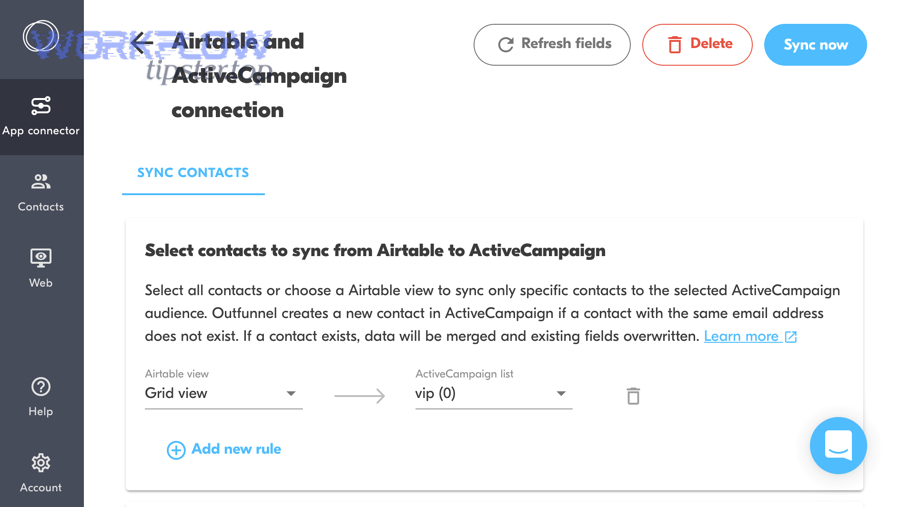
However, to choose correctly, you should compare them on ownership, scaling, observability, and cost-to-maintain—not only on “can it connect.”
This table contains a practical comparison to help you choose the right tool for your ActiveCampaign → Airtable sync based on common marketing ops constraints.
| Criterion | Zapier | Make | n8n |
|---|---|---|---|
| Best for | Quick wins, simple pipelines | Visual routing, mid-complex workflows | Custom logic, self-hosting, scale control |
| Upsert pattern (dedupe) | Easy (Find → Update/Create) | Very flexible (routers + error handlers) | Most customizable (logic + code nodes) |
| Rate-limit handling | Basic | Strong (handlers, pacing, batching) | Strong (queues, code, retries) |
| Governance | Good for small teams | Good for ops-minded teams | Best for strict control |
| Time to first working sync | Fastest | Fast | Fast if technical, slower if not |
Which is best for non-technical marketers?
Zapier is best for non-technical marketers because it minimizes decisions, uses guided setup, and lets you launch a working one-way sync quickly without managing complex error routes.
That said, non-technical teams still need a clear data model in Airtable; otherwise you’ll “succeed” at automation while quietly building a messy database.
Which is best for complex routing and multi-table Airtable bases?
Make is best for complex routing and multi-table Airtable bases because it makes branching and multi-step transformations visible, so your team can model real business rules like “route by region,” “split by product line,” or “write to two linked tables.”
In addition, Make’s scenario design encourages you to design for failures—like retries, dead-letter queues, and controlled backfills—which becomes essential once your base grows.
Which is best for engineering-led RevOps teams?
n8n is best for engineering-led RevOps teams because it supports deeper customization, self-hosting, and “code when needed,” which is ideal when you must integrate beyond standard connectors or enforce strict data governance.
More importantly, this is where “Automation Integrations” become a platform decision: a stable n8n foundation can power many pipelines beyond this one, like google forms to outlook notifications or airtable to datadog monitoring hooks, using consistent standards across workflows.
How do you map ActiveCampaign fields to Airtable columns without breaking data quality?
You map ActiveCampaign fields to Airtable columns without breaking data quality by defining a single source of truth per field, enforcing type compatibility, and using a consistent update policy (overwrite vs merge vs only-if-blank) so your sync never creates contradictions.
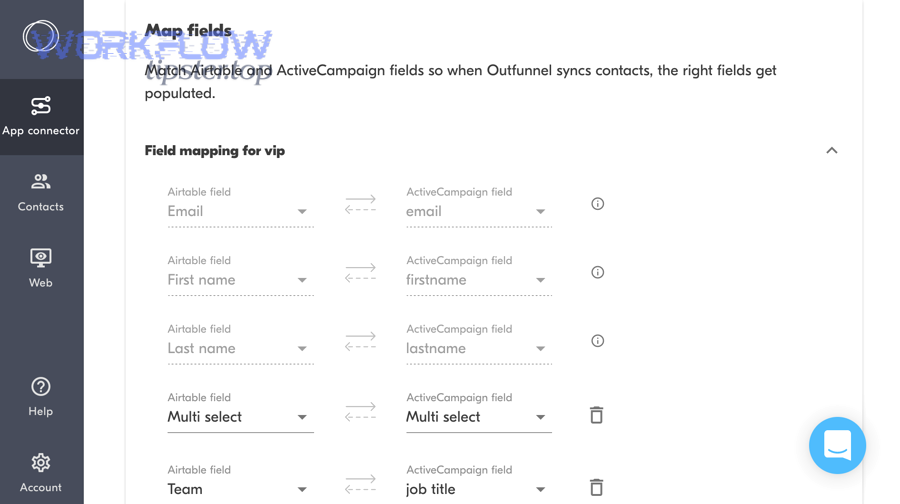
Below, the critical step is to treat field mapping as a data contract, not a one-time setup click—because the moment you add a new tag taxonomy or a new custom field, the contract can break.
Which field types cause the most mapping errors?
The field types that cause the most mapping errors are multi-selects (tags), dates/timezones, and phone/address formats because they require normalization and consistent standards across both systems.
Common failure patterns:
- Tags → Airtable: tags arrive as arrays/strings; Airtable expects multi-select values in a consistent format.
- Dates: ActiveCampaign timestamps vs Airtable date fields; timezone mismatches cause “off-by-one-day” issues.
- Booleans: “true/false” vs “Yes/No” vs empty strings can flip meaning in Airtable formulas.
- Numbers: currency fields arriving as strings can fail validation or break rollups.
What is the safest “minimum viable schema” for the first sync?
The safest minimum viable schema is a compact set of columns that supports matching, segmentation auditing, and lifecycle tracking—without pulling in every custom field on day one.
This table contains a recommended starter mapping that prevents duplicates while keeping the base useful for marketing ops immediately.
| ActiveCampaign Field | Airtable Column | Rule |
|---|---|---|
| Email (primary) | Normalize lowercase; required | |
| Contact ID | AC Contact ID | Store after first sync; prefer for future matching |
| First name / Last name | First name / Last name | Overwrite only if non-empty |
| Tags | Tags (multi-select) | Canonical tag set; remove unknown tags |
| Lifecycle stage | Lifecycle stage | Picklist; restrict allowed values |
| Subscribed / Unsubscribed | Subscription status | Read-only in Airtable if one-way |
| Last updated | Last synced at | Set by automation, not humans |
What are common sync issues (duplicates, missing updates, rate limits), and how do you fix them?
There are 3 common sync issue clusters—duplicates, missing/late updates, and rate limits—and you fix them by enforcing identity keys, adding replayable logs, and pacing API writes so your pipeline stays deterministic under load.
Especially, you should assume issues will happen; the goal is not “never fails,” but “fails loudly, recovers cleanly, and never corrupts the base.”
Why do duplicates happen even when you “match by email”?
Duplicates happen because email is not always stable (people change jobs), not always normalized (case/whitespace), and not always present at the moment of trigger—so your pipeline creates a new row before a clean identifier exists.
Fix duplicates with this sequence:
- Normalize first: trim + lowercase email before lookup.
- Use a secondary key: store ActiveCampaign Contact ID in Airtable and match by it whenever possible.
- Protect creation: only allow “Create record” when email passes validation.
- Periodic dedupe: run a scheduled dedupe workflow that flags suspected duplicates for review.
Why are updates missing or delayed?
Updates are missing or delayed when triggers don’t fire for the event you care about, when filters block legitimate records, or when rate limits cause silent retries that push updates later than expected.
To diagnose, instrument your workflow:
- Log every execution: store a “Sync Events” table in Airtable with contact ID, event type, timestamp, status.
- Add health checks: alert if daily sync volume drops below baseline.
- Replay mechanism: keep a “retry queue” for failed writes instead of discarding them.
How do Airtable API rate limits show up, and what should you do first?
Airtable rate limits show up as HTTP 429 responses, and the first thing you should do is slow down writes (pacing/batching) before you redesign the entire workflow.
Practical first fixes:
- Reduce writes: update only fields that changed (diff-based updates).
- Batch backfills: run backfills off-hours and pace them.
- Retry properly: wait and retry after the limit window, not instantly.
Evidence: According to Gartner research from 2020, poor data quality costs organizations at least $12.9 million a year on average—so rate-limit-driven “partial updates” that silently degrade accuracy can become an expensive hidden problem if you don’t monitor your sync health.
How do you handle advanced edge cases (consent, GDPR, backfills, multi-base scaling)?
You handle advanced edge cases by separating compliance-critical fields, using staged backfills with checkpoints, and designing scaling patterns (partitioning, queueing, and observability) so growth doesn’t force you to rebuild the integration later.

Besides, these edge cases are exactly where teams either become confident in their automation—or decide “sync is too risky,” revert to CSV exports, and lose weeks per quarter.
How do you prevent overwriting consent and subscription fields?
You prevent overwriting consent and subscription fields by making them read-only outside ActiveCampaign, and by enforcing field-level ownership so Airtable edits cannot re-subscribe someone or erase consent metadata.
Safest approach:
- One-way rule: consent fields flow only ActiveCampaign → Airtable.
- Two-way rule: only write back consent updates from an approved “compliance workflow,” not from normal Airtable edits.
- Audit trail: store “consent source,” “consent timestamp,” and “last change by” for every update.
What is the safest way to run a historical backfill into Airtable?
The safest backfill method is a staged import with checkpoints: backfill in batches, verify counts and duplicates, and only then enable real-time sync—because backfills are where rate limits and mapping mistakes cause the most damage.
Backfill checklist:
- Stage 0: freeze schema (no field renames during backfill).
- Stage 1: import the minimum viable schema first (identity + lifecycle).
- Stage 2: run dedupe checks (same email, same contact ID).
- Stage 3: expand to secondary fields (tags, custom fields) only after stability.
- Stage 4: turn on real-time triggers last.
How do you scale when one base isn’t enough?
You scale by partitioning: split bases by region/product line, or store only “ops views” in Airtable while keeping heavy event logs elsewhere, because Airtable is strongest when you keep each base purposeful and predictable.
Scaling patterns that work:
- Multi-base sharding: one base per business unit, consistent schema, shared automation template.
- Event-log separation: store high-volume events (email interactions) outside Airtable; keep summaries in Airtable.
- Central monitoring: push sync errors and latency metrics into monitoring (so you can detect drift early).
How do you monitor failures without watching runs all day?
You monitor failures by defining SLAs (freshness, completeness, error rate) and creating automated alerts when thresholds break, so humans only intervene when something truly changed.
Minimum monitoring set:
- Freshness: “last synced at” must be within X hours for active segments.
- Completeness: % of records missing email/ID must stay below threshold.
- Error stream: any 429/401/403 spikes trigger an alert with the failing step.
If you already run other integrations, reuse the same monitoring pattern so this workflow behaves like your other pipelines—whether that’s a lightweight alert for google forms to outlook routing or a deeper telemetry pipeline like airtable to datadog health tracking.