


Google Forms to Outlook automation is the fastest way to turn every new form submission into a timely Outlook email—without copying, pasting, or checking spreadsheets all day. You connect the form response to a trigger, map key fields into an email template, and let the workflow deliver consistent notifications to the right people.
Next, you’ll learn what “Google Forms to Outlook” really means in practice (and what it doesn’t), including how responses flow through Google Sheets, how email content gets built, and where the automation typically breaks. This will help you choose the cleanest workflow for your team instead of building a fragile one.
Then, you’ll compare the main tool categories (no-code connectors, Microsoft-native automation, and more technical builders) so you can match cost, control, security, and maintenance to your real environment. The goal is to avoid an “automation” that still requires manual babysitting.
Introduce a new idea: once you see the data path end-to-end, setting up Google Forms to Outlook becomes a predictable system—trigger → data → template → routing → reliability—rather than a one-off hack.
What does “Google Forms to Outlook” automation actually mean?
“Google Forms to Outlook” automation is a workflow that captures a new Google Form response and uses it to trigger a Microsoft Outlook action—usually sending an email notification, creating a draft, or creating a calendar event—without manual steps. Then, the automation continuously runs in the background so every submission follows the same path.
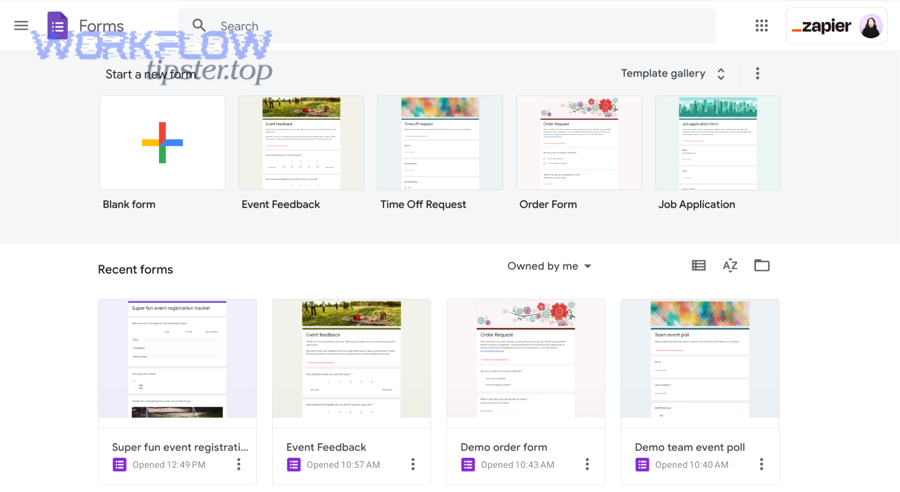
To begin, it helps to separate the intent from the implementation. People say “connect Google Forms to Outlook,” but what they usually want is one of these outcomes:
- Notification: “Email my team when someone submits the form.”
- Personalized follow-up: “Email the respondent a confirmation.”
- Operational handoff: “Send the submission to the right inbox/rep based on answers.”
- Scheduling: “Create an Outlook calendar event from the submission.”
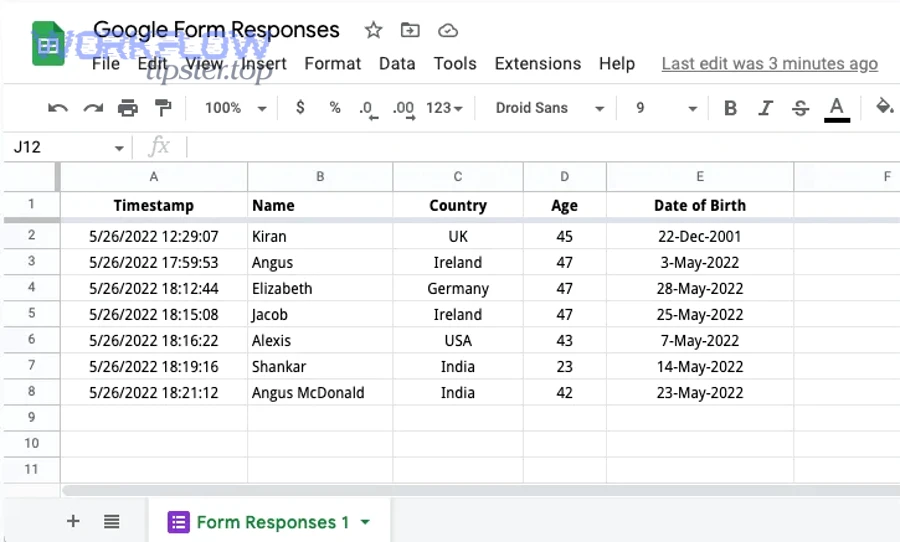
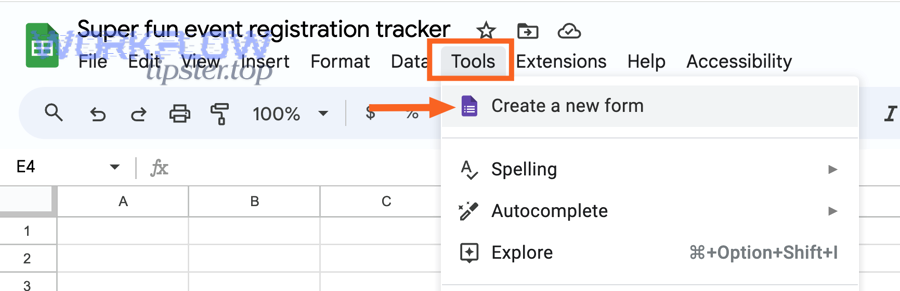
In addition, most workflows use Google Sheets as the response storage layer because Google Forms can automatically sync responses into a spreadsheet (which is often the easiest “trigger surface” for integrations).
What data actually moves from Google Forms into Outlook?
There are 3 main types of data you can move from Google Forms to Outlook: raw answers, metadata, and derived fields. Then, you decide whether the email should include a full transcript, a compact summary, or a link back to the response record.
- Raw answers: names, emails, dropdown choices, free-text responses
- Metadata: timestamp, form title, response ID (if your pipeline creates one), submission source
- Derived fields: computed priority, routing decision, formatted subject line, merged “case summary”
Specifically, the cleanest automation converts “messy answers” into “clean email-ready fields” before Outlook ever sends anything. That usually means standardizing capitalization, validating critical fields, and building a single “summary block” for the email body.
Is “Google Forms to Outlook” the same as “Google Sheets to Outlook”?
No—Google Forms to Outlook is triggered by the form submission, while Google Sheets to Outlook is triggered by a sheet row change, and the difference matters for reliability and design.
Next, here’s the practical distinction:
- Google Forms → Outlook (conceptual): “When someone submits the form…”
- Google Sheets → Outlook (common implementation): “When a new row appears in the response sheet…”
In many setups, the form submission creates/updates a row in a response sheet instantly, so the experience feels the same. But if you later edit the sheet, import rows, or manipulate formatting/scripts, you may accidentally re-trigger workflows or miss events. That’s why tool selection and trigger configuration matters.
Can you send Outlook emails automatically when someone submits a Google Form?
Yes—Google Forms to Outlook can send emails automatically because (1) Google Forms responses can sync to a data source like Google Sheets, (2) automation tools can detect new responses, and (3) Outlook connectors can send mail once fields are mapped into an email action. (learn.microsoft.com)
Then, think of the automation as a chain of three responsibilities:
- Detection: What counts as a “new submission”?
- Transformation: How do you turn answers into a readable email?
- Delivery: Who gets it, and can Outlook send it consistently?
What are the most common ways to automate Google Forms to Outlook?
There are 3 common ways to automate Google Forms to Outlook: no-code connectors, Microsoft-native automation, and scripted/webhook workflows, based on your need for speed vs. control.
- No-code connectors (fastest to launch)
Best when you want “new response → send email” quickly, with minimal IT overhead. Zapier-style tools explicitly support Google Forms triggers and Outlook actions. (zapier.com) - Microsoft-native (best inside Microsoft 365)
Best when your organization standardizes on Microsoft 365 governance, auditing, and connectors. Power Automate provides Outlook connectors with email actions and related operations. (learn.microsoft.com) - Scripted/webhook workflows (most customizable)
Best when you need advanced rules, data cleaning, custom logging, or you’re building a larger system that also touches CRM/ticketing.
Which setup is better for teams: email notifications or calendar events?
Email notifications are better for fast triage and shared visibility, while calendar events are better for time-bound commitments, and the best setup for teams usually combines both based on the team’s workflow.
Next, use these criteria to decide:
- Choose email notifications when someone needs to review the submission, a team uses a shared inbox, or volume is high and you need routing and filtering.
- Choose calendar events when the submission represents a scheduled appointment, reminders and availability matter, or you need a single source of truth for time slots.
A practical hybrid is: send an email for awareness, create a calendar event only when a specific answer indicates “appointment needed.”
Which tool should you use for Google Forms to Outlook: Zapier-style connectors, Power Automate, or custom workflows?
Zapier-style connectors win on speed, Power Automate is best for Microsoft 365 governance, and custom workflows are optimal for complex routing and data shaping—so the “best tool” depends on whether you value time-to-launch, admin control, or technical flexibility. (learn.microsoft.com)
Then, decide using a small set of non-negotiables:
- Identity & permissions: who owns the workflow and mailbox?
- Compliance: do you need audit trails, DLP, or tenant policies?
- Routing complexity: simple notification vs. conditional logic per answer
- Reliability needs: retries, logging, error alerts
- Cost model: per-task, per-user, per-run, or included licensing
To illustrate the tradeoffs clearly, the table below summarizes when each tool category fits best:
| Tool category | Best for | Strength | Tradeoff |
|---|---|---|---|
| Zapier-style connectors | Quick “new response → email” | Fast setup, many app connectors | Can become costly at scale; governance varies |
| Power Automate | Microsoft 365 teams | Strong Outlook integration + admin controls | Can require premium licensing for some connectors |
| Custom workflow builder | Advanced automation | Full control over logic, logging, data transforms | Requires build/maintenance skills |
To better understand why “not manual forwarding” is a meaningful improvement, remember that every copy/paste step is a chance to introduce mistakes—especially when data is long, repetitive, or time-sensitive. According to a study by the University of Hawai’i College of Business Administration, in 2008, spreadsheet research emphasized that errors are common and non-trivial in real-world spreadsheet work—reinforcing why automating repetitive handling of structured data reduces avoidable human mistakes. (academia.edu)
How do Zapier-style “connector” tools compare to Microsoft-native Power Automate?
Zapier-style tools are better for cross-app Automation Integrations across many SaaS platforms, while Power Automate is better when Outlook is governed inside Microsoft 365 and you want consistent admin oversight. (learn.microsoft.com)
Next, compare them using real setup questions:
- If your Outlook is work/school: Power Automate often aligns better with organizational connectors and policies. (learn.microsoft.com)
- If you also need to connect many non-Microsoft apps: Zapier-style tools are often quicker to extend.
- If you need shared ownership: consider who can maintain the workflow when the creator leaves.
When does a technical workflow builder (n8n/Make/scripts) make more sense?
A technical workflow builder makes more sense when you need custom routing rules, data validation, structured logging, and the ability to reprocess failures safely—especially when the form is feeding business-critical processes.
Then, choose a technical builder when you have requirements like:
- “If department = Sales and region = APAC, route to mailbox A; otherwise mailbox B.”
- “Normalize phone numbers, block disposable emails, and reject incomplete submissions.”
- “Store a copy of every outbound email payload for audit.”
- “Re-run failed sends without duplicating successful ones.”
This is also where teams start integrating adjacent processes like box to google docs document generation or syncing segmented lists from airtable to mailchimp—because once you have a workflow engine, email notification becomes just one action among many.
How do you set up Google Forms to Outlook email notifications step by step?
You set up Google Forms to Outlook email notifications in 6 steps—choose a trigger source, pick an automation tool, connect accounts, map fields into an Outlook email action, add routing rules, and test with controlled submissions—so notifications arrive reliably and read clearly.
Then, follow this practical sequence:
- Decide your trigger source
- Use Google Form submission directly if your tool supports it.
- Otherwise use Google Sheets response row created as the trigger surface.
- Choose your tool
- No-code connector, Power Automate, or custom workflow (based on the criteria above).
- Connect Google and Microsoft accounts
- Confirm you’re using the right Outlook connector type (work/school vs personal). (learn.microsoft.com)
- Build a clean email template
- Subject line: include a stable identifier (Form Name + Key Field + Timestamp).
- Body: include a readable summary, then details.
- Add routing
- Conditionals based on answers (department, region, urgency).
- Optional: create a distribution list or shared mailbox destination.
- Test and harden
- Submit multiple test responses including edge cases (blank optional fields, long text, special characters).
- Verify duplicates don’t happen on edits.
How do you map Google Form fields into an Outlook email template?
Mapping fields means placing specific form answers into specific email slots—subject, recipients, and body—so each email is personalized and readable rather than a raw data dump.
Next, use a “summary-first” mapping pattern that teams can scan quickly:
- Subject: [Form] + [Key answer] + [Urgency]
- Top of body (3–6 lines):
- Name
- Request type
- Priority
- Best contact
- One-sentence summary
- Details section:
- Full Q/A list or a link to the response record
Practical mapping tips that prevent ugly emails:
- Use fallback text for missing optional fields (e.g., “Not provided”).
- Convert multi-choice arrays into comma-separated text.
- Keep long free-text answers in a “Details” block so the email stays scannable.
How do you route submissions to the right Outlook recipient automatically?
You route submissions automatically by creating rules that evaluate one or more answers and then choose the correct “To/CC/BCC” recipients based on those conditions.
Then, implement routing in increasing levels of sophistication:
- Single rule routing (simple): If “Department = Billing” → billing@…
- Multi-rule routing (common): Department + Region + Urgency → mailbox selection
- Round-robin routing (advanced): Assign to the next available rep and log assignment
A reliable rule strategy is to route to a shared mailbox (team visibility) and optionally CC the individual owner (accountability).
How do you make Google Forms to Outlook automation reliable and secure?
You make Google Forms to Outlook automation reliable and secure by (1) preventing duplicate triggers, (2) validating key fields, (3) adding retries and logging, and (4) using the correct Outlook connector and account permissions—so it behaves predictably under real-world volume. (learn.microsoft.com)
Then, treat reliability like a checklist, not a hope:
- Idempotency (no duplicates): each submission should generate at most one notification
- Observability: failures should produce alerts with enough detail to fix
- Recoverability: you can retry failed sends without resending successful ones
- Permission clarity: the sending mailbox is intentional and audited
One overlooked reliability issue: when responses are stored in Sheets, formatting and script behaviors can change how new rows look or behave. For example, some Google Forms → Sheets behaviors can cause newly appended rows to lose formatting, pushing teams to add scripts—scripts that can unintentionally affect triggers if you aren’t careful. (labnol.org)
What are the best ways to prevent duplicate emails or missed triggers?
There are 4 best ways to prevent duplicate emails or missed triggers: use a unique submission ID, trigger only on “new row added,” lock reprocessing with a status field, and add deduplication logic based on timestamp + key fields.
Next, apply these patterns:
- Unique key: create or capture a unique “submission key” (timestamp + email + form name).
- Status column (if Sheets-based): write “SENT” back to the row after success.
- Trigger discipline: avoid triggers like “any row updated” unless you need them.
- Delay buffers: add a short delay if your stack sometimes writes partial data before the final row is complete.
A simple operational win: include the unique key in the email header or subject so duplicates become obvious instantly.
What should you do if Outlook emails fail to send or go to spam?
If Outlook emails fail or land in spam, you should check connector authentication, sending limits, recipient policies, and email content signals—then add logging so the next failure tells you exactly where it happened.
Then, troubleshoot in this order:
- Authentication & connector choice
- Confirm you’re using the right connector type for your account (work/school vs personal). (learn.microsoft.com)
- Permission & mailbox
- Shared mailbox sends often require explicit permission configuration.
- Rate limits / throttling
- If you send many emails quickly, queue them or batch them.
- Content & deliverability
- Avoid spam-like patterns: all-caps subjects, link-only bodies, repeated templates with no personalization.
- Attachments
- If you add attachments in Power Automate desktop flows, you may need to convert files to binary data before attaching, depending on the action used. (learn.microsoft.com)
A practical deliverability tactic is to send a clean internal notification email and include a link to the full response record, rather than stuffing the entire submission and multiple links into the email body.
What should you do when Google Forms and Outlook don’t behave as expected?
When Google Forms and Outlook behave unexpectedly, you should isolate the issue to one layer—form submission, data storage, automation trigger, field mapping, or Outlook sending—and fix that layer before changing everything, so you don’t create new failures while chasing the original one.
Then, use this “single-variable” troubleshooting flow:
- Does the form capture the data correctly?
- Does the response land where your automation expects (often Sheets)?
- Does the trigger fire exactly once?
- Does the email action receive the fields you think it receives?
- Does Outlook send successfully, and can you prove it with logs?
Why doesn’t embedding or sharing the Google Form fix your Outlook workflow?
Embedding or sharing changes how people access the form, but it does not change the automation logic—so if the trigger, mapping, or permissions are wrong, the Outlook workflow will still fail even if the form is embedded perfectly.
Next, treat embedding as a distribution choice, not an integration fix. For example, embedding affects where the form is hosted, how users discover it, and sometimes how permissions feel to respondents, but it typically doesn’t repair broken triggers, incorrect connectors, or bad mapping.
Can you transfer ownership of the automation if the original creator leaves?
Yes—you can transfer ownership, but only if the workflow is built with shareable accounts, documented connections, and maintainable credentials; otherwise the automation becomes “orphaned” and silently fails.
Then, use these transfer-ready practices from day one:
- Build under a team-managed account (not a personal account).
- Store documentation: trigger, mapping, recipients, error handling, and where logs live.
- Avoid hardcoding personal tokens that expire when the person leaves.
- For Microsoft-native automation, align with admin-managed connectors and policies. (learn.microsoft.com)
Is migrating to Microsoft Forms better than integrating Google Forms with Outlook?
Microsoft Forms can be better when your organization lives fully inside Microsoft 365, but integrating Google Forms with Outlook is better when you rely on Google Workspace form creation and still need Outlook delivery—so “better” depends on which platform owns your data capture.
Next, compare the decision by constraints:
- Choose Microsoft Forms if you need Microsoft-native governance end-to-end, your team already standardizes on Microsoft tools, and you want fewer cross-platform connectors.
- Choose Google Forms + Outlook integration if your forms already exist in Google, collaborators work primarily in Google Workspace, and you want to keep Google-based reporting while notifying Outlook recipients.
A common middle path is to keep Google Forms for capture and push structured data downstream into Microsoft systems only where needed—like Outlook notifications and calendar scheduling.
How can you reduce deliverability issues without overcomplicating the workflow?
You can reduce deliverability issues by simplifying the email payload, personalizing key fields, sending from a trusted mailbox, and avoiding attachment-heavy messages—so Outlook sends clean, consistent notifications that recipients actually see.
Then, apply these “low-complexity” deliverability upgrades:
- Put the core summary at the top and keep it short.
- Add one stable link to the response record instead of many links.
- Use a consistent sender (shared mailbox or service mailbox).
- Avoid “marketing-like” phrasing and excessive formatting.
- If you need follow-ups, consider sending a confirmation via a separate channel or linking to docs—like google docs to calendly scheduling instructions—rather than embedding everything into one email.
This is also the moment where teams often expand beyond just notifications into broader Automation Integrations—like generating a document packet, syncing leads, or creating collaboration artifacts—without turning the email itself into a heavy, spam-prone payload.