


Capturing leads from Google Forms in HubSpot without manual copy-paste or CSV imports is absolutely doable: you connect a form submission trigger to HubSpot contact creation (or updating), then let the system route, notify, and follow up automatically—so every response becomes a usable CRM record. (zapier.com)
A practical next question is what this “automation” really means in day-to-day operations—where the data goes in HubSpot, which fields matter, and what “not manual” replaces when you’re scaling beyond a handful of leads per week.
Then, you need to choose the best connection method (Google Forms add-on, automation platform, or a Google Sheets bridge) based on reliability, cost, governance, and how complex your downstream HubSpot actions must be. (workspace.google.com)
Introduce a new idea: once you set the connection, the real performance gains come from speed-to-lead and data hygiene—responding fast, preventing duplicates, and building a follow-up chain that marketing and sales can trust. (cdn2.hubspot.net)
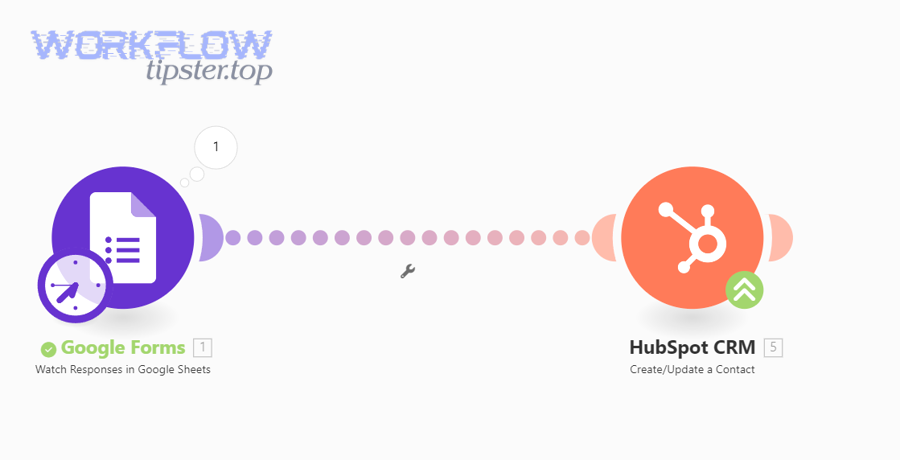
What does it mean to automate Google Forms to HubSpot lead capture (instead of doing it manually)?
Automating Google Forms to HubSpot lead capture is a no-code data pipeline that starts at a form submission, passes through an integration layer, and ends with created or updated HubSpot CRM records—with fast routing and consistent field mapping replacing manual entry.
More importantly, “not manual” is not just about saving keystrokes; it’s about protecting lead value by ensuring every submission becomes actionable in the CRM quickly and accurately, not stranded in a spreadsheet or inbox.
What data from Google Forms can be sent into HubSpot, and where does it land?
Google Forms data can be sent into HubSpot as contact properties (most common), company properties, deal fields, and engagement notes, depending on your integration method and workflow design. (zapier.com)
To keep the hook chain tight, think of the flow like this: a response is a record, and a record needs a home. In HubSpot, that home is usually:
- Contacts (default destination)
- Email, first name, last name, phone, job title, lifecycle stage
- Custom properties like “Form Name,” “Product Interest,” “Budget Range,” “Preferred Demo Time”
- Companies (optional, when you collect company name/domain)
- Company name, website, industry, size, country/region
- Deals (optional, when the submission signals sales intent)
- Pipeline, deal stage, amount, close date, owner
- Activities/Engagements (optional, to preserve the “story” of the lead)
- A note like “Submitted Google Form: [Form Name]” + key answers
If you only do one thing right here, do this: treat email as the primary identifier for B2B lead capture, because it enables create-or-update logic that keeps your CRM clean.
Does Google Forms integrate with HubSpot without code?
Yes—Google Forms integrates with HubSpot without code because you can use no-code connectors and Marketplace add-ons that create or update HubSpot contacts from form submissions, with mapping and authentication handled through guided setup. (zapier.com)
However, the “yes” becomes a fragile “it depends” if you skip three fundamentals:
- A stable identifier (typically email) for deduplication
- Property mapping (so HubSpot stores the right values in the right places)
- Testing and monitoring (so silent failures don’t leak leads)
That’s the real meaning of “automation” in Automation Integrations: it is not just “connected,” it is connected + validated + repeatable.
What are the best ways to connect Google Forms to HubSpot for lead capture?
There are 4 main types of Google Forms → HubSpot lead capture connections—direct add-ons, automation platforms, Google Sheets bridges, and “replace the form” alternatives—based on the criterion of setup speed versus workflow depth.
To choose the best option, you need to match your method to your intent: are you simply getting contacts into HubSpot, or are you building a full handoff system (routing, tasks, sequences, reporting)?
Which no-code options exist for Google Forms → HubSpot automation?
There are 4 main types of no-code options: (A) automation platforms, (B) Google Forms add-ons, (C) Google Sheets as a bridge, and (D) HubSpot-native alternatives, based on how and where the trigger fires. (zapier.com)
A) Automation platforms (Google Forms → HubSpot directly)
This is the most flexible approach when you want multi-step logic: create/update contact, then notify sales, then create a deal, then enroll in a workflow. Zapier is a common example that explicitly supports creating or updating HubSpot contacts from Google Forms responses. (zapier.com)
B) Google Forms add-ons (installed inside Google Forms)
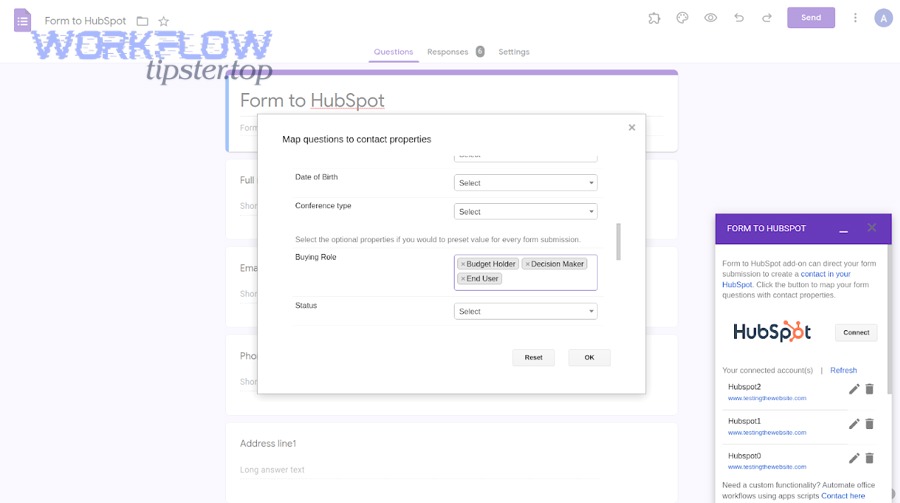
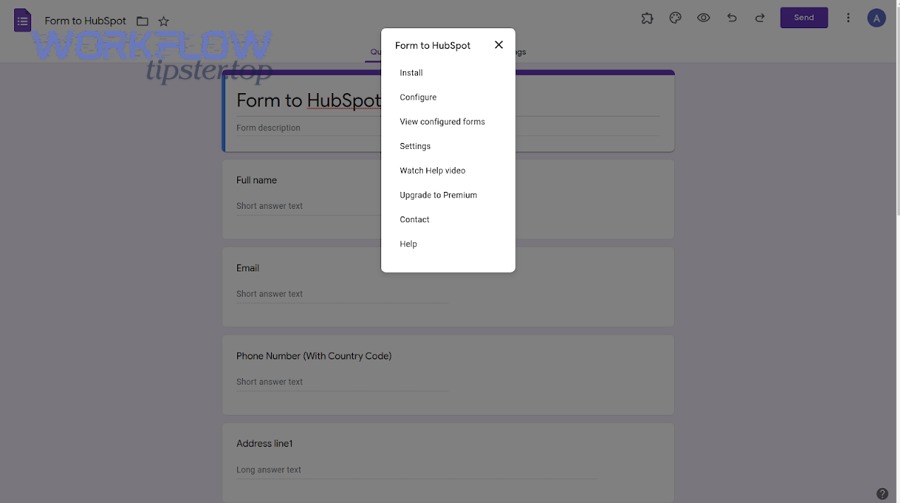
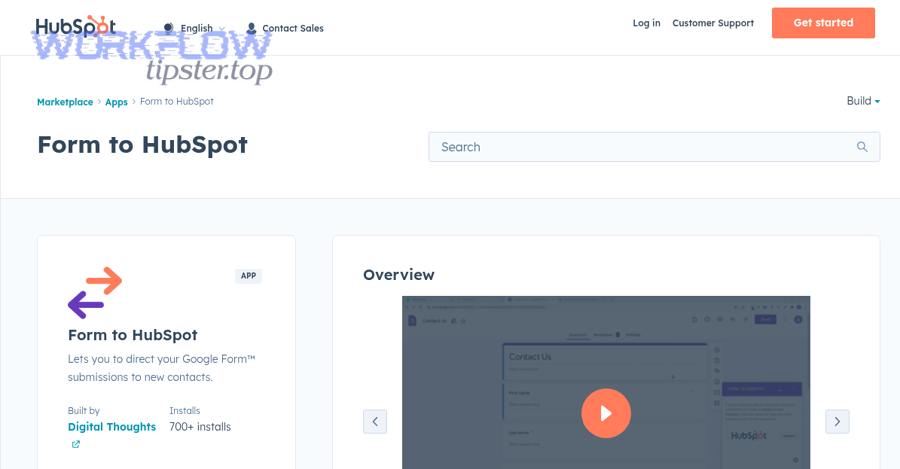
Add-ons like “Form to HubSpot” live closer to the form experience and can push submissions to HubSpot as they happen. (workspace.google.com)
This route is often fastest for teams that want “submission → contact created” with minimal external tooling.
C) Google Sheets bridge (Forms → Sheets → HubSpot)
If your process already relies on Sheets as a staging layer, you can capture responses in the linked spreadsheet and trigger HubSpot actions from there (sometimes with more control over normalization). (zapier.com)
D) HubSpot-native alternative (replace the form)
Sometimes, the most reliable “integration” is switching to a HubSpot form embedded on your site. This isn’t required for Google Forms → HubSpot, but it matters as a comparison point when governance and attribution are critical.
To make this concrete, here’s a quick comparison table. It summarizes what each method is best for—so you can pick the right architecture before you build.
| Method | Best for | Key strength | Common limitation |
|---|---|---|---|
| Google Forms add-on | Quick “lead capture to contact” | Fast setup inside Forms | Less advanced multi-step logic |
| Automation platform | Full workflow automation | Multi-step routing + enrichment | Cost scales with volume/usage |
| Sheets bridge | Data staging + cleanup | Normalization + review layer | Adds one more moving part |
| HubSpot-native form | Highest CRM-native tracking | Strong attribution + consent controls | Requires switching off Google Forms |
What is the difference between using a Google Forms add-on and using an automation platform?
An automation platform wins in workflow depth, a Forms add-on wins in setup speed, and a Sheets bridge is optimal for data normalization, because each approach optimizes a different operational constraint. (workspace.google.com)
Here’s how that plays out in real workflows:
- Field mapping and transformations
- Add-ons: usually straightforward mapping
- Automation platforms: mapping + formatting rules + conditional logic
- Create vs update logic
- Add-ons: may support create/update, but fewer advanced rules
- Automation platforms: create/update + branching + lookups
- Error handling
- Add-ons: sometimes limited visibility
- Automation platforms: run history, retries, error alerts
- Team governance
- Add-ons: can be tied to a single Google account if not managed carefully
- Automation platforms: often better for shared ownership and standardized operations
If you’ve ever built other flows like google docs to wordpress publishing or asana to google slides reporting, you already know the pattern: a lightweight connector works until you need routing, enrichment, and audit trails—then you want a workflow engine.
How do you set up a no-code Google Forms → HubSpot lead capture workflow step by step?
Use a no-code connector in 7 steps—connect accounts, select the form trigger, choose “create or update contact,” map fields, set dedup rules, test submissions, and monitor runs—to reliably capture leads in HubSpot without manual data entry. (zapier.com)
Next, let’s explore the setup in a tool-agnostic way so you can follow it whether you use an add-on, an automation platform, or a Sheets bridge.
Step 1: Define your “lead capture contract” (before clicking anything)
Write down:
- What a “lead” means (Contact only? Contact + Deal?)
- Required fields (email is usually non-negotiable)
- Where answers should live (existing properties or new custom properties)
Step 2: Prepare HubSpot properties
Create or confirm:
- Contact properties for each key answer (dropdowns where appropriate)
- A property like “Lead Source Detail” = “Google Forms”
- A property like “Form Name” (useful if you have multiple forms)
Step 3: Create your Google Form with data quality in mind
- Make email required (or use a required unique ID field if email isn’t viable)
- Use controlled inputs (dropdowns, multiple choice) for segmentation fields
- Keep phone formatting expectations consistent (e.g., include country code prompt)
Step 4: Connect the integration
- If using an add-on: install it in Google Forms and connect HubSpot
- If using an automation platform: connect Google and HubSpot accounts, choose the Form trigger, choose the HubSpot action
Step 5: Map fields carefully (don’t “just map everything”)
- Map identity fields first (email, name)
- Map segmentation fields second (interest, region, timeline)
- Map free-text answers last (notes, comments)
Step 6: Test like a skeptic
Submit at least 3 test entries:
- New email (creates a new contact)
- Same email again (updates the existing contact)
- Missing/edge case input
Step 7: Launch + monitor
- Turn on alerts for failures if available
- Review the first 20 submissions in HubSpot for accuracy
- Schedule a monthly “data hygiene check” (duplicates, missing required fields, weird formatting)
How do you connect Google Forms and HubSpot accounts securely (permissions and access)?
Connecting accounts securely means using OAuth-based authorization from a shared, role-based account, with least-privilege access and clear ownership, so your integration doesn’t break when a single employee leaves or resets credentials. (workspace.google.com)
Then, to make that practical, use this checklist:
- Use a shared integration owner (not a personal account)
- Example: marketing-ops@… or revops@…
- Document who owns what
- Who can edit the Google Form?
- Who can edit HubSpot properties/workflows?
- Who gets failure alerts?
- Avoid “mystery admin” setups
- If no one knows where the integration lives, no one can fix it
Security is part of lead capture performance. A broken integration is not a technical issue—it is lost pipeline.
How do you map Google Forms fields to HubSpot properties without losing data quality?
Mapping fields without losing data quality means aligning each question to the correct property type (text, dropdown, date), applying consistent formats, and storing long answers as notes or dedicated text properties, so HubSpot can segment and automate on the data. (zapier.com)
Specifically, use these rules:
Rule 1: Identity fields must be clean
- Email → HubSpot Email (primary key)
- Name → First name / Last name (split if possible)
- Phone → a consistent pattern (prompt for country code)
Rule 2: Segmentation fields should be structured
If the form asks:
- “Budget range” → dropdown property in HubSpot
- “Use case” → dropdown or multi-select (if multiple answers are allowed)
Rule 3: Free-text fields need containment
Long answers often work best as:
- A single “Form Notes” property, or
- A note/engagement attached to the contact (if your tool supports it)
Rule 4: Preserve context
Add at least one field that tells future-you where it came from:
- Form name
- Submission timestamp
- Page/source/campaign if you collect it
Evidence: According to a study by MIT (Lead Response Management survey), in 2008, the odds of contacting a lead dropped dramatically as response time increased, reinforcing why clean mapping (that enables fast follow-up) is operationally critical. (cdn2.hubspot.net)
How do you prevent duplicates and keep HubSpot records clean when leads come from Google Forms?
Preventing duplicates means using a single matching rule (usually email), choosing create-or-update behavior, and standardizing field formats so repeat submissions enrich one HubSpot contact instead of spawning multiple messy records.
In addition, duplicate prevention is not a one-time setting; it is a system: your form design, your mapping rules, and your monitoring habits all shape the duplicate rate.
Should you create a new contact or update an existing contact when a form is submitted?
Yes—you should update an existing HubSpot contact for Google Forms lead capture because it preserves history, prevents reporting inflation, and enables consistent segmentation, especially when (1) email is stable, (2) users submit multiple times, and (3) sales needs a single record of truth.
However, you still need a clear decision rule:
- Update when:
- Email matches an existing contact
- Submission is a new request from the same person
- Create when:
- No match exists
- The form is intentionally anonymous (rare for lead capture)
If your leads don’t provide email, you can use another stable identifier (membership ID, customer number), but you must accept that deduplication becomes less reliable.
What HubSpot properties should you set for reliable lead capture attribution?
There are 4 main groups of properties you should set—Identity, Source, Qualification, and Routing—based on the criterion of how they support segmentation and follow-up automation.
Then, build attribution like a chain, not a single field:
1) Identity (who is this?)
- Name
- Phone (optional but helpful)
2) Source (where did they come from?)
- Lead source detail: “Google Forms”
- Form name (critical if you run multiple forms)
- Submission timestamp
3) Qualification
- Use case
- Budget range
- Timeline
- Role/title
4) Routing (who owns it next?)
- Owner (if you assign immediately)
- Team/region (if you route by geography)
- Lifecycle stage (if you move from Subscriber → Lead)
If you want attribution to survive channel complexity, store UTM parameters when possible. Even if Google Forms is the capture interface, you may still be operating multi-step journeys across Automation Integrations—someone might discover you through content, convert in a form, and close through a sales sequence.
Evidence: According to a study by Brigham Young University and the University of Toronto (published in 2011), companies often responded slowly to online leads and some never responded, highlighting why clean attribution plus automation is necessary to protect revenue from response delays. (researchgate.net)
What automations should you trigger in HubSpot after a Google Forms submission?
There are 5 main automation types you should trigger after a Google Forms submission—confirmation, notifications, routing, enrichment/segmentation, and sales follow-up—based on the criterion of moving a raw lead into a handled opportunity.
Moreover, the best automation is the one that reduces time-to-first-action while keeping data accurate.
Here is a practical “post-submit automation stack” that works for most marketing + sales teams:
- Immediate confirmation to the lead (optional but powerful)
- “We received your request” email
- Set expectations for response time
- Internal alert
- Notify Slack/email to the right channel or owner
- Include key fields: budget, timeline, use case
- Routing rules
- Assign owner by region, product line, deal size, or form type
- Create a task with a due time (e.g., 15 minutes)
- Segmentation + nurture
- Add to list based on answers
- Enroll in a workflow (education, onboarding, case studies)
- Sales acceleration
- Create a deal (for high-intent forms)
- Move lifecycle stage
- Trigger a sequence enrollment (where appropriate)
Which follow-up actions are most useful for marketing teams vs sales teams?
Marketing wins with segmentation and nurture, sales wins with speed and ownership, because each team optimizes a different KPI: marketing optimizes engagement and qualification, while sales optimizes contact rate and conversion.
Then, to make that actionable, split the playbook:
Marketing follow-up (best when intent is mid-funnel)
- Add contact to a list based on interest
- Send educational emails
- Track conversion events (re-visits, downloads, replies)
Sales follow-up (best when intent is high)
- Assign owner immediately
- Create a task: “Call this lead”
- Create a deal for pipeline visibility
- Notify a rep with context (answers + notes)
This is where the “not manual” promise becomes measurable: you’re no longer hoping someone checks a spreadsheet; you’re enforcing the next step.
How do you test and monitor your Google Forms → HubSpot automation so it stays reliable?
Testing and monitoring means running structured test submissions, verifying field-level outcomes in HubSpot, and reviewing integration logs weekly so failures become alerts—not silent lead loss.
Specifically, monitor three layers:
Layer 1: Trigger health
- Are submissions consistently detected?
- Are there time delays?
Layer 2: Data integrity
- Are properties populated correctly?
- Are dropdown values matching exactly?
- Are phone/date formats valid?
Layer 3: Workflow execution
- Are owners assigned?
- Are tasks created?
- Are emails sent (if enabled)?
If you can, build a “canary test” form submission once a week (a controlled internal lead) to verify the whole chain end-to-end.
Evidence: According to a study by MIT (Lead Response Management survey), in 2008, delays from 5 minutes to longer windows sharply reduced the odds of contacting and qualifying leads, which is exactly why monitoring for time delays is part of system performance—not a nice-to-have. (cdn2.hubspot.net)
What are the most common problems and advanced optimizations for Google Forms → HubSpot automation?
Google Forms → HubSpot automations most often fail due to identity gaps, field formatting drift, permission changes, and scaling limits, and the best optimizations harden the pipeline with dedupe logic, normalization layers, and workflow guardrails.
Next, let’s explore the most common pain points—because this is where teams either maintain trust in HubSpot, or slowly fall back to “manual fixes” that break the whole promise.
Why are duplicates still happening in HubSpot, and how do you fix them at the source?
Duplicates still happen because emails aren’t required, values aren’t normalized, and multiple forms feed mismatched fields, and the fix is to enforce one identifier, standardize formats, and implement create-or-update rules consistently.
Use this “source-level” fix list:
- Make email required (or use a stable unique ID)
- Normalize name + phone inputs
- Prompt users clearly
- Use consistent validation patterns
- Standardize dropdown values
- “USA” vs “United States” creates segmentation chaos
- Avoid “same meaning, different fields”
- Don’t map “Company” into multiple HubSpot properties across different flows
If you want an advanced option, add a lightweight normalization layer (often the Sheets bridge) where you:
- Clean values (trim whitespace, standardize casing)
- Validate phone formats
- Reject incomplete rows before pushing to HubSpot
Can Google Forms file uploads (attachments) be added to a HubSpot contact record automatically?
Yes, but only indirectly in many setups—because Google Forms file uploads typically land in Google Drive, so the most reliable automation is to store the Drive file link in HubSpot and optionally log a note referencing the uploaded file. (zapier.com)
A practical approach:
- Add a HubSpot property called “Uploaded File URL”
- Map the Drive link into that property
- Add a note: “User uploaded document via form—see URL”
This preserves context without forcing fragile attachment handling.
What consent, privacy, and compliance considerations matter when sending form leads into HubSpot?
There are 4 main compliance groups—notice/consent, data minimization, access control, and retention—based on the criterion of reducing legal risk while maintaining marketing effectiveness.
Then, apply them as operational rules:
1) Notice + consent
- Tell users what happens to their data
- If you’re emailing them, capture marketing consent where required
2) Data minimization
- Don’t collect sensitive data you don’t need
- Avoid “just in case” questions
3) Access control
- Limit who can view/edit properties
- Avoid broad admin sprawl
4) Retention
- Define how long you keep leads that never convert
- Implement deletion/anonymization policies if needed
The point is not to scare the reader; it’s to protect the pipeline. A compliant pipeline is a durable pipeline.
How do you scale the workflow for high volume submissions and multi-step routing without breaking it?
Automation platforms win for complex routing, a Sheets bridge is best for high-control normalization, and an add-on is optimal for simple high-volume capture, because each scales a different bottleneck: logic, data cleanliness, or throughput. (workspace.google.com)
To scale cleanly, add these guardrails:
- Throttle complexity
- Keep the “capture” step simple
- Do enrichment and branching inside HubSpot workflows where possible
- Make routing explicit
- Region → owner map
- Product → pipeline map
- Budget tier → SLA urgency
- Instrument your pipeline
- Alert on failures
- Monitor time delays
- Track “lead captured → first action” time
If you’ve scaled other operational flows (like content publishing google docs to wordpress or project reporting asana to google slides), the pattern holds: scale requires clear ownership, controlled inputs, and monitoring.
Evidence: According to a study by the University of the Punjab (Punjab University College of Information Technology), published in 2016, record de-duplication frameworks can significantly reduce record comparisons while maintaining precision/recall—supporting the idea that scaling requires smarter matching, not more manual review. (pmc.ncbi.nlm.nih.gov)