


When you connect Google Forms to Freshdesk, you can automatically turn every new form submission into a properly structured support ticket—complete with the right subject, description, priority, and routing rules—so agents spend time solving issues instead of retyping requests.
Then, you’ll want to choose the right automation method (a no-code connector vs. webhooks/API), because the best option depends on your ticket volume, field complexity, and whether you need advanced routing or attachments.
You’ll also need a clean field strategy in the form itself, since the quality of your Freshdesk tickets is limited by the quality of the form data you collect in the first place.
Introduce a new idea: below is a complete, step-by-step structure you can follow to build a reliable workflow that scales.
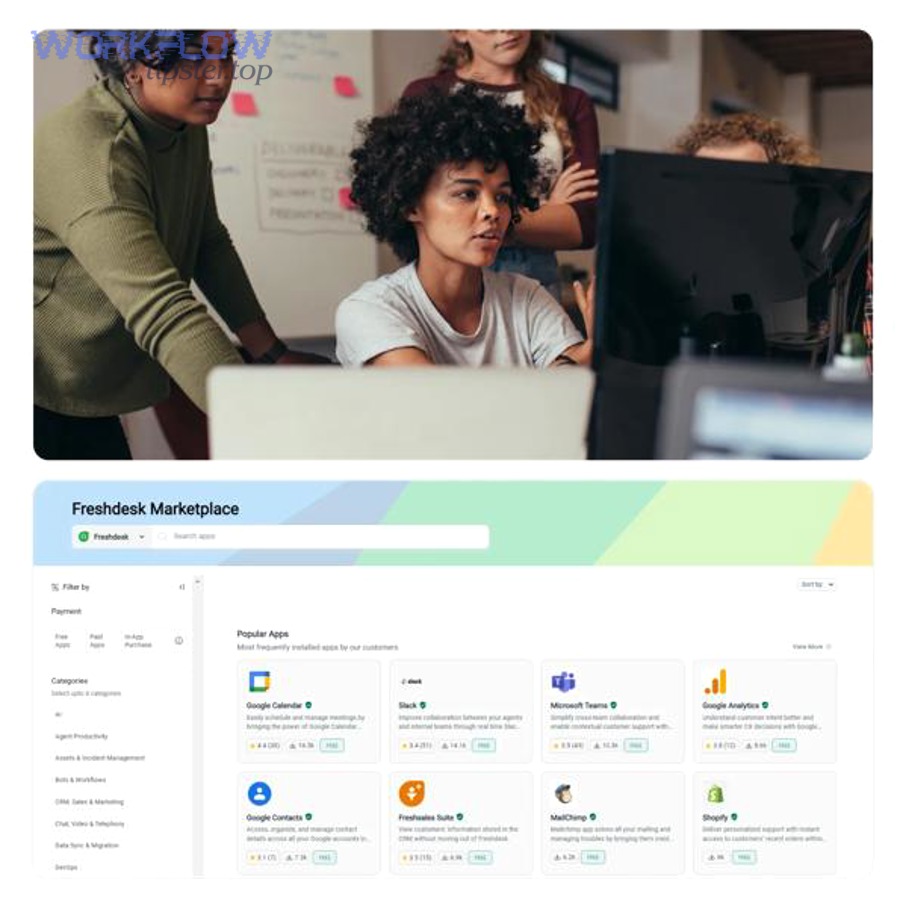

Is it possible to integrate Google Forms with Freshdesk for ticket creation?
Yes—Google Forms can be integrated with Freshdesk to create tickets automatically because (1) form responses can trigger automations, (2) Freshdesk supports ticket creation via integrations and APIs, and (3) mapping rules can translate answers into ticket fields with consistent formatting.
Next, to make this integration dependable (not just “it works on my test”), you need to pick a workflow pattern that matches your team’s real intake process.
The most common routes look like this:
- No-code connector (recommended for most teams): use Zapier to trigger on “New Form Response” and run an action like “Create Ticket” in Freshdesk. (zapier.com)
- Freshdesk’s own guidance for automation: Freshdesk documents using Zapier to connect Freshdesk with other apps and run trigger→action “Zaps.” (support.freshdesk.com)
- Webhook/API (recommended for custom requirements): send responses to Freshdesk ticket endpoints directly when you need more control (field logic, dedupe, attachments, complex routing, custom objects). Freshdesk documents API behavior and status codes (including rate-limit errors). (developers.freshdesk.com)
What “possible” really means in practice: you’re not just creating a ticket—you’re creating a ticket that is triage-ready (clear summary, correct category, correct urgency, and enough context to act).
What is a Google Forms to Freshdesk integration?
A Google Forms to Freshdesk integration is an automation workflow that captures structured form responses and creates a corresponding Freshdesk support ticket, typically using a trigger-action connector or an API call, so ticket intake becomes consistent and fast.
Then, the key to understanding this integration is to separate it into three functional blocks:
- Capture: the user submits a Google Form (issue request, bug report, onboarding request, refund request, etc.).
- Translate: your automation maps form fields into ticket fields (subject, description, category, priority, tags, requester info).
- Route: Freshdesk assigns the ticket to the correct group/agent and sets SLAs, statuses, and notifications.
In a real support workflow, this integration sits at the “front door.” It’s most useful when you want to:
- standardize incoming requests (same questions, same format),
- reduce back-and-forth clarification,
- make reporting easier (because fields are consistent),
- improve first-response time by auto-triaging.
A practical mental model: Google Forms is your intake schema; Freshdesk is your execution system. If the schema is messy, the execution system gets noisy.
What information should you collect in Google Forms to create useful Freshdesk tickets?
There are 3 main types of information you should collect in a Google Form to create high-quality Freshdesk tickets: requester identity, issue context, and routing signals, based on how tickets are triaged in your support process.
To begin, treat the form like a “minimum viable ticket”—it should answer: Who needs help? What happened? How urgent is it? Who should own it?
Essential fields that make tickets actionable
Start with the smallest set that still allows resolution:
- Requester email (required): ensures the ticket requester is correct and replyable.
- Issue summary (short text): becomes the ticket subject.
- Issue details (long text): becomes the ticket description.
- Category (dropdown): helps reporting + routing (Billing, Bug, Feature Request, Access, etc.).
- Impact/Urgency (dropdown): helps set priority and SLA expectations.
Practical guidance:
- Prefer dropdowns/radio buttons for category/urgency to reduce ambiguity.
- Keep “details” as a paragraph field but add prompts like: Steps to reproduce, expected vs actual, screenshots link, order number, device/browser.
Optional fields that improve triage quality
Add these when they match your workflow:
- Product/Module (dropdown) if you support multiple apps/features.
- Environment (dropdown) (Production/Staging, iOS/Android/Web).
- Account/Org ID if your system uses internal identifiers.
- Preferred contact window for time-sensitive requests.
These are optional because they’re workflow-specific, but they reduce follow-up questions and speed up resolution.
Validation, consent, and data hygiene rules
Finally, to keep the ticket queue clean:
- Validate email format (Forms does basic validation for “email” type).
- Add a short consent note if you’re collecting personal data.
- If spam is a risk, consider sign-in restrictions (workspace users only) or a CAPTCHA alternative (more on that later).
If you want the biggest impact with minimal complexity, focus on standardized category + urgency first—those two fields do a lot of routing work.
How do you set up Google Forms to Freshdesk automation with Zapier?
The simplest method is Zapier in 6 steps: trigger on a new Google Forms response, map fields into “Create Ticket” in Freshdesk, test, and turn it on—so each submission becomes a ticket automatically.
Next, let’s connect the moving parts carefully, because small configuration mistakes (like missing requester email mapping) cause most “it created a ticket but it’s wrong” outcomes.
Prerequisites before you build the Zap
You’ll want:
- A Google Form with finalized field names (don’t rename fields later unless you plan to remap).
- Freshdesk admin access (or permission to create tickets / view ticket fields).
- A clear mapping plan: “this form field → this ticket field.”
Zapier’s trigger model is straightforward: a Zap starts from a trigger like “New Form Response” in Google Forms. (zapier.com)
Build the Zap step by step
Step 1: Choose the trigger (Google Forms).
- App: Google Forms
- Trigger: “New Form Response” (or “New or Updated Form Response” if you truly need update tracking). (zapier.com)
Step 2: Choose the action (Freshdesk).
- App: Freshdesk
- Action: “Create Ticket” (Zapier lists Freshdesk actions such as Create Ticket and others). (zapier.com)
Step 3: Map fields (the critical part).
At minimum map:
- Requester email → Freshdesk requester/email field
- Subject → “Issue summary” response
- Description → “Issue details” response + appended structured context
A good description template is:
- Summary: {Issue summary}
- Details: {Issue details}
- Category: {Category}
- Urgency: {Urgency}
- Context: {Product/Module}, {Environment}, {Account ID}
Step 4: Set category/priority logic.
If Zapier’s default field mapping is too limited, use conditional logic steps:
- Filter: only create tickets when “Category = Support” or “Urgency ≠ Low”
- Paths: route different categories to different ticket groups/fields
Zapier also supports adding filter steps to decide when a Zap should run.
Step 5: Test with real sample submissions.
Submit the form 2–3 times with different categories and urgency levels so you can confirm mapping behavior.
Step 6: Turn on + monitor.
Create a monitoring plan:
- check first 20 tickets for formatting,
- confirm requester is correct,
- confirm duplicates aren’t being created.
Test and harden the workflow
Common hardening moves:
- Add a “dedupe key” line in the description (submission ID / timestamp).
- Standardize priority mapping (e.g., Urgency=High → Priority=High).
- Add tags like
source:google_formsto make reporting easy.
If you need deeper control than the “Create Ticket” action exposes, that’s when webhook/API becomes the better fit.
How do you create Freshdesk tickets from Google Forms using webhooks and the Freshdesk API?
The best way to do it with APIs is Webhook capture + 3 core steps (authenticate, format JSON, POST to ticket creation), producing tickets with full control over custom fields, routing logic, and error handling.
Then, the key decision is not “API vs no-code” in the abstract—it’s whether your requirements exceed what the connector’s UI exposes.
When should you choose webhook/API over a connector?
Choose webhook/API when you need one or more of these:
- advanced conditional mapping (multi-field logic, complex transforms),
- guaranteed dedupe behavior,
- custom fields not supported in a connector UI,
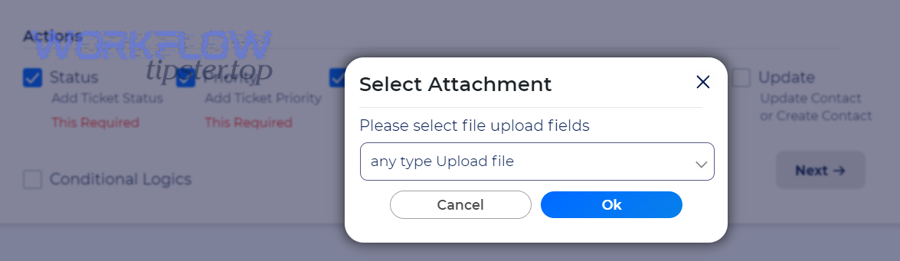
- attachments + structured payload handling,
- more reliable retries and observability.
You’ll still often use a no-code layer (like Zapier’s “Webhook” capability) to send the request, but the ticket creation becomes your API contract, not a prebuilt action.
API authentication and the ticket endpoint basics
Freshdesk’s API documentation emphasizes JSON requests and includes status codes for errors like 429 Rate Limit Exceeded when limits are exhausted. (developers.freshdesk.com)
A common ticket creation endpoint pattern in Freshdesk is the v2 tickets endpoint (documented as part of support ticket REST APIs, including POST /api/v2/tickets). (developers.freshworks.com)
Your webhook sender (automation tool or your own middleware) must:
- send
Content-Type: application/json, - include authentication (typically API key-based basic auth in many Freshdesk setups),
- handle non-2xx responses with retries and logging.
Sample payload mapping
Here’s an example JSON payload shape you can adapt (field names vary by your Freshdesk configuration; treat this as a mapping pattern):
{ "email": "requester@example.com", "subject": "Cannot access account after password reset", "description": "User reports login loop after reset.\n\nCategory: Access\nUrgency: High\nEnvironment: Web\nSubmission ID: 2026-01-31T06:22:10Z", "priority": 3, "status": 2, "tags": ["source:google_forms", "category:access"] }Mapping rules that prevent confusion:
- Subject: short, human-readable summary (avoid dumping all fields here).
- Description: include structured lines so agents can scan quickly.
- Tags: add
source:google_formsso you can filter and report. - Priority/status: map from dropdown values to Freshdesk’s numeric or enumerated values used in your account.
Finally, when you build API-based flows, you must plan for throttling and retries—especially when you get bursts of form submissions.
What are the best ways to map form responses to Freshdesk ticket fields and categories?
There are 4 main mapping buckets that create clean Freshdesk tickets from form responses: subject/description formatting, classification fields, routing fields, and metadata fields, based on how a helpdesk triages and reports work.
Next, let’s turn “raw responses” into a ticket that is easy to read, assign, and measure.
Subject and description: turn raw text into a readable case file
Best practice:
- Subject = short summary (8–12 words is often enough)
- Description = details + structured context
A strong description format:
- Problem: {Issue details}
- Impact: {Impact/urgency}
- Steps tried: {What have you tried?}
- Environment: {Device/OS/Browser}
- Attachment links: {Drive link / screenshot link}
- Contact: {Email / phone (if relevant)}
This format gives agents a consistent “scan path.”
Priority, status, and SLA signals: map urgency to operational reality
Don’t let users directly set “Priority = Urgent” without guardrails. Instead:
- Ask for Impact and Urgency (time sensitivity),
- Then map those two into priority.
Example mapping logic:
- High impact + high urgency → Priority high
- Low impact + low urgency → Priority low
- High urgency but low impact → medium (depends on policy)
This keeps the queue fair and prevents “everything is urgent.”
Groups/agents, tags, and category: make routing predictable
Routing is where integrations either shine or create chaos.
- Category (dropdown) → Group: Billing → Billing queue, Bug → Engineering triage, Access → IT/Support.
- Tags: add
source:google_forms, plus category tags for reporting. - Custom fields: if you use custom dropdowns in Freshdesk, mirror them in Forms so mapping stays consistent.
If you ever plan to route beyond Freshdesk, tags become even more valuable (for example, sending some ticket types into project execution tools).
Metadata: the “quiet” fields that save you later
Add at least one of these:
- submission timestamp,
- submission ID (or a generated unique key),
- form version (if you anticipate changes),
- channel/source field.
These fields are not glamorous, but they make audits and dedupe possible.
How can you prevent spam, duplicates, and low-quality tickets from Google Forms?
You can prevent spam and duplicates by combining 3 controls—front-door friction (validation), mid-stream gating (filters/dedupe), and back-end resilience (error handling)—so your helpdesk stays usable even when submissions spike.
More specifically, the goal is not “zero bad tickets” (unrealistic) but a queue that stays triageable.
CAPTCHA, sign-in rules, and validation (front-door controls)
Use the lightest control that solves your problem:
- Internal teams: restrict form to your organization (Google Workspace sign-in).
- External users: add clear validation (required fields, dropdowns, email field type).
- High spam risk: use alternative intake channels or add friction (custom landing page with CAPTCHA, then redirect).
Also consider rewriting questions to reduce low-quality text. For example, instead of “Describe your problem,” use:
- “What were you trying to do?”
- “What happened instead?”
- “Steps to reproduce (1–2–3).”
Filters and dedupe rules (mid-stream controls)
If you use an automation layer like Zapier, add filters so not every submission becomes a ticket:
- Only create tickets when Category ∈ {Support, Bug, Billing}
- Ignore internal test submissions (checkbox “This is a test”)
- Route “Feature requests” to a separate queue or tool
Dedupe patterns:
- dedupe key = email + category + short summary + date bucket
- if duplicate detected, append note to existing ticket instead of creating a new one (requires more advanced logic/API)
Zapier’s filter step is a common way to gate which submissions proceed.
Error handling, retries, and rate limits (back-end controls)
Your workflow must expect failures, especially rate limits during spikes. Freshdesk documents 429 Rate Limit Exceeded and explains rate limits with plan-based call limits and endpoint caps. (support.freshdesk.com)
Practical resilience tactics:
- retry with exponential backoff on 429,
- queue requests if you anticipate bursts (batching),
- log failures and alert a channel,
- fall back to creating a “holding ticket” with minimal data if full creation fails.
Evidence: According to a study by the University of Southern Mississippi from the Physical Plant department, in Fall 2013, 45.7% of respondents reported being “Very Satisfied” with response time for work requests and the average rating was 4.25/5. (usm.edu)
Why that matters here: response time and reliability are exactly what automation should protect—if intake breaks or floods, your perceived service quality drops fast.
Google Forms to Freshdesk vs other intake options: which is best for your team?
Google Forms to Freshdesk wins in speed and simplicity, the Freshdesk portal is best for self-service context and guided workflows, and email is optimal for ad-hoc requests—so the “best” choice depends on how structured you need intake to be.
Next, use these criteria to choose without second-guessing later: user friction, data structure, routing control, and reporting quality.
Google Forms → Freshdesk: best for fast, structured intake
Use it when:
- you need a quick intake front-end,
- you want consistent fields,
- you want to launch fast with minimal engineering.
Tradeoffs:
- limited UI experience compared to a purpose-built portal,
- attachments can be clunky unless you add Drive links or API handling,
- advanced workflows require additional tooling.
Freshdesk portal/forms: best for full helpdesk-native experience
Use it when:
- you want users to log in and see ticket history,
- you want guided categories and knowledge base deflection,
- you rely on Freshdesk-native form logic and SLAs.
Tradeoffs:
- sometimes more setup overhead,
- less flexibility if your intake needs to look/behave differently.
Email-to-ticket: best for low structure and human-led triage
Use it when:
- volume is low,
- requests are highly variable,
- humans will triage manually anyway.
Tradeoffs:
- inconsistent data quality,
- poor reporting,
- higher agent workload (copy/paste + clarification loops).
If your team is building repeatable intake pipelines, Google Forms is usually a strong first step—but plan for when you outgrow it (attachments, routing, dedupe, analytics).
What advanced options can improve a Google Forms to Freshdesk workflow?
There are 4 advanced upgrades that meaningfully improve a Google Forms to Freshdesk workflow: attachments handling, two-way status updates, cross-tool routing, and multi-step data enrichment, based on how mature support operations scale.
Then, once your basic automation is stable, these upgrades deepen micro semantics: they make the workflow not just “automated,” but operationally intelligent.
How do you add attachments to tickets created from form submissions?
The most reliable way is to collect files in Google Drive and pass links, or use an API-based method that uploads attachments during ticket creation, because basic connectors may not expose full attachment support in a simple UI.
Common patterns:
- Add a “Upload screenshot” instruction and collect:
- a Drive link (if internal),
- a cloud link (if external),
- or a file upload (if your environment supports it), then pass the link into the ticket description.
If you truly need files embedded as attachments, an API workflow is usually required so you can send multipart requests (implementation depends on your Freshdesk endpoint configuration and auth model). (developer.freshdesk.com)
How do you sync ticket updates back to stakeholders automatically?
A simple method is notification automation: when the ticket status changes (e.g., Waiting on Customer), send an update email/slack message with what the customer needs to do next.
Advanced method:
- When ticket is resolved → send a form-based CSAT follow-up
- When ticket needs more info → send a templated request referencing the form submission
This is where “Automation Integrations” becomes strategic: your intake system and your resolution system share state, not just one-way data.
How do you route some tickets into project work like freshdesk to clickup?
The cleanest approach is category-based branching: route “Feature request” or “Implementation request” tickets into ClickUp while leaving support incidents in Freshdesk, because projects and incidents have different lifecycles.
A practical “freshdesk to clickup” pattern:
- Form submission → Freshdesk ticket created (source of truth for requester comms)
- If Category = “Feature Request” → create a ClickUp task with:
- ticket link,
- summary,
- category tag,
- requested deadline.
That gives support a customer-facing record and product/ops a delivery record.
How do you enrich tickets with related data using google drive to airtable or airtable to servicenow?
If you need stronger reporting or service management workflows, enrichment becomes powerful:
- Use Airtable as a structured intake ledger:
- store every submission + derived fields (category, dedupe key, SLA tier),
- then create Freshdesk tickets from the enriched record (not raw form data).
- Use ServiceNow when the request is truly ITSM/enterprise:
- escalate certain categories (Access, Hardware, Security incidents) into ServiceNow workflows.
In other words:
- “google drive to airtable” can centralize and normalize intake data,
- “airtable to servicenow” can push only the right high-governance items into ITSM.
These upgrades are most valuable when you’ve already stabilized your core mapping and want to improve governance, reporting, and cross-team execution.