


Moving a document from Google Drive into Microsoft Word is simple when you know what’s actually being converted—and where formatting usually breaks. This guide shows the cleanest ways to export Google Docs to a .docx file, plus what to check so the Word version stays readable, shareable, and collaboration-ready.
Next, we’ll clarify what “Google Drive to Microsoft Word” really means in practical terms (Drive vs Docs vs file formats), because that single distinction explains most conversion “mysteries” you’ll hit later.
Then, we’ll walk through the best conversion methods—from downloading directly in Google Docs to converting from Drive—so you can pick the fastest path for a one-off file or a repeatable workflow.
Introduce a new idea: once the file becomes a Word document, your risk and collaboration model changes (permissions, downloading, version control), so we’ll close with sharing safety and bulk automation options.
What does “Google Drive to Microsoft Word” mean?
“Google Drive to Microsoft Word” means exporting or downloading a file stored in Drive—most often a Google Docs document—into a Word-compatible format such as .docx so it can be opened and edited in Microsoft Word. (support.google.com)

To better understand the workflow, think of Google Drive as the storage and sharing layer, and the document type (Google Docs, Word .docx, PDF, etc.) as the “container” that determines what your editor can do.
What’s the difference between Google Drive and Google Docs in this workflow?
Google Drive is the cloud location where files live and permissions are managed, while Google Docs is the document editor (and a native file type) that often needs to be converted before Word can work with it smoothly.
Practically, that leads to two common scenarios:
- Scenario A (most common): A Google Docs file is stored in Drive → you download/export it → it becomes a .docx file on your computer.
- Scenario B: A .docx file is already stored in Drive (uploaded from Word) → you download it → it stays .docx.
The “conversion” mostly happens in Scenario A, because Google Docs is not a .docx file until you export it.
What file formats are involved (Google Docs vs .docx vs .doc)?
You’ll usually see three Word-related formats:
- Google Docs (native): Great for browser-based collaboration, comments, and version history—but not a true Word file.
- .docx (modern Word): The standard Word format for current versions; best choice for compatibility and preserving structure.
- .doc (legacy Word): Older format; may be required by legacy systems but can lose modern formatting features.
If your goal is maximum compatibility with modern Microsoft Word, prioritize .docx and only fall back to .doc when a tool, organization, or client explicitly requires it.
Can you convert Google Drive files to Microsoft Word without losing formatting?
Yes—Google Drive files can be converted to Word with minimal formatting loss if you start from clean styles, use .docx, and validate high-risk elements like tables, page breaks, and fonts, because those are the most common failure points in cross-editor conversion. (services.asusystem.edu)
However, conversion isn’t “magic”—it’s a rules-based translation between two different document engines. So the real strategy is: know what converts cleanly, and design your Doc to avoid what doesn’t.
Which formatting elements usually convert perfectly?
In most teams, these elements are “safe” and typically convert well:
- Basic paragraphs (normal text, simple alignment)
- Headings using styles (Heading 1/2/3 rather than manually enlarged bold text)
- Bold/italic/underline, basic colors
- Bullets and numbered lists (especially single-level lists)
- Simple tables (few columns, no nested tables)
- Basic images inserted inline (not overly layered)
A reliable rule: if you used styles and kept formatting consistent, Word has a much easier time interpreting the structure.
Which formatting elements commonly break—and why?
These elements often shift because Google Docs and Word handle layout differently:
- Fonts: Substitutions happen if a font isn’t installed in Word’s environment.
- Spacing & line-height: Different default spacing rules can change the “feel” of a page.
- Complex tables: Merged cells, heavy styling, or nested tables may reflow unexpectedly.
- Headers/footers & section breaks: Word is more “section-structure heavy,” so conversions can alter pagination.
- Comments/suggestions: They don’t always map 1:1; sometimes they convert as markup or flatten depending on method.
In addition, if you’ve relied on manual formatting (spaces, repeated enters, “fake” alignment), conversion often exposes those shortcuts by reflowing text.
What are the best ways to convert Google Drive to Microsoft Word?
There are two best ways to convert Google Drive to Word: (1) export from Google Docs using File → Download → Microsoft Word (.docx), and (2) download from Drive when you need speed or batch handling—both produce a .docx you can open in Word. (support.google.com)
Next, choose the method based on what you’re converting (a Google Doc vs a Word file already in Drive) and how many files you need.
Before the steps, here’s a quick comparison so your team can pick consistently:
This table compares conversion methods by speed, formatting stability, and best-fit scenario.
| Method | Best for | Speed | Formatting stability | Notes |
|---|---|---|---|---|
| Export inside Google Docs | One file you’re actively editing | Medium | High | Gives you the most control and visibility |
| Download from Google Drive | Quick export or multiple files | Fast | Medium–High | Great for batch actions; still verify results |
| Save as PDF first (then convert) | “Must preserve layout” docs | Slow | Layout: Very high | Text editability may suffer depending on converter |
How do you download a Google Doc as a Word (.docx) file?
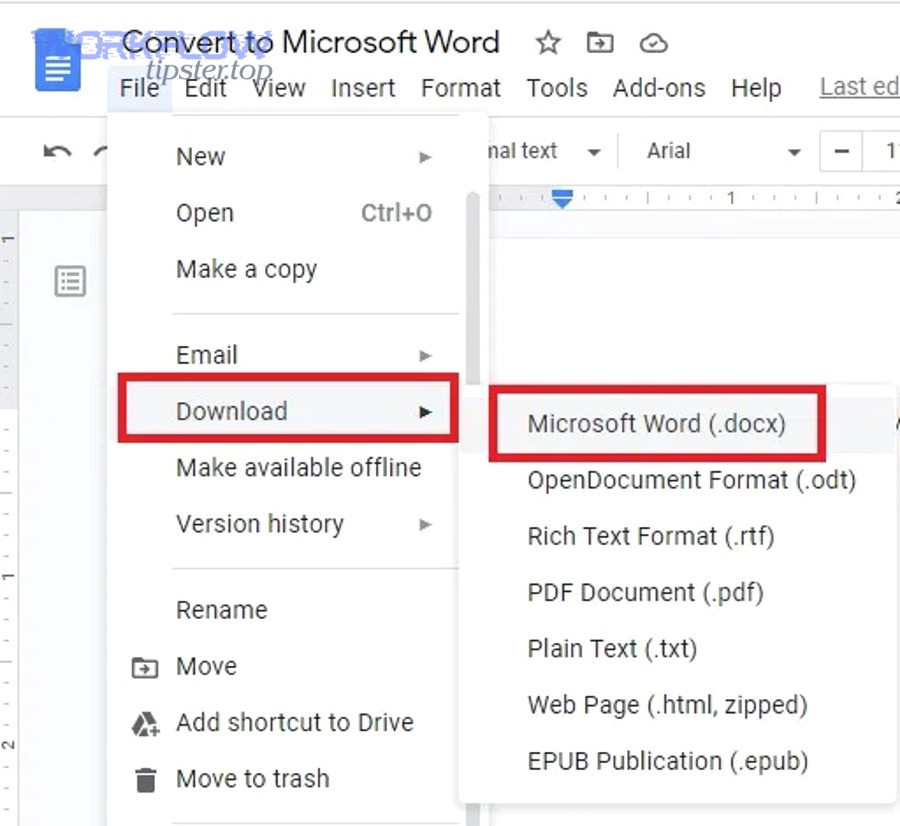
You download a Google Doc as .docx by opening the document, clicking File → Download, and selecting Microsoft Word (.docx)—then saving the downloaded file to your computer. (support.google.com)
Specifically, this is the cleanest workflow for a single important document:
- Open the Google Doc.
- Confirm your styles are used consistently (Normal, Heading 1, Heading 2).
- Go to File → Download → Microsoft Word (.docx). (support.google.com)
- Open the .docx in Word and do a quick validation scan:
- Headings in the navigation pane
- Page breaks
- Tables and images
- Save the final version in your team’s preferred location (Drive, SharePoint, local, etc.).
If you also need a legacy .doc, a practical approach is: export to .docx first, then open in Word and “Save As .doc” (only if required). (services.asusystem.edu)
You can also follow a quick visual tutorial here:
How do you convert a Word file stored in Drive back into a local .docx?
If the file is already a .docx in Google Drive, you don’t “convert” it—you simply download it, and it remains a Word document ready for local editing in Word.
To illustrate a clean team workflow:
- Upload the .docx to Drive (optional, for sharing).
- When someone needs local editing, they download the .docx and edit in Word.
- If version control matters, decide upfront:
- Either re-upload the updated .docx to Drive (as a new version), or
- Use one “source of truth” platform (Drive-native Docs or Microsoft platform) to avoid split histories.
Google’s help content also notes that Drive/Docs can work with Microsoft Office files, but the behavior depends on whether you’re editing in-browser or exporting to local copies. (support.google.com)
What issues happen when exporting Google Docs to Microsoft Word—and how do you fix them?
The most common export issues are layout shifts (fonts, spacing, page breaks) and object reflow (tables, images, headers/footers), and you fix them by standardizing styles, simplifying complex layouts, and validating the .docx in Word before sharing. (services.asusystem.edu)
Then, treat troubleshooting like a checklist: first stabilize the layout, then stabilize objects, then lock down sharing behavior.
Why do fonts, spacing, and page breaks change after conversion?
Fonts, spacing, and page breaks change because Google Docs and Word use different layout engines, default spacing rules, and font availability, which causes Word to substitute fonts and recalculate line wrapping and pagination.
More specifically, these fixes usually work in real teams:
- Font substitutions
- Use common fonts that exist in both ecosystems (or install the target font family).
- Avoid mixing many fonts across headings and body text.
- Spacing drift
- In Google Docs, rely on styles rather than manual spacing.
- In Word, check Paragraph → Line spacing and Spacing Before/After.
- Page break chaos
- Replace repeated “Enter” spacing with proper page breaks or section breaks.
- Keep margins and paper size consistent (Letter vs A4), especially if the document crosses regions.
A helpful preventive habit is to open the Word export and immediately check one page that’s dense (tables + headings + images). If that page looks right, most of the document will.
How do you troubleshoot tables, images, and headers/footers?
You troubleshoot tables, images, and headers/footers by simplifying structure first (remove nested layouts), then re-anchoring objects in Word, and finally checking section-based elements like headers/footers against Word’s section rules.
A practical step-by-step:
- Tables
- Avoid nested tables in Docs if you know you’ll export.
- In Word, turn on table gridlines to detect hidden spacing issues.
- If a table breaks across pages awkwardly, adjust row properties (e.g., allow row to break across pages).
- Images
- Prefer inline images unless you truly need floating layout.
- In Word, set wrapping intentionally (Inline, Square, Tight) rather than leaving it default.
- Headers/Footers
- Keep header/footer content simple before export.
- In Word, verify whether “Different first page” or “Different odd and even” got toggled.
- Confirm section breaks didn’t change header linkage unexpectedly (“Link to Previous”).
If the doc is mission-critical (contracts, proposals), do a final “PDF snapshot” check after Word adjustments to confirm it will print or share exactly as intended.
Is converting Google Drive to Microsoft Word safe for sharing and collaboration?
Yes—converting is safe for sharing and collaboration if you control permissions, understand that a downloaded .docx is a separate copy outside Drive’s live controls, and apply basic privacy steps before distributing the Word file. (support.google.com)
In addition, treat the export as a boundary-crossing event: the moment your document becomes a local .docx, it can be forwarded, copied, uploaded elsewhere, and edited without Drive’s original guardrails—unless you put new guardrails in place.
How do permissions and “disable download/print/copy” settings affect conversion?
Permissions affect conversion because viewers/commenters may be blocked from downloading depending on sharing settings, and organizations can restrict downloading/printing/copying to reduce data exfiltration risk—so the ability to convert often depends on what role you have. (support.google.com)
Here’s what this means in practice:
- If you are the owner/editor, you can usually export/download.
- If you are a viewer/commenter, your download ability may be restricted by settings like “disable download/print/copy,” especially in managed environments. (support.google.com)
- In some organizations, admins can apply broader protections (for example, using policies to limit downloading, copying, and printing for sensitive content). (workspaceupdates.googleblog.com)
If conversion is failing, don’t assume it’s “broken”—check sharing controls first.
What privacy steps should you take before sharing the exported Word file?
Before sharing, you should remove sensitive metadata, verify the audience, and choose a secure sharing channel—because once a Word file leaves Drive as a download, it behaves like any other file attachment.
A high-signal checklist teams actually use:
- Clean the content
- Remove internal-only notes, placeholders, or tracked discussion text.
- Review comments and suggestions
- Decide whether to accept/reject changes before exporting, or keep markup intentionally.
- Sanitize the file
- In Word, use built-in inspection tools where appropriate (e.g., Document Inspector) to remove hidden data.
- Choose the right sharing route
- If it’s sensitive, avoid public links and avoid forwarding as plain email attachments.
- Prefer controlled systems (Drive with restricted sharing, SharePoint, or a secure portal).
Evidence matters here because the risk is not hypothetical: According to a study by the University of Maryland from the Clark School of Engineering, in 2007, cyber attackers were striking on average every 39 seconds, which underscores why exported local copies should be shared with intentional controls. (marylandcybersecuritycenter.org)
Contextual border: Up to this point, you’ve learned the core conversion meaning, methods, and fixes. Next, we shift into micro-level execution: bulk operations, automation patterns, and compliance-heavy edge cases that expand your options beyond “download one file.”
How do you handle bulk conversion, automation, and advanced use cases?
You handle bulk conversion and advanced use cases by batching downloads in Drive when possible, using sync tools only when version control is clear, and applying automation carefully—because scale increases both productivity and the chance of permission or compliance mistakes. (services.asusystem.edu)

Next, let’s break the advanced layer into four practical tracks you can adopt depending on team maturity.
How do you batch-download multiple Google Docs as Word files from Drive?
You batch-download by selecting multiple Google Docs in Drive and downloading them together, after which Drive converts them and packages the results into a ZIP—making it the fastest built-in method for bulk export. (services.asusystem.edu)
A university knowledge base guide (useful because it spells out the batch behavior clearly) notes that you can multi-select files (Ctrl-click) and download them so Drive converts and zips the results for you. (services.asusystem.edu)
Operational tips for teams:
- Use a dedicated folder for “Docs to export” so you can select quickly.
- Name files consistently before exporting so the ZIP output remains sortable.
- After unzip, run a quick spot-check on:
- the most complex document,
- the longest document,
- and any template-based document (they often hide formatting complexity).
When should you use Google Drive for desktop, sync clients, or ZIP exports?
ZIP export is best for one-time bulk moves, while sync clients are best when you have an ongoing offline workflow—provided you clearly define which side (Drive or local) is the “source of truth.”
A useful way to decide:
- ZIP export: migration day, monthly archive export, sending a bundle to a client.
- Sync client / Drive for desktop: recurring offline edits, traveling, or working in environments with unstable internet.
- No sync (avoid): when multiple people will edit local copies concurrently, because you’ll create version forks.
If collaboration is the priority, staying in Docs or using a single managed Microsoft environment usually reduces conflict. If offline editing is the priority, a controlled sync strategy wins—as long as you document the rules for your team.
How can Automation Integrations help, and when should you avoid them?
Automation Integrations can help when you need repeatable conversion, routing, or archiving (for example, exporting Docs to .docx and sending them to a workflow), but you should avoid them when documents are highly sensitive, legally constrained, or prone to formatting breakage at scale.
This is where teams often map workflows the same way they do in other automation patterns—think “box to airtable” for document metadata tracking, “activecampaign to salesforce” for contact syncing, or “dropbox to google docs” when teams standardize on a storage + editing split.
Smart, safe uses:
- Automatically export finalized Docs to .docx into an “Archive” folder.
- Notify a channel when a new .docx export is generated for review.
- Trigger a review checklist when a doc moves to “Ready for client.”
When to avoid:
- Any workflow that exports confidential material into uncontrolled destinations.
- Any automation that silently modifies files without human review.
- Any workflow where “near-perfect formatting” is mandatory without a validation step.
If your environment is managed, administrators can also apply protections like restricting downloading/copying/printing for certain content, which matters when automation touches sensitive files. (workspaceupdates.googleblog.com)
What advanced workflows work for regulated teams (legal, healthcare, finance)?
Regulated teams succeed with a “controlled export” workflow: template discipline in Docs, validated conversion to .docx, and sharing controls that prevent accidental leakage—because compliance failure often comes from distribution, not just editing.
A strong regulated workflow usually includes:
- Document classification
- Label documents by sensitivity level (public, internal, confidential, regulated).
- Controlled conversion
- Only convert at a defined stage (e.g., “Approved”).
- Require a formatting check and a privacy check before distribution.
- Distribution controls
- Use restricted access paths (secure portals, managed drives).
- Disable risky actions where applicable (download/copy/print limits in controlled environments). (support.google.com)
- Audit readiness
- Keep a simple log: who exported, when, for what purpose, and where it was sent.
If your team wants the safest baseline: keep the document native in Google Docs while drafting and collaborating, export to .docx only for final delivery or Microsoft-specific workflows, and treat every export as a governance checkpoint rather than a casual “download.”