


If your goal is “google docs to sendgrid,” the core idea is simple: you turn content (or structured data you manage alongside a Doc) into emails that SendGrid can send automatically—either through a no-code connector or an API-driven workflow.
Most people then want two things next: (1) a reliable way to extract the right parts of a Google Doc (title, sections, links, variables), and (2) a SendGrid template strategy that won’t break formatting, personalization, or unsubscribe compliance when you send at scale.
Finally, teams usually need an operating model: marketers iterate content in Docs, developers keep the pipeline stable, and both sides agree on what is “source of truth” for variables, approvals, and measurement. Introduce a new idea: once you treat the Doc as “content + placeholders,” you can build repeatable Automation Integrations instead of one-off email blasts.
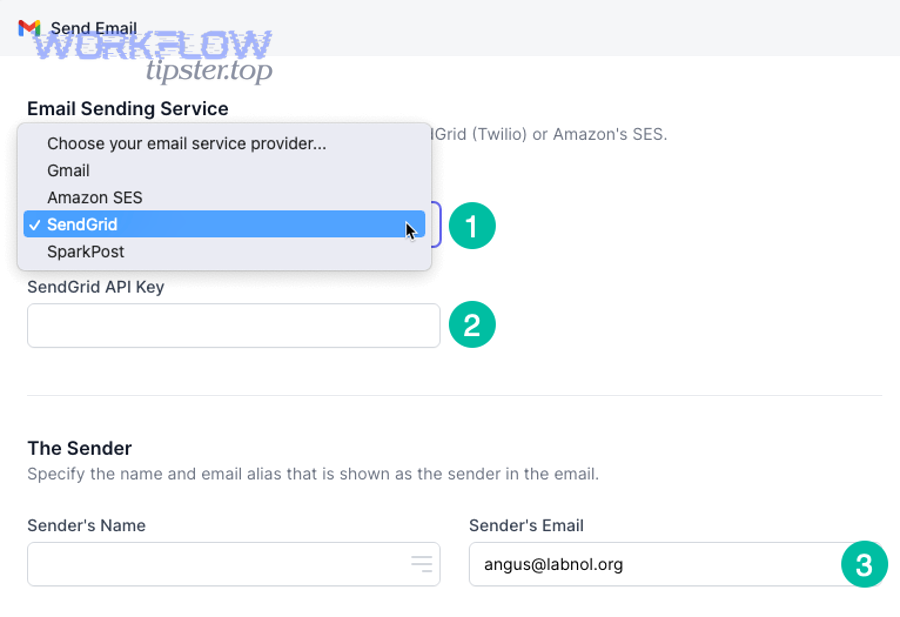
What does “Google Docs to SendGrid” automation mean?
“Google Docs to SendGrid” automation is a workflow where content (or content-derived variables) from Google Docs is transformed into a send-ready email template or payload that SendGrid can deliver, usually triggered by an event (publish, approve, form submit, schedule).
Next, to better understand what’s being automated, you should separate trigger, content, and send action—because each part can be handled by different tools (no-code vs API) and by different team roles.

Which Google Docs events can trigger an email send?
In practice, Google Docs doesn’t “send emails” by itself; you use an event around the Doc to trigger sending. Common triggers include:
- A Doc is moved to a “Ready to Send” folder (approval state is expressed by location).
- A Doc is updated and tagged (approval state is expressed by a naming convention or content marker like “APPROVED”).
- A scheduled publish time (approval is done; timing is the trigger).
- A companion data source updates (Google Sheet row changes, form submit, CRM update) while the Doc remains the content source.
The key is choosing a trigger that is objective (hard to misinterpret) and auditable (you can see why the send happened).
What SendGrid actions are typical in this workflow?
Most “Docs → SendGrid” builds end up using one (or more) of these SendGrid actions:
- Send a transactional email using a dynamic template (best for programmatic, personalized sends).
- Send a marketing campaign / single send (best for broadcasts and segments managed in SendGrid UI).
- Update templates (less common, but useful when Docs is the authoring surface and SendGrid stores the final HTML/template).
SendGrid’s dynamic templates support Handlebars-style helpers for substitution, conditionals, and iterations, which makes Docs-derived variables much more powerful than plain “mail merge.”
What data usually flows from a Doc into an email?
Think in layers, from most stable to most fragile:
- Stable variables (best): subject line, preview text, CTA URL, recipient name, product name, dates, pricing, UTM parameters.
- Semi-stable blocks: headline + intro paragraph + bullet list (content blocks with minimal styling).
- Full-fidelity HTML (most fragile): complex tables, multi-column layouts, embedded fonts, heavy CSS.
If you want reliability, push structure and variables through automation, and keep “pixel-perfect layout” inside an email template system that’s designed for email clients.
Do you need Zapier or an API to connect Google Docs to SendGrid?
Yes—you typically need either a no-code connector (like Zapier) or an API-based implementation, because Google Docs and SendGrid don’t provide a native “direct integration” that covers most real-world automation needs end-to-end.
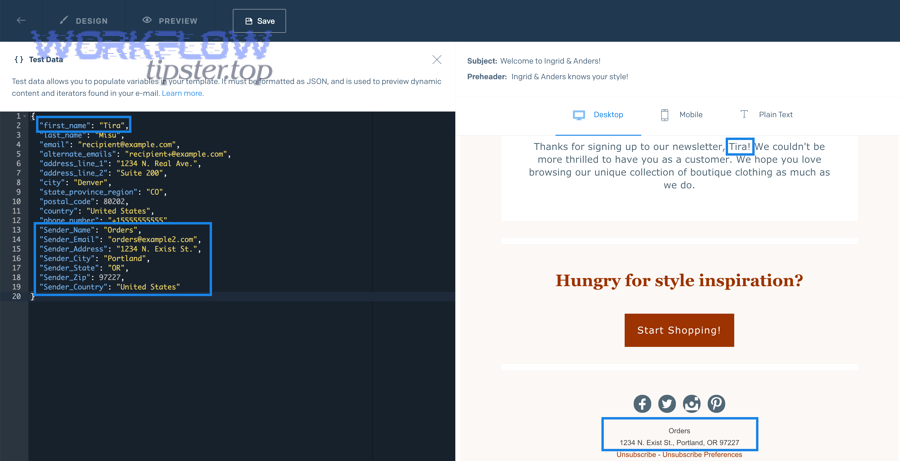
Then, the decision comes down to speed vs control: no-code gets you shipping fast; APIs give you accuracy, scale, and fewer long-term constraints.
When a no-code connector is enough
No-code is usually enough when:
- Your sends are low-to-medium volume.
- Your data mapping is simple (a few variables, not complex personalization).
- Your trigger is something Zapier supports cleanly (e.g., a doc-based workflow plus a structured source like a Sheet).
- You can accept connector limitations (attachments, HTML fidelity, retries, and error visibility vary by app/action).
Zapier publicly positions Google Docs + SendGrid as a quick-connect automation, which is the common “first implementation” path for teams that want speed.
When you should use the SendGrid API
An API workflow is the better choice when:
- You need dynamic templates + robust personalization (nested objects, loops, conditional sections).
- You need deliverability safeguards (suppression rules, consistent unsubscribe handling, clean list hygiene).
- You want real monitoring (logs, alerting, retries, idempotency).
- You send at scale or need to guarantee the same behavior across environments (staging vs production).
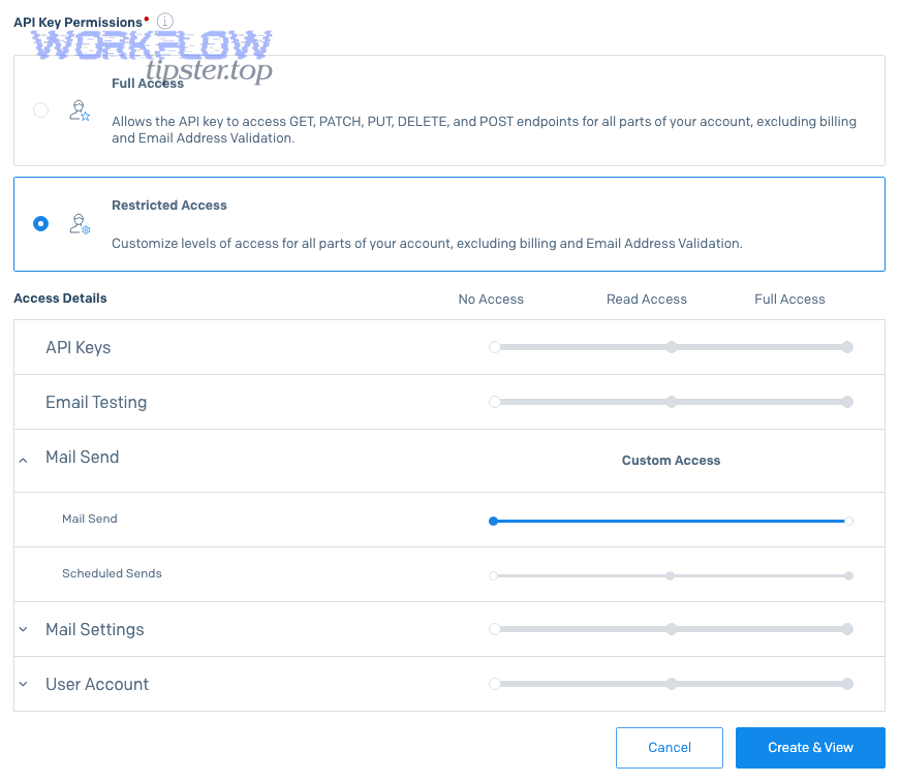
SendGrid’s docs explicitly frame dynamic template sending as an API-driven flow, with prerequisites like API keys and optional unsubscribe groups.
Can you combine both approaches?
Yes—and many teams should.
A common hybrid is:
- Zapier handles trigger + lightweight extraction (or orchestration),
- Your backend/service handles SendGrid API send (templates, data validation, compliance, logging).
This preserves marketer agility (simple changes don’t require a deploy) while keeping the send path production-grade.
What are the main ways to turn a Google Doc into an email for SendGrid?
There are 4 main ways to turn a Google Doc into a SendGrid email: (1) copy/paste into an editor, (2) export Doc → HTML and import, (3) use dynamic templates with variables, or (4) send a “Doc link” email where the Doc is the destination—each chosen based on fidelity, speed, and maintainability.
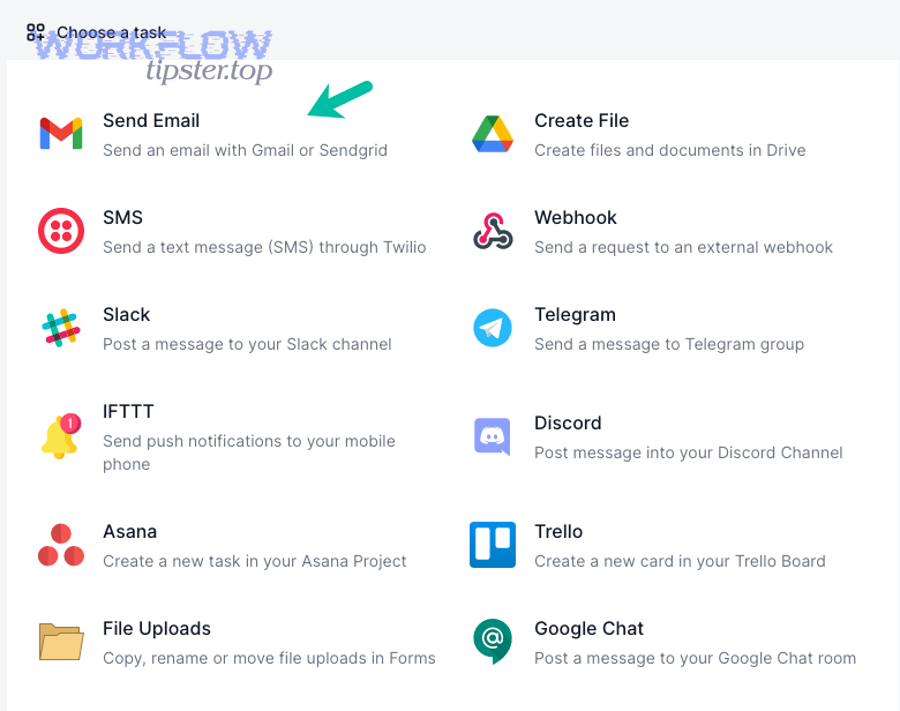
Next, choose the method that matches your “content volatility” and your “format sensitivity” .
Copy/paste + SendGrid editor workflow
This is the simplest operationally:
- Author the content in Docs.
- Copy the text (and basic formatting).
- Paste into SendGrid’s editor (Design/Code editor).
- Add basic styling inside SendGrid.
This works best for plain layouts and teams that don’t need heavy personalization. The downside is it becomes manual unless you pair it with strict process controls (checklists, approvals, version naming).
Export to HTML and import as a template
This is “Docs as a WYSIWYG HTML source,” but it’s fragile:
- Export Doc to HTML (or use a converter).
- Clean the HTML (Docs exports a lot of extra markup).
- Import into SendGrid template system.
- Test across email clients.
It can work for teams with someone who understands email HTML constraints, but it’s easy to accumulate “mystery CSS” and broken rendering.
Dynamic template + Handlebars variables approach
This is the most scalable approach for recurring sends:
- Keep the layout in SendGrid dynamic templates.
- Treat the Doc as the content authoring surface, but send only variables or content blocks.
- Use Handlebars helpers for loops/conditionals where needed.
This approach is also easiest to operationalize when multiple teams run Automation Integrations across different tools, because you keep “layout logic” in templates and “content intent” in Docs.
Link-to-doc email (Doc is the destination)
Sometimes the cleanest solution is:
- Email contains the headline, teaser, and CTA.
- CTA links to a published page or a shared Doc/PDF.
This is especially useful when your “content” is long (weekly newsletter, report) and you want the email to be light, fast, and deliverable.
How do you set up a Google Docs to SendGrid workflow step by step?
You can set up a Google Docs to SendGrid workflow in 5 steps—prepare the Doc for extraction, choose a trigger, build a SendGrid template, map Doc fields to template data, and test deliverability + unsubscribe behavior—so your sends are repeatable and safe.
Then, treat the first version as a “minimum viable pipeline,” and only add complexity (multiple segments, conditional blocks, attachments) once the base path is stable.
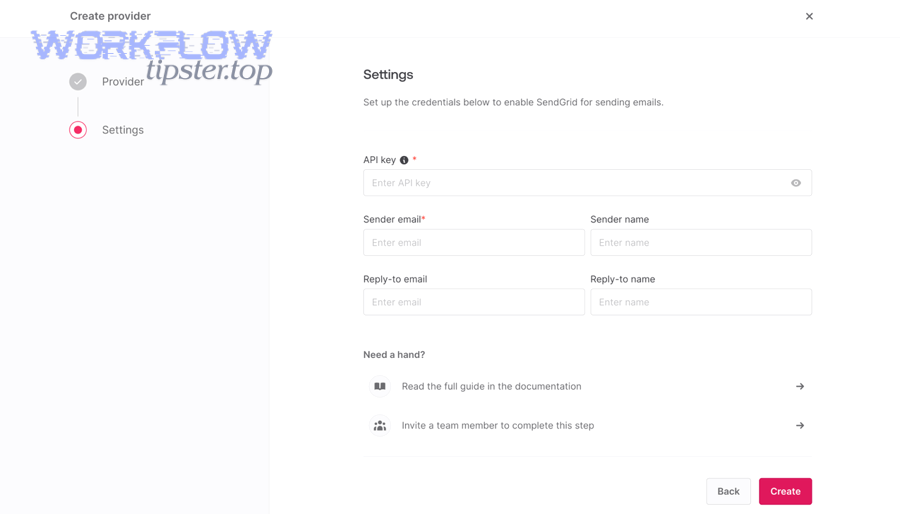
Step 1: Prepare the Doc for extraction
Design your Doc so the automation can reliably find what it needs:
- Use consistent headings (H1 = title, H2 = sections).
- Put variables in a dedicated block at the top or bottom, e.g.
Subject:Preview:CTA_URL:Offer_Code:
- Use “content blocks” (Intro, Bullets, CTA section) rather than freeform formatting everywhere.
This reduces extraction failures and makes it easier to validate before sending.
Step 2: Choose an automation trigger
Pick one trigger and standardize it:
- Folder move = “approved”
- Doc label = “approved”
- Schedule = “send time”
- Spreadsheet row = “recipient list + variables”
The more objective the trigger, the fewer “accidental sends” you’ll have.
Step 3: Build a SendGrid template
Build the email in SendGrid where email rendering is controllable:
- Use a dynamic template when you need personalization.
- Keep “global layout” stable (header/footer, spacing, type scale).
- Define placeholders for every variable you plan to inject.
Dynamic templates let you insert variables safely and repeatably, and they are the best long-term home for layout and styling.
Step 4: Map Doc fields to template data
This is where workflows succeed or fail.
Create a mapping table so every field has a name, type, and rule set:
| Doc Field | Template Variable | Type / Rules | Why it matters |
|---|---|---|---|
| Subject | subject | string; 30–60 chars recommended | Drives opens and matches the email promise |
| Preview | preview | string; 35–90 chars | Boosts clarity and reduces mismatch complaints |
| CTA_URL | cta_url | url; must be https; add UTM | Supports measurement and avoids broken links |
| Intro | intro | string/html-safe; keep formatting minimal | Prevents rendering issues across clients |
Validate variables before sending (empty strings, invalid URLs, missing recipient names), and prefer a single “template data JSON” object that is easy to test and log.
Step 5: Test deliverability + unsubscribe settings
Before you ever “ship to list,” verify:
- The template renders in desktop/mobile previews.
- Unsubscribe links behave correctly.
- Suppression preferences work as intended for the email type you’re sending.
Use the unsubscribe method that matches how you send (Marketing Campaigns vs API) and confirm preference links work the same way for every message type.
What are the most common problems when sending Google Docs content through SendGrid?
There are 4 common problem types when sending Google Docs content through SendGrid: formatting breaks, deliverability issues, unsubscribe/compliance mistakes, and system errors (rate limits, payload problems)—and each one has a different “fix lever.”
Next, solve problems in the same order they show up in production: rendering → deliverability → compliance → reliability, because a perfect design is useless if emails land in spam or violate opt-out rules.
Formatting breaks (CSS, fonts, images)
Symptoms:
- Spacing looks different across Gmail/Outlook.
- Bullet lists collapse or over-indent.
- Images disappear or scale oddly.
Fix strategy:
- Keep the Doc as content, not as “email HTML.”
- Move layout/styling into the SendGrid template.
- For images, host them on HTTPS and use explicit width/height where possible.
- Avoid fancy CSS that email clients strip.
If you must use exported HTML, run it through an “email HTML cleanup” step and test across major clients.
Spam and deliverability issues
Symptoms:
- High bounce rates.
- Spam folder placement.
- Complaints/unsubscribes spike.
Fix strategy:
- Keep content “email-native” (less heavy markup, fewer risky elements).
- Warm up volume when scaling.
- Align subject + preview + content (avoid mismatch that triggers user distrust).
- Use preference-based sending (send fewer, better-targeted emails).
According to a study by Boise State University from Educational Technology Faculty Publications, in 2016, researchers found that neither invitation email personalization nor email length changed response or completion rates in their web-based survey context—meaning personalization is not automatically a performance win and should be tested rather than assumed.
Unsubscribe/compliance mistakes
Symptoms:
- Unsubscribe link missing.
- “Manage preferences” page doesn’t show the right groups.
- Users can’t opt out cleanly, hurting reputation.
Fix strategy:
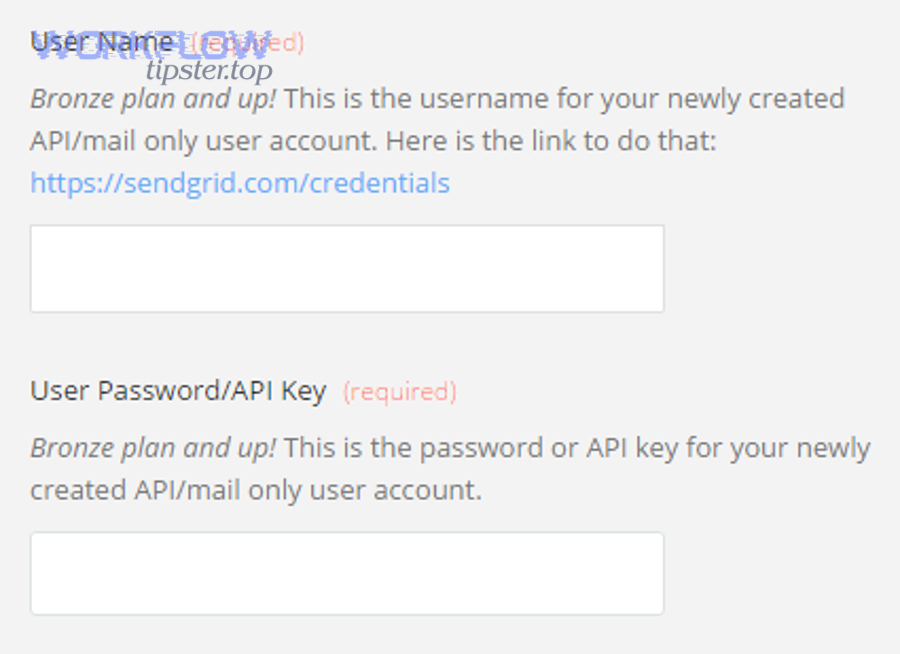
- Decide whether you’re using Marketing Campaigns unsubscribe modules or ASM tags via API, then implement consistently.
- If using ASM tags, make sure you pass the required group ID so the link can populate properly, and use the correct tags for group/global unsubscribe and preferences.
Rate limits and errors (API and connector failures)
Symptoms:
- Intermittent send failures.
- Duplicate sends.
- “Missing template data” or “invalid email” errors.
Fix strategy:
- Add retries with backoff.
- Make sends idempotent (same event can’t send twice).
- Validate template data before calling send.
- Log the trigger payload + template data JSON for debugging.
This is where API-based pipelines usually outperform no-code, because you can implement robust safeguards.
How can marketers and developers collaborate on Google Docs to SendGrid workflows?
Marketers and developers collaborate best when marketers “own content and variables” (inside Docs) while developers “own templates, data contracts, and delivery reliability,” because that division reduces bottlenecks without letting the system drift into chaos.
Then, treat the workflow like a product: define roles, approvals, versioning, and measurement loops so every send improves the next one.
Marketer-owned content with developer-owned plumbing
A practical operating model:
- Marketers edit: headline, body copy, CTAs, offer terms, audience notes.
- Developers maintain: template layout, data schema, trigger logic, logging, retries.
This model is especially useful when you’re running multiple Automation Integrations across your stack—maybe you’re also doing “dropbox to smartsheet” reporting flows, “google calendar to trello” task creation, or even “google docs to webflow” publishing pipelines—because it scales the same governance pattern across systems.
Version control and approvals
Docs is great for collaboration, but you still need release discipline:
- Use naming conventions:
CampaignName_v3_APPROVED - Use a single “approval moment” trigger (folder move or explicit tag).
- Keep a lightweight changelog section in the Doc (what changed, why).
If you later migrate to a CMS or Git-based workflow, you can keep the same “approval artifact” concept.
Segmentation and personalization responsibilities
Decide who owns what:
- Marketers own: segments, message strategy, offers, content variants.
- Developers own: how segments map into template data, validations, fallbacks, and schema evolvability.
If you use Handlebars conditionals/loops, publish a “template data contract” so everyone understands what keys exist and what defaults apply.
Measuring results and feedback loops
Make measurement part of the workflow:
- Track template version + Doc version in metadata.
- Define success metrics per email type (transactional vs lifecycle vs broadcast).
- Feed results back into Docs as “notes for next iteration.”
A single optimization loop (subject testing + CTA clarity + segmentation) is worth more than endlessly tweaking formatting.
Contextual Border: You’ve now answered the macro question—how to automate Google Docs to SendGrid reliably. Next, we shift into micro semantics: advanced features inside SendGrid that make these workflows smarter, safer, and more measurable.
What advanced SendGrid features make Google Docs-based emails smarter?
SendGrid-based emails become “smarter” when you add 4 advanced capabilities: dynamic templates with Handlebars helpers, unsubscribe groups/ASM preference management, event-driven analytics, and experimentation—so your Docs-authored content scales with personalization and governance.
Next, instead of adding complexity everywhere, add it where it compounds: template logic, preference control, and measurement.
Dynamic templates + Handlebars helpers
Dynamic templates let you:
- Render conditional blocks (e.g., show a section only for a segment).
- Loop through lists (e.g., top 3 recommended items).
- Apply substitution cleanly across many recipients.
This is the most reliable way to marry Docs-authored content with scalable sending, because templates stay stable while content evolves.
Unsubscribe groups and ASM preferences pages
Unsubscribe groups help you separate “types of email” (receipts vs newsletters vs product updates) so users can opt out of one without opting out of everything—reducing complaints while preserving engagement.
If you’re sending via templates/API, use ASM tags to place unsubscribe and preferences links where you want them, and ensure you pass the correct group IDs so links populate correctly.
Event Webhook and analytics
Once you connect SendGrid delivery events back into your system, you can:
- Suppress bad addresses faster.
- Detect deliverability drift early.
- Attribute performance to template versions and content changes.
Even if the Doc is your authoring surface, your pipeline becomes more intelligent when delivery data flows back to the team.
A/B testing and automation extensions
For broadcast-style sends, you can test:
- Subject line vs preview text combinations
- CTA wording
- Content ordering (benefits first vs proof first)
The key is to test one variable at a time, and to keep your Doc templates structured so variants are easy to create and compare—without breaking the pipeline that developers maintain.