


If you want fewer copy-paste mistakes, faster bookkeeping cycles, and cleaner audit trails, automating a Google Docs to QuickBooks workflow is worth it—because it turns “documents → accounting entries” into a repeatable pipeline instead of a fragile manual routine.
Many teams start with a simpler question: what does “Google Docs to QuickBooks” even mean in practice? It usually means using Docs as a proposal/quote/invoice template, then pushing key fields into QuickBooks (customers, invoices, line items, classes, memos) with consistent formatting.
Then comes the real decision: which integration method should you use—Zapier/Make, native APIs, CSV imports, or a custom middleware flow—and what do you trade off in cost, control, and compliance?
Introduce a new idea: the fastest way to choose correctly is to map your “document lifecycle” (create → approve → bill → reconcile) and then match it to an integration pattern that your team can actually maintain.
What does “Google Docs to QuickBooks integration” mean?
Google Docs to QuickBooks integration is a workflow that extracts structured data from a Google Doc (or a Doc-generated artifact like a PDF) and creates or updates QuickBooks records (customers, invoices, sales receipts, estimates, or journal entries) with consistent rules and approvals.
To better understand the idea, think of it as converting “human-readable” documents into “system-readable” accounting events—without losing context like client name, dates, amounts, tax, and supporting notes.
In practical terms, the integration usually happens in one of these ways:
- Template-driven Docs: you write proposals/quotes/invoices in a Doc template with consistent headings/fields, then parse those fields into QuickBooks.
- Docs + Tables: you store line items in a table, which maps cleanly to invoice line items.
- Approval-driven Docs: you use a “status” field (Draft → Approved) and only sync when Approved.
- Doc-generated PDF: you store the finalized version and attach it to the QuickBooks transaction as evidence.
Why the “integration” label matters: QuickBooks is not a document storage tool; it’s an accounting system. So the goal is not just “send a Doc” but “create a correct accounting record” with the right customer, amounts, categories, and dates—consistently.
Evidence (data-entry risk): According to a study by University of South Florida from the Department of Epidemiology and Biostatistics, in 2008, a case study comparing transcription methods reported substantially different error rates across methods , reinforcing why teams try to reduce manual transcription in data workflows. (pmc.ncbi.nlm.nih.gov)
Which business workflows benefit most from syncing Docs into QuickBooks?
Docs-to-QuickBooks helps most when your “source of truth” for revenue paperwork starts in Docs, and you need consistent downstream accounting.
Specifically, these workflows benefit:
- Service businesses: proposals → invoices → payments tracking
- Agencies/consultants: SOWs → milestone invoices → class/location tracking
- Small ecommerce/wholesale: custom quotes → sales receipts → customer records
- Internal ops: reimbursements/requests → journal entries → attachments for audit
The key is repeatability: if the Doc format is consistent, the sync can be consistent.
What data can you realistically extract from a Google Doc for accounting?
You can reliably extract data that is explicitly structured (labels, tables, fixed sections) and avoid data that is “implied” (free-form paragraphs).
Most realistic fields:
- Customer name, email, billing address
- Invoice/estimate number (or a placeholder you later map)
- Dates (issue date, due date, service period)
- Line items (description, qty, rate, amount)
- Discount, shipping, tax notes
- Memo, internal notes, project/class tags
- Attachment link (Doc URL or PDF link)
The rule of thumb is: if a human must interpret it, automation will struggle; if a script can parse it, automation wins.
Can you connect Google Docs to QuickBooks without coding?
Yes—you can connect Google Docs to QuickBooks without coding using no-code automation tools, because (1) they provide prebuilt connectors, (2) they handle OAuth sign-in flows, and (3) they let you map Doc/metadata fields into QuickBooks objects with minimal setup.
Next, the important part is knowing what “no-code” really means here: you still need to design the data model (which fields map where), set rules, and test edge cases—just without writing an API client.
Common no-code paths include:
- Trigger from Drive/Docs activity (e.g., a Doc moved into an “Approved” folder)
- Trigger from a form submission that generates a Doc (proposal generator workflows)
- Trigger from a spreadsheet row that is already structured, then create a QuickBooks transaction
Important: QuickBooks access is controlled through OAuth 2.0, so any no-code tool still relies on permissions and scopes behind the scenes.
Evidence (OAuth): According to Intuit developer documentation, QuickBooks Online uses OAuth 2.0 for authentication and authorization, meaning integrations must request permission via scoped access tokens. (developer.intuit.com)
What no-code tools are commonly used?
Most teams pick tools that already have stable QuickBooks connectors and flexible mapping:
- Zapier / Make-style automation platforms
- Document automation tools (Docs templates + structured fields)
- Accounting automation platforms (when you also want approvals + controls)
No-code is ideal when you want speed and are willing to accept connector limitations (rate limits, field constraints, and occasional sync quirks).
What are the limitations of “no-code” integrations?
No-code breaks down in predictable places:
- Complex line-item logic (bundles, tiered pricing, multi-tax)
- Custom fields and class/location mapping when your schema is strict
- Idempotency (preventing duplicates when a Doc is edited multiple times)
- Scale/rate limits when you sync hundreds+ transactions daily
- Audit controls (who approved, what changed, when)
Evidence (limits): According to Intuit support documentation on API call limits and throttling, QuickBooks Online APIs enforce rate limits and throttling behavior that can affect higher-volume integrations. (help.developer.intuit.com)
What are the best methods to move content from Google Docs into QuickBooks?
There are 4 main methods to move data from Google Docs into QuickBooks—no-code automation, CSV import, API-based integration, and human-in-the-loop (manual) entry—based on the criterion of cost vs control vs data accuracy.
Then, to pick the best one, match your method to what you’re truly moving: full text (rarely useful) or structured fields (almost always the goal).
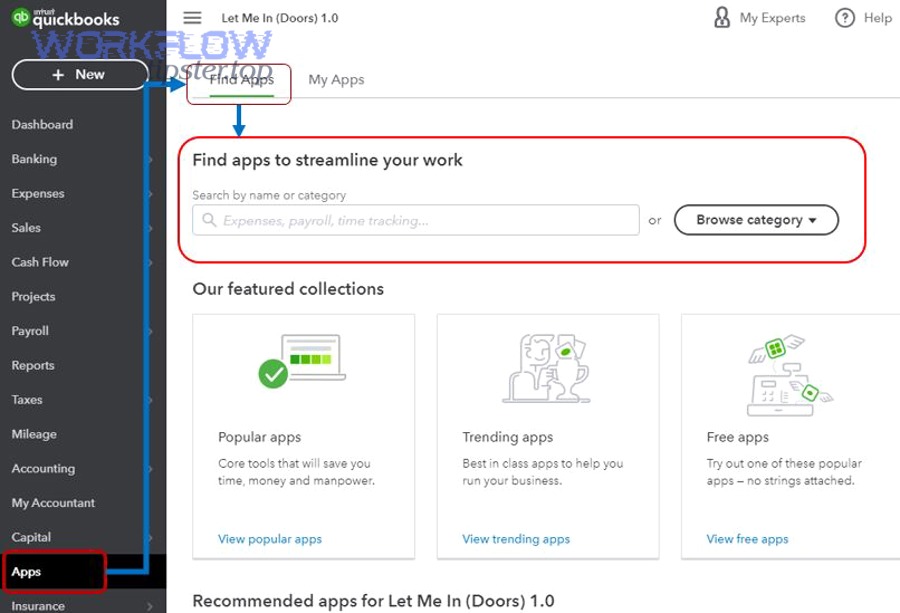
Here’s what each method is good at:
- No-code Automation Integrations: fastest setup for common workflows; best for small teams.
- CSV import/export: good for batching and cleanup; weak for real-time workflows.
- Direct API integration: best control and reliability; requires dev resources.
- Manual entry: flexible but error-prone and slow; best only for exceptions.
Before the details, here’s a quick comparison table (so you can see what you’re choosing). It summarizes typical tradeoffs across setup speed, accuracy, scalability, and governance.
| Method | Setup speed | Accuracy potential | Scale | Best for |
|---|---|---|---|---|
| No-code automation | Fast | Medium–High (if structured) | Medium | Small teams, repeatable invoices |
| CSV import | Medium | Medium (cleanup required) | Medium | Batch backfills, migrations |
| API integration | Slow | High | High | High volume, strict rules |
| Manual | Fast initially | Low–Medium | Low | Edge cases only |
How does CSV import/export fit into a Docs-to-QuickBooks workflow?
CSV is useful when:
- you generate a structured dataset from a Doc (or from a table extracted from the Doc),
- you want to validate in Excel/Sheets,
- then you import into QuickBooks in batches.
The hidden benefit is governance: CSV gives you a “staging layer” where you can run checks (missing customer, invalid tax code, duplicate invoice number) before data hits accounting.
When does an API-based approach make more sense?
API makes sense when you need:
- exact control over which objects get created and when,
- robust deduplication (idempotency keys),
- complex mapping (classes, locations, custom fields),
- automatic attachments (store the Doc/PDF link in transaction metadata),
- and real monitoring with retries.
Evidence (scale): According to Intuit’s documentation on API call limits and throttling, integrations must handle throttling responses and request limits, making monitoring and retry logic essential at volume. (help.developer.intuit.com)
When is manual entry still the right method?
Manual entry is still valid when:
- your Doc formats vary too much,
- approvals are inconsistent,
- line items are negotiated and change frequently,
- or the transaction volume is low and controlled.
However, manual entry has a reliability ceiling: humans will miss errors, and error detection is harder than error creation.
Which integration approach is best: manual entry vs automated sync?
Automated sync wins in accuracy, speed, and consistency, while manual entry is best for flexibility and exceptions, and CSV import is optimal for batch control—so the “best” approach depends on whether you prioritize governance, volume, or customization.
Next, let’s make the choice concrete by comparing based on the criteria most small businesses actually care about: time, errors, auditability, and maintainability.
Manual entry vs automation: what changes operationally?
Manual entry changes your operations like this:
- People become the integration layer.
- You rely on checklists and training to prevent mistakes.
- Edits and rework become normal when something is missed.
Automation changes your operations like this:
- The “rules” become the integration layer (mappings, triggers, approvals).
- You shift effort from typing to designing validation.
- Exceptions become visible because they fail a rule instead of silently passing.
What are the cost tradeoffs (including hidden costs)?
Costs aren’t just subscription fees.
Hidden costs to consider:
- Rework time (fixing invoices, credits, miscategorized items)
- Opportunity cost (bookkeepers doing data entry instead of review)
- Downstream impact (wrong numbers → wrong decisions)
- Compliance risk (missing attachments, inconsistent memos)
A small automation subscription often costs less than recurring rework—even at modest volumes.
How does scale change the decision?
At low volume (a few invoices/week), manual can work.
At medium volume (dozens/week), automation becomes attractive.
At high volume (hundreds+/week), you usually need either:
- a robust no-code setup with careful controls, or
- a proper API integration that can handle retries, rate limits, and monitoring.
QuickBooks API throttling guidelines matter more as volume grows.
Evidence (error detection reality): According to a study by University of Hawaiʻi at Mānoa from the Information Technology Management group, in 2016, spreadsheet inspections across experiments found average error detection rates around 60%, highlighting why “we’ll catch mistakes later” is a weak control strategy. (shidler.hawaii.edu)
How do you set up a Google Docs to QuickBooks integration step by step?
A reliable setup is a 7-step method: standardize your Doc template, define fields, choose a trigger, map fields to QuickBooks objects, add validation, test with a sandbox, then monitor and iterate.
Below is the workflow most teams follow to go from “ideas” to a working integration without creating accounting chaos.
Step 1: Standardize a Doc template that’s automation-friendly
Create a template with:
- Fixed labels: Customer, Date, Due Date, Total, Tax, Notes
- A consistent line-item table: Description | Qty | Rate | Amount
- A “Status” field: Draft / Approved / Sent / Paid (or at least Draft/Approved)
If you don’t standardize, you’ll end up building one-off parsing rules forever.
Step 2: Decide what becomes an accounting object
Common mappings:
- Proposal Doc → Estimate in QuickBooks
- Invoice Doc → Invoice in QuickBooks
- Payment confirmation Doc → Sales receipt (or mark paid)
- Internal service summary Doc → Journal entry (less common; use carefully)
This step prevents “we synced it” but to the wrong object type.
Step 3: Pick the trigger that matches your process
Triggers that reduce accidental syncing:
- Doc moved to an “Approved” folder
- A checkbox/field flips to “Approved”
- A specific comment/mention occurs (only if your tool supports it reliably)
- A Google Drive “file finalized” event
Avoid triggers like “Doc created” unless you truly want drafts pushed into accounting.
Step 4: Connect accounts securely (OAuth) and select minimum permissions
Both Google and Intuit use OAuth 2.0 style flows and scopes/permissions; you should request the minimum required scopes because it reduces review burden and risk exposure.
Evidence (Google scopes): According to Google’s OAuth scope documentation, scopes define the level of access an app requests, and selecting narrower scopes reduces unnecessary access. (developers.google.com)
For Google Docs integrations specifically, choose scopes based on what you need (read-only vs read-write).
Evidence (Docs API auth): According to Google Workspace Docs API authorization guidance, integrations must use OAuth and request the appropriate scopes for reading or modifying documents. (developers.google.com)
For QuickBooks, you’ll implement Intuit’s OAuth 2.0 authorization flow (no-code tools handle this, but the same security principles apply).
Evidence (Intuit OAuth): According to Intuit developer documentation, QuickBooks Online integrations authenticate through OAuth 2.0. (developer.intuit.com)
Step 5: Map fields and add validation rules
Typical validation rules:
- Customer must exist (or create customer if allowed)
- Invoice number must be unique
- Total = sum(line items) (tolerance 0 or small rounding)
- Due date must be on/after issue date
- Tax rules must be consistent (especially if you use multiple tax codes)
This is where automation becomes safer than manual: rules don’t forget.
Step 6: Test in a sandbox and test failure cases
QuickBooks provides sandbox environments for development/testing.
Test cases you must include:
- Missing customer
- Duplicate invoice
- Empty line-item table
- Special characters in names
- Large invoices (many line items)
- Trigger fired twice (edit the Doc after approval)
Step 7: Monitor, retry safely, and document exceptions
Because rate limits and throttling can produce 429 responses, build (or configure) retries with backoff and idempotency so you don’t create duplicates.
What problems happen in Google Docs–QuickBooks workflows, and how do you fix them?
There are 5 common problem categories in Google Docs–QuickBooks workflows—duplicates, mapping errors, permission failures, rate limits, and approval gaps—based on the criterion of where the workflow breaks: data, identity, system constraints, or process control.
Next, we’ll go problem-by-problem, because most “integration failures” are predictable and fixable once you name them clearly.
Problem 1: Duplicate invoices (the edit-after-approval trap)
Direct fix: Use an idempotency key strategy.
Practical approaches:
- Store a unique Doc ID (or Doc URL) in a custom field / memo inside QuickBooks
- On every sync, search for existing transactions containing that Doc ID
- If found, update instead of create (or stop and alert)
Also consider locking edits after approval (or create a “Finalized PDF” that is the only sync source).
Problem 2: Line items don’t match totals
This happens when:
- someone inserts rows incorrectly,
- discounts are applied inconsistently,
- taxes are written as text instead of structured fields.
Direct fix: enforce a line-item schema and calculate totals from line items, not from a manually typed “Total” field.
Problem 3: Permissions and scope failures
Symptoms:
- “App not verified”
- “Insufficient permissions”
- Sync works for one user but not another
Direct fix: request minimal required scopes and follow the platform’s consent/scope guidance. For Google APIs, scope selection impacts sensitivity and review requirements.
Problem 4: Rate limits and throttling (sync works… until it scales)
Symptoms:
- random failures during busy periods
- 429 errors
- partial batch completion
Direct fix: throttle calls, batch when supported, and retry after waiting when throttled.
Intuit documents rate limits and throttling behavior (including concurrency and per-minute constraints), which is why “burst syncing” must be controlled.
Problem 5: Process gaps (no one knows what’s “approved”)
Automation cannot replace approvals—you must encode them.
Direct fix: add an explicit approval signal:
- Doc status field
- “Approved” folder
- structured metadata in Drive
- documented owner responsibility
When approval is clear, automation becomes safe; when approval is vague, automation becomes risky.
Is it secure to connect Google Docs to QuickBooks?
Yes—it can be secure to connect Google Docs to QuickBooks if you (1) use OAuth with least-privilege scopes, (2) store tokens safely and rotate/revoke access when needed, and (3) add process controls like approvals and audit logging.
Then, the security conversation becomes less about “is automation safe?” and more about “are you granting the right permissions to the right tool, and can you see what it did?”
What security controls should you require?
Minimum recommended controls:
- Least privilege scopes (read only when possible)
- Separate accounts/roles (don’t connect using a personal super-admin account)
- Two-factor authentication on the Google and Intuit accounts
- Logging: capture what synced, when, and by whom
- Attachment integrity: keep a link to the source Doc/PDF for audit
How do OAuth tokens and scope choices affect risk?
Scopes define what data the integration can touch; fewer scopes reduce blast radius. Google explicitly recommends using scopes that aren’t sensitive when possible, and the Docs API documentation emphasizes selecting scopes based on required access.
For Intuit, access tokens have lifetimes (e.g., one hour noted in their authorization FAQ), which means your integration should refresh tokens correctly rather than relying on long-lived high-privilege sessions.
What about compliance and audit trails?
A secure integration is also an auditable one.
Practical audit-trail tactics:
- Store the Doc URL or PDF link in the QuickBooks transaction memo/attachment
- Keep a sync log (Doc ID, transaction ID, timestamp, status)
- Make exceptions explicit (manual overrides require a note)
Security is as much “visibility” as it is “encryption.”
Contextual Border
At this point, you can build a working integration. Next, we shift from macro into micro semantics: advanced patterns, edge cases, and optimization ideas that make the workflow more resilient and more valuable over time.
What advanced patterns improve a Docs-to-QuickBooks workflow over time?
Advanced workflows are about control and adaptability: fewer duplicates, clearer approvals, better exception handling, and a stronger audit trail—especially as your volume grows or your team expands.
Next, let’s look at four advanced patterns that teams adopt once the “basic sync” is working.
How do you design an approval + exception pipeline?
A mature pattern looks like this:
- Draft Doc → internal review
- Approved Doc → automation sync
- Sync failure → exception queue
- Exception resolved → re-run sync with a controlled override
This makes the workflow observable: failures don’t disappear; they become tasks.
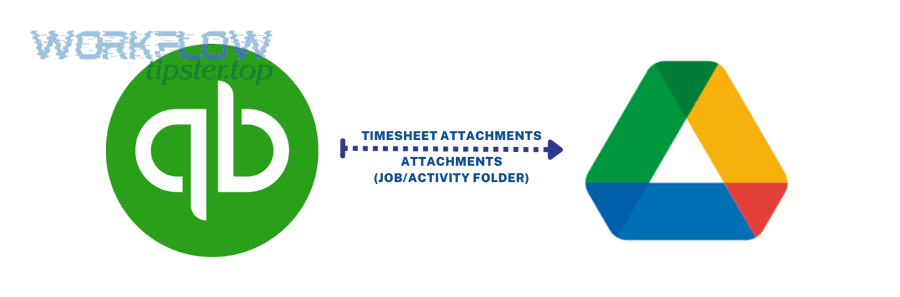
How can you attach context (Docs/PDFs) to QuickBooks transactions systematically?
Instead of “someone remembers to attach it,” automate attachment context:
- generate a PDF on approval,
- store it in a structured Drive folder,
- write the link into QuickBooks notes,
- optionally attach the file if your tooling supports it.
This is where many “Workflow Tipster” style playbooks become valuable: they standardize the taxonomy of folders, naming rules, and memos so your accounting records remain explainable months later.
What cross-tool patterns are transferable from other integrations?
If you’ve built workflows like airtable to notion, google forms to notion, or basecamp to microsoft excel, you already know the core pattern: make the source structured, define a trigger, map fields, validate, and log exceptions.
Docs-to-QuickBooks is the same pattern—but with stricter correctness expectations, because accounting data has downstream consequences.
How do you make the workflow resilient to scale and platform limits?
Resilience tactics:
- batch sync during off-peak hours if real-time isn’t required
- add rate limiting and backoff for retries (especially for 429 responses)
- separate “create” and “update” flows
- implement idempotency keys
- keep a replayable event log (so you can re-sync safely)
If you do these four things, your integration stops being a fragile “zap” and becomes an operational system.
Evidence (why controls matter): According to a study by University of South Florida from the Department of Epidemiology and Biostatistics, in 2008, comparisons of data transcription methods showed that error rates can differ dramatically by approach (reported in errors per 10,000 fields), supporting the idea that workflow design and validation are not optional when accuracy matters. (pmc.ncbi.nlm.nih.gov)