


If you want Gmail to stop being a “separate universe” from your CRM, the most effective approach is to connect Gmail to Pipedrive using email sync (for automatic logging) and the Gmail add-on (for in-inbox CRM actions), so every meaningful conversation ends up attached to the right contact and deal.
To get that outcome reliably, you need to choose the correct sync scope, decide when to auto-log vs manually log, and understand how Pipedrive matches emails to people and deals—because those decisions determine whether your pipeline stays clean or turns into noise.
You also need a practical troubleshooting playbook for the predictable failures—missing emails, duplicates, and wrong associations—so your team trusts the integration instead of abandoning it after week one.
Introduce a new idea: once the basics are working, you can optimize advanced edge cases like aliases and shared inboxes, and even connect your inbox to broader Automation Integrations that keep work moving without extra clicks.
What does it mean to “connect & sync Gmail to Pipedrive CRM”?
Gmail–Pipedrive integration is a workflow connection that authorizes your Gmail account, logs and links relevant emails to CRM records, and (optionally) lets you create or update deals and activities from your inbox so sales context stays unified.
To better understand why this matters, focus on the “hook” behind the phrase connect & sync: your inbox contains the conversation, while Pipedrive contains the commercial context (deal stage, next steps, owner, pipeline). Integration stitches those together so the team can act quickly without losing information.
In practice, “connect & sync” usually includes four core behaviors:
- Authorization: You grant permissions via Google sign-in so the system can read and send relevant email metadata safely.
- Logging: Emails appear inside Pipedrive (often in a contact or deal timeline) so the CRM becomes a record of communication.
- Linking: The system associates each email with the correct person (and ideally the correct deal) so history stays useful.
- Actionability: Your team can create activities, deals, and notes faster—either inside Pipedrive or directly in Gmail.
What data syncs between Gmail and Pipedrive (emails, contacts, deals, activities)?
Email sync typically moves email conversations (and their metadata) into Pipedrive so you can view them in context, while your CRM objects (people, organizations, deals, activities) remain managed in Pipedrive.
Next, it helps to separate what “sync” means from what people assume it means:
- Emails: The integration can bring emails into Pipedrive so they appear on a contact/deal timeline and can be searched or reviewed by the right users.
- Contacts (People/Organizations): Email sync commonly relies on existing contact records; the system matches an email address to a person. In many setups, you can also create new contacts from the inbox using the add-on.
- Deals: Emails can be linked to deals so the deal view contains the conversation that influenced the stage change or next step.
- Activities: You can create follow-ups (calls, meetings, tasks) based on an email thread, making the “next action” explicit rather than buried in an inbox.
A simple way to think about it: Gmail is the communication channel, while Pipedrive is the sales system of record. Sync ensures communication becomes a structured part of that record instead of staying trapped in a personal inbox.
How does Pipedrive decide which contact/deal an email belongs to?
Pipedrive generally associates an email to CRM records using email address matching (who sent it and who received it) and then applies your logging and linking settings to decide where it should appear.
Then, the key question becomes: “What happens if multiple records could match?” That’s where teams either get value—or create a mess.
Here’s a practical association model to keep your CRM clean:
- Person match first: If the sender/recipient email address matches a known person in Pipedrive, the email can be attached to that person’s timeline.
- Deal linking second: If that person is tied to one or more open deals, the system may suggest a deal or require manual selection, depending on your settings and workflow.
- Manual overrides matter: A strong integration workflow allows reps to correct an association when the “best guess” is wrong (for example, when a contact is involved in multiple opportunities).
To reduce incorrect linking, build discipline around deal naming (use a consistent pattern) and contact hygiene (avoid duplicate people with the same email). The better your CRM data, the smarter your email association becomes.
Can you connect Gmail to Pipedrive using the native Email Sync and/or Gmail add-on?
Yes—sales teams can connect Gmail to Pipedrive using native Email Sync and/or the Gmail add-on because it supports secure Google authorization, automatic email logging into CRM records, and in-inbox actions that reduce tab switching and manual updates.
To begin, anchor your decision on how your team works day to day: if reps live in Gmail, the add-on increases adoption; if your priority is a reliable record of communication, Email Sync is the backbone.

From an “intent match” perspective, this is exactly what the Marketplace listing describes: you can add Pipedrive to Gmail to create and edit contacts, deals, activities, and notes directly in your inbox. (workspace.google.com)
Do you need Google Workspace admin approval or specific permissions?
Yes—depending on your organization’s Google Workspace policies, you may need admin approval because add-ons can be restricted, OAuth scopes can require consent, and security controls may block installation for unmanaged accounts.
Next, treat permissions as a setup dependency, not a technical detail. When permissions are wrong, the integration fails in ways that look “random” (missing emails, partial syncing, repeated sign-in prompts).
A practical checklist to avoid permission surprises:
- Personal Gmail vs Workspace: Personal Gmail accounts often install add-ons quickly; Workspace accounts can require admin approval.
- Marketplace installation policy: Some admins allow only approved apps; others allow user installs but require verification.
- OAuth consent: If your admin limits third-party app access, you may need them to explicitly approve Pipedrive’s integration.
If you’re setting this up for a team, involve your Workspace admin early. That single step prevents hours of troubleshooting later.
Is the Gmail add-on required if you already use Pipedrive Email Sync?
No—the Gmail add-on is not strictly required if Email Sync is working, but the add-on is often the fastest way to create CRM actions from inside Gmail, while Email Sync is the mechanism that keeps email history automatically attached to records.
However, the best choice depends on your workflow:
- Email Sync only: Best for passive logging and visibility in Pipedrive (your CRM stays updated without extra clicks).
- Gmail add-on only: Useful when you want in-inbox context and manual “create deal/activity” actions, but you may still want sync for consistent logging.
- Both together: Often ideal for sales teams—sync ensures the history exists, and the add-on ensures the rep can act without leaving Gmail.
According to Pipedrive’s support documentation, the Gmail add-on is installed via Google Workspace Marketplace and requires granting permissions to access your Google account, which is the functional bridge that enables in-inbox features. (support.pipedrive.com)
How do you set up Gmail → Pipedrive Email Sync step-by-step?
Use Pipedrive Email Sync in 6 steps—connect Google, choose sync scope, set logging rules, define visibility, test a message, and monitor—so relevant Gmail threads appear on the correct contact and deal without constant manual effort.
Then, approach setup like a sales ops project: you’re not just “turning on a feature,” you’re defining how communication becomes structured CRM data.
Here is the step-by-step structure you can follow (keep it consistent across the team):
- Connect your Gmail account in Pipedrive using Google sign-in (OAuth).
- Choose your sync scope .
- Define logging behavior (auto-log rules vs manual logging).
- Set visibility rules (private vs shared, who can see what).
- Run a controlled test (send/receive test email, verify linking).
- Monitor and adjust for the first week (fix duplicates, refine scope).
Which sync options should you choose (two-way, folders/labels, history range)?
The best sync options are the ones that maximize signal and minimize noise: most sales teams succeed with full inbound/outbound syncing, a limited folder/label scope, and a modest history range that avoids dumping old clutter into the CRM.
Specifically, choose based on volume and accountability:
- Inbound + outbound: This is usually the default for accurate timelines. Sales leadership wants visibility into what was sent as well as what was received.
- Folder/label scope: If you sync everything, your CRM fills with newsletters, receipts, and internal chatter. If you sync nothing, reps lose trust. A targeted scope is the middle path.
- History range: Importing years of email history often creates duplicates and irrelevant records. For a team rollout, start with a recent window, then expand only if necessary.
A simple “sales-safe” starting point:
- Sync inbound and outbound
- Exclude promotions/newsletters labels
- Start with a limited history range (then adjust after observing results)
This choice reduces CRM noise while preserving the conversations that actually influence deals.
How do you configure logging rules (auto-log vs manual, deal linking, visibility)?
There are two main logging modes—auto-log and manual log—and the right choice depends on how standardized your sales process is and how sensitive your emails are, especially in shared environments.
Next, use this decision framework:
- Auto-log works best when:
- Your team consistently emails prospects from the same mailbox
- Your CRM has clean contact data
- You want a complete timeline without relying on rep discipline
- Manual logging works best when:
- Your team handles sensitive accounts
- You use shared inboxes or delegation
- You want reps to log only high-signal threads
Visibility is the “silent rule” behind trust. If reps fear that every internal email becomes visible to everyone, they resist logging. If leadership cannot see customer conversations at all, they cannot coach.
A strong compromise many sales teams use:
- Auto-log for customer-facing emails
- Manual log for internal or sensitive threads
- Clear visibility policy (what is shared vs private)
How do you verify the sync is working after setup?
Yes—you can verify the sync is working by running a controlled test email and confirming (1) it appears on the correct person record, (2) it links to the expected deal when selected, and (3) the timeline updates within a reasonable delay.
Then, treat verification as a checklist instead of “it looks okay”:
Verification checklist
- Send a test email to a contact you know exists in Pipedrive.
- Confirm the email appears in that contact’s timeline.
- If the contact has an open deal, confirm the email can be linked (or is linked) to that deal.
- Create one activity from the thread (if your workflow uses activities).
- Search the email subject inside Pipedrive to confirm it’s indexed.
If one step fails, fix it before rolling out to the team—otherwise, every rep becomes your QA tester.
To make verification easy for teams, consider a simple internal onboarding doc that explains “what a correct sync looks like,” and keep it updated as your process evolves.
How do you install and use the Pipedrive Gmail add-on inside Gmail?
Install the Pipedrive Gmail add-on from Google Workspace Marketplace, grant the requested permissions, and use it to view Pipedrive context and create deals, activities, and notes from email threads so reps can act in Gmail without losing CRM structure.
Next, think of the add-on as the “inbox cockpit”: it doesn’t replace Pipedrive, it makes the most common CRM actions available at the moment the email arrives.
According to Pipedrive’s support guide, you install the add-on by visiting Google Workspace Marketplace (or using the Gmail “Get Add-ons” interface), clicking Install, and granting Pipedrive permission to access your Google account. (support.pipedrive.com)
Here’s how to use the add-on in a way that matches sales intent:
- Before replying: Pull up Pipedrive context (who is this, what deal, what stage, what last activity).
- While replying: Create an activity or note so the next action is captured immediately.
- After replying: Ensure the email is logged to the correct record (especially if the contact has multiple deals).
How do you create a deal or activity from a Gmail thread without leaving Gmail?
You create a deal or activity from a Gmail thread by opening the Pipedrive add-on panel, selecting the matching contact, choosing “create deal” or “create activity,” and saving with a clear title, due date, and owner so the CRM reflects the next step.
Then, make this action consistent across the team. The “quality” of your CRM depends more on naming and fields than on the button you clicked.
Best-practice fields to fill (deal)
- Deal title: consistent naming (e.g., Company – Product – Quarter)
- Stage: choose the stage that matches the real conversation
- Value and probability: use your standard rules (don’t guess wildly)
- Owner: ensure the correct rep owns it
Best-practice fields to fill (activity)
- Type: call, meeting, follow-up, demo, task
- Due date/time: real commitment, not “someday”
- Notes: reference what was agreed in the email
This reduces the “CRM drift” where deals exist but contain no actionable steps.
How do you log an email to the correct deal and avoid mis-association?
Manual deal selection wins for accuracy when a contact has multiple opportunities, while auto-association is best for speed when your data is clean and each contact typically has one active deal.
However, you avoid mis-association by designing your workflow around predictable ambiguity:
- If the contact has one open deal: Auto-linking is usually safe.
- If the contact has multiple open deals: Require manual selection.
- If the contact is a shared stakeholder: Use notes and activities to clarify which deal the email impacts.
A simple operational rule helps:
“When in doubt, link the email to the deal whose next action you’re creating.”
That rule ties communication to execution, which is the whole reason you’re integrating Gmail and Pipedrive.
Here’s one optional training asset you can embed for reps who learn visually:
What are the most common Gmail–Pipedrive sync problems, and how do you fix them?
There are three most common Gmail–Pipedrive sync problems—missing emails, duplicates, and wrong associations—and you usually fix them by checking permissions first, tightening sync scope second, and cleaning contact/deal data third so the system has one clear place to attach each message.
Next, treat troubleshooting like diagnosis: don’t change five settings at once. Identify the symptom, test a hypothesis, and confirm the fix.
Before diving into fixes, it helps to know what “good” looks like. This table contains the most common symptoms, their likely causes, and the fastest corrective action, so you can resolve issues without guesswork.
| Symptom | Most likely cause | Fastest fix |
|---|---|---|
| Emails not appearing in Pipedrive | OAuth permission revoked / wrong account / excluded label | Reconnect Gmail, confirm account, adjust scope |
| Duplicated emails in timelines | Multiple logging paths enabled | Choose one logging method, remove overlap |
| Email linked to wrong deal | Contact has multiple open deals | Require manual deal selection, standardize naming |
| Some reps work, others don’t | Workspace admin restrictions differ | Align admin approvals, standardize install method |
| Activity created but email missing | Activity automation works; email logging blocked | Fix email logging first, then re-test |
Why are emails not showing up in Pipedrive (and what should you check first)?
Emails usually don’t show up because permissions were revoked, the wrong Gmail account is connected, or the folder/label scope excludes the message—even though the integration appears “connected.”
Then, check in this order (fastest to slowest):
- Re-authenticate (permissions): If Google permissions were removed or expired, syncing silently fails.
- Confirm the connected account: Many reps have multiple Gmail accounts (personal + work). Verify the correct one is connected.
- Confirm scope rules: If you sync only certain labels/folders, the email may be outside scope.
- Check filtering rules: Gmail filters can move messages quickly into labels you excluded.
- Allow time for sync delay: Some systems are not instant; confirm after a short interval with a test email.
If your team uses label-based triage (for example, “Prospects” vs “Vendors”), ensure the label strategy supports CRM logging instead of blocking it.
How do you stop duplicate emails, duplicate contacts, or repeated activities?
You stop duplicates by ensuring only one system is responsible for each action: one email logging method, one contact creation path, and one activity-creation workflow, because overlapping automations create repeated records.
Next, identify which duplicates you have:
- Duplicate emails: Often caused when Email Sync and a third-party automation both log the same message.
- Duplicate contacts: Often caused when contacts are created from multiple tools (Gmail add-on, imports, forms).
- Duplicate activities: Often caused by automations that trigger on both “new email” and “new contact” events.
A practical “dedupe prevention” plan:
- Choose a single email-logging system (prefer native Email Sync if available).
- Define one standard “create contact” source (e.g., Pipedrive forms, manual, or add-on).
- Use one automation platform at a time for activity creation—and document triggers.
If you also run processes like airtable to zendesk handoffs for support escalation, make sure those processes do not create duplicate contacts in Pipedrive—use a unique identifier (email address) as the “one key” across systems.
What should you do if emails link to the wrong contact or deal?
If emails link to the wrong record, the fix is to clean contact data first, enforce deal naming second, and adjust logging rules third—because association accuracy depends on the uniqueness of your people and deal relationships.
However, you can reduce wrong links dramatically with three operational moves:
- Merge duplicate contacts: Two “John Smith” records with different email variants confuse matching.
- Standardize deal structure: If one contact has three similarly named deals, reps will pick the wrong one.
- Require manual selection when ambiguity exists: Make “manual deal linking” the rule for multi-deal contacts.
A strong habit is to create an activity immediately after linking the email. The activity becomes the “anchor” for what the email meant, even if the thread is later moved or forwarded.
Should sales teams use native integration or third-party automation for Gmail → Pipedrive?
Native sync wins for reliability and low maintenance, third-party automation is best for trigger-based workflows, and a hybrid approach is optimal when you need both clean email logging and process automation that routes data across tools.
Meanwhile, choosing the right path depends less on “what’s possible” and more on “what your sales process needs to enforce.”
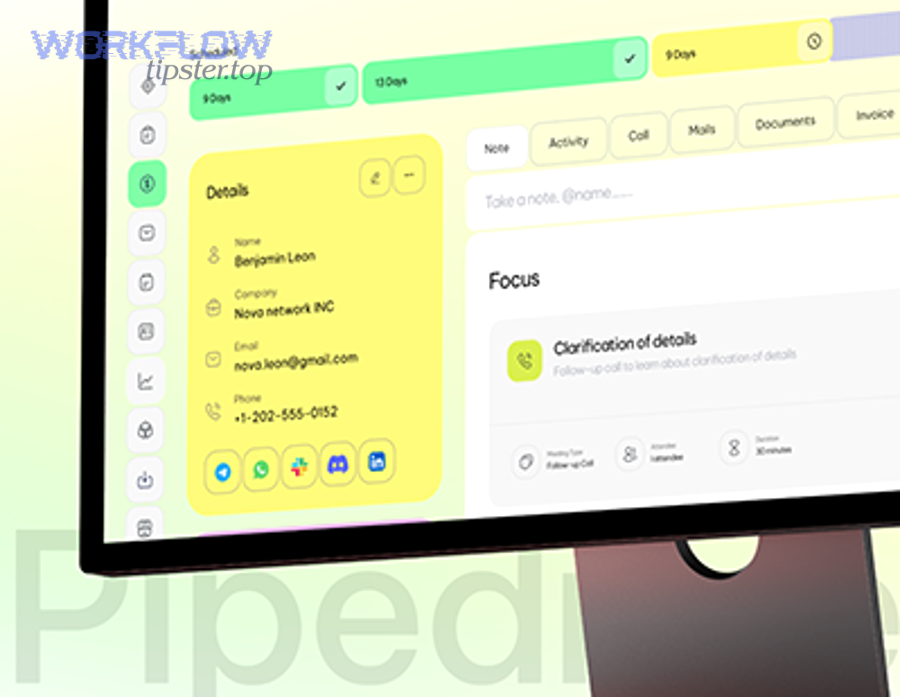
Start with this mindset: Email Sync is about visibility and history. Automation is about actions and outcomes. If you confuse those, you’ll either over-automate (creating noise) or under-automate (creating manual work).
When is native Email Sync + Gmail add-on the best choice?
Yes—native Email Sync plus the Gmail add-on is the best choice when your priority is dependable email logging, fast rep adoption, and consistent CRM hygiene, because it reduces moving parts, keeps permissions straightforward, and supports in-inbox actions with minimal configuration.
Then, use it when you want:
- A single source of truth for email history
- Easy deployment across a team
- Predictable behavior that Sales Ops can support
- Less risk of duplicates from overlapping triggers
The Google Workspace Marketplace listing emphasizes this “work in Gmail” model: add Pipedrive to your inbox to create and edit contacts, deals, activities, and notes without changing tabs. (workspace.google.com)
When do automations (Zapier-like) make more sense than native sync?
Automations make more sense when you need conditional workflows—like “when an email gets a specific label, create a deal,” or “when a lead replies, create a follow-up task,” or “route a conversation into another system”—because Email Sync alone logs history but doesn’t orchestrate multi-step processes.
However, automation becomes powerful only after your foundation is stable:
- Clean contact data
- Clear stage definitions
- A consistent label/tag taxonomy
- A documented “what triggers what” map
For example, if your sales team tracks inbound lead replies and pushes a summary into gmail to google sheets for weekly reporting, automation can save time—but only if you control duplicates and define exactly which emails qualify.
How do you avoid conflicts when using both native sync and automations?
Yes—you avoid conflicts by assigning one “owner” per function (logging vs creating vs updating), limiting automations to high-signal triggers, and documenting boundaries so native Email Sync logs conversations while automation handles only the actions that sync cannot do cleanly.
More specifically, set these boundaries:
- Boundary 1: Email logging: Choose native Email Sync as the only logger (recommended), and keep automation from “also logging” emails.
- Boundary 2: Record creation: Decide if deals are created manually, from the add-on, or by automation—pick one.
- Boundary 3: Activity creation: If automation creates activities, ensure it triggers once per intent (not once per email event + once per contact event).
A practical governance habit is a monthly “automation audit” where Sales Ops checks duplicates and removes unnecessary triggers. The goal is always the same: fewer moving parts, higher trust.
Evidence: According to a 2008 study by the University of California, Irvine Department of Informatics, workers took about 25 minutes to return to the same task after an interruption, which is why reducing tab switching and manual CRM updates matters for productivity. (ics.uci.edu)
How can you optimize Gmail–Pipedrive integration for advanced sales workflows and edge cases?
You can optimize Gmail–Pipedrive integration by standardizing alias and shared inbox rules, designing a label-based signal strategy, and setting privacy boundaries so your CRM stores only high-signal customer conversations while still supporting coaching and forecasting.
Besides the basics, optimization is where teams move from “it works” to “it scales.” That’s the difference between an integration that a few power users love and an integration that the whole sales org relies on.
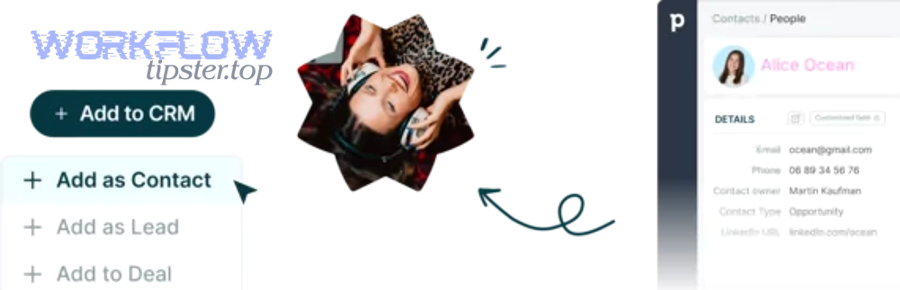
This section is also where semantic connectivity expands: inbox behaviors (labels, delegation, aliases) are parts of the system that directly shape CRM accuracy . You don’t change the CRM outcome without changing these micro-behaviors.
How do aliases, “Send mail as,” and multiple Gmail accounts affect sync and attribution?
Aliases and multiple Gmail accounts affect sync because the “from” address can differ from the authorized mailbox, which can break attribution, confuse matching, or cause emails to appear under the wrong user unless you standardize which mailbox is connected and which identities are used for outbound.
Then, apply these safeguards:
- Standardize the connected mailbox: Each rep should connect the mailbox that actually sends/receives prospect mail.
- Document approved aliases: If reps use “Send mail as,” confirm which aliases are allowed and how they should be represented in Pipedrive.
- Avoid mixing personal and work accounts: This is one of the fastest ways to create missing-email confusion.
A helpful operational rule:
“One rep = one primary mailbox connection. Aliases must be declared, not improvised.”
That rule keeps attribution consistent in reporting and avoids invisible gaps in communication history.
Can shared inboxes, delegation, or Google Groups be synced safely to Pipedrive?
Yes—shared inboxes and delegation can be synced safely when you define ownership, logging scope, and visibility rules first, because without governance the CRM fills with internal routing messages and becomes unclear about who is responsible for the next step.
Next, decide which shared inbox pattern you use:
- Shared inbox for inbound leads (high-signal): Sync is valuable if every message must be tracked.
- Shared inbox for internal ops (mixed-signal): Sync can become noise unless you restrict scope.
- Google Groups-based routing: Often requires tighter labeling rules so only customer-facing threads are logged.
If you use shared inboxes, establish a routing rule that creates a clear owner in Pipedrive (a deal owner or activity owner), otherwise the inbox becomes “everybody’s job,” which usually means nobody follows up.
What label/filter strategy in Gmail improves CRM cleanliness (and reduces noise)?
There are four practical label types that keep CRM clean—Prospect, Customer, Internal, and Noise—because they give you a simple criterion for deciding what should be logged, what should be automated, and what should be ignored.
Then, apply the signal vs noise antonym explicitly:
- Prospect (signal): Log and link to deals (highest value).
- Customer (signal): Log and link (important for renewals and expansion).
- Internal (mixed): Usually do not log automatically; use manual logging if needed.
- Noise : Promotions, receipts, newsletters—exclude from logging.
If you run Automation Integrations that react to labels, this taxonomy becomes even more powerful: labels become the “intent markers” that trigger actions.
One practical example: you can label certain inbound requests as “Support Escalation” and route the summary into your support workflow, including handoffs like airtable to zendesk, while keeping the CRM focused on sales conversations rather than support ticket chatter.
What are the key privacy/compliance considerations when storing emails in a CRM?
Email-in-CRM compliance is about minimizing sensitive content, controlling visibility, and documenting retention rules, because a CRM is easier to share than an inbox and can unintentionally expose private information if your policies are unclear.
More importantly, define these three boundaries:
- What should never be logged automatically: Password resets, financial documents, sensitive HR messages, health-related details, and other regulated information.
- Who can see logged emails: Private-by-default vs shared-by-default is a strategic choice that affects adoption and governance.
- How long records should be retained: Align retention with your legal and operational requirements.
When teams set these boundaries early, reps trust the system and actually use it—because they know the CRM will not become a compliance risk.
Evidence: According to Pipedrive’s support documentation, the Gmail add-on is installed through Google Workspace Marketplace and requires granting Google account permissions, which is why security policy alignment (admin approvals, allowed apps) is a core part of a compliant rollout. (support.pipedrive.com)