


Automating Freshdesk to Airtable is the fastest way for support teams to turn live ticket activity into structured, searchable data—without manual exporting—by using a no-code workflow that captures ticket events and writes clean records into the right Airtable tables.
The next piece is getting the data design right, because a Freshdesk to Airtable integration only stays useful when fields map consistently, duplicates are prevented, and updates follow a clear “source of truth” rule instead of overwriting the wrong values.
Then, you need a practical decision on how far to go: a simple one-way automation is often enough for reporting, while a true sync (especially two-way) requires conflict rules, monitoring, and a maintenance plan.
Introduce a new idea: below, you’ll build the integration step-by-step, choose the best workflow and tool for your team, and learn how to keep the automation reliable as ticket volume grows.
What is a Freshdesk to Airtable integration, and what does “no-code automation” mean?
A Freshdesk to Airtable integration is a no-code workflow that moves support data (like tickets and contacts) from Freshdesk into Airtable using triggers, field mapping, and automated actions, so your team stops copying/pasting and starts operating from a single, organized dataset.
Next, to better understand how this works in practice, it helps to name the exact Freshdesk objects you’ll capture and the mechanism that moves them into Airtable.
What data from Freshdesk is typically sent to Airtable (tickets, contacts, companies)?
There are 3 main Freshdesk data groups most teams send to Airtable—tickets, contacts, and companies—because they cover the majority of reporting and operational workflows without creating a heavy, fragile sync.
Specifically, each group supports a different analytics and coordination need:
- Tickets (the core unit of work)
- Ticket ID, subject, status, priority, group, agent, tags, category/type
- Created time, last updated time, first response time/SLA fields (where available)
- Custom fields (only the ones you actually report on)
- Contacts (the people you support)
- Name, email, phone, contact ID, company ID
- Segmentation fields: customer tier, region, product plan (if present)
- Companies (the accounts you support)
- Company ID, company name, domain, account owner, plan tier
- Health indicators you compute in Airtable: ticket volume last 30 days, reopen rate, escalation count
A practical rule keeps the integration stable: start with ticket metadata first, then add contacts/companies as linked records once the ticket pipeline is clean. That sequence prevents “broken joins” in Airtable where tickets appear without a reliable customer relationship.
How does a no-code workflow move data from Freshdesk into Airtable (trigger → mapping → action)?
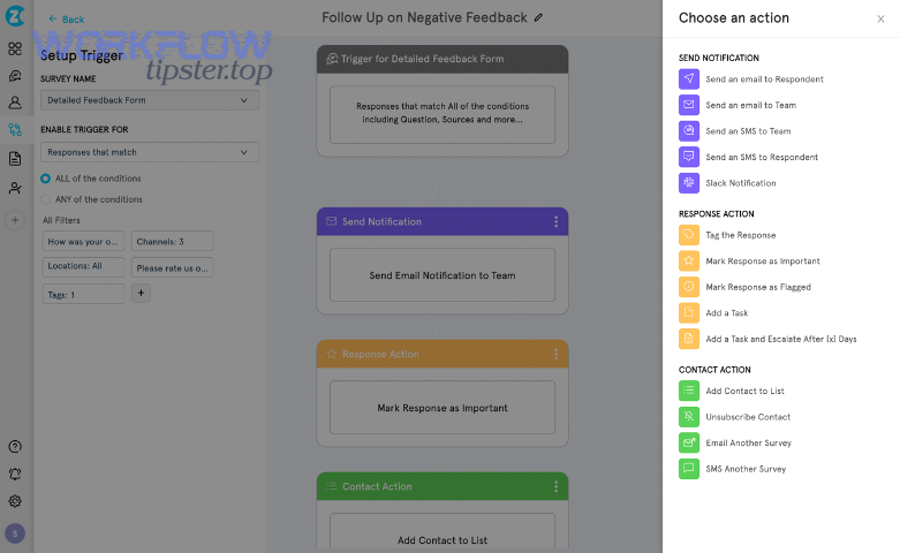
A no-code Freshdesk to Airtable workflow moves data in 3 stages—trigger, mapping, and action—based on events (like “new ticket created”) and then writes the data into Airtable in a controlled way.
Then, to illustrate the full path, here’s what happens under the hood in plain language:
- Trigger (Freshdesk event happens)
- Example triggers: new ticket, ticket updated, ticket assigned, status changed
- Best practice: choose triggers that match a real operational milestone (not “any change” at the start)
- Mapping (translate Freshdesk fields to Airtable columns)
- Ticket status → Single select
- Priority → Single select or number
- Tags → Multi-select
- Agent → Linked record (Agents table) or text (if you want simplicity)
- Action (write to Airtable with a rule)
- “Find record by ticket ID → update it” (prevents duplicates)
- Or “Create record if not found” (builds new entries safely)
If you remember one durability concept, make it this: ticket ID becomes your primary dedupe key. When your automation always searches Airtable by ticket ID before writing, you stop accidental record multiplication.
Should support teams automate Freshdesk → Airtable, or keep the process manual?
Automation wins for Freshdesk to Airtable in speed, consistency, and scale, while manual exports are best for one-off audits, very low volume, or temporary reporting, so the right choice depends on ticket volume and how often you need updated dashboards.
However, the “manual vs automated” decision becomes obvious once you measure duplicated effort and the reliability cost of copy/paste.

Does automating Freshdesk to Airtable reduce duplicate work and reporting time?
Yes—automating Freshdesk to Airtable reduces duplicate work because it eliminates repeated exporting, keeps a live reporting dataset, and standardizes fields, which together cut the time spent reformatting spreadsheets and chasing missing ticket updates.
Moreover, the biggest savings typically come from the most frequent reporting behaviors:
- Daily/weekly ticket status reporting (open backlog, aging, priority distribution)
- Voice-of-customer categorization (tags/types/categories feeding product insights)
- Account support summaries (tickets per company, escalation rate, churn risk notes)
Automation also improves data quality because the system writes fields the same way every time. In a 2012 study by the University of Southern Denmark from the Institute of Clinical Research, manual double-key entry showed an error proportion of 0.046 per 1,000 fields versus 0.370 per 1,000 fields for single-key entry, demonstrating how entry method strongly affects accuracy. (That’s why eliminating manual keying—when possible—raises trust in the reporting dataset.)
When is manual exporting better than automation (low volume, one-off audits)?
Manual exporting is better when you have low ticket volume, need a single historical snapshot, or are doing a temporary investigation where building automation costs more than the time you’ll save.
In addition, manual makes sense in situations like:
- One-time compliance audit
- You export a fixed window of tickets, validate it, and archive the file
- Early-stage team with minimal reporting needs
- You only need a weekly count, and you’re not ready for a structured Airtable base
- Unstable taxonomy
- If categories/tags are changing daily, automation can lock in messy semantics too fast
Still, manual shouldn’t be your long-term default if leadership expects “always current” dashboards. Manual exports create a “data lag,” and the moment you rely on that lag for decisions, you begin paying the hidden cost of outdated information.
Which Freshdesk → Airtable workflow should you build first?
There are 5 starter Freshdesk → Airtable workflows most support teams should build first—based on the criterion of “highest impact with lowest complexity”—because these patterns give you immediate reporting value without requiring two-way synchronization.
Next, let’s explore the most common patterns and how to choose which fields Airtable should own versus Freshdesk.

What are the most common automation patterns (new ticket → record, status change → update, SLA breach → flag)?
There are 6 common Freshdesk to Airtable automation patterns: (1) new ticket → create record, (2) status/priority change → update record, (3) assignment change → update owner, (4) tag/category set → classify, (5) SLA breach → flag, (6) closure → finalize metrics, based on the criterion of “ticket lifecycle milestones.”
Specifically, here’s what each pattern is for:
- New ticket → create Airtable record
- Purpose: build the dataset from day one
- Key rule: store Ticket ID + Created time + Initial status
- Status/priority change → update record
- Purpose: keep backlog and urgency reporting current
- Key rule: update only the fields Freshdesk owns
- Assignment/group change → update owner fields
- Purpose: operational accountability (who owns what)
- Key rule: log assignment history if needed (optional “Activity” table)
- Tag/category change → update classification
- Purpose: VOC reporting that product teams can consume
- Key rule: limit tags to a controlled set to avoid taxonomy explosion
- SLA breach → set a risk flag
- Purpose: surface “attention tickets” automatically
- Key rule: store breach reason + breach time, not just a boolean
- Ticket closed/resolved → finalize metrics
- Purpose: compute resolution time, reopen risk, post-mortem categories
- Key rule: lock certain fields after closure to preserve reporting consistency
If you want fast wins, start with #1 and #2. Once those work reliably, you can add SLA breach logic and VOC classification.
How do you choose the “source of truth” for each field (Freshdesk vs Airtable)?
You choose the source of truth by assigning field ownership rules: Freshdesk should own operational ticket fields (status, assignee, priority), while Airtable should own analysis/enrichment fields (themes, internal notes, risk scoring), so updates never conflict.
Then, to make those rules actionable, use this simple ownership model:
- Freshdesk-owned fields (write-only from Freshdesk to Airtable)
- Ticket status, priority, group, agent, timestamps, requester, company
- Airtable-owned fields (never overwrite from Freshdesk)
- Internal classification, QA notes, escalation commentary, workflow checklist, report grouping
- Shared fields (rare; use carefully)
- Category or tags if you intentionally allow Airtable edits to push back (advanced)
This rule prevents the most painful failure mode: Airtable analysts “fix” a category, and an hour later the automation overwrites it because Freshdesk still contains the old value.
How do you set up a no-code Freshdesk → Airtable automation step by step?
The most reliable method is a 7-step no-code build: define the goal, choose a trigger, design the Airtable schema, connect accounts, map fields, test with edge cases, and then monitor errors—so your Freshdesk to Airtable integration stays stable as volume grows.
Below, let’s walk through the steps in the same order your implementation should follow.
How do you connect Freshdesk and Airtable securely (API keys/tokens, least privilege)?
You connect securely by using scoped access, storing credentials in the automation tool’s encrypted vault, and limiting Airtable base permissions and Freshdesk API access to only what the workflow needs.
To begin, follow a minimal-risk connection checklist:
- Freshdesk connection
- Use the least-privileged approach available to your setup
- Avoid sharing personal agent credentials across the org
- Prefer a dedicated “integration user” if your governance allows it
- Airtable connection
- Restrict the token to the specific base(s) used for support reporting
- Keep write access limited to required tables only
- Operational security
- Rotate credentials on a schedule (quarterly is common)
- Document who owns the integration and where alerts go
If your organization handles sensitive data, design the base so PII is separated (or minimized) before you automate at scale.
How do you map Freshdesk fields to Airtable columns without breaking reporting?
You map fields correctly by matching data types, standardizing select values, and building a clean “Tickets” table that uses Ticket ID as a unique key—so reporting stays consistent and your automations don’t fail due to type mismatches.
Specifically, treat mapping as an analytics decision, not just a technical step:
Airtable column design rules
- Ticket ID: number or text (must be unique and stable)
- Status / Priority: single select (standardized options)
- Tags: multi-select (use a controlled vocabulary)
- Created / Updated times: date-time (timezone awareness matters)
- Agent / Group: linked record (best) or single select (simpler)
This table contains a practical mapping example that helps you prevent the most common reporting break: inconsistent categories and mismatched select values.
| Freshdesk field | Recommended Airtable field type | Why it works |
|---|---|---|
| Ticket ID | Text (unique) | Enables find-or-update logic |
| Status | Single select | Supports clean backlog reporting |
| Priority | Single select or number | Enables SLA/urgency analysis |
| Tags | Multi-select | Enables VOC grouping without duplicates |
| Agent | Linked record | Enables per-agent workload metrics |
| Company | Linked record | Enables account-level dashboards |
Once you stabilize the mapping, you can add custom fields—but only the ones that actually power decisions.
How do you test the workflow before turning it on (sample tickets, edge cases, rollback)?
You test by running the automation against controlled sample tickets, validating field outputs in Airtable, and confirming rollback or pause procedures—so you don’t flood your base with duplicates or incomplete records on launch day.
Then, to make testing fast and reliable, use this staged approach:
- Create a staging Airtable base
- Mirror the real schema, but keep it isolated
- Run 10–20 sample tickets
- Include a mix: high priority, attachments, tags, reassignment, closure
- Validate outputs
- Check select values, date formats, missing fields, linked records
- Test idempotency
- Re-run the same ticket update and confirm Airtable updates the same row
- Define your “stop switch”
- Know exactly how to disable the automation and alert the owner
Testing is where most teams protect their trust in the dataset. If you skip it, you may spend weeks “repairing” an Airtable base that never becomes reliable enough for leadership reporting.
Can you sync Freshdesk and Airtable automatically (one-way vs two-way sync)?
One-way sync wins for simplicity and reliability, while two-way sync is best only when Airtable must write operational changes back to Freshdesk, because two-way introduces conflict rules, ownership questions, and higher maintenance requirements.
However, understanding the practical difference between “automation” and “sync” is the key to choosing the right architecture.

Is one-way sync from Freshdesk to Airtable enough for most support teams?
Yes—one-way sync from Freshdesk to Airtable is enough for most support teams because it supports live reporting, VOC analytics, and account visibility without risking operational conflicts or accidental overwrites.
Moreover, one-way sync fits the most common goals:
- “Show me the backlog by priority and age”
- “Which customers escalated this week?”
- “What categories cause the highest reopen rate?”
- “Which agents are overloaded?”
If Airtable is mainly a reporting and coordination layer, one-way is the safer default. You can still add Airtable-only fields for enrichment without complicating operations inside Freshdesk.
What rules prevent two-way sync conflicts (last-write wins vs field ownership)?
Freshdesk wins in operational fields, Airtable wins in analysis fields, and “last-write wins” is only safe for limited, low-risk fields—so the best conflict prevention rule is field ownership first, and timestamp-based resolution second.
On the other hand, two-way sync requires you to define these conflict controls:
- Field ownership (recommended)
- Freshdesk owns: status, priority, assignment
- Airtable owns: internal tags, QA notes, triage flags
- Write permissions by workflow
- Only certain records or statuses can be pushed back
- Example: allow Airtable → Freshdesk updates only for “triage category”
- Update windows
- Prevent back-and-forth loops by limiting update frequency
- Conflict resolution strategy
- “Last update wins” can be acceptable for a narrow field set, but risky for core operations
Two-way sync is powerful, but it should be an intentional product decision. If you don’t need Airtable edits to change the helpdesk, keep it one-way.
Which tool should you use for Freshdesk → Airtable automation (Zapier vs Make vs n8n)?
Zapier wins in speed and simplicity, Make is best for visual logic and deeper scenarios, and n8n is optimal for technical teams wanting maximum control (including self-hosting), so the best choice depends on your team’s skills, compliance needs, and workflow complexity.
Next, let’s explore which tool aligns with your operational reality—not just your ideal architecture.
Which is best for non-technical teams (fast setup, templates, low maintenance)?
Zapier-style tools are best for non-technical teams because they offer fast setup, prebuilt connectors, and lower maintenance, which means your Freshdesk to Airtable integration can ship quickly and stay understandable for managers.
Then, to keep it practical, non-technical teams should prioritize:
- A guided setup experience (clear trigger/action selection)
- Easy error notifications (email/Slack alerts)
- Simple “find-or-create” patterns (dedupe without custom code)
- Readable mapping (team members can maintain it when the original builder is out)
This is also where broader Automation Integrations strategy matters: once the team learns one stable pattern, it can replicate the same operational logic across other workflows without reinventing everything.
Which is best for advanced workflows (branching logic, transforms, self-hosting)?
n8n-type tools win for advanced workflows because they support branching logic, data transforms, and governance-friendly deployment options, which are critical when you need complex rules, strict compliance, or workflow orchestration beyond basic triggers.
Meanwhile, advanced needs often include:
- Normalization
- Write tickets to one table, contacts to another, and create linked records reliably
- Transformations
- Convert raw tags into standardized categories
- Compute risk scores and enrich records
- Orchestration
- Run scheduled reconciliations
- Batch updates to respect rate limits
- Control
- Self-hosting options for security-sensitive environments
A useful way to validate “advanced” is to ask: would your workflow survive if you doubled ticket volume? If the answer is “not sure,” you probably need stronger logic and monitoring than a basic setup provides.
To connect this idea to real-world practice, teams often expand beyond Freshdesk once they see the value of structured automation—for example, a marketing team might run dropbox to google slides workflows to automate deck creation, while operations might connect asana to dropbox to standardize project file archiving. The same design principles—clear triggers, dedupe keys, and ownership rules—still apply.
What problems break Freshdesk → Airtable automations, and how do you fix them?
There are 6 common failure causes in Freshdesk to Airtable automations—duplicates, field mismatches, missing permissions, rate limits, update loops, and silent failures—and each has a specific fix that makes your workflow resilient instead of fragile.
In addition, the best troubleshooting strategy is to treat failures as a data-quality problem first, and a tool problem second.
Why do automations create duplicate Airtable records, and how do you dedupe reliably?
Automations create duplicates when they “create” without a stable lookup, so the reliable fix is a find-or-update pattern using Freshdesk Ticket ID as a unique key, plus consistent formatting rules that prevent near-duplicate keys.
Specifically, duplicates usually come from these behaviors:
- The workflow triggers on “ticket updated,” but it runs “create record” every time
- The Airtable “find record” step searches on a non-unique field (subject, email, or name)
- Ticket ID is stored inconsistently (text vs number, leading/trailing spaces)
A durable dedupe checklist looks like this:
- Store Ticket ID in a dedicated “Ticket ID” column
- Use exact-match search on Ticket ID before any write
- If not found: create record with Ticket ID
- If found: update only Freshdesk-owned fields
- Normalize formatting:
- Trim whitespace
- Store IDs as text if your tool sometimes changes number formatting
If you have existing duplicates, you can also run a reconciliation job:
- Group by Ticket ID
- Keep the most recently updated record
- Merge Airtable-only fields into the keeper record
- Archive the duplicates (don’t delete first—protect auditability)
How do you handle rate limits and retries without losing tickets?
You handle rate limits by batching writes, reducing unnecessary updates, and using retry/backoff behavior, so your integration slows down gracefully instead of failing and silently dropping ticket updates.
More specifically, rate limits matter because both Freshdesk and Airtable APIs can throttle bursts, which often happens during peak support hours or bulk ticket updates.
Practical stability moves:
- Batch updates
- Avoid “update on every tiny change” triggers early on
- Filter triggers
- Only sync when meaningful fields change (status, priority, assignment, tags)
- Add backoff
- If you see throttling, wait and retry rather than hammering the API
- Queue writes
- Advanced tools can queue actions so you process updates steadily
A good mindset is “event value per call.” If your automation spends API calls on low-value changes, you’ll burn budget on noise and fail when the important changes arrive.
How do you monitor failures and ensure data stays accurate over time?
You ensure accuracy by monitoring errors, drift, and reconciliation, meaning you set alerts for failures, check for missing records, and run periodic audits that compare Freshdesk totals to Airtable totals for the same time window.
Thus, monitoring becomes a permanent part of the workflow, not an afterthought:
Operational monitoring
- Alert on failures (email/Slack)
- Review error logs weekly
- Track “failed runs per week” as a health metric
Data accuracy monitoring
- Daily/weekly reconciliation:
- Count tickets created in Freshdesk vs tickets created in Airtable
- Sample-check 20 random tickets for field accuracy
- Drift detection:
- Watch for new tags/categories that don’t match your controlled vocabulary
- Watch for new custom fields that weren’t mapped
If you build monitoring early, your Airtable base becomes a trusted operational dataset instead of “a nice-to-have spreadsheet” that leaders stop believing.
At this point, you’ve fully built the core Freshdesk → Airtable automation path: what it is, when to automate, what workflow to build first, how to set it up, how to choose one-way vs two-way sync, which tools fit which teams, and how to troubleshoot common failures. Next, we’ll expand into production-grade optimization: schema design, governance, advanced sync safety, and reporting structures that deepen long-term value.
How do you optimize a Freshdesk → Airtable integration for scale, governance, and advanced reporting?
You optimize at scale by designing a normalized Airtable schema, enforcing idempotent updates, applying security controls for PII, and handling “heavy” objects (comments and attachments) with linked tables and links—so your integration stays fast, compliant, and reporting-ready.
Next, let’s explore the micro-level design improvements that turn a functional automation into an authoritative support analytics system.

What Airtable base structure works best (Tickets table + linked Contacts/Companies + Activity log)?
There are 4 core Airtable tables that work best—Tickets, Contacts, Companies, and Activity Log—based on the criterion of “clean relationships that support reporting without duplication.”
To begin, here’s the structure and why it scales:
- Tickets (primary)
- One row per ticket (Ticket ID unique)
- Operational fields (status/priority/agent/group)
- Reporting fields (category normalization, SLA flags, computed metrics)
- Contacts (linked)
- One row per requester/contact
- Links to Tickets (one-to-many)
- Companies (linked)
- One row per company/account
- Links to Contacts and Tickets (one-to-many)
- Activity Log (optional but powerful)
- One row per event: “status changed,” “assigned,” “tag added,” “escalated”
- Enables timeline analytics and audit trails without rewriting history
This structure prevents common scaling pain:
- You avoid repeating customer info on every ticket
- You can compute account-level health metrics reliably
- You can answer questions like “What changed?” not just “What is the current state?”
How do you implement idempotency and incremental sync (timestamps, watermark fields, external IDs)?
You implement idempotency by storing stable external IDs (Ticket ID, Contact ID) and using a “find → update” pattern, and you implement incremental sync by tracking a watermark timestamp so the workflow only processes records that changed since the last successful run.
Then, to make it concrete, here’s an idempotency + incremental plan:
Idempotency rules
- Ticket record key = Ticket ID
- Contact record key = Contact ID (or email + domain if ID isn’t available)
- Company record key = Company ID (or domain as fallback)
- Always “find” before “create”
Incremental sync rules
- Store a field in Airtable like:
- Last Synced At
- Freshdesk Updated At
- Sync Watermark (system)
- For scheduled jobs:
- Fetch changes “since watermark”
- Process in batches
- Update watermark only after success
This approach prevents two bad outcomes:
- Reprocessing the same updates endlessly (wasted calls and higher failure risk)
- Missing updates because the job crashed mid-run (watermark updated too early)
What security and compliance steps should support teams follow (PII minimization, access control, audit trails)?
There are 4 essential security steps: minimize PII, restrict access, log changes, and define retention—based on the criterion of “reduce exposure while preserving operational value.”
Moreover, these steps are easy to implement if you decide them before scaling:
- PII minimization
- Store only what reporting requires
- Prefer contact IDs over full personal details where possible
- Access control
- Limit base access to the support ops and analytics owners
- Use separate views for broader stakeholders (no edit permissions)
- Audit trails
- Use an Activity Log table for key events
- Document automation owner, change history, and alert routing
- Retention
- Define how long tickets remain in Airtable
- Archive older records to a separate base if performance slows
If your organization is regulated, treat Airtable like an operational system: document it, govern it, and protect it.
How do you handle comments, attachments, and custom fields without bloating Airtable?
Links win for attachments, separate tables win for comments, and selective mapping is optimal for custom fields, because storing heavy text blobs everywhere slows down bases and makes reporting harder to maintain.
On the other hand, you still want visibility—so you design “lightweight access”:
- Attachments
- Store the Freshdesk attachment URL(s) in Airtable
- Optionally store file metadata (name, type, size) in a linked “Attachments” table
- Comments / conversations
- Store key summary fields on the Ticket record (latest public reply time, last agent note time)
- Store the full thread in a linked “Conversations” table only if you truly analyze it
- Custom fields
- Map only the fields used for decisions or segmentation
- For everything else, store a structured “Custom Field JSON” only if your tool supports it cleanly (advanced)
This strategy keeps the base fast while still letting a manager click from a dashboard row into the source record when deeper context is needed.