


Integrating DocuSign to Dropbox to auto-save signed documents means you can automatically capture every completed envelope (the final signed PDF and supporting files) in the right Dropbox folder—without chasing emails, downloading attachments, or relying on someone’s memory.
This guide also covers whether DocuSign can connect to Dropbox directly without automation tools, so teams can decide if a native connection is enough for their workflow or if they need a “save on completion” automation.
Next, you’ll see a practical method-comparison that helps teams choose the best approach for speed, reliability, naming consistency, and long-term ownership—especially when multiple departments share the same contract flow.
Introduce a new idea: once the connection works, the real win comes from designing folder structure, permissions, and troubleshooting rules that keep storage clean and audit-ready as volume grows.
What does “DocuSign to Dropbox auto-save” mean in real workflows?
DocuSign to Dropbox auto-save means a completed DocuSign envelope automatically creates (or updates) a file in Dropbox—typically the final signed PDF plus supporting artifacts—so teams can store, search, and share the “source-of-truth” version without manual downloading.
To begin, it helps to picture the end-to-end path: envelope completion → file package generated → file placed into a predictable Dropbox destination → teammates can access it instantly.

In real operations, “auto-save” solves the same recurring pain in different departments:
- Sales avoids losing signed order forms in inboxes and keeps deal folders complete.
- Legal reduces “wrong version” risk by saving the final executed agreement to the correct repository.
- HR centralizes signed onboarding documents with consistent naming and access controls.
- Finance keeps approvals and signed vendor paperwork easy to retrieve during audits.
The key is consistency: every completed envelope should land in Dropbox in the same format, in the same location pattern, with the same naming logic—so humans don’t become the integration.
What files should be saved to Dropbox after an envelope is completed?
There are 4 main types of files you should save after an envelope is completed: the signed PDF, the completion certificate/audit trail, sender/recipient attachments, and any supporting metadata exports—based on what you’ll need to prove completion and find the document later.
Specifically, storing the “full package” prevents the common situation where the signed PDF exists, but the proof of who signed, when, and how is scattered elsewhere.
A practical “completed envelope package” for Dropbox usually includes:
- Final signed PDF (the executed agreement)
- Certificate of completion / audit trail (often a separate PDF report)
- Attachments (files uploaded by sender or recipients)
- Optional exports (CSV/JSON-like metadata from your automation tool, if used)
If you only store the signed PDF, you often lose context. That context becomes critical when a teammate asks, “Which version is final?” or “Did the customer sign on the correct date?” The audit trail answers those questions quickly.
When should you auto-save (completed vs sent vs declined/voided)?
Completed wins for “final executed documents,” sent is best for “in-progress visibility,” and declined/voided is useful only when you explicitly track exceptions—so your choice should match what you want Dropbox to represent.
However, the more states you auto-save, the more folder noise you create—so you need a clear rule.
A simple rule set that works well for teams:
- Auto-save on Completed (default): Dropbox becomes the library of final executed documents.
- Optionally store Sent in a separate “In Progress” folder: helps sales ops and legal ops track turnaround.
- Store Declined/Void only if you manage exceptions formally: keep it separate to avoid mixing with final agreements.
If your Dropbox folder is meant to represent “done and binding,” keep it to Completed. If your Dropbox folder is meant to represent “workflow visibility,” split by status so each folder stays meaningful.
Can DocuSign connect to Dropbox directly without automation tools?
Yes—DocuSign can connect to Dropbox directly for tasks like selecting files from Dropbox when sending, but many teams still need automation tools to reliably auto-save completed envelopes into Dropbox folders with consistent naming and routing.
Below, the difference matters: “connect as a file source” is not the same as “sync final output to storage.”

Think of it as two directions:
- Dropbox → DocuSign: pull a file from Dropbox to send for signature.
- DocuSign → Dropbox: push the completed signed file package back into Dropbox automatically.
Some native connections focus more on the “file source” direction, while workflow automation patterns focus on the “save on completion” direction.
How do you connect Dropbox as a cloud storage source inside DocuSign?
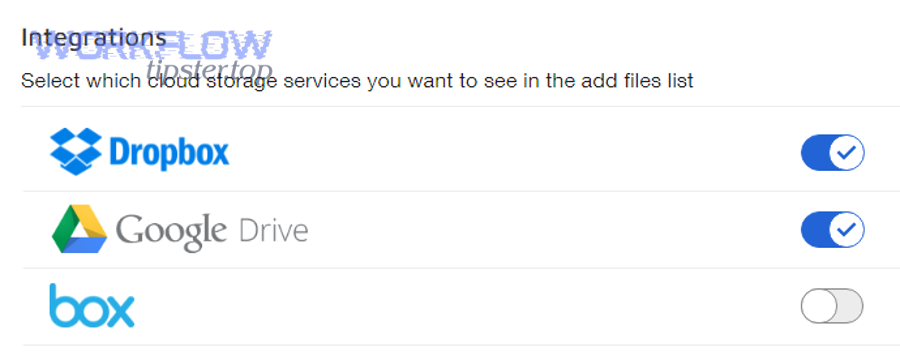
Connecting Dropbox inside DocuSign means authorizing your Dropbox account so DocuSign can browse and import files from Dropbox as a sending source, using a secure OAuth-style permission flow.
Next, once authorization is in place, the user can typically select Dropbox as the source during document upload/selection when creating an envelope.
A safe, team-friendly approach looks like this:
- Confirm who should authorize: an admin-controlled integration account is often cleaner than a personal account.
- Authorize Dropbox access from within DocuSign’s connected services / cloud storage options (exact UI varies by account type).
- Verify folder visibility: ensure the authorized identity can read the folders that contain templates/forms.
- Test with a non-sensitive document: confirm DocuSign can pull the file successfully before rolling out.
The goal is simple: users can choose “Dropbox” alongside other upload sources and avoid downloading files locally.
What are the limitations of native DocuSign↔Dropbox connections for auto-saving?
Native connections often fall short when you need automatic post-signature filing—especially status-based routing, strict naming conventions, audit trail bundling, and folder creation—so teams typically add automation when they want a true “auto-save signed documents” workflow.
Meanwhile, even when native options exist, they may not match the exact filing behavior your organization requires.
The common “native” gaps teams run into include:
- No consistent naming template (or not enough tokens like deal ID, envelope ID, client name)
- No folder creation logic (e.g., create a new folder per envelope or per client)
- Limited conditional routing (e.g., different Dropbox destinations by template, department, or recipient group)
- Incomplete package saving (e.g., missing audit trail or attachments unless explicitly handled)
If your team’s priority is “the completed envelope always ends up in the right Dropbox folder, every time,” you usually need workflow automation logic—even if you also use native cloud storage selection for the sending step.
Which integration method should teams use: native connection or workflow automation?
Native connection wins for simple “select from Dropbox to send,” workflow automation wins for reliable “auto-save completed envelopes,” and a hybrid approach is optimal when you need both easy sending and controlled storage.
In addition, teams should choose based on ownership: who maintains it, who audits it, and who fixes it when it breaks.

Before deciding, it helps to see the difference clearly. The table below compares what teams typically care about when implementing DocuSign to Dropbox.
This table contains a side-by-side comparison of native connection versus workflow automation so you can match each option to your team’s filing and governance needs.
| Criterion | Native Connection (typical) | Workflow Automation (typical) |
|---|---|---|
| Primary job | Use Dropbox as a file source | Save completed envelopes to Dropbox automatically |
| Best for | Lightweight sending flows | Scaled filing, naming, routing, and packaging |
| Naming control | Limited / basic | Strong (templates, tokens, envelope IDs) |
| Folder creation | Usually limited | Strong (create folder per client/deal/envelope) |
| Conditional routing | Minimal | Strong (if/then logic by template/status) |
| Ownership | End-user or admin | Ops/IT/admin-owned with monitoring potential |
If your main requirement is auto-saving the final signed document package, workflow automation is usually the best fit.
Do you need “auto-save on completed envelope” or just “import from Dropbox to send”?
Auto-save on completed envelope is the correct requirement when Dropbox is your system of record for final executed documents, while import-from-Dropbox-to-send is enough when Dropbox only stores templates or source documents.
To illustrate, many teams mistakenly implement only the “import” direction and later realize they still have manual filing work.
Use this quick requirement check:
- You need auto-save on completion if you want:
- final signed documents stored automatically
- consistent naming (client, date, envelope ID)
- audit trail saved with the signed PDF
- no manual download/upload steps
- You only need import from Dropbox to send if you want:
- users to quickly choose templates/forms from Dropbox
- sending convenience, not post-signature filing
- minimal workflow control
If the pain today is “signed docs live in email,” your requirement is auto-save.
What’s the best choice for non-technical teams vs ops/IT-led teams?
Workflow automation is best for non-technical teams when they can use pre-built recipes safely, while ops/IT-led teams benefit most from governed automations that include monitoring, service accounts, and standardized naming and folder policies.
Besides, “easy to set up” is not the same as “easy to maintain.”
A practical decision pattern:
- Non-technical teams: start with a simple automation that triggers on “completed” and uploads to one controlled Dropbox folder with a standardized file name.
- Ops/IT-led teams: implement a more structured flow:
- environment separation (test vs production)
- shared ownership (not tied to one person)
- logging and failure alerts
- strict folder structure mapping
This is where broader Automation Integrations thinking helps: treat DocuSign→Dropbox like any other business-critical integration, similar to how teams standardize workflows like gmail to slack notifications for operational visibility—ownership and monitoring matter as much as the initial setup.
How do you set up an automated DocuSign → Dropbox save workflow step-by-step?
The most reliable method is a 6-step workflow: trigger on completed envelope, retrieve the signed documents, apply a naming convention, choose/create a Dropbox folder path, upload the signed package, and add safeguards for duplicates—so every executed document lands correctly without manual work.
Then, once it works once, you standardize it so it works for every template and every team.

Here’s the tool-agnostic logic you should follow (whether you implement it with a no-code automation platform, middleware, or an internal workflow):
- Choose your trigger: envelope status = completed (or equivalent).
- Fetch output files: signed PDF + audit trail + attachments.
- Normalize filenames: apply a standard naming template.
- Resolve destination path: decide the Dropbox folder rules.
- Upload: write files to Dropbox (and optionally set permissions).
- Protect against duplicates: idempotency logic using envelope ID.
If you prefer a visual walk-through, this embedded video can help you recognize what the setup screens usually look like across common automation tools.
The most important design choice is how you represent the “final version.” You want Dropbox to clearly show what is final, what is in progress, and what is an exception.
What trigger should you choose to capture only final signed documents?
There are 3 common trigger choices—Completed, Completed + Delivered, or Completed + “All recipients finished”—based on how your DocuSign account reports finality and how strict you want your “final-only” rule to be.
More specifically, your goal is to trigger on the first moment your organization considers the document executed.
A robust “final-only” trigger configuration usually includes:
- Primary trigger: Completed (most teams)
- Optional validation: confirm the envelope status equals “completed” and not “voided/declined”
- Optional filter by template: only file certain agreement types to certain destinations
If you operate in an environment where documents must be executed only after a specific recipient signs (e.g., legal countersignature), ensure your trigger represents that reality.
How should you name files and folders to stay searchable at scale?
There are 3 high-performing naming approaches—Client-first, Document-type-first, or Deal-ID-first—based on what your team searches most often, and the best practice is to include a stable unique identifier like envelope ID to prevent collisions.
However, consistency beats creativity: choose one and enforce it across departments.
A practical naming template for the signed PDF:
- ClientName – AgreementType – YYYY-MM-DD – EnvelopeID.pdf
Examples:
- “AcmeCo – MSA – 2026-01-29 – 9F3A2C….pdf”
- “JohnDoe – OfferLetter – 2026-01-29 – 7B1D9E….pdf”
Recommended folder tokens for scale:
- Year / Department / Client
- Department / AgreementType / Year
- Client / DealID / Executed
The key is to avoid the two classic failures:
- “final-final-v3.pdf” naming chaos
- multiple documents overwriting each other because filenames are identical
Envelope ID (or an equivalent unique token) makes overwrites and duplicates far less likely.
How do you include the audit trail and prevent edits from breaking compliance?
You include the audit trail by saving the completion certificate alongside the signed PDF and preventing edits by storing the files in a controlled Dropbox location with restricted write access and versioning policies—so the executed package remains defensible.
Moreover, the audit trail is often the fastest way to resolve disputes without re-opening systems.
A defensible “executed package” approach:
- Save Signed PDF + Certificate/Audit Trail in the same folder
- Use a read-only or limited-editor folder for most users
- Keep a clean separation between:
- “Drafts / Templates” (editable)
- “Executed” (restricted)
This also helps if documents are later reviewed during internal audits. The audit trail provides consistent proof of signature events and identity verification steps used in your signing process.
According to a case summary by Washington University in St. Louis from Information Technology, in 2022, the university reported it saved $194,005 in the first year after implementing DocuSign eSignature for digitized workflows, highlighting measurable operational impact from moving agreements into digital processes.
What Dropbox folder structure works best for signed documents?
There are 4 main Dropbox folder structures that work best for signed documents—by client, by deal/project, by document type, or by department—based on how your team retrieves documents and controls access.
Especially as volume increases, folder structure becomes a governance tool, not just an organizational preference.

The best structure is the one that makes “find and prove” easy:
- Find the executed agreement quickly (search and browse)
- Prove it is the final, correct version (context and audit trail)
When folder design is unclear, teams compensate with duplicate uploads, conflicting versions, and inconsistent access—exactly what auto-save is supposed to prevent.
Which folder structure fits Sales, Legal, HR, and Finance teams?
There are 4 department-aligned folder structures—Sales by deal, Legal by counterparty, HR by employee, and Finance by vendor—based on the primary entity each team organizes around.
In addition, each department often has different access-control requirements, so you should structure folders to match least-privilege.
Examples that scale well:
- Sales (Deal-centric)
/Sales/2026/Deals/Deal-1234/Executed/ - Legal (Counterparty-centric)
/Legal/Counterparties/AcmeCo/Agreements/Executed/ - HR (Person-centric)
/HR/Employees/Lastname-Firstname/Onboarding/Executed/ - Finance (Vendor-centric)
/Finance/Vendors/VendorName/Contracts/Executed/
If your team uses shared Dropbox spaces, align with your team-space boundaries: keep “Executed” separate from “Working” to reduce accidental edits.
Should you store by client/deal, by date, or by template type?
Client/deal wins for retrieval during active work, date wins for audit timelines and reporting, and template type wins for operational standardization—so the best approach depends on whether your team searches by “who,” “when,” or “what.”
On the other hand, you can also combine them with a two-level taxonomy to get the benefits of both.
A practical hybrid:
- Top level: Client or Deal
- Second level: Year
- Third level: Document type
Example:
- /Clients/AcmeCo/2026/MSA/Executed/
If your business is project-heavy, deal-first is usually best. If your business is compliance-heavy, date and document type become more important.
How do you secure the DocuSign→Dropbox connection for a team environment?
You secure a DocuSign→Dropbox connection by using least-privilege access, separating personal accounts from integration ownership, controlling destination folders, and defining offboarding and rotation processes—because most real-world failures come from permissions and account ownership, not the automation logic.
Next, treat the integration like a shared operational asset instead of a personal convenience.
Security is not only “prevent hacking.” In team workflows, security is also:
- preventing accidental edits or deletions
- ensuring continuity when employees leave
- ensuring the correct people can access executed agreements
A secure design reduces both risk and support burden.
What permissions are required in Dropbox and DocuSign to make the sync work?
The sync typically requires DocuSign permission to access envelope documents and Dropbox permission to write to the destination folders, and the safest approach is to grant write access only to the exact folder paths the workflow needs.
For example, “write to Executed folder” is safer than “write anywhere in the company drive.”
Practical permission checklist:
- In DocuSign
- Access to envelopes generated by the sending process (sender or admin context)
- Permission to retrieve completed documents (and certificate/audit trail if needed)
- In Dropbox
- Write permission to a specific destination folder (Executed)
- Optional: create subfolders (if your workflow creates folders per client/deal)
- Read permission where necessary for validation steps
Avoid granting broad access “just to make it work.” Broad access makes cleanup, governance, and audits harder later.
How can teams avoid “one person’s account owns everything”?
Teams avoid single-person ownership by using a shared integration owner approach, connecting through an admin-managed account (or dedicated integration identity), and standardizing credentials and folder ownership so the workflow survives staffing changes.
Besides, nothing breaks automations faster than the original creator leaving and taking access with them.
A continuity-friendly approach:
- Use a shared/team Dropbox destination owned by the organization, not an individual
- Centralize integration credentials under an admin-controlled identity
- Document:
- where the automation lives
- which folders it writes to
- how to reauthorize if tokens expire
- Define an offboarding checklist: reassign ownership, rotate keys, verify permissions
This keeps “DocuSign to Dropbox auto-save” stable across months and years, not just during the first week after setup.
Why isn’t DocuSign saving to Dropbox—and how do you fix it?
DocuSign isn’t saving to Dropbox most often because of expired authorization, incorrect folder permissions, naming/path conflicts, or event retries that create unexpected behavior—and you fix it fastest by isolating whether the failure is authentication, destination access, or file-handling rules.
To better understand, you want a troubleshooting process that starts with the simplest failure and moves toward edge cases.

A good troubleshooting rule: don’t change five variables at once. Test one envelope, one destination, one naming format, and confirm you can reproduce the issue.
Which errors come from authentication vs permissions vs file rules?
There are 3 main error groups—authentication errors, permission/path errors, and file-rule errors—based on where the workflow fails (connect, write, or format).
Specifically, the error message or symptom usually tells you which group you’re in.
- Authentication errors (connect fails)
- Symptoms:
- “Re-auth required”
- sudden failures after previously working
- account change or password reset triggers breakage
- Fixes:
- reauthorize Dropbox connection
- confirm the authorized Dropbox identity still exists and is active
- Symptoms:
- Permissions/path errors (write fails)
- Symptoms:
- “Access denied” / “Forbidden”
- “Folder not found” (because the path is wrong or not shared)
- Fixes:
- verify the destination folder is accessible to the integration identity
- confirm the workflow can create subfolders (if needed)
- Symptoms:
- File-rule errors (format fails)
- Symptoms:
- upload fails only for certain agreements
- failure happens with long names, special characters, or large attachments
- Fixes:
- shorten names
- remove special characters
- store attachments separately
- enforce a consistent filename template
- Symptoms:
Once you classify the failure, the fix becomes much faster and less frustrating.
How do you prevent duplicates and version conflicts when events replay?
You prevent duplicates by using envelope ID-based naming, writing to a deterministic destination path, and adding “if file exists, update/skip” safeguards—because event retries and webhook replays can cause the same completion to be processed more than once.
Meanwhile, your “final version” philosophy should be explicit: overwrite, version, or keep both?
Three proven approaches:
- Idempotent naming (recommended)
- Filename includes EnvelopeID → duplicates become obvious and rare
- Existence check
- If file already exists in Dropbox, skip or update metadata only
- Version foldering
- Store duplicates in a “Retries” or “Duplicates” subfolder for review
To reduce version confusion, keep a single rule:
- “Executed folder contains the final signed package for each envelope.”
That rule makes it easier to train new staff and reduce accidental rework.
How do you govern, audit, and scale DocuSign→Dropbox storage for compliance-heavy teams?
You govern and scale DocuSign→Dropbox storage by enforcing retention rules, storing audit trails with executed PDFs, separating editable from executed areas, and using controlled ownership and monitoring—so the system remains defensible and manageable as volume grows.
More importantly, governance prevents the silent failure mode: the integration works, but the repository becomes untrustworthy.

This is also where semantic confusion can appear in organizations: some people mix up “Dropbox (storage)” with “Dropbox Sign (e-signature).” If your teams also compare products, keep the naming clear so your storage policy doesn’t drift into a product-evaluation debate like dropbox sign to box migrations.
How should you handle retention policies and legal holds for signed documents in Dropbox?
You should handle retention by defining what must be kept, for how long, and where it lives, then applying role-based access and legal-hold procedures so executed documents can’t be casually deleted or altered during disputes or audits.
In addition, retention decisions should be tied to document type (employment, vendor, customer, finance) rather than personal preference.
A governance checklist:
- Define retention by agreement class (e.g., HR onboarding, vendor contracts, customer MSAs)
- Separate:
- Executed (retained, restricted)
- Working (editable, time-limited)
- Document a legal-hold process:
- who can place a hold
- how holds are recorded
- what changes are restricted during hold
This keeps your repository consistent when scrutiny increases.
What is the best practice for storing audit trails alongside signed PDFs (and proving integrity)?
Best practice is to store the signed PDF and its certificate/audit trail together in a restricted Executed folder, keep consistent naming, and avoid post-sign edits by limiting write permissions—because integrity depends on both content and traceability.
To illustrate, a signed PDF without its certificate often creates a second round of work when questions arise.
A defensible “integrity bundle”:
- Signed PDF named with a stable convention + unique envelope identifier
- Certificate saved in the same folder, with a matching filename pattern
- Read-only access for most users; limited editors for records admins
- Clear policy: any “amendments” are new documents, not edits to executed ones
According to a case summary by Washington University in St. Louis from Information Technology, in 2022, the university documented measurable cost savings after implementing DocuSign eSignature for digitized workflows, supporting the broader operational rationale for building controlled, auditable agreement pipelines rather than relying on manual filing.
How do DocuSign Rooms and DocuSign eSignature differ for Dropbox workflows?
DocuSign eSignature is typically envelope-centric for broad signing workflows, while DocuSign Rooms is often transaction/room-centric for structured deal processes—so Dropbox filing design should match whether your organizing unit is “envelope” or “transaction.”
However, the practical difference is how teams expect documents to be grouped and retrieved.
If your workflow is room-based, you may want Dropbox to mirror the “room” structure:
- /Transactions/Transaction-Name/Executed/
If your workflow is envelope-based, you may want Dropbox to mirror document type and client:
- /Clients/ClientName/Agreements/Executed/
The best pattern is the one that keeps retrieval intuitive for the users who audit and operate the process daily.
When should you switch from simple automations to enterprise workflow platforms?
You should switch when you need stronger governance—monitoring, centralized ownership, complex routing, higher volume reliability, or compliance controls—because simple automations can become fragile under scale even if they work perfectly at low volume.
Thus, the “right time” is usually signaled by recurring operational pain, not by feature wish lists.
Common switch triggers:
- frequent re-auth issues or ownership problems
- multiple departments demanding different routing rules
- duplicate incidents that require investigation
- compliance requirements needing logs, approvals, or change control
- a need to integrate beyond storage (CRM updates, ticketing, multi-step approvals)
At that stage, treat DocuSign→Dropbox as a formal business process integration, not just a convenience—similar to how mature teams standardize other high-value workflows (including notification and handoff patterns like gmail to slack) so the organization can trust the system every day.