


If you want to sync ConvertKit to Smartsheet, the fastest “correct” path is to automate a one-way flow where ConvertKit events (new subscriber, tag added, form submitted) create or update rows in Smartsheet—so your list activity becomes trackable ops data without constant exports.
Next, you’ll get the most reliable results when you plan the mapping first: decide which ConvertKit fields matter (email, name, tags, form, status, custom fields), then design Smartsheet columns so the data stays searchable and report-ready.
Then, you’ll choose an automation tool (often Zapier, but sometimes Make or Pabbly) based on how complex your workflow is, how many records you’ll process, and how much monitoring you’re willing to do.
Introduce a new idea: once the “first sync” works, the real win is keeping it clean—preventing duplicates, handling missing fields, and securing access—so the integration stays trustworthy as your list and team grow.
What does it mean to connect ConvertKit to Smartsheet?
Connecting ConvertKit to Smartsheet means you automatically turn ConvertKit subscriber activity into structured Smartsheet rows (or updates) so teams can track leads, segmentation, and follow-up work without manual exporting, copying, or reformatting.
To begin, it helps to picture ConvertKit as the “event source” and Smartsheet as the “operational system of record,” where every subscriber or milestone becomes a row your team can assign, filter, and report on.

What data usually moves from ConvertKit into Smartsheet?
Most ConvertKit → Smartsheet setups move subscriber identity plus segmentation signals, because that’s what turns “email marketing activity” into “workflow-ready data.”
Common fields you’ll map include:
- Email address (your primary identifier)
- First name (or full name)
- Form / landing page source
- Tags (what they’re interested in)
- Subscriber status (confirmed/active vs unsubscribed, depending on what your trigger provides)
- Custom fields (anything you collect beyond standard fields)
A practical way to think about it: ConvertKit holds audience context; Smartsheet holds process context (owner, due date, stage, SLA, notes). When the two connect, you stop “looking up subscribers” and start “moving work forward.”
Why connect instead of exporting subscribers and importing spreadsheets?
Yes—automating ConvertKit to Smartsheet beats manual exporting for at least three reasons: (1) speed (near real-time updates), (2) accuracy (less copy/paste and reformatting), and (3) consistency (the sheet stays current without relying on someone to remember).
More specifically, manual transfer creates predictable quality problems: missing fields, overwritten cells, and duplicate records—especially when multiple people touch the data.
According to a study by the University of Nevada, Las Vegas from the Department of Psychology, in 2009, researchers evaluated single-entry, visual checking, and double-entry approaches and emphasized how structured data-entry methods help control mistakes when accuracy matters.
Is the integration one-way or two-way?
Most ConvertKit ↔ Smartsheet integrations are effectively one-way: ConvertKit events trigger Smartsheet changes, but Smartsheet edits usually don’t “write back” to ConvertKit unless you build a separate reverse automation (and define exactly what should update).
In addition, one-way is often the correct default because it prevents accidental overwrites—your email platform stays the “source of truth” for subscriber state, while Smartsheet stays the “source of truth” for task execution.
How do you set up a ConvertKit to Smartsheet integration using Zapier?
Set up ConvertKit to Smartsheet in Zapier by choosing a ConvertKit trigger, mapping its fields into a Smartsheet “Create Row” or “Update Row” action, testing with real sample data, and then turning the Zap on for continuous sync.
Then, the key to a stable build is using a consistent identifier (usually email) so Zapier can find the right row when updates happen later.

What do you need before you start?
You’ll avoid 80% of setup issues if you prepare these four items first:
1) Access + permissions
- Smartsheet account that supports Zapier connections (plan requirements vary; Zapier’s Smartsheet guide lists prerequisites).
- Permission to the target sheet (at least Editor; Admin helps for structure changes).
2) A ready Smartsheet sheet
- Columns created before mapping (email column, tags column, source column, etc.).
- A consistent “unique key” column (email is typical).
3) A clear ConvertKit data plan
- Which trigger you’ll use (new subscriber, subscriber added to tag, etc.).
- Which custom fields must exist in ConvertKit.
4) ConvertKit custom fields created in advance
- If you plan to pass custom fields, create them first; unknown custom fields can be ignored in some contexts—so validate field existence before you rely on it.
How do you build the Zap step-by-step?
A reliable “first Zap” follows this exact pattern:
1) Trigger: ConvertKit (Kit)
- Choose something specific enough to avoid noise (e.g., “Subscriber Added to Tag” instead of “New Subscriber,” if you only want qualified leads).
2) (Optional) Filter
- Add rules like: tag contains “webinar-registrant” OR form equals “Lead Magnet A”.
- This keeps your Smartsheet clean.
3) (Optional) Formatter
- Normalize tag lists, dates, or capitalization for consistent reporting.
4) Action: Smartsheet
- Start with Create Row for new records.
- For ongoing updates, use Find Row (search) by email, then Update Row to avoid duplicates.
Transition-wise, once you can create rows correctly, the next step is making sure you can update the same row later—because that’s what turns a “data dump” into a living workflow.
How do you test and launch safely?
Use a simple testing checklist so you don’t ship an automation that silently breaks:
- Test with a fresh subscriber (new email you control).
- Confirm the row contains the right values and formatting.
- Trigger a second event (e.g., add a tag) and confirm it updates the same row (not a duplicate).
- Verify edge cases: blank first name, multiple tags, unusual characters.
According to Smartsheet’s Zapier integration guidance, Zapier automations (“Zaps”) connect Smartsheet with other web apps and can be used to automate workflows—so testing the trigger/action pairing is the practical “truth check” before you depend on it operationally.
Which ConvertKit triggers and Smartsheet actions work best for common workflows?
The best ConvertKit triggers and Smartsheet actions depend on the goal: “New Subscriber” is best for lead capture, “Subscriber Added to Tag” is best for segmentation-based workflows, and Smartsheet “Create Row / Update Row / Find Row” actions are best for keeping one record per person.
More importantly, you should pick triggers that match business meaning—not just what’s available—so you don’t flood your sheet with low-intent data.
This table contains the most common workflow patterns and what each pattern is optimized to accomplish, helping you choose the simplest trigger/action pair that still stays accurate over time.
| Workflow goal | ConvertKit trigger (typical) | Smartsheet action (typical) | Why it works |
|---|---|---|---|
| Track new leads | New Subscriber | Create Row | Captures list growth fast |
| Track qualified leads | Subscriber Added to Tag | Find Row → Update Row (or Create if not found) | Tag = intent/segment |
| Track form-specific opt-ins | Form Submission / subscriber from form | Create Row + include source | Source supports attribution |
| Track milestones | Tag added (e.g., “Booked Call”) | Update Row (stage/status) | Keeps one record evolving |
Which workflow is best for lead capture?
For lead capture, “New Subscriber → Create Row” is usually the fastest because it logs every confirmed subscriber as a row you can triage.
However, if you run many lead magnets, you’ll often get better signal by capturing “subscriber source” (form/landing page) in its own column, so your sheet can filter by acquisition channel.
Which workflow is best for segmentation and follow-up?
For segmentation and follow-up, “Subscriber Added to Tag → Find Row → Update Row” is best because the tag is the business meaning (interest, product fit, lifecycle stage).
On the other hand, if you skip the “Find Row” step, you typically create duplicates—one per tag event—making downstream reporting unreliable.
Which workflow is best for keeping Smartsheet dashboards accurate?
Dashboards require consistent columns and consistent values, so the best action pattern is “Update Row” (not “Create Row”) once the record exists, and the best trigger is the one that represents a real status change (tag added, purchase, booked call).
To illustrate: if you want a dashboard widget for “Booked Calls This Week,” you’ll get cleaner data by updating a “Stage” column to “Booked” when a specific tag appears, rather than creating a second row.
According to Kit’s API documentation, tagging applies a tag subscription to a subscriber, which makes “tag added” a reliable signal for automation logic when you need an explicit milestone.
How do you design the Smartsheet sheet so ConvertKit data stays clean and reportable?
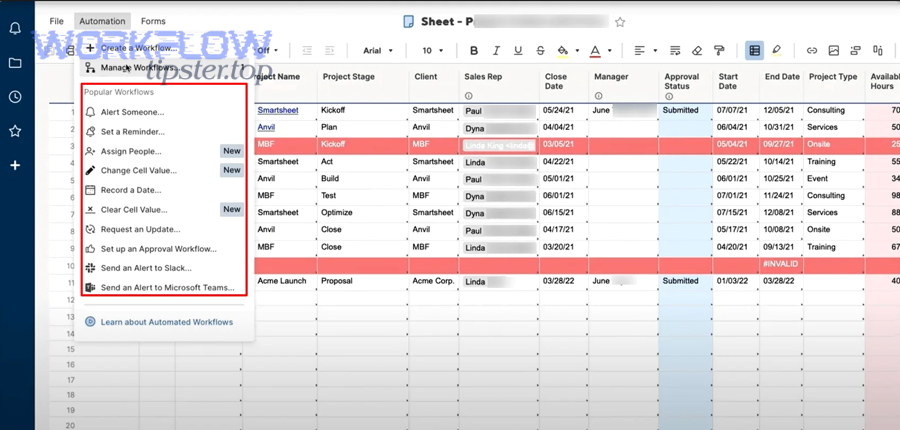
Design your Smartsheet sheet for ConvertKit data by creating a stable unique identifier column (email), separating “raw marketing fields” (tags, source, custom fields) from “ops fields” (owner, stage, due date), and enforcing consistent data types so dashboards and filters stay accurate.
Next, you’ll use structure—not extra manual work—to prevent duplicates and messy values.
What columns should you create first?
Start with columns that cover identity, marketing context, and workflow control:
Identity (stable)
- Email (primary key)
- Name (optional)
Marketing context (ConvertKit-driven)
- Source form / landing page
- Tags (either comma-separated or normalized into multiple columns if you have fixed categories)
- Subscriber status (if available from your trigger)
- Custom fields you actually use
Workflow control (Smartsheet-driven)
- Owner (contact)
- Stage (dropdown)
- Priority (dropdown)
- Next action date (date)
- Notes (text)
A simple rule: if ConvertKit can change it automatically, put it in a “ConvertKit Data” section; if humans will change it, put it in an “Operations” section.
How do you prevent duplicates when the same subscriber triggers multiple events?
Prevent duplicates by using a “Find Row by Email” step before any create/update logic, and by making email the canonical key in your workflow.
Specifically, treat “Create Row” as “Create if not found,” and treat “Update Row” as “Update the one row that matches the email.”
If you want an extra layer of safety, you can:
- Store a “Subscriber ID” field (if your trigger provides it) in a separate column
- Keep a “Last Updated” timestamp (your automation tool can insert the current time)
- Add a “Data Source” column so you can audit where each row came from
How do you make tags reportable instead of messy?
Tags are powerful but messy if they’re stored as free text with inconsistent naming.
You have three workable options:
- Single “Tags” text column (fast, but harder for dashboards)
- Category columns (best when you have predictable segments)
- Normalized sheet approach (advanced): one sheet for subscribers, another sheet for tag events (one row per tag event)
Transitioning from option 1 to option 2 is usually the sweet spot for most creators and marketing teams, because it gives dashboards clean dropdown values without building a full database system.
According to Kit’s API documentation, custom fields and subscriber attributes should be defined and managed intentionally, which reinforces the idea that “structured fields beat ad-hoc text” when you want reliable automation outcomes.
Zapier vs Make vs Pabbly: which tool is best for ConvertKit to Smartsheet automation?
Zapier wins for speed-to-launch and lowest-friction setup, Make is best for more complex branching and data shaping, and Pabbly is often optimal for budget-focused teams who want many automations at a lower fixed cost.
However, the “best” tool is the one that matches how often your workflow changes and how much debugging your team can realistically handle.
To better understand the trade-offs, this table contains the decision criteria that matter most for ConvertKit → Smartsheet syncing—so you can pick a tool based on operational reality, not just feature lists.
| Criterion | Zapier | Make | Pabbly |
|---|---|---|---|
| Setup speed | Fast | Medium | Medium |
| Best for | Standard workflows | Complex logic + transformations | Cost-efficient automation volume |
| Monitoring | Simple | More technical | Varies by workflow |
| Typical fit | Creators + marketing ops | Ops/automation specialists | Budget-conscious teams |
When should you choose Zapier?
Choose Zapier when you want:
- A dependable “trigger → action” workflow quickly
- Common app coverage and straightforward maintenance
- Team members who aren’t deeply technical
This is why Zapier often dominates Automation Integrations content: it’s designed for rapid deployment, which matches the real search intent behind “convertkit to smartsheet” (people want it working today, not architected next month).
When should you choose Make?
Choose Make when you need:
- Branching paths (if tag A do X, if tag B do Y)
- More advanced data manipulation
- Multi-step workflows that would become expensive or awkward in simpler builders
A common example: you want to parse tags, map them into multiple columns, and create follow-up tasks only for certain segments.
When should you choose Pabbly?
Choose Pabbly when:
- Cost predictability matters more than a polished UI
- You run many automations with high volume
- Your workflows are stable and don’t require constant edits
If you’ve already built cross-tool flows like “airtable to jira” or “airtable to activecampaign,” Pabbly can be attractive when you’re standardizing many repetitive automations under one budget.
According to Smartsheet and Zapier documentation, triggers/actions and prerequisites (including access) are core dependencies, which means the “best tool” is constrained by plan access, available actions, and how reliably your team can monitor failures.
What problems happen most often when syncing ConvertKit to Smartsheet and how do you fix them?
Yes—ConvertKit to Smartsheet sync issues are common, and the top three causes are (1) missing/ignored fields, (2) duplicate row creation, and (3) permission or connection failures.
Moreover, each problem has a predictable fix if you debug in the right order: data first, then mapping, then access.
Why are some fields missing after the Zap runs?
Missing fields usually happen for one of these reasons:
- The trigger doesn’t supply that field (it’s not in the payload)
- The field exists but is blank for that subscriber
- The field is a custom field that doesn’t exist (or isn’t supported by that step)
Kit’s API documentation notes that custom fields must exist before you set them for subscribers, and that unknown custom fields can be ignored in certain flows rather than throwing an error—so your sheet can look “half complete” unless you validate field existence first.
Fix checklist:
- Confirm the field appears in your automation tool’s test data
- Ensure the custom field exists in your Kit account
- Add a formatter step to convert null/blank into a placeholder (optional)
Why am I getting duplicate rows for the same subscriber?
Duplicates almost always mean your automation is creating rows on every event without first checking whether the subscriber already exists in the sheet.
Fix it with this pattern:
- Find Row by Email
- If found → Update Row
- If not found → Create Row
If you’re stuck because your tool doesn’t support conditional paths easily, the workaround is to store a unique “Subscriber Key” in Smartsheet and only allow “Create Row” to run if that key is blank.
Why did my integration suddenly stop working?
Sudden failures are usually:
- Token/authorization issues
- Plan or permission changes
- Security restrictions (403/forbidden)
- Connection/auth mismatch issues
Fix order:
- Reconnect Smartsheet in the automation tool
- Verify you still have permission to the sheet/workspace
- Confirm plan requirements still match your automation tool’s Smartsheet prerequisites
- Re-test the action step with a fresh sample row
Zapier’s Smartsheet getting-started documentation highlights prerequisites (including plan requirements) and the ability to create/update rows, which means access and authentication are not “nice-to-have”—they are core dependencies that can break a previously-working Zap.
How do you optimize and secure your ConvertKit to Smartsheet integration over time?
Optimize and secure ConvertKit to Smartsheet by standardizing your schema, auditing automations quarterly, tightening permissions, and adding monitoring so failures surface quickly rather than silently eroding data quality.

In short, a stable integration is less about “building more Zaps” and more about keeping one reliable workflow clean as your business changes.
How do you audit and prevent “silent drift”?
Silent drift happens when:
- You rename tags but forget to update filters
- You add new custom fields but don’t map them
- You change the sheet structure and break mappings
A quarterly audit checklist:
- Export a small sample of subscribers and compare to sheet rows (spot-check accuracy)
- Review your tag taxonomy and filters
- Verify all mapped fields still exist and still populate
- Confirm the “Find Row by Email” logic still points to the correct column
If you also run multi-platform workflows (like “asana to google drive”), add a shared naming convention for automations and a simple changelog note when you edit them—because debugging is faster when you know what changed.
What security practices matter most for this integration?
Security is mostly about minimizing blast radius:
- Use least-privilege access (only the sheets needed)
- Limit who can edit automations
- Rotate API keys or tokens if you use API-based methods
- Avoid pushing sensitive fields into Smartsheet unless you truly need them (especially if the sheet has broad internal sharing)
Also, treat Smartsheet as an operational workspace: store what the team needs to act, not everything that exists in ConvertKit.
How do you scale the integration when your list grows?
Scaling problems often show up as:
- More duplicates (because more events)
- Slower workflows (more lookups)
- More edge cases (more segments)
Scaling patterns that keep things stable:
- Use “qualified tag” triggers (reduce noise)
- Split workflows by segment rather than one mega-automation
- Add a “Last Seen Event” timestamp column so you can detect lag
- Consider a database-style structure (separate subscriber table + event log table) when reporting demands grow
When should you move beyond no-code into APIs or advanced workflows?
Move beyond no-code when you need:
- Complex two-way sync
- Guaranteed idempotency at scale
- Advanced validation rules
- More control over rate limits and retries
Kit’s API provides endpoints for subscribers and tags, which can support more customized integration behavior when off-the-shelf actions aren’t enough.
And if your broader stack already includes integrations like “airtable to jira,” that’s often a signal your organization is ready to formalize data flows across tools—so your ConvertKit to Smartsheet workflow can become part of a consistent automation architecture instead of a one-off Zap.
According to a study by the University of Nevada, Las Vegas from the Department of Psychology, in 2009, researchers used single-entry, visual checking, and double-entry methods and described how structured comparison mechanisms (like mismatch highlighting) help reduce unnoticed errors during data entry—an idea you can apply by adding “Find Row + Update Row” logic and validation steps to prevent compounding mistakes as volume increases.