


Connecting ClickUp to Microsoft Teams is the most direct way to turn chat conversations into trackable work, because it lets your team create ClickUp tasks from Teams, surface ClickUp activity in the right channels, and see rich link previews without constantly switching apps. (help.clickup.com)
Once the connection is live, the real value comes from configuring the three daily workflows the title promises: (1) notifications that keep stakeholders aligned, (2) task creation that captures accountability from messages, and (3) link previews that preserve context in Teams discussions. (help.clickup.com)
If setup fails or the experience feels “noisy,” the usual cause is governance: tenant policies, app permissions, and routing choices that determine where ClickUp activity shows up (and who can see it). (help.clickup.com)
Introduce a new idea: after you master the native ClickUp–Teams integration, you can extend it with automation patterns (when needed) while still keeping Teams calm, searchable, and focused.
Is the ClickUp to Microsoft Teams integration the right choice for your workspace (and do you need admin access)?
Yes, the ClickUp to Microsoft Teams integration is a strong fit for most workspaces because it reduces context switching, turns conversations into accountable tasks, and keeps stakeholders aligned with channel-based updates—while requiring admin-level governance to set it up safely.
Then, because “right choice” depends on your environment, you should evaluate it in a few practical checks: who controls app installs, what your Teams tenant allows, and what your ClickUp workspace needs to share.
Do you need to be a ClickUp Workspace Admin to enable or manage the integration?
Yes, you typically need Workspace Admin-level access for the ClickUp to Microsoft Teams integration because admins control integrations, admins can standardize notification routing, and admins can prevent misconfigured connections that leak updates into the wrong Teams spaces.
Specifically, the risk isn’t “can someone connect,” but “can someone connect correctly” across the whole organization.
Here’s how to think about it in real terms:
- Admins protect consistency. If every team configures their own routing differently, people stop trusting Teams updates. The first month looks “busy,” and the second month gets ignored.
- Admins protect permissions. A Teams message in a public channel can be visible to many people; a ClickUp task or doc might not be. Admins must ensure the integration doesn’t create accidental “visibility mismatches.”
- Admins protect adoption. The integration only works when it becomes the default habit. That requires shared rules: where updates go, what triggers notifications, and what counts as “actionable.”
A practical test: if your organization has more than one major team using ClickUp, you want a single “integration owner” to define a baseline configuration and a repeatable rollout checklist.
Can your Microsoft Teams tenant block the integration even if ClickUp is ready?
Yes, your Microsoft Teams tenant can block the ClickUp to Microsoft Teams integration because tenant app policies can restrict installations, admin approval can be required, and security/compliance settings can limit link previews or third-party connectors even when ClickUp settings are correct.
More importantly, “blocked” often looks like simple confusion: the app doesn’t appear, sign-in loops, or the integration works for one person but not others.
Common tenant-level blockers to account for:
- App permission policies: Teams may allow only approved apps or require admin consent.
- App setup policies: The app might not be pinned or discoverable to users, even if it’s technically allowed.
- Conditional access / SSO enforcement: Authentication can fail if your identity policies require extra steps.
- External sharing controls: Link previews or access to ClickUp content can be limited by permissions.
If you’re a workspace admin but not a Teams admin, treat this as a two-admin setup: ClickUp admin for the workspace and Teams admin for the tenant. When they cooperate early, the setup becomes boring—in a good way.
What is the ClickUp ↔ Microsoft Teams integration and what does it actually do?
The ClickUp ↔ Microsoft Teams integration is a native connector that links ClickUp work activity to Teams conversations so you can sync ClickUp activity into Teams, create ClickUp tasks from Teams messages, and view rich ClickUp link previews inside Teams without leaving the chat. (help.clickup.com)
Next, because “integration” can mean many things, it helps to define what it does at the workflow level—what changes in how people communicate and execute.
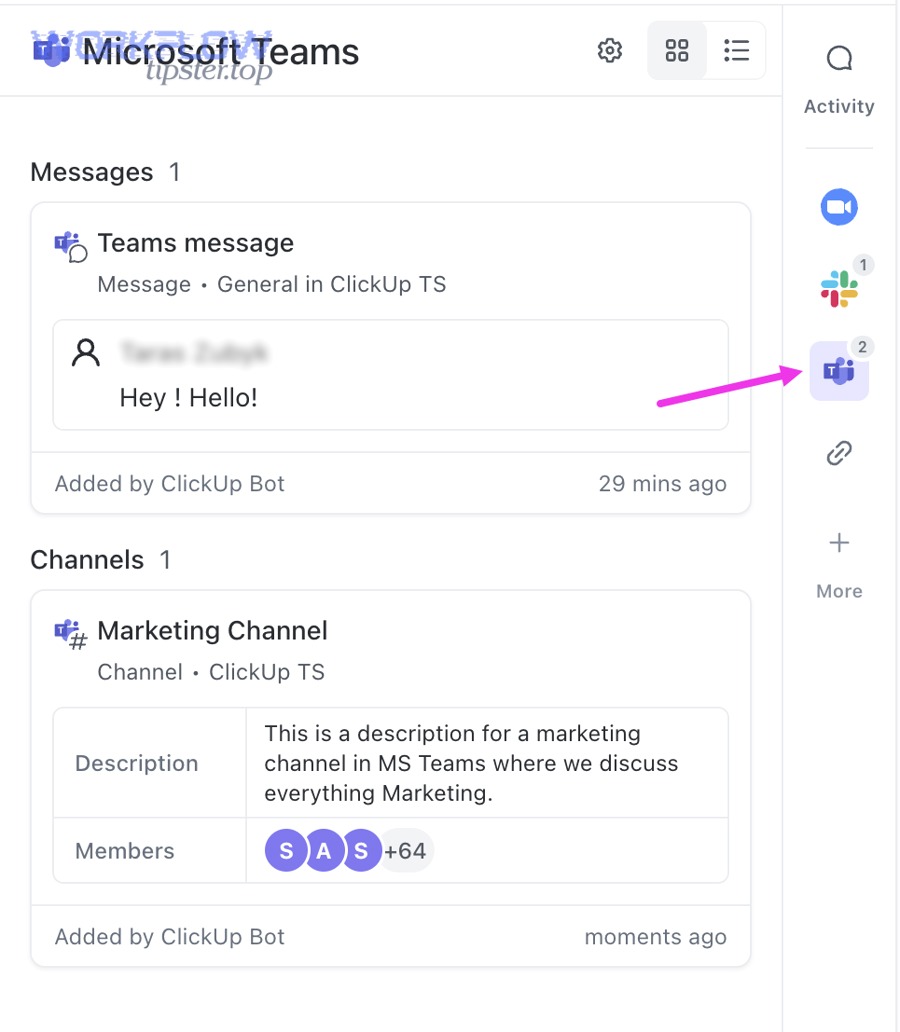
At a high level, the integration is built for one macro outcome: convert collaboration into execution. In practice, that breaks into three “parts” that map cleanly to everyday work:
- ClickUp activity → Teams messages (so updates arrive where people already talk).
- Teams messages → ClickUp tasks (so decisions become owned work).
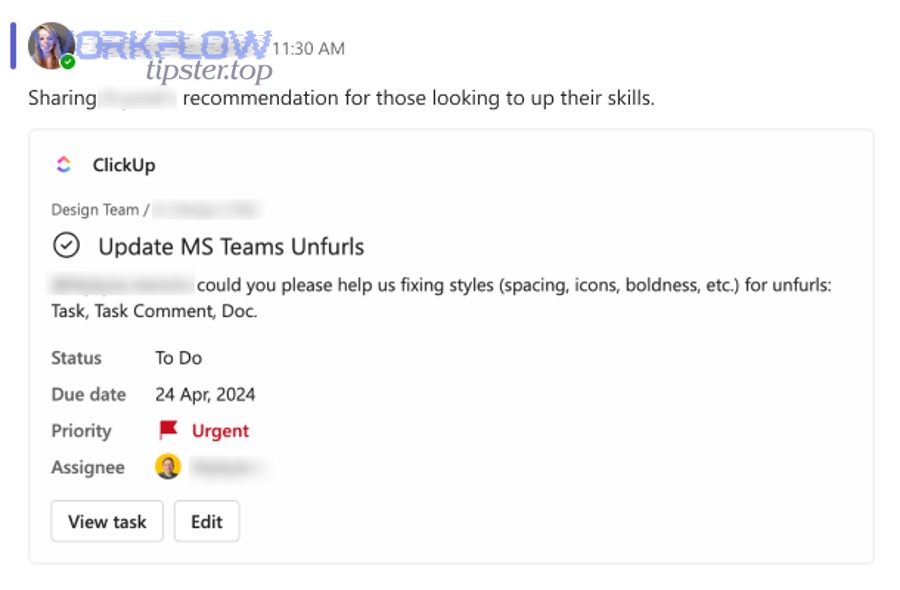
- ClickUp links → rich previews (so context travels with the link, not with someone’s memory). (help.clickup.com)
When teams adopt those three parts intentionally, Teams becomes less like a scrolling feed and more like a guided workspace.
What kinds of ClickUp activity can appear in Teams notifications?
There are 4 main types of ClickUp activity that can appear in Teams notifications: task status/progress updates, assignment/ownership changes, comment/mention activity, and structural changes (like moves across Lists/Folders)—grouped by whether they change “what we do,” “who owns it,” or “what people said.” (help.clickup.com)
To illustrate, the best configuration starts by separating “execution updates” from “conversation updates.”
1) Status/progress updates (execution signals)
These are the most valuable for keeping a delivery team aligned because they tell you whether the work is moving.
- Status changed (e.g., In Progress → In Review)
- Due date changed
- Priority changed
- Milestone completed (if your setup treats milestones specially)
2) Assignment/ownership updates (accountability signals)
These prevent the “I thought someone else had it” gap.
- Assignee added/changed
- Watchers added
- Responsibility shifted across teammates
3) Comment/mention updates (collaboration signals)
These are useful when your team uses ClickUp comments as the decision trail.
- New comment
- @mention on a task or doc
- Thread replies on key items
4) Structural updates (context signals)
These matter when the structure itself communicates state—like moving from a backlog list into an active sprint list.
- Task moved between Lists/Folders
- Task created in a specific List tied to a Teams channel
A simple rule keeps this from becoming noisy: send execution and accountability signals to channels; keep conversation signals closer to the individuals who own the work (or to a dedicated “updates” channel).
What does “link previews” mean in Teams for ClickUp links?
Link previews in Teams mean that when someone pastes a ClickUp link, Teams can display a rich summary—like the item name and key context—so people can understand what the link is before clicking, which reduces back-and-forth questions and speeds up decisions. (help.clickup.com)
More specifically, previews are about preserving context in the place where the discussion happens.
Why link previews change behavior:
- They reduce “what is this?” replies. People can see the topic immediately.
- They improve meeting speed. When links show clear titles, meetings stop pausing for orientation.
- They support skimmers. In Teams, many readers skim. A preview gives just enough clarity to take the next action.
One caution: a preview does not override permissions. If a user cannot access the ClickUp item, a preview may be limited or not helpful. That’s a feature, not a bug—your governance still matters.
How do you connect ClickUp to Microsoft Teams step-by-step as a Workspace Admin?
Connect ClickUp to Microsoft Teams by following a simple 5-step method—verify prerequisites, install/enable the Teams app, authorize ClickUp access, select the correct workspace and channels, and run quick validation tests—so notifications, task creation, and link previews work reliably for your users. (help.clickup.com)
Below, the goal is not just “connected,” but “connected with guardrails,” so the rollout is consistent.
A repeatable admin-friendly setup sequence looks like this:
- Confirm governance: Identify who owns the integration configuration (one person or a small group).
- Confirm permissions: Ensure you have ClickUp workspace admin rights and Teams app-install approval in your tenant.
- Install ClickUp in Teams: Add the ClickUp app from Teams and ensure it’s allowed by your policies.
- Authorize and connect accounts: Sign in and approve the connection so Teams can interact with your ClickUp workspace.
- Configure routing and validate: Choose where activity messages go, then run sanity checks.
If you want your users to trust the integration, step 5 is the make-or-break moment.
What prerequisites should you verify before connecting (accounts, permissions, workspace readiness)?
There are 6 main prerequisites to verify before connecting ClickUp to Microsoft Teams: ClickUp admin access, Teams app allowance, correct identity/sign-in, a defined workspace scope, a planned channel structure, and a notification baseline—grouped by “permissions,” “scope,” and “delivery design.”
To begin, treat this like a deployment, not a personal preference.
Permissions prerequisites
- You can access the ClickUp workspace admin settings (integration controls).
- Your Teams tenant allows installing third-party apps (or at least ClickUp).
- You know who can grant admin consent if it’s required.
Scope prerequisites
- You know which ClickUp workspace(s) should connect to Teams.
- You know which Spaces/Folders/Lists matter most for updates.
- You can name 1–3 Teams channels that should receive activity messages.
Delivery design prerequisites
- You define “critical updates” vs “FYI updates.”
- You choose a default routing plan (for example: project updates channel + team intake channel).
- You decide whether individuals should receive certain updates privately vs in a channel.
This small planning step saves you from the most common failure mode: “It works, but everyone hates it.”
How do you verify the integration is working after setup (fast sanity checks)?
Verify the ClickUp to Microsoft Teams integration with 3 fast sanity checks: trigger a ClickUp activity update and confirm it posts to the expected Teams channel, paste a ClickUp link and confirm it renders a preview, and create a test task from a Teams message to confirm the workflow captures context correctly. (help.clickup.com)
Then, because verification must be visible, run the checks in a real Teams channel where your pilot users live.
Sanity check 1: Activity sync
- Update a test task status or add a comment.
- Confirm the message appears in the chosen Teams channel.
- Confirm the message is readable and not missing key context.
Sanity check 2: Link preview
- Paste a ClickUp task link into Teams.
- Confirm the link preview appears and reflects the correct item title.
Sanity check 3: Task creation from Teams
- In a channel or DM, use the workflow to create a ClickUp task.
- Confirm the task includes:
- A meaningful title
- The message context or link back
- A correct location (List/Folder)
- A clear owner (assignee)
If any check fails, do not “push through.” Fix it before rollout, because early failure becomes a permanent belief: “Integrations never work here.”
How do you configure notifications so Teams stays useful (not noisy)?
Configure ClickUp-to-Teams notifications by using 3 levers—scope (what work sends updates), routing (which channel receives them), and thresholds (which events trigger posts)—so Teams stays useful by surfacing only high-signal updates that help people act. (help.clickup.com)
Specifically, the moment notifications become “background noise,” they stop being a productivity tool and start being a stressor.
A good admin configuration uses a “signal chain”:
- Start narrow (one project or one Space).
- Route predictably (one channel per project).
- Expand only when trusted (when people say “this helps,” not “this is loud”).
And remember why this matters: interruptions are expensive. Research associated with UC Irvine has widely reported that returning to a task after an interruption can take around 23 minutes on average, making notification quality a real productivity issue—not just a preference. (ics.uci.edu)
Which notification types should you enable for project teams vs exec updates?
Project-team notifications win in immediacy and execution detail, while exec updates are best for signal-to-noise and decision visibility—so the optimal setup is high-cadence status/ownership updates for delivery teams and low-cadence milestone/summary-style updates for leadership.
Then, because both groups live in Teams, you need different “feeds” for different audiences.
Project teams: enable
- Status changes (especially into review/blocked/done states)
- Assignment changes
- High-priority comments/mentions on active work
- Moves into sprint/current-work lists
Exec/leadership: enable
- Milestones completed
- Major risk/blocked signals (only the important ones)
- Weekly rollups (if you generate them) rather than raw task-by-task updates
A practical implementation: create one channel named like #project-abc-updates for operational updates, and a separate channel like #portfolio-highlights for curated leadership signals.
How do you reduce notification noise without losing critical updates?
Reduce ClickUp-to-Teams notification noise without losing critical updates by narrowing scope to active Lists, using event thresholds (only status/ownership changes), routing by channel purpose, and assigning an “update owner” who curates what deserves broadcast—so people keep trusting the feed.
Moreover, noise reduction is not one setting; it is a system of small decisions.
High-impact tactics that work in most organizations:
- Use “action triggers” only: Post when something changes ownership, status, or risk—events that require a response.
- Separate “discussion” from “updates”: Discussions happen in threads; updates land in a predictable updates channel.
- Create a “quiet channel” contract: If the channel is for updates, do not let it become chatty.
- Batch where possible: When teams are very active, batching updates (daily digest style) often beats posting every micro-change.
Evidence sentence: According to a study by the University of California, Irvine from the Department of Informatics, in 2008, researchers reported measurable costs from interruptions and reorientation time when workers switch tasks, supporting the idea that reducing notification noise can protect focus. (ics.uci.edu)
How do you create ClickUp tasks from Microsoft Teams messages without losing context?
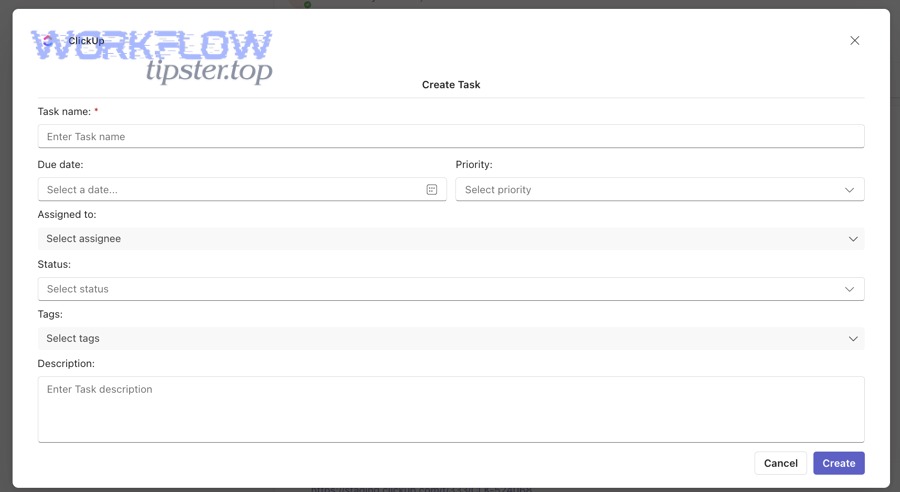
Create ClickUp tasks from Microsoft Teams messages by capturing the message’s intent in the title, preserving the source context (link back to Teams), assigning an owner immediately, and setting a due date or next action—so the task is actionable rather than just “logged.” (help.clickup.com)
Next, because task creation is where execution begins, your process should favor clarity over speed.
A simple, repeatable “message → task” pattern works best:
- Name the outcome (not the conversation).
- Preserve the context (include the message or link back).
- Assign ownership (one person owns the next step).
- Define a next action (what happens next and when).
When teams skip step 3, the integration creates more tasks but less progress—because accountability is missing.
What task details should you capture from a Teams message to avoid rework later?
There are 6 must-capture task details from a Teams message to avoid rework: a clear outcome title, a source link to the original Teams message/thread, an assignee, a due date or next action, acceptance criteria, and any relevant attachments—grouped by “context,” “ownership,” and “definition of done.”
Then, because rework is usually caused by ambiguity, these fields eliminate the most common ambiguity sources.
Context
- Source link: So anyone can revisit the original discussion.
- Attachments: Screenshots, files, or copied decisions.
Ownership
- Assignee: One accountable person.
- Stakeholders/watchers: People who need visibility without owning.
Definition
- Acceptance criteria: What “done” means in 1–3 bullets.
- Priority + due date: When and how urgently.
A shortcut that helps: write the first line of the task description as a single sentence that begins with a verb: “Draft…,” “Fix…,” “Approve…,” “Investigate…,” “Schedule…”.
Is creating tasks from Teams better than pasting links into ClickUp comments?
Creating tasks from Teams wins in accountability and speed-to-action, while pasting links into ClickUp comments is best for maintaining discussion continuity inside ClickUp—so the best option depends on whether the message represents a new piece of work (create a task) or a detail on existing work (comment with link).
However, most teams need a rule that prevents “link dumping.”
Use this decision rule:
- Create a new task from Teams when: the message introduces a new deliverable, a new bug, a new request, or a new decision that needs an owner.
- Paste a link into an existing ClickUp task when: the message adds evidence, clarifies scope, or records a decision for work already tracked.
If you apply that rule consistently for two weeks, you’ll notice a shift: fewer “Where did we decide that?” messages, and fewer “I didn’t see that request” failures.
Which ClickUp + Teams integration method should you use: native integration or no-code automation?
The native ClickUp-to-Teams integration wins in simplicity and core collaboration features, while no-code automation tools (like Zapier or Make) are best for multi-step workflows and cross-app logic—so choose native for standard notifications/task creation/link previews and choose automation when you need conditional routing or multi-app orchestration. (help.clickup.com)
Meanwhile, the most expensive mistake is choosing automation too early, then spending months maintaining flows that your team never standardizes.
To make the decision obvious, the table below contains a practical matrix comparing Native Integration vs No-Code Automation across criteria that directly affect adoption, reliability, and admin workload.
| Criterion | Native ClickUp ↔ Teams Integration | No-Code Automation (e.g., Zapier/Make) |
|---|---|---|
| Setup time | Fast (few steps) | Medium (build + test workflows) |
| Best for | Standard collaboration | Custom workflows and conditions |
| Maintenance | Low | Medium to high (workflows break/change) |
| Governance | Centralized in integration settings | Distributed across automations |
| Typical outcomes | Notifications, message → task, link previews | Conditional routing, multi-app orchestration |
| Risk | Low | Medium (logic errors, duplicates) |
If you’re building a library of Automation Integrations across your org, you can still start with native for the ClickUp–Teams baseline and add automation only where it creates measurable leverage.
When is the native integration the best fit?
The native ClickUp-to-Microsoft Teams integration is the best fit when you need quick adoption, predictable governance, and the three core outcomes—Teams-based activity updates, creating tasks from Teams conversations, and rich link previews—without maintaining custom workflow logic. (help.clickup.com)
To better understand fit, look for these signals:
- You want one standard configuration for multiple teams.
- You need fast rollout with minimal training.
- Your main pain is context switching and missed updates.
- Your Teams environment is tightly governed and prefers native-style connectors.
If your goal is “make Teams the place where work becomes visible and actionable,” native usually gets you there with the least friction.
When should you use Zapier/Make instead (and what can they add)?
Zapier/Make are best when you need conditional workflows, multi-step logic, or cross-tool chains—for example, routing specific ClickUp events to different Teams channels based on custom rules, creating parallel records in other systems, or building an intake pipeline that transforms messages into structured work.
In addition, automation platforms can connect workflows that the native integration doesn’t aim to cover.
Examples of where automation adds real value:
- Conditional routing: Only post to Teams if a ClickUp task is “High Priority” and assigned to a certain team.
- Multi-app coordination: A task update triggers a Teams message and also updates another tool used by finance or operations.
- Standardized intake: New requests arriving in Teams get converted into ClickUp tasks with a consistent template.
This is also where related workflows often show up in real operations teams—like migrating knowledge assets (google docs to onedrive) or aligning cross-team comms (basecamp to slack) when departments use different platforms. The point isn’t to replace ClickUp or Teams; it’s to connect your stack when your organization’s reality is multi-tool.
What are the most common setup and usage problems—and how do you fix them?
The most common ClickUp-to-Microsoft Teams problems fall into 3 groups—installation/visibility issues, notification delivery failures, and missing link previews—and you fix them by checking tenant policies, revalidating authorization and routing settings, and confirming user permissions for the ClickUp items being shared. (help.clickup.com)
Especially during rollout, troubleshooting is a trust-building exercise: when users see fast fixes, they adopt faster.
A fast troubleshooting mindset:
- Start with the symptom.
- Identify whether it’s Teams-side or ClickUp-side.
- Test with one controlled user and one controlled channel.
- Document the fix so the next team doesn’t repeat the same failure.
Why can’t you find or install the ClickUp app in Teams?
You usually can’t find or install the ClickUp app in Teams because your tenant blocks third-party apps, the app is restricted by policy, or admin approval is required—so the fix is to confirm Teams app permission policies and request approval/publishing for the ClickUp app.
Next, treat “missing app” as a policy issue first, not a user issue.
A step-by-step fix path:
- Search the Teams app store by name (ensure correct spelling).
- Check tenant policy (Teams admin): is the app allowed for your users?
- Check whether admin approval is required.
- Confirm the correct environment (some orgs have multiple tenants or restricted environments).
When the app suddenly appears after approval, you’ve proven the cause: it was not user error, it was governance.
Why aren’t ClickUp notifications showing up in Teams (even after setup)?
ClickUp notifications usually don’t show up in Teams because routing wasn’t configured to the right channel, authorization is incomplete or expired, or the update scope doesn’t include the Lists/Spaces where the work is happening—so the fix is to re-check channel mapping, reconnect accounts, and validate scope with a controlled test task. (help.clickup.com)
Then, because notification issues can be subtle, test with a single known trigger.
Troubleshooting checklist:
- Confirm channel mapping: Are activity messages directed to the channel you’re watching?
- Confirm scope: Are you tracking the Space/Folder/List where you made the test change?
- Confirm authentication: Reconnect the integration if sign-in might have expired.
- Confirm Teams permissions: Does the integration have permission to post into that channel?
A powerful tactic: create one “integration test” List in ClickUp and one “integration test” channel in Teams. Keep them alive forever. They become your debugging lab.
Why don’t ClickUp links preview correctly in Teams?
ClickUp links often don’t preview correctly in Teams because the user lacks permission to the ClickUp item, the link type isn’t supported for rich previews in that context, or the Teams environment restricts preview behavior—so the fix is to confirm ClickUp access, test with a universally accessible item, and re-check Teams preview/security settings. (feedback.clickup.com)
More specifically, previews fail most often due to permission mismatch.
Fix sequence that works:
- Test a link to a ClickUp item everyone can access (like a public/internal doc intended for broad visibility).
- Compare results across users (if it works for one user but not another, it’s likely permissions).
- Ensure users are signed into the correct accounts (multi-account confusion is common).
- Escalate to Teams admin if previews appear disabled org-wide.
If previews still fail, don’t let that block the rollout. Your integration can still deliver most value through notifications and task creation. Previews are an acceleration feature, not the foundation.
How can you extend ClickUp ↔ Teams with automation and governance for advanced teams?
Extend ClickUp ↔ Teams by combining native integration governance with selective automation—using policy controls for who can connect and where posts can appear, and using automation only for high-leverage edge cases—so advanced teams scale collaboration without turning Teams into a noisy firehose. (help.clickup.com)
Below, the goal is micro-semantic depth: the difference between “it works for one team” and “it works across the organization.”
How do you choose between “native integration” vs “automation workflows” for the same goal?
Native integration wins in reliability and low maintenance, while automation workflows are best for conditional logic and multi-tool orchestration—so the right choice is native when the goal is standard collaboration and automation when the goal requires branching rules, transformations, or cross-platform synchronization.
Then, because many teams overbuild, your decision should be based on measurable outcomes.
Ask these three questions:
- Is the workflow standard or conditional?
If it’s standard (“post status changes to the project channel”), use native. If it’s conditional (“post only if priority is urgent and customer-facing”), automation may help. - How costly is maintenance?
If you cannot assign an owner to maintain automations, do not build them. - Is governance centralized?
Native settings are easier to audit. Automation sprawl is harder to control unless you have an automation program.
A clean strategy is “native-first, automation-by-exception.” It keeps adoption high and complexity low.
How do you design a “quiet” Teams channel while still capturing every actionable request?
A “quiet” Teams channel wins in focus and trust, while a “noisy” channel maximizes raw visibility—so the optimal design is quiet-by-default with a structured intake pattern that captures every actionable request as a ClickUp task without turning the channel into a constant alert stream.
However, “quiet” only works when the process is explicit.
A proven quiet-channel pattern:
- One intake channel, one intake rule: “If it’s actionable, it becomes a task.”
- One triage owner per day/week: A rotating role who turns messages into tasks.
- One confirmation habit: When a task is created, reply with the task link and owner.
- One escalation keyword: “URGENT” or a tag that triggers a different pathway.
This creates a virtuous loop: the channel stays readable, and work still gets captured.
What governance controls should admins set (who can connect, where it can post, and what data is exposed)?
Admins should set governance controls in 4 groups—access (who can connect), scope (which workspaces/Spaces feed Teams), routing (approved channels), and visibility (what content can be previewed)—so ClickUp-to-Teams sharing is predictable, safe, and auditable. (help.clickup.com)
Besides protecting security, governance protects adoption by making the integration feel consistent.
Governance checklist:
- Access controls
- Limit who can modify integration settings.
- Define an owner group for approvals and changes.
- Scope controls
- Start with a pilot Space/List set.
- Expand gradually with documented rules.
- Routing controls
- Approved channels for system posts.
- Naming standards for updates channels.
- Visibility controls
- Decide what’s okay to appear in previews in public channels.
- Train teams on permission expectations.
If your org is sensitive to data exposure, you can still gain value by routing only high-level activity updates while keeping detailed discussions inside ClickUp.
What rare edge cases should you plan for (multi-workspace, tenant restrictions, SSO/consent issues)?
Plan for 4 rare edge cases—multi-workspace connections, cross-tenant Teams restrictions, SSO/conditional access sign-in loops, and permission mismatches for previews—so the integration doesn’t break when you scale from one team to many.
More importantly, edge cases aren’t “future problems”; they show up the moment you onboard a second department.
Mitigation playbook:
- Multi-workspace: Document which workspace maps to which Teams environment; avoid “one person connects everything.”
- Tenant restrictions: Partner early with Teams admins; pre-approve the ClickUp app before rollout.
- SSO/consent issues: Verify sign-in works on managed devices and unmanaged devices; test with at least two roles.
- Permission mismatches: Treat previews as “permission-respecting”; if access is restricted, train teams to share appropriately.
One more micro-semantic insight: as you build broader operations workflows, you’ll often see adjacent automation requests emerge—like time tracking and billing sync (airtable to harvest)—because once people trust one integration, they want the rest of their work graph connected. That’s a good sign, as long as you keep governance intact.