


To integrate ClickUp with GitHub, connect your GitHub repositories to the right ClickUp Spaces, then link Issues, Pull Requests, branches, and commits to ClickUp tasks so your planning and code activity stay traceable in one workflow.
Next, you can automate repetitive handoffs—like creating a ClickUp task when a GitHub issue appears, or updating task status when a PR is merged—so the team spends less time copying updates and more time shipping.
Then, if you truly need 2-way sync, you’ll define what “sync” means (which fields, which direction, and which system is the source of truth) to avoid duplicates, loops, and conflicting edits as items move between ClickUp and GitHub.
Introduce a new idea: once the fundamentals work, the real payoff comes from designing an integration that fits your repo structure, naming conventions, and security posture—so the workflow scales with the team instead of breaking under growth.
What does “ClickUp to GitHub integration” mean for dev teams (and what should it accomplish)?
ClickUp to GitHub integration is a workflow connection that links ClickUp tasks (planning) to GitHub artifacts (issues, PRs, commits) so dev teams can track delivery progress with fewer status meetings and less context switching.
To better understand the value here, focus on what the integration must accomplish: reliable traceability, consistent status signals, and a low-friction habit that developers will actually follow.
In practical terms, the integration should produce outcomes that are visible and measurable:
- Traceability: every meaningful code change can be traced back to a ClickUp task ID, and every ClickUp task can show related PRs/commits.
- Operational clarity: ClickUp reflects real development signals (PR opened, PR merged, CI status changed) instead of manual “I’m working on it” updates.
- Reduced overhead: fewer duplicate tickets, fewer status pings, fewer “Where is this?” messages in chat.
- Team alignment: PMs and stakeholders see progress without needing access to code, while developers keep working in GitHub.
Because GitHub artifacts are the parts of the coding workflow , your integration strategy should start by deciding which artifacts must be connected and why they matter for delivery.
Is “2-way sync” required, or is linking GitHub activity to ClickUp tasks enough?
No, 2-way sync is not required for most ClickUp to GitHub setups because simple linking is easier to maintain, reduces conflicts, and still delivers traceability—especially when you standardize task IDs in branch names, PR titles, and commit messages.
However, the decision becomes clearer when you evaluate three practical reasons teams avoid full 2-way sync:
- Conflict risk: if both systems can edit “status,” “title,” and “assignee,” someone eventually overwrites the other system’s truth.
- Workflow mismatch: ClickUp statuses often represent planning stages (Backlog → In Progress → QA), while GitHub states are simpler (Open/Closed, Draft/Ready, Merged).
- Behavioral friction: developers already live in GitHub; forcing them to manage issue fields in two places invites inconsistency.
In addition, “enough” often means: ClickUp task shows the PR and commit trail, and GitHub PR automatically references the ClickUp task for reviewers—so everyone stays in their preferred tool while remaining aligned.
Which GitHub objects are the core parts you’ll connect to ClickUp tasks: issues, PRs, commits, releases?
There are 4 main types of GitHub objects you’ll connect to ClickUp tasks—Issues, Pull Requests, commits, and branches—based on how directly each object signals progress toward delivery.
Specifically, each type carries a different “progress meaning,” which is why your integration should treat them differently:
- Issues: best for incoming work intake and problem statements; map them to ClickUp tasks when you want one planning source.
- Pull Requests (PRs): best for review and readiness signals; PR opened/approved/merged often corresponds to status changes in ClickUp.
- Commits: best for proof of activity and incremental progress; they’re useful for timelines and “what changed” context.
- Branches: best for work-in-progress identifiers; branch naming conventions are an easy place to embed ClickUp task IDs.
Releases and tags can also be connected in advanced workflows, but most teams should first master issues/PRs/commits/branches because they create the daily heartbeat of engineering progress.
How do you connect ClickUp to GitHub using the native integration (step-by-step)?
The native method is to attach GitHub repositories to your ClickUp Workspace, link those repos to the correct ClickUp Spaces, then reference ClickUp task IDs in branches, PRs, or commits so activity automatically associates with tasks.
Below is a practical step-by-step flow that matches how the ClickUp GitHub integration is designed to work in real teams. (help.clickup.com)

Step 1: Confirm prerequisites (so setup doesn’t fail later).
- Decide who will be the integration owner (usually a Workspace admin who can manage App Center settings).
- Confirm repo admin access in GitHub for the person connecting repositories (so they can authorize and select repos).
- Decide the ClickUp “home” for engineering work (Spaces for teams or products, Lists for workstreams).
Step 2: Attach repositories to the ClickUp Workspace.
- Open the GitHub integration from ClickUp’s App Center.
- Connect the GitHub account and select the repositories you want to add to the Workspace.
This step matters because ClickUp distinguishes “repos attached to the Workspace” from “repos linked to Spaces,” and linking happens only after repos exist inside the Workspace layer. (help.clickup.com)
Step 3: Link each repository to the right ClickUp Space.
- In the GitHub integration settings, choose a repo and add one or more Spaces.
- Keep the mapping simple: one repo ↔ one primary Space whenever possible.
ClickUp explicitly supports linking repos to Spaces after repositories are attached, and this mapping controls where task linking features work reliably. (help.clickup.com)
Step 4: Standardize how you reference ClickUp task IDs in GitHub activity.
- Add the ClickUp task ID in PR titles/descriptions, branch names, or commit messages.
- Pick a single habit your team will follow (for example: PR title always includes CU-123abc).
When the task ID is included, ClickUp can automatically associate new GitHub activity with the matching ClickUp task, creating the traceability loop you want. (help.clickup.com)
Step 5: Verify with a small “integration acceptance test.”
- Create a test ClickUp task.
- Create a branch and PR referencing that task ID.
- Confirm the ClickUp task activity shows the GitHub links and events.
What permissions and access scopes do you need to connect GitHub to ClickUp safely?
Connecting GitHub to ClickUp safely requires the connecting user to have appropriate repository admin permissions and to authorize ClickUp with only the scopes needed to access selected repositories and related event metadata.
More importantly, the “safest” setup is a governance decision, not a checkbox: you want the smallest number of people who can change repo-to-Space mappings, and you want visibility into who connected what.
Use a simple permission model that teams can actually enforce:
- Integration owner: one accountable admin who sets it up and documents the mapping.
- Repo administrators: limited to the smallest group that can grant access for the repos in scope.
- Workspace admins: control ClickUp Space linking so it aligns with team boundaries.
If your org is strict, treat the integration as you would any “third-party app”: review scopes, confirm whether it accesses private repos, and document a rollback plan (disconnect or remove repos) if needed.
How do you link a repository to the right ClickUp Space/List so the team can actually use it?
You link a repository to the right ClickUp Space by mapping the repo to the Space where the team’s active tasks live, then ensuring the tasks referencing that repo remain inside that Space so ClickUp’s GitHub linking features stay available.
Then, implement a “structure rule” so the mapping remains stable even as projects grow.
Use these Space/List mapping heuristics:
- Team-based Spaces: best for platform teams, infrastructure teams, or stable org units.
- Product-based Spaces: best when repos cluster by product and cross-functional teams share ownership.
- List-based workstreams: create Lists for sprint work, bugs, tech debt, and support—so GitHub-linked activity is easier to filter and review.
Finally, document a simple rule in your engineering handbook: “If a task needs GitHub linking, it must be created in a Space that is already mapped to its repo.” This prevents the most common failure mode: people trying to link GitHub activity to tasks that live outside the mapped Space. (help.clickup.com)
How do you automate ClickUp workflows from GitHub events (issues/PRs/commits)?
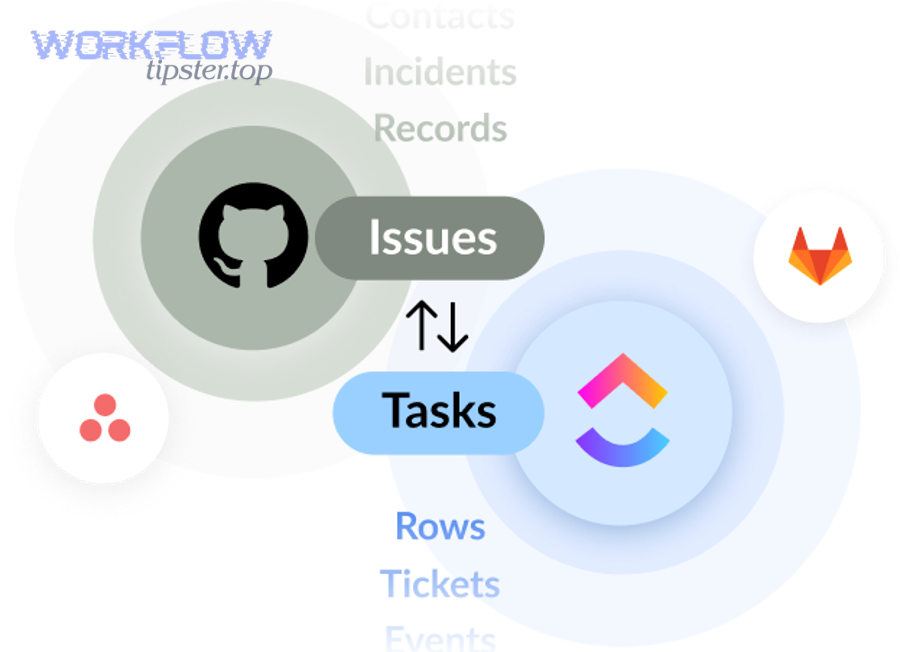
You automate ClickUp workflows from GitHub events by selecting a GitHub trigger (like PR merged or CI/CD status changed) and pairing it with a ClickUp action (like update status, assign owner, or post a comment) so updates happen without manual copying.
Next, the key is to pick automations that reduce “status ping” messages and tighten the loop between code events and task state. (help.clickup.com)
Start with an automation strategy based on the SDLC stages you actually track:
- Intake: new GitHub issue → create ClickUp task with labels mapped to priority.
- Execution: branch linked → move task to “In Progress” and assign developer.
- Review: PR opened → notify reviewer, set task to “In Review.”
- Done: PR merged → move task to “Done,” post PR link into the task, notify stakeholder.
- Quality: CI/CD status changed → if failing, set task to “Blocked” and tag owner.
When ClickUp calls these Automation Integrations, think of them as your “workflow glue”: they exist to preserve momentum and reduce interruptions, not to create a complicated rules engine. (help.clickup.com)
Which automation triggers and actions are most valuable for a ClickUp–GitHub workflow?
There are 8 high-impact automation patterns for ClickUp–GitHub workflows—based on the criterion of “does this remove a manual handoff or status question”: PR merged, branch merged, on commit, PR review created/updated, CI/CD status changed, PR linked, branch linked, and commit linked.
To illustrate the impact, these triggers map cleanly to actions that stakeholders care about.
Here are the “starter recipes” that usually deliver the fastest ROI:
- PR merged → status Done: automatically closes the loop for completed work.
- CI/CD failing → status Blocked: surfaces risk before the daily standup.
- PR review requested/created → notify reviewer: reduces review latency.
- Commit linked → comment on task: gives incremental progress visibility without meetings.
- Branch linked → assign and move to In Progress: turns “started coding” into an observable signal.
Once these are stable, you can layer Conditions (where available) so only high-priority tasks notify leadership, and only certain repos trigger customer-facing updates.
Can ClickUp automatically update task status when a PR is opened/merged?
Yes, ClickUp can automatically update task status when a PR is merged because GitHub triggers like Pull Request Merged can run an automation that changes fields (including status) and posts updates to the task activity.
However, the most reliable results come when your team consistently links PRs to tasks using ClickUp task IDs, because the automation logic depends on correctly associated events. (help.clickup.com)
Use a clear “status mapping” that matches developer reality:
- PR opened: move ClickUp task to “In Review” (or “Review”).
- PR merged: move ClickUp task to “Done” (or “Ready for Release,” depending on your release model).
- CI failing after merge: optionally revert to “Blocked” or “Needs Fix.”
Evidence: According to a study by University of California, Irvine from the Department of Informatics, in 2008, people completed interrupted tasks in less time with no difference in quality, but reported higher stress—supporting the idea that automation should reduce unnecessary interruption and “status chasing.” (ics.uci.edu)
How do you set up 2-way sync between ClickUp and GitHub without breaking data consistency?
You set up 2-way sync by defining a single source of truth for each field, syncing only the fields that benefit from shared updates, and using unique identifiers (task IDs/issue IDs) to prevent duplicates and sync loops across ClickUp and GitHub.
Next, treat 2-way sync as a controlled data contract—not a free-for-all—because the fastest way to break an integration is to sync “everything” in both directions.
Before you sync, define the two systems’ roles:
- ClickUp role: planning, prioritization, stakeholder visibility, multi-step workflow states.
- GitHub role: engineering execution, code review, issue state, CI/CD signals.
Then define what “2-way” means in your org:
- Is it “Issue ↔ Task” syncing only?
- Do you want comments synced?
- Do you want status mirrored, or only “Open/Closed” signals?
The most sustainable approach is to sync the minimum needed to reduce duplicate work—while keeping the complex workflow logic in ClickUp, where product teams and stakeholders live.
Which fields should you sync (and which should remain one-way) to avoid conflicts?
There are 2 field categories you should sync—identity fields and coordination fields—based on the criterion of “does shared editing reduce duplication without creating conflicting truth.”
More specifically, aim for a balanced contract that keeps each system strong at what it already does.
Recommended 2-way sync fields (low conflict, high value):
- Title (with caution): sync if you enforce naming rules; otherwise keep one-way.
- Description (with structure): sync only the “problem statement” section; keep implementation details in GitHub PRs.
- State/Open-Closed: sync GitHub issue state ↔ ClickUp simplified state (e.g., Open ↔ Active, Closed ↔ Done).
- Links/IDs: always sync references so each side can navigate to the other.
Recommended one-way fields (high conflict risk):
- ClickUp workflow status: keep authoritative in ClickUp because it often includes multiple steps beyond Open/Closed.
- Assignees: if roles differ (PM vs dev), make one system authoritative or map rules carefully.
- Labels/Priorities: choose one authority to avoid “label wars.”
The guiding principle is simple: if two teams will argue about the same field, don’t sync it both ways—assign authority.
How do you prevent duplicates, sync loops, and conflicting updates?
You prevent duplicates and sync loops by using a single unique identifier per work item (ClickUp task ID and GitHub issue number), applying one-direction ownership rules per field, and adding filters/conditions so only the intended repo/list pair can create new items.
Then, build a small set of guardrails that stop chaos before it starts.
Use these guardrails in almost every 2-way design:
- Creation rule: only one system is allowed to create the “first record” (e.g., GitHub issue creates ClickUp task, but ClickUp does not create GitHub issues automatically).
- Link-first rule: require a link/ID field before updates propagate back (so the system knows what record to update).
- Loop breaker: ignore updates created by the integration user/bot, or store “last synced by” metadata to stop echo updates.
- Conflict policy: decide whether “last write wins” or “ClickUp wins for workflow status / GitHub wins for issue state.”
When teams skip these safeguards, they often experience the same symptoms: duplicated tasks, sudden status flips, or comment spam. Preventing those failures is mostly about clarity—who owns what, and when updates are allowed to flow.
Which integration method should you choose: native ClickUp integration vs Zapier vs Unito vs custom API?
Native ClickUp integration wins for direct task-to-GitHub linking, Zapier is best for quick cross-app automation, Unito is optimal for ongoing 2-way sync, and a custom API approach is best when you need bespoke governance, transformations, or enterprise controls.
Meanwhile, the right choice depends on your real requirement: visibility, automation, true synchronization, or governance-heavy customization.

This table contains a practical comparison of the four options across the criteria dev teams usually care about: setup effort, 2-way sync depth, customization, maintenance burden, and governance.
| Option | Best For | 2-Way Sync | Customization | Maintenance | Typical Risk |
|---|---|---|---|---|---|
| Native ClickUp GitHub Integration | Task ↔ PR/commit linkage, standard workflows | Limited (mostly linking + event association) | Moderate (formats, linking patterns) | Low | Gaps vs your exact workflow |
| Zapier | Fast automations across apps | Possible but usually “best-effort” | High (many triggers/actions) | Medium | Complex Zaps, rate limits, drift |
| Unito | Continuous 2-way syncing use cases | Strong (designed for sync) | High (field mapping + rules) | Medium | Mapping complexity, conflict policy |
| Custom API | Enterprise workflows, unique rules, compliance | As strong as you build it | Very high | High | Ongoing engineering cost |
Use this decision framework to choose quickly:
- If you want traceability with minimal effort: start with the native ClickUp GitHub integration. (help.clickup.com)
- If you want fast “event → action” automation across tools: choose Zapier, especially when you already use many automations. (zapier.com)
- If you want true 2-way sync as a product feature: choose a sync-first platform like Unito.
- If you need strict governance and custom transformations: build or buy a custom API layer.
Also remember that teams often manage multiple workflows beyond engineering. If your org already runs automations like gmail to hubspot for marketing handoffs, freshdesk to monday for support-to-project tracking, or asana to google drive for documentation workflows, you may prefer a platform approach (like Zapier) that standardizes how you build and govern integrations across departments.
How do the options compare for 2-way sync, customization, and reliability?
Native wins in simplicity, Zapier wins in breadth of automation, Unito wins in continuous synchronization, and custom API wins in governance and precision—so each option is “best” only within its strongest criterion.
However, the practical choice comes down to what your team is willing to maintain.
- Simplicity: native is fastest to operate long-term because fewer moving parts fail.
- Breadth: Zapier supports many triggers/actions and shines when you want ClickUp–GitHub plus other “Automation Integrations” across the org. (zapier.com)
- Sync depth: Unito’s value is that it’s designed to “keep things aligned,” not just to fire one-off actions.
- Governance: custom API is strongest when you need auditability and strict field ownership rules enforced by code.
Reliability is often proportional to complexity: the more rules you add, the more you must test, document, and monitor—especially as repos and teams multiply.
What’s the best choice for small teams vs enterprise orgs with stricter security policies?
Native integration is usually best for small teams because it minimizes setup and maintenance, while enterprises often prefer Unito or custom API approaches because they can enforce governance, mapping rules, and access controls at scale.
In addition, security posture changes the “best” answer more than features do.
For small teams (1–2 squads):
- Choose native integration first, because it gives traceability without operational overhead.
- Add only a few automations (PR merged → Done, CI failing → Blocked) after the linking habit is stable.
For growing teams (3–10 squads):
- Use a standardized approach: define naming conventions, define who owns mappings, and use a small catalog of approved automations.
- If 2-way sync becomes necessary, test it on one repo/list pair before scaling.
For enterprise orgs:
- Consider sync-first tools or a custom integration layer if your policies require audit trails, least privilege enforcement, and change control.
- Document “field authority” and “source of truth” policies as part of engineering governance.
Evidence: According to a study by University of California, Irvine from the Department of Informatics, in 2008, workers compensated for interruptions by working faster but experienced more stress—reinforcing why enterprises should design integrations that reduce disruptive manual coordination rather than adding more tools to check. (ics.uci.edu)
Contextual Border: Up to this point, you’ve covered the core intent—what the integration is, how to connect it, how to automate it, and how to select a method. Next, you’ll move beyond setup into advanced workflow design, governance, and edge cases that deepen micro semantics.
What are the most common ClickUp–GitHub integration problems and how do you troubleshoot them?
The most common problems are missing GitHub activity in ClickUp, linking failures caused by incorrect task IDs or unmapped Spaces, and automation rules that run inconsistently due to permissions or configuration drift—so troubleshooting starts with validating mapping, IDs, and trigger scope.
Then, isolate the issue by working from the “connection layer” to the “linking layer” to the “automation layer,” because each layer fails differently.
Connection-layer symptoms (account/repo not properly attached):
- You can’t find the repo in ClickUp’s integration settings.
- Only some repos appear.
- Workspace members can’t use expected linking features.
Linking-layer symptoms (task ID or Space mapping problem):
- PR/commit doesn’t show up in ClickUp task activity.
- ClickUp doesn’t “recognize” your task ID reference.
- Manual “Add GitHub link” options are missing for certain tasks.
Automation-layer symptoms (trigger/action rules misconfigured):
- PR merged does not update ClickUp task status.
- CI/CD status changes don’t reflect in ClickUp.
- Rules work for one repo but not another.
When you keep these layers distinct, troubleshooting becomes faster and less emotional—because you stop changing three variables at once.
Why are GitHub events not showing up in ClickUp ?
GitHub events often don’t show up in ClickUp because the repository is not linked to the correct Space, the task is not located inside a mapped Space, or the ClickUp task ID is not referenced in a valid format—so verification starts with mapping and ID formatting.
Below is the simplest verification checklist to run in order, without guessing.
- Verify repo is attached to Workspace: confirm the repo appears in the integration settings. (help.clickup.com)
- Verify repo is linked to Space: ensure the repo is mapped to the Space where the task lives. (help.clickup.com)
- Verify task location: confirm the task is actually in that Space (not in a different Space or a personal list).
- Verify task ID reference: include the task ID in PR title/description, branch name, or commit message using a supported format (e.g., CU-xxxx). (help.clickup.com)
- Run a controlled test: create a single PR referencing one task ID and confirm the ClickUp task activity updates.
If you follow the checklist, you’ll usually discover one of two root causes: (1) repo-to-Space mapping is missing, or (2) people are not following a consistent “task ID in PR/branch/commit” habit.
Why do automations fail or run inconsistently ?
Automations fail or run inconsistently because the GitHub account used lacks required permissions, the automation is configured for the wrong repo, or the trigger conditions don’t match real event patterns—so stabilization requires tightening scope, simplifying rules, and validating permissions.
In addition, “automation drift” is real: as teams add repos, rename statuses, or restructure Spaces, old rules quietly stop matching.
Stabilize automations with these steps:
- Confirm prerequisites: ensure the Workspace has automation features activated and the connected GitHub account has the necessary repo permissions to run triggers/actions. (help.clickup.com)
- Lock the scope: configure automations per repo (or per Space/List) intentionally; avoid “catch-all” rules until you’ve proven stability.
- Simplify first: start with one trigger and one action (PR merged → status Done) before adding multi-condition logic.
- Document dependencies: write down which statuses, Lists, and repos the rule assumes—so refactors don’t break it silently.
When automations are stable, your team stops “asking for updates” as often. That is the real KPI: fewer interruptions, fewer manual check-ins, and more uninterrupted build time.
How can you design an advanced ClickUp–GitHub workflow for scale, security, and edge cases?
An advanced ClickUp–GitHub workflow is a deliberately governed system that standardizes naming, mapping, and permissions so multiple repos and teams can link work reliably, keep audit-friendly controls, and handle unusual events (reopened issues, squash merges, force pushes) without breaking traceability.
Moreover, the goal is not “more automation,” but “less fragility”: a workflow that stays correct as the organization changes.

How do monorepo and multi-repo setups change your ClickUp structure and sync strategy?
Monorepo setups work best with fewer Spaces and clearer List-based segmentation, while multi-repo setups work best with repo-aligned Spaces or Lists—so the optimal strategy depends on whether your primary complexity is “many services in one repo” or “many repos across teams.”
However, both models need the same discipline: consistent linking and predictable ownership boundaries.
Monorepo guidance:
- Create one primary engineering Space and separate Lists by domain (frontend, backend, platform) or by product area.
- Use labels or custom fields to represent service/module ownership.
- Standardize branch naming so task IDs are always present, because many teams touch the same repo.
Multi-repo guidance:
- Map each repo to the Space where its owning team manages tasks.
- If multiple teams touch a shared repo, define a single “owner Space” and a policy for cross-team tasks (e.g., linked tasks, not duplicated tasks).
In both setups, the “most scalable” choice is to avoid duplicating work items across Spaces; instead, use linking, relationships, or references so you preserve a single source of truth per task.
What branch naming and PR template conventions help enforce traceability to ClickUp tasks?
The best conventions enforce traceability by embedding the ClickUp task ID in the branch name and PR title, then using a PR template checklist that requires a task link—so every review naturally includes the planning context without extra chat messages.
Then, you can make traceability “automatic” because the workflow itself enforces it. (help.clickup.com)
Use a convention that is simple enough to be followed under pressure:
- Branch naming: CU-123abc-short-feature-name (task ID first, then descriptive slug).
- PR title: CU-123abc: Fix pagination race condition.
- Commit message: include CU-123abc in the first line if feasible, especially when multiple tasks touch one PR.
PR template checklist (minimal but effective):
- Link to ClickUp task
- Risk level (Low/Medium/High)
- Test evidence (unit/integration/manual steps)
- Rollback plan (if production-facing)
When these conventions become default, the integration stops being a “tool” and becomes a habit—meaning it continues to work even when people are busy.
How do you apply least-privilege permissions and auditability when connecting ClickUp to GitHub?
You apply least privilege by restricting who can connect repositories and change Space mappings, using dedicated integration ownership, and documenting scopes and repo coverage so you can audit what data ClickUp can access and why.
Besides, enterprises should treat integration changes like configuration changes: reviewed, logged, and reversible.
Practical controls that work without bureaucracy overload:
- Single integration owner: reduce the number of accounts that can rewire mappings.
- Scope review: review which repos are connected and remove unused repos proactively.
- Change log habit: record when a repo-to-Space mapping changes, and which team requested it.
- Offboarding checklist: when the integration owner changes roles, transfer ownership deliberately (don’t leave it tied to an old account).
These controls improve security and reliability at the same time: fewer hands on the wiring means fewer accidental breaks.
How do you handle rare sync edge cases like reopened issues, squash merges, and conflicting updates?
There are 4 common edge-case categories—reopened work, merged-history changes, identity mismatches, and conflict edits—based on the criterion of “does the event change the meaning of progress without creating a new item.”
Especially in 2-way environments, these cases need defined policies so teams don’t improvise inconsistently.
- Reopened issues: decide whether reopening reactivates the same ClickUp task or creates a new follow-up task; document which is allowed.
- Squash merges: ensure your linking relies on PR title/description task IDs (not only commit messages), because squash can rewrite commit history.
- Force pushes/rebases: treat commits as “supporting signals,” not identity; keep the PR link as the primary trace record.
- Conflicting edits: enforce field authority (ClickUp owns workflow status; GitHub owns issue state) so you don’t get flip-flopping states.
When edge cases are handled by policy, your integration remains predictable—which is the real definition of “scalable.”