


You can connect Calendly to Airtable with a no-code automation so that every booked meeting (and the invitee’s details) becomes a structured Airtable record you can track, route, and report on—without manual copy/paste. Source
The most important decision isn’t “Can I connect them?”—it’s how you design the workflow so Airtable stays clean: choosing the right trigger (scheduled/canceled/rescheduled), mapping the right fields, and preventing duplicates with a reliable update strategy.
You’ll also want to choose the right automation tool for your team’s complexity: a quick template-style build for straightforward syncing, or a more flexible scenario builder when you need branching logic, transformations, and multi-table linking.
Introduce a new idea: once your Calendly → Airtable sync works, you can optimize it for scale, privacy, and reporting so Sales and Ops can trust the data as a real system of record—not just a dumping ground.
Can you connect Calendly to Airtable for no-code automation (and should you)?
Yes—Calendly to Airtable automation works because it (1) captures invitee data automatically, (2) creates a searchable record for follow-up, and (3) standardizes reporting for Sales & Ops without manual data entry. Source
To make this decision confidently, you need to connect the “should we?” question to real outcomes; then, you can choose the simplest setup that still protects your data quality.
Is a no-code connector enough for your Sales & Ops workflow (or do you need an API build)?
A no-code connector is enough for most Sales & Ops teams when your goal is “booking → record” with predictable fields and minimal branching, while an API build is better when you need custom security controls, complex transformations, or high-volume event handling.
More specifically, here’s a practical checklist you can use:
- Choose no-code if you need:
- A reliable trigger like “Invitee Created” (new scheduled event) and a standard action like “Create Record” in Airtable. Source
- Field mapping (name, email, time, event type, answers) that fits cleanly into Airtable columns.
- Fast setup, easy maintenance, and repeatable templates for your team.
- Consider an API build if you need:
- Advanced logic: conditional routing by event type, territory rules, complex enrichment, or multi-step orchestration across systems.
- Strict governance: custom logging, internal data policies, or deep audit trails that must live outside the automation platform.
- Very high volume with specialized retry logic and queueing.
The key idea is that “no-code” is not “toy”—it’s simply a trigger-action architecture that trades customizability for speed and maintainability. Airtable itself explains this trigger/action structure as the core design pattern for these workflows. Source
Do you need one-way sync (Calendly → Airtable) or two-way sync?
Calendly → Airtable usually works best as one-way sync because the source of truth for scheduling remains Calendly, while Airtable becomes your operational database for tracking, routing, and reporting.
However, two-way sync becomes tempting when teams want Airtable edits to “push back” into scheduling. On the other hand, this often creates fragile workflows because scheduling has constraints (availability, event rules, conflicts) that spreadsheets/databases are not built to enforce.
A safer middle ground looks like this:
- Keep Calendly as the scheduling truth
- Use Airtable to manage:
- Lead/Account context
- Booking history
- Sales stages and outcomes
- Follow-up tasks
- Link back to the Calendly event reference (or booking identifier) instead of trying to overwrite scheduling behavior.
What does a “Calendly to Airtable integration” actually do?
A Calendly to Airtable integration is a no-code workflow that listens for scheduling events in Calendly (like an invitee booking) and writes the invitee/event details into Airtable as a record for tracking and operations. Source
To better understand what you’re building, let’s connect the concept to what the workflow actually produces inside Airtable: fields, tables, relationships, and reporting-ready structure.
What Calendly booking data should you sync to Airtable to be useful (not noisy)?
There are 2 main groups of Calendly booking data to sync to Airtable—core identifiers and operational context—based on whether the field helps you act, route, or report.
Specifically, start with the minimum set that supports Sales & Ops actions:
Core identifiers (always sync)
- Invitee name
- Invitee email
- Event type / meeting type
- Scheduled date/time
- Timezone
- Unique booking reference (if available in your connector’s payload)
Operational context (sync when it drives action)
- Answers to Calendly questions (qualification, budget, use case, location, urgency)
- Meeting status (scheduled, rescheduled, canceled)
- Assigned owner (if your workflow assigns one)
- Source/notes fields (if collected upstream)
A simple rule keeps Airtable clean: If a field doesn’t change a decision, don’t sync it. You can always add it later once you know which columns drive your pipeline or operational reporting.
What Airtable structure works best for tracking bookings—one table or multiple linked tables?
A single table wins for speed, while a multi-table relational design wins for clarity and reporting.
However, the right model depends on what you want Airtable to become:
Option A: One table (“Bookings”)
- Best for: simple tracking, small teams, fast launch
- Structure: one record per booking
- Reporting: counts by event type, date, status, owner
Option B: Two tables (“Leads/Contacts” + “Meetings”)
- Best for: Sales pipelines, repeated bookings, account context
- Structure:
- Leads/Contacts: one record per person/company
- Meetings: one record per meeting
- Linked relationship: Lead ↔ Meetings
- Reporting: conversion rate by lead source, show rate, meetings per lead, stage velocity
Option C: Three tables (“Accounts” + “Contacts” + “Meetings”)
- Best for: B2B with multiple stakeholders per account
- Structure supports rollups and more accurate territory/account reporting
If you’re unsure, start with Option A to prove the automation works, then migrate to Option B once duplicates and “multiple meetings per lead” become real.
How do you set up Calendly → Airtable automation step-by-step?
Set up Calendly → Airtable automation by following 7 steps—choose a connector, select the Calendly trigger, pick the Airtable action, map fields, set dedupe logic, test with a real booking, and monitor logs—so every scheduled meeting becomes a usable Airtable record. Source
Then, you’ll want each step to reinforce the same goal: accurate, reportable data that your team can trust the moment it lands in Airtable.
How do you choose the trigger (Invitee Scheduled vs Canceled vs Rescheduled) for your goal?
Invitee Scheduled is best for creating records, Canceled is best for status updates, and Rescheduled is best for keeping timelines accurate without creating duplicate entries.
More specifically, choose your trigger based on what Airtable should represent:
- Invitee Scheduled / Invitee Created
- Use when you want: “new booking → create or update Airtable”
- This is the most common foundation for the workflow and is explicitly used in popular “create record” setups. Source
- Invitee Canceled
- Use when you want: the booking record to remain but move to Canceled status
- This protects reporting (you can track cancellations) without deleting history.
- Invitee Rescheduled
- Use when you want: update the existing booking record’s time fields, and mark status as Rescheduled
- The crucial design choice is: update the same record (preferred) rather than generating a new record.
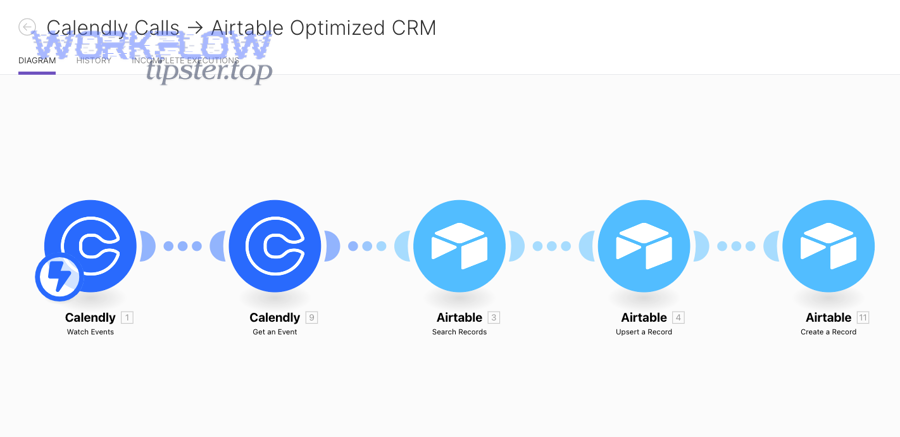
If your connector doesn’t offer separate triggers, you can still handle this with filters/paths: detect the event type, then route to “create” or “update” actions accordingly.
How do you map Calendly fields to Airtable fields without breaking your base?
You map Calendly fields safely by matching each field to the correct Airtable field type, keeping naming consistent, and validating that dates, select options, and multi-line answers are formatted correctly before writing them.
Next, treat mapping as a data contract between systems:
- Create Airtable fields first
- Email field for invitee email
- Date/time fields for start and end times
- Single select for status (Scheduled/Rescheduled/Canceled)
- Single line text for event type
- Long text for notes/answers (or separate fields if you report on them)
- Map “must-not-break” fields carefully
- Email: must land as a valid email format
- Date/time: must match expected timezone handling
- Select values: must match Airtable’s allowed options (or your connector may fail)
- Use stable naming
- Example: Invitee Email, Event Type, Scheduled Start, Scheduled End, Status
- Stable names make future troubleshooting and onboarding far easier.
Airtable frames these workflows as trigger/action designs, which makes “field mapping” the main place workflows succeed or fail in practice. Source
How do you test the automation and confirm the record is accurate?
You test by booking a real meeting, checking the created/updated Airtable record field-by-field, verifying timezones and status logic, then running a second booking to confirm your dedupe rules behave the same way.
Then, use this quick accuracy checklist:
- Record created?
- A row exists for the booking (or the lead record was updated if you designed it that way)
- Identity correct?
- Name + email match the invitee
- Time correct?
- Scheduled start/end match what Calendly shows, and timezone is consistent
- Event type correct?
- The record distinguishes “Demo” vs “Onboarding” vs “Support call” (whatever your event taxonomy is)
- Answers captured?
- Qualification questions show up in the expected fields
- Second run check
- Book a second meeting with the same email and confirm you didn’t create an unintended duplicate (unless that’s your design)
If your platform provides logs, look for the raw payload on the trigger step first; most “mysterious” errors are simply missing fields or type mismatches.
Which workflow pattern should you use: create records, update records, or create+update (upsert)?
Create-record workflows win for simple booking logs, update-record workflows are best when you treat Airtable as a single “lead profile,” and upsert is optimal when you need both clean deduplication and complete meeting history. Source
However, the pattern you choose determines whether Airtable becomes a reliable system—or a duplicate-filled mess—so it’s worth choosing intentionally before you scale.
Should you create a new Airtable record for every booking?
Yes, you should create a new Airtable record for every booking when (1) you need a meeting history timeline, (2) you report on show/cancel/reschedule rates, and (3) you want operational traceability for Sales & Ops.
Then, make the “meeting record” concept explicit:
- One booking = one record in a Meetings table
- Status updates happen on the same record
- The lead/contact entity lives elsewhere (optional), linked to meetings
This pattern aligns with common “Invitee Created → Create Record” setups where new scheduled events automatically create new Airtable records. Source
Where teams get into trouble is mixing this with lead profiles in the same table. If you want both, split your data model: Leads/Contacts table + Meetings table, linked.
How do you prevent duplicates with a unique key (email, booking ID, or both)?
You prevent duplicates by choosing one canonical unique key and forcing your workflow to “find → update” before it “creates,” so the automation behaves consistently across repeats and reschedules.
Next, pick the key that matches your data model:
- If you log every booking (Meetings table):
- Unique key should be the booking reference/ID (ideal) or a composite key like:
- Invitee Email + Event Type + Scheduled Start
- This avoids accidental merging of two different meetings.
- Unique key should be the booking reference/ID (ideal) or a composite key like:
- If you maintain one lead profile (Leads table):
- Unique key should be email (or email + company)
- The “booking history” should link out to a Meetings table rather than overwriting the lead row repeatedly.
Here’s the operational pattern that works in almost every automation tool:
- Search step: Find record by unique key
- Router / condition:
- If found → Update
- If not found → Create
- Write step: Update fields (including “last updated” stamps)
The table below contains the three patterns, what they optimize for, and when to use each—so you can choose quickly without guessing.
| Pattern | Best for | What it prevents | What it risks if misused |
|---|---|---|---|
| Create Record | Meeting log + analytics | Missing history | Duplicate leads (if you treat meetings as leads) |
| Update Record | Single lead profile | Duplicate lead rows | Lost meeting history |
| Upsert (Find → Update else Create) | Clean data at scale | Duplicate explosion | Complexity if your unique key is wrong |
How do you handle reschedules and cancellations in Airtable (status change vs new record)?
Status change is best for accuracy, while new record is only useful when you intentionally track a full audit trail of every scheduling change as separate events.
More importantly, treat scheduling as a state machine:
- Scheduled (default on Invitee Scheduled)
- Rescheduled (when time changes)
- Canceled (when Invitee Canceled)
Recommended behavior:
- Keep one meeting record and update:
- start/end time
- status
- updated timestamp
- Optional: store “previous scheduled time” in a separate field if your team needs it
This gives Sales & Ops clean reporting: “How many cancellations?” “How many reschedules?” “What’s the show rate by event type?”
Which tool should Sales & Ops teams choose to connect Calendly and Airtable?
Zapier wins for speed and templates, a scenario builder wins for complex routing and transformations, and API/custom options are best for specialized governance—so the right choice depends on how many branches, tables, and edge cases your workflow must handle. Source
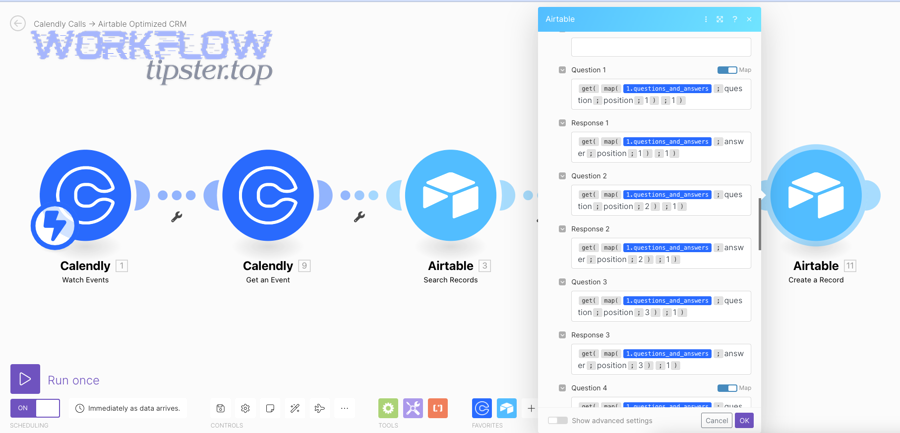
To illustrate the choice clearly, focus on what Sales & Ops feel every day: setup time, maintainability, data quality controls, and how easy it is to expand into more Automation Integrations as your stack grows.
Zapier vs Make: which is better for Calendly → Airtable automation?
Zapier wins in “quick setup and reliable templates,” while Make is best for “complex logic, routers, and data transformation,” and a simple rule helps you decide: choose the tool that matches the number of branches in your workflow.
Then apply this decision filter:
Choose Zapier when
- You want a straightforward “Invitee Created → Create Record” workflow fast. Source
- Your mapping is simple and stable.
- You prefer templates and minimal configuration.
Choose Make when
- You need multiple paths by event type (e.g., Demo vs Support vs Onboarding)
- You want to transform fields (normalize names, parse multi-select answers, compute scoring)
- You link records across multiple Airtable tables and want stronger control over logic
If your first goal is “get it working,” Zapier-style simplicity often wins. If your goal is “build a workflow engine,” Make-style flexibility becomes more valuable.
What alternatives exist (native integrations, iPaaS, scripts), and when do they matter?
There are 4 main categories of alternatives—native integrations, built-in automations, iPaaS tools, and custom scripts—based on how much control and governance you need.
In addition, each category fits a different maturity level:
- Native integrations
- Best when Calendly already integrates directly with your CRM or system
- Great for reducing moving parts, but limited to supported apps
- Built-in automations (inside platforms)
- Useful when you can keep logic closer to the data (especially for Airtable-centric workflows)
- Airtable notes native automations as an alternative to third-party connectors for trigger-action workflows. Source
- iPaaS platforms
- Best when you’re orchestrating many systems across Sales, Ops, Support, and Data
- Often chosen for broader enterprise automation needs
- Custom scripts
- Best for strict security policies, specialized transformations, and high-volume processing
- Requires engineering capacity and ongoing maintenance
A practical expansion path is to start with Calendly → Airtable, then add related workflows such as google docs to zoho crm for document-to-CRM handoffs, or google docs to evernote for archival and knowledge workflows—so your automation stack supports the entire lifecycle from scheduling to documentation.
What are the most common issues—and how do you troubleshoot them fast?
There are 5 common issues in Calendly → Airtable automation—blank fields, mapping errors, timezone shifts, duplicates, and missed updates—based on whether the failure happens at the trigger payload, the field mapping, or the update logic. Source
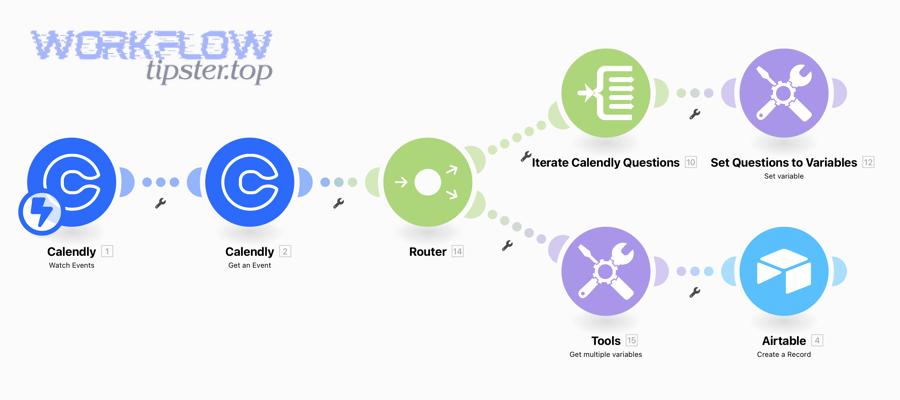
Then, troubleshoot in the same order every time: payload first, mapping second, logic third—because consistent debugging prevents recurring breakage.
Why are Airtable fields blank or failing to map ?
Fields go blank or fail to map because the trigger payload doesn’t contain the expected data, the Airtable field type rejects the format, or your workflow references a field name that changed after you built the automation.
Next, fix it with a three-step routine:
- Inspect the trigger payload
- Confirm the invitee fields and answers exist in the test booking
- If a question wasn’t answered, the payload may omit it
- Validate Airtable field types
- Email must map to email field (or valid text)
- Single select must match allowed options
- Date/time must map to a valid timestamp format
- Re-map after changes
- If you renamed Airtable fields or changed select options, reselect them in the automation tool
- Many “it worked yesterday” issues are simply schema drift
Airtable’s trigger/action framing is a reminder that the automation tool is only as reliable as the structure you provide it. Source
Why are meeting times wrong (timezone), and how do you normalize them?
Meeting times are wrong because the workflow stores timestamps in one timezone while Airtable displays or interprets them in another, especially when you mix user timezone, event timezone, and workspace timezone.
Then normalize time with a clear approach:
- Store one canonical time
- Prefer UTC or a consistent business timezone used for reporting
- Store display timezone separately
- Keep the invitee’s timezone for context and communication
- Avoid manual string parsing
- Use structured datetime fields, not text blobs, whenever possible
A reliable operational setup often uses two fields:
- Scheduled Start (UTC) for analytics and SLAs
- Scheduled Start (Local) for human-readable operations
Why are you getting duplicates or missing updates, and what’s the cleanest fix?
Duplicates happen when the automation always “creates,” and missing updates happen when your unique key is unstable or your “find record” step doesn’t match what already exists in Airtable.
More importantly, the cleanest fix is to enforce one of these patterns:
- For duplicates: implement upsert (find → update else create)
- For missing updates: rebuild the unique key to match reality
- Email alone is not enough for Meetings tables
- Booking reference/ID is ideal when available
Finally, add guardrails:
- A “Last Synced At” timestamp
- A “Sync Status” field (Success/Needs Review)
- A view that filters records missing key fields (so Ops can fix them quickly)
How can you optimize Calendly → Airtable sync for scale, privacy, and reporting?
You can optimize Calendly → Airtable sync by applying 4 levers—data modeling for reporting, attribution capture, privacy controls, and resilience for volume—so the automation stays accurate as your team grows and your workflows multiply.

Next, treat optimization as “make the system trustworthy,” not “add more fields,” because scale fails when teams stop believing the data.
How do you structure Airtable for reporting (pipelines, conversion rates, show-up rates)?
You structure Airtable for reporting by separating entities (Leads/Contacts vs Meetings), using linked records, and building rollups that compute metrics like meetings-per-lead, cancel rate, and conversion by source.
Then build reporting-ready fields:
Meetings table
- Status (Scheduled/Rescheduled/Canceled/Completed)
- Outcome (Show/No-show/Qualified/Unqualified)
- Event type
- Owner
- Scheduled date
Leads table
- Lead stage
- Source
- Score
- Linked meetings rollups:
- Total meetings
- Last meeting date
- Last outcome
This structure turns “a list of bookings” into an operational pipeline your team can actually manage.
How do you capture attribution (UTM/source) from scheduling flows into Airtable?
You capture attribution by passing UTM/source values into the booking flow (or collecting them in a pre-booking form) and mapping those values into Airtable fields so Sales can report on which channels produce qualified meetings.
More specifically, attribution capture can be done three ways:
- Hidden fields in the scheduling path (when available)
- Pre-booking forms that write source fields
- Intermediate capture tools (forms/landing pages) that enrich the booking record
Once captured, store:
- Source
- Campaign
- Medium
- Landing Page
- Referrer
This supports real operational decisions: what to scale, what to cut, and which meeting types convert by channel.
How do you minimize PII and stay compliant when syncing invitee data?
You minimize PII by syncing only action-driving fields, limiting access via Airtable permissions, and applying retention rules so older invitee data doesn’t live forever without purpose.
Then apply a simple “collect vs minimize” rule:
- Collect only what Sales/Ops needs to do the job
- Minimize everything else, especially sensitive notes
Practical steps:
- Avoid storing sensitive free-text unless necessary
- Separate operational notes from identity fields
- Add a retention view (e.g., “Records older than 180 days”) for review or deletion workflows
- Restrict bases and views by role
How do you make the automation resilient at high volume (limits, retries, batching)?
You make the automation resilient by designing for failures: monitoring logs, adding retry paths, batching where possible, and keeping your unique key stable so replays don’t create duplicates.
Finally, it helps to remember that “digital workflow automation” success depends on how well tools integrate into real work routines—not just whether the tool exists. According to a study by Delta State University of Science and Technology from the Department of Office and Information Management, in 2025, a regression model examining digital workflow factors reported an R Square of 0.95 (meaning 95% of variance in staff digital productivity was explained by the model’s variables). Source
That’s why resilience matters: when the workflow becomes part of daily operations, failure modes become productivity problems. To reduce those problems, add:
- Alerting
- Notify Ops when a run fails or a required field is missing
- Retries
- Retry transient failures automatically
- Backpressure
- If volume spikes, throttle or queue runs (depending on your platform)
- Operational views
- “Needs Review” view for records with sync anomalies
When these guardrails exist, Calendly → Airtable stops being “a nice automation” and becomes a dependable operational backbone that Sales & Ops can build on—alongside your broader Automation Integrations roadmap.