


You can connect Box to Smartsheet by installing the Box integration and authorizing access, which lets your team attach Box files and folders directly to Smartsheet sheets/rows so project work stays tied to the right documents in one place. (Source: smartsheet.com)
Next, once you understand what “Box to Smartsheet integration” really changes day-to-day, you can design a simple collaboration rhythm: Box holds the governed source files, while Smartsheet holds the work plan and context that references those files. (Source: smartsheet.com)
Then, after the initial setup, most teams get the biggest wins by standardizing a few repeatable patterns—like attaching the “latest spec” to a milestone row, keeping vendor deliverables attached to an approval workflow, and using links instead of uploads to avoid duplicate versions. (Source: smartsheet.com)
Introduce a new idea: if your goal goes beyond attaching files—like triggering cross-app actions, routing updates, or creating structured handoffs—you’ll want to compare the native connector with automation options and know exactly how to troubleshoot the most common breakpoints. (Source: help.smartsheet.com)
Can you integrate Box with Smartsheet for project file collaboration?
Yes—Box to Smartsheet integration works for project collaboration because it (1) keeps files attached to the work that needs them, (2) reduces version-control friction, and (3) speeds up retrieval by centralizing context in Smartsheet while files stay in Box. (Source: smartsheet.com)
To better understand why this matters, think of Smartsheet as the “work map” and Box as the “content vault”—the integration connects the two so teams don’t lose time hunting for the right document or debating which version is current. (Source: smartsheet.com)
What collaboration problems does the Box–Smartsheet integration solve most often?
Most project teams struggle with three recurring document problems: context loss, version confusion, and access sprawl.
- Context loss: A file link shared in chat loses meaning over time. When the same file is attached to the exact milestone row (or approval task) that depends on it, the document remains discoverable where it matters.
- Version confusion: Teams often download, re-upload, and rename files. The Box–Smartsheet pattern reduces that impulse by referencing the file from its managed home while keeping the work discussion in Smartsheet. (Source: smartsheet.com)
- Access sprawl: When documents scatter across email attachments and local drives, permissioning becomes inconsistent. Keeping files in Box and attaching/associating them to work in Smartsheet supports a cleaner governance posture (more on this in the advanced section). (Source: smartsheet.com)
Who benefits most from Box–Smartsheet integration?
This integration is most valuable when your team has structured work (projects, approvals, deliverables) and structured content (policies, specs, creative assets, vendor documents).
- PMOs and delivery teams: Attach statements of work, change requests, and sign-offs to the rows that represent each commitment.
- Marketing and creative ops: Keep campaign timelines in Smartsheet while creative source files live in Box.
- IT and operations: Maintain rollout checklists and attach runbooks, diagrams, and compliance artifacts as governed content.
According to a study by Bar-Ilan University (Department of Information Science and Department of Management), in 2024, results from a survey of 716 employees found that a meaningful share of respondents spent substantial time searching for needed information (e.g., notable portions reporting around an hour or more daily), and longer search times were linked to lower perceived information-management quality. (Source: researchgate.net)
What does “Box to Smartsheet integration” mean for project teams?
Box to Smartsheet integration is a work-management connector that lets teams attach and access Box-stored files from inside Smartsheet so tasks, timelines, and approvals stay linked to the right project documents. (Source: smartsheet.com)
More specifically, the practical meaning is: Smartsheet becomes the single place your team looks to understand the status of work, while Box remains the single place your org governs and stores content—and the connector prevents those two worlds from drifting apart. (Source: smartsheet.com)

What is the “integration” vs a “connector” in this context?
In everyday team language, integration and connector are often synonyms (that’s the lexical relation here). The key difference is not the word—it’s the behavior:
- A native integration/connector typically focuses on a specific capability (here, attaching Box content into Smartsheet context). (Source: smartsheet.com)
- A broader automation integration (via iPaaS tools) focuses on “when X happens, do Y” workflows across apps. (Source: help.smartsheet.com)
So if your team’s search intent is “attach Box files to Smartsheet work,” the native connector is usually the cleanest first step. If your search intent is “orchestrate workflows across apps,” automation platforms become relevant later.
What stays in Box, and what belongs in Smartsheet?
A reliable division of responsibilities prevents messy duplication:
- Keep in Box: source-of-truth files (contracts, designs, specs), governed folders, final deliverables, sensitive content needing controlled permissions.
- Keep in Smartsheet: work items, owners, due dates, status fields, dependencies, approvals, discussions, and references to Box content via attachments/links.
That division also makes onboarding easier: new team members learn “work lives in Smartsheet; content lives in Box.”
According to Smartsheet’s listing, the Box integration focuses on attaching Box files to relevant tasks/projects in Smartsheet and keeping files updated in context. (Source: smartsheet.com)
How do you connect Box to Smartsheet step-by-step?
Connect Box to Smartsheet by installing the Box integration, authorizing Box access, then attaching Box files/folders to the relevant sheet or row so the right document is always reachable from the work record. (Source: smartsheet.com)
Below is a setup approach that works for most project teams, even if you later expand into more advanced Automation Integrations.
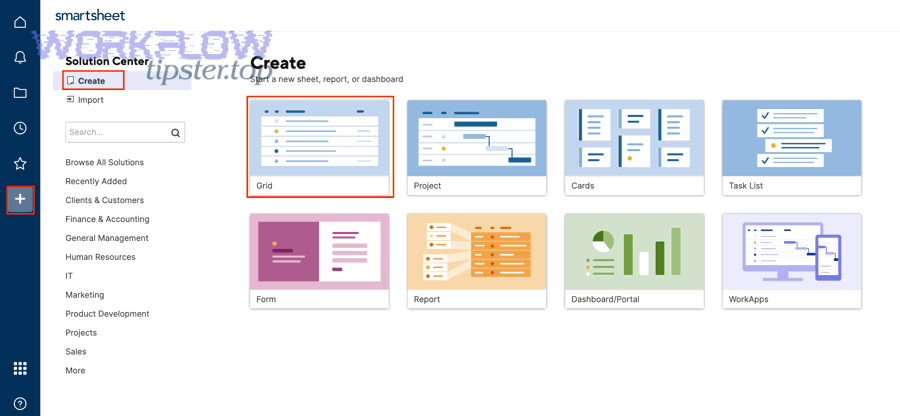
Step 1: Confirm permissions and decide your attachment standard
Before clicking anything, align on two rules:
- Who is allowed to connect apps? In many orgs, only admins can approve integrations.
- Will you attach links or upload files? For Box-managed content, prefer attaching Box items/links to avoid duplicated copies.
Also standardize “where” you attach:
- Row-level attachments for task-specific documents (spec for Task 12).
- Sheet-level attachments for project-wide documents (program charter, glossary). (Source: help.smartsheet.com)
Step 2: Install/enable the Box integration in Smartsheet
Use the Box integration entry in Smartsheet’s ecosystem and follow the “How to get it” guidance (this is typically the shortest path to the correct connector and help steps). (Source: smartsheet.com)
Step 3: Authorize Box and attach the first file to validate the flow
A quick validation test prevents weeks of “it works for me” confusion:
- Open the target sheet.
- Select the row that represents a real deliverable (e.g., “Finalize SOW”).
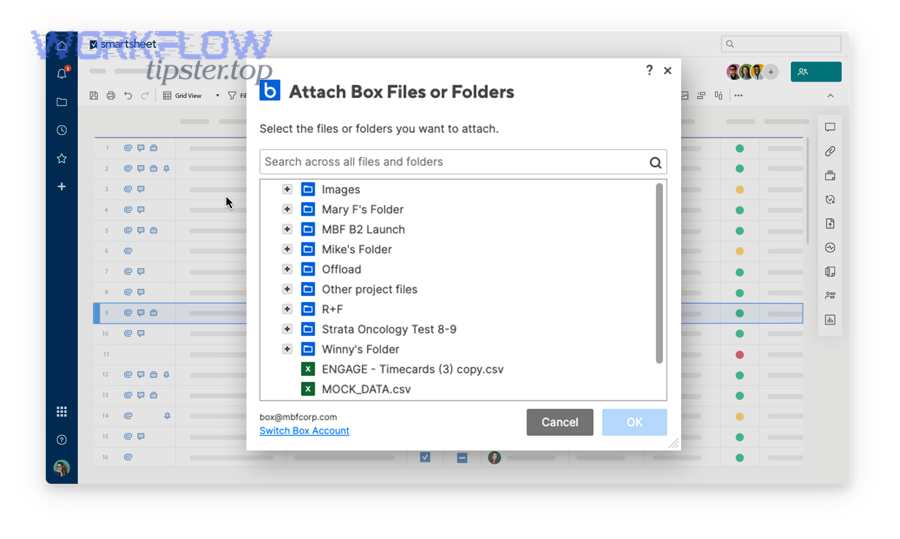
- Open the attachments panel and choose the option to attach from an online resource/service and select Box when prompted. Smartsheet’s attachments workflow explicitly supports third-party storage services (including Box) in its attachment process. (Source: help.smartsheet.com)
Step 4: Scale with a repeatable folder-to-project mapping
Most teams get predictable results by mapping:
- One Box project folder ↔ one Smartsheet project sheet
- Standard subfolders (e.g.,
/01 Brief,/02 Drafts,/03 Final,/04 Approvals) - A Smartsheet column like “Box Folder” that stores the canonical Box folder link for quick navigation
This structure reduces “where should I put this file?” debates and makes audits simpler.
Step 5: Add a short “attachment protocol” to your project kickoff template
Put a small checklist at the top of the sheet or in your kickoff doc:
- Attach spec to milestone row
- Attach final deliverable to acceptance row
- Attach approval proof to sign-off row
- Never upload duplicates if a Box master exists
According to Smartsheet’s help documentation, teams can attach content (including from supported online storage services like Box) via the Attachments workflow, and the Box integration page emphasizes attaching Box files in-context. (Source: help.smartsheet.com)
What are the most common Box–Smartsheet use cases for project teams?
There are 6 main Box–Smartsheet use case types: deliverable tracking, approvals/sign-off, vendor handoffs, compliance evidence capture, creative review packaging, and project knowledge hubs—grouped by whether files support tasks, decisions, or audits. (Source: smartsheet.com)
Specifically, once you classify your use cases, you can decide whether to attach at the sheet level, row level, or both—and your team stops attaching random files “wherever.”
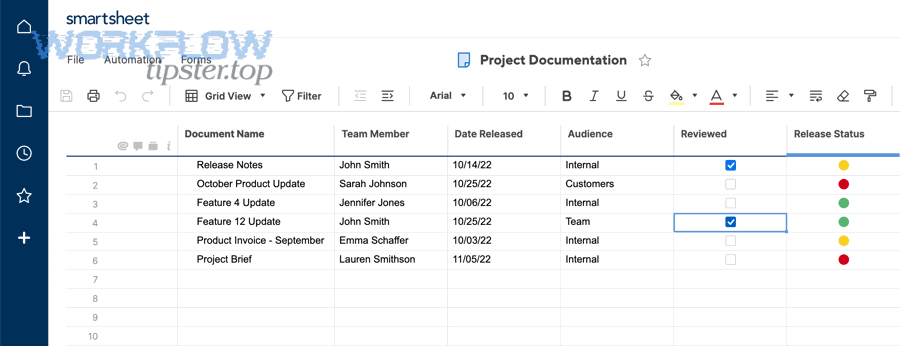
Use case 1: Deliverable tracking (row-level “source of truth” attachments)
Attach the key Box file(s) to the exact row that represents the deliverable:
- “Design vFinal” attached to the “Design complete” milestone row
- “Implementation plan” attached to the “Change approval” row
- “Training deck” attached to the “Enablement session” row
Outcome: anyone scanning the plan can open the correct asset without hunting.
Use case 2: Approvals and sign-off evidence
For approvals, the document alone is not enough—you want traceability:
- Attach the final file from Box to the sign-off row
- Attach a proof artifact (approval PDF, screenshot, or exported confirmation)
- Add a Smartsheet column for “Approved by / Approved date” to lock in the decision trail
This is where “work context + content governance” becomes more than convenience—it becomes defensible documentation.
Use case 3: Vendor and client handoffs
When working with external parties:
- Keep external deliverables in a Box folder designed for sharing rules.
- Attach those items to the corresponding Smartsheet rows (deliverable list, issue log, acceptance criteria).
- Use Smartsheet comments for coordination while keeping the file in Box.
This reduces the common failure mode where the project plan says “done” but nobody can find the final file.
Use case 4: Compliance and audit packets
If your team must prove what happened:
- Attach policy versions, test evidence, and sign-offs to the rows that represent each control.
- Keep the audit packet as a Box folder and link it at the sheet level for quick collection.
Use case 5: “Project knowledge hub” sheet
Create a dedicated Smartsheet sheet that behaves like a curated index:
- One row per knowledge asset (runbook, template, decision log)
- Attach or link the Box item
- Columns for “Audience,” “Last reviewed,” “Owner”
This mimics a lightweight document catalog while staying in the same platform the team already uses for execution.
Use case 6: Cross-tool workflows (where other integrations come into play)
Sometimes Box–Smartsheet is one step in a larger chain. For example:
- A form intake (like “google forms to help scout”) creates a request row in Smartsheet, and the supporting documents are stored in Box and attached for review.
- A customer workflow (“google docs to sendgrid”) generates communications assets that are finalized in Box and tracked against a Smartsheet launch timeline.
- A support enablement path (“google docs to intercom”) stores help-center drafts in Box while Smartsheet tracks approvals and publish dates.
These examples illustrate how a strong Box–Smartsheet foundation makes broader Automation Integrations cleaner later—because you already know where work lives and where content lives. (Source: smartsheet.com)
According to Smartsheet documentation, attaching files from online resources/services (including Box) via the Attachments workflow underpins the most common use cases above. (Source: help.smartsheet.com)
When should you use workflow automation instead of the native integration?
The native Box–Smartsheet connector wins for in-context file attachment, while workflow automation wins when you need event-driven cross-app routing, conditional logic, or multi-step orchestration beyond attaching documents. (Source: smartsheet.com)

However, most teams make better decisions when they compare options against concrete criteria (not hype), so use the framework below.
This table contains a practical decision matrix showing which integration approach fits each requirement, helping you choose between native attachment, rule-based automation, and workflow orchestration.
| Requirement / Scenario | Native Box–Smartsheet integration | iPaaS automation (e.g., Zapier/Make) | Workflow orchestration (e.g., Smartsheet Bridge) |
|---|---|---|---|
| Attach Box files to rows/sheets in Smartsheet | Best fit (Source: smartsheet.com) | Possible but indirect | Possible but usually overkill |
| Trigger actions when something changes | Limited | Best fit for “trigger → action” patterns (Source: help.smartsheet.com) | Strong within governed workflows (Source: help.smartsheet.com) |
| Multi-step approvals and branching logic | Basic | Medium (depends on plan/tool) | Best fit for structured workflow control (Source: help.smartsheet.com) |
| Admin/governance controls and consistency | Strong when standardized | Varies by tool and governance | Strong in managed environments (Source: help.smartsheet.com) |
Choose the native integration when your “job-to-be-done” is context + control
Use the native connector if your main outcomes are:
- People can find the right file from the right row
- The file remains current without re-upload rituals (Source: smartsheet.com)
- Your process standard is: “Store in Box, reference in Smartsheet”
Choose automation when your “job-to-be-done” is routing + speed
Use automation when you need patterns like:
- “When a new row is created in Smartsheet, create a Box folder and write the folder link back to the row.”
- “When a Box file is uploaded to a specific folder, notify the Smartsheet owner or update a status field.”
- “When a Smartsheet status flips to Approved, move the Box file to a Final folder and alert stakeholders.”
Automation tools are designed around trigger/action logic. Smartsheet’s Zapier guidance summarizes this model clearly: a Zap uses a Trigger in one app to cause an Action in another. (Source: help.smartsheet.com)
Choose workflow orchestration when you need governed, repeatable processes at scale
If you’re building official workflows (across departments, with compliance requirements), orchestration tools can be more appropriate. Smartsheet Bridge, for example, supports sheet events as workflow triggers (rows created/changed, attachments added, etc.), which is useful for controlled enterprise patterns. (Source: help.smartsheet.com)
According to Make, its platform connects Box to other apps for automated workflows, while Smartsheet guidance explains the trigger/action model and Bridge’s trigger events. (Source: make.com)
How do you troubleshoot Box–Smartsheet integration issues?
Troubleshoot Box–Smartsheet integration by checking authorization, permissions, attachment method (row vs sheet), and file constraints—then retest with a single known file to isolate whether the failure is access, workflow, or platform limitation. (Source: help.smartsheet.com)
Next, use the “fast isolation” approach below so you don’t waste time debugging the wrong layer.
Symptom 1: “I don’t see Box as an attachment option.”
Most commonly, this is one of these causes:
- Your Smartsheet role doesn’t allow adding integrations/attachments the way your org configured it.
- The view you’re in isn’t the one you think (different Smartsheet views place attachments controls in different UI locations).
- The integration isn’t enabled for the environment you’re using.
Start by following Smartsheet’s attachments workflow guidance and confirm you can access the attachments panel and select the correct attachment path. (Source: help.smartsheet.com)
Symptom 2: “Authorization fails” or “access denied to Box content.”
This is almost always permissions:
- The Box account you authenticated doesn’t have access to the file/folder.
- Your org requires additional approvals for third-party app access.
- The file is in a restricted Box folder where external app access is blocked by policy.
Fix: test with a non-restricted folder your user definitely owns, then expand permissions deliberately.
Symptom 3: “The file attaches, but someone else can’t open it.”
This is the “shared context vs shared permission” mismatch:
- Smartsheet sharing does not automatically grant Box permissions.
- Users must have appropriate Box access to open the file.
Fix: align your project roster and your Box folder permissions. In client/vendor situations, define which folders are meant for external access.
Symptom 4: “Uploads fail” or “file too large.”
If you are uploading files (instead of linking), size limits can apply. Smartsheet documentation notes a maximum attachment size of 250 MB per file (and highlights file-type restrictions for risky formats). (Source: smartsheet.com)
Fix: store the file in Box and attach/link it appropriately, or compress/split the asset.
Symptom 5: “We attached the wrong file version.”
This is a process problem more than a tool problem. Add a lightweight guardrail:
- A Smartsheet column for Doc status (Draft / For review / Final)
- A rule: only attach “Final” assets to acceptance/sign-off rows
- A “single Box folder per project” standard so people don’t attach from random places
According to Smartsheet documentation, supported online storage workflows (including Box) and operational constraints (like file size limits) matter for troubleshooting and reliability. (Source: help.smartsheet.com)
Contextual Border: From here, the article shifts from “how to connect Box to Smartsheet and run the core collaboration workflow” to micro-level governance, compliance, and edge-case design that teams encounter at scale.
What are advanced governance, compliance, and edge-case considerations for Box–Smartsheet integrations?
Advanced Box–Smartsheet integration success depends on governance (permissions and data handling), compliance alignment (auditability and retention), and edge-case planning (external collaborators, file limits, and workflow sprawl) so your connector doesn’t become an uncontrolled backdoor. (Source: smartsheet.com)
More importantly, these considerations are where teams either (a) build durable operational trust or (b) slowly accumulate risk and confusion.
How do you design permissions so attachments don’t bypass governance?
Use a “least surprise” model:
- Box remains the permission authority for file access.
- Smartsheet remains the authority for work access.
- The integration should never be treated as a permission bridge—only a context bridge.
Operationally, this means your onboarding checklist includes:
- Add user to Smartsheet sheet (correct role)
- Add user to Box project folder (correct access)
- Validate by opening one attached file from within the sheet
How do compliance patterns work best for audit trails?
If you anticipate audits, design for “reconstruction”:
- Attach final artifacts to the exact row representing approval or delivery.
- Store an immutable proof artifact where needed (e.g., exported approval summary).
- Standardize naming conventions and folder structure so auditors can trace “work item → document → decision.”
This is also where you decide whether you need automation/orchestration to enforce steps (for example, preventing status changes unless an attachment exists, or routing review tasks through formal stages). Smartsheet Bridge’s trigger model (including “when attachments are added”) is an example of how teams can formalize workflow behavior when governance demands it. (Source: help.smartsheet.com)
How do you handle external collaborators safely (clients, agencies, vendors)?
External collaboration is the most common edge case:
- Use Box folders explicitly designed for external sharing policies.
- Keep internal-only artifacts in separate folders.
- In Smartsheet, avoid exposing internal-only attachments on sheets shared externally; instead, maintain a separate external-facing sheet or filtered reporting view.
What edge cases should you plan for in day-to-day operations?
Four practical ones show up repeatedly:
- Attachment size and risky file types: Smartsheet notes limits like 250 MB per file and restrictions for certain executable/script formats—build your workflow so large assets live in Box and are referenced appropriately. (Source: smartsheet.com)
- Workflow sprawl: Too many one-off rules and ad-hoc integrations create brittle systems. Keep a small set of “approved patterns” and document them.
- Multiple accounts / wrong identity: People often authenticate the wrong Box account (personal vs corporate). Add a checklist item: confirm you’re logged into the correct Box identity before attaching.
- Retention and lifecycle: Decide how long project folders live, who archives them, and what the “closeout” process is (including freezing final artifacts for recordkeeping).
According to Smartsheet sources, the Box integration emphasizes in-context attachment and keeping files current, while attachments documentation details supported storage workflows and constraints that matter for governance planning. (Source: smartsheet.com)