


Automating Calendly → Google Calendar → Zoom → ClickUp scheduling means you stop doing “copy-paste admin” and instead let one booking trigger a predictable chain: the event is confirmed, the calendar is updated, the Zoom link is created, and the ClickUp work is assigned—without you chasing details.
To make that automation reliable, you need a clear data map (what fields move where), stable connections (correct accounts, permissions, and event types), and guardrails (time zones, duplicate prevention, and task naming conventions) so the workflow stays consistent even when your schedule changes.
If you’re not ready for full automation, you can still improve scheduling with a “semi-automated” approach: keep Calendly as the booking gate, keep Google Calendar as the source of truth for availability, keep Zoom for meeting links, and only automate ClickUp task creation for the meetings that actually require follow-up.
Introduce a new idea: once you understand what the workflow means, you can choose the right level of automation—manual, semi-automated, or fully automated—and set it up in a way that scales from solo use to busy teams.
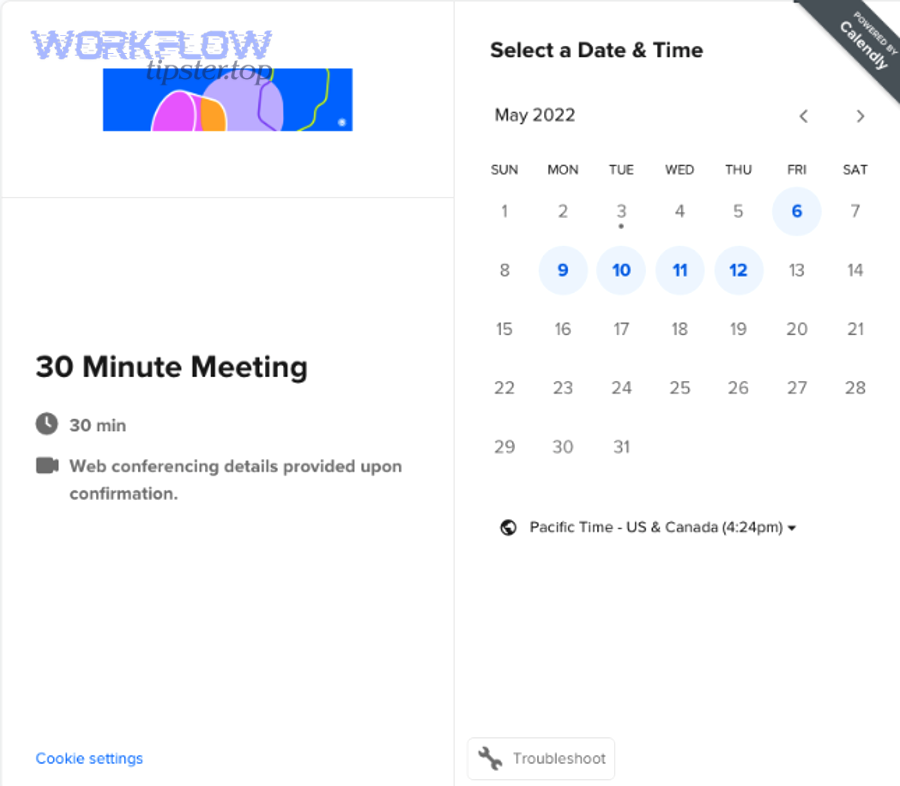
What does Calendly → Google Calendar → Zoom → ClickUp scheduling mean in practice?
Calendly → Google Calendar → Zoom → ClickUp scheduling is an end-to-end scheduling pipeline where a single booking in Calendly automatically updates your availability in Google Calendar, generates a Zoom meeting link, and creates a ClickUp task so the meeting turns into trackable work instead of a forgotten calendar block.
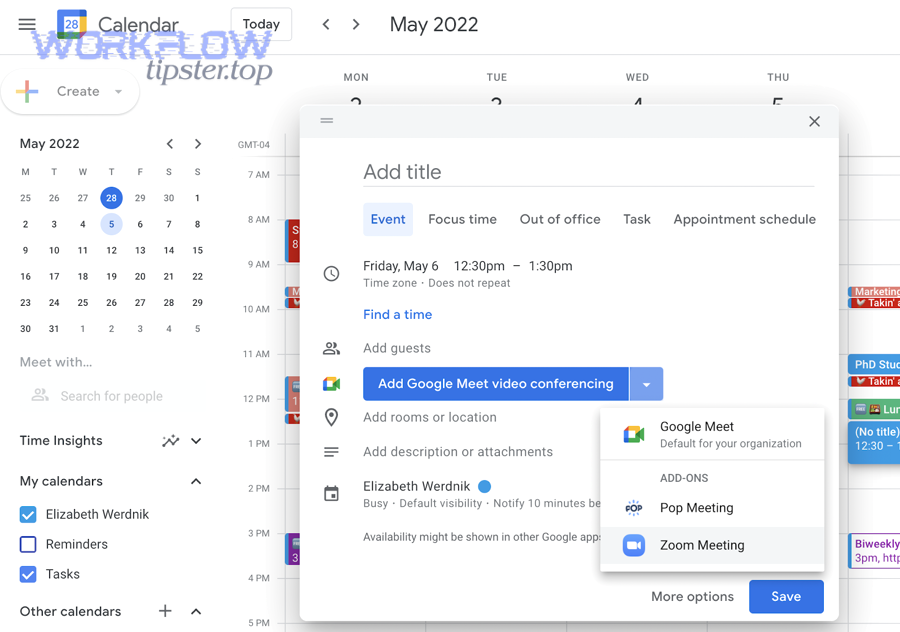
To better understand how this works day-to-day, you need to look at the “system roles” each app plays and why the chain matters for outcomes like fewer no-shows, faster follow-up, and consistent execution across a team.
Which data moves through the chain, and why does each step matter?
In this chain, data moves like a relay baton: Calendly collects structured booking details, Google Calendar stores confirmed time blocks, Zoom provides the meeting access link, and ClickUp turns the booking into an actionable work item.
- From Calendly: invitee name, invitee email, event type, scheduled start/end time, time zone, answers to booking questions, and any custom fields you collect (company, use case, budget range, priority).
- Into Google Calendar: the event title, time block, attendees, and often a description that includes context (the booking answers, agenda, and rules). Google Calendar primarily matters because it prevents double-booking by representing real-time availability.
- Into Zoom: meeting topic, start time, meeting settings (waiting room, passcode, authentication rules), and the resulting join link. Zoom matters because it standardizes access—no hunting for links at the last minute.
- Into ClickUp: task name, due date/time, assignee, checklist/agenda, status, priority, custom fields (lead stage, meeting type), and the Zoom link. ClickUp matters because it forces follow-through and makes meetings measurable.
When you connect these steps into automation workflows, you replace “human memory” with a consistent system: the booking always becomes an event, the event always has a link, and the link always becomes a task that someone owns.
What stays the same vs. what changes when you automate it?
What stays the same is the purpose of scheduling—getting the right person into the right meeting at the right time—while what changes is the operational burden and the reliability of follow-up.
- Stays the same: your availability rules, event durations, buffers, and the meeting experience your invitee sees.
- Changes: how errors happen (more “configuration errors,” fewer “human errors”), how fast the system reacts (instant triggers instead of later manual updates), and how scalable the process becomes when you add teammates or increase volume.
A helpful mental model is this: manual scheduling optimizes for flexibility in the moment, while automated scheduling optimizes for consistency over time—especially when the same meeting pattern repeats every day.
Can you automate Calendly → Google Calendar → Zoom → ClickUp scheduling reliably?
Yes—you can automate Calendly → Google Calendar → Zoom → ClickUp scheduling reliably if (1) you treat Google Calendar as the single source of truth for availability, (2) you standardize your event types and task templates, and (3) you add safeguards for time zones, duplicates, and missing fields.
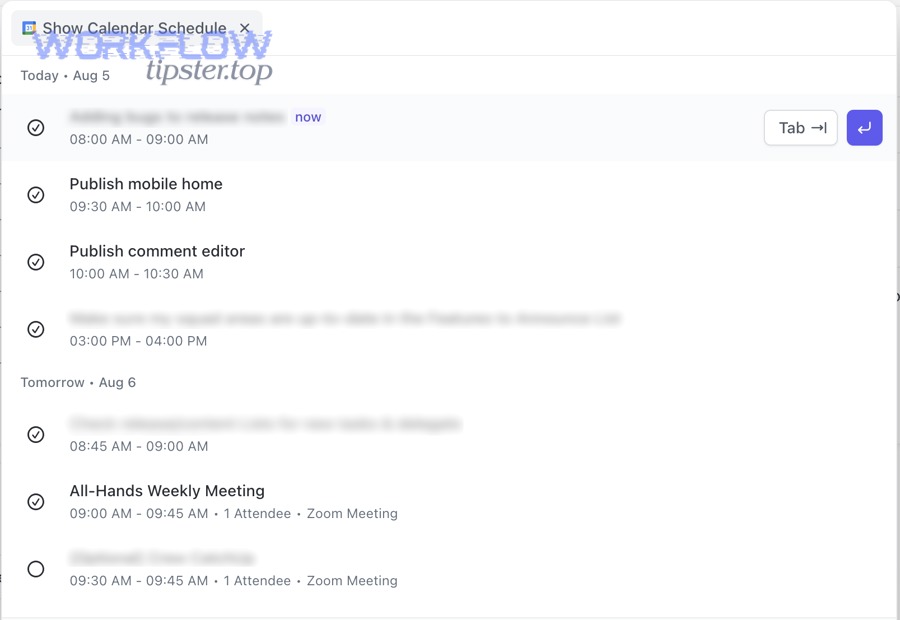
However, reliability is never “magic”; it comes from well-chosen triggers, clean field mapping, and a test process that catches the edge cases before your team depends on it.
What conditions must be true for full automation to work end-to-end?
Full automation works best when your scheduling environment is stable enough that the workflow can “predict” what should happen after each booking.
- Account alignment: the Calendly owner, Google Calendar owner, Zoom host, and ClickUp workspace must match the real operator (or be set up intentionally as shared resources).
- Consistent event types: a “Discovery Call” should always have the same duration, buffers, and expected outputs—so the automation can generate the right task each time.
- Field discipline: if you want ClickUp tasks to be useful, Calendly must collect the information ClickUp needs (e.g., company, problem statement, urgency, meeting goal).
- Permission stability: if a connected account loses access (changed password, revoked permissions, expired tokens), automation breaks—so you want admin ownership and stable auth.
- Clear ownership: every created ClickUp task must have an assignee (even if it’s a default owner) to avoid “orphan tasks.”
Reliability increases when the chain is opinionated: fewer “choose-anything” options, more standardized patterns that the workflow can execute without guesswork.
When is manual scheduling the smarter antonym to automation?
Manual scheduling is the smarter choice when the meeting is high-variance, high-stakes, or requires negotiation that a fixed workflow cannot safely capture.
- High-variance scheduling: multiple decision-makers, changing agendas, or complex rescheduling patterns that can’t be expressed as simple rules.
- High-stakes meetings: executive briefings, sensitive HR conversations, or meetings with strict compliance requirements where you want deliberate human review.
- Low volume / low repetition: if you only book a few meetings per month, the setup cost may outweigh the time saved.
Even then, you can still keep partial automation: use Calendly for availability and booking links, but manually decide whether a meeting becomes a ClickUp task, who owns it, and what “done” means.
According to a study by Case Western Reserve University from the College of Arts and Sciences (Physics), in 2024, the probability of successfully finding a meeting time drops sharply for groups larger than five—meaning the more people involved, the more valuable standardization and scheduling structure becomes.
How do you set up Calendly → Google Calendar → Zoom → ClickUp scheduling step-by-step?
The most reliable setup is: connect Google Calendar first (availability), connect Zoom next (meeting generation), then connect ClickUp last (task outcomes), and finally test with real bookings across time zones so each handoff behaves exactly as intended.
Next, you’ll build the workflow from the inside out—starting with “availability truth” and ending with “work accountability.”
How do you connect Calendly to Google Calendar without double-booking?
To prevent double-booking, you connect Calendly to the exact Google Calendar(s) that represent your real availability, then you confirm that Calendly reads busy times correctly and applies your buffers, notice rules, and daily limits consistently.
- Choose the right calendar: use a calendar that actually reflects your commitments (work calendar for work meetings, shared calendar for team coverage, or combined calendars if you truly need both).
- Set availability rules: define hours, buffers, minimum notice, and max meetings per day so your calendar doesn’t become a “meeting treadmill.”
- Validate the sync behavior: create a test event in Google Calendar and confirm Calendly blocks it; then book a test Calendly meeting and confirm it publishes back to Google Calendar.
When this connection is correct, you gain a simple truth: if it’s blocked on Google Calendar, it’s unavailable everywhere—so you stop negotiating availability by email.
Calendly describes this core mechanism as connecting your calendar to show only available times and publishing scheduled meetings automatically to the connected calendar.
How do you design the event type so Zoom links and task creation stay consistent?
You design the event type by standardizing what the meeting is called, how long it lasts, what information you collect, and what defaults are required so every booking produces the same “shape” of data downstream.
- Event naming: use a stable naming pattern such as “Discovery Call – [Company]” or “Onboarding – [Client Name]” so the calendar and ClickUp both stay readable.
- Booking questions: collect only what you will actually use (goal, context, priority, key links). Extra questions reduce completion rate and increase friction.
- Location setting: set Zoom as the location (or integration-based conferencing) so the meeting link generation is automatic and predictable.
- Confirmation and reminders: enable confirmations and reminders, but keep the message short and action-based (what to prepare, what to bring, where to join).
Consistency here is not cosmetic—it’s the difference between an automation that scales and an automation that collapses under exceptions.
How do you test edge cases: reschedules, cancellations, and no-shows?
You test edge cases by running controlled bookings that simulate the three common disruptions—reschedule, cancel, and no-show—and verifying that each system updates in a way that matches your operational rules.
- Reschedule test: reschedule a meeting and confirm (a) Google Calendar updates the time, (b) the Zoom link remains correct (or is recreated per your policy), and (c) the ClickUp task updates rather than duplicating.
- Cancellation test: cancel a meeting and confirm the calendar event is removed or marked canceled, and the ClickUp task changes status (e.g., “Canceled” or “No longer needed”).
- No-show handling: decide your rule (e.g., keep the task open but add a “no-show” tag, or auto-create a follow-up task) and test that the workflow does not create spam tasks.
Testing is also where you decide your “human override”: who fixes errors, how they spot them, and what the fallback procedure is when an integration fails.
How do you automatically generate Zoom meeting links from Calendly bookings?
To auto-generate Zoom links from Calendly bookings, you connect Zoom as a conferencing integration so each scheduled event creates a Zoom meeting with a join URL—then you ensure the link is carried into the calendar event description and into the ClickUp task fields.
Then, you focus on the three risk points that break Zoom link automation most often: integration selection, time zone handling, and duplicate meeting prevention.
Which Zoom integration option should you use, and what trade-offs matter?
The best Zoom option depends on whether you want Zoom created “natively” by Calendly, or created by an automation layer (like a workflow tool) that gives you more control.
- Native (Calendly → Zoom): simplest, fewer moving parts, fast setup, but less customization for advanced routing or per-team host logic.
- Workflow tool (Trigger → Zoom meeting): more control over host selection, meeting templates, conditional logic, and logging—at the cost of more configuration.
If your team runs multiple meeting types with different security settings, workflow-driven Zoom creation often becomes more reliable because you can enforce rules per meeting type.
How do you handle time zones across Google Calendar and Zoom?
You handle time zones by treating Calendly as the “invitee-facing translator,” while keeping Google Calendar and Zoom aligned to the host’s time zone and using standardized time stamps in task fields.
- Invitee time zone display: let Calendly display availability in the invitee’s time zone so they don’t do mental math.
- Host time zone truth: store the event in the host’s calendar time zone, and keep Zoom scheduled at that same time stamp.
- Task clarity: include both the ISO-like time stamp (e.g., 2026-02-03 14:00) and the invitee time zone label in the ClickUp task description when you work globally.
This is where consistency beats cleverness: if every system is “sometimes local, sometimes UTC,” your team will eventually miss a call.
How do you prevent duplicate Zoom meetings when someone reschedules?
You prevent duplicates by deciding a single policy—either “reuse the meeting link” or “recreate the meeting link”—and then enforcing it with identifiers that let your workflow update the existing record instead of creating a new one.
- Use unique IDs: store a booking identifier (invitee email + event UUID + start time) inside the calendar event and ClickUp task so updates can match the right record.
- Update-first logic: on reschedule, update the existing ClickUp task and calendar event rather than creating new ones.
- Cancellation cleanup: when canceled, close the ClickUp task or move it to a canceled status so it stops generating follow-ups.
According to a study by the University of California, Irvine from the Department of Informatics, in 2008, interruptions increased stress and time pressure while people compensated by working faster—so eliminating “fix-it-later” scheduling cleanups reduces a hidden cognitive load in daily work.
How do you create a ClickUp task automatically when a meeting is booked?
The most effective ClickUp task automation creates a task with (1) the meeting context, (2) the Zoom link, and (3) a clear next action, so the booking immediately becomes accountable work instead of passive calendar noise.
Besides creating the task, the real value comes from shaping the task to match how your team executes—fields, ownership, notifications, and a status path that fits your workflow.
Which ClickUp fields should be created or updated for scheduling tasks?
A good scheduling task includes a “minimum viable dataset” that lets anyone on the team understand the meeting and act without searching other tools.
- Task name: Meeting type + invitee + company (e.g., “Discovery Call – Jamie / Acme Co.”).
- Due date/time: meeting start time (so the task shows up when it matters).
- Assignee: meeting owner (or the correct teammate via routing rules).
- Status: “Scheduled” by default, then transitions to “Completed,” “No-show,” “Rescheduled,” or “Canceled.”
- Description: Zoom join link, booking answers, agenda template, and any prep links.
- Custom fields: meeting type, lead stage, priority, region, source, and a unique booking ID.
This is the difference between “a task that exists” and “a task that helps.” A bare task is noise; a structured task is leverage.
How do you map invitee answers into ClickUp so tasks become actionable?
You map invitee answers by converting each booking question into either a ClickUp custom field (for reporting and filtering) or a structured block in the task description (for human context).
- Use custom fields for decisions: urgency, product line, budget band, and meeting goal should be filterable so the team can triage.
- Use description blocks for narrative: problem statement, current tools, constraints, and links belong in the description in a consistent format.
- Template the agenda: add a checklist that matches your meeting playbook (Discovery: Context → Pain → Impact → Next step).
When mapping is consistent, ClickUp becomes the meeting command center: you can sort meetings by urgency, assign them faster, and report outcomes without digging through calendars.
How do you notify the right people without creating alert fatigue?
You avoid alert fatigue by notifying only on meaningful moments—new high-priority bookings, reschedules within a short window, and cancellations—while keeping routine bookings quiet or summarized.
- Notify on exceptions: last-minute bookings, last-minute reschedules, and cancellations should ping the owner immediately.
- Batch routine updates: daily digest notifications keep teams informed without constant interruptions.
- Route by responsibility: sales gets sales meetings, support gets support calls, and operations gets scheduling failures.
To make this concrete, many teams build a parallel example workflow like “freshdesk ticket to clickup task to microsoft teams support triage” so routing and notifications are tested on real operational events, not just meetings.
What is the simplest implementation path for this scheduling workflow?
Zapier wins for fastest setup, Make is best for deeper branching and data shaping, and native integrations are optimal for low-maintenance basics—so the simplest path is the one that matches your complexity: start lightweight, then add logic only when your process proves it needs it.
Meanwhile, the easiest way to choose is to compare tools, then pick a setup pattern based on your team size and scheduling volume.
Zapier vs. Make vs. native integrations: which is better for your use case?
This comparison focuses on the practical decision: how quickly you can launch, how much control you need, and how much you want to maintain.
The table below compares three common implementation routes so you can select the smallest solution that still covers your requirements.
| Option | Best for | Strength | Main limitation |
|---|---|---|---|
| Native integrations | Solo or simple teams | Low maintenance, fewer moving parts | Limited conditional routing and custom mapping |
| Zapier | Fast automation with templates | Quick setup, many app connectors | Complex logic can get expensive or harder to debug |
| Make | Advanced data shaping and branching | Strong visual logic, granular control | More setup effort and ongoing maintenance discipline |
If you’re building a scheduling-to-task pipeline with predictable patterns, a template-based approach is often enough to start; for deeper routing, a scenario-based approach gives you more long-term flexibility.
Zapier describes this approach as connecting Calendly to other tools through “Zaps” (automated workflows) so bookings can trigger actions like creating tasks and syncing calendar details.
What’s the lightweight setup for solopreneurs who just need follow-through?
A lightweight setup is: Calendly books → Google Calendar blocks time → Zoom link is generated → ClickUp task is created with a default template and a single owner, so every meeting produces a simple “prep + follow-up” task.
- Keep one event type first: start with your most common meeting (e.g., 30-minute discovery call).
- Use a single ClickUp list: one list keeps everything visible until you prove you need segmentation.
- Use a short checklist: prep (review notes) → run meeting → send summary → set next step.
This path reduces the risk of over-building: you get the benefits quickly and only add complexity when volume demands it.
What’s the team setup for sales or support teams that need routing?
A team setup adds assignment logic: the meeting type and invitee answers determine the ClickUp assignee, the status, and the urgency—so the right person gets the right meeting task automatically.
- Round-robin or rules-based ownership: assign tasks by territory, company size, product line, or availability.
- Custom fields for reporting: track lead stage, segment, and outcome so meetings drive measurable pipeline progress.
- Shared visibility: the team sees what’s scheduled and what’s blocked without asking for updates.
This is where the workflow becomes a team operating system: scheduling stops being an individual burden and becomes a coordinated process.
What’s the enterprise setup for compliance, audit trails, and scale?
An enterprise setup adds governance: standardized templates, controlled permissions, audit logging, and security rules around meeting access and data storage—so automation remains trustworthy at scale.
- Centralized ownership: admin-managed connections reduce breakage from individual account changes.
- Audit-friendly logging: store booking IDs, timestamps, and status changes so you can trace what happened.
- Security controls: meeting authentication rules, restricted sharing, and least-privilege app access.
Enterprise teams also standardize adjacent processes so scheduling data can flow into other systems—for example, a documentation pipeline like “airtable to microsoft word to onedrive to dropbox sign document signing” can reuse the same discipline of templates, IDs, and controlled permissions.
Contextual Border: Up to this point, the article has directly answered how to set up and run Calendly → Google Calendar → Zoom → ClickUp scheduling. Next, the focus shifts to advanced variations that expand the workflow into micro-level improvements like conditional routing, analytics, follow-up sequences, and security hardening.
What advanced variations make Calendly → Google Calendar → Zoom → ClickUp scheduling more powerful?
There are four advanced variations that make this scheduling chain more powerful: conditional routing, analytics logging, follow-up automation, and security hardening—each variation expands the workflow’s impact without changing the core booking experience.
Below, each variation adds micro-semantics that help your system behave intelligently under real-world complexity.
How do you add conditional routing based on event type or answers?
You add conditional routing by using a small set of rules that convert booking context into a decision: “If meeting type is X, assign to Y; if answer indicates urgency, set priority high; if region is APAC, route to that team.”
- Event-type routing: discovery calls go to sales, onboarding goes to customer success, support consults go to support engineering.
- Answer-based routing: “implementation timeline = this week” triggers higher priority and a faster response SLA.
- Load-balancing routing: if one owner is overloaded, assign to the backup owner.
Conditional routing is the synonym of scale: it lets a workflow behave like a team lead who assigns work instantly and consistently.
How do you log scheduling analytics without polluting your task workspace?
You log analytics by separating “work tasks” from “event records”: store structured meeting data in a log (spreadsheet, database, or reporting list) while keeping ClickUp tasks only for meetings that require action.
- Create a meeting log record: every booking becomes a row/record with booking ID, date, source, and outcome.
- Create ClickUp tasks selectively: only create tasks for meetings that require prep, follow-up, or deliverables.
- Track outcomes consistently: add a single “Outcome” field so you can measure conversion rates and no-show patterns.
This prevents your task space from becoming a dumping ground while still giving you measurable insight into what scheduling is producing.
How do you integrate follow-up sequences after the meeting ends?
You integrate follow-up by triggering actions when the meeting completes (or when the ClickUp task changes status), such as sending a recap, creating next-step tasks, or scheduling a second meeting automatically.
- Follow-up task creation: “Send proposal,” “Schedule onboarding,” or “Collect requirements” can be auto-generated based on meeting outcome.
- Recap automation: a consistent recap template reduces cognitive load and improves customer experience.
- Next meeting scheduling: provide a follow-up Calendly link that is tailored to the next stage (e.g., “Technical deep dive”).
This is where scheduling stops being “an appointment” and becomes “a system that moves work forward.”
How do you secure the workflow: permissions, meeting links, and data exposure?
You secure the workflow by reducing who can change integrations, limiting what data is shared by default, and applying meeting access controls that match your risk level.
- Permission discipline: restrict who can edit event types, integrations, and automations so the workflow doesn’t drift.
- Data minimization: only capture booking answers you truly need, and avoid storing sensitive data in task descriptions.
- Meeting link controls: use waiting rooms, passcodes, and authentication rules when appropriate, especially for external calls.
- Audit visibility: keep logs of key changes (integration edits, routing rule updates) so you can diagnose failures quickly.
When security is designed into the workflow, automation becomes a competitive advantage instead of a new source of operational risk.