


You can automate a complete Calendly → Microsoft Teams → Linear scheduling workflow by wiring one booking event to two outcomes: a meeting that always contains the correct Teams join details and a Linear work item that reliably captures context, ownership, and next steps for your product team.
To support that primary outcome, you also need a clean Microsoft Teams conferencing setup inside Calendly so the join link is generated consistently and remains accurate when meetings are rescheduled or canceled. (help.calendly.com)
Beyond conferencing, you must map scheduling data into Linear in a way that prevents duplicates and misrouting, so every booked meeting produces the right issue format, assignment rules, labels, and lifecycle updates as the meeting changes.
Introduce a new idea: once the workflow works “once,” the real value comes from making it resilient at scale—through governance, rate-limit safety, time zone handling, and audit-friendly automation patterns that keep your team out of manual work.
What does a “Calendly → Microsoft Teams → Linear scheduling workflow” mean in practice?
A Calendly → Microsoft Teams → Linear scheduling workflow is an automation chain that turns a booked time slot into a Teams-ready meeting invitation and a structured Linear work item, so scheduling instantly becomes execution—not admin work.
Then, to keep the workflow coherent, you should define “what moves” through the chain before you build anything: events, fields, ownership rules, and update behavior.
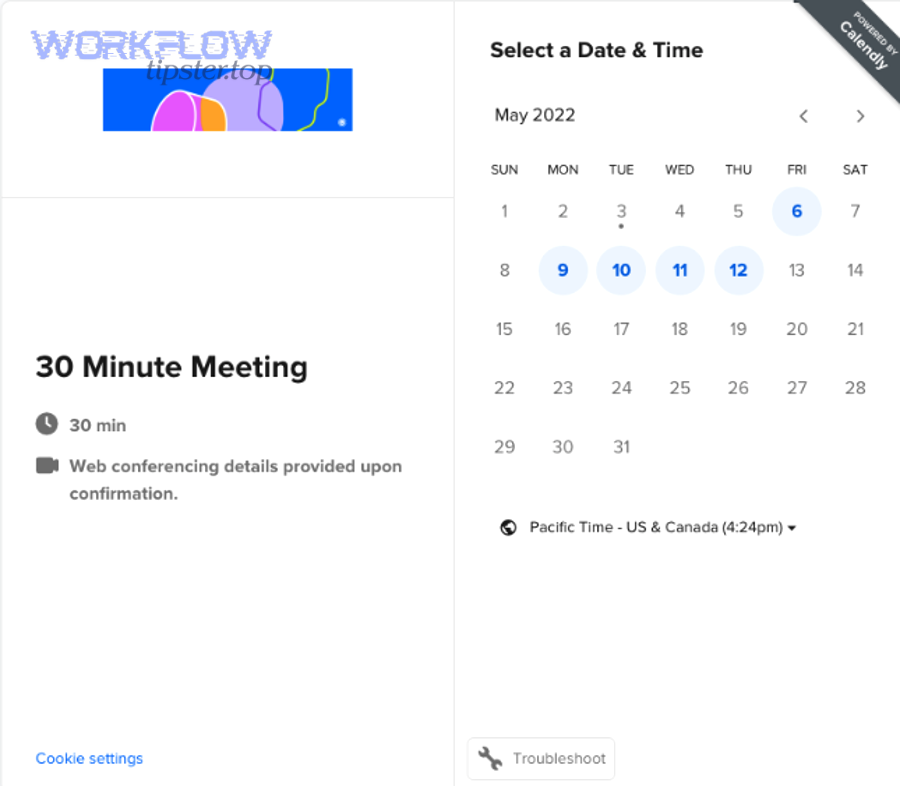
What data should flow from Calendly into Microsoft Teams and Linear?
The data should flow in two layers: meeting logistics (needed for attendance) and execution context (needed for work), because Teams and Linear solve different problems.
Layer 1: Meeting logistics (Calendly → Teams)
- Event type name (used as the meeting title or a consistent prefix)
- Host name and calendar owner (for meeting ownership clarity)
- Invitee name + email (for attendee list, follow-up, and routing)
- Start time, end time, and time zone (for correct scheduling across regions)
- Location output (which becomes the Microsoft Teams join information when conferencing is enabled)
- Reschedule/cancel status (so invites stay accurate)
If you enable Microsoft Teams conferencing correctly, Calendly can generate Teams details automatically and place them into the invite and confirmation flow, which removes the most common “manual join link” bottleneck. (help.calendly.com)
Layer 2: Execution context (Calendly → Linear)
- Purpose (your custom questions, meeting reason, or routing label)
- Account or project identifier (if you schedule with customers, partners, or internal stakeholders)
- Desired outcome (what “done” looks like after the meeting)
- Pre-reads or links (docs, tickets, relevant PRDs)
- Ownership rules (team, assignee, and watchers)
- Follow-up timing (SLA or due date if your workflow requires it)
A simple but powerful pattern is to create a Linear issue description template that always includes:
- “Meeting details” section (date/time, participants)
- “Context” section (answers to Calendly questions)
- “Agenda” section (optional)
- “Decision / Next steps” section (filled post-meeting)
That template is how you turn a scheduling event into an execution artifact your team can actually use—without relying on memory.
How does the workflow change when a meeting is rescheduled or canceled?
Reschedules and cancellations are where “automation” either saves you or creates chaos, so your workflow must treat them as first-class events.
A reliable lifecycle uses this rule:
- Scheduled → Rescheduled: update the same Linear issue and reflect the new time; avoid creating a second issue.
- Scheduled → Canceled: update the Linear issue state (or add a comment) so the team doesn’t act on a dead meeting.
- Canceled → Rebooked: create a new issue only if the booking is truly new, not a reschedule.
Operationally, this means your automation should keep a stable identifier that ties the Calendly booking to one Linear issue. When the booking changes, you locate the existing issue, update it, and append a clear note like “Rescheduled from X to Y” or “Canceled by invitee.”
This approach keeps the “hook chain” intact: a meeting becomes a task, a task stays the task, and the team maintains one source of truth.
Is it possible to automate Teams meeting creation from Calendly without manual steps?
Yes—automating Teams meeting creation from Calendly is possible because Calendly can generate Microsoft Teams conferencing details automatically, keep them consistent on reschedules, and reduce human error that happens when people paste links manually. (help.calendly.com)
Next, the key is to treat conferencing as a configuration problem, not an automation problem: if conferencing is right, the rest of the chain becomes easier.
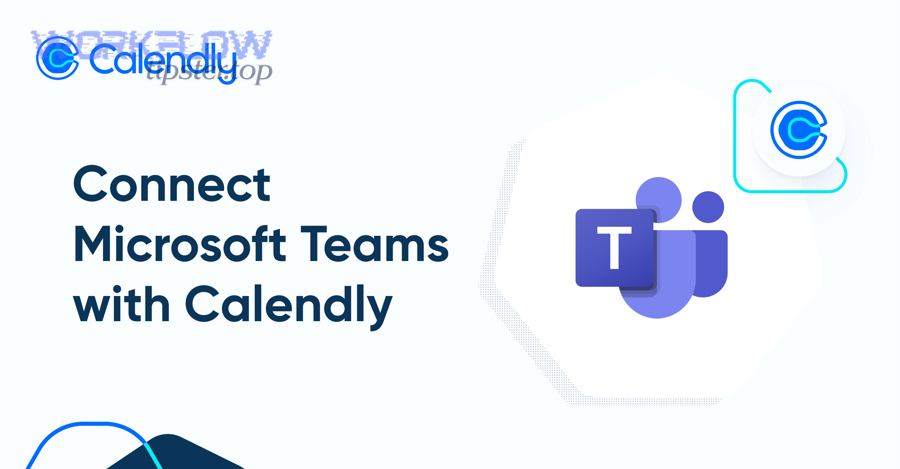
How do you enable Microsoft Teams conferencing for each Calendly event type?
You enable Teams conferencing at the point where Calendly decides what “location” is for the event, because that’s what drives whether invitees see a join link or a generic placeholder.
A durable setup process looks like this:
- Confirm Teams is supported as a conferencing option in your Calendly environment.
- Connect the correct Microsoft account to Calendly (the account that owns the calendar and will host meetings).
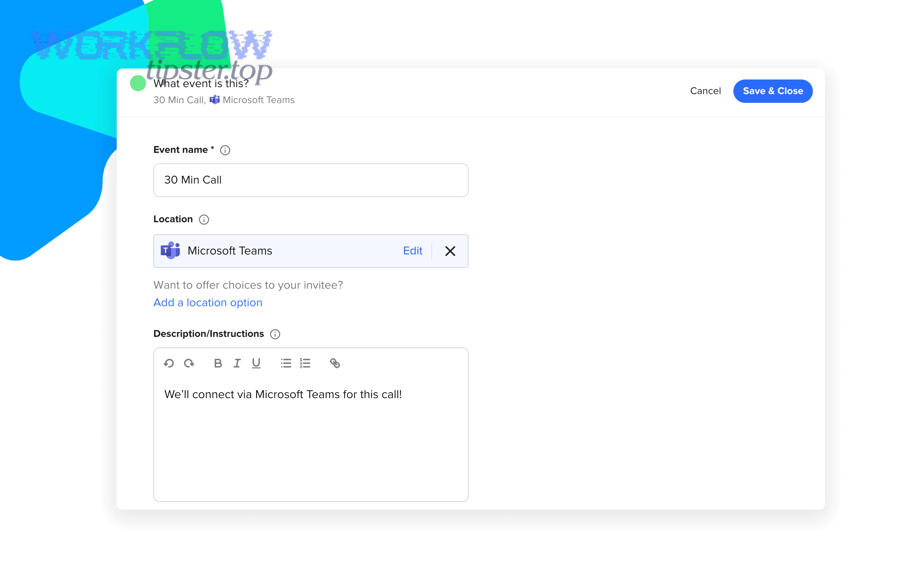
- Set Microsoft Teams conferencing as the location for the event type(s) that should always be a Teams call.
- Test schedule a meeting from an incognito window to confirm:
- The confirmation email includes Teams join details
- The calendar event includes Teams join details
- The join link remains correct after rescheduling
Calendly documents Microsoft Teams conferencing as an integration that automatically creates Teams links and adds conferencing details to invites and confirmation emails, which is exactly what you want when your goal is “no manual steps.” (help.calendly.com)
A practical tip for product teams: define a naming convention like:
- “Discovery – {Invitee Company}”
- “Sprint Review – {Team Name}”
- “Bug Triage – {Project}”
Even if Calendly’s meeting title formatting differs by environment, consistency in event type naming helps downstream routing into Linear.
What are the common permission and account-connection requirements to make this work reliably?
Most Teams-link failures come from identity and policy mismatches, so reliability depends on connecting the right accounts and respecting Microsoft admin constraints.
Common requirements and failure points:
- Microsoft account type matters: some organizations restrict conferencing creation to specific licenses or managed accounts.
- Tenant policies can block auto-creation: administrators may restrict third-party integrations or app permissions.
- Wrong account connected: if the calendar owner differs from the Teams host identity, links may not generate as expected.
- Multi-user teams: if multiple teammates use Calendly, each person may need to connect their own Teams account to ensure meetings are created under the correct host identity.
If your organization uses centralized governance, coordinate with your Microsoft 365 admin early. The fastest automation is the one that doesn’t get blocked by policy after you’ve already built the rest of the workflow.
According to a study by the University of California, Irvine from the Department of Informatics, in 2008, workers experienced measurable stress and performance impacts associated with interruptions and task switching. (ics.uci.edu)
What are the main ways to connect Calendly bookings to Linear issues or tasks?
There are three main ways to connect Calendly bookings to Linear issues based on your control requirements: no-code automation, webhooks/API integration, and hybrid orchestration, because each option trades speed for flexibility and governance.
Then, to choose correctly, you should decide what you need most: fastest deployment, strongest reliability controls, or deepest customization.
Which approach should you choose: no-code automation vs API/webhooks?
No-code automation wins when you want speed and maintainability with common patterns.
API/webhooks win when you need precision, scale, and full lifecycle control.
Here’s how to decide:
Choose no-code automation if you need:
- Fast setup for a single team
- Standard routing rules (event type → team/label)
- Simple update behavior (reschedule → update)
- Easy maintenance by non-engineers
This is where “automation workflows” become an operational asset: a product ops lead can adjust routing rules without an engineering sprint.
Choose API/webhooks if you need:
- Strong deduplication (idempotency keys)
- Advanced branching and validation
- Custom mapping (multiple Linear teams, complex templates)
- High-volume scheduling with reliability guarantees
Choose hybrid if you need both:
- Use native conferencing and event types inside Calendly
- Use automation tooling for the common path
- Use a lightweight service for idempotency, audit logging, and edge-case handling
Linear’s developer documentation and schema support issue creation and updates with rich fields (labels, assignee, state), which makes both no-code actions and API implementations feasible—as long as you define your issue model first. (linear.app)
What should the Linear issue “shape” be for product teams?
A good Linear issue shape should be consistent, scannable, and decision-ready—because the purpose is not “recording a meeting,” it’s turning a meeting into action.
A baseline issue template for product teams:
- Title: “Meeting: {Event Type} — {Invitee/Stakeholder} — {Date}”
- Description:
- Meeting details (time, participants, Teams join link if you include it)
- Context (Calendly Q&A)
- Agenda (optional)
- Desired outcome
- Next steps (to fill during/after)
- Team: determined by event type (Product, Design, Eng, Support)
- Labels: “Discovery,” “Customer,” “Bug triage,” “Internal sync”
- State: “Triage” or “Backlog” initially
- Assignee: host, rotating owner, or auto-route based on event type
- Due date: optional, typically within 24–72 hours if follow-up is expected
If your org uses labels heavily, Linear’s docs emphasize labels as a way to categorize issues at workspace or team scope, which is useful when your scheduling events span multiple teams but you still want consistent taxonomy. (linear.app)
To make this real, include one example in your workflow playbook:
- If the event type is “User interview,” label = “Research,” state = “Planned,” team = “Product”
- If the event type is “Bug triage,” label = “Bug,” state = “Triage,” team = “Engineering”
This is how you convert a booking into a work artifact that’s aligned with how your team already ships.
How should you map Calendly fields into Linear to avoid duplicates and misrouting?
Calendly-to-Linear mapping should prioritize one booking = one issue, which means you must define a deduplication key, enforce routing rules, and update the same issue on reschedules—otherwise your backlog fills with duplicates and your team loses trust.
Next, once trust is lost, people bypass the workflow and go back to manual coordination—so mapping is the technical heart of adoption.
What is the best deduplication key for “one meeting = one Linear issue”?
The best deduplication key is the Calendly booking’s stable identifier (such as a booking URI/UUID), because it remains constant across updates and lets you locate the correct Linear issue every time.
Use a simple hierarchy:
- Best: Booking UUID/URI from Calendly event payload (stable, unique)
- Good: Combination key
{event type} + {invitee email} + {start timestamp} - Fallback: Hash of critical fields if the platform doesn’t expose an explicit ID
Then store that key in Linear in a consistent place:
- A dedicated field if your tooling supports it
- A standard line in the issue description like:
Calendly Booking ID: ... - A label or tag only if you must (less ideal for uniqueness)
Why this matters: reschedules often fire a new event payload, and without idempotency you’ll create a second issue that looks “valid” but is wrong.
A practical rule for reschedules:
- If booking ID exists in Linear → update that issue
- If it doesn’t → create a new issue and write the booking ID immediately
That one rule prevents the most common “duplicate issue spiral.”
How do you route Linear ownership by event type, team, or calendar owner?
Ownership routing works best as a rule engine, because scheduling is predictable when you decide the routing logic upfront.
A robust routing approach:
- Event type → Team
- “Customer escalation” → Support/Success team
- “Discovery” → Product team
- “Technical deep dive” → Engineering team
- Event type → Labels
- Discovery → “Research”
- Demo → “Go-to-market”
- Bug triage → “Bug”
- Calendar owner → Assignee
- If Alice is host → assign to Alice
- If it’s a round-robin event type → assign to the booked host automatically
- Invitee domain/company → Priority
- Enterprise domain → higher priority
- Internal domain → normal priority
To avoid misrouting, add a “last mile” validation:
- If team is missing → route to a default triage team
- If assignee is missing → assign to the host or a rotating queue owner
- If labels don’t exist → create a safe default label set or omit labels rather than failing the workflow
This is also where you can safely mention adjacent patterns without breaking focus. For example, teams that already run calendly to calendly to google meet to linear scheduling often want the same ownership routing logic, just with a different conferencing source.
According to a study by the University of California, Irvine from the Department of Informatics, in 2008, interruptions and task switching were associated with measurable stress and disrupted focus, reinforcing why eliminating “manual fixes” inside a workflow protects team attention. (ics.uci.edu)
What are the most common failures in this workflow and how do you troubleshoot them?
The most common failures are missing Teams join links, Linear issue duplication, and field-mapping mismatches, and you troubleshoot them fastest by checking configuration first (accounts, conferencing, triggers) before debugging the automation logic.
Then, once you fix the root cause, you should document it as a playbook step so the system becomes self-healing rather than dependent on tribal knowledge.
Why do Teams links fail to appear or get removed from invites?
Teams links usually fail for three reasons: conferencing isn’t enabled correctly, the wrong Microsoft identity is connected, or admin policy blocks the integration.
A troubleshooting checklist:
- Confirm Teams conferencing is enabled for the event type
- If the event type location isn’t set to Microsoft Teams, Calendly won’t generate the join details.
- Verify the correct Microsoft account is connected
- The hosting identity must match the expected calendar owner or conferencing host.
- Test in a clean environment
- Use an incognito browser to book a meeting and confirm the invite includes Teams details.
- Check organization policy
- If you suspect restrictions, ask your Microsoft admin whether third-party conferencing creation is permitted.
Calendly’s help documentation describes Microsoft Teams conferencing as generating Teams links automatically and adding details to invites and confirmation emails, so when links are missing, the issue is almost always configuration or permissions—not the concept itself. (help.calendly.com)
If your team also uses other conferencing stacks, keep your system consistent: a workflow like calendly to google calendar to google meet to clickup scheduling succeeds for the same reason—conferencing must be deterministic at the event-type level, not improvised at scheduling time.
Why do Linear issues fail to create or create twice?
Linear issue creation fails or duplicates when triggers fire more than once, mappings are invalid, or reschedules are treated as “new bookings.”
A troubleshooting checklist:
- Validate trigger behavior
- Ensure only “invitee scheduled” creates a new issue.
- Ensure “rescheduled/canceled” updates the existing issue.
- Confirm deduplication key exists
- If you can’t locate the issue by booking ID, you will create duplicates.
- Verify required fields
- Linear often needs team/project context for issue creation; missing team mapping can cause failure.
- Check labels and states
- If you’re applying labels, make sure they exist and are scoped appropriately for the target team.
- Inspect error logs
- Authentication failures, expired tokens, or permission errors usually show up clearly in automation logs.
A practical “trust rebuild” move is to add a visible “Automation Status” line in the Linear issue description:
- “Created automatically from scheduling workflow”
- “Last updated: {timestamp}”
- “Booking ID: {id}”
That transparency reduces confusion and helps humans debug without opening five tools.
According to a study by the University of California, Irvine from the Department of Informatics, in 2008, frequent interruptions and the effort to resume work after them were associated with stress and disrupted work patterns, underscoring why automation reliability directly protects productivity. (ics.uci.edu)
How can you optimize and govern a “Manual → Automated” scheduling workflow for scale?
You can optimize and govern this workflow by adding idempotency, audit-friendly logging, and policy-aligned data handling, because scaling scheduling automation is less about adding features and more about preventing failure modes that multiply with volume.
Next, you should treat “governance” as part of product quality: if the workflow creates confusion, duplicates, or data risk, teams will revert to manual work.
What’s the best way to keep Linear issues in sync across reschedules and cancellations?
The best way is to implement a simple lifecycle contract: create once, update forever, close intentionally.
A clean lifecycle contract:
- On schedule: create a new Linear issue and store the booking ID
- On reschedule: update the same issue (time, notes) and append a reschedule note
- On cancel: move the issue to a “Canceled” state (or add a label) and notify the owner
- On completion: move to “Done” only when follow-up actions are complete
To preserve clarity, standardize the update message format:
- “Rescheduled: {old time} → {new time}”
- “Canceled: {who canceled}”
- “Completed: Notes captured and next steps logged”
If your automation tooling supports it, also add a “meeting metadata block” at the top of the issue description and only rewrite that block—so human notes below it are never overwritten.
This keeps Hook chain 2 intact: the answer in the H2 (“sync across changes”) becomes the answer in the H3 (“create once, update forever”) and then expands into a stable operating system your team can follow.
How do you handle multi-user Calendly teams and multiple Microsoft tenants without breaking permissions?
Multi-user teams and multi-tenant environments require an explicit ownership model, because “who hosts the meeting” and “who owns the task” can differ across organizations.
A strong ownership model includes:
- Per-user account connections where each scheduler connects their own Microsoft Teams account
- Centralized routing rules where event type determines which Linear team receives issues
- A fallback owner for orphan events (if a user disconnects an account or leaves the company)
- Token hygiene (monitor token expiry and permissions changes)
If your organization spans multiple Microsoft tenants, avoid assuming a single Teams identity can host all meetings. Instead:
- Keep event types tenant-specific where needed
- Ensure the person hosting the meeting belongs to the tenant that can create the Teams conference
- Use a consistent governance process for approving integrations
This is where you keep the workflow scalable without making it fragile.
What are the rate-limit and reliability patterns for high-volume scheduling teams?
High-volume reliability depends on controlling retries, preventing duplicates, and making failures visible quickly.
Core patterns:
- Retry with backoff for transient failures (network errors, temporary API issues)
- Idempotency checks before every create action (booking ID lookup)
- Queueing if your automation platform allows it (to smooth bursts)
- Dead-letter handling (capture failed events for manual review instead of dropping them)
- Monitoring with alerts when failure rate exceeds a threshold
Practical operational metrics:
- % of bookings that produced a Linear issue within 60 seconds
- Duplicate creation rate
- % of reschedules that updated the original issue successfully
- Time zone mismatch incidents per month
As volume increases, even small error rates become visible pain, so you want observability before the workflow becomes “mission critical.”
What governance and compliance practices reduce risk when syncing meeting data into Linear?
Governance is about copying only what is necessary and ensuring the right people can see it.
Best practices:
- Data minimization: store only what the team needs to execute (avoid sensitive personal data unless required)
- Controlled visibility: route issues to the correct team spaces with appropriate permissions
- Retention awareness: don’t paste confidential meeting links or private notes if your org’s policy restricts it
- Auditability: store the booking ID and creation timestamp so you can trace how the issue was created
- Consistent templates: reduce free-form data sprawl by standardizing the issue structure
This is also a safe place to broaden semantic coverage with related workflow families: if your organization already documents patterns like airtable to confluence to box to pandadoc document signing, apply the same governance logic—minimize copied data, keep ownership clear, and build audit trails that match how the business operates.
According to a study by the University of California, Irvine from the Department of Informatics, in 2008, the disruption caused by interruptions was linked to reduced ability to sustain deep concentration, reinforcing that clean governance reduces “attention debt” created by messy systems. (ics.uci.edu)