


Yes—connecting Basecamp to Microsoft Excel is possible, and it’s one of the most practical ways for project managers to turn scattered project activity into a single, report-ready tracker that stays useful week after week.
Next, you’ll want to choose the right approach for your workflow: do you need real-time automation that creates rows as work happens, a connector that refreshes a dataset on demand, or a clean export you can analyze monthly?
Then, once the method is clear, the real win comes from mapping Basecamp fields to Excel columns in a way that prevents duplicate rows, preserves task ownership, and keeps due dates and status consistent as projects evolve.
Introduce a new idea: after the setup basics, you can also plan for version differences, security, and reliability patterns so your Basecamp-to-Excel pipeline scales from “my personal tracker” to “team-wide reporting” without breaking.
Is it possible to connect Basecamp to Microsoft Excel for automated tracking?
Yes—Basecamp to Microsoft Excel automated tracking works because you can (1) sync new Basecamp items into Excel rows, (2) refresh Basecamp data into Excel for reporting, and (3) export Basecamp data for structured analysis without manual copy-paste.
To begin, the best setup depends on whether you want a living spreadsheet that updates as work changes, or a reporting snapshot that you refresh on a schedule.
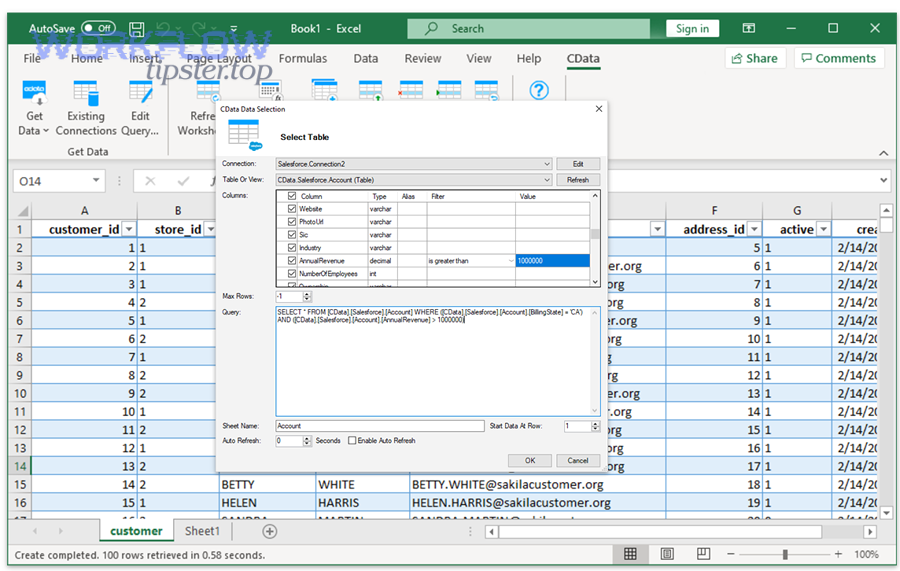
In practice, “connect Basecamp to Excel” means you are creating a reliable data flow from Basecamp objects (projects, to-dos, assignments, due dates, completion states) into Excel rows and columns. Automated tracking becomes valuable when Excel stops being a manual status board and becomes a system that answers routine PM questions:
- What’s due this week across all projects?
- Which owner has the highest workload?
- Which tasks are overdue or blocked?
- Which projects are trending late based on completion rate?
Three practical paths cover almost every project management scenario:
- Automation platform sync (event-driven): when a new Basecamp event occurs (a new to-do, a new project, a task completion), create or update an Excel row.
- Connector/add-in refresh (dataset-driven): pull Basecamp data into Excel as a table and refresh it manually or on a set frequency.
- Export/import (snapshot-driven): export Basecamp data and transform it into an Excel-friendly structure for analysis and archiving.
Most PMs start with automation sync because it produces the most “alive” tracker: the spreadsheet updates as the team works, which supports daily standups and weekly reviews. However, if your main goal is portfolio reporting and you care about accuracy over immediacy, a refresh-based connector can be cleaner because it pulls a consistent dataset rather than incremental changes.
The key to automated tracking is not the tool—it’s the data model. If you store stable identifiers (Project ID, To-do ID) and treat Excel as a reporting surface rather than a second project management tool, you’ll get automation that stays stable even when task names, due dates, and assignees change.
What does “Basecamp to Excel integration” mean for a project manager?
Basecamp to Excel integration is a project reporting pipeline that moves Basecamp work data into an Excel table so project managers can track status, ownership, due dates, and progress trends with consistent columns, refresh rules, and repeatable reporting views.
Next, the integration becomes easier to maintain when you define exactly what data should move and what “good tracking” looks like in Excel.

For a project manager, Basecamp is where the work happens, while Excel is often where decisions happen. Basecamp captures tasks and collaboration in context; Excel converts that activity into structured signals: backlog size, risk levels, workload distribution, and delivery probability.
To keep terminology consistent, this article will use these terms:
- Sync: Excel updates as Basecamp events occur (often row-by-row).
- Refresh: Excel re-pulls Basecamp data as a dataset (often table refresh).
- Export: you generate a Basecamp data file and transform it for Excel.
- Tracker schema: the columns you standardize in Excel to keep reports consistent.
What data should a PM expect to move from Basecamp into Excel?
There are 6 main types of Basecamp-to-Excel tracking data: projects, to-do lists, to-dos, assignees, due dates, and status metadata, based on the criterion of “what changes PM decisions weekly.”
Specifically, the minimum viable dataset for PM reporting is the one that lets you answer “who owns what, by when, and what’s the current state.”

Start with a compact set of columns that can scale:
- Project Name
- Project ID (stable identifier used for dedupe and lookups)
- To-do List
- To-do Title (the readable task label)
- To-do ID (stable identifier, the most important key)
- Assignee (owner responsible for delivery)
- Due Date (delivery target)
- Status (e.g., Open, Completed, Overdue)
- Updated At (helps you detect stale sync)
- URL (click-through back to Basecamp context)
Then add “PM upgrade” fields only after the basics are stable:
- Priority (High/Medium/Low)
- Blocked (Yes/No + reason column)
- Milestone (if you run milestone-driven delivery)
- Last Synced (timestamp of the Excel-side update)
This selection is intentionally root-focused: it covers the most common reporting needs without forcing Excel to understand every detail of Basecamp’s collaboration content.
What’s the difference between syncing Basecamp to Excel and exporting Basecamp to Excel?
Syncing wins in freshness, exporting wins in simplicity, and refresh-based connectors are optimal for portfolio reporting when you need consistent datasets rather than incremental updates.
However, choosing correctly requires you to match your reporting cadence and governance needs to the data flow.

Think of the three approaches as different “truth models”:
- Sync (event-driven): your Excel sheet grows and updates as Basecamp events happen. This is best for daily operational tracking.
- Refresh (dataset-driven): your Excel table is repopulated from Basecamp data on demand or on schedule. This is best for stable weekly or monthly reporting.
- Export (snapshot-driven): you generate a Basecamp export and transform it. This is best for audits, backups, and one-time analysis.
Sync can be fragile if you don’t use stable IDs because task titles and list names change over time. Exports are robust because they capture a point-in-time dataset, but they can become stale quickly. Refresh connectors can deliver a clean middle path by letting you standardize a table and refresh it at your reporting cadence.
Most project managers benefit from a hybrid: sync into a “raw data” sheet, then build a separate “report” sheet with pivots and charts. That keeps your reporting stable even when the raw sync changes.
Which integration method should you choose: automation, connector, or export/import?
Automation wins for ongoing task tracking, connectors are best for repeatable reporting, and export/import is optimal for one-off analysis and audits—so your best choice depends on refresh frequency, data volume, and whether you need write-back.
Meanwhile, a simple decision framework prevents you from building an over-engineered pipeline that your team won’t maintain.
This table contains a practical comparison of the three methods so you can choose the approach that matches your delivery cadence and governance requirements.
| Method | Best for | Refresh/Freshness | Complexity | Risk |
|---|---|---|---|---|
| Automation sync | Daily tracking, operational dashboards | Near real-time | Medium | Duplicates, mapping drift |
| Connector/add-in refresh | Weekly/monthly reporting, analytics | On demand / scheduled | Medium | Access scope, refresh failures |
| Export/import | Audits, backups, one-time analysis | Snapshot | Low to medium | Stale data, manual transforms |
When is a no-code automation (trigger → Excel row) the best fit?
A no-code automation is the best fit when you want Basecamp activity to automatically create or update Excel rows in near real-time, especially for new to-dos, new projects, and task completions that power daily standups and weekly reviews.
More specifically, automation works best when the spreadsheet is a living tracker rather than a static report.

Choose automation when you need these outcomes:
- Immediate visibility: a new Basecamp to-do appears in Excel without anyone remembering to export.
- Consistent ownership reporting: assignee and due date are captured as soon as the task is created.
- Operational rhythm: the sheet supports daily tracking, not just monthly reporting.
To keep automation clean, your pipeline should use a unique key (usually the To-do ID) and follow a consistent pattern: find row by ID → update row if found → create row if not found. That single pattern prevents duplicates and protects the integrity of pivots.
Automation is also where “Automation Integrations” becomes a strategic concept: you are not just connecting tools—you are creating a repeatable reporting system that reduces status-meeting overhead and keeps accountability visible.
When is an Excel connector/add-in the best fit?
An Excel connector/add-in is the best fit when you want to pull Basecamp data as a structured dataset into an Excel table and refresh it reliably for weekly or monthly reporting, often with better control over filtering, schema, and analytics readiness.
In addition, connectors shine when you want the spreadsheet to remain the single reporting surface while Basecamp remains the single source of truth.

Connectors are ideal when:
- You have many projects and want portfolio-level views.
- You need consistent datasets (not incremental row events) for governance.
- You want to reduce the risk of duplicates by pulling the table “fresh.”
From a PM perspective, the connector method supports a clean architecture: a “Data” table that refreshes from Basecamp, and a “Reporting” area that uses Excel pivots, slicers, and charts. This architecture is scalable because the reporting logic never touches the raw data structure.
When is export/import the best fit?
Export/import is the best fit when you need a Basecamp snapshot to analyze, audit, or archive in Excel, especially when automation is unnecessary or restricted by security policies, budget constraints, or one-time reporting needs.
Besides simplicity, export/import often becomes the fastest path for compliance and executive reporting.

Export/import works best when:
- You run monthly governance reviews and only need a point-in-time view.
- You need audit trails and offline storage.
- Your organization restricts automation tools, but allows exports.
The trade-off is freshness: exports are correct for the moment they are generated, but they quickly become stale if work changes daily. The solution is to standardize the export routine: define who exports, how often, and how the files are transformed into a stable Excel schema.
How do you set up Basecamp → Excel automation to create/update rows from new work items?
The most reliable Basecamp → Excel automation is a 6-step workflow—connect accounts, choose a trigger, define the Excel table, map fields, dedupe by ID, and test edge cases—so each new or updated Basecamp item becomes a clean Excel row you can report on.
Let’s explore the workflow in a way that stays tool-agnostic and focuses on what makes automation stable.

Step 1: Define your tracker goal. Decide whether the automation will track projects, to-dos, or both. Most PMs start with to-dos because they drive deadlines and ownership.
Step 2: Create an Excel table (not a loose range). Use a structured table with headers so new rows behave predictably and pivots stay stable.
Step 3: Choose a Basecamp trigger. Common triggers include “new to-do,” “to-do completed,” “new project,” and “new comment.” Start with one trigger and scale later.
Step 4: Map fields to columns. Map identifiers first (Project ID, To-do ID), then human-readable fields (title, assignee, due date), then meta fields (updated time, URL).
Step 5: Add a dedupe rule. Use To-do ID as the unique key and perform a “find row by key” before writing.
Step 6: Test edge cases. Test tasks with no assignee, no due date, multiple assignees, and tasks moved between lists.
If you also run adjacent workflows like google calendar to asana scheduling sync, keep your automation architecture consistent: one tool remains the source of truth for planning, and Excel remains the reporting layer. That prevents competing systems from overwriting each other.
How do you map Basecamp fields to Excel columns to avoid messy spreadsheets?
To avoid messy spreadsheets, map Basecamp fields into a normalized Excel schema where stable IDs come first, status fields are standardized, and text fields remain human-readable—so Excel can filter, pivot, and dedupe without breaking as Basecamp content changes.
Specifically, good mapping turns Basecamp’s flexible collaboration data into a consistent reporting structure.

Use a “three-layer” column strategy:
- Layer 1 (keys): Project ID, To-do ID, and optionally List ID. These enable dedupe and updates.
- Layer 2 (reporting fields): Project Name, List Name, To-do Title, Assignee, Due Date, Status.
- Layer 3 (stability fields): Updated At, Last Synced, URL, Notes/Blocker Reason.
Then standardize status so it never becomes free text. A simple PM-friendly status taxonomy is enough:
- Open (not completed, not overdue)
- Overdue (due date < today and not completed)
- Completed (completed flag true)
Finally, keep “Assignee” consistent. If Basecamp allows multiple assignees, decide whether you’ll store:
- Primary Assignee (single owner for accountability), or
- Assignee List (comma-separated text for visibility), or
- One row per assignee (advanced reporting, higher complexity).
For most PM trackers, primary assignee is the most practical because it keeps pivots clean and aligns with accountability.
How do you prevent duplicates when the same Basecamp item syncs more than once?
You prevent duplicates by using the Basecamp To-do ID as a unique key and enforcing a “lookup then write” rule—update the existing Excel row when the ID already exists, and only create a new row when the ID is missing.
However, duplicates often appear when the sheet lacks a stable key or when a pipeline writes “create row” without checking for existing records.

Use these three safeguards together:
- Unique key column: store To-do ID in a dedicated column and never edit it manually.
- Idempotent write pattern: “find row by To-do ID → if found, update; else, create.”
- Duplicate detection rule: add an Excel conditional formatting or a helper formula to flag repeated IDs.
Also be careful when tasks move between lists or projects. The To-do ID should remain the same, but fields like “List Name” may change. Your update logic should overwrite the list/project fields so the tracker reflects the current work location.
If you manage engineering work and also run workflows like clickup to bitbucket issue and commit linkage, the same principle applies: always store stable IDs in your reporting layer, and treat the spreadsheet as an analytics surface, not a workflow engine.
How do you build an Excel project tracker that stays PM-friendly as the sheet grows?
You build a PM-friendly Excel project tracker by using a normalized task table, a separate reporting layer (pivots and dashboards), and a small set of standardized fields—so the spreadsheet remains fast to filter, easy to review weekly, and stable as projects scale.
More importantly, tracker design determines whether your Basecamp-to-Excel integration becomes a time saver or a new maintenance burden.

The best architecture is two-sheet (or two-area) by intent:
- Raw Data (sync/refresh output): a single table where automation writes rows.
- Reports (PM views): pivots, charts, and filtered tables that reference the raw data table.
This separation protects your reporting from accidental changes. Your automation can add new rows and update existing ones, while your PM views stay stable.
What columns should a Basecamp-to-Excel project tracker include?
There are 2 main sets of Basecamp-to-Excel tracker columns—must-have and nice-to-have—based on the criterion of “whether the field changes PM decisions in a weekly review.”
To illustrate, must-have fields support ownership, deadlines, and status, while nice-to-have fields support prioritization and risk management.

Must-have columns (start here):
- Project Name
- Project ID
- To-do Title
- To-do ID
- Assignee
- Due Date
- Status (Open/Overdue/Completed)
- URL
Nice-to-have columns (add after stability):
- Priority
- Blocked (Yes/No)
- Blocker Reason
- Milestone
- Updated At
- Last Synced
This table contains a clean column blueprint you can copy into your Excel header row to keep naming consistent across projects and teams.
| Column | Type | Purpose |
|---|---|---|
| To-do ID | Key | Dedupe, updates, stable linking |
| Project ID | Key | Portfolio grouping and filtering |
| Assignee | Reporting | Workload and accountability |
| Due Date | Reporting | Schedule tracking and risk |
| Status | Reporting | Weekly review readiness |
| Last Synced | Stability | Detect stale automation |
How do you group tasks in Excel to match how Basecamp teams actually work?
There are 4 main ways to group Basecamp tasks in Excel—by project, by workstream (to-do list), by owner, and by time window—based on the criterion of “how PMs review progress and risk in real meetings.”
Next, choose the grouping that matches the cadence of your management rhythm: daily standup, weekly review, or monthly portfolio check.

Use these grouping patterns:
- Project → Owner: best for weekly accountability and workload balancing.
- Project → Workstream (List): best for cross-functional teams where lists represent phases or departments.
- Owner → Due Date: best for personal task planning and coaching.
- Due Date window (This week / Next week / Overdue): best for risk and delivery forecasting.
For PM-friendly reporting, build three views:
- Weekly Commitments: tasks due in the next 7 days grouped by owner.
- Overdue & At Risk: tasks overdue or missing due dates grouped by project.
- Workload Heatmap: task counts by owner and status using a pivot.
This structure aligns with how teams actually talk about work: what’s due soon, what’s blocked, and who needs support.
What problems happen most often—and how do you fix them quickly?
There are 5 common Basecamp-to-Excel integration problems—date mismatches, missing data, duplicates, stale refresh, and permission errors—based on the criterion of “what breaks PM reporting the fastest,” and each can be fixed by checking keys, formats, access scope, and refresh rules.
Thus, troubleshooting becomes easier when you diagnose from the Excel symptom back to the Basecamp data source.

Quick diagnostic checklist:
- Dates look wrong: check time zone and date parsing formats.
- Rows missing: check permissions, filters, and whether the trigger covers the object type.
- Duplicates appear: check if To-do ID exists and update logic is used.
- Sheet stops updating: check authentication expiry and refresh scheduling.
- Status inconsistent: standardize a status taxonomy derived from completion and due date rules.
Why are due dates or times “wrong” after syncing to Excel?
Due dates or times look “wrong” after syncing because Excel interprets dates using locale and time zone rules, while Basecamp data may arrive as timestamps, UTC values, or text strings—so normalizing date formats and time zones fixes the issue reliably.
However, date issues often feel random because the spreadsheet silently converts values without obvious warnings.

Fix date problems with three steps:
- Normalize the incoming date type: ensure the integration writes a real date value, not a mixed text string.
- Standardize the display format: set the column format to a single date standard (e.g., YYYY-MM-DD) for consistent sorting.
- Separate date from time: if you only need due dates, store only the date to avoid time zone shifts.
Also watch for these edge cases:
- No due date: blank values may be interpreted as zero dates or “1900-01-00” style artifacts in some contexts.
- Time zone conversion: a midnight timestamp can shift to the prior day depending on conversion rules.
- Locale parsing: 02/03 may become March 2 or February 3 depending on region settings.
When you fix date normalization once at the integration layer, your pivot tables and “overdue” formulas become dramatically more reliable.
Why is some Basecamp data missing from Excel?
Basecamp data is missing from Excel because the integration may lack permissions, the trigger may not cover certain object types, filters may exclude items, or dataset refresh may be limited—so expanding access scope, reviewing filters, and validating object coverage restores completeness.
In addition, missing data usually has a pattern, which makes it diagnosable rather than mysterious.

Check these common causes in order:
- Permissions: the connected account may not have access to all projects or teams.
- Object coverage: your setup may sync only to-dos but not messages, or only new items but not historical items.
- Filters: “only assigned to me” or “only specific projects” filters can hide expected rows.
- Pagination/limits: large datasets may require pagination; incomplete pulls can occur if limits are hit.
- Archiving behavior: archived projects or completed lists may not appear in default views.
A simple validation method is to pick one Basecamp project, count the to-dos in Basecamp, then count the matching rows in Excel filtered by Project ID. If the counts differ, the gap points to either filter rules or permissions.
Finally, build a reliability signal into your tracker: a “Last Synced” timestamp and an “Expected Row Count” check. When those two signals are visible, PMs detect issues early instead of discovering them during a reporting deadline.