


Syncing Asana to Outlook Calendar works best when you treat it as a visibility system: you decide what task dates should appear as calendar events, then you configure either a one-way feed or a managed integration so your team sees deadlines in the same place they schedule meetings.
Next, the most important choice is whether your team needs one-way syncing (simple, stable, and “calendar is a mirror”) or two-way syncing (more control, but higher risk of conflicts and governance needs), because that decision shapes every setup step and expectation afterward.
Then, you’ll want to confirm exactly what data syncs—titles, dates, descriptions, and attendees—and what does not, so no one assumes Outlook edits will update Asana when you’re using a one-way method.
Introduce a new idea: once your team aligns on the correct sync method and mapping rules, you can build a repeatable workflow that reduces missed deadlines, lowers context switching, and keeps calendars honest without turning every task into a meeting.
What does “sync Asana to Outlook Calendar” mean in practice?
Syncing Asana to Outlook Calendar means converting selected Asana task information (especially dates) into Outlook calendar events using either a one-way subscription feed or an integration that can update events when tasks change.
Then, the key is to decide whether your calendar is just a “read-only mirror” of deadlines or a two-way system where event changes can influence tasks.
In practice, “sync” usually includes three moving parts:
- Scope: which projects or My Tasks lists are included
- Direction: one-way vs two-way behavior
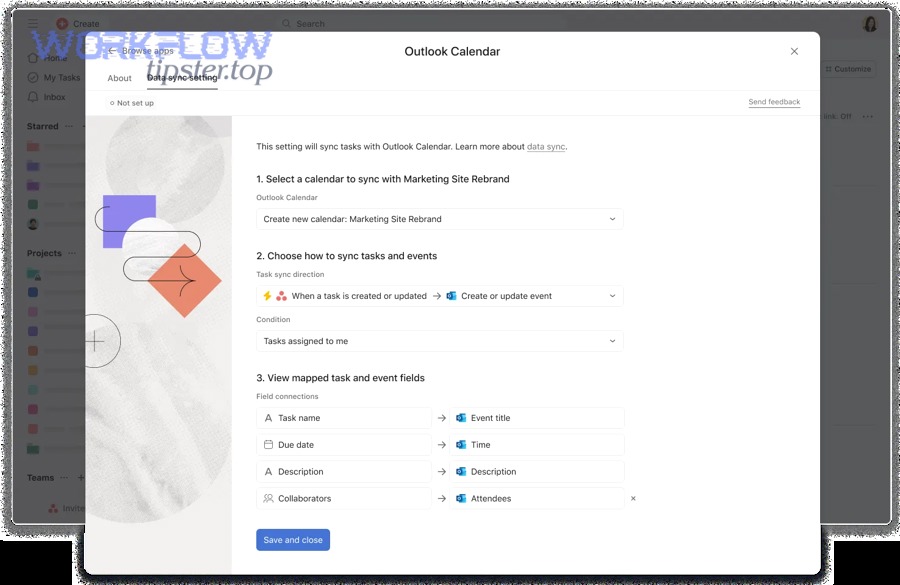
- Mapping: what task fields become event fields (title, due date, time, description, attendees)
Which Asana task dates can become Outlook calendar events (due date vs start date)?
There are 2 main date sources that can become calendar events—due date and start date/time—based on whether your setup treats tasks as deadlines (all-day) or scheduled work (timed).
Specifically, your choice should match how your team actually plans time.
1) Due date-first planning (deadline visibility)
- Best when the calendar is used to see deadlines coming.
- A task with a due date often appears as an all-day event in one-way calendar subscriptions.
- This prevents over-scheduling and keeps the calendar from pretending every task has a time slot.
2) Start date/time planning (time blocking and execution)
- Best when the calendar is used to reserve time to do work.
- Start date/time can be mapped to a timed event so the team can plan capacity.
- This is especially useful for roles with high meeting load (ops, sales support, project leads).
A practical team guideline:
- Use due dates for deliverables (what must be done by when).
- Use start date/time for work sessions (when you’ll do it).
Does the sync create new events, or does it link back to the original task?
Yes, a sync can create or update calendar events from tasks, but the “link-back” behavior depends on the method and configuration, so you should assume Asana remains the source of truth unless you intentionally implement two-way logic.
More specifically, the safest expectation is: Asana updates drive calendar changes, not the other way around.
If you use an integration that maps task fields to event fields, it can create or update events when tasks are created or updated, and it may show a widget-like association in the task experience depending on the workflow you enable.
If you use a one-way subscription method, Outlook receives calendar entries from a feed; edits in Outlook generally won’t push changes back into Asana.
Should your team choose one-way or two-way syncing between Asana and Outlook Calendar?
One-way syncing wins in simplicity, two-way syncing is best for schedule-driven execution, and a hybrid approach is optimal for teams that need deadline visibility plus selective calendar-driven automation.
However, the “right” option is the one that matches your team’s decision rights: who is allowed to change dates, and where those changes should live.
Here’s what this comparison table contains: it summarizes one-way vs two-way sync options so teams can choose based on governance, effort, and reliability.
| Criterion | One-way sync (Asana → Outlook) | Two-way sync (Asana ↔ Outlook) |
|---|---|---|
| Setup complexity | Low | Medium to high |
| Best for | Deadline visibility | Schedule-driven execution |
| Risk of conflicts | Low | Higher (duplicates/overwrites) |
| Governance needs | Minimal | Clear ownership rules required |
| What happens if someone edits Outlook event | Usually no change in Asana | May update Asana (if configured) |
| Ongoing maintenance | Low | Ongoing monitoring and rules tuning |
Is one-way Asana → Outlook Calendar enough for planning and visibility?
Yes, one-way Asana to Outlook Calendar is enough for planning and visibility because it provides a single, stable view of deadlines, reduces manual re-entry, and keeps task management centralized in Asana.
In addition, one-way sync is easier to roll out to teams because it has fewer “surprises.”
Reason 1: It prevents calendar drift
- Teams see deadlines without turning the calendar into a second task database.
- People stop “fixing” tasks by editing events, which often breaks consistency.
Reason 2: It’s the best default for cross-functional teams
- Marketing, ops, and product teams can subscribe to the same project calendar view.
- Stakeholders get visibility without needing edit rights to tasks.
Reason 3: It scales with fewer rules
- You can add more projects or lists without redesigning automation logic.
- When something goes wrong, troubleshooting is simpler: scope → mapping → refresh.
This is also where broader Automation Integrations fit: one-way sync gives you reliable visibility first, and you add automation only where it creates clear business value.
When do teams actually need two-way sync (calendar edits reflected back in Asana)?
Yes, teams need two-way sync when the calendar is the operational truth—because rescheduling events changes execution dates, dependencies, and capacity plans—and when at least three conditions are met: clear ownership, clear mapping, and a clear conflict policy.
Meanwhile, if your team can’t agree on who controls dates, two-way sync usually creates confusion.
Common two-way scenarios:
- Service teams where appointments drive task execution (e.g., onboarding steps follow scheduled sessions).
- Project leads who plan work by time blocks and want Asana tasks to “move” when calendar blocks move.
- Client-facing teams where shifting a meeting should automatically adjust follow-up tasks.
A practical rule:
- If Outlook changes are “real” and frequent, and those changes must update tasks, you need a two-way design.
- If Outlook changes are optional or personal, keep it one-way.
What are the tradeoffs: simplicity vs control vs accuracy?
One-way wins for simplicity, two-way wins for control, and hybrid wins for accuracy because it limits two-way behavior to high-signal triggers while keeping the rest of the system stable.
More importantly, you should evaluate tradeoffs using operational criteria, not features.
Simplicity (one-way)
- Fewer failure modes
- Faster onboarding
- Clearer “where to edit” rule: edit in Asana
Control (two-way)
- Calendar reschedules can update task dates
- Can align execution with real schedules
- Requires strict ownership rules to avoid “date ping-pong”
Accuracy (hybrid)
- Use one-way sync for broad visibility
- Use selected automations for high-value workflows (e.g., create a follow-up task when a meeting ends)
According to a study by the University of California, Irvine from the Department of Informatics, in 2008, interruptions and task-switching increased stress and changed work patterns during knowledge work, highlighting why clearer scheduling and fewer context switches matter.
How do you set up one-way Asana → Outlook Calendar sync step by step?
A reliable one-way Asana → Outlook Calendar setup follows 4 steps—choose the right project/list, enable the calendar sync method, subscribe in Outlook, and validate with a test task—so deadlines appear consistently without creating editing conflicts.
To better understand the process, start with the method you can deploy team-wide with minimal training.
What do you need before you start (accounts, permissions, and the right project/task list)?
There are 5 essentials you need before setup: an Outlook calendar destination, access to the Asana project or My Tasks list, clear scope, consistent task date usage, and a team rule for where edits happen.
Specifically, each essential reduces a different failure mode.
- Outlook access: you must be able to add a subscribed calendar or integration.
- Asana access: you need permission to view the tasks you want on the calendar.
- Scope clarity: pick one project/list first; don’t start with “everything.”
- Date discipline: tasks must actually have due dates (or start dates if you’re time blocking).
- Editing rule: decide “edit dates in Asana” (recommended for one-way).
If your team is already using related workflows like asana to calendly, keep the scope narrow at first: calendar sync should make deadlines visible, while scheduling tools handle meeting availability.
How do you connect and choose the correct Outlook calendar destination?
You connect by selecting which Asana project or My Tasks list should publish to a calendar feed or integration, and then you choose the correct Outlook calendar destination by aligning it with who needs visibility (personal vs shared/team calendar).
Then, choose the destination based on how many people must see it and who owns it.
- Personal calendar: for individual contributors viewing their assigned tasks
- Shared team calendar: for team-wide deadlines and milestones
- Project calendar: for cross-functional coordination and launch timelines
Asana’s Sync to Calendar approach is commonly described as subscribing by URL and is explicitly positioned as one-way from Asana to your calendar.
How do you confirm it’s working (test task, expected event behavior, first refresh)?
You confirm it’s working by creating a test task with a clear title and due date, waiting for the first refresh cycle, and verifying that the event appears with the expected all-day or timed formatting in the correct Outlook calendar.
Next, validate the details that tend to break first: duplicates, time zones, and missing tasks.
- Event appears in the right calendar (not a different account)
- Title matches the task title (so people can find it)
- Date matches the due date/start date (no day shift)
- Updates behave as expected (change due date and see whether it updates after refresh)
- No duplicates (only one subscription/integration active)
If it fails, don’t “tweak randomly.” Instead, re-check scope, then mapping, then refresh behavior.
How can you implement two-way syncing (or near two-way behavior) safely?
You can implement two-way syncing safely by using 3 controls—clear source-of-truth rules, minimal field mapping, and conflict prevention—so calendar reschedules help execution without creating duplicates or overwrite loops.
Moreover, “near two-way” is often the smarter target: you automate only the events that truly deserve task updates.
What are the common two-way approaches (native integration vs automation tools vs API workflows)?
There are 3 main approaches to two-way behavior—native integration updates, automation workflows, and API-based custom sync—based on how much control and governance your team needs.
To illustrate, the same “two-way” label can mean very different systems.
1) Native integration-style mapping
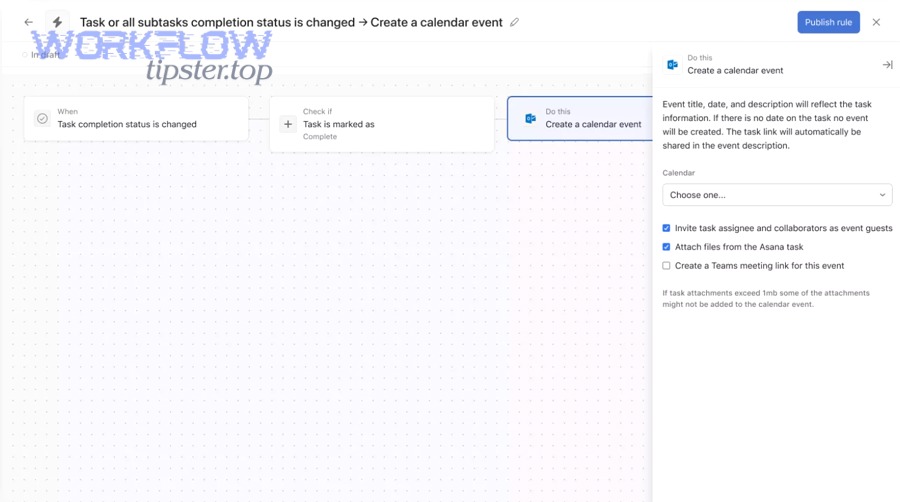
- Creates/updates events when tasks change (and sometimes links event context back to tasks).
- Best for teams that want a supported configuration experience.
- Requires clear mapping choices (what fields sync, when).
Asana’s Outlook Calendar integration describes task-to-event mapping and a setup flow that includes choosing sync behavior and saving configuration.
2) Automation platforms (workflows triggered by changes)
- Example logic: “When event starts/ends → create/update a follow-up task.”
- Best when you want selective two-way outcomes without full mirroring.
- This is where teams often connect ecosystems such as convertkit to slack for notifications, while keeping the calendar-to-task logic tightly scoped.
3) API-based workflows
- Best for enterprise requirements: audit, custom field mapping, complex conflict policies.
- Higher build and maintenance cost.
- Worth it only when calendar-driven operations are core to revenue or compliance.
How do you prevent conflicts (duplicate events, overwrite loops, and edit ownership)?
You prevent conflicts by enforcing 3 rules: one system owns dates, one identifier links items, and one side “wins” in collisions—because without these, two-way sync turns into duplicate events and date ping-pong.
However, conflict prevention is less about tooling and more about team agreements.
- Ownership rule:
- Option A: Asana owns task dates; Outlook changes create requests, not edits.
- Option B: Outlook owns scheduled times; Asana stores follow-up tasks that adjust automatically.
- Single integration per scope: never run two automations on the same project/calendar pair.
- Idempotent naming: include stable identifiers in event titles or descriptions (e.g., “Task: [short title] (ID)”) so updates match the right item.
- Change windows: restrict two-way syncing to certain event types (client meetings, workshops) rather than all tasks.
Which fields should and shouldn’t sync in two directions (dates, titles, attendees, notes)?
Dates should sync first, titles can sync cautiously, and attendees/notes should usually stay one-directional because they create privacy and conflict risks; that mapping is optimal for teams that want reliability over novelty.
On the other hand, syncing everything “because you can” is the fastest way to break trust in the system.
- Sync both ways (selective): start date/time, end date/time (or due date if you treat tasks as appointments)
- Sync one way (Asana → Outlook): task title, task description (trimmed), project name
- Do not sync by default: attendees, private notes, custom fields that include sensitive data
Why attendees are risky:
- Outlook attendees can include external parties.
- Asana collaborators can include internal stakeholders.
- Forcing these lists to match can leak information or create spam.
What exactly syncs—and what won’t—between Asana and Outlook Calendar?
There are 6 common categories that may or may not sync—task title, dates/times, descriptions, assignees/collaborators, attachments/links, and advanced task structure—based on whether you use a one-way subscription or an integration with field mapping.
Especially for teams, knowing what doesn’t sync prevents false assumptions.
Asana’s Sync to Calendar guidance states that tasks with due dates can appear as all-day events and that this method is one-way, meaning calendar updates don’t reflect back into Asana.
Do subtasks, dependencies, or custom fields appear on Outlook Calendar?
No, subtasks, dependencies, and most custom fields do not appear on Outlook Calendar by default because calendar sync focuses on task-level scheduling fields, and these advanced structures don’t translate cleanly into events.
More specifically, calendars represent time blocks and dates, while Asana structures represent workflow logic.
- Subtasks: promote the subtask to a full task if it needs calendar visibility.
- Dependencies: keep them in Asana; use calendar milestones for the dependency “endpoints.”
- Custom fields: treat them as reporting metadata, not scheduling signals—unless you build a custom automation.
If you must reflect a custom field:
- Use a controlled format in the title (e.g., “[Client] Task name”) or a short description snippet.
- Keep it consistent so people can scan quickly.
Will changes in Asana update existing Outlook events, and do deletions remove them?
Yes, Asana changes can update existing Outlook events when you use an integration designed to create or update events from tasks, but deletions and update behavior depend on the method and may not behave like a perfect mirror.
In addition, one-way subscription methods often update on refresh and may not handle every edge case exactly as you expect.
- One-way subscription: updates may appear after Outlook refresh; edits in Outlook won’t change Asana.
- Integration mapping: tasks can create or update events when tasks change, based on configured rules.
Team policy suggestion:
- If a task is cancelled, mark it cancelled in Asana (or move it to a “Cancelled” section) rather than relying on deleting events as the primary signal.
How often does the calendar update, and why can it feel delayed?
Calendar updates can feel delayed because one-way subscription feeds and some integrations rely on refresh cycles, caching, and client sync behavior, so changes may not appear instantly even when everything is configured correctly.
Therefore, teams should plan for refresh latency and validate with controlled tests rather than assuming a failure.
- If you need minute-by-minute accuracy, use meeting scheduling—not task-to-calendar mirroring.
- If you need reliable visibility, a refresh delay is acceptable as long as the system is consistent.
How do you troubleshoot when Asana ↔ Outlook Calendar sync isn’t working?
You troubleshoot Asana ↔ Outlook Calendar sync by checking 3 layers—configuration and permissions, refresh/caching behavior, and duplication or mapping errors—so you can fix the root cause instead of repeatedly reconnecting.
Next, use a simple triage approach: confirm scope, confirm mapping, then confirm Outlook behavior.
A real-world community discussion highlights common fixes such as re-adding the calendar and clearing offline items when syncing appears stuck, which supports starting troubleshooting with Outlook client state and subscription integrity.
Is the issue permissions, configuration, or refresh delay?
The issue is usually configuration or refresh delay rather than a true outage, because most failures come from wrong scope selection, missing authentication, or Outlook not refreshing the subscribed calendar.
To begin, isolate the cause with a short diagnostic ladder.
- Step 1: Permissions
- Can the user view the tasks in Asana that should sync?
- Is the Outlook account the correct one (work vs personal)?
- Step 2: Configuration
- Did you sync the right project/My Tasks list?
- Are tasks actually dated (due date or start date/time)?
- Step 3: Refresh delay
- Wait for the next refresh cycle.
- Try another client (Outlook web vs desktop) to rule out local caching.
If you skip this sequence, teams often “fix” the wrong layer and create duplicates.
Why are events missing, duplicated, or showing the wrong time?
Events are missing, duplicated, or wrong-time for 3 main reasons: incorrect task date usage, multiple active subscriptions/integrations, or time zone/DST inconsistencies between clients.
More importantly, each symptom points to a different fix.
Missing events
- Tasks have no due date/start date
- Wrong scope (different project/list)
- Filters or conditions exclude tasks (in automation-based setups)
Duplicate events
- Two subscriptions to the same project
- One subscription plus one integration both generating events
- Multiple team members publishing the same scope into the same shared calendar
Wrong time
- Tasks treated as all-day vs timed events unexpectedly
- Time zone mismatch across devices
- Daylight saving shifts affecting display
Fix strategy:
- Missing → add dates and validate scope.
- Duplicates → remove extra subscriptions and keep one source.
- Wrong time → standardize time zone settings and prefer all-day deadlines when exact time isn’t required.
When should you reset the connection vs change the sync method?
You should reset the connection when setup is correct but the client state is corrupted, and you should change the sync method when your team’s requirements exceed what the current method can reliably do; that decision prevents endless troubleshooting cycles.
In short, reset for “broken behavior,” switch methods for “wrong fit.”
Reset the connection when:
- A single calendar scope stops updating across many users
- Outlook client caching/offline items cause persistent stale views
- You can reproduce the issue even with a simple test task
Change the sync method when:
- You need calendar edits to drive task updates (two-way requirement)
- You need selective automation (only certain event types)
- You need governance (enterprise controls, audit requirements)
According to a study by the University of California, Irvine from the Department of Informatics, in 2008, task interruptions affected work patterns and stress, which supports designing a sync method that minimizes confusion and reduces back-and-forth “where should I update this?” behavior.
What advanced settings and edge cases should teams plan for with Asana–Outlook Calendar sync?
Teams should plan for advanced settings and edge cases by addressing refresh expectations, security boundaries, time zone handling, and complementary Outlook workflows, because these micro-details determine whether the sync remains trustworthy at scale.
Besides, these considerations are where teams move from “it works for me” to “it works for everyone.”
How do Outlook caching and ICS refresh intervals affect “real-time” expectations?
Outlook caching and subscription refresh behavior reduce “real-time” expectations because subscribed calendars may update on a schedule and clients may cache results, so updates can appear inconsistent across desktop, web, and mobile.
To sum up, you should design team process around reliability rather than instant updates.
- Deadlines sync for planning (hours-level accuracy is fine).
- Meetings remain the true real-time schedule.
- Changes close to the deadline should be communicated in Asana comments or team channels, not assumed to “show instantly” on calendars.
If your workflow requires real-time triggers, use automation (event starts/ends → create follow-up task) rather than relying on subscription refresh cycles.
What are the security and permission risks (private projects, guests, shared calendars)?
Security risks exist when calendar events expose task titles, descriptions, or links beyond intended audiences, especially in shared calendars, guest-invited calendars, or mixed-permission projects.
Moreover, privacy mistakes are usually process mistakes, not tool mistakes.
- Scope control: sync only the projects that are safe for the calendar audience.
- Title hygiene: avoid sensitive information in task titles if they will appear on shared calendars.
- Description discipline: keep private details in restricted fields or separate tasks not included in the sync scope.
- Guest awareness: if guests can see the calendar, treat synced content as externally visible.
If your team integrates multiple systems (for example, airtable to outlook calendar for operations reporting), define which system owns sensitive fields and avoid duplicating confidential data across tools.
How do you handle time zones and daylight-saving shifts in task-to-calendar schedules?
You handle time zones and daylight-saving shifts by standardizing time zone settings, preferring all-day deadline events when time precision isn’t required, and validating timed-event behavior on at least two clients (web + desktop).
Especially for distributed teams, this prevents “phantom” day shifts and mismatched start times.
- Use all-day deadlines for deliverables.
- Use timed events only for scheduled work blocks that truly need a time.
- For global teams, adopt one “operational” time zone for shared calendars and document it.
Should you also use the Asana for Outlook add-in for email-to-task workflows?
Yes, you should also use the Asana for Outlook add-in when your team needs to convert email action items into trackable tasks, because it reduces manual copying, preserves context, and complements calendar sync without turning every email into a calendar event.
Meanwhile, calendar sync should remain focused on dates and deadlines, not inbox triage.
Think of it as a division of labor:
- Calendar sync: “When is this due or scheduled?”
- Outlook add-in: “What action must we take, and who owns it?”
- Asana tasks/projects: “What’s the workflow, dependencies, and status?”
If your team already relies on Slack automations (like convertkit to slack notifications for lead or campaign updates), this pairing becomes even stronger: email becomes tasks, tasks become deadlines, and deadlines become calendar visibility—without building a fragile two-way mirror everywhere.