


To sync Airtable to Outlook (Microsoft 365) Calendar for teams, you typically choose one of three reliable paths: an iCal subscription from an Airtable calendar view, a one-way Outlook->Airtable sync table, or Airtable Automations that create and update Outlook events—each designed for a different “source of truth.”
Next, if your goal is Airtable->Outlook visibility with minimal maintenance, the iCal method is the fastest to ship because Outlook subscribes to a feed and pulls updates on its own schedule, which is ideal for shared team calendars and read-only publishing.
Then, if you need Outlook events inside Airtable for reporting, filtering, and workflow management, Airtable’s sync integration for Outlook Calendar is built for that direction (Outlook->Airtable) and remains one-way into Airtable by design.
Introduce a new idea: once you understand the sync direction you need, you can pick the right workflow (iCal, sync table, or automations) and design your base so your team avoids duplicates, time shifts, and “who owns this event?” confusion.
What does it mean to “sync Airtable to Outlook (Microsoft 365) Calendar,” and what can you realistically expect?
Syncing Airtable to Outlook Calendar usually means one system publishes event data and the other system consumes it, but the exact behavior depends on whether you use an iCal subscription, a one-way sync into Airtable, or an automation that creates/upgrades Outlook events.
To better understand what you can expect, start by translating “sync” into concrete outcomes: who edits the event, where the event lives, how updates travel, and how quickly changes appear for the team.
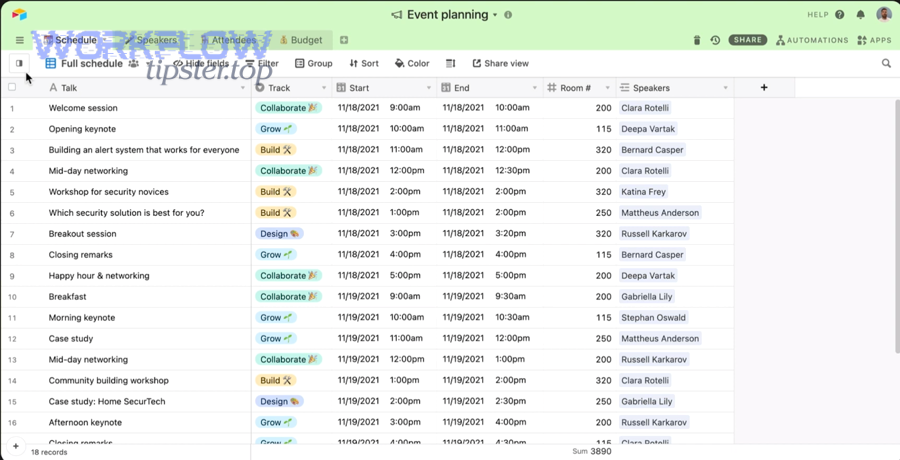
In practice, “sync” can mean three different operational models:
- Publish & subscribe (iCal): Airtable publishes a calendar feed; Outlook subscribes and periodically pulls updates. This is great for shared visibility but is typically not meant for editing from Outlook back into Airtable.
- Import events into Airtable (sync integration): Outlook is the upstream calendar; Airtable becomes a structured mirror so you can filter, link, and report on events. Airtable’s sync integrations are one-way into Airtable.
- Workflow automation (create/update events): Airtable triggers actions to create or update Outlook Calendar events based on record changes, often with an Event ID field to prevent duplicates and enable updates.
This table contains a practical comparison of the three methods so you can match them to team needs without guessing.
| Method | Best for | Direction | Editability | Update behavior |
|---|---|---|---|---|
| iCal subscription | Shared visibility (read-only publishing) | Airtable → Outlook | Edit in Airtable | Outlook pulls on its schedule (can be slow) |
| Sync integration (synced table) | Reporting/workflows on Outlook events | Outlook → Airtable | Edit in Outlook | One-way into Airtable |
| Airtable Automations | Creating/updating invites/events reliably | Airtable → Outlook | Edit rules-based | Trigger-based with tests and logs |
Is this a true two-way sync between Airtable and Outlook Calendar? (Yes/No)
No—“airtable to outlook calendar” is not typically a true two-way sync because iCal subscriptions are pull-based and one-directional in practice, sync integrations are one-way into Airtable, and automations write to Outlook but still rely on defined triggers and stored IDs rather than live bidirectional conflict resolution.
However, the most important reason is that each method has a single “writer” system, which prevents silent conflicts; on the other hand, teams must explicitly decide where edits happen to avoid mismatched versions.
Three practical reasons explain why “two-way” is rare in this setup:
- iCal is subscription-based: Outlook pulls updates from Airtable; edits made in Outlook are not designed to push back into Airtable through the same feed.
- Sync integrations are one-way: Airtable’s sync integrations bring external data into Airtable as a new table, and changes made in Airtable don’t sync back out.
- Automations are rule-driven writes: Airtable can create/update Outlook events, but that still depends on triggers, tests, and tracking an Outlook Event ID for updates.
What’s the difference between iCal subscription, native sync, and automation workflows?
iCal wins for fast read-only publishing, native sync is best for bringing Outlook events into Airtable for structured work, and automation workflows are optimal when Airtable should actively create or update Outlook Calendar events at specific moments in a process.
Specifically, the difference becomes obvious when you map each approach to a team outcome: visibility, reporting, or controlled event creation.
iCal subscription is simple: you share/sync an Airtable calendar view to an external calendar using an iCal link, and Outlook subscribes from the web and imports it as a subscribed calendar. The refresh rate is determined by the external calendar application, and updates may take time because Outlook pulls rather than Airtable pushing.
Native sync (Outlook → Airtable) is about analysis and operations: you bring Outlook event data into Airtable as a synced table so the team can filter by project, link events to clients, and build views or dashboards. Airtable’s documentation clarifies these sync integrations are one-way into Airtable.
Automation workflows are about controlled creation: when a record reaches a “confirmed” state, Airtable can create an Outlook Calendar event or update it later, and the Event ID becomes the anchor for idempotent updates.
Which sync direction do you need: Airtable → Outlook, Outlook → Airtable, or both?
There are three main directions you can choose—Airtable → Outlook, Outlook → Airtable, or a mixed “both” approach—based on one criterion: which tool your team treats as the source of truth for scheduling decisions.
Next, decide direction by answering a single operational question: where do people actually make edits when plans change five minutes before the meeting?
If you choose the wrong direction, you get the classic failure modes: duplicates (multiple systems creating the same event), time drift (timezone and all-day semantics), and “stale truth” (one calendar looks updated, the other doesn’t).
Do you want Outlook to be the “source of truth” or Airtable to be the “source of truth”?
Airtable is best as the source of truth when events are outputs of a workflow (content pipeline, project milestones, interview stages), while Outlook is best as the source of truth when events are primarily managed as meetings (availability, invites, attendee changes) inside Microsoft 365.
Meanwhile, “source of truth” is not philosophical—it is a rule that determines where edits must happen so your team doesn’t fight the system.
- Choose Airtable as source of truth when a record drives the event: status changes, approvals, owner routing, and structured metadata (project, campaign, client) matter more than ad-hoc edits in Outlook. Automations then create or update the Outlook event as a consequence.
- Choose Outlook as source of truth when meeting mechanics matter: RSVP flows, attendee management, conferencing links, and personal availability are primary, and Airtable is used to analyze or coordinate around that schedule. Sync integrations then bring events into Airtable for structured work.
Teams that need “both” should treat one side as authoritative for edits and the other as a controlled mirror, not a peer editor, because the available methods are not designed for conflict-free bidirectional merging.
What fields should every Airtable-to-Outlook calendar setup include?
There are 8 core fields every Airtable-to-Outlook calendar setup should include: Title, Start, End, All-day flag, Timezone, Owner, Sync status, and Outlook Event ID (or external key), because these fields prevent duplicates, preserve timing, and make updates possible.
More specifically, these fields function as your integration “contract,” so every workflow step can rely on consistent data.
- Title (primary field): External calendar event titles come from Airtable’s primary field for the record, so design it intentionally (or use a formula primary field to compose meaningful names).
- Start datetime: Use a datetime field, not text; keep it consistent across the base.
- End datetime: Store an explicit end; don’t rely on “duration in description.”
- All-day event : Helps avoid “midnight shift” errors in Outlook for all-day items.
- Timezone (single select or text): Standardize to one team timezone or store per event for distributed teams.
- Owner (collaborator / user): Enables routing to the right calendar and accountability.
- Sync status (single select): Draft / Ready / Synced / Failed—so your team sees what’s real.
- Outlook Event ID (single line text): Necessary if you ever plan to update Outlook events through Airtable Automations.
How do you sync Airtable to Outlook Calendar using iCal export (Airtable → Outlook)?
The iCal method syncs Airtable to Outlook in 5 steps—create a calendar view, open Share & sync, generate the iCal subscription link, subscribe from web in Outlook, and name/import the calendar—so your team sees Airtable events in Outlook without manual re-entry.
Below, the key is to treat iCal as “publish and consume”: Airtable publishes an always-available feed, and Outlook periodically requests updates from that feed.
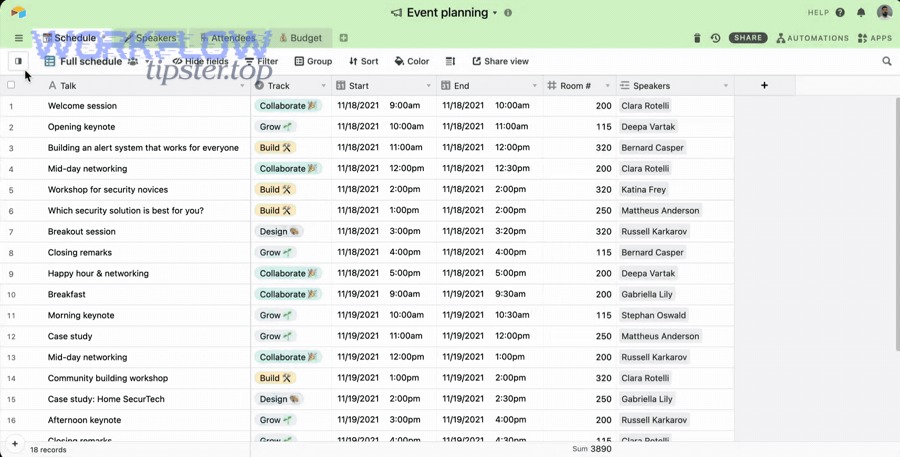
Step 1: Build a calendar-ready table in Airtable. Your records should have at least a title and a date (ideally start and end) so the calendar view can represent each record as an event.
Step 2: Create (or open) a Calendar view. Calendar view displays records on a calendar timeline; it becomes the base for the iCal feed you will publish.
Step 3: Generate the iCal subscription link. In the Calendar view, use the Share & sync option and choose “Sync to an external calendar” to generate the link.
Step 4: Subscribe in Outlook. In Microsoft Outlook Calendar, choose Add calendar, then “Subscribe from web,” paste the iCal link, name the calendar, and import it.
Step 5: Operationalize it for the team. Decide who owns edits (usually Airtable), and publish a clean shared view that includes only “Ready” or “Approved” items so your Outlook calendar doesn’t become a dumping ground.
A critical callout is refresh timing: the subscription calendar refresh rate is determined by the external calendar application, and updates are pulled rather than pushed—so you should expect some delay in Outlook, especially for frequent edits.
Can you subscribe to an Airtable calendar in Outlook without giving edit access to Airtable? (Yes/No)
Yes—you can subscribe to an Airtable calendar in Outlook without giving edit access because Outlook consumes an iCal subscription link, the feed is used for copying events into your calendar view, and day-to-day editing remains in Airtable rather than Outlook.
However, the most important reason is governance: a subscription model lets teams see schedules in Outlook while keeping workflow edits and structured metadata controlled inside Airtable.
Two practical cautions keep this safe and stable:
- Link security settings can break the feed. Airtable notes that if share link settings become restricted (domain restrictions/password/restrictions), iCal links may stop integrating because the feed can’t authenticate.
- Names come from the primary field. If your “Title” is messy, the Outlook calendar becomes unreadable; using a formula-based naming convention in the primary field can keep titles consistent.
What’s the step-by-step mapping from Airtable calendar fields to an Outlook event view?
There are 4 core mapping rules from Airtable to an Outlook event view via iCal: the Airtable primary field becomes the event title, the date fields become start/end times, the all-day flag controls all-day behavior, and anything not represented should be encoded into the primary field or a structured naming convention.
Specifically, the easiest way to make Outlook useful is to design the Airtable primary field like a compact “event label” that includes the most important context.
- Event title (Outlook): Comes from Airtable’s primary field value.
- Start time / End time: Comes from your Airtable date/time fields used by the Calendar view.
- All-day: If configured as all-day in automation contexts, Outlook can render it as all-day; for iCal-based calendars, avoid “floating” times by standardizing timezone and using true date-only vs date-time consistently.
- Location / description: If you need these visible in Outlook, consider composing them into the event title (via formula) or using the automation method instead, since iCal title behavior is anchored to the primary field.
How do you bring Outlook (Microsoft 365) Calendar events into Airtable (Outlook → Airtable)?
You bring Outlook (Microsoft 365) Calendar events into Airtable by using Airtable’s Outlook Calendar sync integration to create a new synced table that mirrors event details in one direction, so teams can filter, link, and analyze schedules inside Airtable without manually copying events.
Then, the key is to design your Airtable base around what you want to do with those events—reporting, capacity planning, client timelines, or compliance logging—because a synced table is most powerful when it connects to your existing workflow tables.
Airtable’s documentation is explicit about the constraint: sync integrations are always one-way from the external application into Airtable, so your edits in Airtable won’t sync back to Outlook through the sync integration.
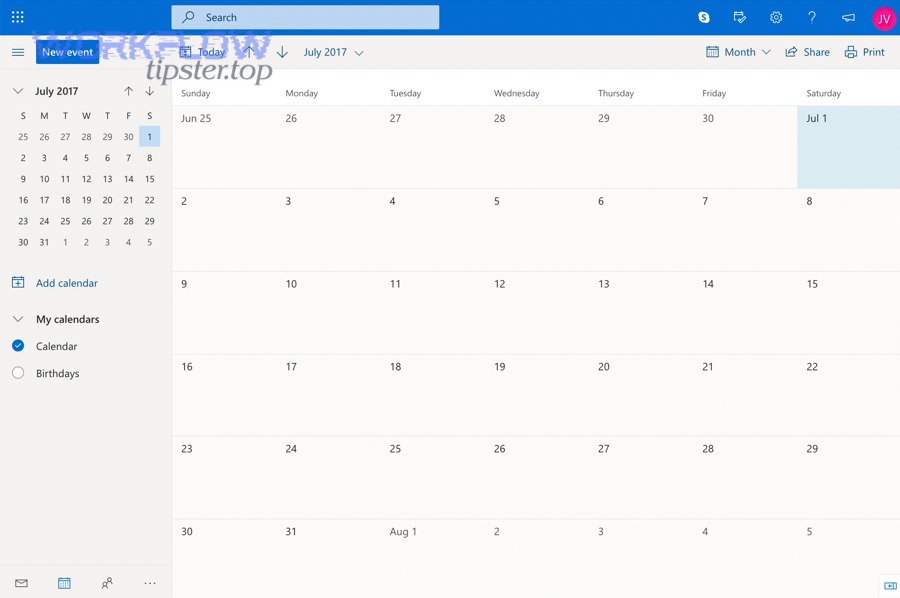
Does syncing Outlook events into Airtable preserve recurring events correctly? (Yes/No)
No—syncing Outlook events into Airtable does not always preserve every recurring-event nuance “perfectly” because recurrence rules, exceptions, and modified instances can be represented differently across systems, so you should expect to validate how recurring series and exceptions appear in your synced table.
However, the most important reason is data modeling: recurring events are not a single event, they are a rule plus exceptions; therefore, your Airtable workflow should be built to tolerate either “series-level” records or “expanded instances,” depending on what the integration provides.
Three practical safeguards reduce recurrence pain:
- Store a stable external identifier. Keep the event’s external ID fields intact so you can reconcile instances later.
- Separate reporting from operations. Use synced events for dashboards and references; keep operational changes in Outlook if Outlook is source of truth.
- Create a “Recurrence notes” field. If exceptions matter (e.g., interviews rescheduled), capture exceptions in workflow records rather than relying on calendar semantics alone.
How should teams structure Airtable bases when Outlook is the upstream calendar?
Teams should structure Airtable bases with 3 linked layers—an Events synced table (from Outlook), a People/Owners table, and a Work/Projects table—so Outlook remains the upstream meeting system while Airtable becomes the operational layer for filtering, linking, and reporting.
To illustrate, a clean structure prevents the “calendar dump” problem where events arrive but cannot be acted on.
- Synced table: Outlook Events (read-only mirror)
- Fields: subject/title, start, end, organizer, attendees, location, external event ID
- Views: by team, by project tag, by time window (next 7/30/90 days)
- People table (ownership & accountability)
- Fields: name, email, role, team, default calendar routing
- Links: connect events to owners and stakeholders
- Projects/Work table (why the event exists)
- Fields: project name, client, status, milestones, internal notes
- Links: connect meetings to deliverables and decisions
This structure also supports “calendar-to-workflow” patterns where a meeting in Outlook creates a related work item in Airtable (for example, a weekly sync meeting links to a recurring agenda record), while still honoring the one-way nature of sync integrations into Airtable.
How do you automate “Airtable record → Outlook Calendar event” for teams?
You automate “Airtable record → Outlook Calendar event” with Airtable Automations in 6 steps—define a trigger, connect Outlook, map fields, create the event, store the Outlook Event ID, and use update actions for future edits—so teams get consistent invites without manual calendar entry.
Next, treat automations as a production system: you design for repeatability, idempotency, and predictable routing to team calendars, not just “it worked once in a test.”
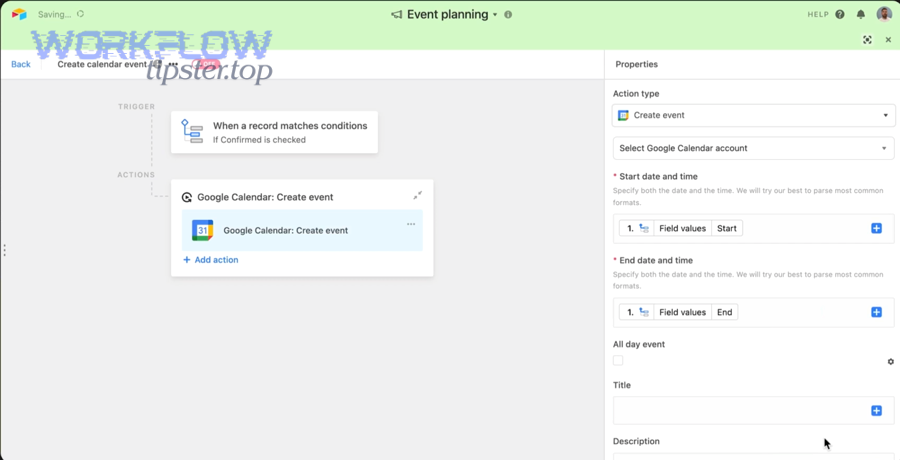
Step 1: Choose a trigger that matches team reality. Common triggers include “When record matches conditions” (e.g., status becomes Confirmed) or “When record is created” (e.g., new appointment).
Step 2: Connect Outlook Calendar inside Automations. Airtable’s Outlook actions require connecting an Outlook Calendar account in the automation configuration.
Step 3: Map your Airtable fields to event details. Populate start/end, title, description, location, and all-day when applicable; keep the mapping consistent across the base so the team sees standardized events.
Step 4: Create the event. Use the “Create an event in Outlook Calendar” action to generate the event at the moment the workflow requires it.
Step 5: Store the Outlook Event ID. Airtable explicitly recommends keeping a separate single line text field to store the Outlook Calendar Event ID if you plan to update events later.
Step 6: Update the event when records change. When timing, location, or owner changes, the update action can modify the existing event using the saved Event ID rather than creating a duplicate.
Should you create a new Outlook event or update an existing one when a record changes?
Creating a new Outlook event wins for one-time invitations, updating an existing event is best for ongoing schedules, and a hybrid approach is optimal when your workflow has a “draft → publish” stage that creates once and then updates using the saved Event ID.
However, the decision hinges on one critical risk: duplicates, which most teams experience when an automation creates again instead of updating the same event.
- Create new when: an event is a final output (e.g., a confirmed interview) and changes are rare; you want a clean audit trail and can tolerate one-off resends.
- Update existing when: the event is a living schedule item (e.g., content deadline review, weekly sprint planning) and timing/ownership changes; you must preserve attendee continuity.
- Hybrid publish model when: you want to avoid early “draft noise” in calendars—create the event only at publish/confirmed status, then update thereafter via Event ID.
In short, teams that store the Outlook Event ID and update consistently tend to avoid the most painful calendar mess: duplicates that require manual cleanup.
What’s the best way to route events to the right team calendar (by owner, project, or status)?
There are 3 main routing approaches—by owner, by project, or by status—based on one criterion: who needs to see and act on the event, and in which calendar context (personal vs shared).
Specifically, routing is where teams either gain clarity or create chaos, so it helps to make routing rules explicit in Airtable fields.
- Route by owner when accountability matters most: the owner field determines which calendar receives the event (useful for interviews, sales calls, assigned tasks).
- Route by project when cross-functional visibility matters: each project has a shared calendar destination so the team sees all relevant events in one place.
- Route by status when governance matters: Draft items never create calendar events, Confirmed items do, Completed/Cancelled items trigger updates or removals (depending on your policy).
As a practical implementation, add a single-select field like Calendar Destination and populate it via formulas or automations so the event creation action always knows the correct target, even when owners change midstream.
What are the most common failures (duplicates, wrong times, missing updates) and how do you fix them?
The most common Airtable-to-Outlook calendar failures are duplicates, wrong times, and missing updates, and you fix them by implementing Event ID tracking, standardizing timezone/all-day rules, and choosing the correct sync method for your source-of-truth strategy.
Moreover, each failure mode has a predictable cause, so you can treat troubleshooting as a checklist rather than a guessing game.

Failure mode 1: Duplicates. Most duplicates happen when an automation creates a new event repeatedly instead of updating the original, or when multiple workflows create events for the same record. The fix is to store the Outlook Event ID at creation and require it for updates.
Failure mode 2: Wrong times (timezone/DST/all-day issues). Time shifts often come from inconsistent timezone assumptions or using date-only values as date-time values. The fix is to standardize event types and ensure your start/end fields are true datetimes (or true dates for all-day) with a consistent timezone policy across the base.
Failure mode 3: Missing updates. iCal subscriptions update when the external calendar pulls the feed, so delays can look like “missing changes.” The fix is to set team expectations around pull-based refresh behavior and use automations when you need near-immediate creation and updates.
Are duplicates caused more often by iCal subscriptions or by automations? (Which is more likely?)
Automations are more likely to cause duplicates than iCal subscriptions because automations can repeatedly create events when triggers re-fire, while iCal subscriptions typically mirror the same feed entries and are not designed to create new discrete events on every record edit.
However, the most important reason is trigger design: if your automation triggers on “record updated” without an idempotent check (like “Event ID is empty”), it will create again and again.
To prevent duplicates in automation workflows:
- Add a guard condition: Only create an event when Event ID is empty and status is Confirmed.
- Split create vs update: One automation creates (and writes Event ID), another automation updates when relevant fields change and Event ID exists.
- Lock down manual edits: If users manually copy events or run tests in production, duplicates appear; keep tests isolated or clearly labeled.
Why do times shift in Outlook after syncing (timezone/DST), and how do you prevent it?
Time shifts happen because calendars interpret time using timezone rules and all-day semantics, and you prevent them by standardizing timezone handling, using correct field types (date vs datetime), and consistently mapping start/end with a clear all-day policy across the Airtable base and the Outlook calendar.
On the other hand, teams often blame “sync bugs” when the real cause is inconsistent event modeling—so the prevention strategy should start in Airtable.
- Use datetimes for timed events: Avoid storing “3pm” as text; keep it as a datetime field.
- Use date-only for true all-day: Don’t create an all-day event as “00:00 to 23:59” unless you’re forced to; keep it as a real all-day configuration when using automation actions.
- Document a team timezone rule: If the team spans regions, pick a reference timezone for planning (e.g., UTC or HQ timezone) and display local conversions in views.
- Test DST weeks intentionally: Before a DST change, validate a sample set of events to ensure the model holds.
According to a study by Georgia Institute of Technology from the Everyday Computing Lab, in 2007, a four-month deployment of a forecasting calendar in an academic setting highlighted both coordination value and privacy/control tradeoffs, which is why clear “who edits where” rules matter as much as the technical sync.
What advanced team constraints should you plan for (permissions, governance, edge cases, and alternatives)?
Advanced team constraints usually come down to permissions, security policies, recurring-event edge cases, and automation reliability, and you plan for them by defining least-privilege access, validating recurrence behavior, and choosing native workflows versus external tools when your routing and governance needs become complex.
Especially in Microsoft 365 environments, your integration is only as stable as your organization’s policies and your base’s operational rules, so it helps to treat “sync” as a governed workflow rather than an individual hack.
At this point, you may also notice that your team’s calendar strategy sits inside a broader ecosystem of Automation Integrations—for example, connecting google drive to airtable for asset tracking, routing google docs to outlook for approvals, or even pushing notifications like google docs to sendgrid when a release is finalized; these adjacent workflows often determine whether calendar automation stays clean or becomes noisy, which is the kind of practical “stack thinking” often promoted by workflow-focused communities such as WorkflowTipster.top.
What permissions and Microsoft 365 admin policies can block the integration, and how do you work around them?
Permissions and admin policies can block the integration when users cannot connect Outlook accounts, when share settings restrict iCal access, or when Microsoft environments require cloud-based Exchange for automation actions, and you work around them by using approved accounts, aligning share policies, and confirming cloud eligibility.
Specifically, these are the common blockers and fixes:
- iCal feed breaks due to restricted sharing: Airtable warns that domain restrictions, password settings, or restricted share link policies can cause iCal links to stop integrating. The workaround is to coordinate share policy changes with your admin and keep the feed accessible within approved constraints.
- Automation actions require compatible Exchange: Airtable notes that if an organization uses Microsoft Exchange servers, only the cloud-based version works with Airtable Automations; on-prem Exchange is not supported for Automations. The workaround is to use supported cloud accounts or an approved integration layer.
- Role permissions in Airtable: Automation creation and configuration require appropriate Airtable permissions (owners/creators for configuration), so plan who will maintain the workflow.
How do you handle recurring events, exceptions, and all-day events without breaking your Airtable logic?
You handle recurring events, exceptions, and all-day events by choosing a consistent modeling strategy—series-level tracking for planning, instance-level tracking for operations, and explicit all-day flags—so your automations and reports don’t treat “a rule” as “a single event.”
For example, a recruiting team might track interview “slots” (instances) while a leadership team tracks “weekly staff meeting” (series) as one record with linked agenda items.
- Series-level approach: One Airtable record represents a recurring series; use linked tables to track agendas/decisions per occurrence.
- Instance-level approach: One Airtable record per occurrence; best when each meeting triggers tasks, notes, or approvals.
- All-day discipline: Keep all-day events as all-day, not as timed “00:00 to 23:59,” to reduce time shifts.
According to a study by Georgia Institute of Technology from the Everyday Computing Lab, in 2002, researchers described how shared personal calendars support workgroup coordination and evolve socially within groups, which is why consistency rules (naming, privacy, edit ownership) are not optional when your calendar becomes a team system.
What rate limits or throttling issues can appear, and how do you design retry-safe workflows?
Rate limits and throttling issues can appear when high-volume record updates trigger bursts of calendar actions, and you design retry-safe workflows by reducing trigger frequency, batching changes, logging failures, and making every “create/update” action idempotent using a stored Outlook Event ID.
More importantly, reliability is an architecture choice: you decide whether your team needs “near-real-time” event writing or whether pull-based iCal visibility is sufficient.
- Debounce updates: Trigger only when a record matches conditions (e.g., Confirmed) instead of every edit.
- Use a failure queue: When an action fails, mark the record as Failed and store an error message field so you can retry cleanly.
- Idempotency rule: If Event ID exists, update; if empty, create; never do both in the same branch without explicit checks.
When should you choose an external automation tool instead of native Airtable options?
Native Airtable options win for speed and maintainability, external automation tools are best for complex multi-step routing and enterprise governance, and a blended approach is optimal when you need native simplicity for most workflows but an external layer for edge-case calendars, shared mailbox constraints, or advanced transformation logic.
However, the real decision is about operational ownership: who will monitor failures, update mappings, and keep permissions aligned when teams and policies change?
- Choose native iCal subscription when you need broad visibility and can tolerate refresh delays (and you want minimal moving parts).
- Choose native sync integrations when Outlook is upstream and Airtable is for reporting and workflow context (one-way into Airtable).
- Choose native Airtable Automations when record-driven event creation and updates are the main need, and you can store Event IDs and enforce simple routing rules.
- Choose an external tool when you need advanced branching, multiple calendar targets across departments, strict compliance controls, or transformations that exceed the native action mapping—while still keeping Airtable as the system of record for workflow metadata.