


Integrating Asana with Google Docs means you can plan and execute work in Asana while writing, reviewing, and sharing documentation in Google Docs—without losing the thread between “what we decided” and “what we’re doing.”
To make that integration practical for teams, you need a clear model: Docs holds the narrative (briefs, specs, meeting notes) and Asana holds the operational truth (tasks, owners, due dates), so every document has a direct path to action.
Once the basics are stable, you can move from simple linking to repeatable automation workflows—like creating a Google Doc from a template when an Asana task reaches a certain stage, then writing the Doc link back to the task so the team always works from one consistent reference.
Introduce a new idea: the difference between a “working integration” and a “team-friendly integration” is governance—permissions, templates, naming conventions, and troubleshooting patterns that prevent broken links, duplicate docs, and access confusion as your team scales.
What does it mean to integrate Asana with Google Docs for teams?
Integrating Asana with Google Docs is the practice of connecting documentation to execution so a team can write decisions in Docs and immediately trace them to owners, tasks, timelines, and status in Asana—reducing context loss and duplicated work.
To better understand why teams care about this connection, it helps to separate “content work” from “coordination work” and then deliberately link them in a way that stays consistent across projects.
What is the difference between using Google Docs for documentation and Asana for execution?
Google Docs wins at collaborative documentation, while Asana wins at accountable execution, because Docs is optimized for narrative clarity and versioned writing and Asana is optimized for assigned tasks, due dates, and measurable progress.
Specifically, Google Docs is where teams explain the “why” and “what” in a form that’s easy to read, comment on, and edit together. A brief, spec, proposal, or meeting note needs rich formatting, embedded context, and a single shareable URL. Google Docs is designed for that. The problem begins when the document becomes the place where action items live, because a paragraph does not enforce ownership, timing, or visibility. People can read the same sentence and still disagree about who does what next.
Asana solves that execution gap by turning intent into work units. A task has one owner, a due date, a status, and a home inside a project where other work is organized. When you move from a Doc-only workflow into a Doc + Asana workflow, you stop relying on “someone will remember” and start relying on a system that makes work explicit.
A useful team mental model is:
- Google Docs = decision record, reasoning, requirements, meeting narrative, and stakeholder feedback.
- Asana = commitments, owners, deadlines, dependencies, and progress reporting.
The integration becomes valuable when those two roles remain distinct but connected. The Doc should point to the tasks that implement it, and the tasks should point back to the Doc that explains the intent. That bidirectional link is the foundation of a team-friendly workflow.
Which team workflows benefit most from connecting Asana and Google Docs?
There are 4 main workflows that benefit most from connecting Asana and Google Docs: project briefs, product/spec documentation, meeting-to-action pipelines, and repeatable SOP/onboarding documentation—because each needs both shared narrative and traceable execution.
For example, a marketing team might write a campaign brief in Google Docs and then create a launch checklist in Asana. A product team might write a spec and then implement epics and tasks. An operations team might document a process in a Doc and then track execution in Asana. When the two tools are connected, teammates stop asking, “Where is the latest version?” and “Which tasks came from this decision?”
Here’s what “integration value” looks like in each workflow:
- Project briefs: the Doc provides the single narrative; Asana provides the schedule and accountability for deliverables.
- Specs and requirements: the Doc clarifies constraints and acceptance criteria; Asana tracks implementation tasks and review steps.
- Meeting notes: the Doc captures discussion and decisions; Asana captures action items with owners and dates.
- SOPs and onboarding: the Doc explains the process; Asana turns the process into a repeatable task template or checklist.
According to a post from the University of California, Irvine Department of Informatics (2018) summarizing Gloria Mark’s research, it can take over 23 minutes to fully regain focus on the original task after an interruption, which is one reason teams benefit when documentation and execution stay tightly linked rather than scattered across tools.
Do you need smart chips or an Asana add-on to connect Asana with Google Docs?
Yes, you should use smart chips or the Asana add-on if your team wants faster context, fewer copy-paste errors, and more reliable linking, because they (1) surface task details in Docs, (2) reduce context switching, and (3) help standardize how teams reference work.
However, the best approach depends on how your team collaborates today and what “connected” needs to mean in your workflow, so it’s worth clarifying what is possible without any integration features.
Can you use Asana and Google Docs together without any integration tools?
Yes, you can use Asana and Google Docs together without integration tools by relying on disciplined linking and consistent conventions, but you will lose speed and clarity because plain links do not automatically surface task context or enforce workflow rules.
To illustrate, many teams start with a simple approach: paste the Doc link into an Asana task and paste the task link into the Doc. This already creates a bridge. The problem is that teams often do it inconsistently. Some tasks include the Doc link; others don’t. Some docs include a list of task links; others bury them in paragraphs. New team members cannot tell what’s “required” versus “optional,” and the system becomes unreliable.
If you must stay tool-light, the best “no-integration” practice is to standardize two things:
- A dedicated place in the Doc for “Execution Links” (for example: a short “Actions” section near the top).
- A dedicated field or convention in Asana where the Doc link always lives (for example: a custom field named “Source Doc” or a pinned comment format).
This approach can be enough for small teams or low-frequency projects. But as soon as you need repeatability—templates, consistent previews, or automation—smart chips and add-ons become a practical upgrade.
What does the native Google Docs experience add compared to plain task links?
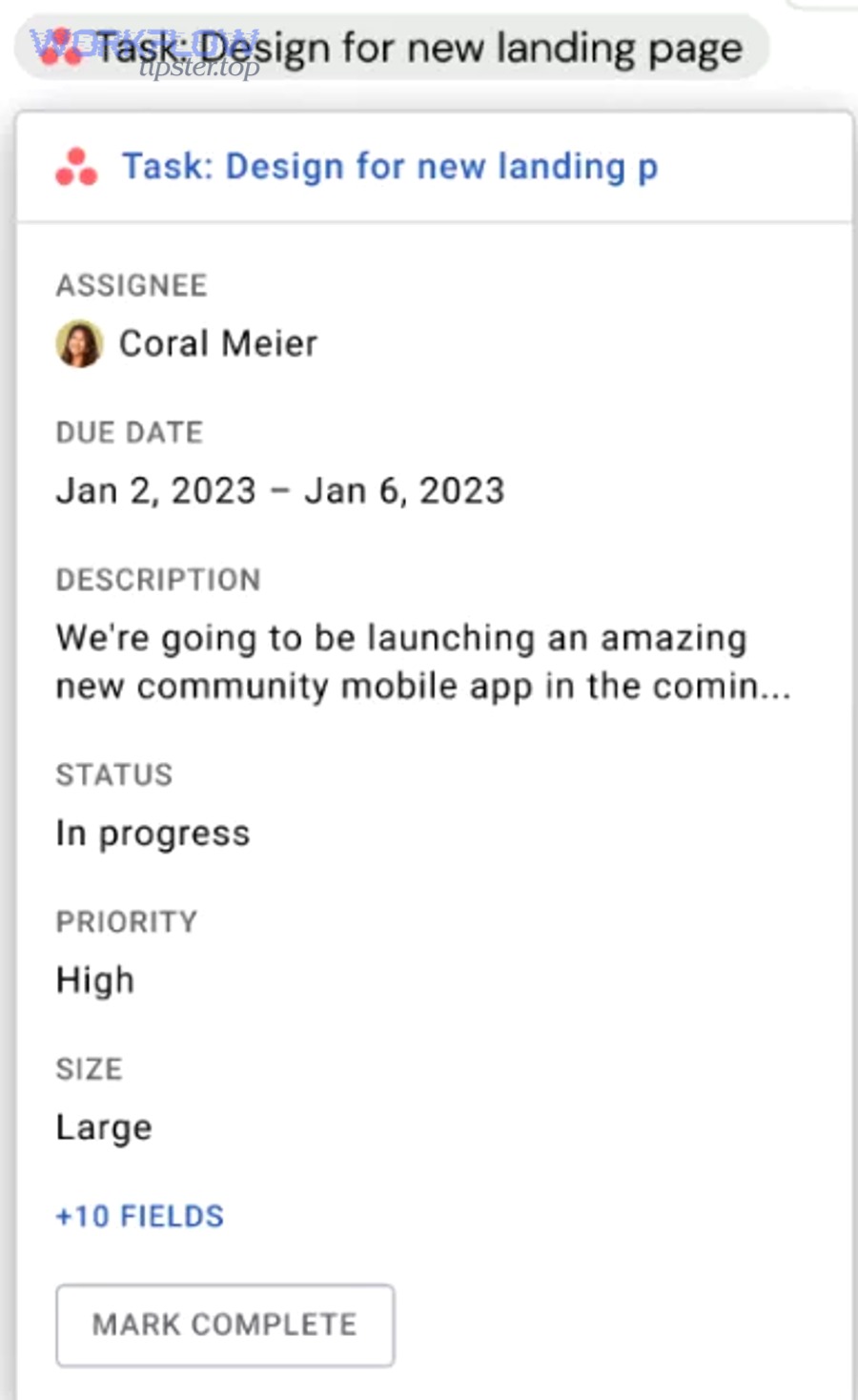
The native Google Docs experience adds richer context and faster navigation compared to plain task links because it lets teammates reference Asana work items in a more structured, readable way and makes it easier to keep Docs and tasks aligned.
More specifically, the difference is not just “prettier links.” Teams benefit when a Doc can show the meaning of a task at a glance—who owns it, what the current status is, and whether it is blocked—without forcing everyone to open multiple tabs. That micro-friction is where teams lose momentum. When linking is easier and more informative, people do it more consistently, and the system becomes self-reinforcing.
A common team pattern is to treat the top of the Doc as a “project interface”:
- Purpose: what this doc is for and what decision it supports.
- Scope: what is in and out.
- Execution: the single Asana project link and a small set of key tasks or milestones.
When teammates can see execution context right where they’re reading, they ask fewer follow-up questions and spend less time hunting for “the real source of truth.”
How do you set up Asana smart chips in Google Docs step by step?
You set up Asana smart chips in Google Docs by installing the Asana add-on, authenticating your accounts, and then converting Asana URLs into smart chips inside a Doc, which typically takes 5 steps and results in readable, shareable work references.
Next, the key is to treat setup as both a technical task and a team standard, so your teammates don’t end up with inconsistent behavior across browsers, accounts, and document permissions.
What permissions and prerequisites do you need before enabling smart chips?
Before enabling smart chips, you need access to the correct Google account, membership in the relevant Asana workspace or organization, and permission to view the tasks/projects you plan to reference—because smart chips can only display details that the viewer is allowed to see.
Then, confirm three prerequisites that prevent 80% of setup confusion:
- Account alignment: the Google account you use in Docs should be the same one your team uses for work, and the Asana account you authenticate should belong to the same identity you use day-to-day.
- Asana access: you must be able to open the relevant project/task in Asana without requesting access.
- Doc sharing model: you should know whether Docs are shared broadly inside your domain, limited to a project group, or shared externally to partners.
One practical rule is: if you want a smart chip to be useful to everyone reading the Doc, you need to ensure everyone reading the Doc has permission to view the referenced Asana object. Otherwise, some teammates will see a dead or incomplete reference.
For teams with admins, define who owns the rollout. A controlled rollout often includes a short checklist for teammates: “Install add-on, log in, test on a sample task, confirm preview appears, then use the team Doc template.” A lightweight checklist makes adoption far more consistent.
How do you insert an Asana task or project into a Google Doc using smart chips?
You insert an Asana task or project into a Google Doc by pasting the Asana URL into the Doc and converting it to a smart chip (often via a quick action like pressing Tab), which produces an inline, readable reference that stays linked to the original item.
To begin, choose a location in the Doc where execution references belong. Teams that bury task links in the middle of paragraphs often struggle with discoverability. A better pattern is a dedicated “Execution” or “Actions” section near the top or just after the summary.
Use this step-by-step workflow:
- Step 1: Open the Asana task or project you want to reference and copy its URL.
- Step 2: Paste the URL into Google Docs where you want the reference to appear.
- Step 3: Convert the link into a smart chip so it becomes a structured reference instead of a raw URL.
- Step 4: Repeat for a small set of “high-signal” items only (the project link plus the top milestones or key tasks).
- Step 5: Add a short label before each chip (for example: “Milestone 1,” “Approval Task,” “Launch Checklist”).
The goal is not to turn your Doc into a wall of chips. The goal is to include just enough execution references that any reader can jump from narrative to work in one click.
When you standardize placement and labeling, smart chips become a team habit rather than a novelty. That habit is what actually improves collaboration over time.
How do you troubleshoot smart chips that don’t show details or won’t link correctly?
You troubleshoot smart chips that fail by checking (1) viewer permissions, (2) account authentication, and (3) link format, because most failures come from access mismatches, being logged into the wrong account, or using a link type that cannot be previewed.
Below is a practical troubleshooting checklist that teams can use before escalating the issue to admins:
- Permission check: Can you open the Asana task or project in Asana in the same browser? If not, request access or use a different reference.
- Account check: Are you logged into multiple Google accounts or multiple Asana accounts? Try switching to your work account or using an incognito window to isolate identity.
- Sharing check: Is the Doc shared externally while the Asana item is restricted internally? External readers will not see meaningful details.
- Link check: Copy the URL again from the Asana item and paste it fresh, then convert it to a chip.
- Browser extension check: Disable conflicting extensions temporarily if chips render inconsistently.
A team-friendly practice is to include a small fallback: if a chip cannot be displayed for all readers, keep the underlying URL accessible and add a short human label like “Asana Task: Launch QA Review.” That way, even if previews fail, readers can still navigate and understand intent.
What automation workflows can you build between Asana and Google Docs?
There are 4 main automation workflows you can build between Asana and Google Docs: doc creation from templates, doc linking back to tasks, doc lifecycle updates based on task status, and meeting-to-action generation—based on triggers in Asana and actions in Google Docs.
Then, once you choose your automation platform or method, the key is to make workflows predictable by defining triggers, mapping fields, and preventing duplicates.
What are the most common triggers in Asana for creating or updating Google Docs?
The most common triggers are new task creation, task movement between sections, tag addition, and custom-field changes, because these signals represent “a workflow stage changed,” which is the best moment to generate or update documentation.
Specifically, teams usually want automation at moments where a document is needed to unblock work or standardize collaboration. A few high-value trigger patterns include:
- New task created in a “Requests” section: create a Doc for discovery questions or intake details.
- Task moved to “In Progress”: create a working Doc for specs or execution notes.
- Tag added (e.g., “Needs Brief”): generate a brief Doc from a template and assign it to the task owner.
- Custom field set (e.g., “Doc Required = Yes”): create a Doc only when explicitly requested, preventing noise.
Teams often confuse “more automation” with “better automation.” In practice, you get better outcomes by choosing fewer triggers and making them high-signal. High-signal triggers reduce accidental document sprawl and help teammates trust the system.
When you document triggers as part of your workflow guidelines, your team also avoids the “mystery behavior” problem where people cannot tell why a Doc was created or when it will be created again.
How do you create a Google Doc from a template when an Asana task is created?
You create a Google Doc from a template by choosing a standard Doc template, mapping task fields into the Doc (title, owner, dates, scope), and running an automation that generates the Doc at the right trigger moment, producing a consistent document in minutes.
More specifically, a reliable template-based workflow depends on two design choices: template structure and field mapping. A strong template is not “long.” A strong template is “decisive.” It asks for the information that prevents misalignment later.
A practical Google Doc template for this workflow includes:
- Summary: what this task is and why it matters.
- Definition of Done: what “complete” means in plain terms.
- Inputs: links, assets, constraints, references.
- Risks and decisions: what could block progress and what decisions are pending.
- Execution links: the Asana project link and key task chips/URLs.
Field mapping makes the Doc feel “connected” rather than generic. Even without complex variables, you can standardize these basics:
- Doc title: include the Asana task name plus a short prefix like “Brief – ” or “Spec – ”.
- Doc owner or editors: default to the task assignee and relevant project collaborators.
- Doc location: save in a consistent folder based on team, project, or quarter.
- Doc metadata section: include task URL, assignee name, due date, and priority.
When you build this, you’re not just automating creation—you’re designing a repeatable collaboration experience. This is where the phrase “Automation Integrations” becomes real: the automation is valuable because it creates standard behavior, not because it simply saves clicks.
If your team frequently collaborates across different tool pairings—like “google calendar to google meet” scheduling flows or email-to-CRM flows like “airtable to klaviyo”—the key lesson is the same: define a standard trigger and a standard artifact so humans know what to expect.
How do you attach or link the created Google Doc back to the Asana task reliably?
You attach or link the created Google Doc back to the Asana task reliably by writing the Doc URL into a dedicated place (a custom field or a consistent comment format) and verifying it updates only once, which prevents duplicate links and confusion.
To illustrate, teams often rely on attachments alone, but attachments can become cluttered, and teammates may not know which attachment is the “primary” Doc. A cleaner pattern is to use a single canonical location for the Doc link.
Use one of these reliable approaches:
- Custom field approach: Create a custom field like “Source Doc” or “Working Doc” and always write the Doc link there. This makes it easy to filter, sort, and audit.
- Pinned comment approach: Post a standardized comment at the top of the activity feed (for example: “Primary Doc: [link]”) and keep that comment updated.
- Task description approach: Add a “Documentation” section in task descriptions where the Doc link always appears.
A duplication prevention rule keeps the system clean: only create a Doc if the Doc link field is empty. If the field contains a link, update the existing Doc or skip creation. This “idempotent” behavior is what separates a fragile automation from one your team can trust.
Teams that also publish content or newsletters might recognize a similar pattern in other tool chains like “google docs to convertkit,” where the success of the automation depends on having one clear canonical location for the final content.
Which approach should you choose: smart chips vs automation tools vs manual export?
Smart chips win for fast contextual linking, automation tools win for repeatable document creation, and manual export is best for occasional one-off reporting, because each approach optimizes a different constraint: speed, scale, or simplicity.
However, choosing correctly requires a clear decision framework so you don’t overbuild automation where a lightweight standard would work better.
This table contains a comparison of the three approaches based on the criteria teams most often care about: setup effort, reliability, governance, and scalability. It helps you choose the best method for your environment.
| Approach | Best for | Strength | Main risk |
|---|---|---|---|
| Smart chips + add-on | Teams that need better context inside Docs | Fast, readable, low-maintenance linking | Still requires consistent permissions |
| Automation tools | Teams that need repeatable doc creation and write-back | Scalable workflows with templates and triggers | Duplicates and failure modes if not designed well |
| Manual export | One-off agendas, reporting snapshots | Simple, no setup | Stale data and version drift |
How does native smart-chip usage compare to automation platforms for ongoing maintenance?
Smart chips are easier to maintain than automation platforms because they rely on straightforward linking and permission-based previews, while automation platforms require trigger logic, field mapping, error handling, and ownership to stay reliable over time.
Meanwhile, automation platforms become worth the maintenance cost when your team repeats the same process often enough that manual document creation becomes a bottleneck. The maintenance question is really an operational question: who owns the workflow and what happens when it fails?
Compare the two through a practical lens:
- Setup and onboarding: Smart chips require user-level setup and training; automation requires both setup and ongoing monitoring.
- Change management: Smart chips rarely break when a team changes a template; automation can break if fields, folders, or naming rules change.
- Visibility: Smart chips improve visibility inside the Doc; automation improves visibility across systems (because it can create and link artifacts automatically).
- Ownership: Smart chips are “owned” by usage norms; automation is “owned” by whoever maintains the workflow.
A helpful decision rule is: if the cost of creating and linking Docs is primarily human inconsistency, start with smart chips and conventions. If the cost is repeated effort at scale, invest in automation.
When is manual export or copy/paste into Google Docs the better option?
Manual export is the better option when the work is low-frequency, the report is a snapshot, and the team does not need ongoing synchronization, because manual methods are quick to execute without building or maintaining integration infrastructure.
Besides, some teams use manual export intentionally for meeting agendas. For example, a weekly leadership meeting might need a short list of the top open tasks or status items. In that case, the Doc is not a living system of record—it is a discussion artifact. A static snapshot can be acceptable if the team clearly understands it will age quickly.
Manual export works well in these scenarios:
- etrospectives and postmortems: you want a captured view of “what happened” at a point in time.
- Executive summaries: you want a curated list of highlights rather than a full system sync.
- External reporting: you need to share information with partners who cannot access Asana.
The biggest risk is version drift. If you use manual export, include a timestamp and a link back to the Asana project so readers know where the live status exists.
What is the best “hybrid” workflow for teams that need both documentation and automation?
The best hybrid workflow uses smart chips for contextual linking and automation only for template-based doc creation and write-back, because this keeps Docs readable for humans while letting systems handle repeatable setup steps.
To begin, define the team standard in one sentence: “Every project has one primary Doc and one primary Asana project, and they always link to each other.” Then layer automation only where it reduces repetitive work.
A hybrid workflow that teams consistently succeed with looks like this:
- Step 1: Create the primary Doc from a template when the Asana project is created (automation).
- Step 2: Write the Doc link into a “Source Doc” field in the Asana project or a project-level reference task (automation).
- Step 3: Use smart chips inside the Doc for key tasks, milestones, and approvals (human + tool support).
- Step 4: Use automation only for high-signal moments (e.g., approvals), not for every task edit (to reduce noise).
This hybrid approach also keeps your system extensible. If you later add another workflow—say, a marketing pipeline that connects to “airtable to klaviyo” for audience lists—you still keep the same core principle: one canonical artifact per stage, linked bidirectionally, with clear ownership.
How do you keep the integration secure and team-friendly at scale?
You keep the integration secure and team-friendly by standardizing templates, permissions, and ownership across 4 practices—consistent Doc placement, consistent link fields in Asana, least-privilege sharing, and an onboarding checklist—so collaboration stays smooth as the team grows.
Especially at scale, the integration fails less from technology and more from inconsistent human behavior, so governance is part of the solution, not an afterthought.
How should teams standardize Doc templates and Asana task structures to prevent chaos?
Teams should standardize Doc templates and Asana task structures by defining one template per workflow stage, one canonical location for the Doc link in Asana, and one consistent “execution section” in Docs, because consistency is what makes the system learnable and repeatable.
More specifically, standardization should focus on what teammates repeatedly need, not on adding more sections. A template is successful when it reduces decision-making, not when it looks comprehensive.
Use these practical standards:
- Template library: a small set of templates (Brief, Spec, Meeting Notes, Retro) stored in one shared folder.
- Doc layout standard: Summary → Scope → Decisions → Actions → References. Keep “Actions” in the same place every time.
- Asana structure standard: a predictable project structure (e.g., Backlog → In Progress → Review → Done) and a consistent set of custom fields (Owner, Priority, Doc Link, Stage).
- Naming convention: include team + project + date or quarter in Doc titles and Asana project names.
If you maintain a knowledge base or internal playbooks, you can also document your rules as a short “how we work” page. Some teams keep a lightweight internal guide branded like “Workflow Tipster” so new hires can quickly learn the system without needing tribal knowledge.
What access rules prevent broken links and “I can’t open this Doc/task” issues?
Access rules prevent broken links by ensuring readers of the Doc also have access to the referenced Asana items, because smart chips and links can only display meaningful context when permissions align across both systems.
In addition, teams should choose a sharing model and stick to it. Most broken-link problems come from mixed models where some Docs are shared broadly but Asana is restricted, or where tasks are private while the Doc is team-wide.
Apply these rules:
- Rule 1: Align audiences. If a Doc is shared with the whole department, reference only Asana projects/tasks visible to that department—or include a clear note when items are restricted.
- Rule 2: Prefer group-based sharing. Share Docs to groups (teams, project groups) instead of individuals to reduce churn when teammates change roles.
- Rule 3: Use one canonical Doc folder per team. Place all generated Docs in that folder so permissions inherit correctly.
- Rule 4: Define an external-collaboration pattern. If you share Docs externally, avoid embedding restricted Asana details; instead reference a partner-safe action list or a public-facing summary.
When these rules are in place, team members spend less time asking for access and more time executing. This is the same reason teams invest in reliable scheduling and meeting workflows like “google calendar to google meet”: a predictable access and linking model reduces friction at the moment of coordination.
What are the most common edge cases and advanced fixes when integrating Asana with Google Docs?
There are 4 common edge cases and advanced fixes: permission mismatches, admin policy restrictions, automation reliability failures, and “source of truth” drift—because teams scale by adding people, policies, and complexity faster than they add process clarity.
Below, each fix focuses on restoring predictability: the team should always know what will happen, where the canonical link lives, and what to do when something breaks.
Why do smart chips or task previews fail for some teammates even when links work?
Smart chips or previews fail for some teammates primarily because of permission mismatches, account confusion, or cross-domain sharing limits, because previews need authenticated access while plain links can still display as clickable text.
Specifically, it is possible for a link to “work” in the sense that it exists, while the preview fails because the viewer cannot authenticate into the same Asana context or does not have permission to see details. This is common when teammates use multiple Google accounts or when contractors are invited to a Doc but not to the underlying Asana project.
Use this advanced fix sequence:
- Fix 1: Confirm the viewer can open the task/project in Asana with the same browser profile.
- Fix 2: Confirm the Doc is shared through a group that matches Asana membership (or document the difference explicitly).
- Fix 3: For external readers, create a partner-safe Doc section with text summaries instead of preview-dependent chips.
- Fix 4: Add a “Permission note” convention: if an item is restricted, label it as restricted so readers understand why previews may not show.
This approach keeps the Doc readable even when previews fail, which matters because documentation should remain helpful even under constraints.
How do admin controls and security policies affect Asana–Google Docs integration?
Admin controls and security policies can block installation, limit data visibility, or constrain external sharing, because enterprise environments often restrict Google Workspace add-ons, require SSO, and enforce least-privilege policies across apps.
More specifically, if your organization restricts Marketplace add-ons, teammates may not be able to install or use the Asana add-on without admin approval. If your organization enforces SSO or strict app access rules, authentication might behave differently across browsers or devices.
To handle this in a scalable way:
- Centralize rollout: have an admin-approved installation plan rather than individual experimentation.
- Document the approved workflow: include which accounts to use, where Docs should live, and which Asana projects are considered “referenceable” in shared Docs.
- Design for minimal exposure: avoid embedding sensitive task details in broadly shared Docs; keep sensitive execution details inside restricted Asana projects and reference only what is appropriate.
The best outcome is not just “it works on my machine.” The best outcome is “it works the same way for everyone.”
What reliability issues happen with document-creation automations, and how do you prevent them?
The most common reliability issues are duplicate Docs, missing write-back links, delayed triggers, and folder/permission errors, and you prevent them by adding idempotency rules, validation checks, and a clear ownership model for the workflow.
To illustrate, duplicate Docs happen when an automation runs multiple times for the same task (for example, a task is moved between sections repeatedly). Missing write-back happens when the Doc is created but the link fails to post to Asana due to permissions or temporary errors. Delayed triggers happen when the automation platform queues runs. Folder errors happen when the target folder is renamed or access changes.
Use these prevention tactics:
- Idempotency: create the Doc only if the “Doc Link” field is empty.
- Validation: after Doc creation, verify the link was written back; if not, retry once and then alert the workflow owner.
- Stable folder strategy: use a shared folder with consistent permissions and avoid moving it frequently.
- Change management: when templates change, update the workflow intentionally rather than letting silent drift happen.
These practices make your automation feel “boring,” and boring is good: boring means predictable, and predictable means trusted.
How do you design a “single source of truth” so Docs don’t drift from Asana?
You design a single source of truth by making Asana the authoritative system for status and commitments and Google Docs the authoritative system for rationale and decisions, then enforcing a bidirectional link standard so each system points clearly to the other.
In addition, you need one rule that every teammate can repeat without thinking: “If you want to know what we decided, read the Doc; if you want to know what is happening now, check Asana.” The integration should make it easy to move between these two truths.
To prevent drift, implement these habits:
- Always link both ways: every primary Doc must be linked in Asana, and every primary Asana project must be linked in the Doc.
- Use a status bridge: include a short “Current Status” line in the Doc that points to the Asana status update or project dashboard rather than trying to duplicate status manually.
- Keep action items out of paragraphs: use Asana tasks for action items, and keep Doc action sections as pointers to those tasks.
- Review cadence: assign a lightweight “Doc steward” role for big projects who ensures links and references remain current.
When your team follows these principles, the integration stops being a feature and becomes a workflow. That is the real payoff: decisions and execution stay connected even as your projects and tool ecosystem expand.