


If your Ops team is still copying Airtable fields into documents, renaming files by hand, and chasing signatures over email, you can replace that entire loop with one automated workflow that generates a document, stores it in OneDrive, and routes it through DocuSign for signature with full tracking.
Next, you’ll learn what this workflow actually is in practical terms—what happens before the envelope gets sent, and why “automate (not manual)” isn’t just a slogan but an operational design choice that reduces delays, errors, and rework.
Then, you’ll decide whether you truly need an automation platform, what prerequisites must exist before you connect tools, and which Airtable fields must be standardized first so your document templates don’t break mid-run.
Introduce a new idea: below, we’ll build the workflow step-by-step and connect it to real Ops outcomes—consistent document generation, predictable OneDrive storage, reliable DocuSign signing, and clean status updates back to Airtable.
What is an Airtable → Google Docs → OneDrive → DocuSign document signing workflow?
An Airtable → Google Docs → OneDrive → DocuSign document signing workflow is an automation workflow that turns a record into a generated document, saves it into structured storage, and sends it for legally binding e-signature—so Ops teams can execute agreements faster and with fewer manual touchpoints.
To better understand why this workflow works, it helps to break it into the “before signature” steps and the “anti-manual” design principle that keeps the chain stable.
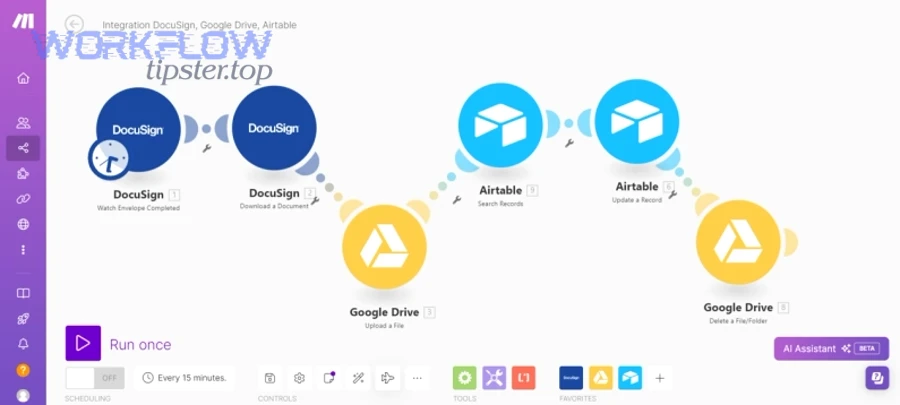
Which steps happen before sending a document to DocuSign?
Before DocuSign ever sends an envelope, the workflow must complete a predictable sequence: data validation → document generation → storage → envelope preparation—because errors almost always start upstream with missing fields, broken templates, or incorrect permissions.
Here’s the typical pre-signature sequence Ops teams should implement:
- Trigger selection (Airtable):
Choose one triggering condition that clearly means “this is ready to sign,” such as:- Status changes to Ready for Signature
- Approval checkbox is true
- A “Send Date” is set and validated
This prevents accidental sends, especially when multiple teammates update the same record.
- Record validation (Airtable):
Validate required fields before document generation:- Recipient name(s) and email(s)
- Contract start/end dates
- Pricing and currency formatting
- Legal entity names (your company + counterparty)
A strong pattern is to create a “Required Fields Checklist” that must pass before the automation continues.
- Document generation (Google Docs):
Merge Airtable fields into a Google Docs template using placeholders (tokens). The template must be designed for the worst-case record—long names, long addresses, multi-line terms—so the formatting remains readable after merge. - File finalization (Google Docs → PDF):
In many signing workflows, a PDF is the final signing artifact. If you do this conversion, do it consistently so every envelope uses the same format and reduces disputes like “this version looks different.” - Storage step (OneDrive):
Save the generated document in OneDrive using a naming convention that enables: search, auditing, and linking back to Airtable. A good convention includes: record ID + customer + doc type + date. - Envelope assembly (DocuSign prep):
Prepare recipients, roles, signing order, and any standard message. If you use DocuSign templates, map the record to the correct template role (e.g., “Client Signer,” “Internal Approver”).
This sequence is what turns four separate tools into one reliable chain: the signature step becomes “the last mile,” not the first place you discover data problems.
What does “Automate (Not Manual)” mean in this workflow?
“Automate (Not Manual)” means the workflow moves data and documents by rules, not by people, so the system creates, stores, sends, and tracks agreements the same way every time—while the Ops team focuses only on approvals and exceptions.
More specifically, the antonym framing matters because manual processes create predictable failure modes:
- Manual copying creates field mismatch: the doc doesn’t match the record, and the signer flags it.
- Manual renaming creates storage drift: files end up in the wrong OneDrive folder or with inconsistent names.
- Manual sending creates tracking gaps: no one knows which version was sent, who signed, or when it expires.
Automation replaces those risks with repeatable controls:
- Mapping rules: Airtable field X always becomes clause Y in the document.
- Storage rules: OneDrive folder structure stays consistent across projects.
- Tracking rules: DocuSign envelope ID and status are always written back to Airtable.
That’s why “automate vs manual” is not just convenience—it’s the difference between a workflow you can scale and a workflow that collapses when volume increases or staffing changes.
According to a report by the University of South Carolina from the Division of Information Technology, in 2017, the task force highlighted that e-signature initiatives streamline operations by eliminating scanning and re-keying while reducing printing and mailing costs. (sc.edu)
Do you need an automation platform to connect Airtable, Google Docs, OneDrive, and DocuSign?
Yes, you usually need an automation platform for Airtable → Google Docs → OneDrive → DocuSign document signing because (1) it orchestrates multi-step sequencing, (2) it handles authentication and permissions, and (3) it provides logs/retries when things fail.
Below, we’ll translate that “yes” into operational reality: the minimum prerequisites you must have and the specific fields to standardize before you automate anything.
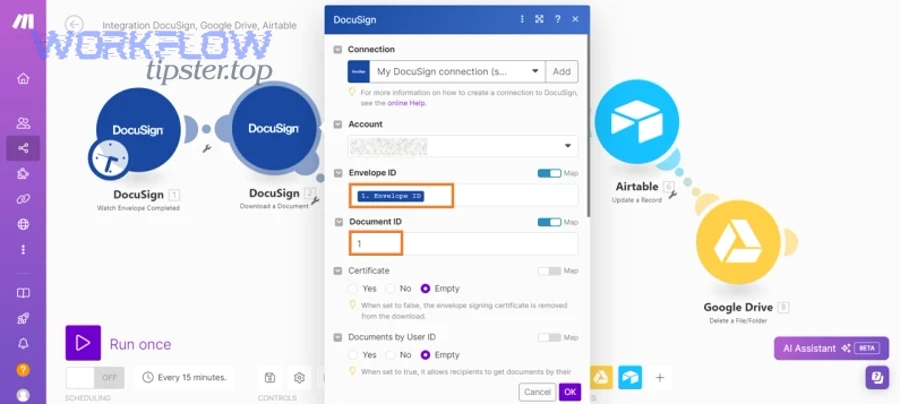
What are the minimum prerequisites to automate this workflow successfully?
The minimum prerequisites are the foundation that prevents your workflow from becoming a fragile chain of “it works on my machine” scenarios.
1) Airtable base readiness
Your Airtable base must behave like a reliable system of record:
- A unique record identifier (e.g., Contract ID)
- Clean data types (dates as dates, currency as currency)
- A controlled status field (single select)
- A consistent recipient structure (one signer vs multiple signers)
A simple but powerful practice is to add a “Ready for Signature” view that only shows records that pass validations. The workflow triggers from that view or status, not from every edit.
2) A Google Docs template designed for merge stability
A template must not assume perfect data. Build it for reality:
- Long names and long addresses
- Missing optional fields (should hide or leave blank cleanly)
- Multi-line terms (should wrap without breaking layout)
If you need repeating sections (line items, deliverables), plan how you’ll generate them—either with a structured merge technique or by generating a table-like output from your data.
3) OneDrive folder strategy and permissions
If OneDrive is your archive, it must be searchable and auditable:
- A standard “Contracts” or “Agreements” root folder
- Subfolders by client, project, or month/quarter
- Permission model (who can view drafts vs signed copies)
- A consistent file naming rule
4) DocuSign sending model
Decide early whether you send with:
- DocuSign templates (best for standard documents)
- Ad-hoc envelopes (best for variable documents)
Templates typically scale better because tabs/fields and roles are standardized.
5) A “writeback” plan
An Ops-ready workflow must write the outcomes back to Airtable:
- Envelope ID
- Sent timestamp
- Signed timestamp
- Status (Sent / Viewed / Completed / Declined / Voided)
- OneDrive link to the signed PDF
This closes the loop so Airtable becomes the dashboard, not a separate tool you forget to update.
Which data fields should be standardized first to avoid template and signing errors?
Standardizing the right Airtable fields is the fastest way to reduce broken documents and misrouted envelopes.
Start with these “high-risk if inconsistent” fields:
Identity and routing fields
- Signer full name (single text, not split unless you must)
- Signer email (validated pattern, no spaces)
- Company name (legal name, not nickname)
- Document owner (internal)
Agreement logic fields
- Effective date (date type)
- Term length or end date (date or number + unit)
- Pricing (currency type and formatting)
- Payment terms (controlled vocabulary where possible)
Document structure fields
- Document type (e.g., NDA, MSA, SOW)
- Template selection (maps to the correct Google Doc template and/or DocuSign template)
- Version number (prevents “wrong version sent” problems)
Operational control fields
- Status (Draft → Internal Review → Ready for Signature → Sent → Signed)
- Approval flag(s)
- Exception reason (if the workflow pauses)
When these fields are standardized, the automation becomes predictable: every record produces the correct document, lands in the correct OneDrive location, and routes through DocuSign to the correct signer.
How do you build the workflow step-by-step from Airtable to DocuSign with OneDrive storage?
A reliable way to automate Airtable → Google Docs → OneDrive → DocuSign document signing is to follow six steps—trigger, validate, generate, store, send, track—so Ops teams consistently produce signable documents and capture signed results without manual copy-paste.
Next, we’ll go deeper into the three “breakpoints” where workflows typically break: document generation quality, OneDrive storage consistency, and DocuSign sending + tracking accuracy.
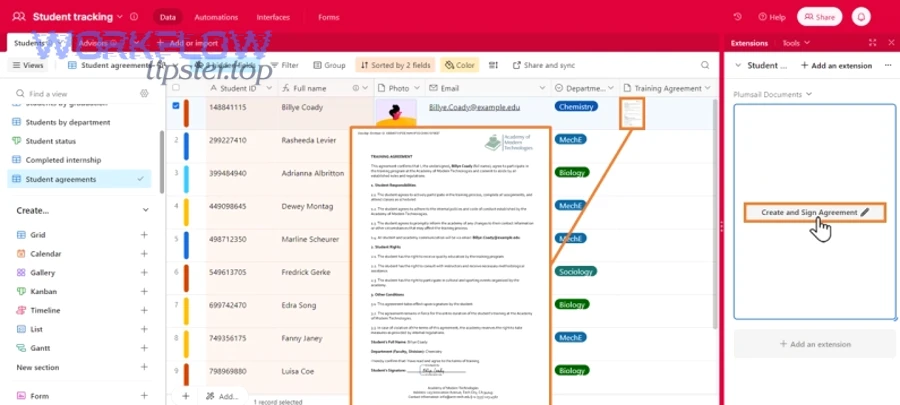
How do you generate a Google Docs file from Airtable data without formatting breaking?
You generate stable documents by designing your template and mapping rules for the worst-case record, then testing with real-looking data before you ever send a DocuSign envelope.
Step 1: Build a token map (field → placeholder)
Create a simple mapping document that states:
- Airtable field name
- Placeholder in Google Docs
- Formatting rule (date format, currency format, uppercase, etc.)
This reduces “mystery merges,” where the document looks wrong and nobody knows which field caused it.
Step 2: Use formatting-safe placeholders
Placeholders should be consistent and easy to spot. Many teams use a format like:
{{Client_Name}}{{Effective_Date}}{{Total_Fee}}
The key is consistency: when placeholders vary across templates, troubleshooting becomes slow and error-prone.
Step 3: Control line breaks and long text
Long text fields—like scope of work or terms—break formatting when templates are designed too tightly.
Use these practical controls:
- Avoid placing long-field placeholders inside narrow table cells unless you’ve tested wrapping behavior.
- Give long text sections room to expand (use headings and paragraphs).
- If you must use tables, use table cells designed to expand vertically.
Step 4: Create a “merge test set”
Create 5–10 test records in Airtable that represent edge cases:
- Very long company name
- International address formats
- Long scope text
- Multiple signers (if applicable)
- Currency with decimals and large numbers
You’re not testing “if the workflow runs.” You’re testing “if the document is readable and correct.”
Step 5: Decide the signing format (Doc vs PDF)
Most Ops teams prefer PDFs for signing because the visual layout is fixed. If you generate a Google Doc first, convert to PDF as part of the workflow.
This is also where you can integrate related variants naturally. For example, some teams use a parallel chain like airtable to microsoft word to google drive to docusign document signing when Word templates are a better fit for their legal formatting standards—especially if the template library is already in Word.
How do you save the generated document to OneDrive with consistent naming and folders?
You save documents reliably by treating OneDrive as an archive with rules—folder taxonomy, naming conventions, and permission patterns—so every signed document is findable without tribal knowledge.
Step 1: Choose a folder taxonomy that matches how Ops searches
Pick the primary dimension your team uses to retrieve signed documents:
- By client/customer
- By internal project
- By quarter/month
- By agreement type
A common approach is:
/Agreements/Client Name/Year//Agreements/Project Name/Year/
The “right” taxonomy is the one your team will actually use under pressure.
Step 2: Standardize file naming to support auditing
A strong naming format is:
{RecordID} - {ClientName} - {DocType} - {YYYY-MM-DD}
This naming pattern:
- Prevents duplicates from looking identical
- Enables quick search by record ID
- Preserves context outside Airtable
Step 3: Store both draft and signed copies intentionally
Decide whether drafts and signed copies live together or separately. Many teams prefer a split:
/Drafts/for generated documents awaiting signature/Signed/for completed agreements
This separation makes auditing easier: “Signed” becomes the source of truth.
Step 4: Handle permissions once, not per-file
Permission drift is a silent workflow killer. Avoid ad-hoc sharing and instead:
- Set permissions at the folder level
- Use role-based access groups (Ops, Legal, Leadership)
- Restrict edit permissions on Signed folders
This reduces the chance that someone accidentally modifies or deletes a signed document.
How do you send the OneDrive file to DocuSign and track the envelope status back in Airtable?
You send the correct file and track it reliably by attaching the finalized document to a DocuSign envelope, storing the envelope ID in Airtable, and syncing status updates so Airtable remains the operational dashboard.
To illustrate, treat DocuSign sending as three linked actions:
1) Prepare the envelope with stable roles
Whether you use templates or ad-hoc envelopes, define roles consistently:
- Client signer
- Internal approver (optional)
- CC recipients (optional)
Role consistency prevents misrouting, especially when you have multiple document types.
2) Attach the final artifact, not a moving target
Ops workflows should send a finalized file—usually a PDF. If you attach a file that can still change, you risk disputes (“the version I signed isn’t the version in storage”).
3) Write back tracking data to Airtable immediately
As soon as you send the envelope, write:
- Envelope ID
- Sent timestamp
- Recipient list
- OneDrive file link (draft)
Then, as the envelope updates (viewed, completed, declined), write back status changes. This turns Airtable into a real-time pipeline.
If you’re using DocuSign’s OneDrive connection to automatically send completed documents back into OneDrive, DocuSign’s support documentation describes that the integration can automatically send completed documents to your OneDrive account once configured. (support.docusign.com)
You can also maintain semantic connectivity by noting that some teams build similar “send-and-track” chains across other platforms, such as airtable to docsend to box to docusign document signing for controlled sharing and secure distribution before signature, depending on their stakeholder access requirements.
Which automation approach is better for Ops Teams: Make vs Zapier vs Power Automate?
Make wins in complex multi-step document generation, Zapier is best for quick deployment with simpler logic, and Power Automate is optimal for Microsoft-centric governance—so the best choice depends on complexity, compliance, and how tightly your team lives inside Microsoft 365.
However, “better” only matters if the workflow stays stable under real Ops conditions: handoffs, retries, permissions, and audit needs.
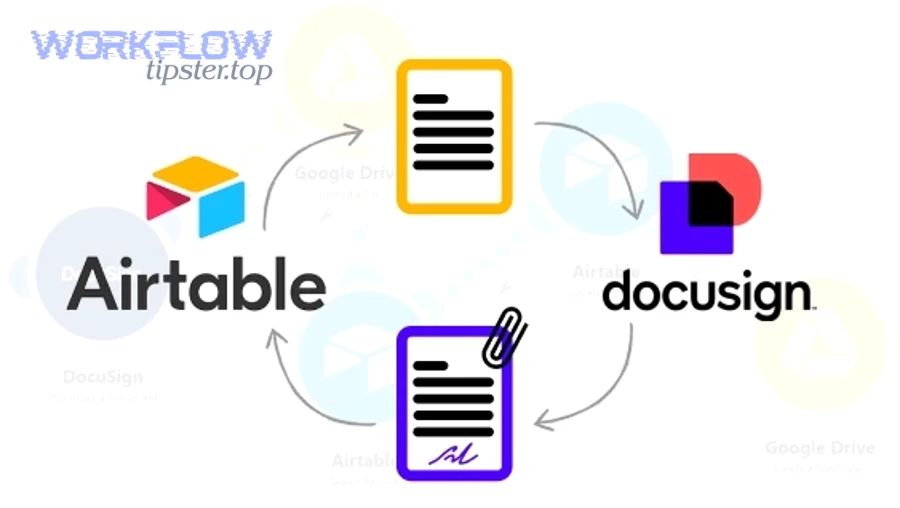
Which option is best for fast setup with low complexity?
For fast setup, Zapier often fits when your workflow is straightforward:
- One template
- One signer
- Minimal branching
- Moderate volume
Zapier shines when Ops needs time-to-value quickly:
- Simple triggers like “when Airtable record updated”
- Simple actions like “create doc from template” (if supported via your toolchain)
- Simple notifications and status updates
But the tradeoff is that advanced document logic (complex merges, conditional clauses, repeating sections) can become hard to maintain if your workflow evolves.
A practical pattern is: start with Zapier for a pilot workflow, then migrate to a more flexible builder if you discover complexity is unavoidable.
Which option is best for enterprise controls and Microsoft-centric environments?
For Microsoft-centric environments, Power Automate is often the strongest fit because it aligns with Microsoft 365 identity, governance, and admin controls—especially when OneDrive is a non-negotiable archive.
Power Automate tends to be a better choice when:
- OneDrive permissions and tenant policies are strict
- You need centralized admin oversight
- You want audit and compliance alignment inside Microsoft tooling
- You rely on Teams/SharePoint patterns in daily Ops execution
This is also where it’s easy to connect adjacent scheduling and operations chains without changing platforms—for example, an Ops team might automate calendly to google calendar to zoom to basecamp scheduling for project kickoff logistics while keeping document signing pipelines in a separate but consistent automation environment.
Make is often the middle ground: faster to express complex workflows than Zapier, less bound to the Microsoft ecosystem than Power Automate. It’s especially useful when you need branching, advanced data shaping, or multi-app orchestration.
If you want a practical reference for multi-app document automation patterns that connect Airtable, Google Docs, and DocuSign, Airtable’s community includes tutorials describing step-by-step builds using an automation platform.
What are the most common failure points in this workflow and how do you fix them?
There are five common failure points in Airtable → Google Docs → OneDrive → DocuSign document signing: data validation, template merging, storage permissions, recipient mapping, and status syncing—each fixable with clear guardrails and a consistent “single source of truth.”
More importantly, these failure points usually happen because teams automate too early—before they standardize fields, define storage rules, and decide who owns each step.
Why does the document generate with missing or wrong fields, and how do you prevent it?
Documents generate incorrectly because placeholders map to empty or inconsistent fields, or because formatting rules aren’t enforced before generation.
Prevent it with three controls:
1) Required-field gates
Before generation, confirm required fields exist:
- Signer email present and valid
- Effective date present
- Legal entity names present
- Pricing fields present (if required)
If any required field is missing, stop the workflow and write an “Action Needed” status back into Airtable.
2) Formatting rules at the data layer
Enforce formatting in Airtable:
- Date fields stored as date objects
- Currency stored consistently
- Controlled vocabulary for document type and status
3) Template “linting”
Maintain a checklist for templates:
- All placeholders must exist in the mapping document
- No duplicate placeholder names
- Long-text placeholders placed in expandable areas
- Test record set passes without layout issues
When you build these controls into the workflow, you reduce rework and prevent signers from receiving broken documents.
Why does OneDrive upload or access fail, and what permissions model reduces issues?
OneDrive failures occur because the automation identity lacks folder permissions, the folder path is inconsistent, or sharing rules are applied per-file instead of per-folder.
Reduce these issues with a predictable permissions model:
Folder-level permissions over file-level sharing
- Grant access to folders where documents will be written
- Avoid ad-hoc sharing links per document
- Use groups instead of individuals where possible
Stable paths
- Avoid dynamically creating deep folder trees unless your automation can verify creation success
- Prefer creating a client folder once, then reusing it for future documents
Service identity discipline
- Use a dedicated connection/identity for automation so permissions don’t disappear when an employee changes roles
These practices transform OneDrive from “a place files sometimes land” into a reliable archive that Ops can trust.
Why do DocuSign envelopes fail or send to the wrong recipient, and how do you validate recipients?
DocuSign envelopes fail or misroute because recipient fields are wrong, roles are mismatched, or signing order logic is inconsistent between templates and records.
Validate recipients by implementing:
1) Email verification at the point of send
Before sending:
- Confirm email field is not empty
- Confirm no whitespace
- Confirm it matches a basic email pattern
- Confirm signer name exists
2) Role mapping rules
If you use DocuSign templates, ensure your Airtable document type maps to the correct template and role:
- Template A expects “Client Signer” and “Internal Approver”
- Template B expects “Client Signer” only
If you accidentally send Template A with a record that only has one signer, your envelope may fail or pause.
3) Test-mode discipline
Run test sends for each template and document type change. A small practice—like sending to an internal test signer first—prevents costly mistakes with customers.
In short, envelope reliability is not a DocuSign problem; it’s a workflow design problem. When data, templates, and role logic align, DocuSign becomes the simplest step in the chain.
What advanced options make this workflow more secure and scalable for Ops Teams?
There are four advanced options that make Airtable → Google Docs → OneDrive → DocuSign document signing more secure and scalable: idempotency controls, recipient authentication, audit-friendly retention, and retry/rate-limit design.
Especially as volume increases, these micro-level upgrades keep your automation workflows stable and help Ops teams avoid silent errors that only show up during audits or escalations.
How can you prevent duplicate envelopes and ensure idempotency when the trigger fires twice?
You prevent duplicates by designing the workflow so “send” is a one-time event per document version, even if the trigger fires multiple times.
Use these idempotency patterns:
1) A unique send key
Create a unique key like:
{RecordID}-{DocType}-{Version}
Store it in Airtable as “Send Key.” If the workflow runs again and sees the same key already sent, it stops.
2) A locking field
When the workflow begins, write a lock:
Status = “Sending (Locked)”
Only one run can hold the lock. If a second run starts, it sees the lock and exits.
3) Envelope ID as the “proof of send”
Once the envelope ID exists in Airtable, treat that as the canonical state. Every downstream event should reference it, not create a new envelope.
This single design change can eliminate the most painful Ops scenario: a customer receives two signing requests for the same agreement.
Which recipient authentication methods improve signing security without hurting completion rate?
Recipient authentication improves security, but it can reduce completion rate if it’s too strict or confusing—so the best approach is risk-based.
Common authentication options include:
- Access code (shared out-of-band with the signer)
- SMS verification (signer verifies via phone)
- Knowledge-based authentication (availability depends on region/provider)
A practical Ops rule is:
- Low-risk documents: standard email authentication
- Medium-risk documents: access code
- High-risk documents: SMS or stronger authentication + internal approval gate
This keeps security aligned with business risk instead of applying friction universally.
How do you design audit-friendly storage and retention in OneDrive for signed documents?
Audit-friendly storage is achieved when every signed agreement is (1) immutable in practice, (2) easy to find, and (3) linked back to the originating record.
Design it with:
1) A Signed-only folder policy
Store completed agreements in a dedicated Signed folder, separate from drafts. Use permission restrictions so only designated roles can modify.
2) A traceable naming standard
Include record ID and envelope ID (or a reference) so auditors can trace:
- Airtable record → signed PDF → DocuSign envelope log
3) A “link-back” field in Airtable
Write the OneDrive signed file URL back into Airtable, plus signed timestamp and signer identity (as captured by DocuSign events).
This turns Airtable into a searchable audit index while OneDrive remains the archive.
What retry, timeout, and rate-limit practices keep the workflow stable at higher volumes?
High-volume stability depends on designing for failure: timeouts happen, permissions can change, APIs can throttle, and file operations can lag.
Stabilize the workflow with:
1) Retries with backoff
If document conversion fails or OneDrive upload times out, retry with increasing delay. Avoid immediate rapid retries that can amplify throttling.
2) Queued processing
Instead of sending 200 documents at once, queue records and process in batches. This reduces platform strain and makes monitoring easier.
3) Clear failure states in Airtable
Write error outcomes back to Airtable:
- Status = “Failed — Needs Review”
- Error message field populated
- Retry count incremented
This transforms troubleshooting from “hunt logs in five places” into “check the record and fix the cause.”
4) Monitoring rules
Set alerts when:
- Failure rate crosses a threshold
- A record remains in “Sending” too long
- Too many retries occur for one record
These controls keep the workflow trustworthy even as usage expands.
According to a report by the University of South Carolina from the Division of Information Technology, in 2017, stakeholder demand for e-signatures was tied to reducing lengthy processing time and avoiding unnecessary costs—highlighting why stable workflows need governance, monitoring, and consistent standards as they scale. (sc.edu)