


Automating document signing across Airtable → Google Docs → Box → DocuSign means you generate a clean agreement from structured data, route it for signature with a trackable audit trail, and store the signed copy in the correct Box folder—without hand-copying fields or chasing attachments.
Next, you’ll learn whether this workflow is “worth it” for operations teams by comparing it to manual processes: fewer copy/paste errors, faster turnaround, and clearer status visibility across every record, envelope, and file.
Then, you’ll set up the prerequisites and the exact field mapping logic that keeps everything consistent—from your Airtable schema to Google Docs placeholders to DocuSign tabs—so signatures don’t break when templates change.
Introduce a new idea: once the core workflow is stable, you can expand into stronger governance, compliance controls, and advanced routing patterns that turn “a signing flow” into reliable automation workflows.
What is an Airtable → Google Docs → Box → DocuSign document signing workflow?
An Airtable → Google Docs → Box → DocuSign document signing workflow is a document automation pipeline that pulls structured record data into a Google Docs template, sends it for eSignature in DocuSign, and stores the executed file in Box with a traceable status and audit trail.
To better understand why this chain works, it helps to see it as four linked systems with one responsibility each:


Airtable is your “source of truth” record layer
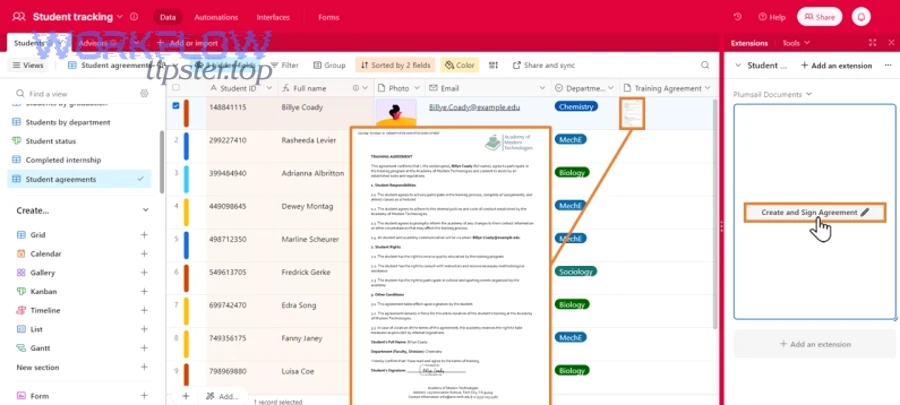
In practice, Airtable holds the canonical values you never want to retype: customer name, billing address, pricing, term dates, counterparty email, internal owner, and the “document lifecycle” fields (Draft → Sent → Viewed → Signed → Stored).
To make this reliable, you treat each signing event as a record-level state change:
- Draft ready (data validated, template chosen)
- Generated (Google Doc created, file link stored)
- Sent (DocuSign envelope created, envelope ID stored)
- Completed (signed PDF available, completion timestamp stored)
- Archived (Box file ID/path stored, permissions confirmed)
Google Docs is your template engine
Google Docs gives you a human-readable template that non-technical stakeholders can edit without breaking your database. The key idea is that the template is stable, and only placeholders change.
A strong template strategy includes:
- A single “master” doc per agreement type
- Clearly-named placeholders (e.g.,
{{Client_Legal_Name}},{{Effective_Date}}) - A strict rule: placeholders must match Airtable field keys (or mapping keys) exactly
Box is your storage and permissions layer
Box isn’t just “a folder”—it’s where access, retention, and collaboration rules live. Operations teams usually want:
- A predictable folder path (e.g.,
/Customers/Acme/Agreements/2026/) - A signed, final PDF stored once (no duplicates)
- Permissions that match the customer/account team structure
DocuSign is your signing and audit layer
DocuSign is where the legal act happens: recipient routing, signing tabs, timestamps, and audit history. It’s also where your process becomes measurable: you can track envelope status, completion time, decline reasons, and bounce failures.
Is this workflow better than manual document signing for operations teams?
Yes—this workflow is better than manual document signing for operations teams because it reduces copy/paste errors, speeds up approval-to-signature cycles, and creates a single, trackable trail from record → document → envelope → signed file.
However, “better” only becomes true when you enforce three operational disciplines:
- Data discipline (Airtable)
If Airtable fields are incomplete or inconsistent, the document will be wrong—automatically. That’s worse than manual because it scales errors. - Template discipline (Google Docs)
If templates drift (placeholders renamed, sections deleted), your mapping breaks, signatures land in the wrong places, and recipients lose confidence. - Storage discipline (Box)
If Box folders are inconsistent, you’ll still spend time searching, re-sharing, and re-downloading—just with nicer automation on top.
When those disciplines are in place, you typically see meaningful time improvements. According to DocuSign, customers have reported an average of 15 days faster contract turnaround time and improved productivity with eSignature.
What prerequisites do you need before you automate this document signing chain?
You need four prerequisites: (1) a clean Airtable schema, (2) a stable Google Docs template strategy, (3) a Box folder model with access rules, and (4) a DocuSign sending model with consistent recipient roles.
Next, the goal is to reduce “unknowns” before you build anything:
Airtable prerequisites
Build or confirm these fields (minimum):
- Counterparty: Legal name, signer name, signer email
- Agreement: Agreement type, effective date, term length, jurisdiction (if used)
- Commercials: Price, payment terms, discounts, line items (if any)
- Operational: Owner, status, last updated, error log (long text)
- Automation fields: Google Doc URL, Box file ID/path, DocuSign envelope ID, envelope status, completed date
Add validation rules:
- Required fields must be present before “Generate Doc”
- Email format checks for signer email
- Prevent sending if status is already “Sent” or “Completed”
Google Docs prerequisites
You need:
- A template per agreement type
- A placeholder convention (double braces or other consistent format)
- A policy for “template changes”
Tip: keep “optional clauses” controlled by boolean fields in Airtable so your doc generation can include/exclude text blocks predictably.
Box prerequisites
You need:
- A folder tree (customer → agreement type → year/quarter)
- Permissions mapping (who can access what)
- A final destination for signed PDFs (not drafts)
- A naming convention (e.g.,
Acme_MSA_2026-02-02_Signed.pdf)
DocuSign prerequisites
You need:
- A DocuSign account with permission to send
- At least one template (optional but recommended)
- Defined routing roles (Signer, CC, Approver, Internal Witness)
- A plan for identity verification (if your use case requires it)
How do you map Airtable fields into Google Docs placeholders correctly?
You map Airtable fields into Google Docs placeholders by creating a single “mapping layer” that translates each Airtable field (source) to a placeholder token (target), then testing with real records to confirm formatting (dates, currency, addresses) before any signing step.
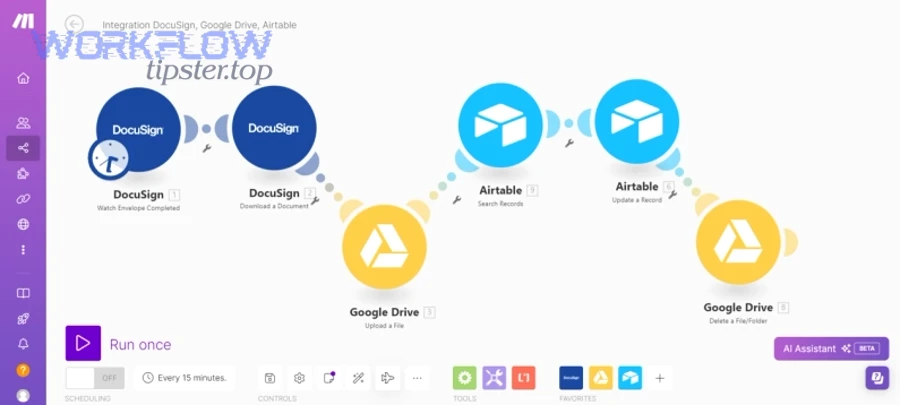
Specifically, mapping is where automation workflows either become dependable—or silently dangerous. A “working” mapping that produces slightly wrong legal names or dates is a compliance risk, not a success.
Here’s what a practical mapping table looks like :
| Airtable field (source) | Placeholder in Google Docs (target) | Formatting rule | Example output |
|---|---|---|---|
| Client Legal Name | {{Client_Legal_Name}} |
Exact match, no abbreviations | Acme Holdings, LLC |
| Effective Date | {{Effective_Date}} |
ISO or long-form date, consistent | February 2, 2026 |
| Total Price | {{Total_Price}} |
Currency with symbol and separators | $12,500 |
| Signer Email | {{Signer_Email}} |
Lowercase, trimmed | signer@acme.com |
| Service Address | {{Service_Address}} |
Multi-line block | 123 Main St… |
Then, enforce these three mapping rules:
1) One source field feeds one meaning
Avoid reusing a field like “Company Name” for both legal name and display name. Use separate fields:
Client Legal Name(contracts)Client Display Name(UI, folder names, non-legal docs)
2) Format before insertion, not after
Dates, currency, and multi-line addresses should be transformed before they hit the doc template. Otherwise you end up with inconsistent date formats, messy currency strings, and broken line wraps in clauses.
3) Handle optional clauses explicitly
For optional sections, don’t rely on “blank means false” logic. Use boolean fields like:
Include_DPA(true/false)Include_SLA(true/false)
That keeps documents consistent and auditable.
How do you create and send a DocuSign envelope from the generated Google Doc?
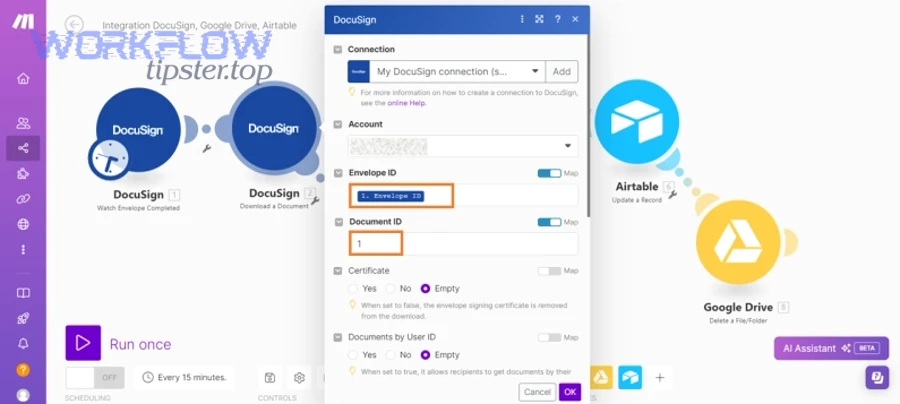
You create and send a DocuSign envelope by converting the generated Google Doc to a signable PDF, assigning recipients and signing tabs, sending the envelope, and writing the envelope ID/status back to Airtable so the record becomes the single operational dashboard.
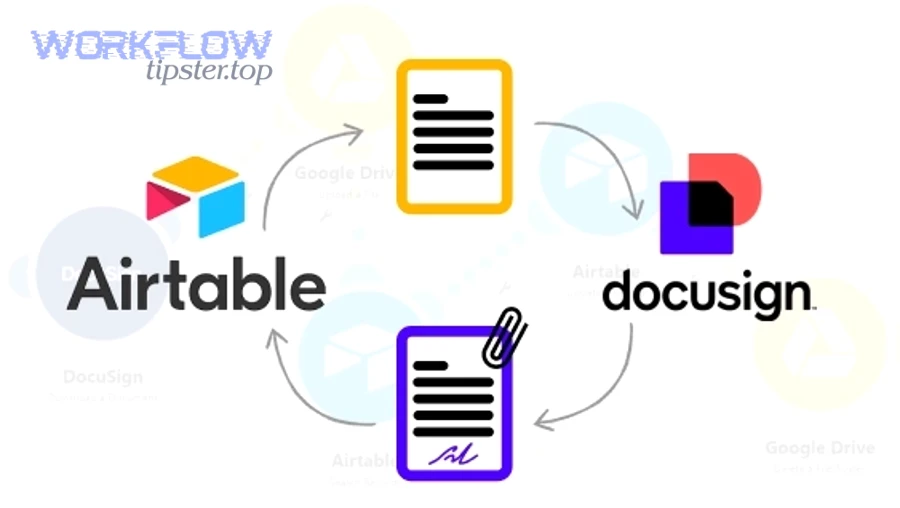
Then, you decide whether you’re sending via a DocuSign template or ad-hoc document + tabs:
Template-based envelopes (recommended for scale)
Use this when your agreement layout is stable.
- Upload a standard agreement version as a DocuSign template
- Define roles (Signer, CC, Approver)
- Place tabs once, re-use forever
- Send by “template + role assignments + custom fields”
This reduces tab-placement errors and makes your process resilient to small content changes.
Ad-hoc envelopes (useful for highly customized docs)
Use this when every document varies significantly.
- Upload the generated PDF
- Place tabs dynamically (anchor text helps)
- Send with routing + subject line + message body
This is more flexible, but more fragile—especially if your “anchor text” changes in templates.
Practical “envelope hygiene” for operations teams:
- Use a consistent email subject:
Agreement for signature: {{Client_Legal_Name}} - Put the record ID in the message or custom field (for traceability)
- Always write envelope ID back to Airtable immediately after sending
- Poll or listen for status changes (Sent → Delivered → Completed)
According to the 2025 Deloitte & DocuSign Digital Agreement Management study, organizations report measurable improvements from advanced agreement management capabilities (for example, fewer delays and faster completion in specific functions).
How do you store signed documents in Box and sync status back to Airtable?
You store signed documents in Box by saving the completed PDF into a deterministic folder path, applying a consistent filename, and recording the Box file ID (or shared link) back to Airtable—then updating the record status to reflect the real signing outcome.
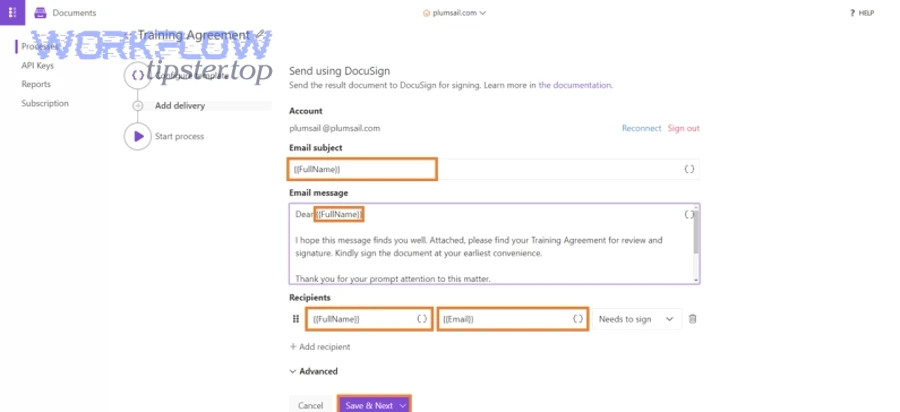
Besides preventing chaos, this step is what turns “a signed file somewhere” into “an auditable operating system.”
Store the signed file deterministically
Pick a single policy and never break it. For example:
- Folder path:
/Customers/{Client_Display_Name}/Agreements/{Year}/ - Filename:
{Client_Display_Name}_{Agreement_Type}_{Effective_Date}_Signed.pdf
Avoid naming based on “who sent it” or “today’s date” because that creates duplicates.
Sync status back to Airtable as a lifecycle event
Treat Box storage as the final lifecycle step:
Envelope Status = CompletedSigned File Stored = YesBox File ID = ...Stored Timestamp = ...
This creates a record that can be filtered by operations instantly:
- “Show me completed but not stored”
- “Show me sent but not completed after 7 days”
- “Show me completed this week by owner”
Handle exceptions with explicit states
Never use a vague status like “Issue.” Use structured states:
Delivery FailedRecipient DeclinedNeeds Re-sendStored With Warnings(e.g., folder permission mismatch)
This makes your automation workflows observable and fixable.
What are the most common failures, and how do you troubleshoot them?
The most common failures are missing Airtable data, broken placeholder mapping, DocuSign recipient issues, and Box permission/path errors—and you troubleshoot them fastest by logging the failure at the record level and replaying only the failed step instead of restarting the whole workflow.
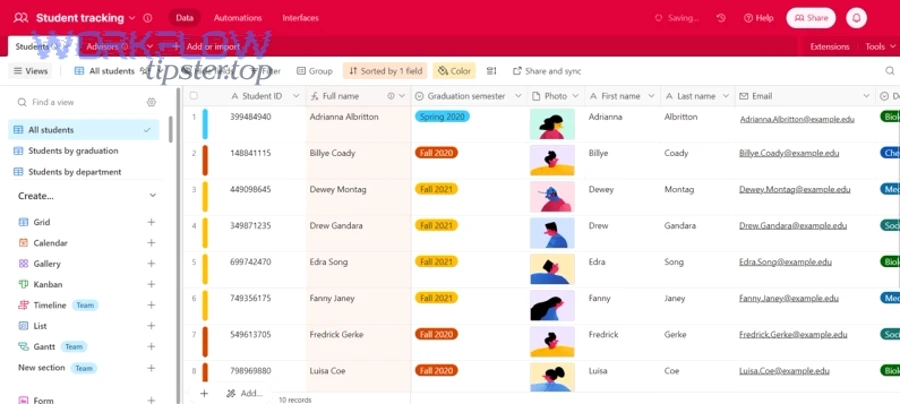
More importantly, your troubleshooting process should answer one question: Where did the chain break? Record → Document → Envelope → Storage.
Failure 1: Missing or invalid data in Airtable
Symptoms:
- Placeholder values show up blank
- Signer email bounces
- Wrong pricing or dates in the document
Fix:
- Add required-field validation before generation
- Add a “Preview Document” step so humans can spot errors before signing
- Log a friendly error into
Automation Error Log
Failure 2: Placeholders don’t replace correctly in Google Docs
Symptoms:
{{Client_Legal_Name}}still appears in the final PDF- Formatting is broken (weird spacing, line breaks)
Fix:
- Maintain a mapping dictionary and unit test placeholders
- Use a “template version” field in Airtable so you can track what generated what
- Restrict who can edit templates
Failure 3: DocuSign envelope sends but status never updates
Symptoms:
- Envelope is sent, but Airtable still shows “Draft”
- Operators can’t tell if the signer received it
Fix:
- Store envelope ID immediately
- Use periodic polling or webhook callbacks (depending on your implementation)
- Add a manual “Refresh Status” button for operators
Failure 4: Signed doc exists, but Box storage fails
Symptoms:
- Signed PDF is available, but no file appears in Box
- Permissions errors, folder not found
Fix:
- Pre-create folder paths or create-on-demand with retry logic
- Validate permissions using a service account or standardized access groups
- Store in a temporary “Inbox” folder if the final location fails, then move later
To illustrate how operational teams often connect multiple pipelines, you can apply the same troubleshooting pattern to other chains too—for example, google forms to hubspot to airtable to slack lead capture or github to asana to discord devops alerts—because they share the same failure categories: missing inputs, mapping drift, delivery failures, and destination permissions.
How do governance and compliance change this workflow in Box?
Governance and compliance change this workflow by adding retention, legal hold, and policy-based controls in Box so executed agreements are preserved correctly, disposed on schedule, and discoverable during audits without relying on individual user behavior.
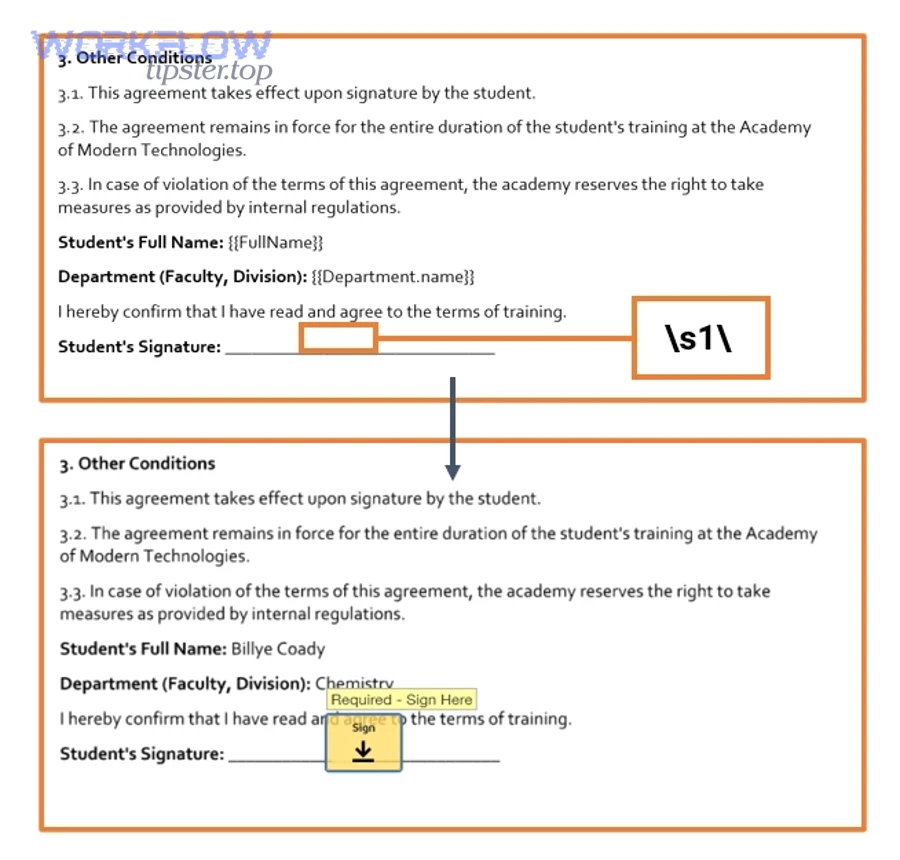
Then, instead of “put it in a folder and hope,” you treat signed agreements like regulated records.
What retention policies mean for signed agreements
Retention answers:
- How long do we keep executed agreements?
- When can we delete them?
- Who can override deletion?
In Box, retention can be applied globally or by folder/file rules, which helps operations maintain consistency even when teams change.
When legal holds matter
Legal holds matter when you must preserve content for litigation or investigations. If your business faces disputes, regulatory reviews, or contractual claims, you want a system-level hold—not a manual “don’t delete this” instruction.
Practical micro-optimizations for compliance-minded teams
- Add metadata to the stored PDF: agreement type, effective date, counterparty
- Store the DocuSign envelope ID alongside the Box file record
- Keep a “Signed Version Hash” field (optional) if you operate in higher-assurance environments
- Limit editing rights on executed documents (view-only for most users)
At this point, you’ve crossed the contextual border: the workflow is no longer just about “getting a signature,” but about managing the agreement as an asset across its full lifecycle.