


Capturing leads is easy; capturing clean, actionable leads that instantly reach the right people is the hard part. This guide shows how to automate lead capture so every Google Forms submission becomes a properly created or updated HubSpot contact, is stored as a trackable Airtable record, and triggers a timely Slack alert that your team can act on.
Next, you’ll learn the “data hygiene” layer that separates a working automation from a chaotic one: which fields to collect, how to map them, and how to prevent duplicates so HubSpot stays trustworthy and Airtable becomes a reliable operational pipeline.
Then, you’ll set up Slack alerts that reduce response time without spamming channels, including what the message must contain, how to route alerts to the right channel, and how to keep the workflow reliable when something fails.
Introduce a new idea: once the core workflow is live, you can optimize for scale—governance, advanced deduplication, multi-form architecture, and rate-limit resilience—without breaking the hook chain that makes the system simple to run day-to-day.
What is a Google Forms → HubSpot → Airtable → Slack lead capture workflow?
A Google Forms → HubSpot → Airtable → Slack lead capture workflow is an automation workflow that turns each form submission into a CRM contact update, a structured Airtable record, and an immediate Slack notification so Marketing and Sales Ops can respond consistently and fast.
To better understand how this works in practice, think of the workflow as one “lead event” moving through four systems with one source of truth.
Google Forms is the lead intake layer. It captures structured answers at the moment of intent—demo requests, webinar registrations, contact inquiries, or inbound qualification. The form is simple, but what matters is that it produces consistent data that can be processed automatically.
HubSpot is the CRM system of record for contacts and lifecycle tracking. In a strong lead capture workflow, HubSpot is where you store identity (email), lifecycle stage, lead source, and ownership. HubSpot becomes the place Sales trusts to see “who is this lead and where are we in the journey?”
Airtable is the operations and workflow layer. Teams use Airtable when they need flexible pipelines, custom views, enrichment queues, or cross-functional tracking that doesn’t belong inside the CRM. Airtable helps you answer questions like: “Which leads need research?”, “Which leads were routed to Sales but not responded to?”, and “Which campaign sources are generating high-intent submissions?”
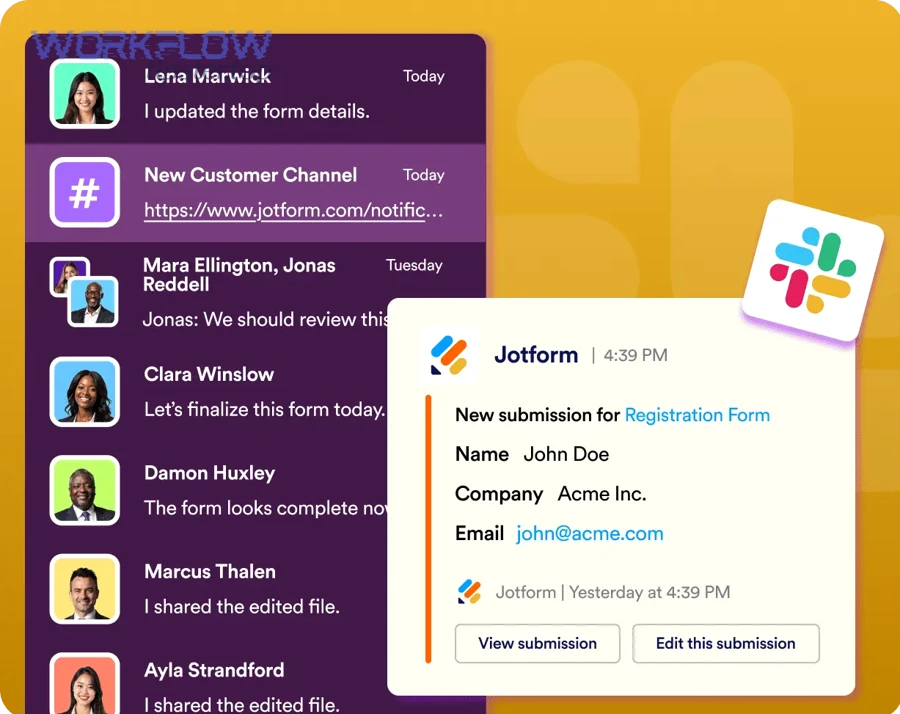
Slack is the activation layer. It ensures the right team sees the lead at the right time. Slack is where you reduce time-to-first-touch by pushing a compact, actionable alert with context and direct links back to HubSpot and Airtable.
The power of this chain is that it converts a passive form into a coordinated system: intake → identity → operations → action.
Do you need HubSpot and Airtable for lead capture?
Yes—you often need both HubSpot and Airtable for lead capture when you want (1) a trusted CRM source of record, (2) an operational pipeline for enrichment and routing, and (3) a fast team notification layer that improves speed-to-lead without sacrificing data quality.
However, the real decision is about roles: CRM for customer relationship truth, Airtable for operational truth, and Slack for execution.
Reason 1: HubSpot and Airtable solve different “truth” problems.
HubSpot is optimized for lifecycle tracking, activities, deal association, and reporting tied to the customer journey. Airtable is optimized for flexible operations: custom workflow stages, research queues, enrichment tasks, and cross-team coordination.
Reason 2: Airtable prevents CRM overload.
When teams push every operational step into HubSpot, the CRM becomes cluttered with fields and statuses that don’t improve selling—they just create friction. Airtable can hold the operational fields (research status, enrichment notes, routing checks, priority tags) while HubSpot stays clean and stable.
Reason 3: The combo improves response time and consistency.
Slack alerts drive fast response, HubSpot ensures the lead lands in the CRM correctly, and Airtable ensures nothing falls through gaps like missing enrichment, missing ownership, or “lead responded but not qualified.”
If your process is simple—one form, one sales team, minimal routing—HubSpot + Slack might be enough. But if you run multiple campaigns, have multiple teams, or need consistent operational quality, Airtable adds the control plane that stops the system from breaking as volume grows.
How do you set up the workflow step-by-step from Google Forms to HubSpot to Airtable to Slack?
There are 6 main steps to set up this workflow: (1) define your lead schema, (2) connect Google Forms to your automation tool, (3) upsert HubSpot contacts, (4) create/update Airtable records, (5) send Slack alerts, and (6) test and harden with retries and logging.
Below is the build sequence that prevents “it works once” automations and creates a system your team can trust.
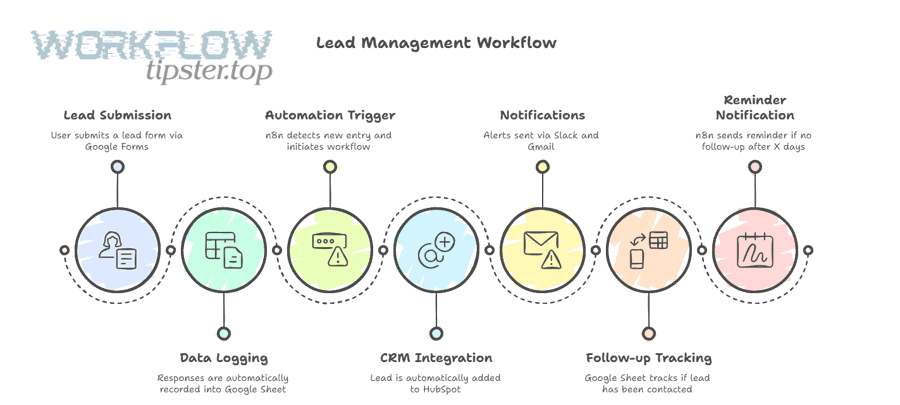
Before you connect anything, choose the implementation path you’ll use (Zapier/Make, n8n, Apps Script, or a similar tool). Regardless of tooling, the logic stays the same: capture → normalize → upsert → store → notify.
To keep the workflow consistent, establish one naming convention across systems. For example, use the same field names for “Email,” “Company,” “Role,” “Use case,” and “Source” so mapping stays stable. This is the hook-chain that keeps the workflow readable and maintainable.
What fields should you capture in Google Forms for clean HubSpot and Airtable mapping?
There are 2 categories of fields you should capture: identity fields and qualification fields, based on the criterion “Does this field help us identify the person or decide what to do next?”
Next, the goal is to minimize friction while still collecting enough information for accurate routing.
Identity fields (minimum viable):
- Email (required): your primary upsert key for HubSpot contacts
- Full name (recommended): improves personalization and Slack readability
- Company (recommended): supports routing and qualification
- Phone (optional): only if your team actually uses it; normalize formatting
Qualification fields (use-case driven):
- Intent / request type: demo, pricing, partnership, support, etc.
- Use case: a short structured list (e.g., “lead capture,” “contracting,” “support triage”)
- Team size / timeline (optional): helps prioritize
- Notes (optional): free text, but keep it short to avoid noise
Tracking fields (high leverage):
- Lead source / campaign: capture UTM parameters if possible via your tooling
- Landing page / form name: essential when you have multiple forms
- Consent checkbox: if your compliance requires it
A practical rule: make email the only required identity field, then add one or two qualification fields that genuinely change routing. Every extra required question reduces conversion and increases messy data.
How do you map Google Forms answers to HubSpot properties without breaking data quality?
Mapping works when you align data types and enforce normalization at the edges: text stays text, picklists stay picklists, dates stay dates, and anything ambiguous gets standardized before it hits HubSpot.
Then, you maintain consistency by mapping the same meaning to the same HubSpot property every time.
Mapping principles that prevent chaos:
- Map identity first: email → Email, full name → First/Last Name (split if needed)
- Map classification next: lead source, lifecycle stage, contact owner (if assigned)
- Map qualification last: use case, timeline, and any custom properties
- Normalize before writing: trim whitespace, lower-case emails, standardize phone formats
- Prefer controlled vocabularies: dropdown properties reduce spelling variance
If your form includes free-text “Use case,” consider mapping it to a HubSpot text property and mapping a simplified category to a dropdown property. That way, reporting stays stable while you still retain nuance.
A simple mapping table (for clarity):
This table shows how a single Google Forms field should map into HubSpot and Airtable so both systems stay aligned.
| Google Forms question | HubSpot property | Airtable field | Why it matters |
|---|---|---|---|
| Primary identity key (upsert) | |||
| Full name | First name / Last name | Name | Personalization + clarity |
| Company | Company name | Company | Routing + enrichment |
| Use case | Use case (text) + Use case category (dropdown) | Use case + Category | Reporting + context |
| Notes | Notes | Notes | Useful nuance, controlled length |
| Source / campaign | Original source / Campaign | Source / Campaign | Attribution |
How do you create or update (upsert) a HubSpot contact to prevent duplicates?
Upsert means “create the contact if it doesn’t exist, otherwise update the existing record,” and email is the best primary key because it remains stable across submissions.
To better understand why duplicates happen, remember that duplicates are almost always a matching problem, not a tool problem.
A durable upsert rule set:
- Match by email first (lowercased + trimmed)
- If email is missing, do not create a contact automatically; route it to an Airtable review queue
- Update strategy: choose either:
- Overwrite safe fields (like latest submission timestamp, last form name, last intent), and
- Fill-empty for sensitive identity fields (phone, title) unless you have high confidence
Duplicate prevention checklist:
- Ensure your workflow uses “Find contact by email” before “Create contact”
- Normalize email consistently (e.g.,
trim(lower(email))) - Keep the “create” path and “update” path explicit so you can debug quickly
- Record the automation run ID or submission ID as a note for traceability
This is where Marketing & Sales Ops wins: you stop treating each submission as a new person, and start treating it as an event tied to an identity.
How do you write the lead into Airtable so it becomes your operational pipeline?
Airtable becomes operational when you structure it as a pipeline with clear statuses, ownership, and views—not just a dumping ground for submissions.
Next, build Airtable around the question: “What do we need to do with this lead?”
Airtable base structure (recommended):
- Leads table: one record per lead identity or per submission (choose deliberately)
- Activities table (optional): follow-ups, notes, routing decisions
- Campaigns table (optional): if attribution matters
Fields that make Airtable operational:
- Submission timestamp
- Lead status (New → Routed → Working → Qualified/Disqualified)
- Owner (Sales rep or queue)
- Enrichment status (Not started → In progress → Completed)
- HubSpot contact link (URL)
- Slack message link (optional)
Two viable storage models:
- One record per identity (deduped by email): best for lifecycle tracking and enrichment
- One record per submission: best for campaign analytics and high-volume intake
If your priority is response speed and operational clarity, start with one record per identity and store submission history in a linked table. That keeps the pipeline clean while still preserving context.
How do you send actionable Slack alerts from new leads?
You send actionable Slack alerts by posting a compact message that includes identity, intent, routing, and direct links—so a human can take the next action in under 10 seconds without searching across tools.
More importantly, Slack alerts only work when they reduce ambiguity: who owns this lead, what do we do now, and where is the record?

A practical Slack alert is not “New lead submitted.” A practical Slack alert is “New demo request from X; routed to Y; here are the links.”
Also, if you already use HubSpot’s Slack integration for notifications and record actions, you’ll want to align your workflow with HubSpot’s documented connection requirements and permissions so your team doesn’t get blocked by access issues.
Which Slack channel should receive lead alerts: one channel or multiple channels?
Multiple channels win for routing accuracy, while one channel is best for visibility—so the right choice depends on whether your team optimizes for speed-to-owner or shared awareness.
However, you can balance both by using a primary channel for “high intent” and secondary channels for routed alerts.
One channel is best when:
- You have a small team with shared ownership
- You prioritize transparency and fast triage
- You can use threads or emoji reactions to assign ownership
Multiple channels are best when:
- You have distinct teams (Sales, Partnerships, Support)
- You route by region, product line, or urgency
- You want to minimize noise in each team’s channel
A strong hybrid pattern:
- Post high-intent leads to a primary channel (e.g.,
#inbound-high-intent) - Post routed leads to team channels (e.g.,
#sales-emea,#sales-na) - Post low-intent leads to a digest channel or daily summary
What should a high-converting Slack lead alert message include?
There are 7 core components of a high-converting Slack lead alert message: identity, intent, source, priority, owner, context, and links—based on the criterion “Does this element help a rep decide and act immediately?”
Next, format it as a short block so it stays readable in a fast-moving channel.
Slack alert template (copy-ready):
- Lead: Name + Company
- Contact: Email (and phone if relevant)
- Intent: “Demo request” / “Pricing” / “Partner”
- Use case: short category + 1 line of detail
- Source: campaign / form name
- Routing: assigned owner or queue
- Links: HubSpot contact + Airtable record
Optional enhancements:
- @mention the owner (or a rotation group)
- Add emoji-based priority (🔥 high intent, 👀 review, 🧊 low)
- Include “next step” line: “Reply with ✅ to claim” or “Assign owner in Airtable”
If you want to brand your internal practices, add a short signature line like “— Workflow Tipster playbook” at the end of the alert message so teams recognize it as a standard operating pattern.
How do you reduce Slack noise without missing high-intent leads?
Filtering wins for focus, while broadcasting wins for awareness—so the best approach is to filter by intent and priority, then provide a fallback digest for everything else.
To illustrate, think in layers: real-time for urgent, batched for informational.
Noise-reduction strategies that preserve coverage:
- Only alert in real time for “Demo,” “Pricing,” or “High intent” keywords
- Route “Support-like” submissions away from Sales and into support triage
- Use quiet hours: real-time during business hours, digest after hours
- Use a “needs review” queue in Airtable instead of blasting Slack
- Add a daily Slack digest message with totals by campaign and status
This is where the hook chain matters: the Slack alert should connect back to Airtable and HubSpot so the workflow remains one continuous system, not disconnected pings.
What are the most common failures in this automation workflow and how do you fix them?
There are 6 common failures in this workflow: broken connections, missing required fields, type mismatches, duplicate creation, Airtable write errors, and Slack delivery issues—based on the criterion “Where does the lead event get lost or degraded?”
Next, fixing these failures becomes easier when you diagnose them by symptom: “Where did the lead disappear?”
To keep troubleshooting fast, log three IDs everywhere:
- Google Forms submission timestamp or response ID
- HubSpot contact ID (when created/found)
- Airtable record ID (when created/updated)
Why are leads not showing up in HubSpot after a form submission?
Leads usually don’t show up in HubSpot because the workflow never triggers, authentication expired, or a required property fails validation—so the automation stops before the “create/update contact” step.
Then, you fix it by walking the chain in order and confirming each step produces an output.
Fast fix checklist:
- Confirm the trigger fired (a new submission exists)
- Reconnect the Google account and HubSpot account in your automation tool
- Confirm email is present and mapped to HubSpot’s Email field
- Check if any required HubSpot properties are missing or invalid
- Validate dropdown values match HubSpot property options exactly
- Run a test submission and inspect the step logs
If your workflow includes conditional paths (e.g., “Only create contact if email exists”), make sure “missing email” routes to Airtable review rather than silently dropping.
Why do duplicates happen in HubSpot or Airtable, and how do you stop them?
Duplicates happen when the workflow creates new records without a reliable match key, or when key fields are not normalized—so the same person appears as multiple identities across systems.
More specifically, duplicates are a matching logic failure: the automation doesn’t “see” the existing record, so it creates another.
How to stop HubSpot duplicates:
- Always “find contact by email” before creating
- Normalize emails (
lowercase + trim) - If a contact exists, update only safe fields and store submission history elsewhere
- Avoid creating contacts for submissions without email; queue them for manual review
How to stop Airtable duplicates:
- Decide whether Airtable is “one record per identity” or “one record per submission”
- If “per identity,” enforce uniqueness by:
- searching for an existing record by email before create
- updating that record instead of creating a new one
- Use a formula field for a normalized key (e.g., lower(email)) and search by it
If you must store “per submission,” keep identity deduped in HubSpot and link submissions to the HubSpot contact URL so the pipeline stays coherent.
Why are Slack alerts delayed or missing, and how do you make them reliable?
Slack alerts are delayed or missing when the bot lacks permissions, the channel destination is misconfigured, or rate limits/retries are not handled—so messages fail silently or queue unpredictably.
In addition, reliability improves when Slack is the last step, not the only step.
Reliability checklist:
- Confirm bot/app permissions to post in the target channel
- Use channel IDs (when required) instead of names to avoid renaming issues
- Implement retries with backoff for transient errors
- Add a fallback path: if Slack fails, mark the Airtable record “Alert Failed” and notify a backup channel
- Keep Slack message payload simple and consistent
If you want a lightweight alternative for smaller teams, Google Workspace Marketplace add-ons can post Slack notifications from Google Forms data, but you’ll still want your HubSpot and Airtable steps for full lead capture governance. (workspace.google.com)
Evidence: According to a study by M.I.T., in 2007, the odds of contacting a lead in 5 minutes versus 30 minutes dropped by 100 times, showing why reliable real-time alerting is a practical advantage in lead capture workflows. (cdn2.hubspot.net)
Which integration approach is better: Zapier/Make vs n8n/Apps Script for this workflow?
Zapier/Make wins in speed and simplicity, n8n wins in control and scalability, and Apps Script is optimal for lightweight customization when you can maintain code—so the best approach depends on your team’s ownership model and reliability requirements.
Next, compare them using the criteria that actually matter for Marketing & Sales Ops: setup time, cost at scale, governance, and debugging.

Zapier / Make (no-code) is best when:
- You need a working workflow today
- Your team prefers UI-based mapping and quick iteration
- You want built-in retries and readable logs
- Your volume is moderate and costs are predictable
n8n (low-code / automation platform) is best when:
- You want advanced branching, custom logic, and robust error handling
- You need to scale without per-task pricing
- You want deeper control over data transformation and dedup rules
Apps Script (code) is best when:
- Your workflow is narrow and stable (e.g., one form)
- You can maintain code and handle edge cases
- You want tight integration with Google Forms/Sheets logic
A practical selection heuristic:
- Start with Zapier/Make to validate the process and schema
- Move to n8n when routing complexity and volume make costs or control a problem
- Use Apps Script only if you have a clear owner and minimal future changes
If you’re already building other automation workflows—like calendly to outlook calendar to google meet to clickup scheduling—choose the platform that your team can maintain consistently across workflows, not just for this one chain.
How do you optimize this lead capture workflow for scale, governance, and advanced routing?
You optimize this workflow by adding (1) governance rules for PII and access, (2) stronger identity resolution, (3) a multi-form architecture, and (4) resilience patterns like queues and retries—so the system stays fast while remaining accurate as volume and teams grow.
More importantly, optimization is about balancing an antonym pair: speed vs accuracy—you want both, but you design the workflow so speed doesn’t destroy data trust.
PII and governance:
- Minimize what you send to Slack; post only what’s needed to act
- Keep sensitive fields (phone, detailed notes) in HubSpot or Airtable with controlled access
- Use permissioned Airtable views for enrichment teams vs sales teams
- Store consent and retention indicators in HubSpot and reference them in Airtable
Identity resolution beyond email:
- Normalize phone numbers and company domains
- Use “fill-empty” updates to avoid overwriting trusted CRM data
- Create a review queue in Airtable for conflicting identity signals
Multi-form architecture:
- Store
form_nameandcampaign_sourceexplicitly - Route by intent: demo → sales, partnership → bizdev, support-like → support
- Maintain one consistent schema so all forms map into the same operational model
Resilience and rate limits:
- Add an idempotency key (submission ID) to prevent duplicate processing on retries
- Use backoff retries and a replay mechanism for failed events
- Build a “failed events” Airtable table with status and error fields so you can reprocess safely
If you’re running adjacent flows—like freshdesk ticket to asana task to discord support triage or airtable to microsoft word to box to dropbox sign document signing—reuse the same operational patterns: normalized keys, clear routing rules, and a replayable error queue. That consistency turns one automation into a scalable operating system. Workflow Tipster.