


You can automate a no-code (not manual) document signing workflow by using Airtable as your system of record, DocSend for controlled sharing and engagement tracking, Box for governed storage, and PandaDoc for templated eSignatures—so a single Airtable record can reliably become a sent, signed, and archived agreement.
Next, you’ll also want a clear model for how each tool “hands off” to the next—what data you pass, what link you store, and what status you update—so Sales and RevOps teams can see exactly where every deal document sits without chasing people in Slack.
Then, the most important implementation details come down to mapping (Airtable fields → PandaDoc variables), permissions (who can access Box/DocSend links), and document lifecycle control (draft vs sent vs signed), because those three factors determine whether the workflow stays “not manual” at scale.
Introduce a new idea: once the end-to-end flow works, you can optimize it for reliability, governance, and reporting—so you don’t just send documents faster, you also reduce duplicates, prevent wrong-version signing, and measure cycle time.
What is an Airtable → DocSend → Box → PandaDoc no-code document signing workflow?
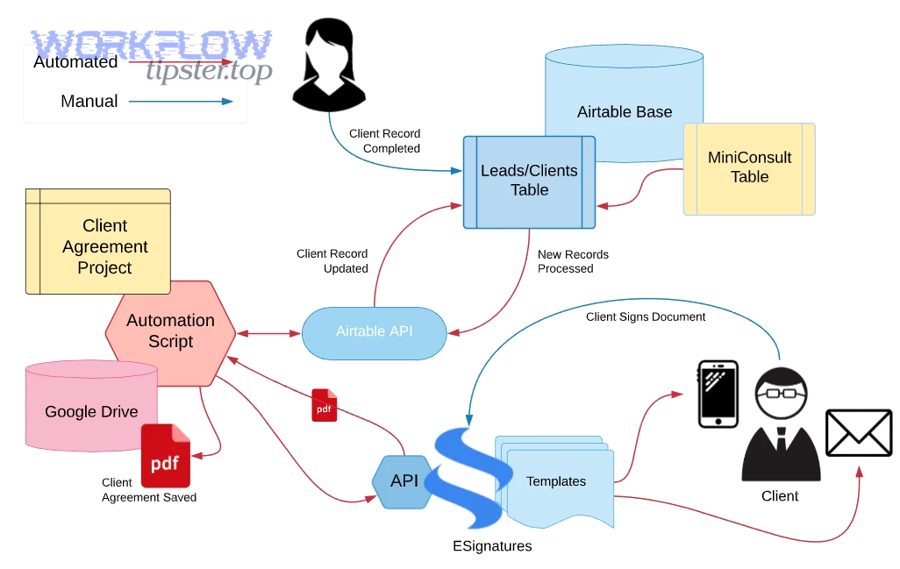
An Airtable → DocSend → Box → PandaDoc no-code document signing workflow is a connected process where Airtable records trigger document creation and sending, DocSend controls secure sharing and tracking, Box stores the canonical files, and PandaDoc completes eSignatures with a defined lifecycle.
More specifically, this workflow matters because “document signing” isn’t one action—it’s a chain: prepare → share → approve → sign → store → sync status back. When you design the chain intentionally, Sales and RevOps stop relying on manual copy-paste and ad-hoc follow-ups, and start operating from a single source of truth.
A practical way to picture it is as four responsibilities:
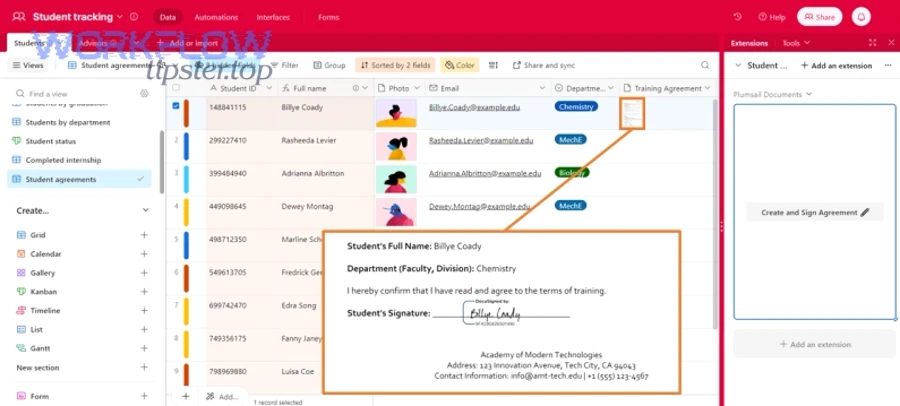
- Airtable = the deal/document control plane: the record holds customer data, pricing, template choice, and current status.
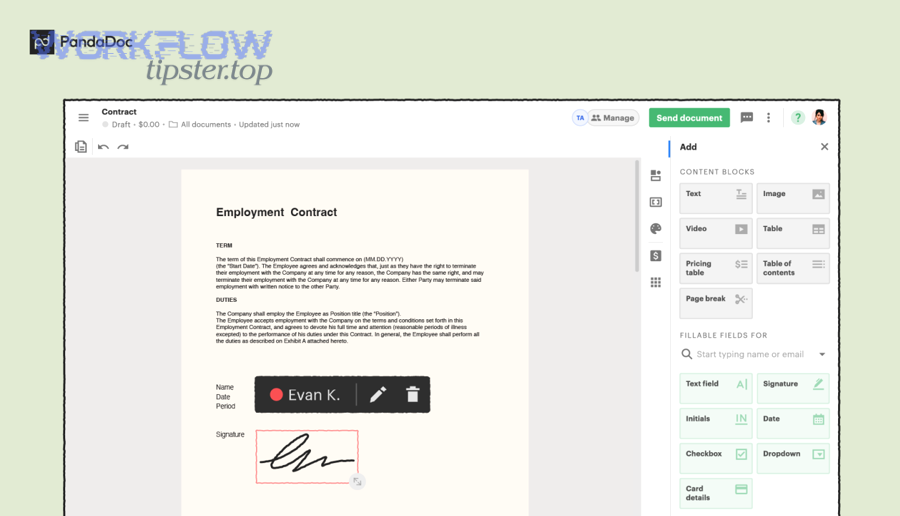
- PandaDoc = the signature engine: it turns structured data into a templated document and collects signatures with an audit trail.
- Box = the governed file home: it keeps draft/signed versions organized and permissioned.
- DocSend = the controlled sharing layer: it provides secure, revocable links and engagement visibility. (docsend.com)
The key feature of a strong “not manual” workflow is that every handoff produces a stable artifact you can reference later: a DocSend link, a Box file/folder path, a PandaDoc document ID, and an Airtable status + timestamps.
According to a study by The California State University from a campus efficiency initiative, in 2019, electronic signatures reduced average turnaround time by 73% versus manual processes. (calstate.edu)
How does each tool contribute to the workflow (Airtable vs DocSend vs Box vs PandaDoc)?
Airtable wins in structured operational tracking, DocSend is best for secure sharing + engagement analytics, Box is optimal for governed storage and folder integrity, and PandaDoc is strongest for templated eSignature execution.
However, that only becomes true when you assign each tool a single job and avoid overlapping responsibilities. If PandaDoc is both “template engine” and “long-term archive,” or if Airtable becomes a file dump instead of a record system, the workflow becomes fragile.
Here’s the clean division of labor that keeps the hook chain tight:
- Airtable: record schema (deal, customer, pricing, stage), workflow flags (Approved to Send = Yes/No), and reporting fields (Sent At, Signed At).
- DocSend: secure share link that can be limited by email/domain and revoked; engagement signals like views/time. (docsend.com)
- Box: folder structure per customer/account, canonical storage for drafts and completed PDFs, retention/governance options.
- PandaDoc: document generation from templates, signer routing, completion/decline events, and audit trail.
To make this work reliably, store each artifact back into Airtable as a dedicated field:
- DocSend URL
- Box Folder URL
- PandaDoc Document URL/ID
- Current Status (Draft/Sent/Viewed/Signed/Declined)
Which workflow outcomes should Sales & RevOps expect (faster turnaround, visibility, fewer errors)?
Sales & RevOps teams should expect faster signature turnaround, better stakeholder visibility, and fewer operational errors because the workflow replaces scattered steps (email threads, attachment chaos, “which version is final?”) with a single tracked chain.
Besides speed, the hidden win is predictability: you can forecast pipeline better when “Sent” and “Signed” are measurable states, not subjective guesses from reps.
Concretely, a well-built workflow typically delivers:
- Cycle-time compression: fewer waiting gaps between drafting and sending.
- Fewer version mistakes: a single Box location + naming conventions reduces “wrong PDF” incidents.
- Less follow-up overhead: DocSend engagement signals help prioritize outreach without spamming everyone.
- Cleaner reporting: Airtable becomes the source of truth for stage-to-stage conversion and time-in-stage.
Can you automate this workflow without code (and avoid manual copy-paste)?
Yes—Airtable → DocSend → Box → PandaDoc document signing can be automated without code because (1) each app supports integrations/automation triggers, (2) the workflow can pass stable links and IDs instead of files, and (3) templates let PandaDoc generate documents from Airtable data consistently.
More importantly, “not manual” automation only stays not manual when you design it around stable record logic, not around human memory. That’s why your first build should be an MVP chain that works the same way every time.
Three reasons no-code works well here:
- Airtable can store structured data and statuses, so the workflow has a clear trigger condition (like “Approved to Send = Yes”).
- DocSend supports integrations with Box, letting you keep folder structures intact while sharing securely. (docsend.com)
- PandaDoc supports using Box documents and turning them into reusable templates, which reduces document setup time and increases standardization. (pandadoc.com)
According to a study by The California State University, in 2019, 78% of electronic-signature transactions in their program were completed in less than one week, showing how digital signing compresses completion windows compared to manual routing. (calstate.edu)
What prerequisites must be set up first in Airtable, Box, DocSend, and PandaDoc?
There are 4 prerequisite groups for this workflow: Airtable record design, Box storage structure, DocSend sharing configuration, and PandaDoc templates/roles—based on the criterion “can the workflow run from a single record without human patching?”
Then, once those prerequisites exist, your automation tool (native, Zapier, Make, etc.) becomes a wiring choice rather than a strategy.
Airtable prerequisites
- A “Deals” (or “Agreements”) table with stable fields: Customer Name, Primary Contact Email, Deal Value, Region, Template Type.
- Workflow fields: Approved to Send (checkbox), Current Status (single select), Sent At, Signed At.
- Link fields: PandaDoc Doc URL, DocSend Link, Box Folder URL.
Box prerequisites
- A consistent folder pattern, such as:
/Accounts/{Account Name}/Agreements/{Year}/ - Permissions plan: who can view vs edit; avoid “anyone with link” unless your governance allows it.
- Naming convention that embeds a unique Airtable Record ID to prevent duplicates.
DocSend prerequisites
- Decide what you share in DocSend: pre-sign review link, post-sign package, or both.
- Set sharing rules (email/domain restrictions, revocation policy) aligned with your security needs. (docsend.com)
PandaDoc prerequisites
- Template(s) with variables mapped to Airtable fields.
- Defined recipient roles (Signer, Approver, CC) and signing order rules.
- Standard blocks for pricing, legal terms, and company info.
When is “not manual” automation risky (and what should be manual on purpose)?
Full automation is risky when content is not standardized, approvals are ambiguous, or legal/pricing variability is high—while manual checkpoints are best for final review, exceptions, and high-stakes changes.
Meanwhile, the goal is not “zero humans,” it’s humans only where their judgment adds value. In RevOps terms: automate the path, escalate exceptions.
Use this simple comparison:
- Automate end-to-end when: templates are standardized, pricing is formula-driven, and deal types are consistent.
- Add a manual approval gate when: discounting is negotiated, clauses vary by region, or the customer requires custom terms.
- Keep manual steps intentionally when: legal review is required, or the document is non-templated (e.g., complex MSAs).
A practical pattern is a two-step status gate in Airtable:
- “Draft Ready” (generated and stored)
- “Approved to Send” (review completed)
That one gate often prevents the most expensive failure: sending the wrong version to the wrong signer.
How do you build the workflow step by step from Airtable to signed PandaDoc (via DocSend and Box)?
Build the workflow by using a 7-step method—design the Airtable record, choose a trigger, map fields to PandaDoc templates, generate/send the document, store canonical copies in Box, share controlled links via DocSend, and sync status back to Airtable for reporting.
To better understand why sequence matters, remember: you’re not “integrating apps,” you’re building a lifecycle where each step produces a traceable output that the next step consumes.
Step-by-step build (MVP first, then scale)
Step 1: Design the Airtable base for document operations
Create the Deals/Agreements table, add required fields, and define statuses you will actually measure (Draft → Sent → Viewed → Signed/Declined).
Step 2: Define the trigger condition
Use a single, explicit trigger like: “Approved to Send = Yes” and “PandaDoc Doc ID is empty” (prevents duplicates).
Step 3: Map Airtable fields to PandaDoc template variables
Standardize naming (e.g., client_name, deal_value, start_date) so mapping is predictable.
Step 4: Generate/send PandaDoc document
Create the doc from template, assign recipients, and set signing order if needed.
Step 5: Store canonical versions in Box
Save the generated PDF (and/or final signed PDF) into a predictable folder location.
Step 6: Create DocSend sharing layer
Share a DocSend link that points to the right file/folder while preserving structure via Box integration. (docsend.com)
Step 7: Sync status and links back to Airtable
Write back the DocSend link, Box folder link, PandaDoc doc link, and timestamps.
Below is a short walkthrough video you can use to understand how Airtable-style triggers connect to multi-step automations:
How do you design Airtable records and fields for reliable document generation and status tracking?
There are 3 main field groups you should create in Airtable—Input fields, Workflow control fields, and Output fields—based on the criterion “what the automation needs before it runs vs what it produces after it runs.”
Specifically, this is where most automation workflows succeed or fail: if inputs are incomplete, PandaDoc variables break; if outputs aren’t stored, reps go back to manual chasing.
1) Input fields (data you merge into PandaDoc)
- Customer/Account name
- Primary signer name + email
- Deal value + currency
- Term length, start date, renewal terms
- Region / entity (for clause routing)
2) Workflow control fields (logic)
- Approved to Send (checkbox)
- Document Type (single select: Proposal, Order Form, MSA)
- Template Version (single select or formula)
- “Automation Lock” / Doc Created? (checkbox)
- Current Status (single select)
3) Output fields (artifacts to store)
- PandaDoc Document ID + URL
- DocSend Link URL
- Box Folder URL + File URL
- Sent At, Viewed At (optional), Signed At
To make reporting usable, keep statuses minimal and unambiguous. A strong default set is:
- Draft
- Ready for Review
- Approved to Send
- Sent
- Signed
- Declined
- Error (needs attention)
How do you map Airtable fields to PandaDoc variables and avoid template mismatches?
PandaDoc variable mapping works best when you use a single naming standard + a required-field checklist + fallback values, which prevents “blank fields” and broken templates during automation.
For example, you can treat each PandaDoc template like a schema: if the schema expects client_name and deal_value, the Airtable record must provide them—or the automation must fail early with a clear error status.
Use this practical mapping approach:
- Create a “Template Variables” list (even in a simple table)
- Variable name
- Source Airtable field
- Required? (Yes/No)
- Fallback value
- Validate before sending
- If required fields are missing, set Airtable status to “Error” and stop.
- Use safe fallback values for non-critical fields
- Example:
billing_addresscan be “Provided upon request” for early-stage docs.
- Example:
Here is a compact mapping table (the point is not the exact fields, but the structure you should follow):
| Airtable Field | PandaDoc Variable | Required? | Fallback Strategy |
|---|---|---|---|
| Account Name | client_name |
Yes | Stop workflow + Error status |
| Primary Email | signer_email |
Yes | Stop workflow + Error status |
| Deal Value | deal_value |
Yes | Default to 0 only if allowed |
| Start Date | start_date |
No | Leave blank or “TBD” |
| Region | region |
No | Default to “US” for MVP |
When you keep this mapping explicit, you’ll reduce silent failures and make troubleshooting predictable.
How do you store and version documents in Box while keeping a clean folder structure?
Box storage works best when you implement a 3-layer folder model—Account folder → Agreement type folder → Versioned documents—based on the criterion “can anyone find the signed version in under 10 seconds?”
In addition, Box becomes your “truth” layer when multiple tools generate links, because links can change but storage location should remain stable.
A clean Box structure for Sales/RevOps looks like:
/Accounts/{Account Name}/Agreements//Proposals//Order Forms//MSA//Signed/
Then standardize file naming:
{Account}-{DocType}-{YYYY-MM-DD}-{AirtableRecordID}-v1.pdf
Versioning rule (simple but effective):
- v1 = first generated draft
- v2 = after internal edits
- Final = signed export (or append
-SIGNED)
If you adopt this pattern, it becomes much easier to run related workflows too—like “airtable to google slides to onedrive to pandadoc document signing” for pitch-deck-to-contract handoffs, while still keeping Box as your governed archive.
How do you use DocSend for controlled sharing and tracking before/after signing?
DocSend is most effective when you use it as a controlled link layer—share one secure link, manage permissions centrally, and use engagement signals to prioritize follow-up—rather than emailing attachments that spawn uncontrolled copies.
Moreover, DocSend’s integration with Box is valuable because it can link files/folders while preserving structure in DocSend Spaces (data rooms). (docsend.com)
Use DocSend in two high-impact ways:
1) Pre-sign review (optional but powerful)
- Share the draft (or proposal package) in DocSend to stakeholders.
- Use engagement signals to see if the decision-maker actually reviewed it.
- Gate “Approved to Send” until key reviewers have seen it.
2) Post-sign delivery (clean customer experience)
- Share the signed package via DocSend link (revocable, trackable).
- Store the canonical signed PDF in Box and link to it.
A security-first sharing checklist:
- Restrict by email/domain when possible.
- Disable downloads for early-stage negotiations if needed.
- Use watermarks for sensitive terms, especially during procurement cycles. (docsend.com)
Which automation method should you choose: native integrations vs Zapier vs Make (or other tools)?
Native integrations win in simplicity, Zapier is best for quick MVP workflows, and Make is optimal for advanced multi-step routing and data transformations—so the right choice depends on workflow complexity, governance needs, and how many exception paths you must handle.
On the other hand, the fastest way to choose is to decide what you need first: a working chain this week (MVP) or a robust orchestration layer that can support complex branching next quarter.
Here’s a decision table (this table summarizes what each approach is typically best at, so you can map your needs quickly):
| Approach | Best for | Typical strength | Typical limitation |
|---|---|---|---|
| Native integrations | Simple linking/sync | Low setup friction | Limited branching/logic |
| Zapier | MVP automation workflows | Fast, broad connector library | Complex routing can get messy |
| Make | Advanced orchestration | Visual branching, transformations | Slightly higher setup learning curve |
Zapier explicitly frames its model as triggers and actions that connect apps into automated workflows, which aligns well with a “record → send doc → update status” chain. (zapier.com)
What’s the best option for a simple MVP workflow (fastest to launch)?
Zapier (or simple native integrations where available) is usually the best MVP option because you can build a trigger-action chain quickly, validate the process, and iterate without rebuilding your data model.
Then, once the MVP works, you can graduate pieces to deeper orchestration if needed—without changing the core Airtable record logic.
A strong MVP build checklist:
- Trigger: “Approved to Send = Yes”
- Action 1: Create PandaDoc doc from template (or initiate doc creation)
- Action 2: Write back PandaDoc link/ID to Airtable
- Action 3: Create or update Box folder and store canonical file
- Action 4: Create DocSend link for sharing and write link back to Airtable
- Action 5: Update status to “Sent”
If you’re also running scheduling operations, this same MVP mindset applies to adjacent processes like “calendly to calendly to zoom to monday scheduling”—build the shortest reliable chain, prove it, then add branches later.
What’s best for advanced routing, approvals, and multi-step logic?
Make (or a comparable orchestration platform) is often best for advanced routing because it supports multi-branch scenarios, conditional template selection, and structured transformations—especially when you need different paths for enterprise vs SMB, or region-specific clauses.
Moreover, advanced setups benefit from explicit error handling: route failures into an “Exception Queue” rather than silently failing.
Common advanced patterns:
- If Deal Value > X → require legal approval step.
- If Region = EU → select EU template variant.
- If Procurement = Yes → use DocSend data room instead of a single link.
- If signer role includes “Approver” → add signing order and reminder cadence.
This is where you get true scale: fewer ad-hoc steps, fewer “special-case” messages, and better compliance posture.
How do you test, launch, and monitor the workflow so status updates are accurate?
Test, launch, and monitor the workflow by using a 5-part approach—test records, stage environments, checkpoint verification, error routing, and performance reporting—so every status in Airtable reflects a real event from PandaDoc/DocSend/Box rather than assumptions.
In addition, monitoring is what keeps “not manual” from quietly becoming manual again as edge cases appear.
A practical testing plan (before go-live)
- Create 10 test records representing real scenarios
- New customer, renewal, discount case, EU clause case, missing field case.
- Run each record end-to-end
- Confirm each artifact is created and written back to Airtable.
- Validate permissions
- Open DocSend links as intended recipients.
- Confirm Box access matches governance rules.
- Simulate failure
- Remove a required field and ensure the workflow stops with an Error status.
- Go-live with a limited cohort
- Start with one sales pod or one region for 1–2 weeks.
What are the key checkpoints to verify (sent, viewed, signed, stored, synced)?
There are 5 checkpoints you should verify—Sent, Shared, Stored, Signed, Synced—based on the criterion “can we prove the step happened with an artifact or timestamp?”
Specifically, each checkpoint should map to a field update in Airtable so a manager can audit the workflow without reading logs.
Checkpoint 1: Sent
- PandaDoc document exists (ID/URL stored).
- Status updates to “Sent.”
- Sent At timestamp captured.
Checkpoint 2: Shared
- DocSend link created and stored.
- Link permissions match policy.
Checkpoint 3: Stored
- Box folder exists with correct path.
- Draft/signed files stored with naming conventions.
Checkpoint 4: Signed
- PandaDoc status becomes Completed.
- Signed At timestamp captured.
Checkpoint 5: Synced
- Airtable record includes final links and final status.
- Optional: store “Signer completed” metadata for reporting.
How do you troubleshoot the most common failures (permissions, broken links, duplicates, missing status)?
You troubleshoot fastest by matching symptom → cause → fix, because most failures repeat: permissions are wrong, required fields are missing, triggers fire twice, or a status event never syncs back.
More importantly, you should treat troubleshooting as part of the workflow design: store errors in Airtable, don’t hide them in automation logs only.
Here is a practical troubleshooting table (this table helps you diagnose quickly without guessing):
| Symptom | Likely Cause | Fast Fix |
|---|---|---|
| DocSend link works for you, not for customer | Link restricted incorrectly | Adjust sharing rules; test as external user |
| PandaDoc doc created with blank fields | Missing Airtable data or mapping mismatch | Add required-field validation + stop early |
| Duplicate PandaDoc docs per record | Trigger fired twice | Add “Doc Created?” lock + record ID check |
| Signed but Airtable still says Sent | Status sync missing | Add webhook/status polling step or scheduled reconciliation |
| Box file missing | Permission/token issue or wrong path | Fix Box auth scope; verify folder creation step |
If you want “not manual” reliability, always implement:
- A unique key (Airtable Record ID) used in file names and doc metadata
- A lock field (“Automation Lock = True” once document created)
- An Error status with a short error reason (human-readable)
How can you optimize and govern “not manual” document signing workflows for scale?
Optimize and govern the workflow by adding 4 scale controls—idempotency (no duplicates), conditional routing (right template), governance (access + retention), and reporting (cycle time + drop-off)—so your Airtable → DocSend → Box → PandaDoc chain remains reliable as volume grows.
Next, the micro-semantics matter because scale introduces edge cases: different regions, different templates, different approval paths, and more stakeholders touching the process.
How do you prevent duplicate PandaDoc documents and ensure one record = one document?
You prevent duplicates by using idempotency rules: a record-level lock, a unique document key, and safe retries—so re-running the workflow does not create a second document.
Specifically, implement these three controls:
- Lock field in Airtable
- When doc is created, set
Doc Created = Yes. - Trigger should require
Doc Created = No.
- When doc is created, set
- Unique document key
- Store
doc_key = {AirtableRecordID}in document metadata or naming.
- Store
- Safe retry logic
- If a step fails after doc creation, retry the next step only (Box storage, DocSend link), not doc creation.
This is the operational difference between “automation workflows” that scale and automations that create chaos.
How do you handle template variants by deal type (enterprise vs SMB) and region (clauses)?
You handle variants by using conditional template selection—choose templates by Deal Type and Region, and place approvals before “Approved to Send” becomes true—so the workflow sends the correct document every time.
For example:
- If Deal Type = Enterprise → use Enterprise MSA template
- If Region = EU → include EU privacy clauses
- If Discount > 20% → require finance approval
This same conditional routing principle is exactly what makes complex adjacent processes work too, such as “calendly to outlook calendar to google meet to linear scheduling”—the trigger is simple, but the path depends on context.
What governance settings matter most in Box and DocSend (access, retention, auditability)?
The most important governance settings are access control, link policy, retention/archiving rules, and auditability, because those determine who can view sensitive terms, how long documents persist, and how you prove compliance later.
More specifically:
- Box governance: folder permissions by team/role, minimize “public links,” and standardize ownership (RevOps owns Agreements folder).
- DocSend governance: restrict by email/domain where possible, control downloads for sensitive drafts, and revoke access when a deal is lost. (docsend.com)
When you align these policies, the workflow becomes safer than manual attachments—because you can revoke links and keep one canonical copy.
What are the best practices for Sales & RevOps reporting (cycle time, drop-off points, signer behavior)?
Best reporting comes from tracking timestamps + conversion rates across the document lifecycle, so you can measure where deals slow down and what actions improve close rates.
To illustrate, store these fields in Airtable:
- Draft Created At
- Sent At
- First Viewed At (optional)
- Signed At / Declined At
- Cycle Time (formula: Signed At − Sent At)
Then build simple dashboards:
- Average signature cycle time by deal type
- Decline rate by region/template
- “Sent → Signed” conversion by rep/team
This is also where cross-workflow alignment helps: when teams run scheduling automations and signing automations together, you reduce operational friction across the whole revenue system—whether it’s contract signing or something like “calendly to calendly to zoom to monday scheduling.”
According to a study by The California State University, in 2019, electronic signatures reduced average turnaround time by 73% versus manual processes—making cycle-time reporting a practical lever for RevOps optimization, not just a vanity metric. (calstate.edu)