


When Smartsheet attachments are missing or you see “upload failed,” the fastest path to a fix is to treat it like a pipeline problem: file rules (size/type), browser behavior (extensions/cache), permissions/admin settings, and network/security controls all affect whether a file becomes available in the Attachments pane.
If you’re a sheet owner, admin, or editor, start by confirming whether the issue is file-specific (one attachment fails) or environment-specific (every upload fails on a device/browser). That single distinction determines whether you should resize/rename the file, or instead disable extensions, switch networks, and verify allowlists.
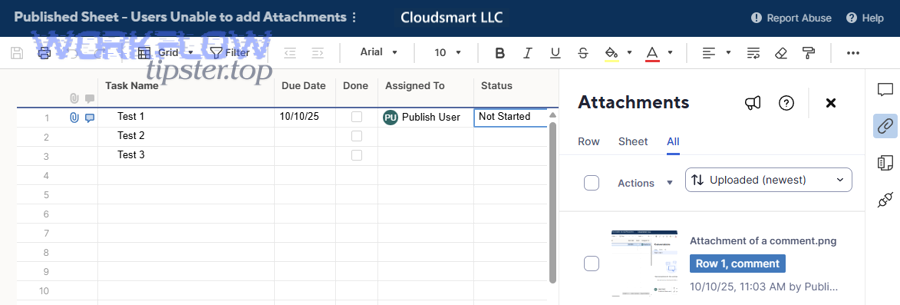
Next, you’ll want to isolate whether the “missing” attachment is truly absent or just not showing due to row context (row-level vs sheet-level attachments) and UI state. Smartsheet supports sheet-, row-, and comment-level attachments, and it’s easy to look in the wrong place when you’re moving quickly. (help.smartsheet.com)
Introduce a new idea: below is a structured, repeatable troubleshooting flow that gets you from symptoms → root cause → verified resolution, without guessing.
What does “Smartsheet attachments missing” or “upload failed” mean?
“Smartsheet attachments missing” or “upload failed” means the attachment object either didn’t upload successfully, didn’t associate to the intended sheet/row/comment, or can’t be fetched by your current browser/network session—so it appears missing even though the sheet data loads.
Next, it helps to separate two failure modes: creation failures (the file never attaches) and retrieval/display failures (the attachment exists, but the UI can’t load or show it reliably). Smartsheet explicitly lists “failure to access or download attachments” as a symptom that can be caused by browser version or extensions/add-ons. (help.smartsheet.com)
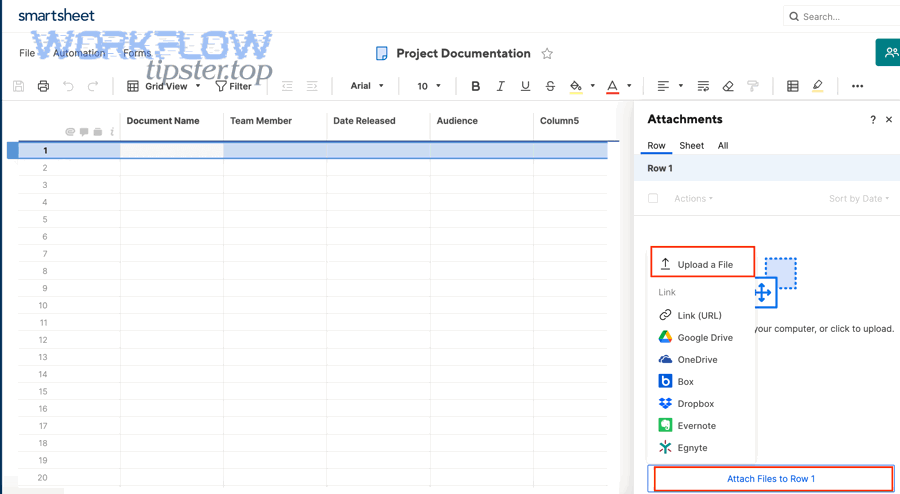
In practice, “missing” usually maps to one of these realities:
- Wrong scope: You attached a file to a row, then checked the sheet tab (or vice versa). Smartsheet supports attaching at the sheet and row level, and row-level attachments show on the row. (help.smartsheet.com)
- Upload blocked: The file exceeded limits (size/type) or the browser couldn’t complete the transfer. Smartsheet documents maximum sizes by plan and upload method. (help.smartsheet.com)
- Access blocked: A network policy/VPN/proxy or an extension prevents the request to Smartsheet (or its storage endpoints) from succeeding. The official troubleshooting guidance points directly to extensions and network/VPN as common contributors. (help.smartsheet.com)
- Service-side incident: Upload or retrieval services may be degraded. Smartsheet provides a status page for system-level issues. (status.smartsheet.com)
Evidence: According to Smartsheet’s own troubleshooting documentation, problems like “failure to access or download attachments” can be tied to browser version or browser extensions/add-ons, and the recommended diagnostic step includes testing in private/incognito and checking Smartsheet Status for broader issues. (help.smartsheet.com)
Is the problem caused by file size, file type, or plan limits?
Yes—Smartsheet attachment uploads fail very often because the file exceeds size limits, is a restricted file type, or you’re using an upload method with a lower cap (like forms or mobile), and those constraints are strict.
To begin, treat this section as your hard-rule check before you spend time on browsers, networks, or admin settings.
Is your file larger than the maximum for your plan or upload method?
More specifically, Smartsheet’s documented maximum file sizes depend on plan and method. Paid users can upload up to 250 MB per file (but 30 MB for Pro plan), free plan users are limited to 30 MB, and uploads from Smartsheet forms are limited to 30 MB. Mobile uploads are also listed at 30 MB. (help.smartsheet.com)
If the file is near or above those thresholds, use one of these fixes:
- Compress the file (PDF compression, image optimization, zip if appropriate).
- Export at a lower resolution (especially for video or high-res images).
- Split the file (multi-part archives or separate PDFs).
- Upload via a different method if permitted (e.g., from a paid user’s desktop browser rather than a form/mobile upload). (help.smartsheet.com)
Is the file type restricted?
However, file type can block uploads even when the size is fine. Smartsheet notes that certain file types are restricted “for security reasons,” including executables like .exe, and also mentions restrictions such as .html/.htm. (help.smartsheet.com)
Practical workaround options:
- Convert risky/blocked formats into safe containers (e.g., HTML → PDF, EXE → a link to a trusted internal repository).
- If you must share executable content internally, store it in your approved artifact repository and attach a link rather than the file.
Is your browser capable of handling larger uploads?
Meanwhile, Smartsheet also references browser capability for larger uploads (HTML5 support) and points to system requirements/supported browser versions. (help.smartsheet.com)
That’s why a file that “should” upload sometimes fails only on a specific browser version or locked-down environment.
Evidence: Smartsheet’s Attachments documentation states that maximum file sizes vary by plan/user/upload method and explicitly lists 250 MB (paid user) versus 30 MB limits (Pro plan cap for paid users, free plan, forms uploads, and mobile uploads). (help.smartsheet.com)
What are the most common causes of Smartsheet attachment upload failures?
There are 5 common causes of Smartsheet attachment upload failures: (1) browser extensions/cache interference, (2) network/VPN/proxy or security filtering, (3) permission/admin restrictions, (4) UI scope or row context confusion, and (5) a platform incident shown on the status page.
Next, use this section to quickly classify your situation so you don’t troubleshoot randomly.
Is a browser extension, cache, or private/incognito test pointing to the cause?
Specifically, Smartsheet’s official guidance recommends testing in incognito/private mode because it can disable extensions (Chrome) and bypass certain cache/cookie behaviors. If Smartsheet works in incognito but fails normally, the most likely cause is an extension or add-on. (help.smartsheet.com)
What to do:
- Open Smartsheet in incognito/private.
- Try the same upload or attachment open.
- If it works, disable extensions in your normal browser and re-enable one-by-one until the culprit appears. (help.smartsheet.com)
Evidence: According to a study by Georgia Tech from its research communications/news site, in 2024, thousands of browser extensions were found to compromise user data—supporting the idea that extensions can meaningfully alter web page behavior and access patterns. (news.gatech.edu)
Is your network, VPN, or corporate security stack blocking upload endpoints?
In addition, Smartsheet’s troubleshooting guidance advises testing off a corporate network/VPN, because server or security settings may block network activity. It also recommends allowlisting *.smartsheet.com and s3.amazonaws.com (and EU variants if applicable). (help.smartsheet.com)
Common red flags:
- Upload works on a personal hotspot but fails on office Wi-Fi.
- Upload works on mobile data but fails on VPN.
- Only certain file types fail (DLP scanning) or large files fail (proxy limits).
Are attachments disabled by admin settings or limited by permissions?
Especially in Enterprise environments, System Admins can deactivate file attachment options. (help.smartsheet.com)
Separately, if you’re not Owner/Admin/Editor on the sheet, your ability to add attachments may be constrained depending on sharing/permission rules.
Is it “missing” because you’re looking at the wrong attachment scope?
More importantly, Smartsheet distinguishes sheet-level attachments from row-level attachments (and attachments added through comments). If you attach to a row, you must select that row and check the Attachments pane context. (help.smartsheet.com)
Is there a broader incident?
If incognito doesn’t help, Smartsheet explicitly advises checking the Smartsheet Status page for broader issues. (help.smartsheet.com)
Evidence: Smartsheet’s troubleshooting article connects attachment access/download failures to browser and extensions and recommends both incognito testing and consulting Smartsheet Status when the issue persists. (help.smartsheet.com)
How do you troubleshoot Smartsheet attachments missing step-by-step?
Use a 7-step troubleshooting method: confirm scope → confirm rules (size/type) → reproduce in incognito → switch browser/device → switch network → confirm permissions/admin settings → verify status and escalate with evidence, and you should be able to restore “missing vs available” clarity quickly.
To better understand what’s actually failing, follow the sequence below in order (it’s designed to eliminate the most common causes first).
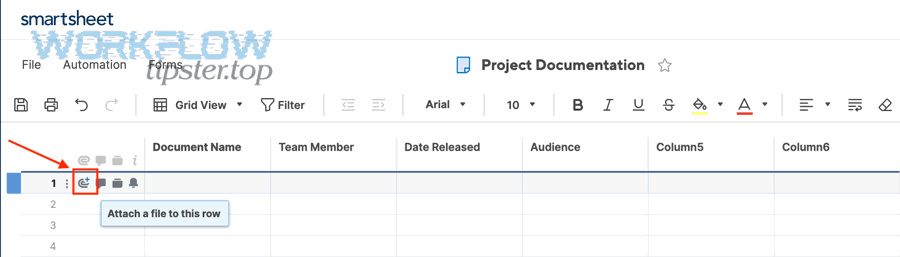
Step 1: Confirm where the attachment should be (sheet vs row vs comment)
Start by opening the Attachments pane and selecting the correct context:
- If you attached the file to a row, click that row and verify the Row tab in the Attachments pane. (help.smartsheet.com)
- If you attached it to the sheet, verify the Sheet tab. (help.smartsheet.com)
- If you attached during a comment, check the Conversations/Comments area that created the attachment. (help.smartsheet.com)
This step prevents “false missing” reports.
Step 2: Validate file size and upload method limits
Then, compare your file and upload method against documented maximums:
- Paid user uploads: up to 250 MB (but Pro plan: 30 MB)
- Free plan uploads: 30 MB
- Form uploads: 30 MB
- Mobile uploads: 30 MB (help.smartsheet.com)
If you’re doing smartsheet troubleshooting for repeat “upload failed,” always capture the file size in MB as part of your notes because it’s a high-signal variable.
Step 3: Validate file type restrictions
Next, if the file is a blocked type (executables or restricted web formats), convert it or attach a secure link instead. Smartsheet explicitly lists restrictions like .exe and .html/.htm. (help.smartsheet.com)
Step 4: Reproduce in incognito/private mode
Below is the fastest isolation test for browser issues:
- Open Smartsheet in private/incognito.
- Try to upload the same file to the same row/sheet.
- If it works: disable extensions in normal mode and re-test. Smartsheet provides a step-by-step extension isolation approach. (help.smartsheet.com)
Step 5: Switch browser and device
If incognito fails too, the problem is more likely network, permissions, or service-side. Try:
- Another browser (Chrome ↔ Firefox ↔ Edge ↔ Safari)
- Another device (laptop ↔ desktop ↔ mobile, but remember mobile has 30 MB cap) (help.smartsheet.com)
Step 6: Switch network and remove VPN
Besides browser switching, change the network path:
- Office network → mobile hotspot
- VPN on → VPN off
- Corporate proxy route → direct internet (if policy allows)
Smartsheet’s guidance explicitly states that corporate network/VPN/security settings may block access and recommends working with IT to allowlist required domains. (help.smartsheet.com)
Step 7: Check status and confirm it’s not a broader incident
Finally, check Smartsheet Status to confirm service health. (status.smartsheet.com)
If the status page shows an incident affecting attachments/upload or platform services, your best move is to document the time range and use a temporary workaround (see the escalation section).
Evidence: Smartsheet’s Attachments documentation provides specific size caps by plan and upload method, and the troubleshooting guidance provides a structured approach centered on browser compatibility, incognito testing, extensions isolation, and the Smartsheet Status page. (help.smartsheet.com)
What should admins and IT teams check when uploads fail across users?
Admins should check 4 areas when uploads fail across users: attachment feature enablement, identity/security controls (TLS/allowlists), network/VPN/proxy behavior, and browser policy/extension governance—because these are the most common organization-wide blockers.
More specifically, the moment the issue becomes “multiple users, multiple sheets,” you should stop treating it as a file problem and start treating it as a platform access problem.
Are attachment options disabled at the account level?
Smartsheet notes that System Admins for Enterprise accounts can deactivate file attachment options. (help.smartsheet.com)
If uploads fail for everyone in the org (or for a specific group), verify whether a global setting changed recently.
Are required domains allowlisted and not pinned to IPs?
Smartsheet’s troubleshooting documentation recommends allowlisting:
- *.smartsheet.com
- s3.amazonaws.com
- EU variants if using Smartsheet EU
It also explicitly notes that allowlisting domains is preferable to IP addresses because IPs can change. (help.smartsheet.com)
Is TLS enabled and compatible (Windows environments)?
Smartsheet’s guidance includes a Windows-only step to ensure TLS is enabled (e.g., TLS 1.2). If an enterprise image disables TLS settings, users can see failures across web sessions. (help.smartsheet.com)
Are browser extensions/policies interfering at scale?
If your org enforces browser extensions (DLP, ad blockers, script injectors), they can interfere with attachment uploads and downloads. Smartsheet directly points to extensions as a cause and recommends incognito testing and extension isolation. (help.smartsheet.com)
A practical admin policy approach:
- Maintain an “allowed extensions” list for Smartsheet users.
- Test uploads on the managed image after every major browser update.
- Provide a “clean browser profile” for Smartsheet-heavy teams.
Are proxy limits breaking large uploads?
Even if the file is below Smartsheet’s max, a corporate proxy might cap upload request size or timeout long transfers. That’s why “works at home, fails at office” is so common.
Evidence: Smartsheet’s troubleshooting steps recommend testing off corporate network/VPN, allowlisting specific domains, verifying TLS settings on Windows, and isolating browser extensions as a core diagnostic sequence. (help.smartsheet.com)
When should you escalate to Smartsheet Support and what info should you provide?
You should escalate when (1) the issue reproduces in incognito, (2) it occurs on multiple devices or networks, and (3) file size/type is compliant—because that combination strongly suggests an account-level restriction, security block, or platform-side defect.
To begin, don’t escalate with “uploads don’t work.” Escalate with a minimal reproducible case and the evidence below—support will move faster when you hand them the variables they would otherwise need to ask you for.
What to include in your support ticket (high-signal checklist)
Specifically, include:
- Exact error text (“upload failed,” spinning loader, blank attachments pane, etc.)
- Sheet URL (or sheet ID if you must anonymize)
- Where you attached: sheet vs row vs comment (help.smartsheet.com)
- File details: type, size (MB), filename (and whether duplicate name was involved)
- Upload method: desktop web vs mobile vs form upload (help.smartsheet.com)
- Browser + version, and whether incognito worked (help.smartsheet.com)
- Network context: VPN on/off, corporate network vs hotspot (help.smartsheet.com)
- Timestamp + region (if relevant) and whether Smartsheet Status showed anything (status.smartsheet.com)
If you’re documenting this internally for smartsheet webhook 403 forbidden troubleshooting, smartsheet tasks delayed queue backlog troubleshooting, or smartsheet duplicate records created troubleshooting, include the same core environment data (browser, network, timestamps) because those incident patterns often correlate with security/proxy policies and platform-side events.
Temporary workarounds while support investigates
Meanwhile, keep work moving:
- If the file is large: compress and re-upload under the documented cap. (help.smartsheet.com)
- If the browser is unstable: use a clean profile or a different browser/device. (help.smartsheet.com)
- If the network is blocking: upload from an approved alternate network (hotspot) while IT resolves allowlisting. (help.smartsheet.com)
- If it’s a platform incident: attach a link to a cloud file (Google Drive/OneDrive/Box) and update the sheet with the reference until the incident clears. (status.smartsheet.com)
Evidence: Smartsheet’s troubleshooting article explicitly prescribes incognito testing, extension isolation, network/VPN isolation, allowlisting, and consulting Smartsheet Status—those same checks form the “escalate only after” criteria that make a support ticket actionable. (help.smartsheet.com)
How can you prevent attachment issues and related automation errors in Smartsheet?
Preventing attachment issues requires a “successful upload” standard: enforce file rules, standardize browsers/profiles, document network allowlists, and monitor status—so teams spend less time on missing vs available file confusion and more time executing work.
Next, use this prevention layer to reduce recurrence, especially if your organization handles regulated data or relies heavily on consistent execution.
What are best practices to avoid “missing vs available” attachment confusion?
More specifically:
- Standardize attachment scope rules: Decide when your team attaches at sheet-level vs row-level, and document it in the sheet’s instructions so people check the correct place first. (help.smartsheet.com)
- Use naming conventions: Avoid collisions; Smartsheet even discusses duplicate file name handling (new version vs separate file) which can create confusion when teams reuse filenames. (help.smartsheet.com)
- Keep files under the strictest cap: If you regularly collect files via forms or mobile, design processes around the 30 MB limit so the most constrained pathway still succeeds. (help.smartsheet.com)
How do you reduce browser-related failures long term?
Besides one-off fixes:
- Provide an approved browser baseline and keep it updated.
- Use a clean browser profile for Smartsheet-heavy users.
- Audit extensions—keep only what’s necessary. Smartsheet’s official troubleshooting flow elevates extensions as a primary cause category. (help.smartsheet.com)
How should IT prevent network/proxy failures?
To better understand prevention at the network layer:
- Maintain and periodically validate allowlists (*.smartsheet.com, s3.amazonaws.com, EU variants as needed). (help.smartsheet.com)
- Avoid IP pinning (Smartsheet cautions IPs can change). (help.smartsheet.com)
- Test uploads across typical file sizes, not just tiny samples (proxy timeouts show up only under load).
How do you monitor platform health and avoid incident blind spots?
Especially for teams with SLAs:
- Bookmark and operationalize Smartsheet Status as part of incident triage. (status.smartsheet.com)
- When you see correlated symptoms—attachments failing plus other oddities—treat it as a systems problem, not multiple unrelated bugs.
How do attachments connect to adjacent troubleshooting topics?
In practice, attachment failures often coexist with other operational issues because the same root causes (network policy, authentication/session problems, browser injection) can ripple outward. That’s why teams often bundle investigations that include:
- smartsheet webhook 403 forbidden troubleshooting (auth/permissions/network path)
- smartsheet tasks delayed queue backlog troubleshooting (service health, throughput, scheduling)
- smartsheet duplicate records created troubleshooting (automation retries, partial failures, idempotency gaps)
Keep those topics in your internal runbook under one umbrella: “environment stability + platform health,” so responders reuse the same diagnostic flow rather than reinventing it.
Evidence: Smartsheet provides explicit, method-based limits for attachment upload size (including forms/mobile constraints) and a structured troubleshooting guide emphasizing browser compatibility, extensions isolation, network/VPN testing, allowlisting, and the Smartsheet Status page—all of which translate directly into prevention controls. (help.smartsheet.com)