


If you want Airtable and Trello to work as one system, the simplest approach is to connect Airtable records to Trello cards with a clear field map and a single “source of truth” rule, so new work items are created automatically and updates stay consistent across your team.
Next, you’ll want to decide whether you need true two-way updates (changes in either tool update the other) or a safer one-way automation (Airtable creates cards, but only Airtable edits key fields), because that choice determines how you prevent conflicts and “ping-pong” updates.
Then, you’ll need a practical setup plan: what to prepare, which fields to map, which triggers to use, and how to test—so your workflow doesn’t create duplicates, break permissions, or stop syncing when someone renames a column.
Introduce a new idea: once the core sync is stable, you can make the integration team-ready by adding governance—ownership rules, rollout checklists, and troubleshooting habits—so the workflow keeps working even as projects scale.
What does it mean to “sync” Airtable to Trello for a team workflow?
Syncing Airtable to Trello is a workflow automation method that links Airtable records to Trello cards so they create and update each other based on mapped fields, shared IDs, and clear edit rules—making team execution and reporting stay aligned.
To better understand what “sync” means in practice, it helps to translate the concept into the real objects your team touches every day: records, cards, and the fields that connect them.
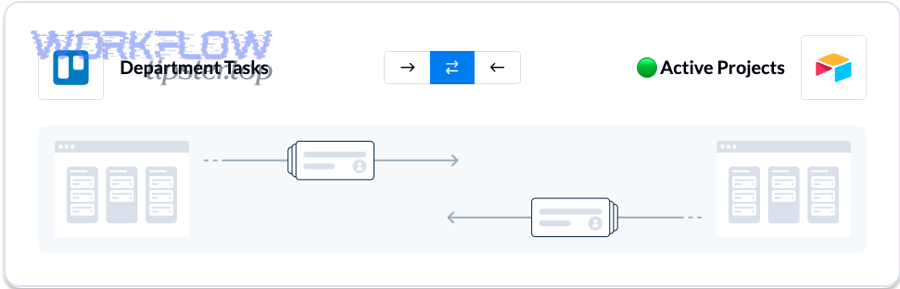
What is the Airtable record ↔ Trello card mapping in real projects?
In real projects, the Airtable record is usually the structured “database row” that holds canonical information, while the Trello card is the “execution container” that holds day-to-day task movement.
A practical mapping looks like this:
- Airtable table = a portfolio of work items (campaigns, tickets, content pieces, client requests).
- Airtable record = one work item (one campaign, one request, one deliverable).
- Trello board = a workflow lane system (Backlog → Doing → Review → Done).
- Trello card = one unit of work in motion (assigned, discussed, moved, completed).
A strong record ↔ card mapping typically includes:
- Unique link field (Sync ID): a stable identifier stored in Airtable and on the Trello card (often in a custom field, description, or a dedicated label pattern).
- Status mapping: Airtable “Status” field ↔ Trello “List” name (or Trello label).
- Ownership mapping: Airtable “Assignee” ↔ Trello “Members.”
- Time mapping: Airtable “Due date” ↔ Trello “Due date.”
- Priority mapping: Airtable “Priority” ↔ Trello “Label.”
This mapping matters because it turns two separate tools into one shared workflow: Airtable stays strong for reporting and structured data, while Trello stays strong for visible task execution.
Do you need one-way automation or true two-way sync?
Yes—you should decide this up front, because it changes everything about reliability, conflicts, and team behavior, and most teams either (1) only need Airtable → Trello creation, or (2) truly need two-way updates because people actively edit in both tools.
Next, use the “where do edits happen” rule to choose correctly.
- Choose one-way automation if:
- Airtable is the system of record,
- Trello is mainly for visibility and task movement,
- only a few fields should ever change in Trello (like checklist progress),
- and you want maximum stability.
- Choose two-way sync if:
- the team updates due dates, members, and status inside Trello daily,
- Airtable needs to reflect those changes automatically for reporting,
- you can define “field ownership” rules (who edits what, where).
A quick example: if your project managers update timelines in Airtable, but engineers move cards and assign owners in Trello, you likely need two-way updates for Status, Assignee, and Due date, but you might keep Budget, Client name, and Scope Airtable-only to avoid conflicts.
Which integration approach is best for syncing Airtable and Trello: automation tools or two-way sync tools?
Automation tools win for fast one-way workflows, while two-way sync tools are best for teams who edit in both Airtable and Trello; developer/API workflows are optimal when you need custom rules, strict governance, or scale-specific controls.

However, the “best” approach depends on what your team edits, how often it edits, and how much control you need over conflicts.
Before you choose, it helps to see the three approaches side-by-side in terms of team reality: speed vs stability vs control.
This table contains a comparison of integration approaches so you can match your workflow needs (one-way vs two-way, control vs simplicity) to the right method.
| Approach | Best for | Strength | Trade-off |
|---|---|---|---|
| One-way automation (trigger → action) | Create cards from records, notifications, simple routing | Fast to set up, low cognitive load | Can drift if edits happen in both tools |
| Two-way sync platform | Teams updating status/due/assignee in both places | Reduces copy/paste, keeps systems aligned | Needs field ownership + conflict strategy |
| Custom API workflow | Advanced rules, scale, compliance, strict dedup | Maximum control, tailored governance | Requires engineering + maintenance |
How does one-way automation differ from two-way sync for status updates?
One-way automation and two-way sync differ in how they treat “truth” over time.
- One-way automation treats Airtable as the origin point:
- Trigger: record created or status changes in Airtable
- Action: create/update a Trello card
- Reality: Trello becomes a “work surface,” but not the system that updates Airtable unless you add extra automations.
- Two-way sync treats the relationship as ongoing:
- When status changes in Trello (card moves lists), Airtable updates too
- When due date changes in Airtable, Trello updates too
- Reality: both systems stay aligned, but only if you define how conflicts are handled.
If your team moves cards across lists all day, one-way automation often creates reporting gaps in Airtable unless you also build the reverse direction.
What are the common tool categories for Airtable ↔ Trello integration?
There are three main categories of Airtable ↔ Trello integration tools: (1) automation platforms, (2) two-way sync platforms, and (3) custom API workflows, based on the criterion of sync direction and rule complexity.
- Automation platforms: You build “when X happens, do Y” recipes (create card, update record). This category is great for quick wins like card creation, alerts, and routing.
- Two-way sync platforms: You create a shared “flow” that updates both sides, usually with field-level direction control. Platforms in this category emphasize real-time updates and bi-directional syncing.
- Custom API workflows: You use Airtable and Trello APIs to implement: dedup rules, conflict policies, audit logs, and scale controls that no template can fully capture.
A practical way to choose: start with automation if your workflow is mainly “create and notify,” move to two-way sync if edits happen in both tools, and build custom API workflows if governance and scale become your competitive advantage.
If you use a template-based platform, you’ll see workflows described as “Create Trello cards from new Airtable records,” which reflects the same method—record trigger → card creation.
What information should you prepare before connecting Airtable to Trello?
There are 6 essentials you should prepare before connecting Airtable to Trello: workflow ownership, source of truth, record/card model, field map, dedup ID, and routing rules—because these prevent duplicates, conflicts, and broken syncs when the team starts editing.
Then, once you have those essentials, your setup becomes a predictable implementation instead of trial-and-error.
Here’s the pre-flight checklist your team should agree on:
- Define the workflow goal (why connect them?)
- Choose the source of truth (Airtable, Trello, or field-by-field ownership)
- Define the record/card model (one record = one card? one record = many cards?)
- Create a field mapping plan (what maps to what)
- Create a dedup strategy (unique sync ID + upsert logic)
- Define routing rules (which board/list gets which item)
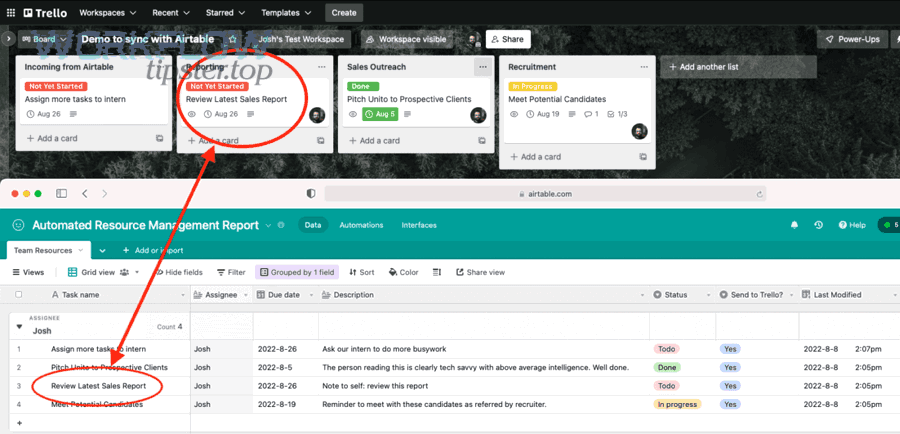
Which Airtable fields should map to Trello card properties?
You should map Airtable fields to Trello properties based on what the team actually uses to execute work.
A strong baseline map looks like this:
- Airtable “Name / Title” → Trello card title
- Airtable “Description / Notes” → Trello card description
- Airtable “Status” → Trello list name (or label)
- Airtable “Assignee” → Trello members
- Airtable “Due date” → Trello due date
- Airtable “Priority” → Trello labels
- Airtable “Attachments/Links” → Trello attachments or description links
If your team cares about reporting, also map:
- Created time, last modified time, completion date (even if some stay Airtable-only)
- Work type (bug, feature, content, ops)
- Project / client (for rollups and dashboards)
Should you generate a unique sync ID to prevent duplicates?
Yes, you should generate a unique sync ID for Airtable-to-Trello syncing because it (1) prevents duplicate cards, (2) enables safe updates instead of repeated creation, and (3) lets you recover quickly if a workflow reruns or someone edits triggers unexpectedly.
Next, treat the sync ID as the “anchor” that makes your integration stable over time.
- Create a field in Airtable like Sync ID (formula or auto-number + prefix).
- Store that ID on the Trello card in one consistent location (custom field, description line, or a dedicated pattern).
- Use upsert logic in your integration: update if exists, create if not.
This is the single most practical way to stop the “why do we have 3 cards for the same record?” problem before it starts.
How do you set up Airtable → Trello card creation step-by-step?
Use a trigger-to-action workflow in 7 steps—choose the Airtable trigger, filter eligible records, map fields, set destination board/list, add dedup logic, test with sample data, and deploy with monitoring—to reliably create Trello cards from Airtable records.
Below, we’ll walk through the setup in a tool-agnostic way so the method works whether you use a template or a more advanced platform.
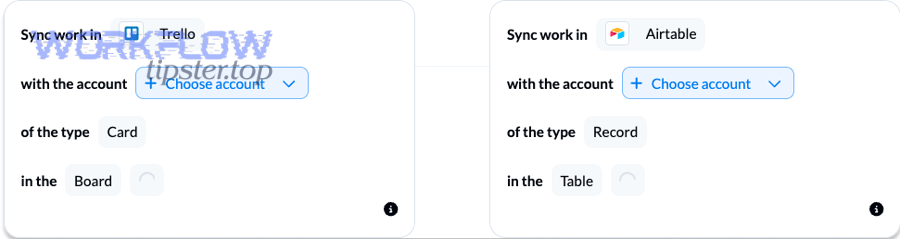
- Define the trigger event in Airtable: new record, record enters a view, status becomes “Ready,” approval checkbox becomes true.
- Filter records to avoid accidental card spam: e.g., Status = Ready AND Card Created? = No.
- Select destination in Trello: choose board and starting list (Backlog/To Do).
- Map Airtable fields to Trello fields: title, description, due date, members, labels.
- Add dedup logic: store Sync ID on the card and find-before-create if possible.
- Test with 3–5 records: include edge cases (missing assignee/due date).
- Deploy and monitor: document triggers and watch errors regularly.
What triggers usually create Trello cards from Airtable records?
There are 6 common trigger types that create Trello cards from Airtable records based on the criterion of team readiness and workflow stage:
- New record created (best for intake pipelines)
- Record enters a view (best for curated “Ready for Trello” views)
- Status becomes “Ready / To Do” (best for controlled release into execution)
- Approval checkbox becomes true (best for review-heavy teams)
- Assignee is set (best when ownership defines readiness)
- Due date is added (best when scheduling defines priority)
In team systems, the safest trigger is usually Status becomes Ready, because it forces intent: the team explicitly signals “this should become a task.”
Can you route cards to different Trello boards/lists based on Airtable conditions?
Yes, you can route Airtable records to different Trello boards/lists because (1) conditional logic can map record attributes to destinations, (2) it keeps boards focused by team or project, and (3) it reduces manual triage time by placing tasks where work actually happens.
Next, treat routing as a “taxonomy” problem: decide which Airtable fields represent the routing categories.
- By team: Team = Marketing → Marketing board; Team = Product → Product board
- By project: Project = Launch A → Launch board list “Backlog”
- By priority: Priority = High → list “Urgent”; else → “Backlog”
- By work type: Type = Bug → Engineering board list “Bugs”
Routing becomes powerful when combined with the “Ready” status trigger—only the records that are truly ready become Trello cards, and they land in the right execution lane automatically.
How do you set up Trello → Airtable updates so the base stays current?
Set up Trello → Airtable updates by capturing card changes (like list moves, due dates, members, and labels), linking them to the correct Airtable record via Sync ID, and updating only the fields Trello “owns,” so Airtable dashboards stay accurate without conflicts.

Then, once the reverse direction is stable, Airtable becomes a real-time reporting layer instead of a manually refreshed spreadsheet.
The key idea: don’t sync “everything.” Sync the fields that represent execution changes, and keep “database truth” fields in Airtable unless your team truly edits them in Trello.
Which Trello events should update Airtable records?
There are 7 Trello event types that should update Airtable records based on the criterion of execution signals that affect reporting:
- Card moved to a different list → update Airtable Status
- Due date changed → update Airtable Due date
- Members assigned/unassigned → update Airtable Assignee(s)
- Labels added/removed → update Airtable Priority/Category
- Card archived/unarchived → update Airtable Active flag
- Checklist completion → update Airtable Progress % (if you track it)
- Card name changed → update Airtable Title (only if you allow Trello to own titles)
For reporting, the most important event is list movement, because it is the clearest signal of workflow progress.
Should Airtable be the source of truth or Trello be the source of truth?
Yes—you should choose a source of truth because it (1) prevents conflicting edits, (2) reduces sync errors and “which one is correct?” confusion, and (3) makes onboarding easier since the team knows where to edit each field.
Next, decide source of truth in a field-by-field way if your workflow requires both tools.
- Airtable as source of truth for: scope, client, budget, structured metadata, reporting fields.
- Trello as source of truth for: daily execution movement, checklist completion, lightweight collaboration signals.
- Shared fields with rules (careful): status, assignee, due date—only if you define ownership or conflict resolution.
If you do nothing, your team will create an accidental rule: “everyone edits wherever they feel like,” which is where conflict loops begin.
How do you handle two-way sync conflicts and prevent “ping-pong” updates?
Two-way sync works best when you assign field ownership, limit shared fields, and define a conflict rule (like last-write-wins only for low-risk fields), because these steps prevent update loops, reduce confusion, and keep your Airtable-to-Trello workflow stable for teams.

However, conflict handling is not just a technical setting—it’s also a behavior design problem: you’re shaping where people edit and what they expect.
Most “ping-pong” issues come from two causes:
- The same field is editable in both tools with no rule
- A change triggers an update that triggers a change (loop)
The fix is to design the sync like a contract:
- Field ownership contract: “Status is edited in Trello only,” or “Due date is edited in Airtable only,” etc.
- Shared field whitelist: Only sync a small set both directions at first.
- Loop prevention: Don’t sync fields that update automatically (like last modified time) back and forth.
What are the safest conflict-resolution rules for teams?
A safe conflict resolution approach uses three layers:
- Field-level ownership (best): assign which system can edit each critical field.
- Last-write-wins for low-risk fields only: good for labels and lightweight notes, risky for commitments.
- Manual review for critical fields: treat conflicts as exceptions and review them intentionally.
This isn’t overkill—teams lose time when they don’t trust their systems, and the integration becomes ignored.
Can you limit two-way syncing to only a subset of fields?
Yes, you should limit two-way syncing to a subset of fields because (1) it reduces conflicts, (2) it makes debugging faster, and (3) it helps the team adopt the workflow gradually without breaking existing habits.
Next, start small and expand only when the team proves the workflow is stable.
- Starter two-way fields: Status ↔ List, Assignee ↔ Members, Due date ↔ Due date
- Keep Airtable-only initially: Budget, Scope, Client metadata, internal reporting notes, formulas/rollups
After 2–4 weeks of stable syncing, you can expand to labels, priority, or selected notes—but only with explicit ownership rules.
What are the most common failure points when syncing Airtable to Trello, and how do you fix them?
The most common failure points are duplicates, broken permissions, field-type mismatches, renamed columns/lists, rate limits, and missing IDs—because they interrupt triggers, break mappings, or cause partial updates that silently drift over time.
Then, once you learn the “failure signatures,” your team can debug in minutes instead of guessing for hours.
- Duplicates: missing sync ID or rerunning triggers
- Updates stop: authorization expired or board access changed
- Wrong status: list names changed or mapping not updated
- Missing assignments: email/user mismatch or member not in board
- Rate limits / throttling: too many calls in a short window
- Type mismatch: Airtable field is multi-select but mapped to a single-value target
A key technical constraint to know: Trello’s API enforces rate limits, and exceeding them returns a 429 error—so high-volume workflows need batching, filtering, or slower sync frequency.
Why do duplicates happen and how do you stop them?
Duplicates happen because the integration can’t reliably answer: “Have I already created the card for this record?”
Common duplicate causes:
- No Sync ID (nothing to match)
- Trigger fires multiple times (record enters view repeatedly, status flips back and forth)
- No “find before create” step
- Manual card creation without linking to Airtable
How to stop duplicates:
- Add a Sync ID and require it on both sides
- Add a Card Created? checkbox in Airtable and set it true after creation
- Use upsert logic: update if exists, create if not
- Prevent repeated triggers with a dedicated “Ready for Trello” view and one-way status transition rules
Once you implement these, duplicates become rare—and when they happen, they’re easy to trace.
What should you check when updates stop syncing?
When updates stop syncing, check the system in a simple order from most common to least common:
- Authorization and permissions: verify the authorized user still has access to the Airtable base and Trello board.
- Mapping integrity: confirm no one renamed Airtable fields or Trello lists used in status mapping.
- Trigger conditions: confirm records still meet filters (views, statuses, approvals).
- Rate limits / volume spikes: investigate bulk edits or sudden surges in tasks.
- Error logs: review “field not found,” “board not found,” “429,” or “authentication failed.”
Most teams solve 80% of “sync stopped” issues in steps 1–2.
Is your Airtable ↔ Trello integration ready for a team rollout?
Yes, your Airtable ↔ Trello integration is ready for rollout when (1) ownership rules are documented, (2) mappings and dedup are proven in tests, and (3) monitoring and training exist—because these reduce confusion, prevent broken workflows, and keep adoption consistent across the team.

Next, treat rollout like launching a product: you need a checklist, not just a working automation.
- Governance: who owns configuration, who can change mappings, and what happens when fields/lists are renamed.
- Behavior rules: where people edit Status, Due date, Assignee, and which fields are read-only in each tool.
- Testing: sample records per workflow path, one failure test, one bulk-edit simulation.
- Monitoring: weekly check of errors and an Airtable “integration health” view.
- Onboarding: a 1-page guide plus a short walkthrough.
To put this in perspective: automation and workflow redesign can materially affect productivity at scale; for example, a McKinsey report on automation and productivity discusses measurable potential gains when work is redesigned around automation rather than layered on top of existing processes.
What rollout checklist ensures consistency across teams?
A rollout checklist ensures consistency by turning “tribal knowledge” into shared rules.
- Naming conventions: Airtable status values match Trello list names (or mapping documented); labels use a shared taxonomy.
- Templates: one Airtable record template per work type; one Trello card template per work type.
- Ownership: one owner for Airtable field design, one for Trello structure, and one for the integration.
- Change control: avoid renaming lists/fields without notifying the owner; review mappings monthly.
- Support path: define where issues are reported and who resolves them.
This checklist is what keeps the integration working after the initial excitement fades.
Do you need an approval step before a record becomes a Trello card?
Yes, many teams need an approval step before a record becomes a Trello card because (1) it prevents task noise, (2) it ensures only ready work reaches the execution board, and (3) it improves accountability by making the “go-live” moment explicit.
Next, use the simplest approval that matches your workflow maturity.
- Checkbox approval: Approved = Yes triggers card creation
- Status gating: Status = Ready only after review
- Owner gating: card creates only when Assignee is set
- Due-date gating: card creates only when due date exists
Approval steps reduce the “Trello board is full of half-baked tasks” problem, which is one of the fastest ways teams abandon an integration.
When should you NOT sync Airtable and Trello, and what are the best alternatives?
Two-way syncing isn’t always worth it: manual workflows win when volume is low, governance is strict, or the team won’t follow field ownership rules; alternatives like scheduled exports, limited one-way automations, or choosing a single source tool can be safer and easier.
In addition, the “best alternative” is often the one that reduces cognitive load—not the one with the most features.
To broaden your integration thinking (and your broader “Automation Integrations” strategy), consider when syncing becomes a liability rather than a benefit:
- Your team edits the same fields in both places with no discipline
- You only create a handful of tasks per week
- Your compliance needs require stricter audit/approval than the integration provides
- Your workflow is changing rapidly and you’d constantly rebuild mappings
This is also where teams compare other workflows—like box to microsoft teams file routing, gmail to asana task capture, or airtable to typeform intake automation—because sometimes the better win is improving inputs and collaboration rather than maintaining a complex two-way sync.
When is manual export/import better than automation?
Manual export/import is better when:
- You update Trello and Airtable monthly or quarterly, not daily
- You want a clean snapshot for reporting, not real-time updates
- You need a human review before changes become official
- Your team is small and coordination cost is low
A typical pattern: export Trello as CSV, import into Airtable, and use Airtable for reporting. It’s not glamorous, but it’s predictable—and for low volume, predictability wins.
What is a “source of truth” policy and why does it reduce sync conflicts?
A source of truth policy is a simple rule set that states where each key field should be edited and which system “wins” when data differs.
It reduces conflicts because it prevents two people from making two valid edits in two places and expecting the sync to magically “merge” them.
A practical source of truth policy might be:
- Status: Trello
- Due date: Airtable
- Assignee: Trello
- Scope: Airtable
- Priority: Airtable
Once written down, the policy becomes part of onboarding, and the integration becomes easier to trust.
What advanced patterns make integrations safer at scale?
Advanced patterns make integrations safer because they turn “best effort syncing” into “designed reliability.”
- Idempotency keys (Sync ID): prevents duplicates, enables upserts
- Field locks: only one system can edit critical fields
- Audit logs: track what changed, when, and why
- Retry strategy: controlled retries for temporary failures
- Bulk edit protection: filters that stop floods of updates
These patterns matter when your team goes from dozens of tasks to hundreds or thousands.
How do webhooks compare to scheduled syncing for speed and reliability?
Webhooks are best for speed because they push changes instantly, while scheduled syncing is often more reliable for simple operations because it reduces burst traffic and is easier to monitor.
- Webhooks:
- Pros: near real-time updates
- Cons: can be harder to debug; missed events can be tricky without logs
- Scheduled sync:
- Pros: predictable load, easier auditing, fewer burst failures
- Cons: not real-time; short delays are normal
If your team needs “instant status reflection,” webhooks-style updates help. If your team needs “stable reporting,” scheduled sync is often enough—especially when combined with strong field ownership rules.