


To connect Box to Microsoft Teams, install the Box for Microsoft Teams app, sign in once, and then share Box files or folders directly in chats and channels so your team collaborates from a single “source of truth” without emailing attachments.
Next, you’ll want the admin-side view: how to deploy the integration safely across your organization, control who can use it, and standardize permission and sharing policies so Teams stays productive without creating security gaps.
Then, we’ll cover the most common friction points—access denied, empty folders, repeated sign-ins, and preview/edit failures—so you can troubleshoot the integration quickly instead of abandoning it mid-project.
Introduce a new idea: once the connection works reliably, the real value comes from choosing the right workflow—Box links vs uploaded copies, chat vs channel sharing, and Box vs Teams/SharePoint—so your content remains organized, governed, and easy to find.
What does it mean to connect Box to Microsoft Teams (and what can you do inside Teams)?
Connecting Box to Microsoft Teams means using a Teams app that lets you search, share, upload, preview, and manage Box content inside Teams while Box remains the system of record for the files and folders you collaborate on.
Specifically, this matters because most Teams confusion starts with one question: “Are we collaborating on the same file, or are we spreading copies everywhere?”


What is the “Box for Microsoft Teams” app and where does it appear in Teams?
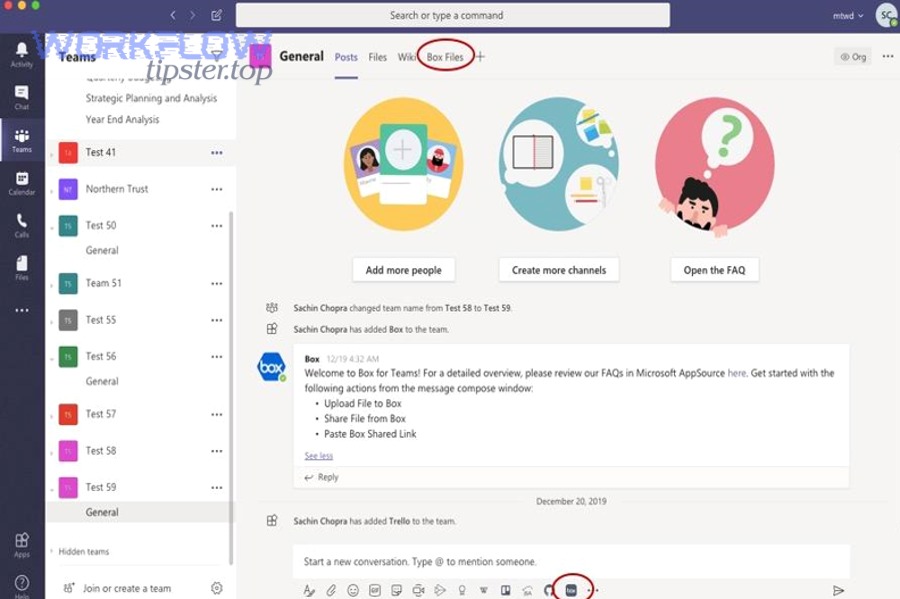
The “Box for Microsoft Teams” app is a Teams integration that appears where you already collaborate—inside chats and channels—so you can share Box files and folders, upload a local file to Box, and work with Box content without leaving Teams.
To better understand where it shows up, think in Teams surfaces:
- Chat and channel messages: You can insert Box content into a message so everyone sees a file card and can open the same Box item.
- Search-and-share flow (message extension behavior): You can find a Box file from inside Teams and share it in context, rather than copying links from a browser tab.
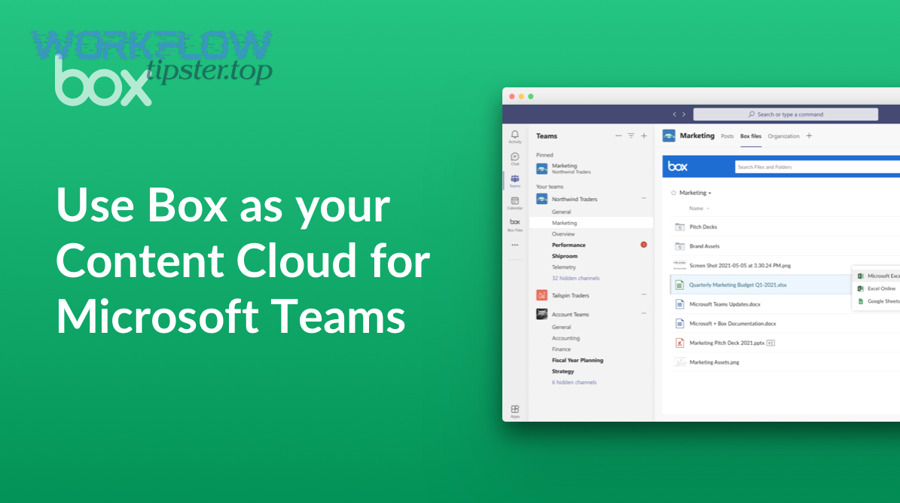
- A Box content view inside Teams: Many Teams integrations include a content tab or in-app browser so you can locate files, preview them, and share them without context switching.
More importantly, the app is designed to reduce “tool hopping.” Box’s own documentation highlights that you can share and access Box content directly within Teams “without flipping back and forth between programs,” and that local files shared from Teams can be uploaded into a secure Box folder rather than being stored in OneDrive or SharePoint. That simple design choice keeps ownership and version history anchored in Box while Teams remains the conversation layer.
Does Box content live in Teams after you share it?
No—Box content does not “move into” Teams just because you share it; you typically share a Box file or folder reference (or upload a file into Box), and Teams becomes the place where people discuss and access it, not where the authoritative copy is stored.
However, the exact behavior depends on how you share:
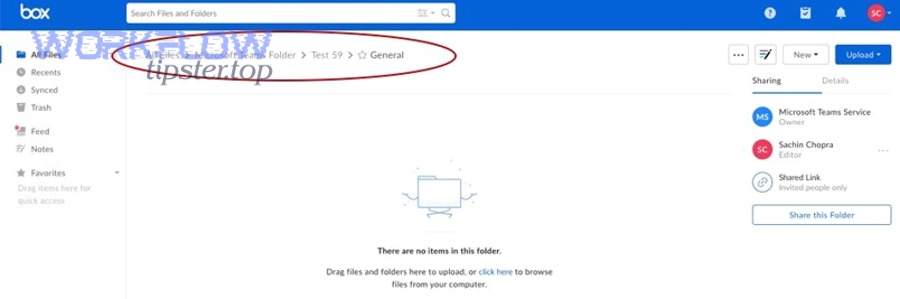
- Share a Box file or folder: Teams shows a file card or link that points to Box, and access is controlled by Box permissions and link settings.
- Upload a local file via the integration: The integration can upload it into Box, creating a Box-managed item that is then shared in Teams.
- Paste a public/shared link: The file is still in Box; the risk is that the link’s access scope may be broader than intended if link policies are loose.
Next, once you know Teams isn’t quietly storing your Box content behind the scenes, setup becomes straightforward—because you’re connecting identities and permissions, not relocating entire repositories.
How do you set up Box in Microsoft Teams step by step?
To set up Box in Microsoft Teams, use a simple 5-step method—confirm prerequisites, install the app, sign in, grant permissions, and test a share—so you can reliably share Box files and folders inside Teams within minutes.
Then, the key is to set it up in the right order: identity first, app installation second, and sharing behavior last—because most failures come from mismatched accounts or over-restrictive link policies.
What prerequisites do you need before installing (accounts, permissions, policies)?
Before installing, you need three basics: a working Box account, access to Microsoft Teams, and policies that allow the integration to authenticate and share content securely.
Specifically, validate these prerequisites:
- Identity alignment: Your users should know which Box account/tenant they are signing into, especially if they have multiple identities (work, personal, partner).
- Teams app availability: Confirm the Box app is allowed in your tenant (some organizations restrict third-party apps by default).
- Box sharing policy readiness: Decide whether shared links can be “people in your company,” “invited collaborators,” or broader. This prevents Teams from turning into an accidental link-sharing broadcast.
- SSO/MFA expectations: If you use SSO, Conditional Access, or MFA, expect additional sign-in prompts and ensure they’re compatible with Teams clients (desktop/web/mobile).
- Permission model clarity: Teach one simple rule: Teams membership does not automatically grant Box file access unless Box permissions are granted.
More importantly, if your organization is exploring Automation Integrations across tools, treat Box-to-Teams as a “foundation connector”: you’re creating a consistent way to share and govern files so later workflows don’t propagate messy duplicates.
How do end users connect Box to Teams in under 5 minutes?
End users can connect Box to Teams in under 5 minutes by installing the Box app in Teams, signing in to Box, approving access, and sharing a test file to confirm permissions and previews work as expected.
To illustrate, here’s a quick user-first workflow:
- Install the app: In Teams, find the Box app (or use an admin-provided install).
- Sign in: Authenticate with your Box work account.
- Grant requested permissions: Approve what the integration needs so it can list and share content.
- Share a file in a chat: Pick a non-sensitive file first to confirm the sharing flow.
- Verify access: Ask a teammate to open it—if they can’t, you’ll fix permission settings before rolling it out broadly.
Especially for busy teams, the “test share” step is what prevents future frustration: it proves the integration isn’t just installed, it’s usable in the real collaboration flow.
How do IT admins deploy Box to Teams org-wide safely?
IT admins can deploy Box to Teams safely by approving the app tenant-wide, controlling who can install and use it, and setting clear Box link and access policies so Teams sharing stays compliant while remaining frictionless.
Moreover, a safe rollout usually includes a staged approach:
- Pilot group: Choose one department that regularly collaborates with shared files (e.g., marketing, operations, PMO).
- Policy baseline: Define which link types are permitted and whether external sharing requires explicit collaborator invites.
- Training snippet: Provide one-page guidance: “Share Box links, don’t upload duplicates,” and “Teams membership ≠ Box access.”
- Monitoring plan: Track common helpdesk issues (sign-in loops, access denied, missing folders) during the first two weeks.
Next, once the app is deployed and users can share reliably, you’ll want to standardize the “right way” to share so every channel doesn’t become a different file management universe.
How do you share Box files and folders in Teams correctly?
You share Box files and folders correctly in Teams by choosing the right context (chat vs channel), sharing a Box link or file card to keep Box as the source of truth, and setting Box permissions intentionally so recipients can open the content without oversharing.
However, “correctly” is really about preventing two costly outcomes: blocked access (people can’t open the file) and uncontrolled access (people who shouldn’t can open it).
How do you share a Box file in a Teams chat vs a Teams channel?
Sharing a Box file in a Teams chat is best for fast, targeted collaboration, while sharing it in a Teams channel is better for durable, team-wide visibility—so chat wins for speed, and channels win for discoverability and long-term reference.
To better understand the difference, evaluate these criteria:
- Audience size: Chats are narrower; channels typically include a broader team.
- Longevity: Channel posts are easier to “rediscover” later, especially for onboarding or recurring work.
- Context richness: Channels usually hold the longer narrative of decisions, files, and updates in one place.
- Risk surface: If a channel includes guests or a wider group, you must be more deliberate with Box link scope.
Specifically, for ongoing projects, a channel post that shares a Box folder often works better than repeatedly sharing individual files in scattered chats—because it keeps the team anchored to one organized place.
Should you share a Box link or upload a copy into Teams?
A Box link wins for version control and governance, uploading a copy wins for quick, lightweight sharing, and a hybrid approach is optimal when you need a stable Box master file but also want a temporary working copy for a short-lived Teams thread.
On the other hand, most teams should default to the Box link approach because it prevents duplication and confusion. When everyone opens the same Box file, you get one authoritative version, consistent permissions, and a predictable audit trail.
The table below compares Box links versus uploading copies into Teams so you can choose the best approach based on collaboration risk and effort.
| Criteria | Share Box Link / File Card | Upload Copy Into Teams |
|---|---|---|
| Source of truth | Box remains the master | Teams copy becomes a fork |
| Version control | One version history in Box | Multiple versions across chats/channels |
| Access control | Controlled in Box policies | Controlled by Teams/M365 storage rules |
| Best use case | Ongoing projects, compliance-sensitive work | One-off share, low-risk artifacts |
| Common failure mode | Access denied due to missing Box permissions | Duplicate files and “which one is final?” confusion |
Next, once you’ve chosen the right sharing method, the most important success factor is permissions—because a perfectly shared file is useless if your teammate hits “You don’t have access.”
What permissions and access rules control who can open Box content from Teams?
Permissions for Box content shared in Teams are controlled by Box access rules—file/folder permissions and shared link settings—so the key is to align Box sharing policies with Teams collaboration patterns to prevent both access denials and accidental oversharing.
Specifically, you’ll solve most problems by internalizing one rule: the Teams conversation is not the permission boundary; Box is.
Do Teams members automatically get access to the Box file you posted?
No—Teams members do not automatically get Box access, because Teams membership and Box permissions are separate systems, and Box requires explicit permission via collaborator roles or a shared link policy that includes the recipient.
However, you can make access feel “automatic” with the right approach:
- Use a Box folder as the project hub: Add the right collaborators once at the folder level, so all files inherit access.
- Choose controlled shared links: Prefer “people in your company” or “invited collaborators” instead of public links.
- Standardize roles: Define who is Viewer, Editor, or Uploader so “accidental edits” don’t happen in critical documents.
More importantly, this is where many integration wins happen: if you remove permission friction, users stop copying files into random places “just to make it work.”
Which Box link settings prevent “access denied” while staying secure?
The safest way to prevent “access denied” is to use Box link settings that match your collaboration boundary—company-only links for internal Teams, collaborator-only access for sensitive work, and time-limited links for external sharing—so you reduce friction without expanding exposure.
To illustrate, here are practical patterns teams use:
- Internal project channel: Use a company-scoped link or collaborator-based access to the project folder.
- Mixed internal + guest channel: Use collaborator-based access only, and add external partners as named collaborators rather than opening a broad link.
- Short-term external review: Use an expiring link with the minimum access role and (if policy allows) additional protection like passwords.
Next, once your permissions are stable, your remaining pain points are typically technical: sign-in loops, empty folders, and previews that don’t open—so let’s fix those systematically.
Why isn’t Box working in Teams ?
Box usually fails in Teams for one of three reasons—authentication friction, permission mismatches, or client-side limitations—and you fix it fastest by diagnosing which category you’re in before changing settings randomly.
To better understand the root cause, start with the symptom you see, then follow the shortest path to a verified fix.
Is repeated sign-in a Box issue or a Microsoft identity/SSO issue?
Repeated sign-in is most often an identity/SSO session issue rather than a Box feature problem, because Teams clients, Conditional Access rules, and browser cookies can reset tokens and force re-authentication even when Box credentials are correct.
However, you can narrow it down quickly with these checks:
- Does it happen only on desktop, only on web, or everywhere? If it’s client-specific, the Teams client or browser session is likely involved.
- Does it happen only off-network or only on VPN? That points to Conditional Access or network-based policies.
- Are users signing into the wrong Box tenant? Multi-tenant users sometimes authenticate successfully—but to the wrong place.
More specifically, if your organization uses strict SSO or MFA, coordinate with both Box and Microsoft identity owners to ensure the authentication flow is consistent across Teams surfaces. When identity is stable, sharing becomes predictable.
Why are Box folders empty or missing in Teams?
Box folders appear empty or missing in Teams when the signed-in Box identity lacks folder permissions, the wrong account/tenant is used, or app consent limits what the Teams integration can browse—so the fix is to validate identity, then validate folder access, then validate app permissions.
To illustrate, use this three-step diagnosis:
- Confirm the Box account: Ask the user to open Box in a browser and confirm the same account/tenant is active.
- Confirm folder access in Box itself: If the folder isn’t visible in Box, it won’t be visible in Teams.
- Confirm the sharing method: If a file is shared but the folder isn’t, users may see the file but not browse the parent structure.
Besides that, remember the “Teams channel includes members” fact: it doesn’t magically grant Box access. If you want the folder to be a shared workspace, set the folder permissions intentionally rather than relying on ad-hoc link sharing.
What should you do if previews or edits fail inside Teams?
If previews or edits fail inside Teams, you should first test the same file in Box web, then test in a different Teams client (web vs desktop), and finally verify file type support and permission level—because preview/edit failures usually come from client rendering or insufficient access.
Then, apply targeted fixes:
- Permission check: Users need adequate access (viewer/editor) to open or edit as intended.
- File type reality: Some file types may preview differently; try a common format (PDF or DOCX) to isolate the issue.
- Client swap: If desktop fails, try Teams web (or vice versa). If one works, your issue is likely client-side.
- Reduce complexity: Test a small file size first; very large files can expose network or rendering constraints.
More importantly, this is where a workflow mindset helps: if the integration’s goal is fewer context switches, you don’t need every edit to happen inside Teams—you need reliable access and a clear “open in Box” path when deeper editing is required.
Evidence: According to a study by the University of California, Irvine from the Department of Informatics, in 2008, participants reported significantly higher stress, frustration, workload, effort, and pressure after only 20 minutes of interrupted work—highlighting why minimizing “tool hopping” and interruptions matters in real collaboration workflows.
What’s the best way to decide between Box and Teams/SharePoint for file collaboration?
Box wins for governed content management and controlled external collaboration, Teams/SharePoint is best for native Microsoft 365-centric file workflows, and a hybrid approach is optimal when Teams is the collaboration hub but Box is the system of record for critical content libraries.
Meanwhile, the practical choice becomes easier when you anchor on three criteria: governance needs, collaboration scope (internal vs external), and how much duplication risk you can tolerate.
How do you prevent oversharing with Box links in Teams (without blocking collaboration)?
You prevent oversharing by using restrictive-by-default link scopes, relying on collaborator-based access for sensitive work, and applying time-bound or audience-bound link settings—so collaboration stays smooth while exposure stays limited.
Specifically, use a “default-safe” policy set:
- Default to internal-only links for internal Teams channels, and reserve broader links for explicit cases with approval.
- Prefer collaborator invites for sensitive documents, so access is tied to identities rather than a transferable URL.
- Use expirations for external review links, so access naturally closes after the project window.
- Set role boundaries (Viewer vs Editor) so sharing doesn’t implicitly grant edit rights.
More importantly, “don’t block collaboration” means reducing the need for exceptions. If users repeatedly need to broaden link access just to get work done, the real fix is usually better folder-level permission architecture in Box.
What happens with guest users and external partners in Teams when files are in Box?
When Teams includes guest users, Box access still depends on Box identity and permissions, so guests may see the Teams conversation but hit access barriers unless they’re added as Box collaborators or provided a policy-compliant shared link that includes them.
To illustrate, handle external partners with a consistent onboarding approach:
- Decide the collaboration model: Are partners named collaborators in Box, or do they use controlled shared links for limited access?
- Match the Teams structure to the Box structure: If a Teams channel is “Agency Collaboration,” create a corresponding Box folder with the same partner access model.
- Document the rule: “If you can read the Teams message, you may still need Box permission to open the file.”
Besides that, avoid mixing internal-only and external-sharing behaviors inside the same channel unless you have a clear permission playbook—because inconsistent sharing is what creates accidental exposure.
How do Conditional Access, MFA, and SSO affect Box-in-Teams sign-in reliability?
Conditional Access, MFA, and SSO can reduce sign-in reliability in Box-in-Teams when token lifetimes, device compliance rules, or browser session constraints cause repeated authentication prompts—so the solution is to align identity policies with how Teams clients actually maintain sessions.
Then, improve reliability with targeted checks:
- Client consistency: Test on Teams desktop and Teams web, because each handles sessions differently.
- Policy exceptions for sanctioned apps: If allowed, create a controlled path for approved integrations while keeping strict rules for unknown apps.
- Tenant clarity for multi-tenant users: Reduce wrong-tenant sign-ins by standardizing Box tenant subdomains and user guidance.
More specifically, identity reliability is not just an IT preference—it’s a workflow requirement. When sign-in breaks, teams create workarounds, and workarounds are where governance breaks.
How do compliance and retention responsibilities split between Box and Microsoft 365?
Compliance and retention split by where the data lives: Teams messages and meeting artifacts follow Microsoft 365 governance, while the files you store and manage in Box follow Box governance—so you must define the system of record and apply retention policies in the platform that actually holds the content.
On the other hand, users experience it as “one workflow,” which is why you should clarify:
- What is governed in Box: Document versions, folder structures, file permissions, and Box-specific retention controls.
- What is governed in Microsoft 365: Chat/channel messages, Teams membership, and any files stored natively in SharePoint/OneDrive.
- What must be consistent: Naming conventions, project lifecycle rules, and offboarding procedures for employees and partners.
To sum up, if you treat Box-to-Teams as a structured content pathway—rather than a casual “add-on”—you create a collaboration environment that’s faster for users, safer for admins, and more scalable for future workflow programs. That’s exactly the kind of foundation a practical content strategist (or a Workflow Tipster) looks for before layering on more complex automations and cross-app processes.