


To integrate Airtable to SendGrid, you map Airtable records (contacts, events, or pipeline stages) to SendGrid lists and templates, then automate sends via the SendGrid API so the right email reaches the right person at the right time.
Next, the fastest way to understand the workflow is to treat Airtable as the “source of truth” and SendGrid as the “delivery engine,” then decide what triggers an email: a new record, a status change, or a scheduled reminder.
Then, you’ll choose an execution method—Airtable Automations, the SendGrid extension, or a third-party tool like Zapier/Make/n8n—based on how much logic, reliability, and scale your emails require.
Introduce a new idea: once you define triggers and tools, the rest becomes a repeatable build pattern—field mapping, template variables, test loops, and deliverability hardening—so your Airtable to SendGrid integration stays stable as your data grows.


What does an Airtable to SendGrid integration actually do?
An Airtable to SendGrid integration synchronizes contact data from Airtable into SendGrid and triggers SendGrid emails (campaign, transactional, or dynamic template sends) when Airtable records meet rules you define.
Specifically, this integration turns Airtable updates into email actions, so you stop exporting CSVs and start operating a live system that behaves like “if the record changes, the right message ships.”
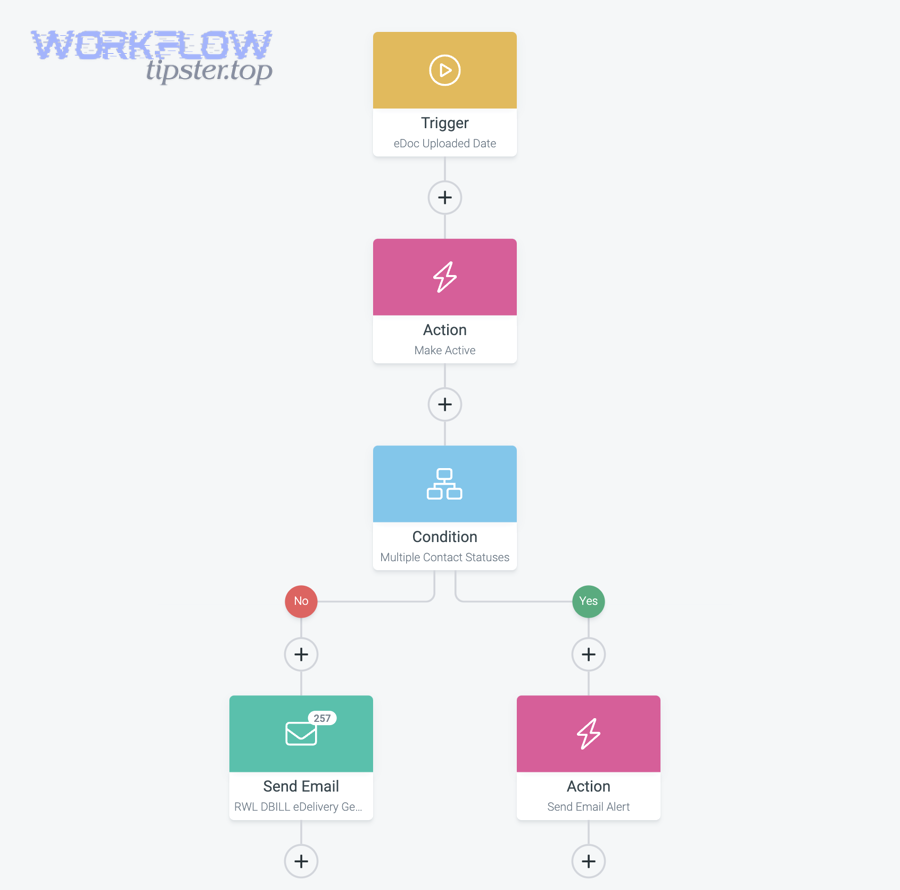
At a practical level, the integration does three jobs:
- Data movement: It takes fields like email, name, lifecycle stage, and preferences from Airtable and creates/updates contacts in SendGrid.
- Audience control: It assigns contacts to lists/segments (for marketing sends) or prepares recipient payloads (for transactional/dynamic template sends).
- Event-to-email execution: It sends an email when an Airtable trigger fires—new record created, status changes, due date arrives, or a manual “send now” flag is set.
To keep the “hook chain” tight, it helps to name the integration exactly as a business function: “Lead-to-welcome sequence,” “Invoice-to-receipt,” or “Renewal-to-reminder.” When you do that, every Airtable field you add has a job, and every SendGrid email has a purpose.
In real workflows, you’ll usually choose one of two email modes:
- Marketing mode: Sync contacts into SendGrid lists and let marketing campaigns/automations handle delivery timing.
- Transactional mode: Trigger sends directly via SendGrid’s API with a template ID and dynamic data (ideal for lifecycle emails tied to records).
Evidence: According to a study by Experian Marketing Services from its Email Market Study release in 2014, personalized emails generated higher performance lifts (including higher unique open and click rates) compared with non-personalized mailings.
Do you need Zapier, Make, or n8n to connect Airtable to SendGrid?
Yes—most Airtable to SendGrid workflows need Zapier, Make, or n8n because they add triggers beyond a simple extension, advanced filtering/branching, and production-grade retries/logging that prevent missed or duplicated sends.
More importantly, you only “don’t need” an external tool when your workflow is simple, low-volume, and tolerant of manual oversight.
When Airtable Automations or the SendGrid extension is enough
If your flow is “one trigger, one email, minimal logic,” Airtable Automations or the SendGrid extension can be enough.
Then, confirm your scenario matches these characteristics:
- Single-table trigger: A record enters a view, or a checkbox is ticked to send an email.
- Simple payload: You only need a few merge fields (first name, company, link).
- Low risk of duplicates: Sending twice would be annoying but not catastrophic.
- Low scale: You’re not blasting or triggering hundreds/thousands of sends per day from record changes.
In this “simple mode,” Airtable is both the database and the controller, and SendGrid is the sender. You can move quickly, but you must be disciplined about testing and monitoring because debugging options are limited.
When you must use an external automation layer
You should use Zapier, Make, or n8n when your integration must behave like a reliable system, not a one-off action.
Next, watch for these signals:
- Branching logic: Different email templates per status, country, plan, or product.
- Idempotency needs: You must guarantee “send once” even if the trigger fires twice.
- Rate and batching: You want to batch updates to SendGrid or throttle sends to protect reputation.
- Error handling: Retries, dead-letter queues, notifications, and detailed logs matter.
- Multi-app workflows: You also touch CRMs, support tools, or calendars under the same trigger.
This is where “Automation Integrations” become strategy, not just wiring: the automation layer lets you standardize validation, mapping, and recovery so your Airtable to SendGrid workflow is dependable month after month.
What are the core Airtable fields you should map to SendGrid?
There are 2 main groups of Airtable fields you should map to SendGrid: identity fields (who the person is) and messaging-control fields (what they should receive), based on whether the field defines the recipient or governs delivery rules.
To better understand the mapping, build the minimum viable schema first, then layer sophistication only when the workflow proves it needs more control.
Minimum viable field mapping (email, name, status)
The minimum viable mapping uses a small set of fields that prevent bad sends and keep your lists clean.
Specifically, start with:
- Email: Required. Validate format and prevent blanks.
- First name / last name: Optional but valuable for personalization.
- Lifecycle status: Examples: New, Qualified, Customer, Churn-risk.
- List/segment key: A single-select like “Newsletter,” “Onboarding,” “Events.”
- Send flag: Checkbox or single-select like “Ready to send” to control triggers.
- Last sent timestamp: Prevents duplicates and supports audits.
Before you add anything else, ensure you can answer two operational questions from Airtable alone: “Who did we send to?” and “Why did they get that email?” Those answers come from status, send flag, and last sent timestamp.
This table contains a practical “minimum mapping” you can copy into your base, and it helps you translate Airtable fields into SendGrid-friendly data types.
| Airtable Field | Type | SendGrid Destination | Why It Matters |
|---|---|---|---|
| Single line text | Contact email | Primary identifier for sends and suppression checks | |
| First Name | Single line text | Custom field / dynamic template variable | Personalization and better engagement |
| Status | Single select | List/segment logic or template routing | Controls which email is appropriate |
| Send | Checkbox | Trigger condition | Explicit human or system approval to send |
| Last Sent | Date/time | Airtable audit field | Idempotency and reporting |
Advanced fields (segments, consent, and template variables)
Advanced fields make your integration safer, more compliant, and more targeted by encoding consent and personalization logic directly in Airtable.
In addition, consider these fields as your workflow matures:
- Consent status: Opted-in, double-opted-in, unsubscribed, do-not-contact.
- Preference categories: Topics, frequency, product interests.
- Locale/timezone: Drives send time and language templates.
- UTM campaign fields: Source/medium/campaign for tracking consistency.
- Template ID / Template Key: Lets Airtable choose which SendGrid dynamic template to use.
- Personalization variables: Plan name, renewal date, onboarding link, invoice URL.
As soon as you add consent fields, your workflow becomes less fragile: you can block sends at the data layer before they ever reach SendGrid. That also makes it easier to debug because the “why” is visible in the record.
How do you build a working Airtable to SendGrid workflow step by step?
Build a working Airtable to SendGrid workflow with 6 steps: define the trigger, validate the record, map fields to a SendGrid payload, send via a template, log the result, and update the Airtable record with a send status and timestamp.
Below, the key is to design for correctness first (no wrong recipients, no duplicates), then optimize for speed.
Step-by-step build (trigger → transform → send → log)
A reliable build follows a predictable pipeline that you can reuse across many email use cases.
To begin, implement the steps in this order:
- Step 1: Choose a trigger (new record, updated record, record enters view, scheduled date).
- Step 2: Validate required fields (email present, consent OK, status eligible).
- Step 3: Transform data (normalize names, build URLs, compute variables like “days until renewal”).
- Step 4: Send via SendGrid (dynamic template ID + recipient + dynamic_template_data).
- Step 5: Log the response (message ID, status code, timestamp, error details).
- Step 6: Write back to Airtable (Last Sent, Send Status, Error Message, Attempt Count).
When you wire this, treat Airtable as the state machine. If a record is “Eligible,” the workflow sends. If it becomes “Sent,” the workflow stops. If it becomes “Error,” your team has a clear place to intervene.

If you’re using a third-party automation layer, keep the structure consistent: one scenario/Zap per use case, one central validation module, and one “update Airtable” module at the end. That consistency keeps your operations predictable.
SendGrid dynamic templates vs plain text sends
Dynamic templates win for most Airtable-driven workflows because they separate content design (template) from data (Airtable fields), which keeps your automation stable when marketing edits email layout.
However, plain text sends are still useful for internal alerts and low-risk notifications where speed matters more than brand consistency.
Use dynamic templates when:
- You need consistent branding across many sends.
- You want non-technical teammates to edit content without touching automations.
- You pass structured variables (name, links, dates, pricing, product names).
Use plain text (or minimal HTML) when:
- The email is operational (alerts, simple confirmations).
- Template maintenance overhead is not worth it.
Evidence: According to a report published by Litmus (based on survey data cited in its ROI of email marketing materials), many organizations report strong returns from email programs, reinforcing why a stable template-and-data approach is worth building when email is a core channel.
What are the main workflow patterns for Airtable → SendGrid?
There are 3 main workflow patterns for Airtable → SendGrid: contact sync (keep lists updated), event-triggered transactional sends (send on record changes), and scheduled lifecycle nudges (send on dates), based on what “time signal” triggers the email.
Next, choose the pattern first, because your pattern determines how you design fields, triggers, and idempotency.
Pattern 1: Contact sync (Airtable as CRM-lite)
Contact sync keeps SendGrid contacts up to date so your marketing sends always target the right audience.
Specifically, you:
- Create/update a SendGrid contact when an Airtable record is created or edited.
- Assign lists based on Airtable fields (status, product, region).
- Use SendGrid segmentation for campaigns while Airtable stores the “truth.”
This pattern is ideal when your team wants to run campaigns in SendGrid, not send every email from the automation tool. It also reduces “send pressure” on the integration because updates are smaller and more frequent than sends.
Pattern 2: Transactional email on status change (e.g., “Approved” → “Send”)
Status-change transactional sends are the most common because they map cleanly to business steps.
Then, the workflow is simple: when a status becomes “Approved,” “Won,” “Onboard,” or “Ready,” you trigger a SendGrid dynamic template send and immediately write back “Sent” plus a timestamp.
To keep this pattern safe, add two controls:
- Send eligibility gate: status + consent + required fields.
- Idempotency lock: a “Sent ID” or “Last Sent” field checked before any send.
This is also where you can naturally connect broader automation ecosystems: a lead might come from a form, get enriched, then route to multiple places. For example, you might run “box to slack” notifications for internal teams while SendGrid handles the customer-facing email—same trigger, different outcomes.
Pattern 3: Scheduled reminders (dates, SLA, renewals)
Scheduled reminders use Airtable date fields to trigger sends at the right time, even if the record doesn’t change that day.
More specifically, you:
- Store a due date (renewal date, appointment date, follow-up date).
- Run a daily schedule that finds records due in X days.
- Send the correct template and update the record to prevent repeat sends.
If your operations already use calendar-driven tools, this pattern pairs well with cross-tool flows, such as syncing deadlines and status. That’s why teams often also build adjacent automations like “google calendar to monday” so tasks and reminders stay aligned across systems.
Zapier vs Make vs n8n for Airtable to SendGrid: which is better?
Zapier wins in speed-to-launch, Make is best for visual multi-step scenarios with flexible data mapping, and n8n is optimal for technical teams who want deeper control, versioning, and optional self-hosting.
However, the “best” choice is the one that matches your workflow’s complexity, required reliability, and team skill level.


Criteria: complexity, cost, speed, and control
The decision becomes simple when you score each tool against the same criteria that matter to email automation.
To illustrate, evaluate:
- Complexity: branching, loops, transformations, conditional routing.
- Cost: pricing that scales with operations (tasks/ops) and volume.
- Speed: how fast a non-engineer can ship a working flow.
- Control: error handling, retries, custom code, secrets management, audit logs.
This table contains a quick decision snapshot, helping you choose the best automation layer for Airtable to SendGrid based on practical criteria.
| Tool | Best For | Strength | Watch-Out |
|---|---|---|---|
| Zapier | Fast, standard workflows | Quick setup, huge app ecosystem | Complex branching can get expensive and harder to maintain |
| Make | Visual multi-step scenarios | Flexible mapping, good for complex flows without code | Needs disciplined structure to avoid “spaghetti scenarios” |
| n8n | Engineering-led automation | Powerful control, custom logic, versioning mindset | Requires more technical ownership and monitoring |
Recommended tool choices by team type
Pick based on who will own the workflow after launch, not just who can build it today.
In addition, use these rules of thumb:
- Marketing-led teams: Start with Zapier for clear triggers and simple sends; graduate to Make as complexity grows.
- Ops-heavy teams: Use Make when you need robust scenarios with consistent structure and strong mapping.
- Engineering-led teams: Use n8n when you need fine-grained control, stronger governance, and custom logic.
Evidence: According to Google’s email sender guidelines, bulk senders should implement SPF, DKIM, and DMARC, and authenticated messages are less likely to be rejected or marked as spam—so the “control” criterion becomes critical when your send volume grows.
How do you test, troubleshoot, and prevent duplicate emails?
Use a 4-stage test loop to test, troubleshoot, and prevent duplicate emails: test with a sandbox record, validate payload variables, enforce idempotency in Airtable, and verify deliverability signals (suppression, authentication, and event logs) before scaling.
Then, treat each email send like a transaction that must be traceable end-to-end—from Airtable record → automation run → SendGrid response → event confirmation.
Testing checklist (sandbox base, test recipients, dry runs)
Testing is faster when you isolate the variables that change and lock everything else.
To begin, run this checklist:
- Use a sandbox table/view: Duplicate your schema, but only test with safe recipients.
- Hard-code a test recipient mode: Route all sends to your team until you flip a production switch.
- Validate every required field: If a variable is missing, stop the send and log an error.
- Check template rendering: Confirm dynamic template variables appear correctly and links resolve.
- Confirm record write-back: Ensure “Last Sent” and “Send Status” update after send attempts.
One practical trick is to add a “Preview Variables” field (long text) that stores the exact JSON or key-value data you plan to send. That gives you a human-readable “snapshot” for debugging without digging into logs.
Idempotency strategies (unique keys, status flags, send logs)
Idempotency means the same Airtable record should produce the same outcome exactly once, even if triggers fire multiple times.
More importantly, you can implement idempotency without heavy engineering by combining simple mechanisms:
- Status gating: Only send when Status = “Ready” and Send Status is blank.
- Unique send key: Create a key like RecordID + TemplateKey + Date bucket and store it as “Send Key.”
- Send log table: Append every attempt into a separate “Send Log” table with message ID and response code.
- Atomic update mindset: Update “Send Status = Sending” before you call SendGrid, then finalize to “Sent.”
If your tool supports it, also add retry rules with backoff. Retries help when temporary network failures happen, but idempotency prevents retries from becoming duplicate sends.
Evidence: According to Google’s email sender guidelines, authentication (SPF/DKIM and, for bulk, DMARC) improves the likelihood that messages are accepted rather than rejected or flagged as spam—so troubleshooting should include authentication checks alongside workflow logic checks.
How do you harden Airtable → SendGrid for scale (deliverability, compliance, and security)?
Harden Airtable → SendGrid for scale with 4 pillars: deliverability authentication (SPF/DKIM/DMARC), consent and suppression governance, secure secret handling for API keys, and operational monitoring (event webhooks, bounce tracking, and alerting) across the workflow.
Especially at scale, you’re no longer “sending emails”—you’re operating a sending reputation, and your integration must protect that reputation.
Deliverability foundations (SPF, DKIM, DMARC, warming)
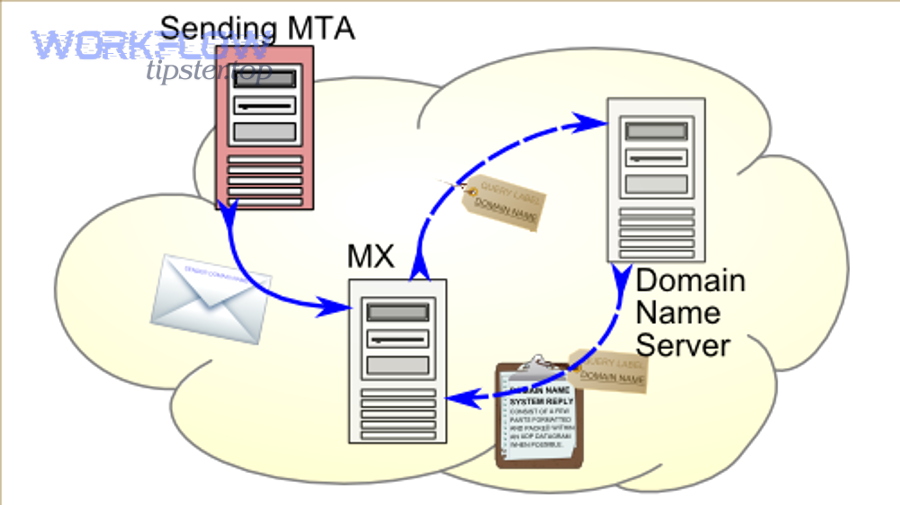
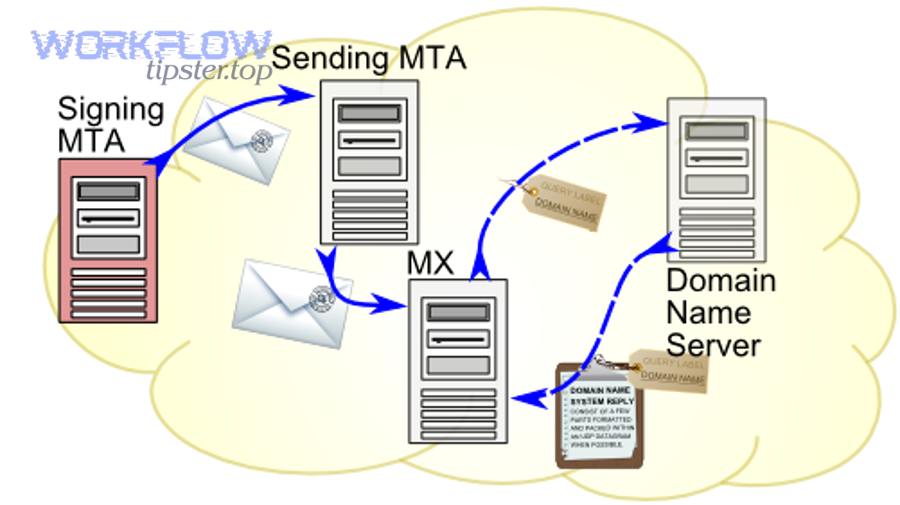
Deliverability hardening starts before the first send by aligning your domain, authentication, and volume ramp.
Next, follow these actions:
- Configure SPF: Ensure your domain authorizes SendGrid as a sender.
- Enable DKIM signing: Use SendGrid’s domain authentication so messages are cryptographically signed.
- Publish DMARC: Start with a monitoring policy (p=none) and move toward enforcement when aligned.
- Warm gradually: Increase volume in steps, prioritizing engaged recipients first.
Deliverability also improves when your Airtable data is clean: fewer typos, fewer role accounts, fewer unengaged recipients. That’s why validation rules and “email verified” fields can pay off quickly.
Compliance and consent (unsubscribe, preferences, data minimization)
Compliance hardening means your system respects recipient choices automatically, not manually.
Then, implement these practices:
- Store consent in Airtable: Opt-in status and consent source should be fields, not tribal knowledge.
- Respect suppression: If an address is unsubscribed or bounced, block sends at the workflow gate.
- Preference-driven sends: Use preference fields to target only what people asked for.
- Data minimization: Only send the variables you need to render the template and track outcomes.
When you embed compliance into the workflow, your automation layer becomes safer: your team can move faster without risking accidental sends to the wrong audience.
Security model (API keys, least privilege, secrets rotation)
Security hardening focuses on protecting SendGrid API keys and preventing accidental disclosure through logs or shared bases.
More specifically:
- Store secrets in the automation tool’s vault: Avoid placing API keys in Airtable fields.
- Least privilege: Use restricted keys when possible, and separate dev vs production keys.
- Rotate keys: Treat rotation as routine maintenance, not a panic move after exposure.
- Redact logs: Never log full payloads if they contain sensitive personal data.
This is also where process matters: define who can edit automations, who can edit templates, and who can edit Airtable fields that can trigger sends.
Monitoring (SendGrid event webhooks, bounces, and dashboards)
Monitoring hardening makes problems visible early—before deliverability drops or customers complain.
To begin, set up a feedback loop:
- SendGrid event webhook: Capture delivered, opened, clicked, bounced, spam reports, and unsubscribes.
- Write events back to Airtable (or a log store): Link by email + message ID where possible.
- Alerting rules: Notify your team if bounce rate spikes, authentication fails, or sends error repeatedly.
- Dashboards: Track volume, error rates, and key engagement metrics per template and per segment.
Once monitoring exists, troubleshooting becomes straightforward: you can see whether the workflow failed (no SendGrid call), the send failed (API error), or deliverability failed (accepted but bounced/spam).
Evidence: According to Google’s email sender guidelines, bulk senders should implement SPF, DKIM, and DMARC, and authenticated messages are less likely to be rejected or marked as spam—so monitoring should include authentication alignment checks, not only campaign metrics.