


A microsoft teams webhook 400 bad request almost always means your request reached the webhook endpoint, but the payload (or how it’s delivered) failed Teams’ validation before it could render a message in the channel.
In day-to-day integrations, this shows up when a “working in Postman” payload fails inside code, Make/Zapier, CI tools, or when you switch between MessageCard vs Adaptive Card expectations.
This guide focuses on the fastest path to isolate the exact cause: payload shape, headers, encoding, card schema, and platform-specific transformations that silently break requests.
Giới thiệu ý mới: once you can reproduce the failure with a minimal POST, every “mystery 400” becomes a deterministic checklist instead of guesswork.
What does a microsoft teams webhook 400 bad request mean in practice?
A microsoft teams webhook 400 bad request means Teams rejected your HTTP request as invalid input, typically due to a malformed or unsupported card payload, missing required fields, or an incorrect Content-Type that changes how Teams parses the body. To begin, treat 400 as a validation failure, not a network failure.
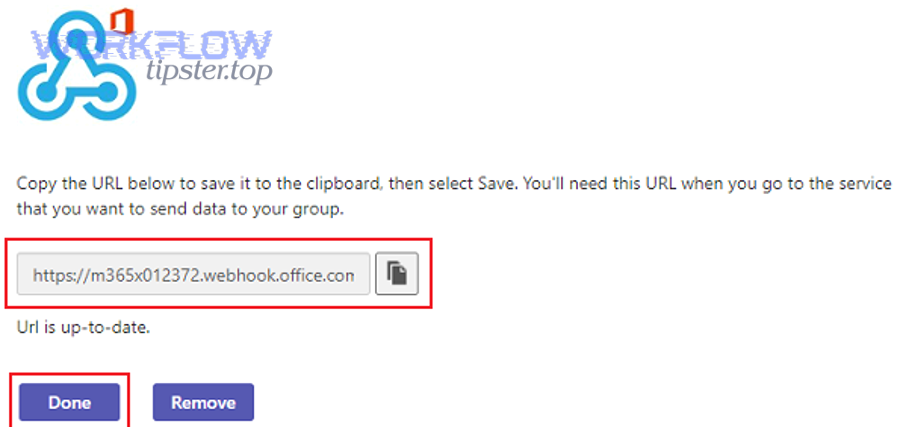
Cụ thể, the webhook endpoint is strict about what it can render in a channel. “Bad request” can be triggered by issues that look minor in logs: extra wrapper objects, a stringified JSON body inside JSON, unexpected nulls, or fields that belong to a different schema than the webhook supports.
Below is the mental model you should use: Teams webhooks are not generic “post anything” endpoints. They are message-rendering endpoints that expect a supported message envelope (simple text, connector MessageCard, or a specific Adaptive Card wrapper).
This table contains the most common 400 patterns and what they usually imply, so you can classify the failure quickly before rewriting payloads blindly.
| Symptom you see | What it usually means | Fastest verification |
|---|---|---|
| 400 with “Bad payload received…” | Body parsed, but schema validation failed | Send minimal { “text”: “Hello” } and compare |
| 400 with “Summary or Text is required” | MessageCard fields missing / wrong envelope | Add top-level summary or text (or switch format) |
| Works in Postman, fails in code | Headers/encoding differ, body mutated | Log raw bytes + Content-Type from code request |
| Works for small messages, fails for large | Payload size/field length constraints | Binary search by trimming sections |
| Intermittent 400 after retries | Automation platform reformatting or double-send | Capture and diff each outbound request |
Which payload formats does Teams Incoming Webhook accept, and which ones cause 400?
Teams Incoming Webhooks accept only a small set of payload “shapes,” and a 400 often occurs when you send a valid card schema in the wrong envelope. Next, map your payload to the correct format family before debugging individual fields.
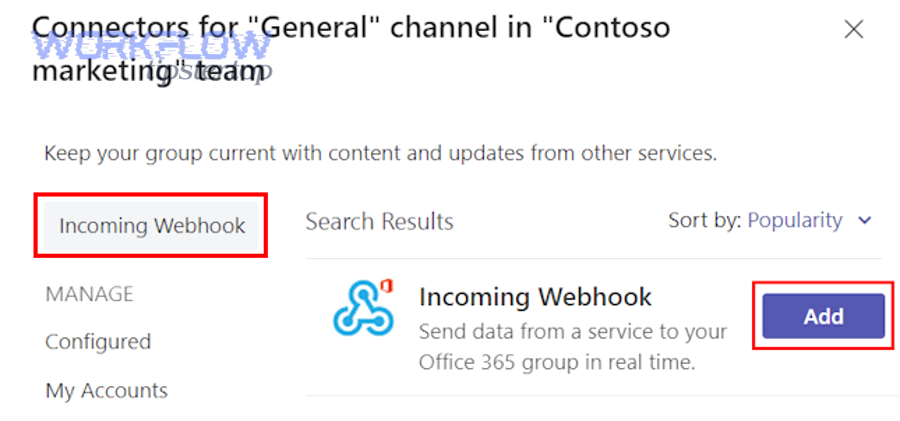
There are three practical categories you should recognize:
- Simple message: a minimal JSON with a top-level text field for quick testing.
- Connector MessageCard: the legacy “Office 365 Connector card” format with required fields such as summary or text, plus sections/facts/actions.
- Adaptive Card via wrapper: you do not post the raw Adaptive Card object as the body; you post a wrapper message with an attachments array that contains the Adaptive Card content.
Cụ thể hơn, a frequent root cause is sending an Adaptive Card JSON directly (it is valid JSON and valid Adaptive Card), but Teams webhook expects it inside a message wrapper. That mismatch surfaces as 400 even though the card itself “validates” elsewhere.
How do you choose between MessageCard and Adaptive Card without trial-and-error?
Choose MessageCard when your source system already emits connector-style cards, and choose Adaptive Card when you need richer layouts or modern Teams UI behaviors; then align the envelope to the webhook type. To avoid guessing, confirm what your automation platform is actually sending on the wire.
For example, some tools label a payload “card,” but emit a prebuilt connector MessageCard. Others emit an Adaptive Card, but you must still wrap it for Incoming Webhooks. The key is to treat “card type” and “webhook envelope” as two separate decisions.
How do you reproduce and isolate the failure with a minimal POST?
The fastest fix path is to isolate the problem with a two-step test: first confirm the URL works with a minimal payload, then incrementally add fields until the request breaks. After that, you’ll know exactly which field or wrapper triggers the 400.
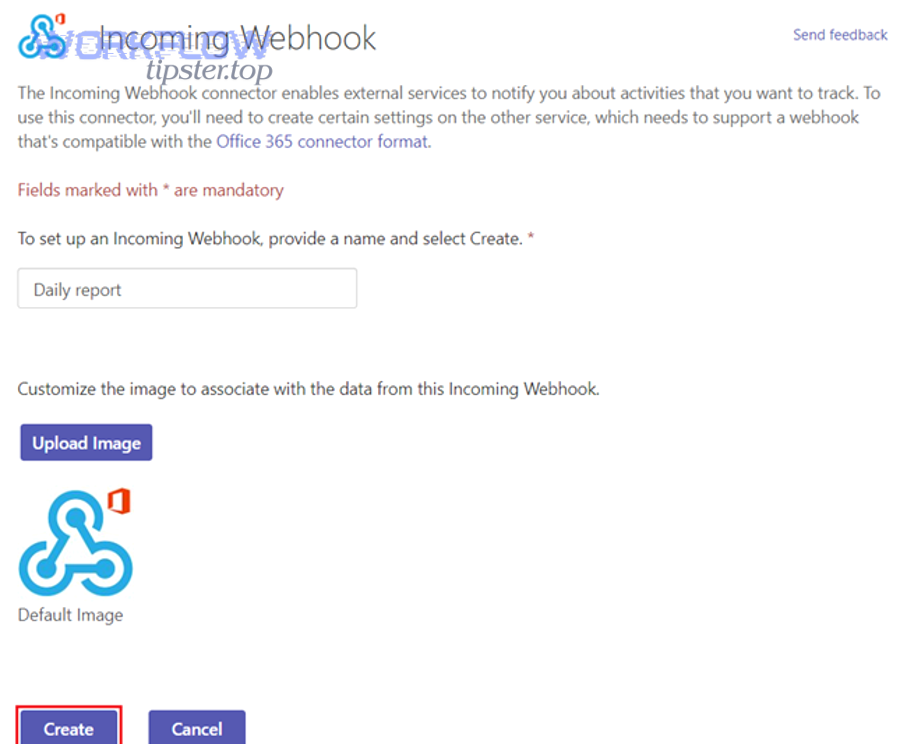
Use this minimal baseline body (expressed here as plain text for clarity):
Baseline body: {“text”:”Hello from a minimal webhook test”}
Then apply strict change control:
- Add only one structural element at a time (e.g., introduce “summary”, then “sections”, then “facts”).
- Keep a copy of the last known-good payload and the first failing payload.
- Diff them and assume the delta is the cause until proven otherwise.
Để minh họa, if baseline works but the first MessageCard attempt fails, the failure is almost never “the webhook URL.” It’s the MessageCard’s required fields or invalid property names/types.
Why does “works in Postman” not prove your production request is correct?
Because Postman usually sends a clean JSON body with a proper Content-Type, while production code and automation platforms often transform the payload (encoding, escaping, compression, or templating) without making it obvious. Next, you must log the exact outbound request, not the intended JSON.
This is where many teams lose hours: they compare the JSON they think they sent, not the raw bytes and headers that were actually transmitted.
How do you validate JSON, headers, and encoding to avoid 400?
You avoid most 400 errors by validating three layers together: JSON validity, HTTP headers, and the character encoding actually used on the wire. To begin, ensure the request is POST, with Content-Type: application/json, and a body that is JSON (not form-encoded, not double-stringified).
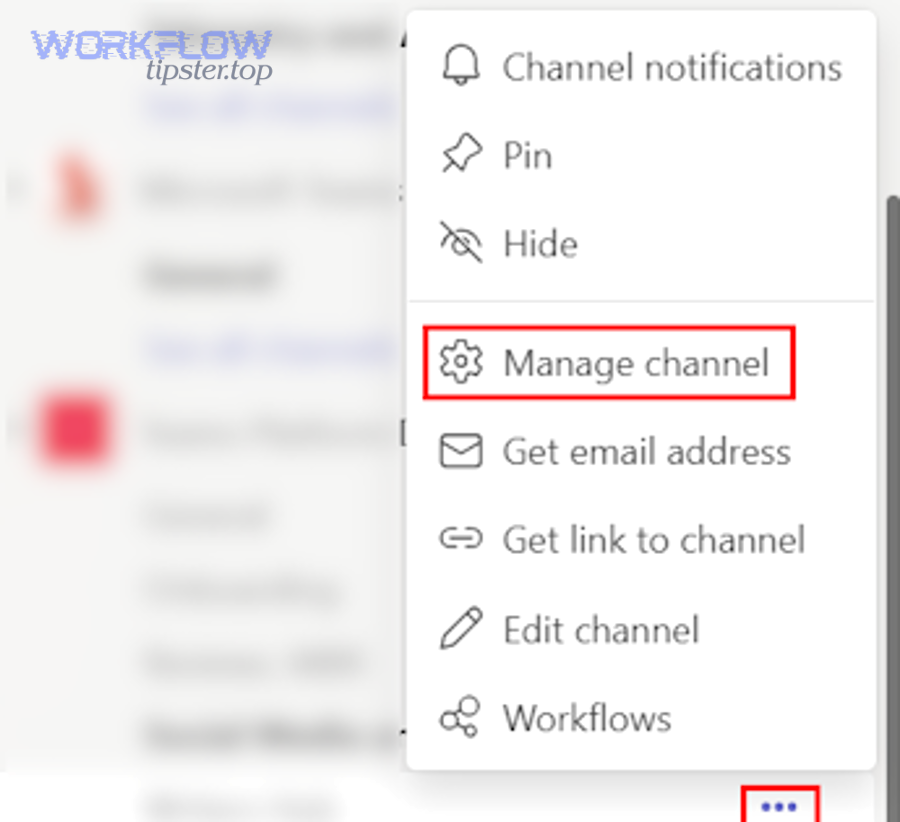
Here is the practical checklist that catches the majority of “invisible” breakages:
- Content-Type: must be application/json (avoid form-url-encoded unless the endpoint explicitly supports it).
- Body encoding: send UTF-8, avoid BOM, and do not gzip unless you are certain intermediaries and endpoint handle it.
- JSON is not a string: if your payload looks like “{\”text\”:\”Hello\”}” as a string value, you likely double-serialized.
- Newlines and quotes: templating can introduce unescaped quotes or stray control characters.
- Null vs missing: some card properties tolerate omission but fail on explicit nulls.
Quan trọng hơn, some automation platforms silently reformat JSON when you insert variables. A newline, an extra trailing comma, or a variable that resolves to an object instead of a string can be enough for Teams to reject the entire request.
In troubleshooting terms, this is where many users hit microsoft teams invalid json payload scenarios: the JSON parser fails before Teams can even interpret the card fields.
How do you prove the payload wasn’t mutated by an integration step?
Prove it by capturing the raw request at the last hop before Teams: log headers, log the exact body string, and if possible, capture a network trace from the client or an outbound proxy. Next, compare that captured payload to your known-good baseline.
When teams do this, they often discover variable substitution produced a different type (array/object) than expected, or that a “pretty printed” JSON introduced characters that the platform escapes differently.
How do you fix connector MessageCard errors like “Summary or Text is required”?
You fix “Summary or Text is required” by ensuring your connector MessageCard includes the required top-level fields that Teams uses to render a fallback summary. Next, keep your MessageCard minimal until it posts successfully, then reintroduce sections/actions.
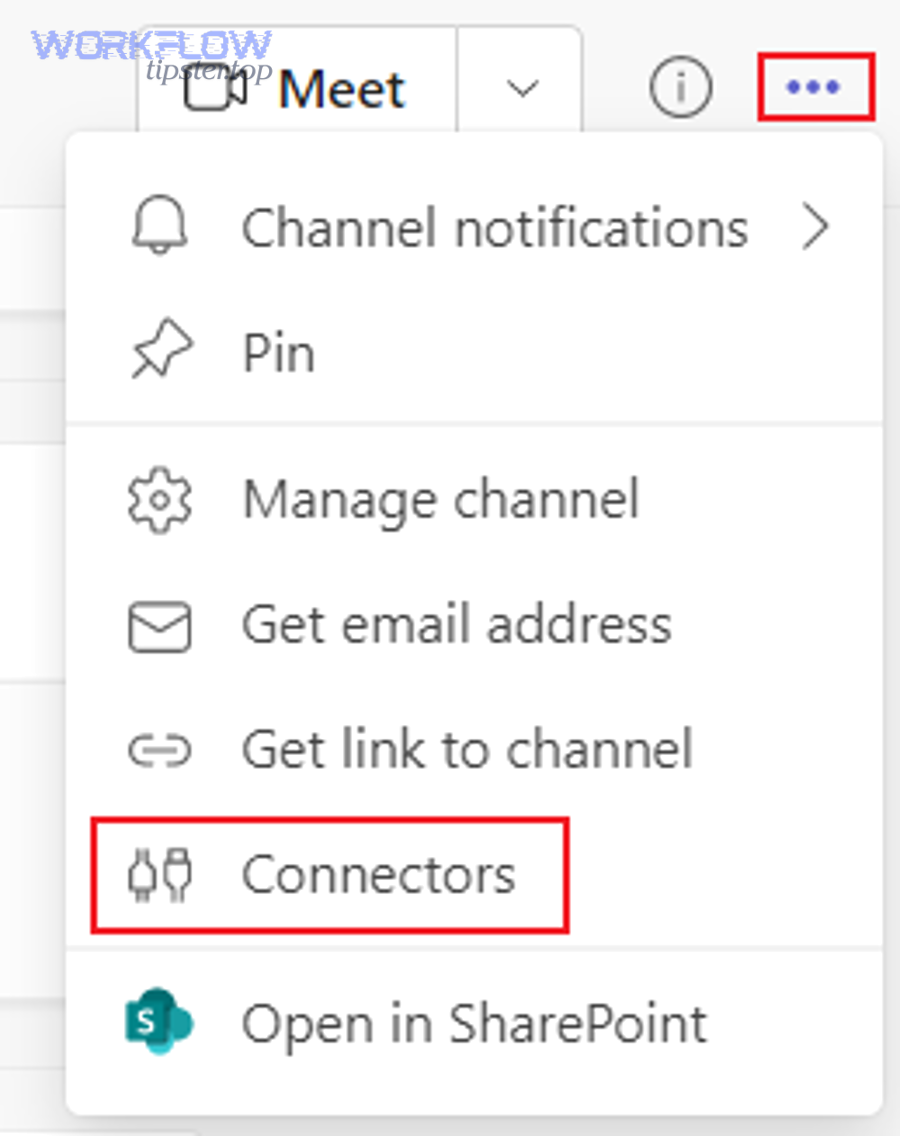
Common causes of this specific 400 pattern include:
- Using a MessageCard structure but omitting summary and text (or placing them inside a nested object).
- Sending a card schema object as the root body without the MessageCard envelope fields.
- Using property names with wrong casing or different schema versions that your webhook endpoint doesn’t accept.
Cụ thể, if your integration started from an Adaptive Card example and then you “converted” it into a MessageCard by adding a couple fields, you may still be missing the connector-specific requirements at the root level.
Also watch for mapping tools that rename fields during transformation—this is a frequent source of microsoft teams field mapping failed outcomes where the payload is technically valid JSON, but semantically invalid for Teams’ card renderer.
What is the fastest “known-good” MessageCard structure to test?
The fastest known-good approach is to use a simple top-level text message first, then upgrade to MessageCard by adding only @type, @context, summary, and text. Next, add one section with one fact, and stop as soon as you get a 400.
Once you have a working MessageCard, you can safely add more sections/facts/actions while preserving the validated envelope.
How do you send Adaptive Cards to Teams without triggering 400?
You send Adaptive Cards via Incoming Webhooks by wrapping the Adaptive Card inside a message envelope that contains an attachments array with the correct contentType. Next, validate the wrapper first with a very small card body before adding images, columns, or complex containers.
A reliable pattern is: root object describes a message, and the Adaptive Card appears under attachments.content. If you instead post the raw Adaptive Card object as the body, Teams often returns 400 even when other Adaptive Card renderers accept it.
In practice, start with a tiny card that contains only one TextBlock. Then add elements gradually: additional TextBlocks, FactSet, images, and containers. This incremental approach reveals which element, version, or property triggers rejection.
Đặc biệt, make sure the Adaptive Card version you declare aligns with what Teams supports in your environment. When you jump to a newer version or include an unsupported action type, Teams may reject the entire payload.
Why do images inside Adaptive Cards sometimes cause 400?
Because some image fields require a valid URL format, and some environments block image retrieval or reject non-HTTPS links; malformed URLs or excessively long data strings can also break validation. Next, test with a single short HTTPS image URL before using dynamic image fields.
When your image URL is built from variables, validate the final resolved URL string exactly as sent. A missing protocol, spaces, or unescaped characters can cause the card to be rejected at parse time.
How do you prevent 400 errors caused by authentication, proxies, and network middleboxes?
Even though Incoming Webhooks typically don’t require OAuth, you can still get 400 when proxies or security layers rewrite requests, strip headers, or change encoding. Next, verify that your outbound path preserves method, headers, and body unchanged from your app to Teams.
Key “non-obvious” infrastructure causes include:
- Corporate proxies that inject or rewrite headers, or normalize line endings.
- API gateways that apply JSON schema validation that differs from Teams’ expectations.
- WAF rules that block certain characters, large payloads, or specific JSON patterns.
- Library defaults that send the body as form data unless explicitly configured.
Cụ thể, a proxy that converts Content-Type or applies a charset you didn’t expect can be enough to change how Teams parses the payload. That’s why “the same JSON” can behave differently across environments.
How do you distinguish “endpoint rejected payload” vs “proxy corrupted payload”?
Distinguish them by sending the same request from two network paths: one direct (e.g., a simple cloud function) and one through your production path. Next, if only the production path fails, inspect the proxy/gateway logs and compare the outgoing body byte-for-byte.
This A/B test is often faster than deep-diving code when the true culprit is a network policy layer.
How does microsoft teams troubleshooting change when the webhook is called by an automation platform?
When an automation platform calls the webhook, Microsoft Teams Troubleshooting must focus on transformations: variable templating, JSON serialization, and retry behavior—because the platform may not send the exact JSON you authored. Next, inspect the platform’s “raw request” view or request history export, not the scenario editor preview.
Automation platforms commonly introduce four classes of breakage:
- Type drift: a token resolves to an array/object but the card expects a string.
- Escaping drift: quotes and newlines are escaped differently than expected.
- Conditional fields: a field becomes null or empty when optional data is missing.
- Retries: the platform resends after transient errors, amplifying side effects.
To keep language consistent across your runbooks, you can label this diagnostic phase as Microsoft Teams Troubleshooting without conflating it with card design; it’s primarily about outbound request fidelity.
Also, scenario builders can produce misleading green checks: a step can “succeed” internally but still post a malformed request externally. That is how teams end up chasing the wrong module when the real issue is mapping logic—what many describe informally as microsoft teams field mapping failed in the last mile.
What should you log to make automation-platform debugging deterministic?
Log the resolved JSON body as a single string, the Content-Type header, and the webhook response body for each attempt. Next, store the last known-good payload alongside each failing payload so you can diff and pinpoint the exact field that broke.
If the platform supports it, add a unique correlation ID into the posted message text so you can match channel posts to request attempts unambiguously.
How do you reduce downstream side effects like duplicate posts when retries occur?
You reduce duplicate posts by making webhook delivery idempotent at your integration layer: generate a deterministic message key, deduplicate on send, and avoid blind retries that resend the same content. Next, treat webhook posting as a “deliver once” operation, not a “retry until success” operation.
Why this matters: many teams fix the 400, then immediately face a new operational problem—messages appear multiple times because the integration previously retried during failures and now occasionally succeeds twice when the platform replays a run.
A typical symptom in broader automations is microsoft teams duplicate records created: the same upstream event produces multiple Teams posts (and sometimes multiple downstream actions if Teams is part of a larger workflow chain).
Practical controls that work well:
- Client-side dedupe: keep a short-lived cache (e.g., 5–30 minutes) of event IDs that already posted.
- Deterministic message key: hash stable fields (eventId + timestamp bucket) and only send once per key.
- Retry discipline: retry only on clearly transient statuses; avoid retrying on 400 because it is almost always deterministic.
- Outbox pattern: store outbound messages and mark them “sent” only after you confirm a successful response.
Ngược lại, if you implement aggressive retries for 400, you typically amplify noise rather than improve reliability—because the payload is still invalid and every retry just produces another failure.
Microsoft Teams webhook 400 bad request FAQ
This FAQ answers the recurring edge cases that keep producing 400 even after you “followed the docs,” usually because the payload is valid JSON but invalid for the webhook’s accepted message envelope. Next, use these as quick elimination checks when a single integration keeps failing.
Can a webhook URL be “correct” but still return 400?
Yes—400 typically means the URL is reachable and recognized, but the request body is invalid for what Teams expects. Next, validate with a minimal {“text”:”Hello”} body to confirm reachability before debugging card complexity.
Should you retry automatically on 400?
No—400 is usually deterministic and indicates a payload or header issue, not a transient outage. Next, fail fast, capture the request/response, and fix the schema or encoding rather than retrying.
Does Teams accept raw Adaptive Card JSON as the request body?
In many cases, no; Teams often expects Adaptive Cards to be wrapped inside a message envelope with attachments. Next, test a minimal wrapper with a single TextBlock before using complex cards.
What if the error appears only when variables are empty?
Then a field is becoming null/empty in a way the schema doesn’t allow, or your templating introduces invalid JSON (missing quotes, trailing commas). Next, add guardrails: default values, conditional inclusion, and strict JSON validation after variable resolution.
Contextual Border: The sections above help you stop the immediate 400. The next layer is keeping webhook delivery stable over time—limits, governance, and operational guardrails that prevent regressions.
Supplementary: Governance, limits, and long-term reliability for Teams webhooks
Long-term reliability comes from treating webhooks as a constrained messaging surface: design for size limits, rate constraints, schema evolution, and observability. Next, implement a small “webhook contract” that every integration must satisfy before it can be deployed.
How do payload size and field length constraints turn into 400?
They turn into 400 when your message crosses a limit and Teams rejects it during validation instead of partially rendering it. Next, cap text lengths, trim facts/sections, and move long content into a link rather than embedding it in the card.
How do schema changes and mixed Teams clients affect webhook behavior?
They affect behavior when an older client or a connector-style endpoint expects a different card envelope than a newer workflow-based approach. Next, standardize on one format per use case (MessageCard or Adaptive Card wrapper) and version your payload templates.
What is the most practical monitoring strategy for webhook health?
The most practical strategy is synthetic checks plus real traffic sampling: post a daily minimal test message to a non-production channel and log success rates for production posts. Next, alert on spikes in 400 because they usually indicate a deployed payload change.
Where should you embed a “how-to” reference video for teams webhook setup?
Embed it where implementers naturally get stuck—when verifying the connector, URL, and basic posting flow. Next, use this walkthrough as a baseline, then layer your payload validation on top.