


You can connect Airtable to Asana by using a no-code automation flow that turns Airtable records into Asana tasks (and keeps them aligned), so your team stops chasing updates and starts executing from a single, trackable work pipeline.
Next, you’ll need to choose the right integration approach for your team—one-way automation for simple “record → task” handoffs, or a two-way sync pattern when both tools must stay updated as work moves.
Then, the quality of your integration depends on preparation and field mapping: clean Airtable views, consistent task naming, and a reliable record/task ID link that prevents duplicates and makes updates safe.
Introduce a new idea: once the core workflow works, you can strengthen it with monitoring, governance, and advanced alternatives like CSV imports or conflict-resolution rules for two-way syncing.
What does it mean to “connect Airtable to Asana” for syncing records and tasks?
Connecting Airtable to Asana means building a workflow where Airtable records trigger Asana task creation or updates, using mapped fields so the same work item stays consistent across both tools as your team executes.
To better understand what “sync” really means, it helps to break the integration into the moving parts your team will touch every day.

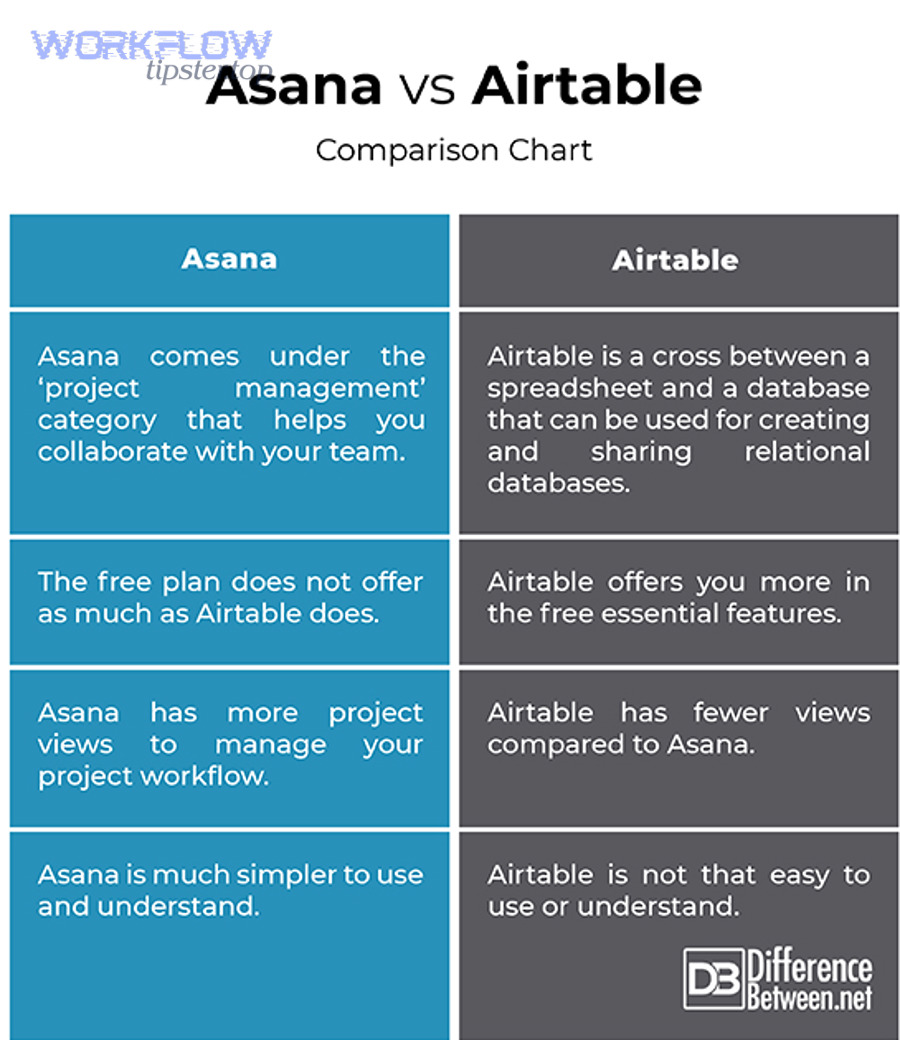
At a practical level, Airtable is the structured database layer (tables, fields, views, and records). Asana is the execution layer (projects, tasks, assignees, due dates, and workflow states). When you “connect Airtable to Asana,” you are choosing how information should move between these layers:
- Trigger: the event that starts the automation (for example, a new record appears in a specific Airtable view).
- Action: what happens in Asana (for example, create a task in a specific project and assign it to a teammate).
- Mapping: which Airtable fields become which Asana task fields (name, description, due date, assignee, custom fields).
- Link key: the “bridge” that lets updates stay safe over time (commonly Airtable Record ID ↔ Asana Task ID or task URL stored back in Airtable).
Most teams start with one-way automation because it’s simple and stable: Airtable is the source of truth for intake, and Asana is the source of truth for execution. However, “sync” is often used casually to mean two different things:
- One-way sync (handoff): Airtable creates or updates Asana tasks, while Airtable remains the structured intake system.
- Two-way sync (alignment): changes in Asana (completion, status, assignee, due date) also update the related Airtable record.
When your team understands this distinction, your integration becomes easier to design, easier to explain, and easier to maintain. You’ll avoid the most common failure mode: building a “two-way sync” accidentally, then suffering conflicts, duplicates, and unclear ownership of truth.
Can you connect Airtable to Asana without code?
Yes, you can connect Airtable to Asana without code because no-code automation tools provide (1) secure account connections, (2) ready-made triggers and actions, and (3) field mapping that turns records into tasks without writing scripts.
To begin, you should treat no-code integration as a controlled build process rather than a quick “toggle,” because your mapping decisions become the backbone of how your team runs projects.
A reliable no-code Airtable-to-Asana connection usually follows the same backbone, regardless of the platform you choose:
- Define the workflow boundary: decide what belongs in Airtable (intake, structured metadata, reporting) and what belongs in Asana (execution, collaboration, delivery).
- Create a filtered Airtable view: this acts as your “automation queue” so only qualified records become tasks.
- Choose a trigger: typically “new record in view” or “record updated and meets conditions.”
- Choose an Asana action: “create task” first, then optionally “update task” later.
- Map fields carefully: name, description template, assignee rules, due date rules, and status/custom field mapping.
- Write back the task reference: store the Asana Task ID or Task URL in Airtable to prevent duplicates and enable updates.
- Test with edge cases: blank fields, long text, unusual characters, missing assignees, and date-time quirks.
Once you’ve built the backbone, you can scale it with rules that fit real teams, such as routing tasks to different Asana projects based on Airtable categories, or setting due dates based on SLA tiers stored in Airtable.
Evidence matters here because the cost of “work about work” is real: Asana reports that knowledge workers spend a majority of time on coordination rather than skilled work, which is exactly what an Airtable-to-Asana automation is meant to reduce.
Which no-code integration options should teams choose to connect Airtable and Asana?
Zapier wins for fast, template-driven setup, Make is best for complex multi-step logic, and two-way sync tools are optimal when your team needs bidirectional updates with clear conflict rules.
However, the “best” option depends on whether you want simple automations, advanced routing, or true synchronization across systems.
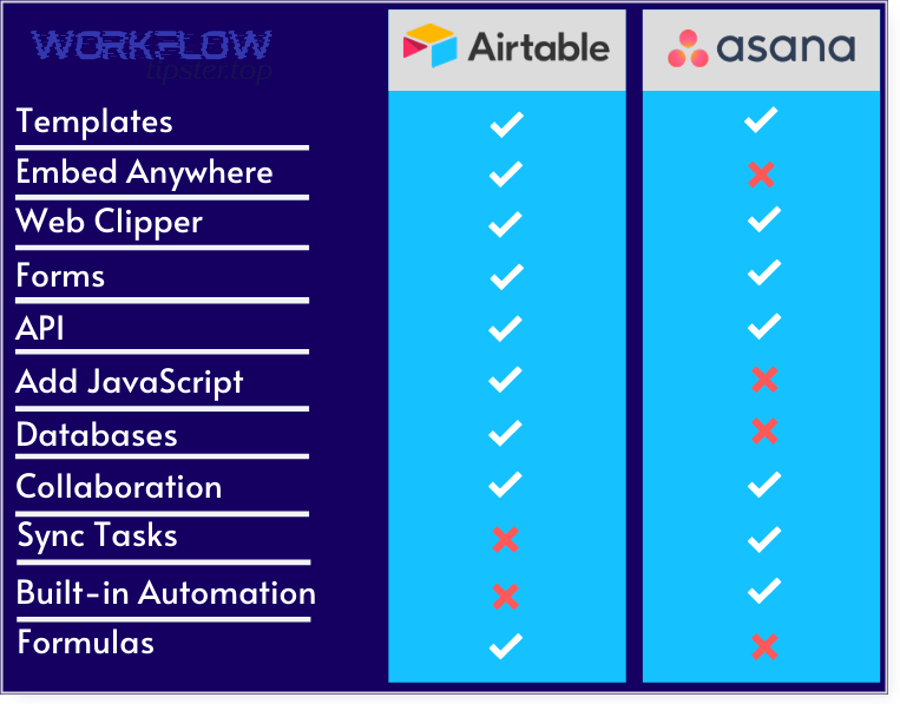
This table contains a practical comparison of common Airtable-to-Asana integration approaches, so you can match tool choice to team complexity, governance, and sync requirements.
| Option | Best for | Strength | Tradeoff |
|---|---|---|---|
| Zapier-style automation | Quick “record → task” workflows | Fast setup, many templates, simple maintenance | Complex branching can become harder to manage |
| Make-style scenario builder | Multi-step routing and data shaping | Advanced logic, conditional paths, transformations | Requires stronger ops discipline and documentation |
| Two-way sync tool | Bidirectional task/record alignment | Purpose-built sync fields and update cycles | Needs conflict rules and clear source-of-truth policies |
| Workflow automation platform (self-hosted/advanced) | Engineering-adjacent teams with special needs | Custom control, scalability, deeper integrations | Higher ownership cost; monitoring becomes essential |
For teams building broader Automation Integrations across their stack, choosing a tool that matches your complexity today—and can grow tomorrow—prevents rework. A team that also connects airtable to stripe for billing events, or links airtable to toggl for time tracking, often benefits from a scenario builder when routing rules become more detailed. Similarly, if your team already automates dropbox to microsoft teams notifications for file workflows, you’ll recognize the importance of standard triggers, clear ownership, and consistent naming.
Is a one-way automation or a two-way sync better for your workflow?
One-way automation is better when Airtable is your source of truth for intake, while two-way sync is better when Asana updates must reliably reflect back into Airtable for reporting or downstream processes.
Meanwhile, the most important decision is ownership of truth, because it determines how you prevent conflicts and duplicates.
- Choose one-way automation if Airtable controls intake and structure, and Asana controls execution.
- Choose two-way sync if Airtable dashboards or operational reporting must reflect real-time delivery changes happening in Asana.
- Choose “hybrid” if only a few Asana fields need to sync back (completion + assignee + due date), while Airtable remains the master for structured metadata.
The safest team pattern is “one-way creation + selective write-back.” You create tasks from Airtable, then write back only the Asana Task URL/ID and a few execution outcomes (completed, completed date, final owner). This reduces conflict while still giving Airtable accurate reporting signals.
Should teams prefer a template-based setup or a custom workflow build?
Template-based setups are best for speed and simplicity, while custom workflow builds are best for teams that need routing, deduplication rules, multi-project creation, or conditional logic tied to Airtable fields.
In addition, your choice should reflect how often your process changes, because frequent process changes punish fragile automations.
- Use templates when your workflow is “new record → create task” with a small set of mapped fields.
- Go custom when you need conditional assignment, different Asana projects by category, or standardized description formatting with multiple links and attachments.
- Plan for governance when multiple teammates will edit the automation, because ownership and documentation become part of the workflow.
A practical benchmark is this: if your integration needs more than one Asana action (create + update + comment + subtask), you’ll usually benefit from a custom build so the logic stays readable and maintainable.
What should you prepare in Airtable and Asana before building the integration?
There are two preparation layers you should complete before integrating: (1) Airtable data readiness and (2) Asana execution structure, because clean inputs and stable destinations prevent broken mappings, duplicates, and permission failures.
Specifically, preparation is the fastest way to reduce future maintenance work, because your automation will only be as reliable as the structure it depends on.
Think of preparation as defining “what qualifies as a real work item” and “where that work item lives” once it becomes a task.
Which Airtable fields should exist to create reliable Asana tasks?
You should create a minimum set of Airtable fields that cover identity, ownership, timing, and workflow state, because these fields map cleanly into Asana task creation and make updates predictable.
Next, build your Airtable view so only records that meet your “ready” criteria appear in the automation queue.
- Task Name (single line text): the record’s canonical title that becomes the Asana task name.
- Task Description (long text): structured notes, acceptance criteria, and links.
- Owner (collaborator or email): the assignee rule for the Asana task.
- Due Date (date or date-time): the deadline that maps into Asana.
- Status (single select): your pipeline stage (e.g., New, Ready, In Progress, Done).
- Priority (single select): optional but useful for routing and reporting.
- Asana Task ID / Asana Task URL (text): the link key that prevents duplicates and enables updates.
- Airtable Record ID (formula): helpful for logging and troubleshooting across tools.
If your team routes work, add fields like Project Type, Department, or Workstream so the automation can place tasks into the correct Asana project or section.
Which Asana project settings and fields should you standardize first?
You should standardize Asana project structure (project, sections, and required fields) before integrating, because consistent destinations make automation rules stable and reduce task cleanup for the team.
Besides, Asana structure is how your team experiences the workflow, so clarity here reduces “where does this go?” questions.
- Project destination: pick the one Asana project that represents execution for this workflow.
- Sections or columns: define pipeline stages (Inbox, Doing, Blocked, Done) if you use sections as workflow.
- Custom fields: define Priority, Type, or SLA if your team needs structured reporting inside Asana.
- Assignment rules: decide how tasks are assigned when Airtable owner is blank (fallback assignee or triage owner).
- Naming conventions: define a consistent prefix or pattern (e.g., “[Client] – [Request Type] – [Short Title]”).
When these decisions are made first, your automation becomes an implementation step, not a process debate.
How do you create Asana tasks automatically from new or updated Airtable records?
The main method is a no-code “trigger → create task → write back task link” workflow in seven steps, and the expected outcome is that every qualified Airtable record generates a correctly assigned Asana task with consistent fields and a stable reference key.
Then, once the “create” loop is stable, you can add an “update” loop to keep tasks aligned when the Airtable record changes.
A practical step sequence that teams can follow:
- Build the Airtable view: filter to “Ready = Yes” or “Status = Ready” so only qualified records trigger task creation.
- Connect accounts: authenticate Airtable and Asana with the account that has correct project access.
- Set the trigger: “New record in view” for first-time creation, or “Record enters view” if you want a qualification step.
- Configure the action: “Create task” in the correct Asana project, optionally in a section/column.
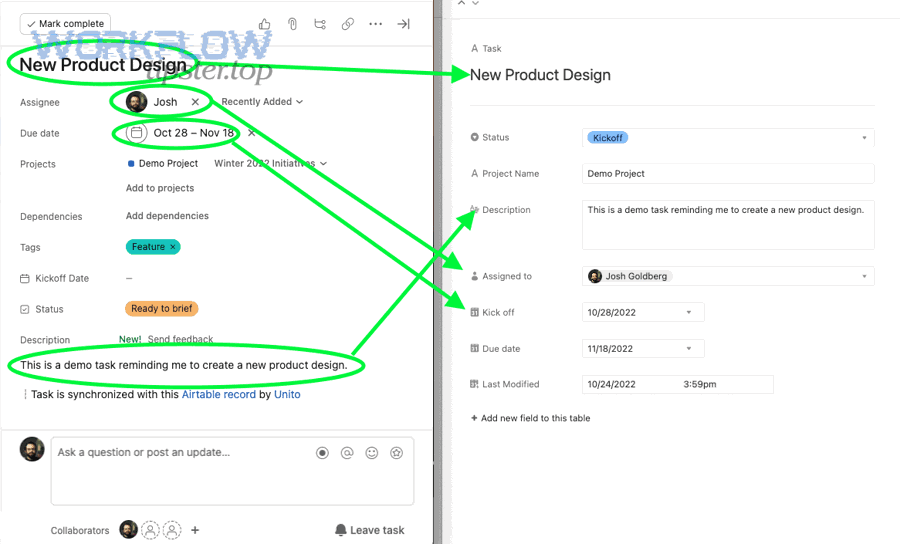
- Map fields: task name, description, due date, assignee, and custom fields.
- Write back the Asana link: update the Airtable record with the Asana Task URL/ID to prevent duplicates.
- Test and harden: test missing values, long text, special characters, and different categories.
How do you map Airtable fields to Asana task name, description, due date, assignee, and project?
You map Airtable fields to Asana by assigning each Airtable attribute to a specific Asana task property, using a consistent template so tasks remain readable for humans and reliable for automation updates.
Specifically, the mapping should reflect how people work, not just how data is stored.
- Task name: map to Airtable “Task Name,” and keep it short so it scans well in Asana lists.
- Description: map from a long text field that includes a structured template such as:
- Context: why this task exists and what triggered it.
- Acceptance criteria: what “done” looks like.
- Links: Airtable record URL, docs, assets, and reference tickets.
- Due date: map from Airtable “Due Date” and define whether you use date-only or date-time.
- Assignee: map from Airtable “Owner,” and set a fallback owner if blank.
- Project: select the destination Asana project, and optionally map a “Workstream” field to decide which project or section receives the task.
A strong team habit is to include the Airtable record link at the top of the Asana task description, because it creates a fast “back to source” loop when someone needs context.
How do you prevent duplicate tasks when records are edited or re-enter a view?
You prevent duplicate tasks by creating tasks only once, storing the Asana Task ID/URL back in Airtable, and adding a rule that blocks creation when that link field is already populated.
More importantly, duplicates are a design problem, so you should build deduplication into the workflow from day one.
Use this practical deduplication pattern:
- Create-once rule: only create an Asana task when “Asana Task ID is empty” and the record meets “Ready” conditions.
- Write-back immediately: after task creation, update the Airtable record with the Asana Task ID/URL in the same automation run.
- View stability: avoid triggers based on broad views that records can enter/exit frequently; use a purpose-built “Automation Queue” view.
- Human guardrail: show a visible “Task Created?” checkbox or status field so editors know whether creation already happened.
In teams, duplicates create hidden costs: they inflate workload, cause conflicting updates, and damage trust in the system. A strict “create-once + write-back” rule is the simplest way to protect trust.
How can you sync updates back to Airtable after work happens in Asana?
You can sync updates back to Airtable by using the Asana Task ID as a link key, then triggering updates from Asana events (or scheduled checks) so completion, assignee, due date, and key status changes update the matching Airtable record.
However, you should sync back only what you truly need, because excessive two-way syncing increases conflict risk and maintenance overhead.
There are two safe sync-back patterns teams commonly use:
- Selective write-back: Airtable creates tasks; Asana updates completion and a small set of outcomes back into Airtable.
- Controlled two-way sync: both systems can update shared fields, but you enforce conflict rules and clearly define which tool wins for each field.
Which Asana task changes are worth syncing back to Airtable?
The Asana changes worth syncing back are those that help reporting, forecasting, and downstream routing, such as completion status, completion date, assignee changes, due date changes, and selected status/custom fields.
Next, define each synced field as either “informational” or “controlling,” because controlling fields must have strict source-of-truth rules.
- Completion: sync “Completed = Yes/No” and optionally a completion timestamp.
- Assignee: sync if Airtable dashboards rely on ownership, or if staffing reports live in Airtable.
- Due date: sync if deadlines shift during execution and you track SLA performance in Airtable.
- Status/custom field: sync if Asana is the place where workflow state changes occur (e.g., In Progress, Blocked, Ready for Review).
- Task URL: always sync this back, because it creates navigational continuity for the team.
Syncing comments or rich activity logs is usually unnecessary unless you have a compliance-driven need, because it increases complexity without improving execution clarity.
How do you map Airtable statuses to Asana sections or custom fields correctly?
Sections are best for visual workflow movement, custom fields are best for reporting, and completion is best for binary outcomes, so your mapping should reflect whether you prioritize board flow, analytics, or simple done/not-done tracking.
On the other hand, mapping becomes fragile when you mix multiple “truth signals” without clear priority.
- Airtable status → Asana section: best when your team uses boards and moves tasks across columns.
- Airtable status → Asana custom field: best when you need consistent reporting across multiple projects.
- Airtable status → Asana completion: best when Airtable needs only the final outcome state (done vs not done).
A clean hybrid looks like this: use Asana sections for day-to-day movement, use a status custom field for analytics, and treat completion as the final milestone. Then, sync back only the status field and completion into Airtable, leaving section movement as a visual-only execution detail.
What are the most common Airtable-to-Asana integration errors and how do you fix them?
There are three main categories of Airtable-to-Asana integration errors: (1) permissions and access, (2) field mapping and data types, and (3) volume-related failures like rate limits, retries, and delayed runs.
To illustrate how to fix issues quickly, you should troubleshoot from the outside in: confirm access first, then confirm mappings, then confirm volume behavior.
Is the integration failing because of permissions or wrong workspace/project access?
Yes, permission issues are a top cause of failures because Asana project access and Airtable base access can differ by user, and automations run under the permissions of the connected account.
Then, once you suspect access, validate it with a simple manual check before changing your workflow logic.
- Symptom: task creation fails immediately, or tasks do not appear in the intended project.
- Cause: connected account lacks access to the Asana project/workspace, or the Airtable base/view is not accessible.
- Fix: connect with a service account that has stable access; confirm the account is a member of the Asana project; ensure Airtable permissions include the needed table/view.
- Prevention: document who “owns” the automation account and what happens when a teammate leaves the company.
Are field types or formatting breaking the task creation/update?
Yes, field type mismatches can break task creation because dates, multi-select values, long text formatting, and blank values may not map cleanly unless you standardize inputs and add fallback rules.
Moreover, mapping errors often look random until you test edge cases systematically.
- Date vs date-time: ensure you consistently use date-only or date-time; avoid switching formats midstream.
- Blank assignees: set a default triage owner when the Airtable owner field is empty.
- Multi-select fields: convert to a readable string in the Asana description if you can’t map directly into a single Asana field.
- Long descriptions: keep the first lines crisp and place extra details below, so tasks remain scannable.
- Special characters: test apostrophes, emojis, non-English characters, and long URLs.
A practical safeguard is to create an Airtable formula field called “Automation Summary” that formats multiple attributes into a single, predictable text block. That way, you always have a stable description to map into Asana even if individual fields change later.
Are rate limits or high-volume updates causing delays and missed runs?
Yes, high-volume spikes can cause delayed runs or temporary failures because integrations may hit throughput limits, queue backlogs, or retries—especially when many records update at once or when triggers fire too frequently.
Especially for teams that process large intake batches, volume behavior is a workflow design factor, not an afterthought.
- Reduce trigger noise: trigger only when a record enters a qualified view, not on every minor edit.
- Batch and schedule: if your tool supports scheduled runs, process updates in intervals rather than instantly.
- Filter upstream: add Airtable conditions like “Ready = Yes” and “Asana Task ID is empty.”
- Add retry strategy: use built-in retry settings and log failed runs into an Airtable “Automation Errors” table.
When your automation includes broader workflows—like billing events from airtable to stripe or time logging via airtable to toggl—volume planning becomes even more important because multiple automations can compound spikes during peak hours.
How do teams validate, monitor, and maintain the Airtable–Asana workflow long-term?
Teams maintain a reliable Airtable–Asana workflow by validating edge cases before launch, monitoring run history and failures, and assigning clear ownership and governance so automation logic survives process changes, staffing changes, and growth.
Thus, the long-term win is not just task creation—it is predictable operations that your team trusts.
What should you test before turning the integration on for the whole team?
You should test the integration with realistic records and edge cases because early tests reveal mapping gaps, duplicate creation risks, and permission failures before they affect real projects.
Next, treat testing as a checklist your team can repeat after any workflow change.
- Happy path test: a perfect record creates a perfect task in the correct Asana project.
- Blank field tests: missing assignee, missing due date, missing description—verify fallbacks.
- Edge formatting tests: long titles, long descriptions, special characters, multiple links.
- Duplicate prevention test: edit the record after creation and confirm it does not create a second task.
- Update test: change a mapped field (due date, assignee) and confirm the correct update behavior.
- Permission test: ensure the connected account can read the Airtable view and create tasks in the Asana project.
Evidence: according to a Harvard Business School study (Working Knowledge) by researchers including Raffaella Sadun and Jeffrey T. Polzer in 2020, analysis of emails and meetings across millions of people found the average workday increased by 8.2% (about 48.5 minutes), highlighting why workflow automation and clearer coordination systems matter.
Who should own the automation and what governance prevents breakage?
A single accountable owner (or small owner group) should manage the automation because shared, undocumented edits are the fastest way to break mappings, lose permissions, and create inconsistent task behavior across the team.
More importantly, governance is how you keep the workflow stable as people and processes change.
- Use a service account: connect Airtable and Asana with a stable account that won’t disappear when an employee leaves.
- Document the workflow: write what triggers the automation, what it creates, what fields map, and how deduplication works.
- Change control: define who can edit the automation and require a quick test run after changes.
- Error logging: write failures into an Airtable table so issues become trackable work items.
- Ownership handoff: document how to rotate ownership and where credentials live.
When your automation ecosystem grows—such as integrating files via dropbox to microsoft teams notifications or expanding financial workflows from airtable to stripe—governance becomes the difference between “automation saves time” and “automation creates invisible operational risk.”
Contextual Border: The core Airtable-to-Asana connection is now complete: you know what “sync” means, how to build no-code creation and update loops, how to prevent duplicates, and how to troubleshoot and maintain the workflow. Next, we’ll expand into advanced scenarios and alternatives that deepen semantic coverage beyond the primary setup.
What advanced scenarios and alternatives should teams consider beyond the basic Airtable-to-Asana sync?
There are four advanced paths teams should consider—CSV import, conflict-resolution rules for two-way sync, time zone best practices, and security/audit governance—because these micro-level decisions often determine whether a growing workflow stays stable or becomes fragile.
In addition, these scenarios help you handle edge cases that surface only after real adoption, when volume, collaboration patterns, and cross-tool dependencies increase.
When is CSV import into Asana a better choice than ongoing automation?
CSV import is better than ongoing automation when you are doing a one-time migration, when the dataset changes infrequently, or when you need a controlled snapshot of tasks without the complexity of continuous synchronization.
However, CSV import is an alternative that trades real-time alignment for simplicity and predictability.
- Choose CSV import when you need to move an Airtable backlog into Asana once, then manage execution purely in Asana.
- Avoid CSV import when your intake remains in Airtable and new records must constantly become tasks.
- Use CSV import when governance requires a clear “cutover date” and minimized automation risk.
A practical hybrid approach is to CSV-import historical records into Asana, then run the no-code automation only for new records moving forward. This reduces complexity while keeping the pipeline live.
How do you handle two-way sync conflict resolution when both tools are edited?
You handle two-way sync conflicts by defining a source-of-truth policy per field, enforcing update direction rules, and adding guardrails like “locked” fields or approval statuses so simultaneous edits don’t overwrite each other unpredictably.
Then, once the rules are explicit, you can encode them as conditions rather than relying on human memory.
- Field-level ownership: Airtable owns structured metadata (category, client, request type); Asana owns execution fields (assignee, completion, due date changes).
- Priority rule: decide whether “latest update wins” or whether one system always wins for certain fields.
- Locking strategy: once a task enters “In Progress,” lock certain Airtable fields or require a review status before changes propagate.
- Conflict logging: if both sides change the same field within a window, log a conflict record for manual resolution.
This is where the Asana Task ID stored in Airtable becomes non-negotiable: it is the anchor that makes conflict detection possible.
What are best practices for time zones and date-time fields when syncing due dates?
The best practice is to standardize whether you use date-only or date-time deadlines, choose a single team time zone rule, and test “date drift” scenarios so a due date does not shift unintentionally when it moves between Airtable and Asana.
Meanwhile, time zones become more sensitive as teams distribute globally and rely on automation for SLA commitments.
- Prefer date-only when “end of day” is the real expectation and exact hours are not needed.
- Use date-time when deadlines are hour-specific (handoffs, launches, escalations).
- Set a policy for “team timezone” (for example, project timezone) and document it in the workflow.
- Test the edge around midnight and daylight saving shifts if you rely on date-time fields.
If your team also tracks time with airtable to toggl, align your deadline time zone policy with your time tracking policy so reporting remains consistent.
How should teams approach security, access, and auditability for shared automations?
Teams should approach automation security by using least-privilege access, stable service accounts, audit-friendly logging, and documented ownership, because automation can silently move sensitive data across tools and amplify mistakes at scale.
Especially when multiple automations exist across billing, files, and collaboration, auditability becomes part of operational maturity.
- Least privilege: give the automation account only the Airtable bases and Asana projects it needs.
- Service account ownership: avoid personal accounts as the long-term connector.
- Audit logging: store run logs or failure logs in a dedicated Airtable table (timestamp, record ID, task ID, action, outcome).
- Incident response: document how to pause the workflow and how to roll back unintended changes.
When your organization expands automation—like connecting invoices via airtable to stripe or syncing documents and approvals via dropbox to microsoft teams—these governance controls protect your team from automation becoming a hidden risk.
Evidence: according to Asana’s Anatomy of Work Index (reported in 2025), knowledge workers spend 60% of their time on “work about work,” which supports the value of building stable automations that reduce coordination overhead and keep execution aligned.