


Connecting ActiveCampaign to Microsoft Teams is the fastest way to turn contact and deal activity into real-time team alerts—so marketing and sales can respond to hot leads, pipeline changes, and customer signals without living inside the CRM.
To choose the right approach, you need to match your alert goals to the integration path: a simple no-code connector for quick wins, or a more flexible workflow builder when you need routing rules, formatting, and guardrails.
Once you’re connected, the next priority is building the few workflows that create the most revenue impact—like “new lead captured,” “deal stage changed,” and “high-intent tag added”—while keeping notification noise under control.
Introduce a new idea: the rest of this guide walks you from “what integration really means” to step-by-step setup, then into best-practice workflows, alert quality, troubleshooting, and advanced reliability.
What does “ActiveCampaign to Microsoft Teams integration” mean for team alerts and syncing?
ActiveCampaign to Microsoft Teams integration is a workflow connection that turns ActiveCampaign events into Microsoft Teams messages (alerts) and, in some setups, can also sync selected records or updates back across both systems.
Next, to better understand the value of this integration, you should separate “alerts” (push notifications) from “sync” (data consistency).
In practical terms, “integration” usually means a trigger happens in ActiveCampaign, and an action happens in Teams:
- Trigger (ActiveCampaign): a contact is created, a tag is added, a deal stage changes, a form is submitted, or an automation milestone is reached.
- Action (Teams): a message is posted to a channel, a chat notification is sent, or a structured update is published where the team already collaborates.
The “sync” part can be misunderstood. Most teams don’t need full bi-directional sync to get value; they need fast, consistent alerts with the right context so someone can take action.
Which ActiveCampaign events can trigger a Microsoft Teams alert?
There are 4 main types of ActiveCampaign events that can trigger a Teams alert: Contact events, Deal/CRM events, Tag & segmentation events, and Form/automation events—based on where the signal originates in your lifecycle.
Specifically, starting with grouped event types helps you avoid “random alerts” and instead build a repeatable signal system.
1) Contact events (top-of-funnel signals)
These tell your team a person exists or changed in a meaningful way.
- New contact created (lead captured)
- Contact field updated (phone added, company filled in, region changed)
- Lead score crosses a threshold (if you use scoring)
2) Deal/CRM events (pipeline signals)
These are high-impact because they connect directly to revenue.
- Deal created
- Deal stage changed (e.g., Discovery → Proposal)
- Deal owner assigned or changed
- Deal value changes materially
3) Tag & segmentation events (intent signals)
Tags are often the cleanest “intent language” for alerts.
- Tag added: “Hot Lead,” “Requested Demo,” “Pricing Page Visitor”
- Tag removed: “Unqualified,” “Do Not Contact”
4) Forms, campaigns, and automations (behavior signals)
Use these carefully to avoid noise.
- Form submitted (demo request, quote request)
- Automation step reached (“Qualified Lead,” “Sales-ready”)
- Campaign milestone events (only if they represent high intent)
A strong rule is: alert only when a human should do something next—reply, call, schedule, escalate, or update the pipeline.
What information should a Teams alert include to be actionable?
A Teams alert should include 5 essentials—who, what happened, why it matters, what to do next, and where to click—so the recipient can act without hunting through tools.
For example, a “new lead” alert that lacks source and next step creates more work than value.
A high-quality alert message typically includes:
- Person/company: name, company, email (or minimal identifier if you limit PII)
- Event summary: “New lead submitted Demo Request form”
- Signal context: lead source, tag/score, campaign, page intent
- Recommended action: “Call within 5 minutes” / “Assign owner” / “Add to pipeline”
- Link to record: ActiveCampaign contact/deal link for one-click follow-up
If your team manages multiple pipelines or regions, add routing context (owner, region, segment) so alerts land in the right place and feel relevant.
Can you connect ActiveCampaign to Microsoft Teams without coding?
Yes—most teams can connect ActiveCampaign to Microsoft Teams without coding because no-code connectors and workflow builders already support common triggers, Teams posting actions, and field mapping.
Then, the real decision becomes which no-code path gives you the right balance of speed, flexibility, and long-term reliability.
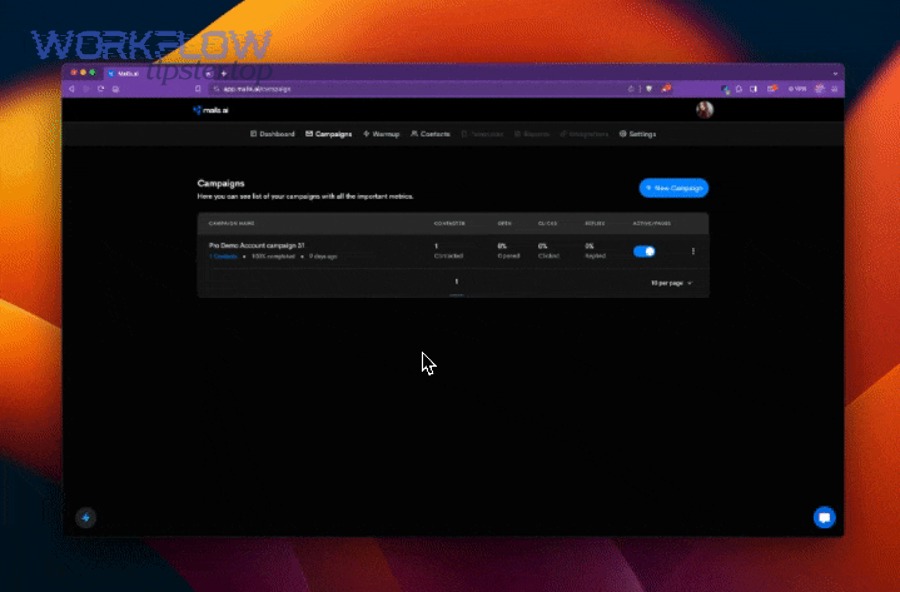
You typically have three no-code-friendly options:
- Native connector (if available in your plan/ecosystem): faster setup, fewer moving parts.
- Template-based automation platform: easiest for “trigger → message” workflows.
- Workflow builder with advanced logic: best for routing, filtering, and reliability controls.
The key is not “no-code vs code.” The key is whether you can express your rules clearly:
- When should an alert fire?
- Where should it go (channel vs chat)?
- What should it say?
- How do you prevent duplicates and noise?
Which no-code setup path should you choose for the fastest reliable integration?
A template-based connector wins for fastest setup, a workflow builder is best for routing and control, and a native connector is optimal when you want the lowest maintenance—based on speed, flexibility, and reliability needs.
However, you should choose based on your alert complexity, not based on brand popularity.
Use this simple comparison logic:
- Choose the fastest path if:
- You only need 1–3 alerts (new lead, deal stage change, hot tag).
- Routing is simple (one team channel).
- Message formatting is basic.
- Choose a workflow builder if:
- You need branching rules (region, pipeline, owner).
- You need filters (only “hot leads,” exclude internal domains).
- You want stronger error handling and observability (run history, retries).
- Choose a native connector if:
- Your organization prefers fewer vendors.
- IT/security wants reduced credential sprawl.
- You need a stable, supported path for Teams + ActiveCampaign.
What permissions and accounts do you need on both sides before setup?
You need a valid ActiveCampaign account with access to the triggering objects and a Microsoft Teams account with permission to post into the target channel or chat—plus approval for the integration tool you’re using.
More importantly, confirming permissions upfront prevents the most common “it connected but nothing posts” failure.
On the ActiveCampaign side, you generally need:
- Access to contacts, tags, automations, and/or deals (depending on triggers)
- Permission to read the fields you plan to send in alerts
- Credentials required by your connector (API key, token, or OAuth flow)
On the Microsoft Teams side, you generally need:
- Membership in the Team where messages will be posted
- Permission to post to the channel (some channels restrict posting)
- If your organization restricts apps/connectors, you may need admin consent
A reliable practice is to set up a dedicated integration identity (service account) so workflows don’t break when an employee leaves or changes roles.
How do you set up ActiveCampaign → Microsoft Teams alerts step-by-step (no-code workflow)?
Set up ActiveCampaign → Teams alerts using a simple 7-step no-code method—choose a trigger, connect accounts, pick the Teams destination, map fields, format the message, test with real data, and turn it on—so alerts reliably reach the right people.
Below, the workflow becomes easy once you treat it as “signal design” rather than “tool configuration.”
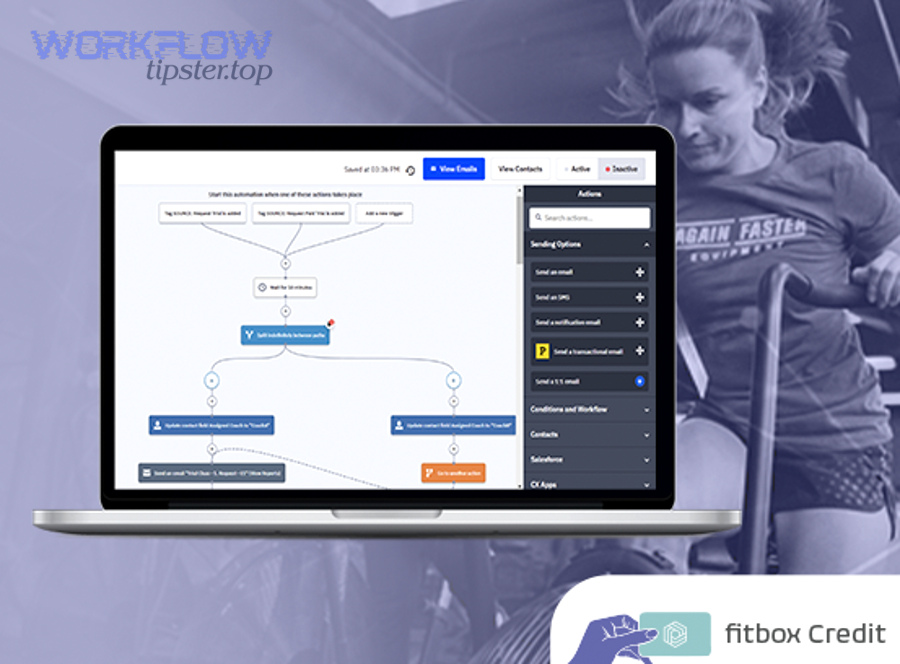
Here’s the tool-agnostic setup that works across most no-code platforms:
- Define the alert goal (one sentence).
Example: “Notify Sales instantly when a Demo Request arrives.” - Pick the best trigger in ActiveCampaign.
Example: “Form submitted” or “Tag added: Demo Request.” - Connect ActiveCampaign account.
Verify the connector can “see” the object (contact/deal/tag). - Connect Microsoft Teams account.
Confirm you can select the Team and channel. - Choose destination: channel vs chat.
Channel = shared visibility; chat = ownership-focused alerts. - Map fields and format the message.
Include the action link, source, and next step. - Test with a real record, then enable.
Validate formatting, links, routing, and duplicates.
If you are building more than one alert, keep a naming convention like:
AC → Teams | New Lead | Demo Request | Sales Alerts
How do you map ActiveCampaign fields into a Teams message so nothing important is missing?
Map fields by building a “minimum viable alert template” with required fields, helpful context fields, and safe fallback values—so Teams messages stay readable even when contact data is incomplete.
To illustrate, your message should never break just because a phone number is missing.
A practical mapping structure looks like this:
- Required: Contact name, event type, link to contact/deal
- Context: Source, tag/score, company, region, owner
- Action cue: “Reply within 5 minutes” / “Assign owner” / “Move to stage”
Use fallbacks like:
- If Company is empty → show “Company: (not provided)”
- If Phone is empty → show “Phone: (missing—request it)”
And format for Teams scanning:
- Short headline line
- 3–6 bullet lines
- One clear CTA link
This keeps your alert useful even when data quality varies.
How do you route alerts to the right Teams channel (by pipeline, owner, region, or tag)?
Workflow builders win at routing because simple connectors route to one destination, while branching logic can send different alerts to different channels based on pipeline, owner, region, or tag.
Meanwhile, you should route on stable attributes to reduce maintenance.
Routing patterns that work well:
- By region: US leads → #sales-us; EU leads → #sales-eu
- By pipeline: New Business → #newbiz; Expansion → #accounts
- By owner/team: SDR-owned leads → #sdr-alerts; AE-owned deals → #ae-pipeline
- By tag: “VIP” or “Enterprise” tags → #priority-leads
A simple rule: route by the attribute that your team already uses to organize work, not by a fancy signal no one trusts.
This is also where broader Automation Integrations thinking helps: whether you’re routing ActiveCampaign alerts or building something like airtable to github sync, the same principle applies—route based on stable identifiers, and keep the message payload consistent so humans can scan it quickly.
What are the best “ActiveCampaign → Teams” workflows for marketing and sales teams?
There are 3 best workflow groups for ActiveCampaign → Teams alerts—lead capture workflows, pipeline workflows, and intent/automation workflows—based on whether the signal impacts response speed, deal progression, or prioritization.
More importantly, you should start with workflows that change behavior: “see it → act on it → close faster.”
Before listing workflows, it helps to see them as a system. The table below contains common triggers, what they mean, where to post them, and the recommended team action—so you can choose workflows that actually produce outcomes.
| Workflow trigger (ActiveCampaign) | What it signals | Best Teams destination | Recommended action |
|---|---|---|---|
| Form submitted: Demo Request | High intent, wants contact | #sales-alerts (channel) | Call now + assign owner |
| Tag added: Hot Lead | Prioritized lead | #priority-leads | Reply within SLA |
| Deal stage changed | Pipeline movement | #pipeline-updates | Update next step + schedule |
| Deal created | New opportunity exists | #new-deals | Validate fields + next task |
| Lead score crosses threshold | Sales-ready | #sdr-alerts | Outreach sequence |
Evidence: According to a study by Massachusetts Institute of Technology from the Sloan School of Management, in 2007, the odds of contacting a lead in 5 minutes versus 30 minutes dropped by 100 times, highlighting why instant alerting and fast follow-up matter.
Which lead and contact workflows should you launch first?
There are 4 lead/contact workflows you should launch first—New Lead, Demo/Quote Request, Hot Tag Added, and Owner Assignment—because they create immediate response speed and clear accountability.
Then, once response is consistent, you can add more nuanced intent triggers.
1) New lead captured (baseline alert)
- Trigger: contact created or form submission
- Message includes: source, form name, region, link
- Action: assign owner + start outreach
2) Demo/quote request (high intent)
- Trigger: specific form submitted or tag “Demo Request”
- Message includes: requested product/service, company size (if known)
- Action: call or schedule within SLA
3) Hot lead tag added (qualification event)
- Trigger: tag added = Hot Lead / SQL / High Intent
- Message includes: why it became “hot” (score, behavior, page, campaign)
- Action: prioritize over lower-value tasks
4) Owner assigned (accountability)
- Trigger: owner field changed
- Message includes: new owner name + next step expectation
- Action: owner acknowledges and updates pipeline
The simplest “first launch” is: New lead → #sales-alerts with a consistent template, then add high intent routing afterward.
Which deal/pipeline workflows help revenue teams respond faster?
Deal/pipeline workflows that drive speed are Deal Created, Stage Changed, Deal Won/Lost, and Deal Owner Changed—because they reduce status meetings and prevent deals from stalling silently.
However, you should keep these alerts concise so they stay useful.
Deal Created
- Helps prevent “orphan deals” with missing data
- Post to #new-deals with deal value and owner
Stage Changed
- Best for visibility and timely support (SE, legal, finance)
- Post to #pipeline-updates with “from → to” stage and next step
Owner Changed
- Prevents dropped handoffs
- Post to #handoffs with clear next action and due date
Won/Lost
- “Won” alerts help marketing capture feedback and celebrate
- “Lost” alerts help refine qualification and messaging
A strong pattern is to add one line of next-step accountability in every deal alert: “Next action due: [date].”
Which automation/campaign workflows are useful—but easy to overdo?
Contact-level campaign alerts are easy to overdo, while milestone-based automation alerts are best—because “every open/click” creates noise, but “entered sales-ready segment” creates action.
More importantly, Teams should get signals, not telemetry.
Use campaign/automation alerts when they represent meaningful thresholds, such as:
- Contact entered “Sales-ready” automation step
- Contact hit “pricing intent” segment (based on tags/scoring)
- Contact became “inactive” and needs re-engagement (for customer success)
Avoid or aggregate alerts like:
- Every email open or every click
- Every automation step without action required
If you truly need campaign visibility in Teams, post daily or weekly summaries rather than per-contact events.
How do you avoid spammy Teams notifications and keep alert quality high?
You avoid spammy Teams notifications by applying filters, routing to the right destination, and enforcing a clear “action required” rule—because alert overload reduces attention and makes real signals easier to miss.
In addition, alert quality improves when every message looks consistent and answers “what should I do next?”
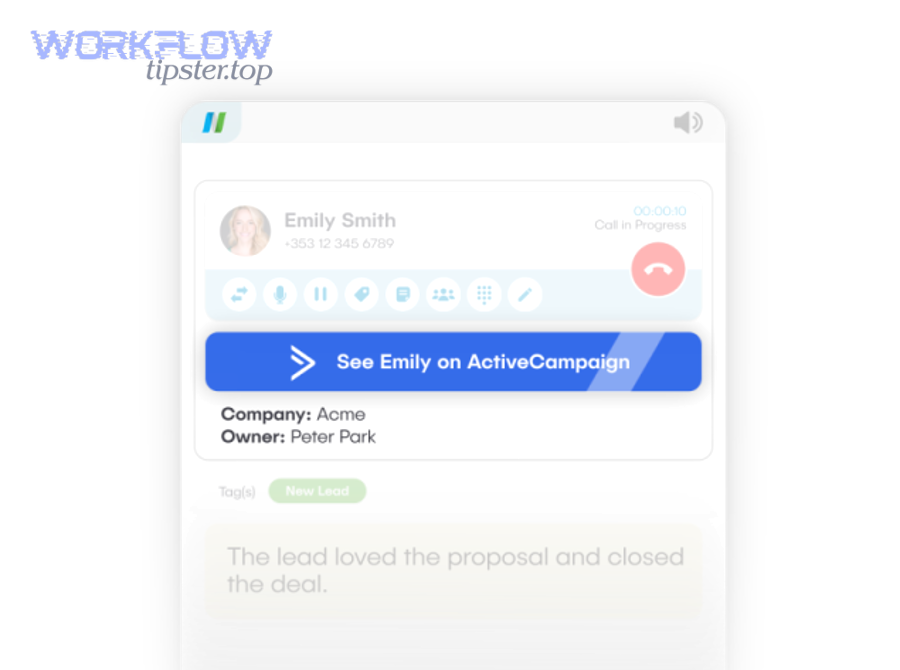
Alert quality is a design problem, not a connector problem. The most common reason teams abandon alert systems is too many low-value pings.
Set three standards:
- Relevance: only alert the people who can act
- Clarity: one message = one action
- Consistency: same format, same fields, same CTA style
Evidence: According to a study by the University of California, Irvine from the Department of Informatics, in 2008, workplace interruptions increased stress and effort and disrupted task flow, supporting why notification systems should minimize unnecessary interruptions.
What filters should you apply so alerts only fire for the right people and events?
There are 6 high-impact filters you should apply—segment filters, intent filters, exclusion filters, change-only filters, time-window filters, and ownership filters—based on reducing noise while protecting key signals.
Specifically, filters should reflect your go-to-market motion.
1) Segment filters
- Only alert for segments like “Sales-ready” or “Enterprise”
- Only alert for certain regions or industries
2) Intent filters
- Only alert on “Demo Request,” “Pricing,” “Hot Lead” tag
- Only alert when lead score crosses a threshold
3) Exclusion filters
- Exclude internal emails (your domain)
- Exclude test contacts and automation QA lists
4) Change-only filters
- Only alert when a value changes (stage changed, owner changed)
- Avoid “contact updated” without a meaningful field change
5) Time-window filters
- Route after-hours alerts to a “next day queue” channel
- Escalate only if SLA window is active
6) Ownership filters
- Notify the assigned owner or team queue, not everyone
If you’re building multiple systems—like CRM alerts plus customer support alerts such as freshdesk to microsoft teams—filters become even more important so Teams remains a work hub instead of a notification dump.
Should you post to a Teams channel or send a chat message?
Teams channels win for shared visibility, chat messages are best for ownership and urgent follow-up, and a hybrid approach is optimal for escalations—based on accountability, urgency, and audience size.
However, you should choose one “default” so the system stays predictable.
Post to a channel when:
- Multiple people need visibility (pipeline movement, new deals)
- You want a searchable log for team learning
- You want lightweight coordination (who will take this?)
Send to chat when:
- One owner must act now (assigned SDR/AE)
- The alert is sensitive or customer-specific
- You want fewer spectators and faster acknowledgement
Hybrid pattern (recommended for many teams):
- Post to a channel for transparency
- DM the owner only when the alert is high priority (Hot Lead, SLA breach)
This keeps Teams calm while protecting critical moments.
Why isn’t my ActiveCampaign → Teams integration working, and how do I fix it?
Most ActiveCampaign → Teams integration failures come from one of four causes—triggers not firing, permissions or authentication issues, incorrect field mapping, or duplicate workflows—and you can fix them by validating each step in the chain.
Next, troubleshooting becomes fast when you use a yes/no decision path.
Think of the integration like a pipeline:
ActiveCampaign event → connector detects event → workflow runs → Teams accepts message
If you validate each segment, you’ll find the break quickly.
Common symptoms and likely causes:
- Nothing posts at all: trigger not firing or account disconnected
- Some posts fail: Teams permissions, throttling, or message formatting issues
- Wrong channel: routing rules misconfigured or fallback path used
- Duplicate messages: multiple triggers, multiple workflows, or “update loops”
Is the trigger firing in ActiveCampaign and the automation tool run history?
Yes, the trigger is firing only if you can see a real event in ActiveCampaign and a corresponding successful run in your connector’s run history; if either is missing, the workflow cannot post to Teams.
Then, the fix depends on which side lacks evidence.
If ActiveCampaign has no event:
- Confirm the contact/deal change actually happened
- Confirm your automation/tag condition is correct
- Test with a real record (not a mock)
If ActiveCampaign has the event but connector has no run:
- Reconnect the ActiveCampaign account
- Re-select the trigger object/event type
- Confirm the connector has access to the correct list/pipeline/object
If the connector shows a run but Teams has no message:
- Confirm channel permissions and destination
- Check if Teams action failed due to formatting or policy
- Try a simpler message template as a test
A strong habit is to keep a test contact you can safely update to trigger repeatable runs.
Are duplicates happening—and how do you stop double-posting?
Yes, duplicates happen when two workflows watch the same event or when “update” triggers fire repeatedly, and you stop double-posting by consolidating triggers, using change-only logic, and adding a dedupe key in your workflow.
More importantly, duplicates destroy trust faster than missing alerts.
Most common duplicate causes:
- You created two similar automations (one for form submit, one for tag add)
- “Contact updated” fires multiple times as multiple fields update
- A workflow writes back to ActiveCampaign, triggering itself again
How to fix:
- Consolidate triggers
Choose one “source of truth” event (prefer tag/automation milestone over generic updates). - Use “only when changed” logic
For stage changes, fire only when stage actually changes. - Add a dedupe key
For example, store “Last alerted event ID” or “Last alerted timestamp” and skip if already processed. - Add a short delay (sometimes)
A 1–2 minute delay can prevent bursts from multi-field updates, but don’t delay hot-lead alerts too much.
If you publish best practices or templates, you can document them internally (some teams do this in a playbook like WorkflowTipster) so new workflows follow the same dedupe rules.
How do you make ActiveCampaign → Teams alerts secure, scalable, and reliable in high-volume scenarios?
You make ActiveCampaign → Teams alerts secure and scalable by limiting PII, implementing retries and rate-limit protections, monitoring failures, and switching to more controlled integration patterns when volume grows—so your alert system stays reliable under load.
Below, reliability becomes a set of simple engineering habits—even in no-code tools.
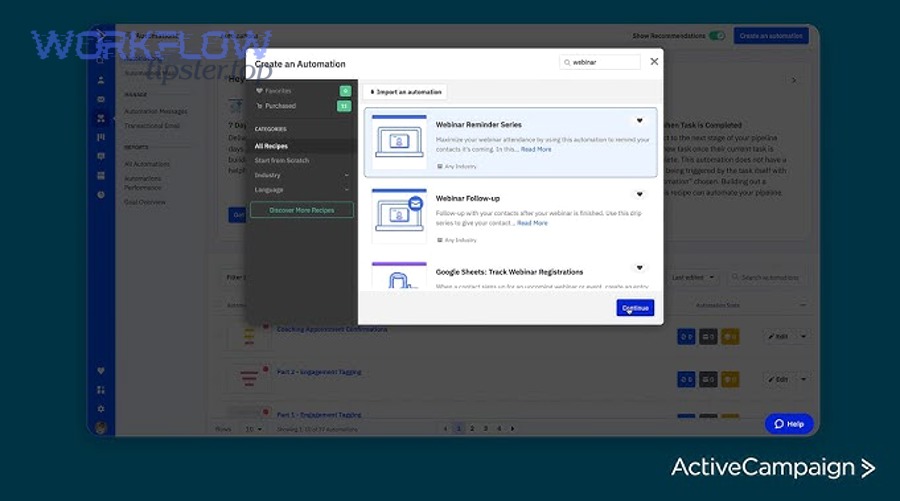
When volume increases (big imports, campaign spikes, multiple pipelines), weaknesses appear:
- Alerts fail silently without monitoring
- Duplicate alerts multiply during rapid updates
- Teams channels become unreadable
- Sensitive data spreads beyond intended audiences
This is where “micro semantics” matter: the system must behave well in edge cases.
What data should you avoid sending to Microsoft Teams to reduce PII risk?
You should avoid sending sensitive PII in Teams alerts—such as full addresses, personal IDs, payment details, and private notes—and instead send minimal identifiers plus a link to the record, so access stays governed by CRM permissions.
In addition, the safest alert is the one that can be safely forwarded without harm.
A practical “safe payload” for most teams:
- Name (or initials), company, region
- Intent signal (tag/score/form name)
- Deal stage/value (if appropriate)
- Link to record for details
Avoid or minimize:
- Full home address, birthdate, ID numbers
- Payment information
- Detailed free-text notes that may contain sensitive context
If compliance is strict, route sensitive alerts to a restricted channel and keep the message minimal.
How do you handle rate limits, spikes, and retries without losing alerts?
Handle spikes by batching low-priority alerts, retrying failed posts with backoff, and separating “critical” from “non-critical” workflows—so high-intent alerts still land even during bursts.
More specifically, you want graceful degradation, not a full outage.
Use these patterns:
- Priority lanes:
- Critical: hot leads, demo requests
- Non-critical: campaign summaries, low-intent updates
- Retry with backoff: If a Teams post fails, retry after a short delay, then longer delays if failures persist.
- Batching: Combine low-priority events into one periodic message (hourly/daily digest).
- Queue-like behavior: Some workflow builders can store items temporarily, then post when the system recovers.
A simple reliability rule: never let low-priority noise block high-priority revenue alerts.
How do you monitor, audit, and maintain the integration over time?
Monitor and maintain the integration by reviewing run history, alerting on failures, tracking workflow changes, and periodically validating mappings after CRM field or pipeline updates—so you catch drift before it breaks alerts.
Then, maintenance becomes a short weekly habit instead of a surprise outage.
A maintenance checklist:
- Weekly: check failed runs and reconnect expired accounts
- Monthly: confirm the top 3 alert workflows still match your sales process
- Quarterly: review routing rules and channel ownership
- Ongoing: document changes (fields, tags, pipelines) so workflows stay aligned
Also consider governance:
- Who can edit workflows?
- Who approves new alert types?
- Where are templates stored?
When should you switch from no-code to a custom webhook/API approach?
You should switch from no-code to webhook/API when you need complex routing, strict compliance controls, high-volume performance, or advanced dedupe and audit requirements—because custom implementations offer tighter control than generic connectors.
However, no-code is still best when speed and iteration matter most.
Switch when you hit one or more thresholds:
- You need message signing, strict logging, or custom audit trails
- You must guarantee exactly-once delivery (strong idempotency)
- You need advanced transformations (enrichment, scoring, multi-source joins)
- Volume spikes overwhelm connector limits or costs
Stay with no-code when:
- You need quick iteration on workflows
- Your rules are understandable and stable
- Your alert volume is moderate and manageable
Finally, if you’re building a broader integration portfolio (not just CRM alerts), standardize how you evaluate connectors across your Automation Integrations so every new workflow has a consistent “quality bar” for routing, dedupe, monitoring, and security.