



If Google Chat shows “attachment upload failed” or your files aren’t sending, you can usually fix it by checking three things in order: (1) upload limits/file type, (2) permissions/sharing, and (3) your device or network path—then retesting with a small file in a new chat to confirm the root cause.
Next, if the problem is “attachments missing” for other people, treat it as a sharing/permission issue first (Drive access and space membership) rather than an upload issue—because the file may have uploaded, but recipients can’t open it.
Then, if uploads fail on one device only, focus on client fixes (update the app, clear cache, disable browser extensions) and network checks (VPN/proxy/firewall), because even minor packet loss can break large uploads before they complete.
Introduce a new idea: once you can reliably upload one small file, you’ll use a simple triage flow to determine whether this is a user-side, space-side, or admin policy / integration problem.
What does “Google Chat attachment upload failed” mean, and why do attachments go missing?
“Google Chat attachment upload failed” means the file didn’t successfully transfer or finalize in Chat (upload failure), or it transferred but can’t be accessed by recipients (permission failure), so it appears “missing” to them.
Next, the quickest way to avoid guesswork is to separate upload symptoms from access symptoms before you try fixes.

When people say “attachments missing,” they often mean one of these outcomes:
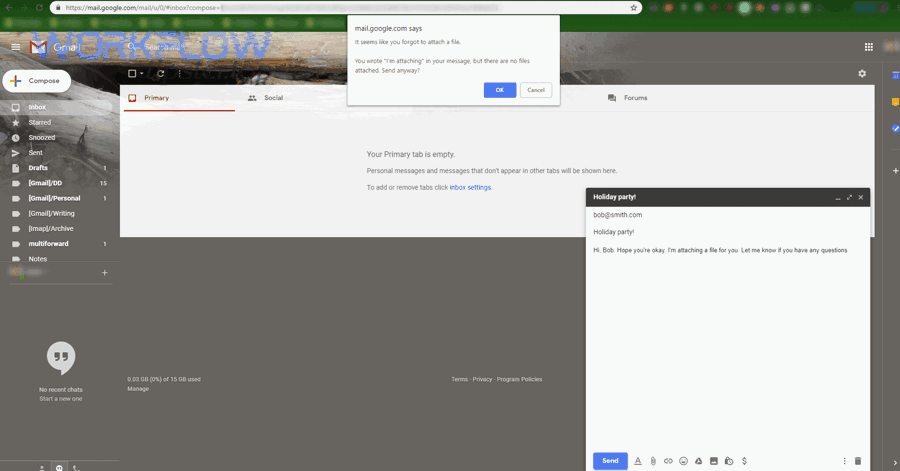
- The upload spinner never finishes and the message sends without the file.
- The file appears on the sender side, but recipients see Request access or an error.
- The file uploads, but Chat converts it into a Drive item/link and the sharing settings block others.
- The file posts, then disappears after a refresh (usually client cache or a transient network issue).
In practical troubleshooting, you get faster results by answering one question early: Is Chat failing to upload the file, or is Chat successfully posting a file that others cannot open? That distinction determines whether you should focus on file limits and network stability, or on Drive/space permissions.
Which symptoms indicate an upload failure vs a permission/sharing failure?
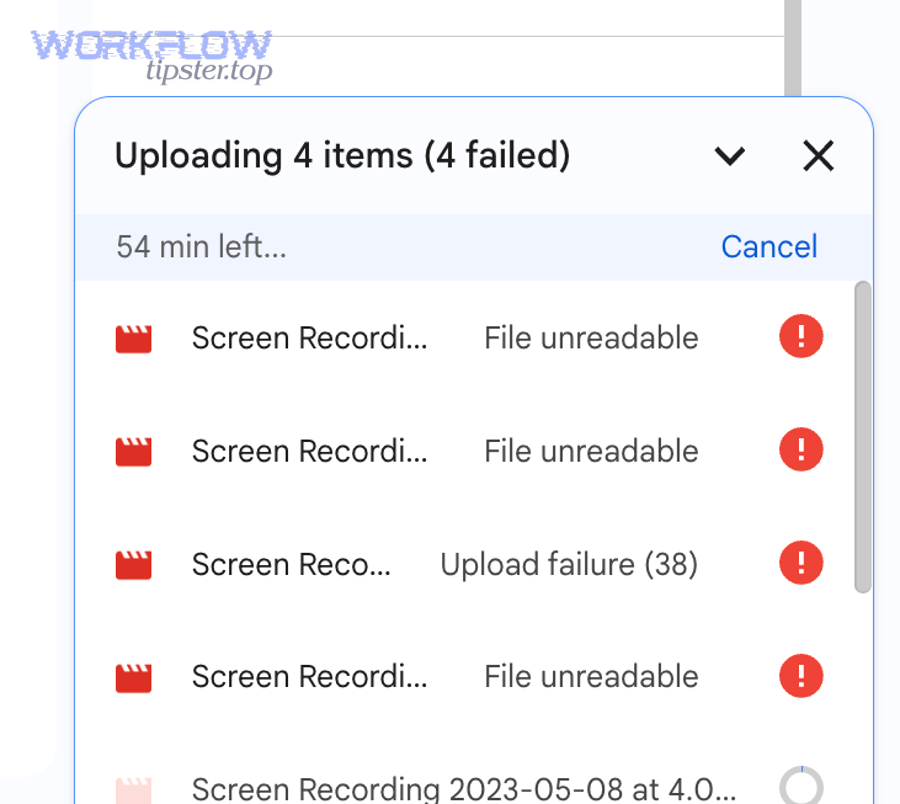
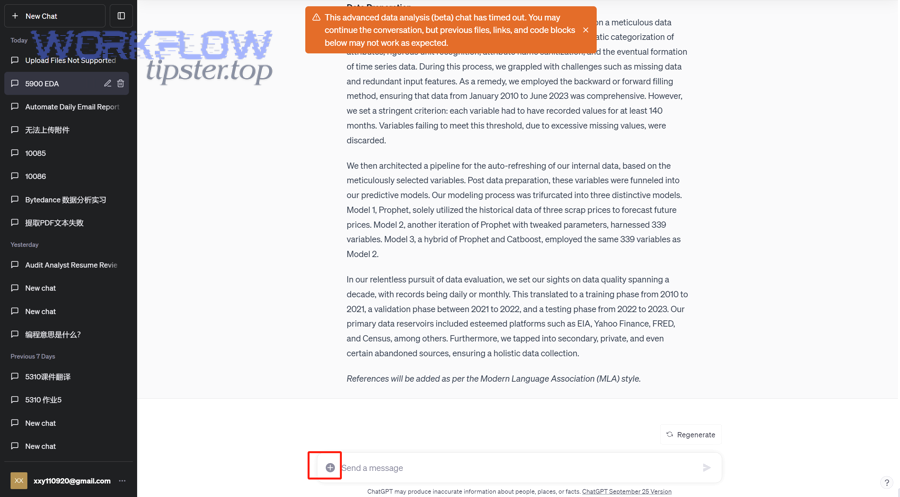
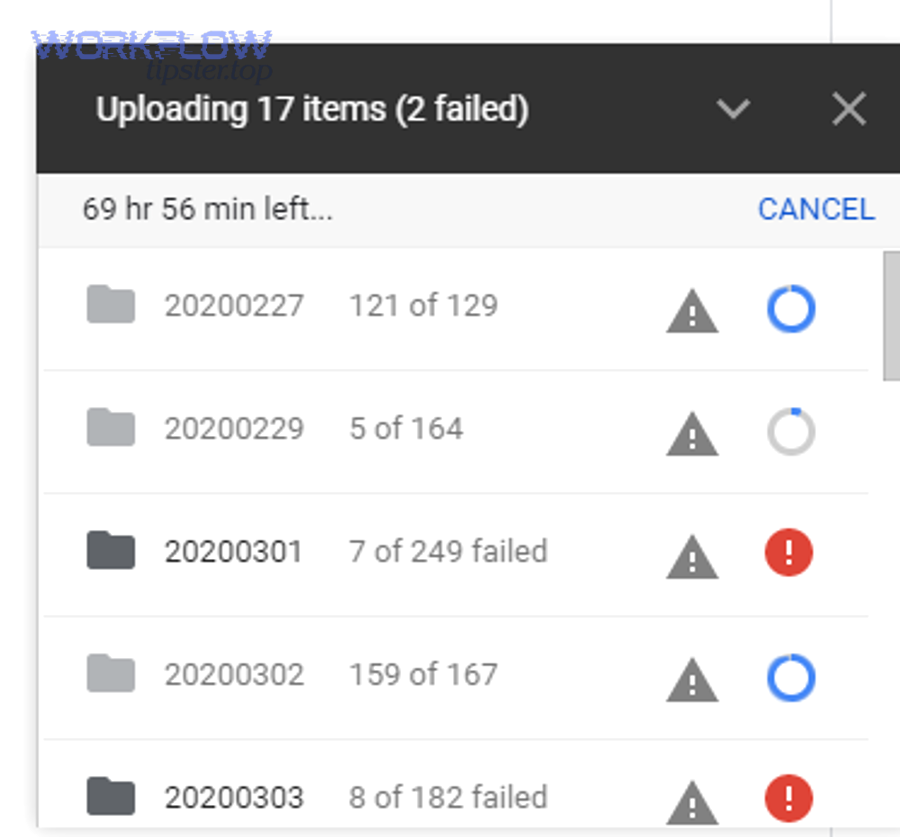
An upload failure usually looks like a stalled progress indicator, a “failed to upload” banner, or a message that posts without the attachment after a long wait.
Specifically, you’ll usually see one or more of these signs:
- The progress indicator stops (or loops) and never completes.
- Retrying fails instantly (often a file type limit or client restriction).
- The file never appears in the Space’s file list.
A permission/sharing failure looks different: the file appears in the chat thread, but recipients can’t open it.
For example:
- Recipients see Request access (Drive permission problem).
- External users can’t open it (cross-domain sharing constraints).
- Only space owners or specific roles can access it (membership/role mismatch).
To keep your investigation tight, test from the recipient’s perspective: if recipients can open the file in Drive after you grant access, the problem wasn’t the upload—it was sharing.
What are the most common root causes (file limits, permissions, client, network)?
There are 4 main cause groups behind “Google Chat attachment upload failed,” based on where the failure occurs:
- File constraints (size, blocked type, corrupted file, filename quirks)
- Permissions/sharing (Drive access, external restrictions, space membership)
- Client environment (outdated app, cache corruption, extensions, OS permissions)
- Network path (VPN/proxy/firewall, packet loss, unstable Wi-Fi)
To illustrate why the network bucket matters, even small packet loss can crush throughput and cause uploads to time out mid-transfer.
According to a study by Duke University from the Department of Computer Science, in 2021, more than 70% of TCP SYN packet losses caused a timeout, which shows how quickly loss can convert a “small issue” into repeated failures during connection setup.
Is the issue happening to everyone or only to one user/device?
Yes—this question determines the fastest fix path, because a single user/device issue usually points to client/network factors, while an everyone issue often points to policy, outage, or a shared environment.
Then, you can confirm scope with three quick tests that take under five minutes.
Start with a “scope checklist”:
- Same user, different device (web vs mobile)
- Same device, different network (office Wi-Fi vs phone hotspot)
- Same file, different chat (DM vs a different Space)
If the issue follows the user across devices and networks, suspect account permissions or org policy. If the issue stays on one device, suspect client state or local network.
Does the same file upload successfully in Google Drive but fail in Google Chat?
Yes—if the file uploads fine to Google Drive but fails in Chat, you’ve narrowed the problem to Chat client behavior, Chat-specific restrictions, or how Chat is trying to attach the file.
Next, use this result to choose a smarter workaround while you troubleshoot:
- If Drive upload works, share a Drive link inside Chat temporarily.
- If Chat upload fails repeatedly, reduce complexity: try a small PNG or a small PDF first.
Also check whether Chat is being used in a restricted environment (managed browser profile, corporate extension policies, content inspection). In many organizations, Drive uploads and Chat uploads travel through different gateways or are treated differently by security tooling.
Is Google Chat or Google Workspace experiencing an outage or service degradation?
Yes—an outage is one of the few causes that can break uploads for many users at once, even if your settings are correct.
However, rather than guessing, confirm with these signals:
- The problem starts at a clear time (e.g., “since 10:40 AM ET”).
- Multiple users report failures across different devices.
- Retrying later succeeds without any changes.
If those patterns match, you should pause deep troubleshooting and collect evidence (timestamps, affected users, error text) for IT.
Also remember that official guidance notes file attachments up to 200 MB in Google Chat, so if many users can’t attach even a tiny file, it’s likely not a simple size limit issue.
What quick fixes resolve most “files not sending” problems in Google Chat?
There are 6 high-success quick fixes for “files not sending” in Google Chat: restart/retry, update the client, clear cache, disable extensions, switch networks, and send via Drive link while retesting.
Next, apply them in a strict order so you don’t “fix it by accident” and lose the root cause.
Here’s the practical sequence that resolves most end-user cases:
- Retry with a tiny file (e.g., a small PNG)
- Switch chat context (try a DM instead of a Space, or a new Space)
- Update the Google Chat app or refresh the web app
- Clear cache (web cache/site data or mobile app cache where available)
- Disable extensions / try Incognito (web)
- Switch network (turn off VPN; try hotspot)
If your organization has a “known-good path” (e.g., Chrome on a managed profile), test there to confirm the behavior difference.
Also, this is where it’s helpful to follow a structured google chat troubleshooting checklist rather than random changes—because each step isolates one bucket (file, client, network, permissions).
Which client-side fixes should users try first (refresh, sign out/in, clear cache, update app)?
Yes—client-side resets work because they remove local blockers like stale cookies, corrupted cache entries, or broken permission prompts.
Specifically, do these in order:
For Google Chat on web (browser):
- Hard refresh the Chat tab.
- Sign out and sign back in to the same Workspace account.
- Clear site data for Chat and reload.
- Try Incognito (tests “clean profile” instantly).
- Temporarily disable extensions (ad blockers and privacy tools can block upload flows).
For Google Chat mobile (Android/iOS):
- Force close Chat, reopen, retry with a tiny file.
- Update the app from the store.
- Check OS permissions (photos/files access).
- Disable battery saver for Chat (background restrictions can interrupt uploads).
The goal is not “try everything,” but “remove one variable at a time,” so you can explain the fix to your admin or team later.
Which network fixes matter most (VPN/proxy off, switch Wi-Fi, firewall restrictions)?
Yes—network path issues are a top cause of “upload failed,” because uploads require stable throughput and clean TLS connections.
Then, use these network tests to confirm:
- Turn off VPN and retry the same file.
- Switch to a phone hotspot (bypasses corporate firewall/proxy).
- If in an office, test from a different Wi-Fi access point.
- If you’re behind a proxy, ask IT if uploads are being content-inspected or rate-limited.
If the upload succeeds immediately on a hotspot, you’ve proven the root cause lives in the office path. At that point, the “fix” is rarely in Chat settings—it’s in network policy or proxy behavior.
How do fixes differ for Google Chat on web vs Android vs iOS vs desktop app?
Web wins for extension/cookie control, Android is best for permission resets, iOS is most sensitive to photo/file permission prompts, and the desktop app is optimal when the browser profile is unstable—so your best fix depends on the platform’s strongest leverage.
Next, you’ll map your platform to the exact checks that prevent repeat failures.
On the web, upload failures often come from blocked scripts, blocked cookies, or extensions interfering with upload components. On mobile, upload failures often come from OS file access permissions or background restrictions. On desktop, failures often come from a stale app state or an identity/account mismatch.
To keep troubleshooting fast, don’t “relearn” each platform—use the platform’s typical failure mode:
- Web: extensions, cookies, cached site data
- Android: storage permission, app cache, background limits
- iOS: Photos/Files permission prompts, iCloud file handoff quirks
- Desktop app: app state, account switching, network policy
What should you check in the browser (cookies, extensions, pop-up/permission settings) vs the mobile app (storage permission, battery saver)?
Yes—these checks target the most common platform-specific blockers in under two minutes.
Specifically:
Browser checks (web):
- Allow cookies for your Workspace domain where required.
- Test in Incognito (no extensions by default).
- Disable privacy/script extensions temporarily.
- Confirm file picker works (if the picker fails, the upload won’t start).
Mobile checks (Android/iOS):
- Confirm Chat has permission to access Photos/Files.
- Disable battery saver or background data limits for Chat.
- If you’re attaching from another app (e.g., Drive), try attaching directly from Chat.
If your uploads succeed only on one platform, treat that as a diagnostic clue, not a final solution.
When is switching to a Drive link better than uploading a direct attachment?
Drive links are better when you need reliability, versioning, and fine-grained access control, while direct attachments are better for quick sharing of small files that don’t require ongoing edits.
However, if “upload failed” repeats, Drive links become a practical workaround because Drive’s sharing and upload pipeline can be more resilient, and you can adjust permissions after the fact.
A good rule:
- Use direct attachment for small, non-sensitive, one-off files.
- Use a Drive link for large files, collaborative docs, or anything recipients might need later.
Also, Drive links reduce the chance that a single transient upload failure blocks the entire conversation.
Which file-related limits or restrictions can block Google Chat uploads?
There are 3 main file blockers in Google Chat—size limits, blocked file types, and file integrity issues—and any one of them can trigger “attachment upload failed” even when your device is fine.
Next, you’ll use a simple file checklist to confirm whether the file itself is the problem.
Google’s official guidance states you can attach files up to 200 MB in Google Chat, and that some file types are blocked.
This means your file triage should always start with:
- File size (is it near 200 MB?)
- File type (is it an uncommon executable/archive type?)
- File origin (downloaded from email? exported from an app? encrypted?)
- File integrity (can it open locally without errors?)
What file sizes, formats, and naming rules are most likely to trigger upload failure?
Files are most likely to fail when they are near the 200 MB limit, use restricted formats, or have naming/encoding quirks that break upload handlers.
Specifically, watch for:
- Very large videos (even if “under the limit,” they can time out on unstable networks)
- Encrypted or password-protected archives
- Executables or risky attachment types (often blocked by policy)
- Filenames with unusual characters copied from external systems
- Corrupted exports (file opens but fails checksums during upload)
If the same file fails everywhere but a smaller file succeeds everywhere, you’ve proven a file constraint rather than a user constraint.
What are the best ways to shrink, convert, or repackage a file so it uploads reliably?
The most reliable method is to reduce size, simplify format, and remove special characters, then retry with the repackaged file.
Then, apply these practical transformations:
- Videos: compress or export to a smaller resolution/bitrate.
- Images: convert HEIC to JPG/PNG; reduce dimensions.
- Documents: “Export as PDF,” then compress the PDF.
- Folders: zip with a standard zip tool; avoid nested encrypted archives.
- Filename: rename using simple ASCII (letters, numbers, hyphen/underscore).
This approach turns “mysterious failures” into predictable outcomes—and it also makes your escalation evidence stronger because you can show that the problem correlates with file characteristics.
Which permission and sharing settings cause “attachments missing” for other people?
Yes—“attachments missing” is often a permissions problem, because the file is posted but recipients can’t access it due to Drive sharing rules, external sharing restrictions, or missing space membership.
Next, you’ll confirm access using a recipient-first checklist instead of changing random settings.
When a recipient can’t open a file, the visible symptom is a Chat thread entry that looks normal to the sender but breaks for others. That’s why the fastest test is: ask a recipient what they see (request access, forbidden, not found) and compare it to your own view.
Can recipients open the file from Drive, or do they see “request access”?
If recipients see “request access,” the upload succeeded, but sharing did not.
Then, fix it by adjusting access in the smallest safe way:
- Share the file to the specific recipients.
- Or share to “Anyone in your organization with the link” when appropriate.
- If the recipients are external, confirm external sharing is allowed.
This is also where admin policies come into play: some organizations restrict external sharing or block certain sharing modes. If you repeatedly hit access problems with external users, the “fix” may require admin changes rather than user-level sharing.
Which sharing configurations fix it (share to space members, adjust link access, add external users)?
The best configuration depends on your audience:
- Internal team (same domain): “Anyone in the organization with the link” is often sufficient and low-friction.
- Space-based collaboration: ensure all collaborators are members of the Space and have access to the Drive file.
- External partners: share explicitly to their emails, and confirm cross-domain sharing is permitted.
A simple “permission hygiene” practice prevents repeat issues: before sending, open the sharing dialog and confirm the recipients’ access level. This is particularly important when the file is created inside a restricted shared drive or a tightly controlled folder.
What should Google Workspace admins check when multiple users can’t upload in Chat?
There are 5 admin-side checks for widespread Google Chat upload failures: Drive sharing controls, DLP rules, context-aware access, device management restrictions, and proxy/content inspection behavior.
Next, admins should validate each control against a small reproduction case so they can pinpoint the exact policy blocking uploads.
Use a minimal reproduction first:
- 1 user in the affected OU
- 1 small file (e.g., 200 KB PNG)
- 1 DM chat and 1 Space
- 1 managed device and 1 unmanaged device (if possible)
- 1 controlled network (office) and 1 hotspot
If upload succeeds only on hotspot, suspect network policy. If upload fails across networks but only for certain users, suspect OU-based policy.
Also, ensure the org understands the baseline: Google Chat supports attaching files up to 200 MB and blocks certain file types, so policy should align with those known constraints rather than blocking all uploads unintentionally.
Which Workspace policies can block uploads (Drive sharing restrictions, DLP, context-aware access, device rules)?
Policies most likely to block uploads include:
- Drive sharing restrictions that prevent sharing outside a domain or OU.
- DLP rules that block uploads of sensitive file types/content patterns.
- Context-aware access that blocks access unless device posture/network context matches.
- Endpoint/MDM restrictions limiting file pickers or storage access on mobile.
- Proxy and SSL inspection that disrupt large uploads or file scanning.
In practice, admins should look for the pattern “fails only on managed devices” (device policy) versus “fails only on corporate network” (proxy/firewall) versus “fails only for external sharing” (Drive policy).
What evidence should admins collect before escalating to Google Support?
Admins should collect evidence that explains who, what, where, and when, because that turns a vague ticket into an actionable one.
Specifically capture:
- Affected users (count, OU, domain)
- Affected platforms (web/Android/iOS/desktop)
- Affected networks (office vs home vs hotspot)
- Exact error text and screenshots
- Exact timestamps (with timezone)
- File size/type used in tests
- Whether Drive links work as a workaround
If your organization uses automations or integrations that post files, also capture logs for those runs—because integration errors can look like user-facing failures and can be tied to policy or scopes.
When should you stop troubleshooting and escalate the issue?
Yes—you should escalate when the issue persists after a clean reproduction, because repeated “random” fixes waste time and hide the true cause (policy, network, or service-side problems).
Then, escalation becomes productive when you provide a minimal repro case plus timestamps and affected scope.
A clear escalation trigger is any of these:
- Multiple users affected across multiple devices
- Uploads fail for tiny files (indicates systemic issue)
- Uploads succeed on hotspot but fail on office network (network policy)
- Recipients consistently see access errors even after sharing (policy)
- You can reproduce the issue reliably with the same steps
Does the issue persist after a clean repro (new file, new space, different network, updated client)?
If the issue persists after a clean repro, you should stop changing variables and escalate with your evidence pack.
Specifically, a “clean repro” means you tried:
- A new small file
- A new DM chat and a new Space
- An updated client or clean browser profile
- A different network path (hotspot)
- A recipient confirmation test (permission vs upload)
If all of that still fails, the likelihood of an admin policy restriction or service-side issue rises sharply.
What is the fastest “minimal reproduction” test case to share with IT/Support?
The fastest minimal repro is: “One user tries to upload a 200 KB PNG in a DM at a specific timestamp on a specific device and network, and the upload fails with this exact error.”
Next, make it even stronger by adding a control test:
- Same user on hotspot
- Same file in Drive
- Same user on a second device
This three-point comparison isolates the failure bucket in a way that IT and Support can act on immediately.
Contextual Border (shift from primary fixes to advanced cases): Now that you’ve stabilized manual uploads and clarified whether the failure is upload vs access, you can expand into integration, automation, and edge-case errors that often get misdiagnosed as “attachments missing.”
How do you fix Google Chat API attachment upload errors (400/404/500) for developers and automation workflows?
The correct fix is to follow the Chat API upload-and-attach workflow, verify OAuth scopes, and debug based on whether you’re seeing 400 (bad request), 404 (resource/space mismatch), or 500 (service-side/internal error).
Next, treat API failures separately from end-user failures, because “working in UI” does not guarantee “working in API.”
This section matters if you see issues like:
- Upload succeeds but the message fails when you attach the file
- Requests return HTTP errors
- Automated workflows behave differently from manual Chat use
- Your system logs show intermittent failures, retries, or delays
If your system posts messages through webhooks or integrations, you may also encounter the related phrase google chat webhook 403 forbidden, which typically signals an auth/permission problem rather than a file problem.
Which API workflow is correct for attachments (upload media first, then reference it in the message)?
Yes—the workflow must upload media first and then reference that media in a subsequent message request, because the message needs a valid uploaded asset to attach.
Then, enforce these safeguards:
- Confirm you’re using the correct API endpoints for media upload and message creation.
- Ensure your message payload doesn’t include unsupported accessory widgets (some requests fail if you include disallowed fields).
- Log request/response IDs so you can correlate failures across retries.
If your automation platform provides “one-step send,” verify what it actually does under the hood; many “one-step” nodes fail because they omit the required upload reference.
Which authentication and scope issues cause attachment failures (expired token, missing scopes, wrong principal)?
Auth/scope issues are the most common reason automated uploads fail, because the integration identity might not have access to the target Space or might lack required scopes.
Specifically, check:
- Token freshness and rotation logic
- Correct OAuth scopes for upload and messaging
- Whether the posting identity is a member of the Space (where required)
- Domain-level restrictions that limit app access
If you see 403 errors, treat it as an authorization failure first (identity, scope, membership), not as an upload problem.
What do common HTTP errors mean in practice (400 vs 404 vs 500) and how do you debug each?
400 means your request is invalid (wrong fields, wrong format, unsupported payload), 404 means you targeted the wrong resource (space/message/media reference mismatch), and 500 means the server failed (often transient, but sometimes triggered by invalid edge payloads).
However, you debug faster when you map each code to a concrete action:
- 400 Bad Request: validate JSON structure, required fields, and attachment references; look for google chat data formatting errors in the payload (wrong field names, nulls, bad encoding).
- 404 Not Found: verify Space ID, message name, and whether the uploaded media reference exists and is in the right scope.
- 500 Server Error: implement retry with exponential backoff, log the full error body, and re-test with a smaller file.
Also, don’t ignore file limits on the API side: the official documentation indicates uploads up to 200 MB and that some file types aren’t supported.
How do rate limits, file limits, and content policies affect automated uploads compared to manual uploads?
Automations are more sensitive to rate limits and queueing, while manual uploads are more sensitive to client state and network path, so the mitigation strategies differ.
Next, apply the right pattern for each failure mode:
- If your workflow sends many messages quickly, add backoff and batching to avoid delays and bursts.
- If runs appear “stuck,” monitor for google chat tasks delayed queue backlog behavior in your job runner (queue saturation can look like upload failures).
- If policies block certain content, fail fast with clear logs and switch to Drive-link sharing for restricted file types.
If you need a structured reference for organizing troubleshooting steps in your documentation, you can model your flow after a concise checklist format (for example, a resource like WorkflowTipster.top can inspire the layout), but keep the actual fixes aligned to your org’s Workspace policies and the official limits.
Evidence: According to Google’s official Chat documentation, you can attach files up to 200 MB and some file types are blocked, which directly explains why oversized or unsupported files commonly trigger “attachment upload failed.”