


If your Airtable trigger not firing problem is real, the fix is almost always found by narrowing the failure point: confirm whether the automation has zero runs, then retest the trigger setup, then verify that at least one record actually matches the trigger’s parameters.
Next, you can resolve the most common configuration traps that block triggers—especially view-based triggers, overly strict conditions, and “updates” that don’t count as true changes—so the automation starts reliably and produces consistent runs.
Then, you can separate Airtable-native automation issues from integration trigger issues (polling delays, missing permissions, token problems), so you stop debugging the wrong system and fix the right one the first time.
Introduce a new idea: once your trigger fires correctly, you should validate the fix with repeatable tests and add simple guardrails so “not firing” doesn’t come back after someone changes a view, renames a field, or rotates credentials.

Is your Airtable trigger actually not firing, or is the automation running but failing later?
No, many “airtable trigger not firing” reports are actually automation runs happening but failing later, because (1) users only check the final action, (2) the run is marked failed/pending, or (3) the trigger fired but produced an unexpected record payload.
To reconnect the symptom to the real failure point, start where Airtable records the truth: the automation history and the trigger test panel, then work forward step-by-step. ([support.airtable.com](https://support.airtable.com/docs/troubleshooting-airtable-automations?))
Can you confirm the automation has zero runs after the expected record change?
Yes, you can confirm a true “trigger not firing” case when (1) the automation history shows no new run entries after the record change, (2) the trigger test cannot find a matching record, and (3) a controlled test record still produces no runs.
Then, use a controlled test instead of “random edits” so your diagnosis is clean. Specifically:
- Create a fresh test record in the exact table the trigger watches (not a similar table in another base).
- Change one field at a time to match conditions (e.g., Status → “Ready”), so you can see which condition blocks firing.
- Check automation history immediately after each change; if there’s no run, the trigger is not seeing a qualifying event. ([support.airtable.com](https://support.airtable.com/docs/troubleshooting-airtable-automations?))
If the history shows runs but your outcome is wrong, the trigger did fire and your issue is downstream (field mapping, permissions, actions failing), not the trigger itself.
Is the automation disabled, paused, or restricted by permissions?
Yes, an automation can appear “not firing” when (1) it is toggled off, (2) it cannot be toggled on because steps were never fully tested, or (3) the builder lacks the access needed for the trigger/action to execute under current permissions.
Next, validate the minimum “can run” requirements:
- Toggle status: confirm the automation is ON and stays ON after saving.
- Test completeness: ensure the trigger and each action step were successfully tested (an untested step can prevent enabling).
- Access scope: confirm the account connected to any external action still has valid access (credential rotations are common). ([support.airtable.com](https://support.airtable.com/docs/getting-started-with-airtable-automations?))
If Airtable says “retest the trigger” and “retest actions,” treat that as the official workflow to eliminate configuration gaps before you chase edge cases. ([support.airtable.com](https://support.airtable.com/docs/troubleshooting-airtable-automations?))
What does “Airtable trigger not firing” mean in automations?
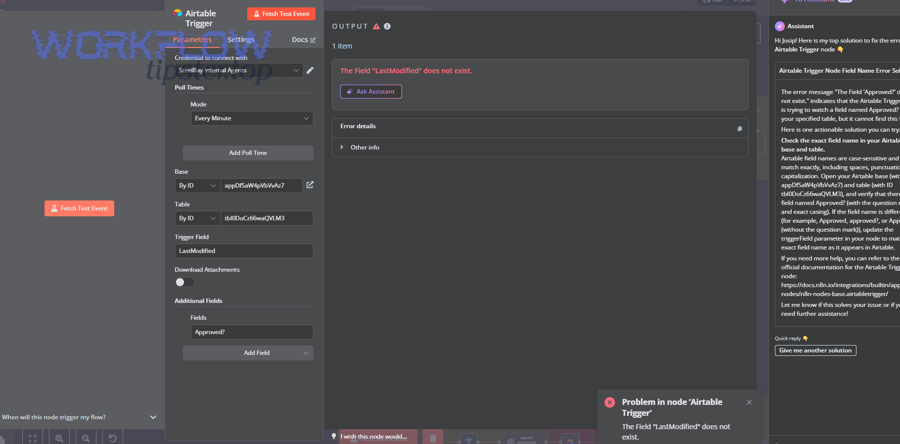
Airtable trigger not firing is a trigger-event detection failure where an automation’s trigger step does not recognize a qualifying record event (create/update/enter-condition) in the watched table/view, so Airtable never starts a run or never captures a valid test record for setup.
To better understand the issue, separate event definition (what counts as a triggering event) from configuration (what records are allowed to qualify), because those two mistakes look identical in daily use.
What counts as “record created” vs “record updated” for triggers?
Record created means Airtable stores a new row as a new record, while record updated means Airtable stores a change to at least one field value that the trigger watches, so the system can register a before/after event and start the automation run.
Next, treat “updated” as a specific and testable event, not a vague idea. For example:
- If your trigger watches Status, changing Notes may not matter for your intended logic.
- If your trigger watches a view, updates can still trigger if the watched field changes, even if you edited the record from another view.
- If your trigger uses conditions, an update only matters when it causes the record to match (or stop matching) those conditions. ([support.airtable.com](https://support.airtable.com/docs/when-record-is-updated-trigger?))
Practically, you should define one “triggering move” (e.g., Status: Draft → Ready) and standardize that move across your workflow so the trigger’s behavior becomes predictable rather than accidental.
Why do some updates not count as trigger events (e.g., formula/lookup changes)?
Some updates do not behave like “real changes” because they are computed outcomes (formula, lookup, rollup) that shift as a result of other edits, while your automation is watching for direct field changes or a specific match-condition moment.
Then, reduce ambiguity with a “source of truth” trigger field:
- Add a checkbox or single select like Automation Ready.
- Have humans or upstream systems set that field explicitly.
- Make the trigger watch that one field (or conditions built around it), not a complex chain of computed values.
This approach turns “invisible state changes” into “explicit events,” which is exactly what an automation trigger needs to fire reliably.
Which trigger type are you using, and what is the most likely failure point?
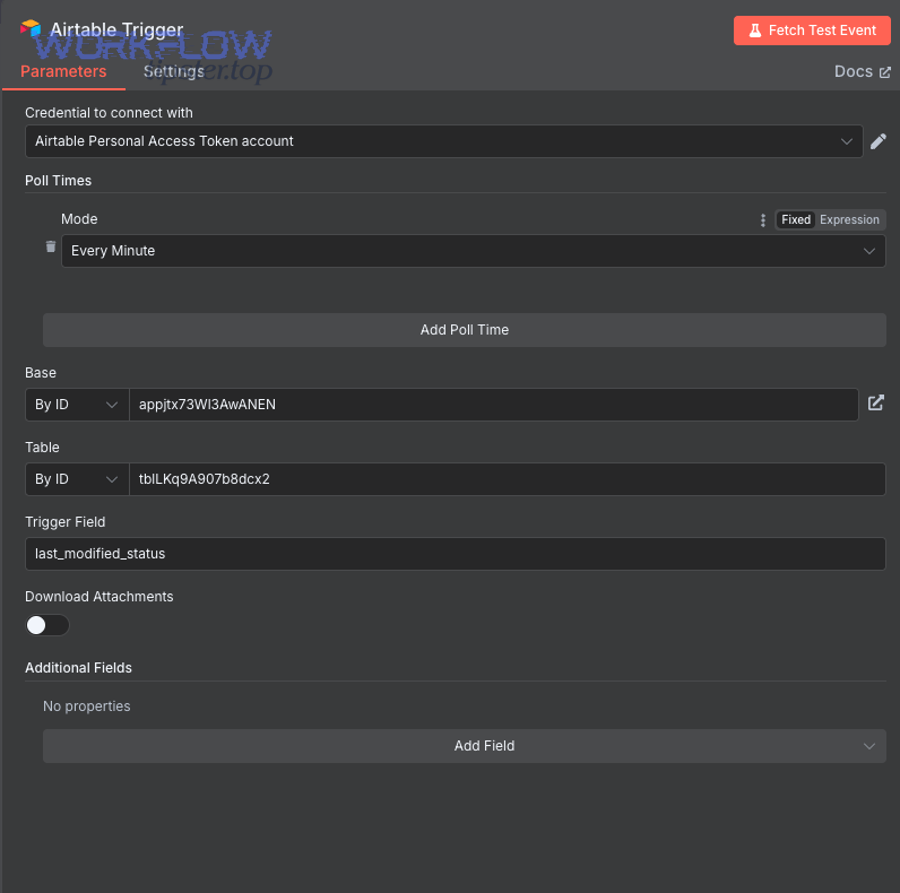
There are 4 main types of trigger situations for “airtable trigger not firing”—view-based, update-based, schedule-based, and form/submission-based—based on the criterion of how Airtable detects the qualifying event in the table.
Below, match your trigger type to its most common failure point, because each type fails in a different way and needs a different first test.
This table contains a quick mapping of trigger type to likely failure point and the fastest validation test, helping you troubleshoot without guessing.
| Trigger situation | Most likely failure point | Fastest validation test |
|---|---|---|
| Record enters view | View filters/conditions block entry | Create a new record that definitely matches the view and re-check history |
| Record updated | Watched field not changing (or wrong field watched) | Change the exact watched field value and re-check history |
| Scheduled time | Timezone/cadence mismatch | Schedule a near-term run and confirm history at that timestamp |
| Form submission | Submission not landing in intended table | Submit once and confirm a new record appears in the target table |
Is it a “Record enters view” trigger, and could the view filters be blocking it?
Yes, a “Record enters view” trigger often appears not to fire because (1) the view filters exclude the record, (2) the record already matched the view before the automation was turned on, or (3) a field rename/value mismatch quietly prevents the record from qualifying.
Next, test view-entry logic with a record that starts outside the view and then moves into it. Specifically:
- Create the record with a Status that does not match the view filter.
- Turn the automation ON (confirm it stays ON).
- Update the record so it begins matching the view filter.
If the trigger fires only in this pattern, the issue is not Airtable “missing events”—it is your view-entry definition (what “enters” means) and how you test it.
Is it a “Record updated” trigger, and are you updating the same field the trigger watches?
Yes, “Record updated” triggers commonly fail because (1) you update a different field than the watched field, (2) the watched field doesn’t actually change value, or (3) you assume a computed field change counts as a watched update.
Then, tighten your trigger setup:
- Choose a single watched field that represents the event (e.g., Status, Approved checkbox).
- Make sure that field is part of the view/conditions if you selected a view.
- Perform a clean value change (e.g., “Pending” → “Ready”) and verify the run appears in history. ([support.airtable.com](https://support.airtable.com/docs/when-record-is-updated-trigger?))
If you want “any field update,” avoid building logic that implicitly depends on formula/lookup shifts; use an explicit event field instead.
Is it a scheduled trigger, and is timezone/interval configured correctly?
Yes, scheduled triggers can look broken because (1) the timezone is not what you assumed, (2) the cadence is different than your business rhythm, or (3) you scheduled a time that already passed in the configured timezone, so you never see a run.
Next, validate scheduling with a near-term run window:
- Set a schedule for a time 5–10 minutes ahead of your current clock.
- Wait for that time and check automation history for a run entry.
- If it runs, the trigger works and your earlier issue was calendar logic, not “firing.” ([support.airtable.com](https://support.airtable.com/docs/at-a-scheduled-time-automation-trigger?))
Once confirmed, align the schedule to the timezone your team uses and document it to reduce future confusion.
Is it a form/submission trigger, and are submissions actually landing in the intended table?
Yes, form-based triggers fail when (1) the form is attached to a different table than you think, (2) required fields block record creation, or (3) the submission creates a record but your automation watches another table/view.
Then, troubleshoot like this:
- Submit the form once with valid data.
- Confirm a new record appears in the specific table the automation watches.
- If the record exists but no run appears, your trigger configuration (table, view, conditions) is the mismatch, not the form. ([support.airtable.com](https://support.airtable.com/docs/getting-started-with-airtable-automations?))
In short, “form trigger not firing” is usually “record not created where the trigger is watching,” so always verify record landing first.
How do you troubleshoot Airtable trigger conditions step-by-step?
There are 6 main steps to troubleshoot Airtable trigger conditions—retest trigger, confirm a matching record exists, simplify conditions, validate field values, check time fields, and retest end-to-end—based on the criterion of eliminating the highest-probability blockers first.
To keep the investigation grounded, follow Airtable’s recommended workflow: retest from the trigger, then retest each action, then confirm the test record truly matches all parameters. ([support.airtable.com](https://support.airtable.com/docs/troubleshooting-airtable-automations?))
Are the trigger conditions too strict or referencing empty/incorrect fields?
Yes, conditions often prevent a trigger from firing because (1) the value never exactly matches (case, spacing, select option), (2) the condition references a field that is blank for most records, or (3) the condition uses the wrong operator (e.g., “is exactly” instead of “contains”).
Next, debug conditions by simplifying them before you “improve” them:
- Temporarily reduce conditions to one simple condition (e.g., Status is “Ready”).
- Trigger a run with a test record that clearly matches.
- Add conditions back one at a time until the trigger stops firing—then the last condition you added is the blocker.
This method turns a complex logic puzzle into a controlled experiment, which is the fastest way to isolate the breaking condition.
Are date/time fields causing missed conditions due to formatting or timezone?
Yes, date/time conditions can block firing because (1) the field contains a date-only value but your logic expects a datetime, (2) the record time is evaluated in a different timezone than your team assumes, or (3) your condition compares “today/now” in a way that excludes borderline values.
Then, use practical fixes that reduce ambiguity:
- Prefer date-only logic when time is irrelevant (e.g., due date).
- If time matters, store timezone-aware context in a helper field (e.g., “Local time” text or select).
- Test with values safely inside the condition window (not exactly at midnight or boundary minutes).
Once you confirm correct firing, document the timezone assumption as part of your base’s operating rules so future editors don’t “break” the trigger by changing their expectations.
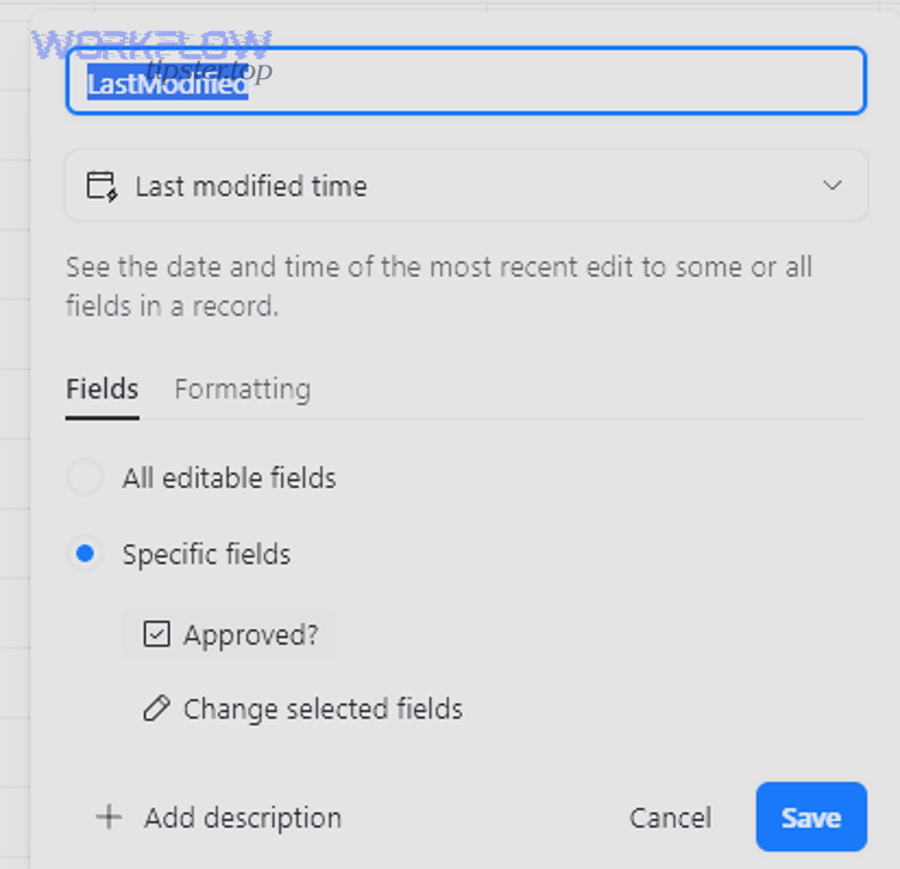
Could “last modified time” / automation-created edits be causing unexpected behavior?
Yes, unexpected behavior happens when (1) an automation action edits the same record and re-triggers a watched update, (2) multiple automations interact and create a loop, or (3) a “last modified time” field changes repeatedly and keeps triggering downstream logic.
Next, break feedback loops by designing a one-way event:
- Add a Processed checkbox and only trigger when Processed is unchecked.
- In the action, set Processed to checked so the same record no longer qualifies.
- If you must edit multiple fields, perform updates in a way that does not re-open the qualifying condition window.
Airtable explicitly warns that looping automations can occur when the action retriggers the trigger step, so loop prevention is not optional—it is a core reliability practice. ([support.airtable.com](https://support.airtable.com/docs/troubleshooting-airtable-automations?))
What are the most common causes of an Airtable trigger not firing?
There are 7 main causes of airtable trigger not firing—automation OFF, no matching records, view filter mismatch, wrong watched field, computed-field expectations, permission/connection issues, and incorrect testing method—based on the criterion of what prevents Airtable from detecting a qualifying trigger event.
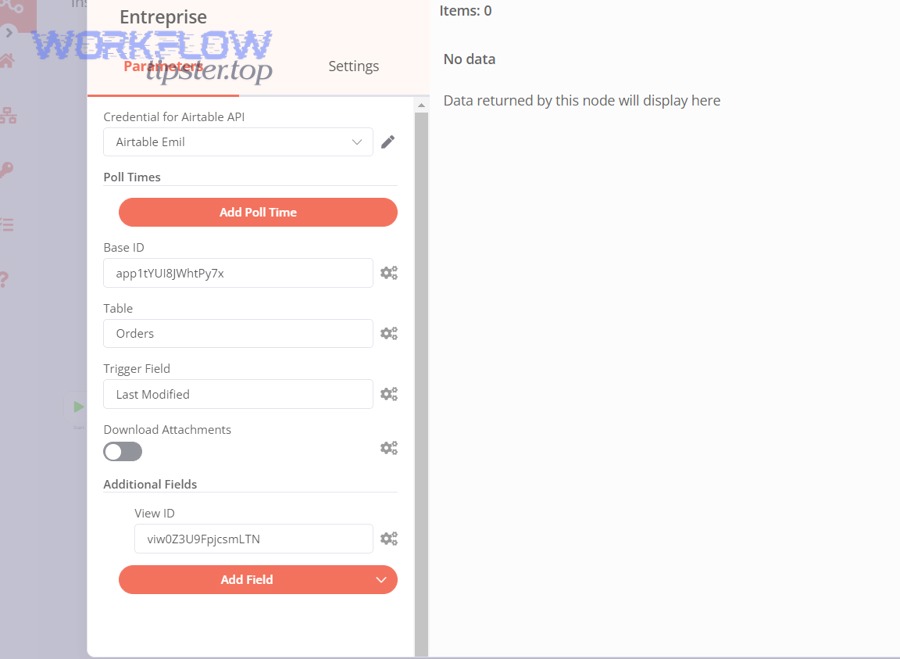
To keep your troubleshooting efficient, start with the causes that can be proven in under two minutes: ON status, matching records, and a clean trigger test. ([support.airtable.com](https://support.airtable.com/docs/troubleshooting-airtable-automations?))
Does the trigger rely on a view that changed (filters/sorts/renamed fields)?
Yes, view dependence is a top cause because (1) someone modifies a filter and records no longer qualify, (2) a field rename breaks the intended logic, or (3) the view is duplicated/repurposed and the automation is still watching the old version.
Then, treat trigger views like “infrastructure,” not casual views:
- Create a dedicated view named Automation — Trigger View.
- Lock down editing permissions where possible (or document “do not edit”).
- Keep filters minimal and explicit so the view represents a stable event definition.
This reduces accidental breakage and turns your automation into a maintainable system instead of a fragile configuration.
Are you testing with existing records instead of creating a true “new event”?
Creating a new record wins for proving trigger behavior, updating an existing record is best for validating watched-field rules, and editing computed fields indirectly is optimal only for diagnosing advanced dependency behavior—because each method produces different event signals to the trigger.
However, many users test in a way that never creates the event the trigger listens for. For example:
- Testing a “record created” trigger by editing an old record will never simulate creation.
- Testing a “record enters view” trigger using a record that already matches the view does not test “entry.”
- Testing “record updated” by typing the same value again may not produce a meaningful change.
Thus, always choose the test method that matches the trigger’s event definition, then verify success via automation history rather than assumptions. ([support.airtable.com](https://support.airtable.com/docs/troubleshooting-airtable-automations?))
How do built-in Airtable automations compare to third-party triggers in reliability and timing?
Airtable Automations wins in native run history and trigger testing, third-party platforms are best for cross-app workflows, and webhook-based designs are optimal for near-real-time event delivery—because timing and observability differ across trigger mechanisms. ([support.airtable.com](https://support.airtable.com/docs/troubleshooting-airtable-automations?))
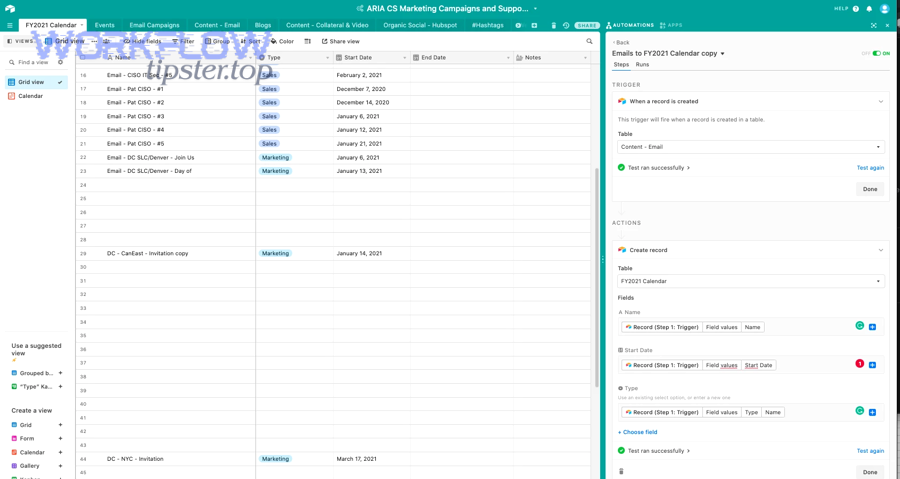
On the other hand, the same symptom—“not firing”—can be caused by completely different mechanics: Airtable may not be detecting a match, while a third-party tool may be polling slowly, missing permissions, or failing to parse the payload.
Is your “not firing” issue actually a polling delay in Zapier/Make/n8n?
Yes, integration triggers often “feel” not firing because (1) they poll on a schedule rather than listening instantly, (2) the polling window misses short-lived states (record enters view briefly), or (3) the tool is rate-limited and checks less frequently than you expect.
Next, test the delay hypothesis instead of guessing:
- Stamp each test record with a Created time and a text field like Trigger Test ID.
- Wait long enough for at least one poll cycle, then compare the integration’s run time to record creation time.
- If the integration picks it up later, your trigger is firing—just not instantly.
This is where writing down expectations helps: if your business process requires seconds, polling may be the wrong approach and you should shift to webhook/event-based patterns where possible.
Are API tokens / OAuth scopes / base permissions preventing external tools from detecting changes?
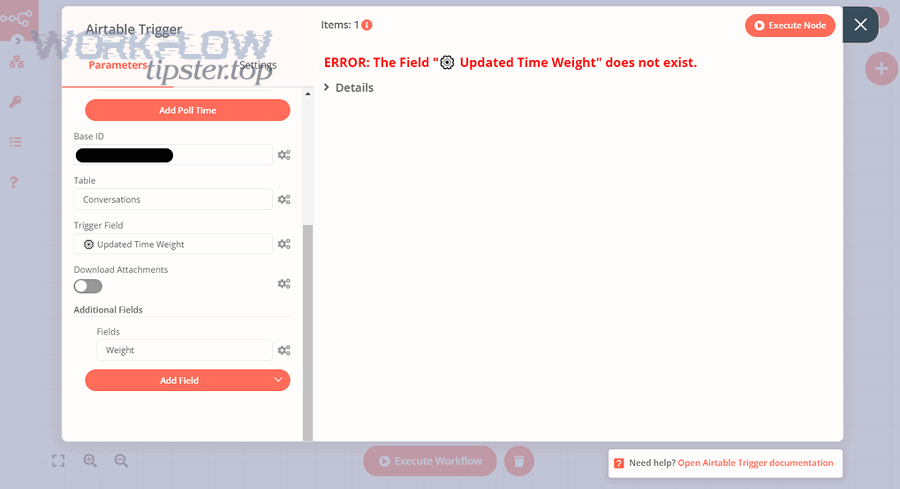
Yes, external triggers fail silently when (1) the connector loses access, (2) a credential rotation invalidates the connection, or (3) the token no longer has permission to read the table/view the trigger depends on—often showing up as issues like airtable oauth token expired.
Then, troubleshoot access as a first-class system, not a side note:
- Re-authenticate the Airtable connection in the external tool and confirm it can list bases/tables.
- Confirm the connector account can actually see the view and read the fields used by the trigger logic.
- If you see API errors during action steps (e.g., airtable webhook 400 bad request), treat them as payload/format problems and validate the request body against the expected schema.
When you do this systematically, “trigger not firing” stops being a mystery and becomes a measurable access failure you can fix quickly with proper credential management.
Is the trigger based on “Record in view” and the external tool cannot read that view?
Yes, view-based triggers break in integrations because (1) the integration points to a view that was renamed or deleted, (2) the tool caches fields and can’t resolve updated schema, or (3) the connector cannot interpret the view’s filters and returns zero records.
Next, focus on one practical check: can the external tool fetch any record from that view right now? If not, the trigger cannot “see” qualifying events.
- Re-select the view in the connector configuration.
- Refresh field mappings in the connector UI if available.
- If the connector reports airtable field mapping failed, rebuild the mapping after schema changes (renames, type changes, removed fields) so the tool stops rejecting the payload.
Once the connector can reliably read from the view, you can move back to event logic and timing tests.
How do you confirm the fix and prevent the trigger from failing again?
There are 5 main safeguards to confirm and prevent “airtable trigger not firing”—repeatable test cases, trigger-field standardization, stable trigger views, run-history monitoring, and credential/change management—based on the criterion of making trigger behavior observable and resilient to edits.
More importantly, you should treat automation reliability like quality control: you validate the system with tests and you prevent regressions with guardrails.
Can you create a repeatable test case to validate firing every time?
Yes, a repeatable test case is the fastest way to prove the trigger is fixed because (1) it recreates the exact event, (2) it produces a clear expected run in history, and (3) it isolates changes so you can tell whether a future edit broke the trigger again.
Then, build a small test matrix:
- Create event: create 3 new records that match conditions.
- Update event: update a watched field across 3 records (Status A → B).
- View entry event: move 3 records into the trigger view by changing one condition field.
After each run, confirm the run appears in history and confirm the trigger payload points to the correct record. Airtable’s own troubleshooting guidance centers on retesting triggers and checking automation history, so use that workflow as your verification standard. ([support.airtable.com](https://support.airtable.com/docs/troubleshooting-airtable-automations?))
What guardrails reduce future “not firing” incidents?
There are 6 main guardrails that reduce future incidents—dedicated trigger fields, dedicated trigger views, minimal conditions, versioned automations, credential rotation routines, and failure alerts—based on the criterion of preventing silent configuration drift.
Specifically, implement guardrails that match how triggers fail in real teams:
- Dedicated trigger field: one checkbox/select that defines the event explicitly.
- Dedicated trigger view: “Automation — Trigger View” that no one casually edits.
- Condition simplicity: fewer rules reduce mismatch; use helper fields for complex logic.
- Duplicate-before-change: duplicate the automation before edits so you can roll back by switching versions. ([support.airtable.com](https://support.airtable.com/docs/managing-airtable-automations?))
- Credential hygiene: document who owns connections and how to renew them (prevents “airtable oauth token expired” surprises).
- Alerting: use email/notifications for failed runs so you learn about breakage immediately, not a week later. ([support.airtable.com](https://support.airtable.com/docs/troubleshooting-airtable-automations?))
Evidence: According to a study by the University of Hawaiʻi (MIS students and MBA students), in 1998, 35% of spreadsheet models built from a relatively simple problem were still incorrect, showing why explicit tests and guardrails matter when humans build automation logic. ([sciencedirect.com](https://www.sciencedirect.com/science/article/abs/pii/S0167923697000389?))
What advanced edge cases cause Airtable triggers to misbehave (not firing, over-firing, or looping)?
There are 4 main advanced edge-case categories—loop-prevention interactions, bulk/API throughput effects, antonym behavior (over-firing), and cross-table dependency effects—based on the criterion of how non-obvious system behavior changes trigger event visibility.
Besides the basics, these are the cases that usually appear only after your base grows, your team expands, or you connect multiple automations and external tools together.
Can automation loop-prevention make a trigger appear to “not fire”?
Automation loop-prevention is a run-safety behavior where the system avoids runaway cycles caused by actions retriggering triggers, often by forcing builders to redesign trigger/action relationships so a record cannot endlessly re-qualify for the same trigger condition.
Next, recognize the pattern that creates the illusion:
- The trigger watches for a record entering a view or matching a condition.
- The action edits the record in a way that either re-qualifies it or causes another automation to edit it again.
- The system may generate unexpected repeated runs, or builders shut it off, later believing it “doesn’t fire.”
Airtable explicitly describes looping behavior as a known automation risk when the action retriggers the trigger, so design a one-way state transition (Processed flag) to permanently close eligibility. ([support.airtable.com](https://support.airtable.com/docs/troubleshooting-airtable-automations?))
Why can bulk edits/imports/API writes delay or suppress expected trigger runs?
Bulk edits/imports/API writes are high-throughput change events that can queue many updates at once, causing delayed processing, missed short-lived states (record briefly enters a view), or practical confusion because the run history fills with pending/failed runs rather than showing a simple, immediate trigger response.
Then, adapt your design for scale:
- Avoid trigger logic that depends on a record briefly meeting a condition for a moment.
- Use a durable event field (e.g., “Ready for automation”) so the record stays eligible until processed.
- Batch safely: if you must update thousands of records, update in chunks and monitor run history to confirm the trigger stays healthy.
Evidence: According to a research summary by Ray Panko, cell-level error rates in moderate spreadsheets are often cited around 1% to 5%, which is a reminder that bulk changes and human-built logic increase the chance of unexpected states unless you design explicit, testable events. ([panko.com](https://panko.com/ssr/DevelopmentExperiments.html?))
What is the antonym scenario: why does an Airtable trigger fire multiple times unexpectedly?
Single-fire trigger logic wins for predictable workflows, multi-update triggers are best for tracking every change, and computed-field cascades are optimal only when you intentionally want chain reactions—because “not firing” and “over-firing” are opposites driven by how many qualifying changes your design permits.
However, over-firing usually comes from one of these causes:
- Watched field changes repeatedly (e.g., multiple status transitions in one process).
- Multiple fields count as updates and your logic doesn’t narrow the event.
- Two automations interact and repeatedly toggle eligibility.
To fix over-firing, apply the same reliability principles you used to fix not firing: define one explicit event field, close eligibility after processing, and validate in history with a test matrix.
How do synced tables, linked records, and rollups create “invisible” trigger conditions?
Synced tables, linked records, and rollups create “invisible” trigger conditions because they are dependency-driven field systems where a record’s computed values can change due to edits elsewhere, so the record may appear eligible to humans while the trigger logic depends on a different underlying event or watched-field change.
Next, treat cross-table logic as a signal engineering problem:
- If a rollup drives your condition, add a helper checkbox that turns ON only when the rollup crosses a threshold, and trigger on the checkbox change.
- If links change often, store a “snapshot” field that records the event moment (e.g., “Linked count at trigger”).
- If sync/import is involved, design for delayed stabilization: trigger on a durable “Ready” marker rather than an instantly changing computed state.
When you make the event explicit, triggers become reliable again—whether the underlying complexity comes from links, rollups, syncs, or integrations.