


If you want faster, cleaner support triage, automating Freshdesk ticket → ClickUp task creation + Slack alerts is one of the most reliable ways to turn “incoming noise” into a trackable, assignable workflow—with less manual copying and fewer dropped tickets.
Next, you’ll see what data must flow from the Freshdesk ticket into the ClickUp task to make triage actionable (priority, SLA context, requester details, and the ticket link), plus how to decide whether every ticket should trigger Slack or only high-signal cases.
Then, you’ll learn how to route work automatically to the right ClickUp list and the right Slack channel based on triage rules (priority, tags, groups, ticket type, SLA urgency), and how to keep ticket-to-task tracking dependable by writing the ClickUp task URL/ID back to Freshdesk.
Introduce a new idea: once the end-to-end flow works, the real productivity gain comes from reducing duplicate work and notification fatigue—so your Slack triage stays actionable instead of becoming another stream people mute.
What is “Freshdesk ticket to ClickUp task to Slack triage” automation?
Freshdesk ticket → ClickUp task → Slack triage automation is a support workflow pattern that converts incoming tickets into trackable tasks and sends targeted alerts to the right Slack audience, so teams prioritize, assign, and resolve issues faster with consistent context.
To better understand why this matters, think of triage as a routing problem: the same ticket can be “urgent” for one customer and “routine” for another, and your system must translate that into the right queue, owner, and communication path. When you automate the handoff, you reduce the two most common failure modes in support operations:
- Invisible work: someone is “handling it” in Freshdesk, but the rest of the team can’t see it in the place they plan work (ClickUp).
- Untracked work: a Slack thread goes viral, but nobody converts it into a task with an owner and due date.
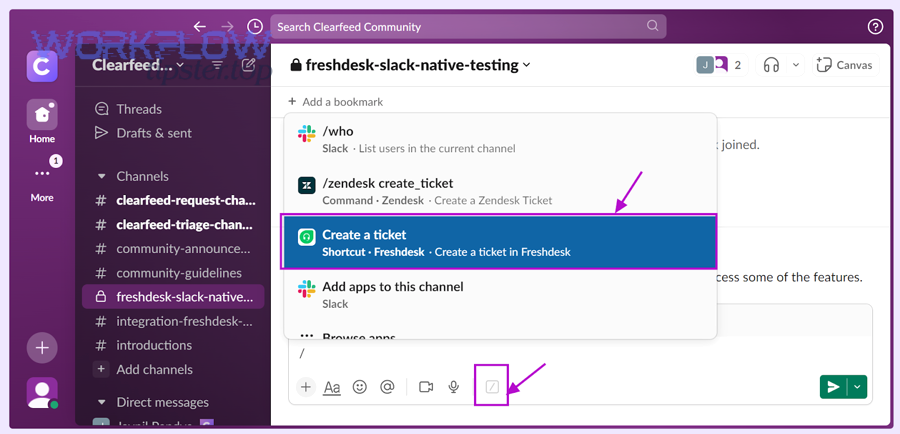
A strong automation will do three things every time a ticket matters:
- Create a ClickUp task with the right fields and an obvious owner.
- Post a Slack alert to the right channel (or person) with the right urgency.
- Link the ticket and task so agents can jump between systems without searching.
What data should a Freshdesk ticket pass into a ClickUp task to make triage actionable?
A Freshdesk ticket should pass at least 10 core fields into a ClickUp task—ticket ID/link, requester, subject, description, priority, status, group/agent, tags, created time, and SLA/due time—so the task is assignable and measurable without opening Freshdesk.
Specifically, your task must be “triage-ready” the moment it lands in ClickUp. If the assignee still needs to open Freshdesk to find basic context, your automation is only moving the problem—not solving it.
Below are the minimum and nice-to-have fields that create a complete “support triage” record in ClickUp:
- Minimum fields (must-have)
- Ticket ID + direct URL (for instant traceability)
- Subject (human scannability)
- Description (full customer report)
- Requester email/name (who is impacted)
- Priority (severity signal)
- Status (workflow signal)
- Group/agent (routing + accountability)
- Tags / ticket type (routing + analytics)
- Nice-to-have fields (high leverage)
- SLA target / due date (time pressure, escalation)
- Customer tier (VIP/enterprise/standard)
- Product/module (routing to specialized lists)
- Last public reply time (staleness detection)
- Attachments (link or reference)
- Environment/context (region, plan, browser/app)
If you use the ClickUp Freshdesk Sync integration, ClickUp documents which ticket fields can sync with tasks (e.g., Subject, Status, Description, Priority, ID/URL as text custom fields, and Due date). (help.clickup.com)
Do you need Slack alerts for every ticket, or only for high-priority triage?
No—most teams should not send Slack alerts for every Freshdesk ticket because it creates noise, encourages muting, and reduces response quality; instead, send alerts for (1) urgent/high priority, (2) VIP customers, and (3) SLA-risk or escalation signals.
Let’s explore why “everything to Slack” breaks down quickly. Slack is powerful for coordination, but notification overload causes interruptions—and interruptions reduce performance and increase strain when they’re driven by frequent notifications. (pmc.ncbi.nlm.nih.gov)
A practical rule set that works for most support teams:
- Send Slack alerts when:
- Priority is P1/P2 (or “Urgent/High”)
- Ticket contains escalation tags (e.g.,
outage,security,billing-blocker) - Customer tier is VIP/enterprise
- SLA due time is within a threshold (e.g., < 2 hours)
- Ticket is reassigned to an on-call group
- Do not send Slack alerts when:
- Priority is low and queue volume is high
- It’s a known issue already tracked by a master ticket
- It’s automated spam/duplicates detected by rules
This “selective triage” approach keeps Slack meaningful—so when someone sees an alert, they trust it.
How do you set up the end-to-end workflow from Freshdesk to ClickUp to Slack?
You set up Freshdesk → ClickUp → Slack triage automation by connecting the three apps, choosing a ticket trigger, mapping ticket fields into a ClickUp task, and posting a formatted Slack alert with deep links—then testing for duplicates and routing accuracy.
Next, the key is to build your workflow in the same order you expect the work to happen. Whether you use native integrations or an automation platform, the structure is similar:
- Connect accounts and permissions
- Freshdesk: access to read ticket fields (and write notes/custom fields if you want write-back)
- ClickUp: permission to create tasks in the chosen Workspace/Space/List
- Slack: permission to post into target channels (or DM users)
- Choose the trigger
- “New Ticket Created” is the most common start.
- “Ticket Updated” is better for status-driven alerts (escalations, reopens, SLA warnings).
- Create the ClickUp task
- Select Space/List based on routing rules
- Map fields into task title/description and custom fields
- Set priority and due date
- Post the Slack alert
- Choose channel or DM destination
- Include urgency, owner, SLA time, and links to both systems
- Use mentions sparingly (e.g., on-call only)
- Write back the ClickUp task link (recommended)
- Add ClickUp task URL/ID to a Freshdesk custom field or internal note
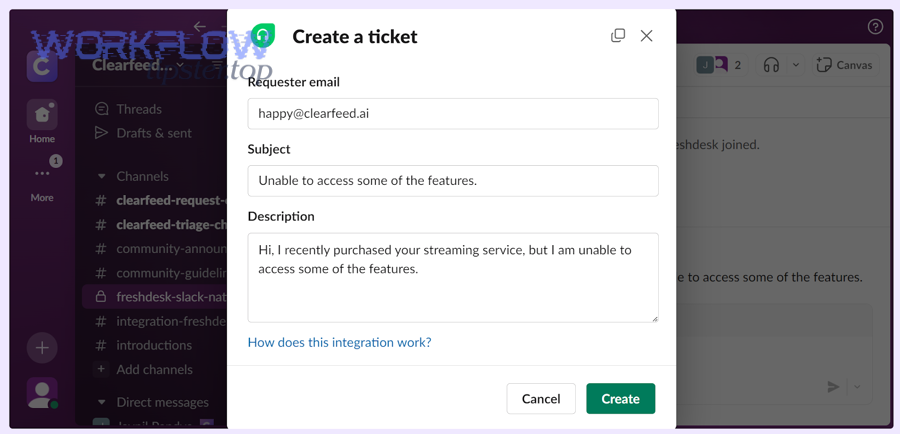
If you build via an automation platform, you can think of these as automation workflows that chain triggers → actions → validations, and you can extend them later with additional steps like deduplication checks or escalation timers.
For example, the same “chain” logic applies beyond support: teams often connect scheduling and work management using patterns like calendly to calendly to microsoft teams to jira scheduling or calendly to calendly to zoom to asana scheduling to ensure handoffs happen automatically without manual coordination.
Which trigger should you use to start the workflow (new ticket vs updated ticket)?
New Ticket wins for creating the ClickUp task, while Updated Ticket is best for escalation alerts and status-driven Slack updates—so the optimal setup usually uses New Ticket for task creation and Updated Ticket for selective follow-up notifications.
However, the wrong trigger can create duplication or spam. Here’s how to choose cleanly:
- Use “New Ticket Created” when you want:
- Every ticket (or filtered subset) to become a ClickUp task
- A consistent intake pipeline for reporting and workload balancing
- Use “Ticket Updated” when you want:
- Slack notifications only when priority changes, the ticket is reopened, or it becomes “SLA-risk”
- A single Slack thread to receive updates without posting new alerts constantly
A common “two-trigger” pattern:
- Trigger A (New Ticket) → Create ClickUp task → Post initial Slack alert if high-signal
- Trigger B (Ticket Updated) → Update task status/priority → Update Slack thread for escalations
How do you map priorities and statuses between Freshdesk and ClickUp without confusion?
Priority mapping works best when Freshdesk priorities translate into a fixed ClickUp priority scheme (P1–P4) and statuses translate into a shared lifecycle (“Open → In Progress → Waiting → Resolved”), so both systems speak the same operational language.
To illustrate, you need two mappings: priority (urgency) and status (workflow stage). The biggest mistake is mapping everything 1:1 without considering meaning. “Pending” in Freshdesk can mean “waiting on customer,” while ClickUp “Blocked” might mean “waiting on engineering.”
Here’s a clear baseline mapping:
- Priority mapping (example)
- Freshdesk Urgent → ClickUp P1
- Freshdesk High → ClickUp P2
- Freshdesk Medium → ClickUp P3
- Freshdesk Low → ClickUp P4
- Status mapping (example)
- Freshdesk Open/New → ClickUp Open
- Freshdesk Pending → ClickUp Waiting
- Freshdesk Resolved/Closed → ClickUp Resolved/Done
- Freshdesk Reopened → ClickUp Open + escalation flag
If you rely on syncing, ClickUp indicates that fields like Status and Priority can sync with Freshdesk in its Freshdesk Sync integration documentation, which is useful for keeping both systems aligned. (help.clickup.com)
How can you route tickets to the right ClickUp list and Slack channel automatically?
You can route tickets automatically by defining a small set of routing dimensions—priority, product area, ticket type, customer tier, and SLA urgency—and mapping each combination to a specific ClickUp list and Slack destination.
Besides simply “creating tasks,” routing is where triage becomes operationally powerful. It prevents two painful outcomes:
- Tickets sit in a generic backlog because no one knows who owns them.
- Slack alerts go to the wrong place, so the right people never see them.
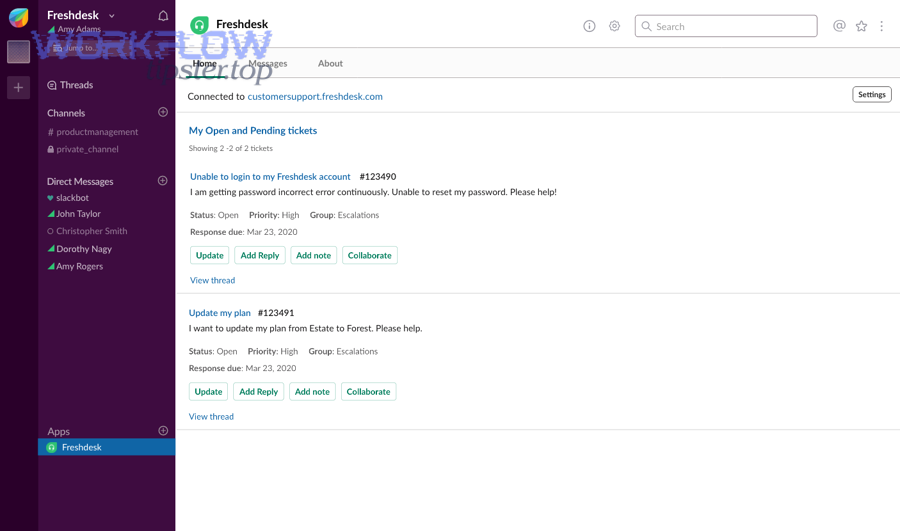
To better understand routing, treat your support system like a switchboard. You need a handful of consistent signals:
- Severity: priority and impact
- Category: product/module or issue type
- Ownership: support group or escalation path
- Time pressure: SLA due time or aging threshold
- Customer context: tier or contractual SLA
What are the best rule sets for triage routing (priority, tags, groups, and SLA)?
There are four main triage rule sets—severity-based, tag/category-based, group/ownership-based, and SLA-based—because each set answers a different routing question: “how urgent,” “what is it,” “who owns it,” and “how soon.”
Specifically, you can implement these as layered logic (first match wins) or as a scoring model (highest score wins). A layered approach is easier to manage.
Rule Set 1: Severity-based
- If priority = Urgent/High → route to On-call list + post to #support-triage-high
- Else → continue evaluation
Rule Set 2: Tag/category-based
- If tags include
billing→ route to Billing Support list + #support-billing - If tags include
bugor type = Incident → route to Engineering Escalations list + #support-escalations
Rule Set 3: Group/ownership-based
- If group = “Tier 2” → route to Tier 2 list + private triage channel
- If group = “CS” → route to Customer Success list + CS channel
Rule Set 4: SLA-based
- If due time < 2 hours OR ticket age > threshold → add escalation label + notify on-call
Many service desks formalize SLA and priority tiers to manage response expectations, which reinforces why SLA-aware routing is a standard triage pattern in ticket operations. (helpcenter.mines.edu)
Should you notify a Slack channel, a private triage channel, or DM an on-call agent?
Slack channel alerts win for visibility, private triage channels are best for sensitive coordination, and DMs are optimal for urgent on-call response—so most teams should combine channels for awareness with DMs/mentions for accountability.
However, the “best” choice depends on ticket volume and sensitivity:
- Public support channel
- Best for shared awareness and quick swarming
- Risk: noise, off-topic replies, and “someone else will handle it”
- Private triage channel
- Best for structured intake and internal-only details
- Risk: silos if cross-functional help is needed
- DM / on-call mention
- Best for urgency and clear ownership
- Risk: burnout and missed knowledge sharing
A good default:
- Post high-priority items to #support-triage (private if sensitive)
- Mention @oncall only for P1/P2 or SLA-risk tickets
- Post routine tickets to ClickUp only (no Slack)
Slack’s own notification guidance emphasizes that DMs and mentions are key default triggers for notifications, which is why using mentions sparingly helps preserve signal. (slack.com)
How do you prevent duplicate ClickUp tasks and keep ticket-to-task tracking reliable?
You prevent duplicate ClickUp tasks by using a stable ticket identifier as an idempotency key, checking for an existing task before creating a new one, and writing the ClickUp task URL/ID back to the Freshdesk ticket to lock the relationship.
More importantly, duplicates are not just messy—they destroy trust. If agents see two tasks for one ticket, they stop believing the system and revert to manual coordination.
Here are the most common duplication causes:
- Trigger fires twice (new ticket + assignment update)
- Automation retries after a timeout and “replays” the create step
- Multiple workflows exist (old zap + new zap)
- Agent changes a field that re-triggers creation logic
A simple anti-duplicate design
- Use Freshdesk Ticket ID as the external ID
- Store it in a dedicated ClickUp custom field:
Freshdesk Ticket ID - On trigger:
- Search ClickUp for an existing task with that ID
- If found → update it (do not create)
- If not found → create, then write back the task link
Can you write the ClickUp task link/ID back to the Freshdesk ticket automatically?
Yes—writing the ClickUp task link/ID back to Freshdesk is one of the best ways to reduce duplicate work because it creates a single source of truth, enables instant navigation, and supports reporting across both systems.
To better understand, think of the link as a “join key” between systems. Without it:
- Agents search ClickUp manually and might create duplicates.
- Managers can’t audit how many tickets became tasks.
- Escalations become slower because context is split.
Implementation options (choose one):
- Freshdesk custom field:
ClickUp Task URL(cleanest for agents) - Internal note: “Task created: [URL]” (fastest to deploy)
- Private comment: similar to internal note (depends on your workflow)
If you use ClickUp’s Freshdesk Sync, ClickUp notes that ticket fields like ID and URL can sync into ClickUp as text custom fields, which supports consistent linking and traceability. (help.clickup.com)
What should you do when the automation fails (timeouts, permissions, rate limits)?
There are 5 main failure types—auth, permissions, validation, rate limits, and timeouts—so the safest response is to add retries, error alerts, and a “manual fallback” path that still captures the ticket-to-task link once recovered.
Especially, treat failures as part of the system—not exceptions. Here’s a practical playbook:
- Authentication failures
- Symptom: “unauthorized/invalid token”
- Fix: refresh OAuth, rotate API keys, restrict who can change credentials
- Permission failures
- Symptom: can’t post to Slack channel or can’t create tasks in list
- Fix: confirm Slack app is invited to channel; confirm ClickUp access and list permissions
- Validation failures
- Symptom: missing required fields, invalid date formats
- Fix: set defaults (e.g., assign “Untriaged” status), sanitize text lengths
- Rate limits / throttling
- Symptom: intermittent failures during spikes
- Fix: queue requests, reduce “updated ticket” triggers, batch updates
- Timeouts
- Symptom: tool reports success, but task never created
- Fix: add a “check-after-create” step; use idempotency key to safely retry
Also, if you notify Slack about failures, keep it to one channel (e.g., #support-ops-alerts) and include the ticket ID so someone can replay the job.
How do you format Slack triage alerts so they’re fast to act on (not spammy)?
You format Slack triage alerts by putting urgency and ownership in the first line, adding a short problem summary, including the SLA timer, and ending with two deep links (Freshdesk ticket + ClickUp task), so responders can act in under 10 seconds.
Next, the guiding principle is: an alert should answer “what happened, how bad is it, who owns it, and where do I click?” Anything else is optional.

A reliable Slack alert template:
- Line 1 (signal): [P1] Login outage — VIP — SLA 45m — @oncall
- Line 2 (summary): “Customers cannot sign in after update; affects EU region.”
- Line 3 (links): Freshdesk: [ticket] | ClickUp: [task]
- Line 4 (context): Product: Auth | Tag:
outage| Group: Tier 2
If you want to reduce spam, send fewer messages but make each message more complete. Research on notification-driven interruptions suggests that reducing such interruptions benefits performance and reduces strain—another reason to optimize alert quality over alert quantity. (pmc.ncbi.nlm.nih.gov)
Should Slack alerts be posted as new messages or updated in a thread?
New messages win for visibility, but updating a single thread wins for long-running incidents—so use new messages for the initial alert and thread updates for status changes, progress notes, and resolution confirmation.
However, you need consistency. If your team sometimes threads and sometimes spams new messages, people will miss updates.
A strong incident pattern:
- Initial alert message = the “header”
- Thread replies = the “timeline”
- Final thread reply = resolution + link to the final task outcome
If your Slack setup supports it, you can also update the original message (edit) to reflect current status, while leaving the thread as a historical log.
What actions should the Slack alert enable (acknowledge, assign, escalate)?
A good triage alert enables 5 core actions—acknowledge, assign, escalate, request info, and close the loop—because those actions directly move the ticket from “noticed” to “resolved” without switching tools unnecessarily.
To illustrate, here are action patterns that work even without fancy bots:
- Acknowledge
- Use emoji reaction rules (✅ acknowledged, 👀 investigating, 🔥 escalated)
- Assign
- Assign owner in ClickUp and reply in thread: “Assigned to @name; ETA 30m.”
- Escalate
- Mention @oncall or @engineering only when escalation criteria match (P1/P2, SLA-risk)
- Request info
- Reply with a checklist: logs needed, repro steps, environment, screenshots
- Close the loop
- Update ClickUp status to Done/Resolved and post final thread message with outcome
Slack’s own guidance on notifications highlights that mentions and replies to followed threads are major notification drivers, so designing actions around those mechanisms makes triage behavior predictable. (slack.com)
Contextual Border: At this point, you can create the end-to-end Freshdesk → ClickUp → Slack workflow, route tickets correctly, prevent duplicates, and produce high-signal Slack alerts. Next, we shift from core setup to optimization choices that expand flexibility and reduce risk.
Which integration method should you choose for Freshdesk → ClickUp → Slack (native vs Zapier vs Make vs n8n)?
Native sync wins for simplicity and two-way alignment, Zapier/Make wins for fast no-code customization, and n8n wins for advanced control and self-host flexibility—so the best choice depends on whether you prioritize speed, depth, or governance.
Meanwhile, the wrong choice usually shows up later as either (a) missing fields, (b) duplicate logic, or (c) limited routing. Use this comparison to pick deliberately:
What is the difference between one-way automation and two-way sync in this triage workflow?
One-way automation is best for “create and notify” flows, while two-way sync is best for “single source of truth” operations—so choose one-way when you mainly need task creation, and choose two-way when teams update tickets from ClickUp and need Freshdesk updated automatically.
- One-way (Freshdesk → ClickUp → Slack)
- Pros: simple, fewer loops, easier deduplication
- Cons: status updates can drift unless you enforce a policy
- Two-way sync (Freshdesk ↔ ClickUp)
- Pros: consistent fields and lifecycle across systems
- Cons: higher risk of loops, more complex governance
ClickUp’s Freshdesk Sync documentation explicitly describes syncing updates so changes in ClickUp can reflect back in Freshdesk, which is the core promise of two-way sync. (help.clickup.com)
How can you design an idempotency key to stop duplicate task creation?
You can stop duplicates by using a deterministic key like freshdesk_ticket_id + workflow_name + workspace and enforcing a “search-before-create” rule, so retries and updates don’t create new tasks for the same ticket.
Specifically, implement one of these keys:
- Simple key (usually enough):
Freshdesk Ticket ID - Safer key (multi-brand/multi-workspace):
Brand + Ticket ID + Target List - Event-safe key (multiple automations):
Ticket ID + Workflow Name
Then store it in ClickUp as:
- A custom field (
External ID) - Or a task name suffix (
[FD-12345]) for human scanning (still store in a field if possible)
What should you redact or avoid sending to Slack to protect customer data?
You should redact or avoid sending passwords, API keys, payment details, and sensitive personal identifiers to Slack because chat tools increase visibility and persistence—so use an allowlist of safe fields and send sensitive details only inside Freshdesk.
More specifically, apply a “least-necessary” rule:
- Safe to post: ticket ID, severity, short summary, product area, SLA time, links
- Risky to post: full email threads, attachments with PII, account numbers, access tokens, logs with secrets
If you still need collaboration for sensitive tickets, route them to a private triage channel and keep the Slack alert high-level with a link back to Freshdesk.
How do you handle attachments reliably across tools (link vs copy)?
Linking attachments is more reliable and permission-safe, while copying attachments is more convenient for responders—so default to linking for governance and only copy attachments for high-priority incidents where access is guaranteed.
Here’s the practical trade-off:
- Link attachments (recommended default)
- Pros: avoids permission leaks, reduces payload size, fewer failures
- Cons: requires responders to have Freshdesk access
- Copy attachments
- Pros: fastest response when responders live in Slack
- Cons: higher failure rate (size limits), risk of sensitive data spread
A safe hybrid:
- Always include an attachment link in the Slack alert
- Copy only lightweight, non-sensitive attachments when priority is P1/P2
Evidence (selected): According to a study by University of California, Irvine (Department of Informatics), in 2008, interrupted work was associated with people working faster but experiencing more stress and frustration, highlighting why reducing unnecessary triage interruptions matters. (ics.uci.edu)