


Calendly → Google Calendar → Zoom → Asana scheduling can be fully automated by treating the Calendly booking as the trigger, using Google Calendar as the shared schedule source, generating a Zoom meeting link automatically, and creating or updating an Asana task that keeps the team accountable for follow-up.
Then, the fastest way to choose the right approach is to compare manual vs automated setup: manual is workable at low volume, but automation becomes essential once multiple teammates, event types, and reschedules introduce repetitive work and avoidable errors.
In addition, most teams need a troubleshooting playbook for duplicates, missing Zoom links, timezone drift, and incorrect Asana task routing—because those issues usually appear only after real bookings start flowing through the system.
Introduce a new idea: once the workflow is stable, you can standardize naming, templates, and permissions so the whole team runs the same scheduling motion, and your automation workflows remain reliable as volume grows.
What does “Calendly → Google Calendar → Zoom → Asana scheduling” mean in a team workflow?
Calendly → Google Calendar → Zoom → Asana scheduling is a multi-app scheduling workflow where a booked meeting automatically becomes a calendar event, includes a Zoom join link, and creates a trackable Asana task so teams can execute follow-ups without manual copy-paste.
To better understand why this matters, think of the workflow as a single “source-to-action” chain: one booking should create one meeting, one calendar record, and one work item—every time.

What data should be passed from Calendly into Google Calendar, Zoom, and Asana?
There are 8 core data fields you should pass from Calendly into Google Calendar, Zoom, and Asana, based on one criterion: “Will this field help a human attend the meeting correctly or complete the follow-up work correctly?”
More specifically, these fields keep the chain consistent across scheduling, conferencing, and task tracking:
- Invitee name (Calendly) → Calendar title + Asana task title
- Invitee email → Calendar guest + Asana description (for reference)
- Event type (e.g., Demo, Onboarding, Support) → Calendar title prefix + Asana custom field
- Start/end time → Google Calendar event time + Asana due date/time (or a custom “Meeting time” field)
- Timezone (invitee + organizer) → Calendar event metadata + Asana description line
- Location / conferencing type → Zoom meeting creation + Calendar location / description
- Questions/notes (Calendly form) → Calendar description + Asana task description
- Unique booking ID / URI (critical) → stored in Asana (custom field or description) to prevent duplicates
A simple mapping table makes this easier to implement and audit later. The table below shows a practical “minimum viable mapping” that most teams can adopt without overengineering:
| Calendly field | Google Calendar placement | Zoom placement | Asana placement |
|---|---|---|---|
| Invitee name | Event title | N/A | Task title |
| Invitee email | Guest / description | Registrant (optional) | Task description |
| Event type | Title prefix | Template choice | Project/section/custom field |
| Start/end time | Start/end | Start time | Due date/time or custom field |
| Timezone | Description line | Host settings | Description line |
| Booking notes | Description | N/A | Description |
| Zoom link | Location or description | Join URL | Description + link field |
| Booking ID | Description | N/A | Custom field / description |
Once you map fields this way, you can spot breakpoints quickly: if the Zoom link is missing, you know exactly where it should have landed (calendar location/description and task description).
Is this workflow meant for internal meetings, external client calls, or both?
Yes—this workflow works for both internal meetings and external client calls, for at least three reasons: it standardizes scheduling, it reduces coordination overhead, and it makes follow-up work visible to the team.
Next, the key is to apply the right “client vs internal” controls:
- External calls benefit from stronger meeting hygiene: branded event titles, consistent agenda text, and Zoom security defaults (waiting room or passcode) to prevent accidental access.
- Internal calls benefit from faster routing: fewer form questions, simpler Asana task templates, and standardized project sections per meeting type.
- Both benefit from one shared rule: the booking should generate one consistent record across tools so nobody hunts for links or context minutes before the meeting.
When you treat the workflow as “attendance + execution,” you stop thinking of scheduling as admin work and start treating it as an operational pipeline.
Can you build this workflow manually without automation tools?
Yes, you can build this workflow manually without automation tools, for three reasons: Calendly can sync availability to Google Calendar, Zoom links can be added as the meeting location, and Asana tasks can be created from a reusable template—though it requires disciplined execution.
However, manual execution becomes fragile as soon as reschedules, multiple event types, or multiple coordinators enter the process.
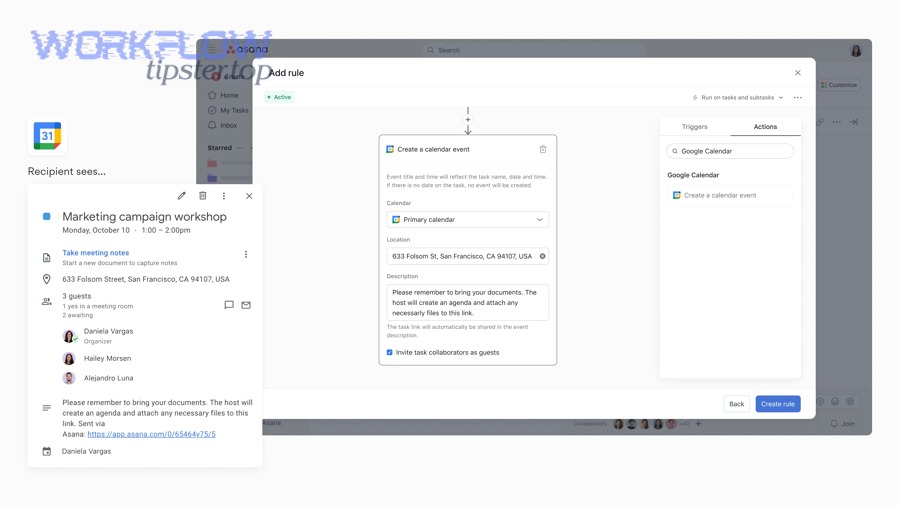
What are the minimum manual steps to keep Calendly, Google Calendar, Zoom, and Asana aligned?
There are 6 minimum manual steps to keep Calendly, Google Calendar, Zoom, and Asana aligned, based on one criterion: “Does this step prevent a real-world failure like missed meetings or lost follow-ups?”
Then, follow this checklist in order:
- Connect Calendly to Google Calendar so availability stays accurate (prevents double-booking).
- Set Zoom as the meeting location for the Calendly event type so the invite includes conferencing details.
- Create a standard Asana task template (title format, description blocks, custom fields).
- When a meeting is booked, copy the calendar event link + Zoom join link into the Asana task.
- Assign the task to the owner (host, SDR, PM, or coordinator) and set a due date/time aligned to the meeting.
- On reschedule/cancel, update both the calendar event and the Asana task status immediately.
This manual method can work—but it relies on humans doing the same steps every time, which is exactly where teams tend to drift under load.
When is manual scheduling better than automated scheduling for teams?
Manual scheduling wins in low volume, automated scheduling wins in high volume, and a hybrid approach is best when you need control for exceptions but want automation for the default path.
Meanwhile, here’s a practical comparison teams actually use:
- Manual is better when:
- You handle a small number of bookings per week.
- The meeting types are simple and rarely reschedule.
- One person owns scheduling end-to-end.
- Automation is better when:
- Multiple teammates schedule meetings.
- You have multiple event types with different routing rules.
- Reschedules and cancellations are common.
- You need reliable Asana tracking so follow-ups don’t slip.
- Hybrid is better when:
- You automate the standard workflow, but keep a manual override for VIPs, complex projects, or security-sensitive meetings.
If you want a fast decision rule: the moment you hear “Who created the Asana task?” more than once a week, automation is already paying for itself.
How do you automate Calendly → Google Calendar → Zoom → Asana end-to-end?
You automate Calendly → Google Calendar → Zoom → Asana end-to-end with a 4-part method—define triggers, map fields, create/update records, and add deduplication—so every booking produces one calendar event, one Zoom meeting, and one Asana task without manual steps.
Specifically, the most reliable design is “native integrations where possible + automation middleware for cross-app logic,” because Asana task creation and update rules often require branching and idempotency controls.

A typical automation blueprint looks like this:
- Trigger: Calendly booking created / rescheduled / canceled
- Action 1: Ensure Google Calendar event exists and is updated
- Action 2: Ensure Zoom meeting link is generated and attached to the calendar event
- Action 3: Create or update Asana task with consistent mapping
- Guardrails: Deduplicate using booking ID, and handle timezone normalization
To make this feel concrete, it helps to think in “inputs and outputs” rather than tool names: one booking input should produce an attendance output (calendar + Zoom) and an execution output (Asana task).
Which trigger should you use: booking created, rescheduled, or canceled?
Booking created is best for creating records, rescheduled is best for updating records, and canceled is best for closing records—because each trigger controls a different lifecycle moment in the scheduling workflow.
In addition, teams break automations when they only build “created” and ignore the other two. A practical trigger-to-action mapping looks like this:
- Booking created → create Google Calendar event (if needed), ensure Zoom link is attached, create Asana task
- Booking rescheduled → update Google Calendar event time, update Asana task due date/time, add a reschedule note/comment
- Booking canceled → mark Asana task as canceled/closed, optionally remove calendar guests, and add cancellation reason
This lifecycle approach prevents the most common team complaint: “The task exists, but it doesn’t match the real meeting anymore.”
How do you map Calendly booking details into an Asana task reliably?
You map Calendly booking details into an Asana task reliably by using one naming convention, one description template, and one unique booking identifier, so every task is searchable, scannable, and deduplicated.
More importantly, consistency reduces cognitive load for the team—because they no longer decode different formats across different coordinators.
Task title formula
[Event Type] – [Invitee Name] – [YYYY-MM-DD] [HH:MM TZ]
Task description template
- Meeting time (Organizer TZ + Invitee TZ)
- Zoom join link (full URL)
- Google Calendar event link (if used)
- Invitee email + company (if captured)
- Notes / notes from routing questions
- Booking ID (hidden but present)
Custom fields (recommended)
- Meeting status: Scheduled / Rescheduled / Completed / Canceled
- Meeting type: Demo / Onboarding / Support / Internal
- Owner: Person responsible for follow-up
- Priority: Normal / High (optional)
Finally, store the Calendly booking ID in a custom field or the last line of the description and treat it as the “primary key.” That single detail is what allows “update instead of create,” which is the difference between a clean system and duplicate chaos.
What are the most common issues in Calendly-to-Asana scheduling automations, and how do you fix them?
There are four common issues in Calendly-to-Asana scheduling automations—duplicates, missing Zoom links, timezone mismatches, and wrong routing—and you fix them by adding a booking ID guardrail, verifying Zoom security/location settings, normalizing timezones, and enforcing field mapping rules.
Besides, most problems aren’t “bugs”—they’re lifecycle mismatches where the automation doesn’t understand reschedules, cancellations, or multiple event types.

Why do duplicate Google Calendar events or Asana tasks happen, and how do you prevent them?
Duplicates happen because automations often create on every trigger (including retries and reschedules) instead of updating an existing record, and you prevent them by using a unique booking ID, searching before creating, and enforcing one source of truth.
Next, implement these prevention tactics in priority order:
- Idempotency rule: “If booking ID exists, update; if not, create.”
- Search-before-create: look for an Asana task containing the booking ID (custom field or description) before creating a new one.
- Reschedule behavior: treat reschedule as update-in-place, not new record.
- Retry-aware design: if your automation tool retries on timeouts, ensure the second run doesn’t create duplicates.
This is also where teams quietly lose hours: duplicates create uncertainty, and uncertainty creates coordination overhead.
According to a study by the University of California, Irvine from the Department of Informatics, in 2008, interruptions and task switching were associated with measurable productivity and stress costs in knowledge work contexts.
Why is the Zoom link missing or wrong, and what should you check first?
The Zoom link is missing or wrong because the meeting wasn’t generated for that event type, the Zoom integration isn’t applied consistently, or security/location settings prevented the join URL from being inserted—and you should first check integration settings, event-type configuration, and where the link is written in the calendar invite.
To illustrate, a reliable checklist goes like this:
- Check 1: Event type configuration
Confirm the meeting location is set to Zoom for the specific Calendly event type (not just globally). - Check 2: Calendar placement
Decide one place for the join link—either Location or Description—and standardize it. Many teams accidentally split the link across different places. - Check 3: Zoom security defaults
If meetings must be secured, enforce account-level security options like passcodes or waiting rooms to reduce risk without breaking links. - Check 4: Ownership rules
If the Zoom host account changes (or a coordinator runs the automation), ensure the correct Zoom user owns the meeting to avoid broken host permissions.
The practical fix is to define one “Zoom join link rule” for the entire org and enforce it in your automation mapping.
How do you handle timezone mismatches across Calendly, Google Calendar, Zoom, and Asana?
You handle timezone mismatches by choosing a canonical timezone strategy (store UTC or organizer timezone), displaying invitee timezone in human-readable text, and ensuring reschedules update both the calendar event time and the Asana due time consistently.
More specifically, teams should implement these safeguards:
- Set a canonical timezone: typically organizer timezone (for operations) or UTC (for engineering-style consistency).
- Always display both timezones in the Asana task:
- “Organizer: 10:00 AM PT”
- “Invitee: 1:00 PM ET”
- Treat daylight saving time as a real edge case: reschedules near DST changes frequently cause “it moved an hour” confusion.
- Normalize duration: ensure event duration stays consistent when timezones convert.
If you do only one thing, do this: add a single “Meeting time (Organizer TZ)” line at the top of every Asana task description so the team never guesses.
How do teams standardize this workflow so it stays consistent at scale?
Teams standardize this workflow by enforcing one naming convention, one template set, and one ownership model, because consistency reduces miscommunication, accelerates onboarding, and prevents automation drift as more people and meeting types get added.
Moreover, standardization is where scheduling stops being a personal habit and becomes a team system.

What naming conventions and templates keep meetings searchable across tools?
The best naming conventions keep meetings searchable by using structured titles and repeatable templates that encode the minimum context: meeting type, person, and date/time.
To better understand, here are conventions that scale well:
Calendly event type names
- Demo – 30 min
- Onboarding – 45 min
- Support Triage – 15 min
- Internal Sync – 25 min
Google Calendar event title format
[Event Type] | [Invitee Name] | [Company] (if captured)
Asana task title format
[Event Type] – [Invitee Name] – [YYYY-MM-DD] [HH:MM TZ]
Asana description blocks
- Agenda (1–3 bullets)
- Links (Zoom join link, calendar link)
- Notes / intake answers
- Owner checklist (pre-call, during call, post-call)
This is also the easiest place to naturally connect parallel workflows your readers may manage. For example, if your team already runs “automation workflows” like “calendly to calendly to google meet to basecamp scheduling,” the same idea applies: standardize naming and templates first, then automate the transport of those structured fields into the destination system.
What permissions and ownership rules prevent automation failures when multiple people run scheduling?
Permissions and ownership rules prevent automation failures because they define who can create meetings, who controls Zoom host settings, and who can create or modify Asana tasks—so the automation doesn’t break when a teammate leaves, changes roles, or loses access.
In addition, adopt these three rules:
- Single owner per automation path
Decide whether the “owner” is the meeting host, the coordinator, or a shared operations account—and keep it consistent. - Least-privilege access
Give the automation only what it needs (create events, write descriptions, create tasks) to reduce security risk while improving reliability. - Document the “source of truth”
Define what tool is authoritative for each field:- Availability rules → Calendly
- Event time and guests → Google Calendar
- Join link and meeting security → Zoom
- Follow-up ownership and status → Asana
Zoom also recommends enabling security controls like passcodes and waiting rooms to protect meetings from uninvited guests.
Contextual Border (transition to micro semantics): At this point, you can run the core setup, choose manual vs automated, and standardize templates. Next, the most useful improvements come from advanced edge cases—reschedules, routing logic, and one-way vs bi-directional expectations.
What advanced scheduling scenarios should you plan for in a Calendly → Google Calendar → Zoom → Asana workflow?
There are four advanced scenarios to plan for—reschedules/cancellations/no-shows, conditional routing, security/compliance hardening, and one-way vs bi-directional sync—because these edge cases decide whether the workflow stays clean or becomes a maintenance burden.
Especially for teams, advanced scenarios are where “manual vs automated” becomes “simple vs scalable,” and small design decisions (like where you store booking IDs) determine long-term stability.
How do you automate reschedules, cancellations, and no-shows without creating task chaos?
You automate reschedules, cancellations, and no-shows by using update-in-place logic and a status-driven task model, so the same Asana task evolves through lifecycle states instead of multiplying into duplicates.
To illustrate, implement a lifecycle standard:
- Scheduled: task created with meeting details
- Rescheduled: same task updated (time changed), comment added (“Rescheduled from X to Y”)
- Canceled: task moved to “Canceled” section or status changed; calendar event optionally marked canceled
- No-show: status changed, follow-up checklist triggered (email, reschedule link, escalation rules)
This is where Asana rules and custom fields become powerful: the automation can change status and assign next steps without creating a new task each time.
How do you route meetings to different Asana projects or assignees based on Calendly event type or answers?
You route meetings by using event-type-based branching and form-answer-based conditions, so each booking lands in the correct Asana project, section, and assignee automatically.
More specifically, use these routing strategies:
- By event type:
- Demo → Sales pipeline project
- Onboarding → Customer success project
- Support triage → Support ops project
- By intake answers (routing form):
- “Company size > 500” → Enterprise owner
- “Region = APAC” → APAC coordinator
- “Topic = Billing” → Billing specialist
- By round-robin/team scheduling:
Route to the assigned host and mirror that ownership in Asana so the work item always matches the meeting owner.
Routing makes the workflow feel “smart,” but it only stays smart if your field mapping stays standardized.
What security and compliance settings matter for Zoom links and calendar details?
Security and compliance settings matter because meeting links and calendar descriptions often contain sensitive context, and teams must prevent unauthorized access while still keeping invites frictionless.
Besides, Zoom recommends securing meetings with options such as passcodes, waiting rooms, or authenticated-user restrictions to prevent uninvited guests from joining.
- Turn on waiting room or meeting passcode by default
- Disable “join before host” if meetings contain sensitive content
- Avoid putting confidential notes in the public calendar description; store them in Asana instead
- Use consistent retention and access policies for task notes
These controls protect your operations without forcing the team back into manual steps.
What is the difference between one-way automation and bi-directional sync for scheduling workflows?
One-way automation is best for reliability, bi-directional sync is best for flexibility, and a hybrid model is optimal when you need updates to flow back without allowing every tool to overwrite every field.
Meanwhile, here’s the real-world distinction:
- One-way automation (recommended default):
Calendly triggers downstream updates (calendar, Zoom, Asana). Humans edit in one place (usually Calendly/Calendar), and automation updates the rest. - Bi-directional sync (higher risk):
Changes in Asana or Google Calendar can attempt to rewrite scheduling data back upstream, which often creates conflicts (especially around time changes, cancellations, and guest lists). - Hybrid (best for many teams):
Scheduling fields remain upstream (Calendly/Calendar), while execution fields remain downstream (Asana). That separation reduces conflicts while keeping the workflow useful.
If you already run cross-domain flows like “airtable to google docs to dropbox to pandadoc document signing,” you’ve seen the same pattern: one tool should own the “record,” and the others should enrich it—otherwise sync conflicts become inevitable.
According to a study by the University of California, Irvine from the Department of Informatics, in 2008, researchers documented measurable costs of interruption and context switching in knowledge work, reinforcing why clean automation design reduces avoidable workflow churn.