


If your team books meetings in Calendly and then manually copies details into Google Calendar, adds a Google Meet link, and creates a Trello card to track follow-ups, you can automate the entire chain so one booking produces one reliable set of outcomes: a calendar event, conferencing details, and a task card.
Then, to keep that automation dependable for real team work, you also need to choose the right connection approach (native integrations vs automation platforms), map the right fields, and add simple safeguards that prevent duplicates and missing details—because “sync” only feels like sync when it behaves the same way every time.
In addition, a useful setup must handle the messy parts of scheduling—reschedules, cancellations, and different team calendars—so Trello remains a truthful record of what’s happening, not a stale list that someone has to babysit.
Introduce a new idea: once you understand the workflow concept, you can build it step-by-step, verify it with tests, and then harden it with troubleshooting and governance patterns that keep your process fast and consistent.
What does “Calendly → Google Calendar + Google Meet → Trello scheduling automation” mean?
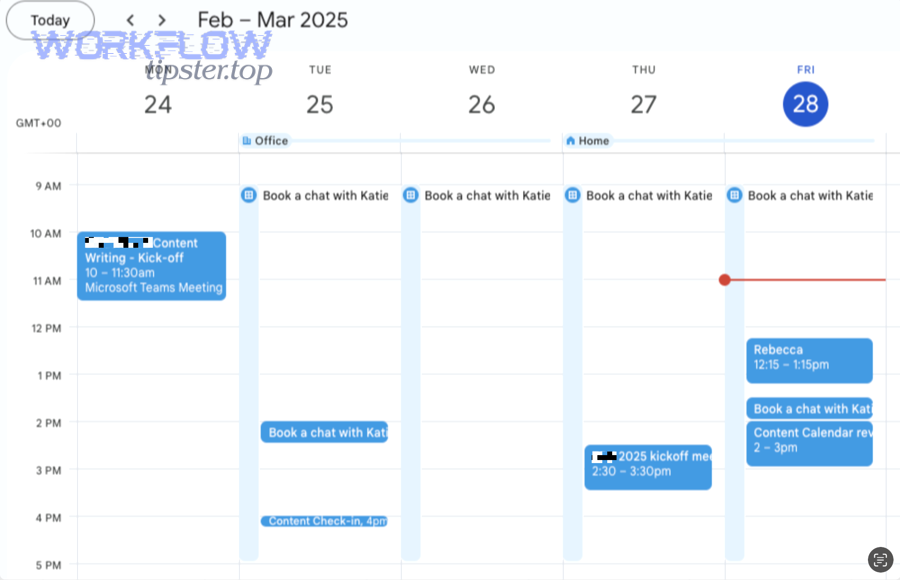
A Calendly → Google Calendar + Google Meet → Trello scheduling automation is an end-to-end workflow that turns a single booked meeting into (1) a Google Calendar event, (2) a Google Meet join link included in the event and notifications, and (3) a Trello card that captures the meeting details and next actions. (calendly.com)
More specifically, the “automation” promise is not just convenience—it is consistency: the same booking event should always create the same downstream objects, using the same rules, without manual copying. That consistency is what makes the workflow scale from “one person’s trick” into team-ready automation workflows that reduce handoff friction.
What data should be synced across Calendly, Google Calendar, Google Meet, and Trello?
The data that should be synced is the set of fields that makes the meeting actionable and auditable—so your calendar tells the truth and your Trello card drives follow-up without extra searching.
In practice, you can think of the information in four layers:
- Identity layer: invitee name, invitee email, host/assignee, meeting type
- Time layer: start time, end time, duration, timezone, buffers
- Context layer: agenda/topic, location/conferencing details, description, custom Q&A answers
- Operations layer: reschedule history, cancellation reason, internal notes, unique IDs for de-duplication
To keep the workflow stable, you should also decide a “source of truth” for each layer. For example, Calendly is usually the source of truth for invitee identity and booking time, while Trello becomes the source of truth for execution notes and post-meeting outcomes.
A simple mapping table helps teams align on what goes where. The table below shows a practical baseline mapping many teams use:
| Field | Best Source of Truth | Google Calendar Placement | Trello Placement |
|---|---|---|---|
| Meeting title/topic | Calendly event type + invitee | Event title | Card title |
| Start/end time + timezone | Calendly | Event date/time | Card due date (optional) + description |
| Google Meet link | Calendly/Google Calendar | Location/description | Card description + clickable link |
| Invitee email | Calendly | Guests/description | Description/custom field |
| Custom answers (intake) | Calendly | Description | Description/checklist/custom fields |
| Notes + outcomes | Trello | (optional) description update | Comments/checklist/fields |
Once the team agrees on this, the automation stops being “magic” and becomes a predictable system.
Is Google Meet created by Calendly, Google Calendar, or both?
Calendly can automatically include Google Meet conferencing details when you connect it to your Google account and set Google Meet as the event location, while Google Calendar can also generate Meet links depending on how the event is created and what conferencing settings are enabled. (calendly.com)
However, the operational difference matters: if your Meet link is generated consistently through the same path, it becomes easier to map into Trello and easier to debug when something goes wrong. On the other hand, if your Meet link sometimes comes from Calendly and sometimes from a Calendar-side setting, you can see intermittent “missing link” behavior that looks random but is actually configuration-dependent.
According to Calendly’s help documentation, when Google Meet is selected and configured, Calendly adds the Google Meet link to the calendar event and confirmation email when a meeting is scheduled.
How do you set up the automation step-by-step for teams?
You set up the automation by connecting Calendly to Google (for Calendar + Meet), then using an integration method to create or update a Trello card from each booking event, with clear field mapping and safeguards so reschedules and cancellations update the correct card. (help.calendly.com)
To better understand what “team-ready” means here, treat the setup like a small production system: define prerequisites, build the “happy path,” then add lifecycle handling and test cases so you can trust it when the calendar gets busy.
A practical team setup sequence looks like this:
- Connect Calendly to Google Calendar / Google Meet (so events carry conferencing details)
- Choose an integration approach to Trello (automation platform or Power-Up route depending on your use case)
- Define your Trello destination (board, list, labels, templates, checklists)
- Map fields (title, date/time, Meet link, invitee info, intake answers)
- Add a de-duplication strategy (one booking = one card)
- Handle reschedules + cancellations (update/move/archive as needed)
- Test with real scenarios (new booking, reschedule, cancel, timezone edge cases)
Which trigger events should you automate: new bookings, reschedules, cancellations, or all three?
There are 3 main trigger types you should automate—new bookings, reschedules, and cancellations—based on the criterion of meeting lifecycle stage.
Then, to keep the workflow coherent, you assign each trigger a single responsibility:
- New booking → Create card + add details
- Reschedule → Update the same card’s due date/time + add a note
- Cancellation → Move/label/archive the card + record cancellation reason
For example, if you only automate new bookings, Trello becomes outdated the moment a meeting changes. In contrast, if you automate the whole lifecycle, Trello stays aligned with reality and your team trusts it.
If you’re building your first version, start with new booking + reschedule (because those keep the board accurate), then add cancellation once the team agrees on whether they want archived cards or a “Canceled” list.
How do you map one booking into one Trello card without duplicates?
Mapping one booking into one Trello card is best achieved using (1) a unique booking identifier, (2) a “find-or-create” step, and (3) an update-only policy on reschedules, so the workflow creates exactly one card and then edits that card as the meeting changes. (zapier.com)
However, many teams accidentally create duplicates because they treat every event as “create,” even when the event is the same meeting in a new state. The fix is a simple idempotency mindset:
- Pick a stable unique key: booking ID, event URI, or a stable Calendly identifier stored in the Trello card (e.g., in description or a custom field).
- Before creating, search Trello: if a card with that key exists, update it instead of creating a new one.
- On reschedule/cancel: do not create new cards by default; update/move the existing one.
A reliable pattern is to store a line like “Calendly Booking ID: XYZ” in the Trello card description. Then any future trigger can search for that string and update the exact card.
This is also where “Workflow Tipster” teams often improve quality: they standardize a card template so every card contains the booking reference, the Meet link, and a short “Next action” checklist—making the automation resilient and the board readable.
Evidence: Zapier explicitly describes a common automation pattern where a new Calendly event can automatically create a corresponding Trello card, which is why you must add a lookup/de-duplication step if you also automate updates. (zapier.com)
Does this workflow work reliably without an automation platform?
Yes, this workflow can work reliably without an automation platform if your needs stay simple, because (1) Calendly can handle calendar + Meet details, (2) Trello can sync with Google Calendar via Power-Ups, and (3) your process tolerates fewer custom routing and lifecycle behaviors. (calendly.com)
However, the moment you need consistent card creation from bookings, richer field mapping, or lifecycle-aware updates, an automation layer becomes the practical choice because it gives you structured triggers, lookups, and conditional logic instead of manual glue.
The three reasons teams still succeed without automation platforms are:
- Native scheduling coverage: Calendly can automatically include Google Meet details in events and confirmations, reducing manual conferencing setup. (calendly.com)
- Basic deadline awareness: Trello’s Google Calendar Sync Power-Up connects a board with Google Calendar to help track deadlines. (trello.com)
- Operational discipline: if the team follows a consistent checklist after booking (create card, copy link), reliability comes from people—though it costs time.
What is the best approach: native integrations vs Zapier-style automations vs custom scripts?
Native integrations win in speed of setup, Zapier-style automations are best for flexibility and maintainability, and custom scripts are optimal for full control and advanced governance.
Then, to choose the best approach for your team, compare them using criteria that actually matter in scheduling operations:
| Approach | Best For | Strength | Trade-off |
|---|---|---|---|
| Native integrations | Individuals, simple teams | Fast, fewer moving parts | Limited routing + lifecycle logic |
| Automation platform | Most teams | Triggers, mapping, conditional rules | Needs monitoring + good naming discipline |
| Custom scripts | Advanced orgs | Full control, deep integration | Engineering cost + ongoing maintenance |
In other words, native tools keep the “hook chain” short, automation platforms keep it adaptable, and custom scripts keep it exact.
Which parts are “must-have” vs “nice-to-have” in a first version?
There are 2 main groups of features—must-have and nice-to-have—based on the criterion of whether the board stays truthful without human intervention.
Then, build your first version around must-haves:
Must-have
- Meet link reliably included in the calendar event
- Trello card created with core meeting details
- De-duplication so one booking = one card
- Reschedule handling (update the same card)
- Minimal error visibility (at least a notification when something fails)
Nice-to-have
- Card templates with checklists/labels per meeting type
- Routing to different boards/lists by event type
- Auto-tagging based on intake answers
- Reporting dashboards and reconciliation jobs
This split matters because the must-haves protect your team from “silent failure,” while nice-to-haves improve polish after the core behavior is stable.
How do you handle reschedules and cancellations so Trello stays accurate?
You handle reschedules and cancellations by treating a meeting like a lifecycle object: new booking creates a card, reschedule updates the same card’s time fields and notes, and cancellation moves or archives the card while preserving the reason and history. (zapier.com)
Specifically, the goal is simple: Trello should remain a trustworthy execution layer even as the calendar changes. That means you need update logic that is consistent, not “best effort.”
A practical lifecycle handling design includes:
- Reschedule: update Trello due date and add a short reschedule note
- Cancel: move card to “Canceled” list or archive, add cancellation reason if available
- No-show (optional): label as “No-show” after meeting time passes, if your team tracks that outcome
When a meeting is rescheduled, should you update the same Trello card or create a new one?
Updating the same Trello card wins in continuity, creating a new card is best for audit-style reporting, and a hybrid approach is optimal for high-volume teams that want both clarity and history.
Then, decide based on what the team needs to see at a glance:
- Update the same card (recommended default): Keeps all notes, links, and outcomes in one place. It also reduces board clutter and prevents “which card is the real one?” confusion.
- Create a new card (use sparingly): Useful when the reschedule is effectively a new engagement (e.g., new stakeholder, new meeting type) and you want separate execution tracks.
- Hybrid (best for advanced teams): Update the same card, but append a “Reschedule history” line in the description or a comment thread.
If you choose the update-same-card default, your de-duplication key becomes the backbone: it ensures every reschedule finds the right card and edits it.
What should happen in Trello when a meeting is canceled—archive, label, or move lists?
Archiving wins for board cleanliness, labeling is best for quick filtering, and moving to a “Canceled” list is optimal for team visibility and reporting.
Next, pick the option that matches how your team reviews work:
- Archive: best when canceled meetings are not valuable after the fact
- Label: best when you want the card to remain in context but clearly marked
- Move to “Canceled” list: best when you need to track cancellations as a metric or operational signal
A strong team default is: move to a “Canceled” list and apply a “Canceled” label, then archive older cancellations monthly if you want long-term cleanliness.
Evidence: Zapier’s Calendly→Trello patterns highlight creation of cards from scheduling events; lifecycle accuracy depends on extending that pattern to update/move actions when events change state. (zapier.com)
What are the common setup mistakes, and how do you fix them?
There are 5 common setup mistake categories—Meet link missing, wrong calendar selection, timezone drift, duplicate cards, and permission/ownership conflicts—based on the criterion of where the workflow breaks: conferencing, routing, time, identity, or access. (help.calendly.com)
Moreover, these issues usually appear only after the workflow is “live,” because test cases are too clean. The fix is to treat troubleshooting as part of the build, not as an afterthought.
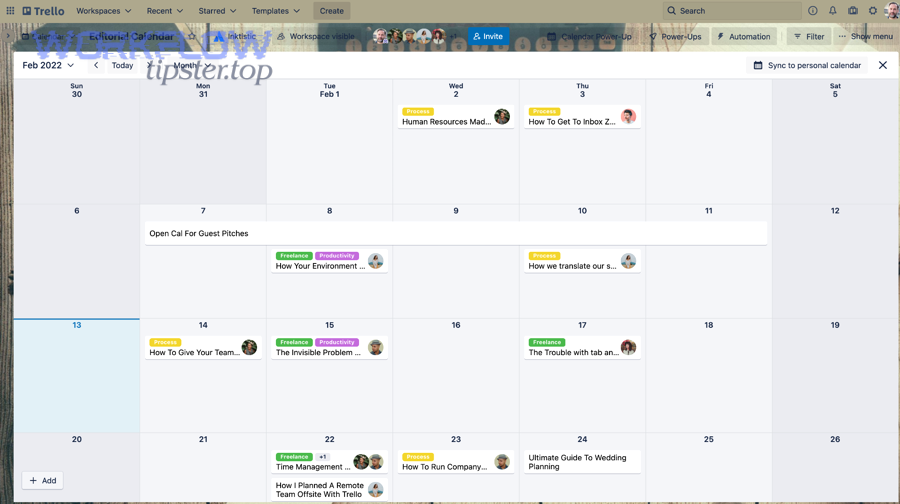
Here’s what to watch for and how to respond:
- Meet link missing → verify conferencing configuration and event location settings
- Wrong calendar used → confirm which calendar is connected and set as default target
- Timezone drift → pass timezone explicitly in notes and validate with DST boundary tests
- Duplicate Trello cards → implement lookup + idempotency key before create
- Access conflicts → align account permissions and ownership across apps
Why is the Google Meet link missing from the calendar invite or Trello card?
A Google Meet link is usually missing because the Meet link was never generated in the scheduling step, the wrong calendar/account was connected, or your mapping didn’t carry the conferencing field into the event description that gets synced into Trello.
Then, fix it using a checklist that traces the link through the chain:
- In Calendly: confirm the event location is Google Meet and the Google account connection is active
- In the calendar event: confirm the Meet details appear in the event’s location/description
- In Trello: confirm your automation copies the correct field (often description) that contains the Meet URL
If you want a practical rule: the Meet link must exist and be visible in the calendar event first. Only then can any Trello automation reliably copy it. Calendly’s own guidance states that when configured, the Meet link is added to the calendar event and confirmation email at scheduling time.
Are timezone and daylight-saving issues avoidable in this workflow?
Yes, timezone and daylight-saving issues are avoidable in this workflow because (1) Calendly captures invitee timezone, (2) Google Calendar stores events with timezone context, and (3) you can standardize how the time is displayed on the Trello card to prevent human misreads.
However, you avoid problems by adding explicit practices:
- Always write the timezone into the Trello card description (e.g., “10:00 AM ET / 7:00 AM PT”)
- Test a DST boundary date before you roll out workflow changes
- Keep one source of truth for meeting time (typically Calendly → Calendar), and treat Trello as a display + execution layer
Evidence: Calendly’s documentation emphasizes that it adds Meet details to the calendar event and confirmations when a meeting is scheduled; that same “calendar event as truth” principle helps minimize ambiguity when time shifts occur across tools.
Contextual Border: You now have the complete, intent-matching setup: a booking becomes a calendar event with a Meet link and a Trello card, and lifecycle changes keep everything aligned. Next comes micro-level optimization—how teams govern the workflow, prevent edge-case failures, and make the system resilient at scale.
How do you optimize and govern the workflow after launch?
You optimize and govern the workflow by tightening reliability (deduplication + monitoring), clarifying ownership (who controls which connector), and reducing sensitive data flow—so the system stays automated instead of sliding back into manual updates as edge cases appear. (zapier.com)
Especially for teams that run many concurrent processes—like incident response automation workflows such as “github to monday to google chat devops alerts”—governance is what keeps automations helpful rather than noisy. The same principle applies to scheduling: you want signals, not clutter, and control, not confusion.
What’s the difference between “sync” and “automation” in this scheduling stack?
Sync wins for passive alignment, automation is best for rule-driven execution, and manual updates are optimal only for one-off exceptions.
Then, use the antonym in your title as a decision anchor:
- Sync is typically “keep two systems aligned,” often with limited conditions.
- Automation is “when X happens, do Y,” with clear triggers, branching rules, and lifecycle behaviors.
- Manual updates are the antonym: human-driven copying, which is flexible but inconsistent.
If you’re trying to build team trust, automation beats “light sync” because it can be designed to be deterministic: find-or-create, update-if-found, move-on-cancel, and alert-on-failure.
How can teams route meetings to the right Trello board/list automatically (by event type, answers, or team member)?
Routing works by defining 3 main routing patterns—event-type routing, intake-answer routing, and owner-based routing—based on the criterion of what decision signal you trust most.
Next, implement the simplest routing signal first:
- Event type → board/list (e.g., “Sales Demo” goes to Sales board; “Onboarding” goes to CS board)
- Intake answers → labels/lists (e.g., “Urgent” answer applies a red label or routes to “Priority”)
- Owner/host → board (e.g., host A → board A, host B → board B)
A key governance tip is to document routing rules in one place so people don’t “fix” the automation by adding ad-hoc manual steps. That’s the same idea teams use in other workflows like “airtable to microsoft excel to box to dropbox sign document signing”—rules win when they are visible and stable.
What advanced safeguards prevent duplicates and “ghost cards” during retries or outages?
There are 4 advanced safeguard types—idempotency keys, lookup-before-create, retry visibility, and reconciliation checks—based on the criterion of how failures manifest: duplicates vs missing objects vs partial updates.
Then, put them in a simple maturity progression:
- Level 1 (baseline): store booking ID on the card, search before create
- Level 2 (resilience): update existing card on reschedule/cancel, never create a “new card for the same booking”
- Level 3 (observability): send failure notifications and log errors (even if it’s just email/Slack/Chat)
- Level 4 (reconciliation): periodic check that every meeting in the calendar has exactly one corresponding Trello card
This is where interruption cost becomes real: every duplicate card creates extra triage and task-switching. According to a paper by the University of California, Irvine (Donald Bren School of Information and Computer Sciences), in 2008, interruptions can push people to work faster but at the cost of higher stress and frustration—exactly what messy workflows amplify. (ics.uci.edu)
Do you need compliance controls (PII minimization, access control, audit logs) for scheduling automations?
Yes, you often need basic compliance controls for scheduling automations because (1) meeting data can contain personal information, (2) shared boards expose details widely, and (3) integrations can silently expand access across tools—especially in regulated or client-facing teams.
Next, apply a “minimum necessary” governance approach:
- PII minimization: only store what the team needs to act (often name + time + link is enough)
- Access control: restrict who can edit connectors and who can view sensitive boards
- Audit discipline: keep a consistent reference (booking ID) so you can trace what happened and when
If your meetings involve sensitive customer details, store those details in the system designed for it (CRM/helpdesk) and keep Trello as a task wrapper that links out, rather than a data warehouse.