


Getting Google Forms responses into Gmail quickly means you stop “checking the Responses tab” and start acting on submissions the moment they arrive. The most reliable approach is to choose a notification method that matches your volume, your routing needs, and how much control you want over the email content.
Next, you’ll want to decide whether you prefer a no-code setup (fast, minimal maintenance) or a script-based setup (flexible logic, advanced routing, and cleaner data handling). Both can work well—but they solve different problems.
Then, once you have alerts flowing, the real value comes from routing: sending the right email to the right person, using rules like “Issue type,” “Region,” or “Priority,” while still keeping a consistent confirmation email for the respondent.
Introduce a new idea: the best Google Forms → Gmail workflow isn’t just “send an email”—it’s a complete notification system that stays secure, avoids quota surprises, and scales from a few submissions a week to hundreds a day.
What does it mean to send Google Forms responses to Gmail?
Sending Google Forms responses to Gmail means triggering an email message when a new submission is received, using the form’s response data to create an alert, confirmation, or follow-up email for the right recipient(s).
To better understand what you’re building, think of this as a simple chain:
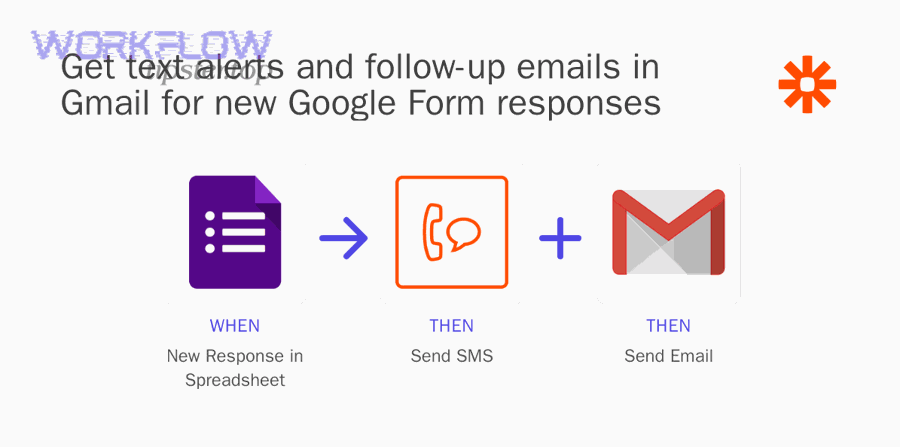
- Trigger: a form response is submitted
- Data: answers become variables (name, email, category, message, etc.)
- Action: an email is composed and sent via Gmail (or a Gmail-connected sender)

More specifically, “send to Gmail” can mean different things depending on your goal:
- Internal notification: alert a team inbox (e.g., support@, sales@) with a copy of the submission
- Auto-reply to the respondent: send a confirmation or next-step email
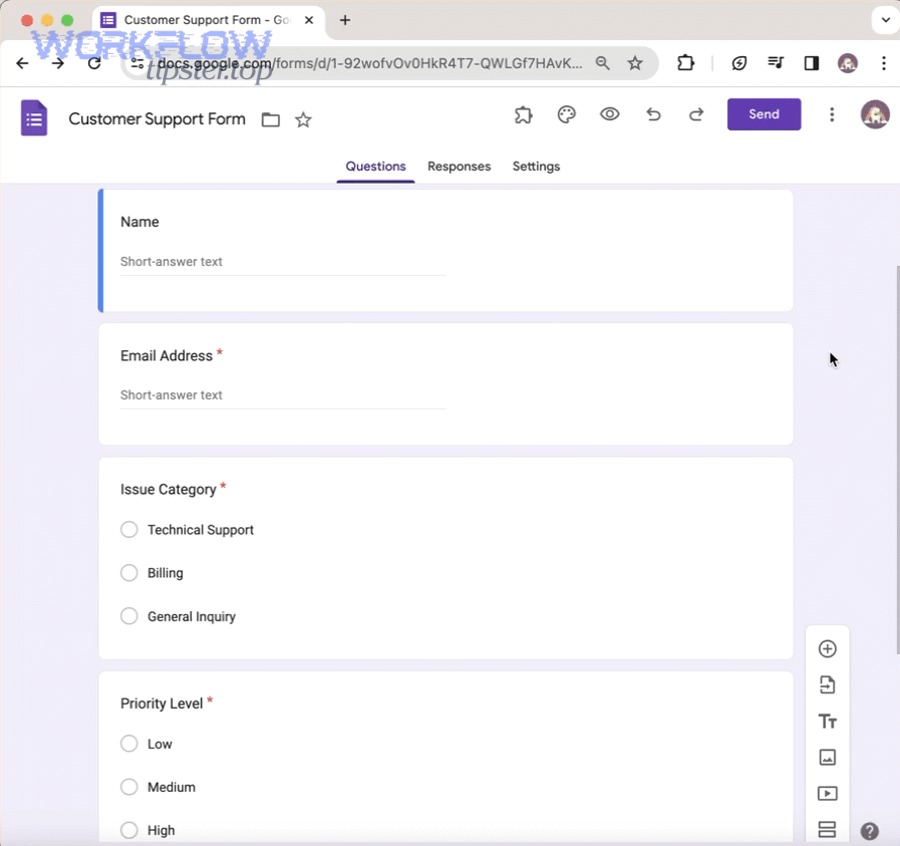
- Conditional routing: email different people based on answers (e.g., “Billing” → finance, “Technical” → support)
- Structured email formatting: include a clean summary, links, or identifiers for tracking
Why do people connect Google Forms to Gmail in the first place?
Most teams connect Google Forms to Gmail because speed and accountability improve when submissions become actionable messages, not passive rows in a spreadsheet.
Specifically, the business outcomes usually come from three practical wins:
- Faster response times (the right person gets notified instantly)
- Reduced missed submissions (alerts land in the inbox you already watch)
- Better follow-up quality (automatic confirmations and templated replies keep messaging consistent)
In addition, this is the same “notification-first” pattern you’ll see across many Automation Integrations—for example, routing tickets from google docs to zendesk, pushing exported data from box to microsoft excel, or creating task cards from airtable to trello when new requests arrive.
According to a quickstart from Google Developers, a common pattern is to use triggers so that a Gmail message is sent when a user responds to a form. (developers.google.com)
Can you automate Google Forms to Gmail without code?
Yes—Google Forms to Gmail can be automated without code using add-ons, automation platforms, or built-in confirmation features, which gives you faster alerts, fewer missed submissions, and consistent follow-ups.
Next, the key is choosing a no-code method that matches what you mean by automation: a simple “notify me” email is very different from “send different emails to different teams with templates.”
Here are the most common no-code paths, ranked by simplicity:
- Forms add-ons (installed directly inside Google Forms)
- Automation platforms (connectors that watch for responses and send emails)
- Gmail filters + labeling (not automation of sending, but automation of organizing inbound alerts)

What no-code options exist (add-ons, Zapier, email rules)?
There are 3 main no-code options for Google Forms → Gmail: add-ons inside Forms, external workflow tools, and Gmail-side rules, based on where the automation runs (Forms, a connector, or your inbox).
Then, pick based on control:
- Add-ons (inside Forms): best when you want “set it once” notifications from within the form editor, with basic routing and templates. One popular listing is Email Notifications for Google Forms on the Google Workspace Marketplace. (workspace.google.com)
- External workflow tools (connector-based): best when you want multi-step flows (notify + log + assign + follow-up). Zapier specifically positions Gmail ↔ Google Forms as a no-code integration you can set up quickly. (zapier.com)
- Gmail rules (filters/labels/forwarding): best when you already have emails arriving and simply need automation to organize them (label by sender, forward to a shared mailbox, mark as important, etc.)
As a practical bridge between “pure no-code” and “scripted,” you can also combine these approaches: use an add-on to send a standardized internal notification, then use Gmail filters to route it into the right folder and auto-assign it via your team’s process.
What limitations should you expect from no-code methods?
No-code methods are fast to launch, but they typically limit how deeply you can customize logic, deduplicate alerts, and manage scale.
More importantly, watch for these constraints:
- Conditional routing may be shallow: you may get “if answer contains X” rules, but not complex multi-condition logic.
- Formatting can be template-bound: you might not be able to build a truly “clean” email with sections, dynamic tables, or advanced personalization.
- High volume can hit platform constraints: if you send a lot of emails daily, you’ll need to understand sending limits and quotas for the account doing the sending. Google Workspace documentation explains daily sending limits and how unique recipients are counted. (support.google.com)
- Troubleshooting can be opaque: if an integration fails, you may only see a generic error with limited logging.
A useful mindset is: no-code works best when the workflow is linear. Once you need branching logic, audit trails, or strict formatting, it’s time to consider a more controllable method.
Should you use Apps Script for Google Forms to Gmail automation?
Yes—using Google Forms to Gmail with Apps Script is a strong choice because it enables advanced routing, precise email templates, and reliable logging, especially when your workflow needs conditions, deduplication, or multi-step follow-ups.
Next, the question becomes: do you want “maximum control,” and are you willing to maintain a small script?

What can Apps Script do that add-ons can’t?
Apps Script can do three things add-ons often struggle with: richer decision logic, cleaner message composition, and dependable internal tracking.
Specifically, Apps Script helps you:
- Route by multiple fields at once: e.g., if Priority = High AND Issue type = Billing AND Customer type = Enterprise, then notify finance + manager.
- Standardize templates: build consistent subject lines, sections, and response summaries (even as your form changes).
- Add tracking identifiers: generate a unique submission ID and include it in the email subject for easy searching.
- Prevent duplicate sends: store the last processed timestamp or response ID and skip repeats.
- Create multi-step sequences: send an internal alert immediately, then send the respondent a tailored follow-up after a delay, then send a reminder if no one replies.
According to Google Developers’ guidance on sending emails about new Forms submissions, the typical approach is to use triggers to send Gmail messages when responses are submitted. (developers.google.com)
A clean operational benefit is that Apps Script gives you something no-code tools often don’t: a single place to see exactly what happened, because you can log and debug the process.
What are the trade-offs (maintenance, quotas, permissions)?
The trade-offs are real: Apps Script requires maintenance, uses your account’s quotas, and needs explicit permissions (scopes) to read form data and send emails.
More importantly, you should plan for:
- Maintenance: if your form fields change (rename, remove, reorder), your email template logic may need a small update.
- Quotas: sending email and reading/writing data is subject to quotas that vary by account type. Google’s Apps Script quotas documentation lists daily limits like “email recipients per day” and other service quotas. (developers.google.com)
- Permissions: scripts must be authorized; in team settings, this may require admin approval depending on your environment.
- Deliverability & compliance: scripted emails should follow best practices (clear sender identity, no spammy content, consistent replies).
If your workflow is mission-critical, you’ll also want a fallback: for example, still collect responses in the linked spreadsheet, so you can recover even if email sending pauses.
What are the best ways to route Google Forms notifications into Gmail?
There are 4 main ways to route Google Forms notifications into Gmail: direct recipient lists, conditional rules by answer, team inbox routing, and workflow-platform routing, based on how many recipients you need and how dynamic your rules are.
Next, the most important question is not “can I route emails?”—it’s “can I route them predictably as my form and team evolve?”
How do you send to one inbox vs multiple recipients?
You can route Google Forms → Gmail to one inbox by using a single notification recipient, and to multiple recipients by using distribution lists, conditional routing rules, or multi-send logic in a workflow tool.
Specifically, choose one of these patterns:
- One inbox (simplest):
- Use a shared mailbox or group (e.g., support@company.com)
- Keep the subject line consistent so filters and triage are easy
- Add a short “action line” at the top: what the team should do next
- Multiple recipients (structured):
- Static list: notify several people every time (works for small teams)
- Role-based list: notify groups rather than individuals (reduces maintenance)
- Conditional routing: different recipients based on form answers (best for multi-department use)
To illustrate, a sales intake form might send:
- Every submission → shared sales inbox
- Enterprise leads → also notify account executive
- Requests with “Urgent” → also notify team lead
A good rule of thumb: if routing rules are stable and few, an add-on may be enough; if routing rules are conditional and evolving, script or connector logic tends to stay cleaner long-term.
Which routing method fits your use case (add-on vs script vs Zapier)?
Add-ons win for speed, scripts win for precision, and Zapier-style connectors win for multi-app workflows—so the “best” method depends on whether you value setup time, control, or ecosystem reach.
Meanwhile, use this table to compare the most common routing choices and what they’re best for :
| Method | Best for | Routing power | Setup effort | Scale notes |
|---|---|---|---|---|
| Forms add-on | Quick internal alerts + basic templates | Medium | Low | Depends on add-on limits and plan |
| Apps Script | Complex conditions + clean templates + logging | High | Medium | Subject to Apps Script + email quotas |
| Zapier / connectors | Multi-step “notify + log + assign” workflows | High | Low–Medium | Depends on plan + task usage |
| Gmail filters | Organizing inbound alerts | Low | Low | Great complement, not a sender |
If you prefer connector-based routing, Zapier provides a “Gmail + Google Forms” integration setup flow focused on trigger/action configuration. (zapier.com)
In addition, if you’re already building other Automation Integrations—like google docs to zendesk for ticket creation—connector platforms can help you standardize your automation stack instead of stitching tools together ad hoc.
What are common issues when sending Google Forms responses to Gmail?
There are 5 common issues when sending Google Forms responses to Gmail: permissions failures, quota limits, missing triggers, formatting errors, and deliverability problems, based on where the workflow breaks (authorization, sending, triggering, templating, or inbox behavior).
Next, the fastest way to fix problems is to identify which layer failed: 1) the form didn’t trigger, 2) the integration didn’t run, or 3) the email was sent but didn’t land where you expected.
Why are emails not sending (triggers, permissions, quotas)?
Emails usually fail to send because the workflow can’t authenticate, the trigger isn’t firing, or the sender hits a quota/limit.
Specifically, check these in order:
- Authorization & permissions:
- Add-ons and scripts must be authorized to access form data and send mail.
- In managed environments, an admin may need to approve scopes.
- Trigger configuration:
- For Apps Script, confirm the trigger type (on form submit vs time-based).
- For connector tools, confirm the correct trigger source (“new response in spreadsheet” vs “new form response”).
- Quotas and limits:
- Apps Script has daily quotas, including email recipient limits that depend on account type. (developers.google.com)
- Gmail itself also has sending limits that can affect automated sending behavior. (support.google.com)
Once you confirm the system is allowed to send and triggers are firing, you can move from “it doesn’t work” to “it works reliably.”
How do you troubleshoot formatting and spam filtering?
To troubleshoot formatting, you standardize the template and test with known sample data; to troubleshoot spam filtering, you make the message clearly legitimate, consistent, and properly addressed.
More specifically, common formatting pitfalls include:
- Broken variable mapping: placeholders that don’t match field names
- Unreadable plain-text walls: no spacing, unclear labels, missing line breaks
- Overly long subject lines: too many fields stuffed into one line
- Missing reply-to intent: recipients don’t know how to respond or where to respond
And common deliverability/spam triggers include:
- Overuse of urgent language, excessive links, or repeated identical content
- Using a sender identity that recipients don’t recognize
- Sending too many similar emails too quickly to many external recipients
A practical approach is to create a “template sanity check”:
- Subject: [Form Name] New Submission — [Category]
- Body: short summary at the top + labeled fields below
- Footer: “This email was generated from [Form Name]. Reply to this email to contact the submitter (if applicable).”
If you want to go beyond troubleshooting and reduce inbox stress overall, research suggests that email interruptions and frequent checking can have measurable well-being impacts—so your automation should also help you manage when and how alerts appear. According to a study by the University of British Columbia from the Department of Psychology, in 2015, limiting how frequently people checked email reduced stress in an experimental field study. (interruptions.net)
That’s why good routing is not only about delivery—it’s about controlling the attention cost of notifications.
Is it secure to send form submissions to Gmail?
Yes—sending Google Forms submissions to Gmail can be secure when you minimize sensitive data, control permissions, use trusted tooling, and apply least-privilege access, because the biggest risks come from over-sharing, misrouting, and weak account security.
Next, treat security as a workflow design choice, not a checkbox: what you collect, who can see it, and where it lands matters more than the tool itself.
What security practices matter most (data minimization, access control)?
The most important security practices are data minimization, access control, and auditability, because form submissions often contain personal data that becomes harder to govern once it’s copied into email.
Specifically, apply these practices:
- Data minimization (collect less, send less):
- Don’t ask for sensitive identifiers unless necessary
- Don’t include sensitive answers in the email body if a link to a secure record is enough
- Use partial masking where possible (e.g., last 4 digits, not full)
- Access control (restrict who receives what):
- Route to shared inboxes with defined membership
- Avoid forwarding to personal addresses when the workflow is organizational
- Use groups for role-based access instead of individuals
- Account security (protect the sender and recipients):
- Enable strong authentication practices on accounts involved
- Make sure the automation runs under the right account (not a personal account used by multiple people)
- Auditability (prove what happened):
- Keep a log of submissions in a spreadsheet or database
- Add a unique submission ID in the subject so messages can be tracked
In short, “secure enough” usually means your email is a notification and your system of record remains controlled—especially if you are handling customer requests, internal reports, or intake forms.
Contextual Border: At this point, you’ve covered the macro goal—reliable, routed Google Forms → Gmail notifications. Next, we’ll shift into micro-level enhancements: template personalization, conditional confirmations, and advanced workflows that make your automation feel polished rather than generic.
How can you customize Google Forms to Gmail workflows for advanced use cases?
Google Forms to Gmail workflows can be customized by adding conditional templates, multi-step sequences, structured tracking, and cross-app actions, so your emails become tailored, accountable, and scalable rather than one-size-fits-all alerts.
Next, the “advanced” move is to treat each submission as an object that can trigger different messaging paths—like a lightweight routing engine.
How do you send conditional confirmation emails to respondents?
You send conditional confirmation emails by using answers as branching rules and mapping each branch to a tailored template that confirms the right next step for that specific respondent.
Specifically, build templates like:
- If Request type = Support → “We’ve received your issue; here’s the SLA and what to include”
- If Request type = Billing → “We’ve received your billing question; here’s what we need to verify”
- If Priority = Urgent → “We’re escalating your request; expect an update within X hours”
This is where Apps Script or a connector platform shines, because it can:
- Evaluate multiple fields at once
- Add dynamic sections (e.g., show only relevant instructions)
- Include an internal reference ID for tracking
If you’re going no-code, add-ons can often handle “different templates based on answers,” but the rule depth varies—so test complexity early with real sample submissions.
How do you create a multi-step follow-up sequence in Gmail?
A multi-step follow-up sequence combines an instant internal alert with delayed and conditional follow-ups, so the system nudges the right people only when needed.
For example, a simple three-step sequence might look like:
- Immediately: internal notification to the team inbox with the submission summary
- Immediately: confirmation email to the respondent with a clear expectation (“We’ll reply within 1 business day”)
- After 24 hours (if no reply logged): reminder email to the internal owner with a short summary + link to the record
This is also where “Manual vs Automated” becomes concrete: manual follow-up depends on someone remembering; automated follow-up depends on rules and timers.
If you want a quick visual tutorial for an add-on-based approach, there’s a YouTube guide that demonstrates installing and using a Form notification add-on.
How do you track submissions with IDs and Gmail labels?
You track submissions reliably by generating a unique ID per response, placing it in the email subject, and applying Gmail labels (or rules) so every message is searchable, grouped, and auditable.
A practical pattern:
- Submission ID: GF-YYYYMMDD-####
- Subject line: [GF-20260131-0042] New Request — Billing — High
- Labels: Forms/Intake, Forms/Urgent, Forms/Billing
Then, connect your routing rules to labeling rules:
- If subject contains “Billing” → apply Forms/Billing
- If subject contains “High” → apply Forms/Urgent
This gives you a self-organizing inbox, and it scales better than relying on people to remember where to look.
When should you switch to a helpdesk or CRM instead of Gmail?
You should switch from Gmail-first workflows to a helpdesk or CRM when you need assignment, SLAs, conversation history, reporting, and multi-agent ownership—because email notifications alone don’t provide a system of record.
This is where automation stacks often expand beyond email:
- Intake form → create a ticket (helpdesk)
- Ticket → send confirmation email (Gmail)
- Ticket updates → notify internal channel (chat or project tool)
That evolution is exactly why teams build broader Automation Integrations over time—starting with “notify me,” then moving toward “create, assign, track, and report.” If you’re already building flows like google docs to zendesk, consider using Gmail as the notification layer while your helpdesk becomes the tracking layer.
Finally, if your volume is growing and you’re concerned about sending caps, revisit quota expectations early. Google Apps Script and Gmail sending limits can shape how you design high-volume notification patterns, especially for external recipients. (developers.google.com)