


If you want instant visibility into every submission, you can connect Google Forms to Slack so each new form response automatically posts an alert to the right channel or DM—without copying, pasting, or checking spreadsheets all day.
Next, you’ll also want to choose the right setup style: a no-code connection for speed and simplicity, or a manual build for maximum control and customization when your workflow is unique.
Then, once the alerts are flowing, you’ll need to control what gets sent, where it goes, and how it looks—so your team gets clear, actionable notifications instead of noisy, hard-to-read messages.
Introduce a new idea: the best results come from treating “Google Forms → Slack” as a complete alert system (trigger, message design, routing, and reliability), not just a one-time connection.
What does “Google Forms to Slack automation” mean for form response alerts?
Google Forms to Slack automation is a team notification workflow that turns a submitted form response into an immediate Slack message, typically posted to a channel or sent as a DM, so people can act on incoming requests in real time.
To better understand why this matters, it helps to break the workflow into the exact data you can send and how the alert becomes useful instead of overwhelming.

A practical “form response alert” has four moving parts that stay consistent no matter which method you choose:
- Trigger: a response is submitted (or a response is updated).
- Data: the answers and metadata you want to include (name, email, request type, notes, timestamps).
- Destination: the Slack channel or the person who should be notified.
- Message template: the structure that makes the alert scannable and actionable.
When these parts are designed well, Slack becomes the “front door” for requests while Google Forms remains the clean intake layer. That separation is why teams use this setup for lead capture, HR requests, internal IT tickets, event registration, customer feedback, and quick approvals.
What information from a Google Form response can you send to Slack?
There are 6 main “fields” you can send from Google Forms to Slack—answers, submit timestamp, responder identity, file links, form metadata, and calculated/contextual fields—based on what your form collects and what your automation tool can map.
More specifically, the goal is to send the minimum necessary content that still lets someone take the next action quickly.
Here’s what most teams include in a Slack alert (and why):
- Primary answers (must-have): request type, priority, key details, and any selections that determine routing.
- Responder details (conditional): name, department, email—only if your process needs follow-up.
- Timestamp (must-have): when the response arrived, especially if you use SLAs or time windows.
- Links (high value): a link to the response row (if stored in Sheets) or a link to internal docs/resources that guide the next step.
- Attachments (optional): if the form allows file upload, you can include the file link so the team doesn’t hunt for it.
- Context fields (advanced): tags like “New lead,” “Bug report,” “Refund request,” or calculated fields like “Region = APAC” used for routing.
To keep alerts clean, many teams use a “headline + summary + next step” structure:
- Headline: “New Form Response: [Request Type]”
- Summary: 2–4 key fields (name, topic, urgency, short note)
- Next step: “Reply with ✅ to claim” or “Click link to review details”
That structure is the beginning of your reliability plan, because a clear message reduces back-and-forth and avoids duplicate handling.
Can Google Forms send notifications to Slack automatically?
Yes—Google Forms can send notifications to Slack automatically because you can (1) connect a trigger from form submissions, (2) deliver messages into a specific Slack destination, and (3) format alerts consistently so teams respond faster with less manual checking.
Next, you’ll get the best outcome when you choose a setup path that matches your team’s speed, complexity, and governance needs.
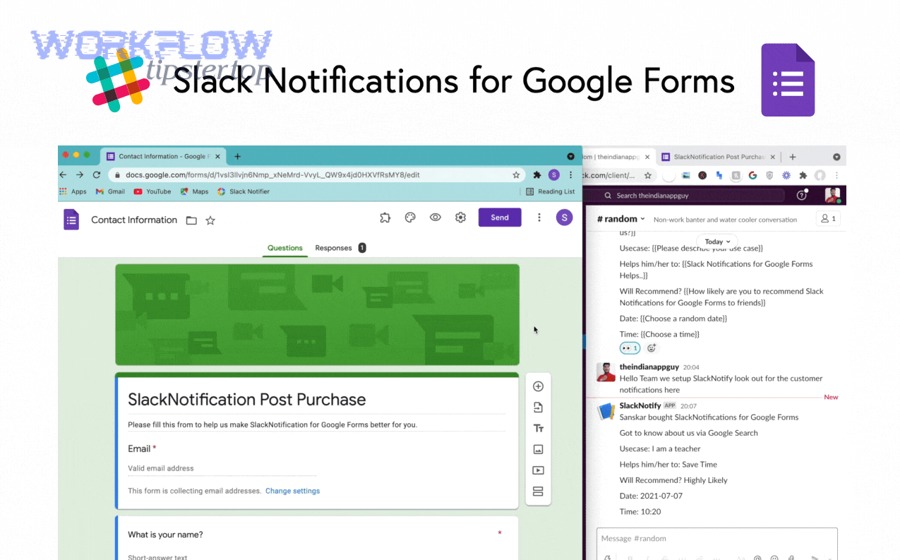
In practice, teams usually pick one of these automation paths:
- No-code automation platform (fast to launch, easy to maintain)
- Google Workspace add-on / connector (installed inside Google ecosystem)
- Manual build using Apps Script + Slack Incoming Webhooks (maximum control)
The “automatic” part comes from the same idea across all three: a response event triggers message creation. Tools simply change how much you can customize, how quickly you can ship, and how much maintenance you accept.
According to a study by University of California, Irvine from the Department of Informatics, in 2008, participants completed interrupted tasks faster but reported higher stress, frustration, and time pressure—showing why pushing form updates automatically (instead of constant checking) can reduce the need for manual context switching. (ics.uci.edu)
Do you need a linked Google Sheet to push Google Forms responses to Slack?
No—you don’t always need a linked Google Sheet to push Google Forms responses to Slack because (1) some connectors can read the form response event directly, (2) some workflows use the form’s internal response feed, and (3) manual webhook methods can send messages without relying on Sheets.
However, a linked Google Sheet often becomes the easiest “single source of truth,” so it’s important to understand when it helps.
Here’s the practical rule:
- You usually need a linked Sheet when your automation tool triggers from “New Spreadsheet Row,” you want stable row links, or you want to run filters/logic on stored data.
- You may not need a linked Sheet when your trigger is “New Form Response” directly and your tool can map fields without a row-based trigger.
- You should want a linked Sheet when you need auditing, reprocessing, deduplication, or reporting across responses.
A Sheet makes the alert system easier to manage because it gives you a log. If Slack is where you act, the Sheet is where you verify, reconcile, and improve the workflow over time.
How do you connect Google Forms to Slack step by step using a no-code method?
A no-code connection method links Google Forms to Slack in 7 steps—choose a trigger, connect your Google account, select the form (or response source), connect Slack, map fields into a message, test the workflow, and turn it on—so every new response posts an alert automatically.
To begin, you should decide whether the alert should go to a shared channel (visibility) or a DM (privacy), because that choice changes your message design.
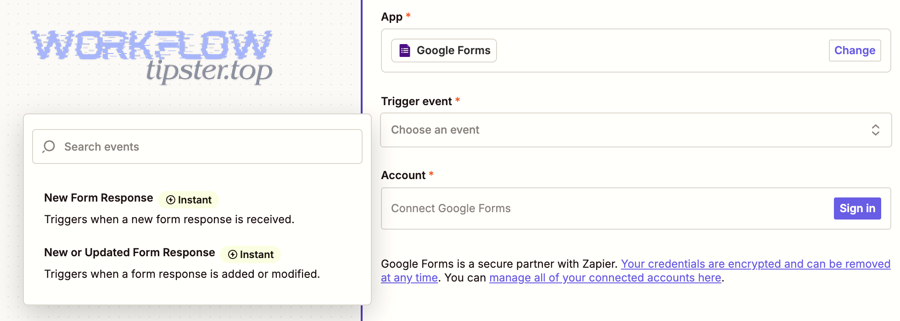
Here’s the step-by-step that stays consistent across most no-code platforms:
- Define the alert goal
- What action should happen after the message appears? (claim a request, follow up with a lead, review a submission, escalate urgent issues)
- Choose the trigger
- “New form response” or “New or updated form response” based on your process.
- Connect the Google account
- Use the account that owns the form or has access to responses.
- Select the form (or response sheet)
- Pick the exact form, and ensure it’s collecting responses properly.
- Choose the Slack action
- Post to channel, send DM, post as a bot, or post to a specific channel.
- Map fields into the Slack message template
- Insert only the fields that enable action. Add labels for scannability.
- Test + publish
- Submit a test form response, verify formatting, verify routing, and turn on the automation.
This is where Automation Integrations become a real productivity lever: once your team trusts that every response appears reliably in Slack, they stop refreshing tabs and start working from a single stream of actionable alerts.
Documentation for common Google Forms + Slack no-code workflows highlights templates that can message a Slack channel or DM when a new (or updated) form response is submitted. (zapier.com)
How do you map Google Forms answers into a Slack channel message?
You map Google Forms answers into a Slack channel message by using 3 elements—(1) labeled fields, (2) a consistent message order, and (3) a clear next action—so recipients can scan the alert and respond correctly within seconds.
Specifically, message clarity depends less on “including everything” and more on presenting the right fields in the right sequence.
A high-performing template looks like this:
- Title line: “New Form Response: {Request Type}”
- Who/where: “From: {Name} — {Team/Department}”
- Key details:
- “Priority: {High/Medium/Low}”
- “Topic: {Category}”
- “Summary: {Short answer / description}”
- Link: “View full response: {Row link or response link}”
- Next step: “Reply ✅ to claim / Reply ❓ if you need more info”
If you expect multiple categories of submissions, map one “Routing Field” into the message early (for example, “Category: IT Access” or “Category: Sales Lead”) so the channel immediately understands context.
When your Slack message is consistent, you unlock two benefits:
- People can recognize alerts instantly without re-reading formatting every time.
- You can route and filter later using the same field structure.
How do you send Google Forms alerts to a Slack channel vs a Slack DM?
Slack channels win in shared visibility, Slack DMs are best for private ownership, and a hybrid approach is optimal for teams that need both accountability and privacy.
Meanwhile, your best choice depends on the sensitivity of responses, the number of responders, and whether you want collective triage or direct assignment.
Use a Slack channel when:
- Multiple people can act on the same request (triage, support, ops).
- You want transparency (“who picked up what”).
- You need to prevent duplicate work by letting everyone see the same incoming alert.
Use a Slack DM when:
- Responses include sensitive details.
- One person owns the workflow end-to-end.
- You want to reduce noise in shared channels.
Use hybrid routing when:
- You post a short “signal” to a channel (request type + priority) and send details to a DM.
- You post everything to a private channel for a specific team and only escalate urgent items to a broader channel.
A simple policy keeps teams sane: “Channels for shared work, DMs for private follow-up, and only urgent items go everywhere.”
What’s the difference between no-code and manual (Apps Script/webhook) methods for Google Forms → Slack?
No-code wins in speed and maintainability, manual Apps Script/webhook is best for deep customization, and add-on-style connectors are optimal when you want work to stay inside Google Workspace with minimal tooling sprawl.
On the other hand, your real decision should be driven by message complexity, governance, and long-term ownership.
Here’s how to compare them across the criteria teams actually care about:
| Decision factor | No-code method | Manual Apps Script/webhook |
|---|---|---|
| Time to launch | Fast (hours) | Slower (days) |
| Custom routing/logic | Medium (rules/filters) | High (any logic) |
| Message formatting | Medium to high | High (full payload control) |
| Maintenance burden | Lower | Higher |
| Debugging | Platform logs | You own logs + error handling |
| Governance | Depends on tool policies | You control code + access |
No-code methods are excellent for common patterns like “new response → post to #requests.” Manual methods are excellent when you need specialized behavior like:
- Route to different channels based on multiple answers and time windows
- Build a message that changes format based on response content
- Implement deduplication keys and idempotency logic
- Enforce strict data minimization rules for compliance
Slack’s developer documentation describes incoming webhooks as a way to post messages into Slack using a unique URL and a JSON payload, which is the backbone of many manual “Forms → Slack” builds. (docs.slack.dev)
Which method is better for teams: No-Code vs Manual?
No-code is better for most teams because it delivers faster setup, easier ownership, and predictable maintenance, while manual is better for technical teams that need advanced logic, specialized formatting, or strict controls that no-code rules cannot express.
However, the best method is the one your team can sustain after launch—because reliability matters more than cleverness.
A quick decision guide:
Choose no-code if you:
- Want results quickly and don’t want to maintain scripts
- Need a standard alert workflow (channel or DM)
- Prefer visual configuration and easy testing
- Want teammates to edit the workflow without engineering support
Choose manual (Apps Script/webhook) if you:
- Need complex routing and custom payloads
- Need strict control over what data is sent to Slack
- Want to integrate multiple services in one script
- Have engineering ownership available long-term
If your team is unsure, start with no-code, prove the alert workflow, and only move to manual when a specific requirement forces it.
How do you ensure Google Forms → Slack notifications are reliable and not noisy?
You ensure Google Forms → Slack notifications are reliable and not noisy by (1) sending only actionable fields, (2) filtering and routing responses to the right destination, and (3) adding safeguards like deduplication, testing, and monitoring so the same response doesn’t trigger repeated alerts.
Besides message design, reliability comes from operational habits—how you test changes, handle failures, and keep alerts aligned with team workflow.
A reliable alert system behaves like this:
- Every response creates exactly one alert (unless intentionally configured otherwise).
- The right people see it (routing matches ownership).
- The message contains a next action (not just raw data).
- Failures are visible (you can tell when something breaks).
To achieve that, treat the workflow like a mini product: define success, test it, and monitor it.
How can you filter and route form alerts to the right Slack channel?
There are 4 main routing types for form alerts—by category, by priority, by team/region, and by responder type—based on the criterion that best predicts who should act next.
More specifically, routing becomes easy when your form includes at least one “decision field” designed for classification.
Here are common routing designs teams use:
- Routing by category (most common)
- “IT Support,” “HR Request,” “Sales Lead,” “Bug Report,” “Partnership Inquiry”
- Each category maps to a Slack channel owned by that function.
- Routing by priority (noise control)
- “High” posts to an urgent channel or pings a person
- “Normal” posts to a standard triage channel
- “Low” logs quietly (or posts in a low-traffic channel)
- Routing by region/time zone (distributed teams)
- Route APAC/EMEA/AMER to different channels or on-call rotations.
- Routing by responder type (external vs internal)
- Customer submissions go to customer-facing teams
- Internal submissions go to operations channels
A simple “routing matrix” improves clarity. For example, a team might define:
- Category = “Sales Lead” → #sales-intake
- Category = “Support” → #support-triage
- Priority = “High” → also DM @on-call
This is where your workflow begins to feel like an operating system for requests rather than a simple notification.
How do you troubleshoot Google Forms to Slack automation when it stops working?
You troubleshoot Google Forms to Slack automation by checking 6 failure points—trigger detection, permissions, source selection, field mapping, destination access, and run history—because most breakdowns happen when one of those changes silently.
More importantly, a structured checklist turns “it’s broken” into a fast diagnosis instead of guesswork.
Use this troubleshooting checklist:
- Trigger isn’t firing
- Submit a new test response to confirm the form is collecting responses.
- If your workflow reads a linked Sheet, confirm the response row is appearing.
- Permissions changed
- Re-authenticate the Google account if access was revoked or MFA changed.
- Confirm the Slack app/bot still has permission to post in the destination channel.
- Wrong source selected
- Confirm the automation points to the correct form (or the correct Sheet tab).
- Check whether the form was duplicated and the workflow is still watching the old copy.
- Field mapping broke
- If you edited form questions, the field IDs may have changed.
- Refresh fields in the automation editor and remap message variables.
- Slack destination issues
- Ensure the bot is in the channel (especially private channels).
- Confirm the channel still exists and wasn’t renamed or archived.
- Run history shows errors
- Look for “missing required field,” “invalid channel,” or rate limit messages.
- Fix the earliest error first; later errors often cascade from the first one.
If you follow that sequence, you fix the most common issues quickly and prevent the same problem from repeating after every form edit.
How can you optimize Google Forms → Slack alerts for advanced team workflows?
You can optimize Google Forms → Slack alerts by upgrading 4 micro-level features—message formatting, sensitive-data handling, reliability safeguards, and method selection—so your alerts scale with your team and stay trustworthy as volume increases.
Next, these improvements matter most when Slack becomes your operational hub and your team depends on consistent alerts to coordinate work.
This is also where you can connect adjacent workflows that teams frequently run alongside form alerts—such as google docs to slack notifications when a new document needs review, google docs to outlook calendar automation for scheduling from a template, or even cross-team examples like activecampaign to microsoft teams when marketing automation needs to reach a different collaboration surface.
How do you format Slack alerts with mentions, links, and structured message blocks?
You format Slack alerts by combining 3 elements—mentions for ownership, links for fast context, and structured blocks for readability—so the message functions like a mini task card inside the channel.
To illustrate, the difference between “noise” and “signal” often comes down to formatting choices.
High-impact formatting patterns include:
- Mentions (ownership):
- Use a role mention or owner mention only when action is required.
- Example: “@on-call New High Priority Request…”
- Clickable links (speed):
- Add a link to the response record (Sheet row or response summary).
- Add links to SOPs, playbooks, or templates so responders know what to do next.
- Structured sections (scannability):
- Put the “routing field” and “priority” at the top.
- Put long answers behind a “Summary” label.
- Thread strategy (clean channels):
- Post the alert as the parent message.
- Keep discussion and follow-up in the thread.
If you go manual with webhooks, Slack supports sending a JSON payload to your incoming webhook URL and can use formatting and layout blocks to make messages stand out. (docs.slack.dev)
What sensitive data should you avoid sending from Google Forms to Slack?
There are 5 main categories of sensitive data you should avoid sending from Google Forms to Slack—government IDs, financial details, health data, passwords/secrets, and unnecessary personal identifiers—based on the principle of minimum necessary disclosure.
More specifically, Slack alerts should contain just enough information to triage and act, while the detailed record stays in a controlled system.
A practical “safe alert” rule is:
- Post in Slack: request type, priority, short summary, internal ticket ID, and a secure link to the full record.
- Keep out of Slack: full addresses, full payment details, national IDs, medical information, and anything that would cause harm if copied into a public channel.
If your process requires sensitive details, route those alerts to:
- A private channel with restricted membership, or
- A DM to an authorized owner, plus a short “signal” in the team channel.
This approach preserves speed without turning Slack into a high-risk data store.
How do you prevent duplicate Slack alerts and handle rate limits?
You prevent duplicate alerts and handle rate limits by using 4 safeguards—deduplication keys, idempotent posting rules, batching for high volume, and retry logic with backoff—so one response produces one message even under stress.
More importantly, these safeguards protect your workflow during peak submission periods.
Practical tactics that work:
- Deduplication key:
- Use a unique response ID, timestamp + email, or a row ID from Sheets.
- Store “already processed” IDs in a sheet tab or a lightweight database.
- Idempotent workflow rule:
- “If response ID exists in processed log, do nothing.”
- This prevents replays when a workflow is re-enabled or re-tested.
- Batching:
- For very high volume, summarize every X responses into one message (“10 new responses in the last hour”) with a link to the sheet.
- Retries with backoff:
- If Slack rejects a request temporarily, retry after a delay rather than spamming.
When volume rises, reliability is not just “does it work,” but “does it behave predictably under load.”
When should you choose manual webhooks over no-code tools for Slack alerts?
Manual webhooks win for custom logic, strict data controls, and specialized formatting, while no-code tools are best for fast deployment and easy ownership; choose manual when your requirements exceed rule-based configuration and your team can maintain the system long-term.
In short, manual is justified when your workflow is unique enough that “templates” become a limitation rather than a shortcut.
Choose manual webhooks when you need:
- Complex routing (multiple conditions, time windows, on-call logic)
- Fully custom message layouts and dynamic sections
- Tight governance (exactly what data is sent, when, and to whom)
- Deep reliability features (idempotency, advanced retries, custom error reporting)
Otherwise, no-code solutions usually deliver the best ROI because they reduce development time and lower maintenance overhead—especially for teams that want to iterate quickly.
Slack’s incoming webhook documentation explains that each webhook provides a unique URL for posting messages via JSON payloads, which is a core capability that enables manual Slack alert systems. (docs.slack.dev)