


Connecting Google Forms to ClickUp means you can automatically convert each new form submission into a structured ClickUp task, so requests move from “data collected” to “work assigned” without manual copying.
If your goal is faster intake, the most common approach is using a no-code automation tool to watch for new Google Forms responses and then create (or update) tasks in the right ClickUp Space/List with mapped fields.
In addition, many teams want reliability: correct field mapping, fewer duplicates, and clear routing rules so the right person receives the right task every time.
Introduce a new idea: once you understand the data you can capture and the automation options available, you can design an intake workflow that stays consistent as your team scales.
What does a Google Forms to ClickUp integration mean?
A Google Forms to ClickUp integration is a no-code workflow that captures form responses and creates a ClickUp task with mapped fields, attachments, and assignees so every submission becomes trackable work in one place.
To better understand what “integration” really delivers, it helps to break it into two parts: (1) the data you collect in Google Forms and (2) the task structure you create in ClickUp, including where it lands and how it’s assigned.
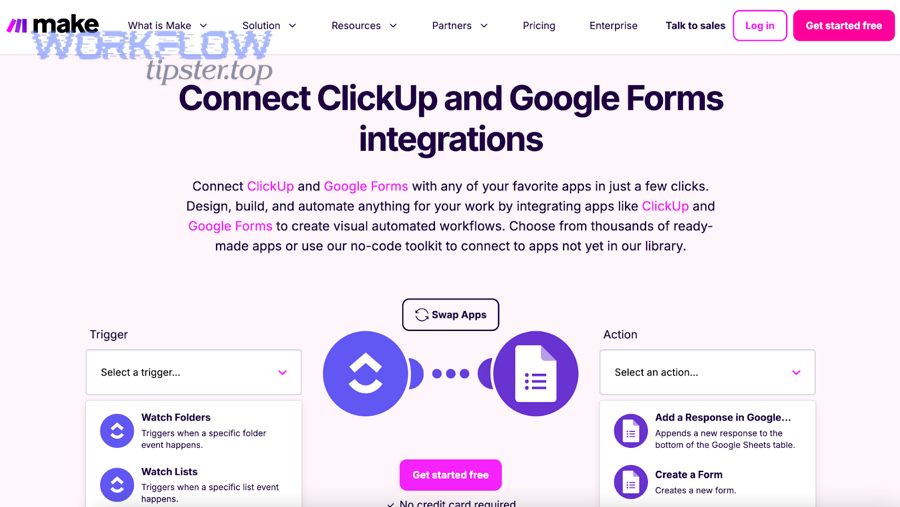
What data can you capture from Google Forms and push into ClickUp?
Google Forms can capture structured inputs (short text, long text, multiple choice, checkboxes, dropdowns), contact details, dates, and any custom questions you use for intake.
Specifically, the integration becomes powerful when your form questions are designed to match ClickUp fields, such as:
- Request title (short answer) → maps to Task name
- Description / context (paragraph) → maps to Task description
- Category / request type (dropdown) → maps to Tags or a Custom Field
- Priority (choice: Low/Normal/Urgent) → maps to Priority or Custom Field
- Due date (date question) → maps to Due date
- Owner / team (choice) → maps to Assignee or routing logic
When your questions align with your ClickUp structure, you reduce “cleanup work” after task creation and keep your intake consistent across the team.
What does a ClickUp task created from a form response typically include?
A task created from a Google Forms response typically includes a clear title, a complete description, and field values that make it easy to sort, filter, and report in ClickUp.
More specifically, a well-built task template created by automation usually includes:
- Task name that summarizes the request in one line
- Description with the full form response (or selected key fields)
- Custom Fields (request type, department, budget range, urgency)
- Tags (e.g., “intake”, “support”, “bug”, “feature”)
- Assignee(s) based on routing rules
- Location (Space/Folder/List) that matches the workflow
- Optional: a comment that logs submission metadata (timestamp, submitter email, form ID)
This is where macro semantics matter: the “integration” isn’t just connection—it’s the workflow design that makes your ClickUp workspace act like a reliable intake system.
Can you connect Google Forms to ClickUp without coding?
Yes—you can connect Google Forms to ClickUp without coding because no-code automation platforms provide triggers for new form responses and actions to create ClickUp tasks, while also offering routing, field mapping, and error-handling features.
Next, it’s important to choose the automation approach that matches your team’s volume and complexity, because “no-code” can still vary widely in control and scalability.
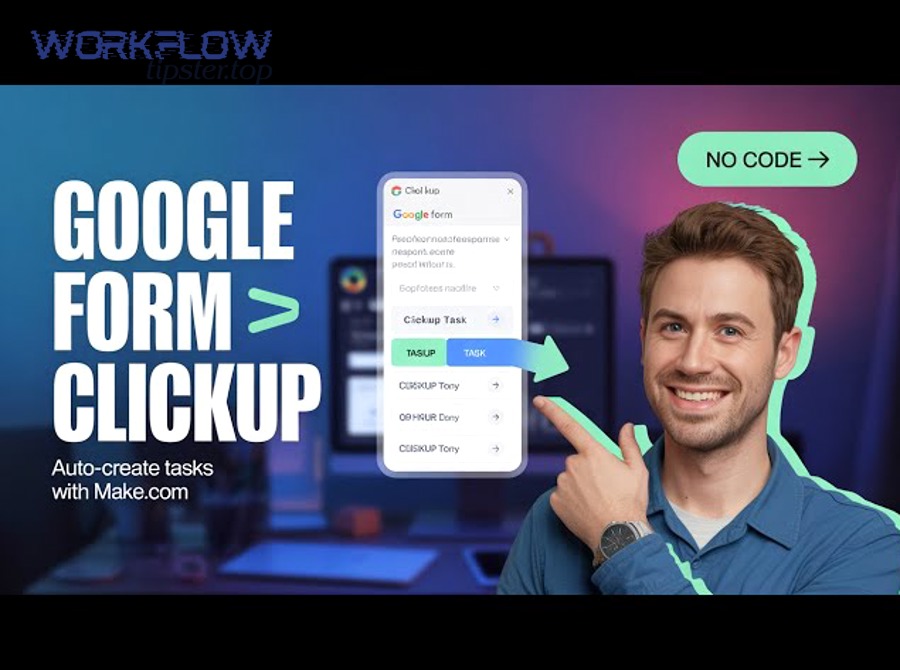
Which no-code tools can connect Google Forms to ClickUp?
There are several popular no-code tools that can connect Google Forms to ClickUp, and they differ mainly in how they handle mapping, routing, and scaling.
For example:
- Zapier: common for straightforward “New Form Response → Create Task” automations and quick setup.
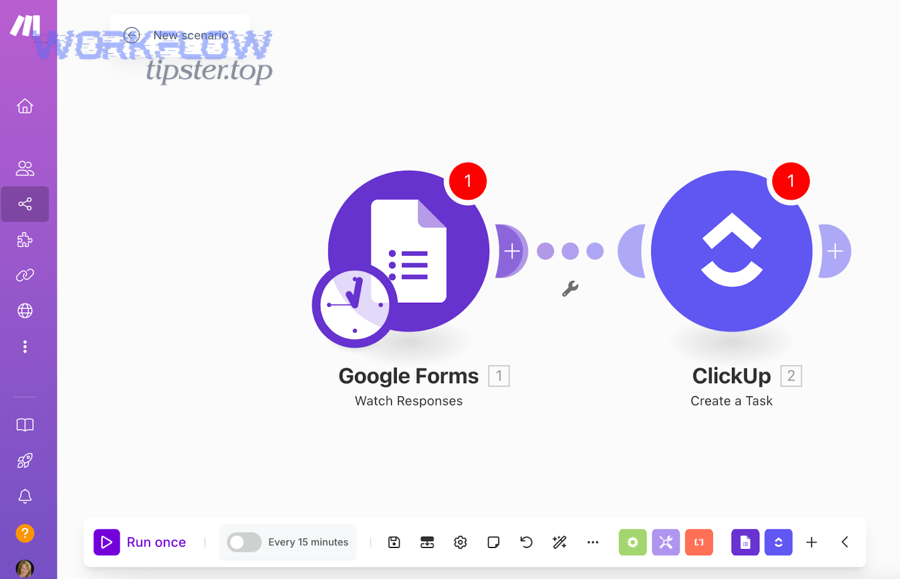
- Make (formerly Integromat): strong for visual scenarios, branching logic, and multi-step workflows.
- Unito / other sync tools: may be useful when you need ongoing synchronization patterns (often beyond simple task creation).
If your goal is fast deployment, Zapier is often enough. If your goal is “workflow engineering without code,” Make usually offers more depth in the same category of Automation Integrations.
Do you need a paid plan to automate Google Forms to ClickUp?
It depends—many teams can start on free tiers, but most will eventually need a paid plan once they require higher task volume, advanced multi-step workflows, premium features, or better monitoring.
More specifically, you might need a paid tier when you:
- Process high submission volume (lots of form responses per day)
- Need filters/paths/branching based on request type or priority
- Want automatic retries and better error logs
- Need multi-step actions (create task → set custom fields → add comment → attach files → notify team)
In practice, the “right” plan is the one that prevents automation breakage and keeps your intake reliable—because an unreliable intake workflow costs more than it saves.
How do you set up Google Forms to ClickUp automation step-by-step?
Use a no-code automation tool in 6 steps—choose a “new form response” trigger, connect accounts, map form fields to ClickUp task fields, add routing rules, test with sample submissions, and turn the automation on so every response becomes a tracked ClickUp task.
Then, you’ll get the best results by designing the workflow around your ClickUp workspace structure (Space → Folder → List), because that determines how tasks are filtered, reported, and assigned.
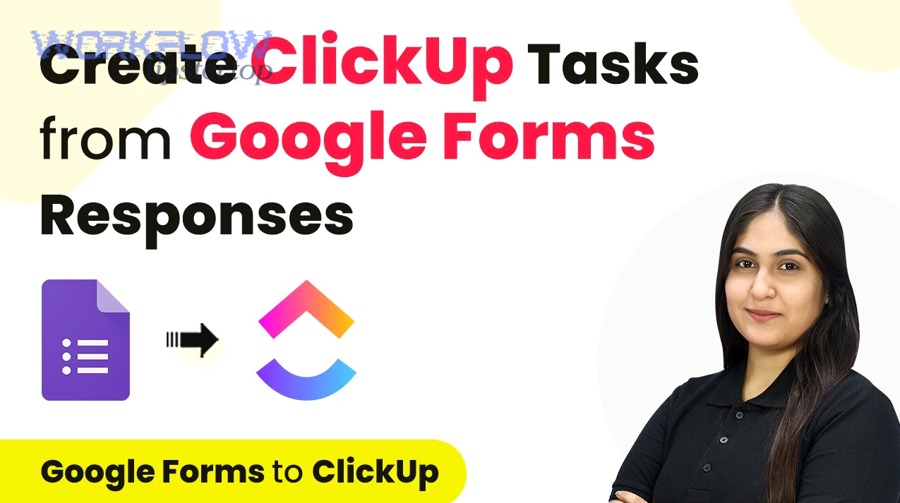
How to create a ClickUp task from a new Google Forms response (Zapier workflow)
The simplest workflow is: New Google Forms Response → Create ClickUp Task, and it works best when you treat the ClickUp task as a standardized “intake record.”
To illustrate, a practical Zapier-style setup looks like this:
- Trigger: New Form Response in Google Forms.
- Action: Create Task in ClickUp (select Space/List).
- Map fields:
- Task name:
{Request type} - {Short summary} - Description: include a formatted block with all responses
- Custom Fields: priority, department, request category
- Task name:
- Optional actions: Add comment, apply tags, set due date, set assignee.
- Test: Submit a real form entry and confirm the task appears in the correct List.
- Turn on: Enable the automation and monitor the first 10–20 submissions.
A strong mapping pattern is to keep the full raw response in the description (for completeness) while using Custom Fields for anything you want to filter or report on later.
How to build a visual scenario for ClickUp + Google Forms (Make workflow)
Make is ideal when you need a “visual workflow” with branching logic—especially for teams that run multiple intake types through one form.
A typical Make scenario can be:
- Google Forms module: Watch for new responses.
- Router: Split paths by request type (e.g., Bug / Feature / Support / Sales).
- ClickUp module: Create Task in the right List per path.
- Field mapping: Populate custom fields consistently across paths.
- Post-processing: Add tags, watchers, or task templates.
- Monitoring: Use Make’s run history to detect failures early.
If you’re using the ClickUp App Center integration flow with Make, ClickUp’s help guide describes the scenario creation sequence (install Make → create scenario → add ClickUp modules → test → turn on).
How to route responses by type, priority, or team in ClickUp
Routing is where you move from “automation” to “operations,” because routing rules turn raw submissions into the right work for the right people.
A reliable routing design usually uses:
- Request type routing (e.g., “Bug” goes to Engineering List, “Billing” goes to Finance List)
- Priority routing (Urgent → on-call assignee + shorter due date)
- Team routing (Marketing requests → Marketing Space; IT requests → IT Space)
To make routing stable, define one routing field in Google Forms (a dropdown called “Request type”) and enforce it as required. Then, in ClickUp, standardize Lists and Custom Fields so the same logic works for every submission.
This is also the moment to connect adjacent workflows. For example, you might store uploaded documents in a folder and later run “google drive to smartsheet” for reporting or “google drive to microsoft teams” for team notifications—without changing your core intake logic inside ClickUp. The key is keeping ClickUp as the system of record while other Automation Integrations handle distribution and visibility.
Evidence: According to a study by MIT’s Economics department, in 2023, researchers found that access to an assistive AI system reduced time taken (by 0.8 standard deviations) and increased output quality (by 0.4 standard deviations) in professional writing tasks—showing how well-designed automation/assistance can measurably improve productivity.
What are the most common problems when integrating Google Forms with ClickUp?
There are 4 main problem types when integrating Google Forms with ClickUp: field mapping errors, duplicate task creation, attachment/long-answer handling issues, and low-quality submissions (spam/invalid inputs) that pollute your ClickUp Lists.
More importantly, each problem has a predictable cause—so you can fix it by adjusting mapping rules, adding filters, and tightening form validation before your workflow goes live.
Why are fields not mapping correctly from Google Forms to ClickUp?
Field mapping problems usually happen because your form answers don’t match the expected format of a ClickUp field, or because your ClickUp Custom Fields are too strict.
Common examples:
- Dropdown mismatch: ClickUp expects one of predefined values, but the form sends a different spelling or a blank.
- Date format issues: a form date may not convert cleanly into ClickUp’s due date format in some tools.
- Multi-select confusion: checkboxes produce multiple values that need concatenation or list mapping.
Fixes that work consistently:
- Restrict choices in Google Forms (use dropdowns instead of open text where possible).
- In ClickUp, keep Custom Field options stable (avoid frequent renaming).
- Add a “formatter” step in your automation tool to clean data (trim spaces, standardize casing).
What causes duplicate ClickUp tasks from one form submission?
Duplicates typically come from trigger behavior or replays—especially if the automation is turned on, edited, and re-tested without safeguards.
Common causes include:
- You used multiple zaps/scenarios watching the same form.
- The tool re-ran a previous execution after an error.
- The trigger captures both “submission created” and “response updated” events (depending on the platform and configuration).
Practical prevention:
- Implement a unique identifier in the task (e.g., include the response ID or timestamp in the description).
- Use a “find task first” pattern (search ClickUp for the ID; if found, update; if not, create).
- Keep one “owner” automation per form to avoid accidental parallel workflows.
How do you handle attachments, file uploads, and long answers?
Google Forms file uploads can be tricky because attachments often live in Drive and may require link handling rather than direct file transfer.
The most stable approach is:
- Store uploads in a known Drive folder
- Add the Drive file link into the ClickUp task description or a Custom Field
- Optionally, attach the file if your automation tool supports it reliably
For long answers, avoid dumping everything into the task title. Instead:
- Keep the title concise:
{Request type}: {Summary} - Put the full details under description with clear labels per question
- Consider a structured template inside the description (e.g., “Problem / Impact / Requested outcome / Deadline”)
How do you prevent spam or invalid responses from creating tasks?
Spam prevention is workflow protection, because every bad submission becomes clutter and reduces trust in your ClickUp intake.
A strong prevention stack includes:
- Require sign-in (if appropriate for internal forms)
- Add validation (email format, required fields, minimum character counts)
- Use conditional logic to show only relevant follow-up questions
- Add automation filters:
- Ignore submissions where “Request type” is blank
- Ignore submissions that match known spam patterns
- Route “unknown” to a triage list instead of production lists
Evidence: According to a study by the University of California, Irvine’s Department of Informatics, in 2008, interruptions significantly increased stress and time pressure—highlighting why reducing manual back-and-forth and triage noise with structured intake workflows can protect focus.
Google Forms to ClickUp automation vs manual task creation: which is better?
Automation wins in speed and consistency, manual creation is best for rare edge cases, and a hybrid approach is optimal when you need both reliable intake and occasional human judgment.

However, the right decision depends on volume, complexity, and the cost of errors—because manual copying looks cheap until it produces missed tasks, inconsistent fields, and unclear accountability.
To sum up the comparison clearly, the table below shows what typically changes when you shift from manual intake to automated task creation:
| Criterion | Automation (Google Forms → ClickUp) | Manual creation |
|---|---|---|
| Speed at scale | High (instant creation) | Low (time grows with volume) |
| Consistency | High (standardized mapping) | Variable (depends on the person) |
| Error rate | Lower when validated | Higher (copy/paste mistakes) |
| Triage & routing | Strong (rules-based) | Strong only if team is disciplined |
| Auditability | High (traceable submissions) | Medium (depends on documentation) |
Which approach is faster and more accurate for teams?
Automation is typically faster and more accurate for teams because it creates tasks instantly and applies the same structure every time, while manual creation introduces delays and inconsistencies.
For example, if your team receives 30 requests per day, automation prevents 30 separate “micro-interruptions” of copying, formatting, and assigning tasks. That reduces context switching and protects deep work.
Manual creation can still be useful when:
- You handle very low volume
- Each request requires human interpretation before becoming a task
- You’re in a short-term transition and haven’t standardized fields yet
Which approach is better for tracking, reporting, and accountability?
Automation is better for tracking and reporting because tasks arrive with consistent Custom Fields, tags, and locations, which makes dashboards and workload reporting more accurate.
Meanwhile, manual creation often results in:
- Inconsistent categories (“bug”, “Bug”, “Issue”)
- Missing fields (no due date, no priority)
- Tasks in the wrong List (hard to report)
If your ClickUp reporting matters—like SLA tracking, capacity planning, or recurring intake analytics—automation becomes the foundation that makes those systems trustworthy.
What are advanced ways to optimize a Google Forms to ClickUp workflow?
Advanced optimization means upgrading your workflow from “create tasks” to “run operations”—you add governance, QA, and downstream automations so the intake stays clean, measurable, and scalable over time.
Besides basic mapping, optimization focuses on micro semantics: the edge cases, the compliance layer, and the cross-tool connections that keep your workflow stable under real conditions.
How do you add approvals and SLA timers after form intake?
Approvals and SLAs work best when every task has a request category, a priority, a timestamp, and a defined owner—so you can automate assignments, due dates, and status moves that keep intake accountable.
Then you can automate:
- Auto-assign to a triage lead
- Set due dates based on priority (e.g., Urgent = 24 hours)
- Move status automatically when a condition is met (e.g., “Needs Info” if required field is missing)
- Notify stakeholders only when the task reaches a milestone
This keeps ClickUp from becoming a dumping ground and turns it into a controlled intake pipeline.
How can you connect Google Drive to Smartsheet or Google Drive to Microsoft Teams alongside ClickUp?
You can extend the workflow by using ClickUp as the “work hub” and connecting storage/visibility tools around it, so files stay in Drive while tasks and accountability live in ClickUp.
A common pattern:
- Google Forms submission creates a ClickUp task
- File uploads remain in Drive (link stored in the ClickUp task)
- A reporting layer pushes structured fields into a sheet system (google drive to smartsheet)
- Notifications and files surface to chat (google drive to microsoft teams) for faster awareness
The principle is simple: keep the task in ClickUp, keep the files in Drive, and let Automation Integrations handle distribution to the teams that need visibility.
What is the best alternative if you need two-way sync or native forms?
If you need two-way synchronization or deeper “native” intake behavior, you may want alternatives that focus on sync or form-first workflows instead of a one-way trigger, while still producing the same outcome: every request becomes trackable work.
For example:
- Sync tools can keep records aligned when updates must flow back and forth.
- If your real need is “form submission becomes a task,” you can also consider ClickUp’s own form-based intake inside the platform depending on workspace design.
The best alternative is the one that reduces failure points while preserving the workflow outcome.
How do you document and govern Automation Integrations at scale?
Governance prevents “automation sprawl,” because a registry and standards keep different workflows from overlapping, creating duplicates, and breaking your intake schema.
A practical governance checklist:
- Maintain an integration registry (what automations exist, who owns them, what form/List they touch)
- Standardize naming conventions (e.g., “INTAKE – Google Forms → ClickUp – Marketing Requests”)
- Define a change process (test in a sandbox List before deploying)
- Track failures and retries (weekly review of automation logs)
- Use a consistent data schema (field names, option values, required fields)
When you treat automations as infrastructure, your workflow becomes dependable—and your ClickUp workspace becomes cleaner, more measurable, and easier to scale.