


If your team collects requests, briefs, or onboarding details in Google Forms, you can connect those submissions to Basecamp by turning each response into actionable work—like a to-do, a message, or a new project—without manually copying and pasting information.
Next, you’ll learn what a “Google Forms to Basecamp integration” actually means in day-to-day operations, including the common patterns teams use to route form data into the right Basecamp place at the right time.
Then, you’ll compare the main connection methods—no-code automation tools, lightweight webhook setups, and manual workflows—so you can match the approach to your team size, compliance needs, and maintenance tolerance.
Introduce a new idea: instead of treating integration as a one-time setup, you can design a workflow that stays reliable as your form changes, your team grows, and your Basecamp structure evolves—starting with the fundamentals below.
Is it possible to connect Google Forms to Basecamp?
Yes—connecting Google Forms to Basecamp is possible, and it works best when you route each new form response into a clear Basecamp action (such as creating a to-do, posting a message, or starting a project) because it reduces manual handoffs, speeds up triage, and improves follow-through.
To begin, the key is to accept that Google Forms and Basecamp don’t behave like “native sister apps,” so your connection usually runs through an integration layer that listens for new responses and then performs an action in Basecamp.
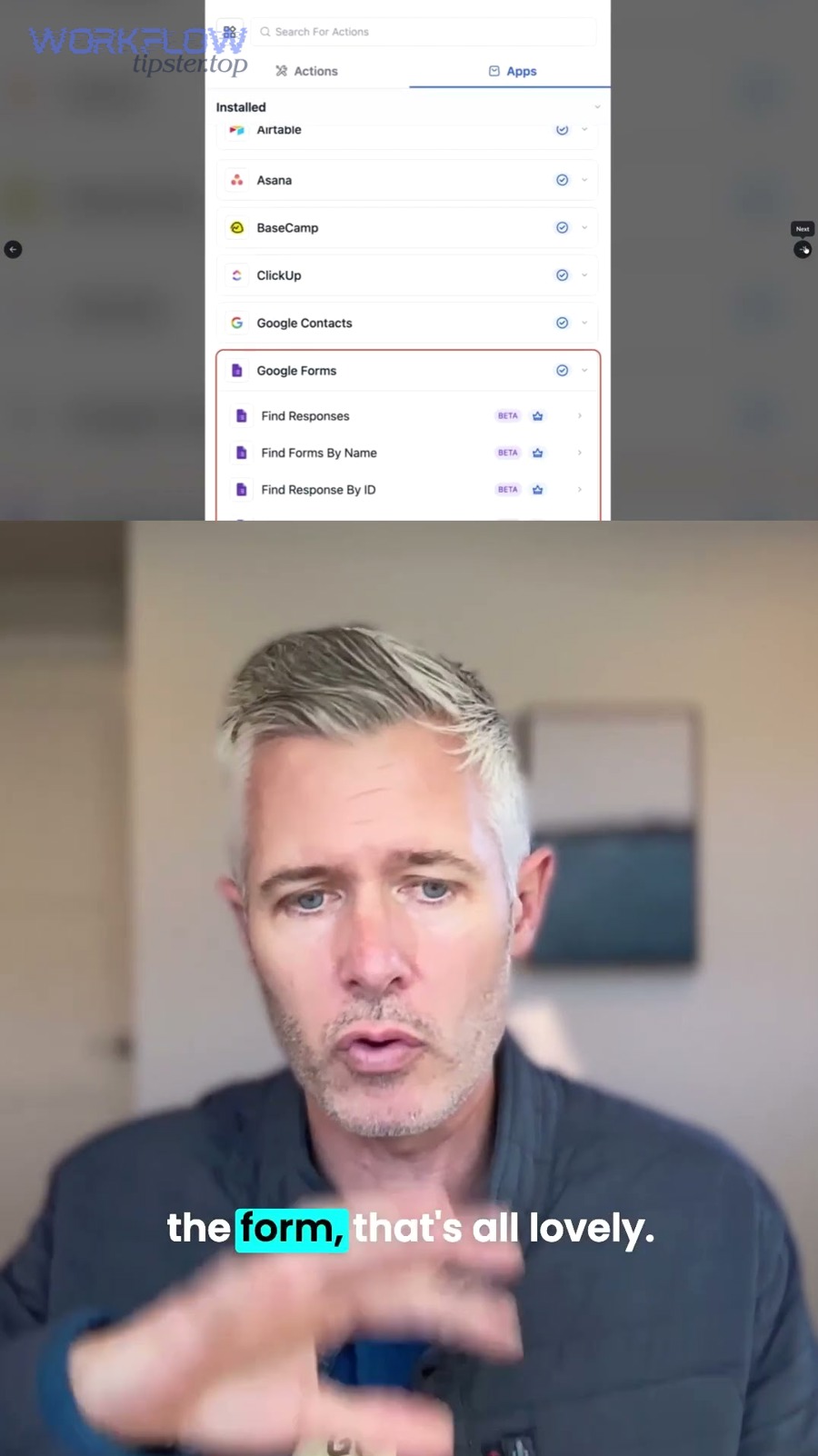
In practice, most teams connect the two using a no-code automation platform that provides a “trigger” for Google Forms submissions and “actions” for Basecamp items. For example, automation platforms commonly advertise ready-made connection templates for Google Forms and Basecamp that create Basecamp items when a new response arrives.
However, “possible” does not always mean “perfect.” The quality of your result depends on how well you define three things upfront:
- What counts as a submission worth creating work for (every response vs only certain answers)
- Where the work should land (which Basecamp project, which to-do list, which message board)
- What success looks like (assigned owners, due dates, consistent titles, and searchable summaries)
When those are clear, a Google Forms to Basecamp workflow stops being “integration for integration’s sake” and becomes a repeatable intake pipeline that your team can trust.
What does “Google Forms to Basecamp integration” mean in practice?
“Google Forms to Basecamp integration” means transforming structured form answers into structured project work inside Basecamp—so your team can track ownership, discuss context, and complete tasks without re-entering the same information.

Specifically, the integration is not the goal; the goal is the operational behavior you get after integration. That behavior typically looks like this:
- A person fills out a Google Form (client intake, bug report, content request, onboarding checklist, etc.).
- The response is captured with predictable fields (name, email, request type, description, priority, deadline, attachments link).
- A workflow turns that response into a Basecamp artifact that matches your team’s process (to-do, message, schedule item, or project).
- The Basecamp artifact contains a clean summary, the original answers, and a link back to the response source for audit and context.
More importantly, a strong integration also preserves the “hook chain” between intake and execution. In other words, the same wording used in your form question becomes the wording your team sees in Basecamp, which prevents confusion and reduces back-and-forth clarification.
Most teams get the best results when they adopt a consistent naming convention, such as:
- Title format: [Request Type] – [Requester/Team] – [Short Summary]
- Description format: A short, scannable block that includes key answers (priority, deadline, relevant links, notes)
Once you view the integration as “intake normalization,” you can design a pipeline that’s easy to maintain even when the form evolves.
What are the main ways to connect Google Forms to Basecamp?
There are three main ways to connect Google Forms to Basecamp: (1) a no-code automation platform, (2) webhooks plus a lightweight middleware service, and (3) a manual export/import workflow—based on how much control, security, and maintenance you need.

Then, the fastest way to choose among them is to compare what each method optimizes for: speed of setup, flexibility, governance, and long-term reliability.
No-code automation platforms
No-code platforms are usually the quickest path because they provide a ready trigger for new Google Forms responses and guided actions for Basecamp objects, which helps teams launch Automation Integrations without engineering time.
In this model, you typically:
- Select “New Google Form Response” as the trigger.
- Choose a Basecamp action (create to-do, create message, create to-do list, etc.).
- Map form fields to Basecamp fields (title, description, assignee, due date).
- Test with sample responses and refine formatting.
The main advantage is speed and accessibility—non-technical teams can own the workflow. The tradeoff is that you are constrained by available triggers/actions and may need workaround formatting for complex cases (like multi-select answers or attachments).
Webhooks plus lightweight middleware
A webhook + middleware approach gives you more control because you can capture responses, validate data, enrich it, and then call Basecamp APIs in a predictable, auditable way.
This option is most useful when you need:
- Custom logic (routing by department, assigning owners by request type, SLA-based due dates)
- Stronger validation (reject missing fields, sanitize inputs, standardize categories)
- Compliance-friendly logs (who submitted, what changed, what was created)
The tradeoff is that someone has to maintain the middleware, handle authentication, and monitor failures.
Manual export/import workflows
A manual workflow is the simplest: export form responses to a sheet or CSV, review them, and create Basecamp work items by hand—usually when volume is low or when approvals must happen before anything enters the project system.
This approach can still be “process-correct” if you add discipline, such as a daily triage ritual, consistent templating, and a clear definition of done. The downside is obvious: it is slower, more error-prone, and harder to scale.
How do you set up Google Forms to Basecamp step by step?
The best way to set up Google Forms to Basecamp is to map your intake fields to Basecamp work objects, build one automation that creates a clean Basecamp artifact per response, and test it with real scenarios so your team can trust the workflow in daily operations.
More specifically, you’ll get a smoother result when you treat setup as a small “system design” project rather than a quick connector click-through.
Plan the data mapping before you automate
Start by defining what each key form answer becomes inside Basecamp, because clear mapping prevents messy to-do titles, missing context, and unreadable descriptions.
Use a mapping checklist like this:
- Requester identity: Name + email → appears in the Basecamp description header
- Request type: Category answer → drives routing (project selection, assignee selection, template selection)
- Problem/brief: Long text answer → becomes the core description
- Priority and due date: Answers → become due date and urgency tags (or standardized words in the title)
- Links/attachments: URL fields → included as clickable references in the Basecamp item
If you want consistent downstream execution, standardize your form options. For example, use fixed choices for request type and priority instead of open text, so you can route automatically without constant exceptions.
Build the automation with clean formatting
Next, create one workflow that produces one Basecamp artifact per response, because “one response → one place to work” makes accountability simple.
A reliable formatting pattern for the Basecamp output is:
- Title: [Request Type] – [Short summary]
- Description: A structured block:
- Requester: …
- Priority: …
- Deadline: …
- Details: …
- Links: …
Also, decide where the Basecamp item should land:
- If it’s actionable and assignable, create a to-do in the correct list.
- If it’s informational and needs discussion, create a message.
- If it’s a repeated process (like onboarding), start a new project from a template or create a consistent set of to-dos.
Finally, use conditional routing sparingly at first. It’s better to launch a simple workflow that’s correct 90% of the time than a complex one that fails silently.
Test, monitor, and harden the workflow
Then, test with at least five realistic submissions, because edge cases—missing data, unusual characters, long text, and incorrect links—are what break automation in production.
During testing, focus on failure points:
- Field mismatch: Multi-select answers that arrive as comma lists
- Date parsing: Time zones and ambiguous date formats
- Permissions: Basecamp project access and correct posting identity
- Duplication: Re-submissions creating repeated work
To strengthen reliability, add lightweight safeguards:
- A unique identifier in the Basecamp description (response ID or timestamp)
- A “triage owner” assignee for every created item
- A fallback route when project selection fails (send to a single intake project)
According to a Stanford University survey of 1,500 workers across 104 occupations reported in 2025, 69.4% welcomed automation that frees up time for higher-value work, which is exactly what a well-designed intake automation aims to do when it removes repetitive triage steps.
Which workflow patterns work best for teams using Google Forms with Basecamp?
The best workflow patterns are the ones that convert form submissions into a single, clear next action in Basecamp—because clarity improves ownership, reduces delays, and keeps the project space clean even when intake volume increases.

More importantly, each pattern should match the “shape” of your work: tasks for execution, messages for coordination, and projects for repeatable delivery cycles.
New response → Basecamp to-do for actionable requests
This pattern works best when the submission is a unit of work that someone must complete, such as a design request, a content brief, a bug report, or an internal service ticket.
To make it effective, include these elements in the created to-do:
- Owner: assigned immediately (or assigned to a triage role)
- Due date: derived from the form (or set by SLA rules)
- Definition of done: one sentence that states the deliverable
- Context links: a link to assets, references, or specs
If your team uses Basecamp lists like “To Triage,” “Ready,” “In Progress,” and “Done,” route every new response into “To Triage” first. That keeps noise out of active lists while still capturing everything consistently.
New response → Basecamp message for discussion-heavy intake
This pattern is ideal when the submission needs clarification, review, or group alignment—like a policy request, a cross-team dependency, or a change proposal.
To keep message threads productive, format the post as a structured summary and end with a direct question, such as:
- “Who should own this?”
- “Is this in scope for this sprint?”
- “What deadline should we commit to?”
The payoff is that Basecamp captures decision-making in context, instead of scattering it across email or chat.
New response → New project or project template for repeatable processes
This pattern is best for repeatable delivery workflows like client onboarding, event coordination, or campaign execution—where each submission should spin up a consistent project structure.
A strong template-driven setup typically includes:
- A standard set of to-do lists (Kickoff, Assets, Execution, QA, Wrap-up)
- Pre-assigned owners for key roles
- Default milestones or schedule items
- A pinned message that summarizes the intake answers and links to artifacts
In this model, Google Forms becomes your “project request generator,” while Basecamp becomes your “delivery system.” That division keeps intake simple and execution structured.
What are the key limitations and risks of Google Forms to Basecamp automation?
The key limitations are data quality issues, privacy and permission risks, and reliability problems (like duplicates and failed runs) because automation moves information quickly—and fast mistakes can spread just as quickly.
Besides, these risks don’t mean you should avoid automation; they mean you should design guardrails that match your risk level.
Data quality, privacy, and governance
Form submissions often contain inconsistent text, missing fields, or sensitive information, so you need a clear rule for what is allowed in the form and what must be handled differently.
Practical guardrails include:
- Validation: required fields for requester identity, request type, and details
- Standardization: dropdowns for categories, priorities, and teams
- Minimization: avoid collecting sensitive data you don’t need
- Access control: ensure the Basecamp project where items are created has the correct membership
Data quality matters because it directly impacts execution. In a 2008 study involving departments at universities including the University of Colorado at Denver Health Sciences Center (Department of Family Medicine), electronic forms had far fewer omissions than paper forms—only 3% of returned electronic forms had errors of omission versus 35% for paper forms—showing why structured, validated inputs are foundational for reliable downstream workflows.
Reliability, duplication, and operational failure modes
Automation can fail in quiet ways—like running twice, skipping a submission, or posting to the wrong project—so you need a monitoring plan that matches how much your team depends on the workflow.
Common failure modes and fixes:
- Duplicate items: include a response ID in the Basecamp description and deduplicate by ID
- Partial content: keep a consistent “header block” format so missing fields are obvious
- Permission errors: test with the same account/connection used in production
- Silent failures: route failures to an alert channel or daily digest email
If your team treats Basecamp as the source of truth, you should treat monitoring as part of the integration—not an optional add-on.
Which integration option should you choose: Zapier vs Make vs custom API?
Zapier wins for fastest setup, Make often fits teams that want more visual control and complex scenarios, and a custom API approach is optimal when you need strict governance, deep customization, or enterprise reliability—so the best choice depends on your complexity, risk, and ownership model.
Meanwhile, you can make this decision simpler by comparing options across a few consistent criteria: setup time, routing flexibility, logging/auditing, cost scaling, and maintenance effort.
Comparison: strengths and tradeoffs
The table below compares three common approaches for a Google Forms to Basecamp workflow so you can see which one matches your team’s operating style.
| Option | Best for | Main strengths | Main tradeoffs |
|---|---|---|---|
| No-code (e.g., Zapier) | Teams that want speed and simplicity | Quick to launch, easy maintenance, accessible for non-technical owners | Limited customization for edge cases; complex logic can become expensive |
| Visual scenarios (e.g., Make) | Teams that need richer routing and transformations | Flexible branching, data shaping, multi-step workflows | More moving parts; requires stronger operational discipline |
| Custom API + middleware | Teams with compliance, scale, or unique logic requirements | Maximum control, custom validation, strong audit trails | Engineering effort; ongoing maintenance and monitoring required |
In practical terms, many teams start with a no-code template connection and move to a more custom approach only when they hit a real constraint—like advanced routing, strict audit requirements, or high-volume scaling.
Decision checklist: pick the option that matches your constraints
To better understand which option fits your situation, use this checklist:
- Choose no-code if you want something working today, your routing rules are simple, and your risk tolerance is moderate.
- Choose visual scenarios if you need branching logic (e.g., route by department), transformations (e.g., normalize categories), and multi-step workflows.
- Choose custom API if you must enforce strict validation, store logs, meet compliance policies, or integrate with internal systems.
If your primary goal is to connect Google Forms and Basecamp in minutes, platforms often publish specific templates for “new form response → create Basecamp to-do,” which can be a practical starting point before you invest in deeper architecture.
What does “sync” mean here, and do you need two-way sync?
“Sync” usually means one-way delivery of new Google Forms responses into Basecamp, and most teams do not need two-way sync because Basecamp is the execution layer while Google Forms is the intake layer.
However, “sync” becomes confusing when teams expect updates to flow back into the original system, so it helps to define the direction explicitly.
One-way sync: the default and usually the best
One-way sync means: a new form response triggers creation of a Basecamp item, and then the Basecamp item becomes the main place where the work is managed.
This works well because:
- Forms are designed for capture, not task management.
- Basecamp is designed for ownership, discussion, and completion.
- Two-way updates can create conflicts and confusion about the “real” status.
If someone needs the original response later, you can include a link to the response source (or the connected spreadsheet) inside the Basecamp item, keeping context available without forcing bidirectional updates.
Two-way sync: only when you truly need a feedback loop
Two-way sync means Basecamp status changes (done, assigned, due date updated) also update a downstream system that stakeholders watch, such as a dashboard or a tracking sheet.
This is useful when:
- External stakeholders need a live status view without Basecamp access.
- You must report intake throughput and resolution times.
- You need SLA tracking across teams.
Even then, a common best practice is not to write back into Google Forms itself, but to write into a tracking layer (often a sheet, database, or ticketing system) that is built for status updates.
At this point, you’ve covered the macro system: how to connect the apps, how to choose the method, and how to keep it reliable. Introduce a new idea: the next step is to scale the workflow so it remains clean, measurable, and adaptable over time.
How can you scale and optimize your Google Forms to Basecamp workflow over time?
You can scale and optimize your Google Forms to Basecamp workflow by adding governance, measuring throughput, and expanding patterns carefully—so the automation stays trustworthy as volume grows, form fields change, and more teams depend on the pipeline.
Next, think of scaling as “protecting clarity,” not merely “adding more automations.”
Governance: keep intake predictable and Basecamp clean
Scaling fails when the form becomes a dumping ground and Basecamp becomes a noisy inbox, so governance is your first lever.
Practical governance rules include:
- Form ownership: one owner controls changes, so automation mappings don’t break unexpectedly.
- Versioning: track changes to questions and options so you can update routing rules safely.
- Destination discipline: one “Intake/Triage” Basecamp project is a safe default when routing is uncertain.
- Template hygiene: if you generate projects from templates, keep templates minimal and role-driven.
If you operate multiple workflows (e.g., client onboarding, internal IT requests, content production), keep them separated by intake form and Basecamp destination, instead of piling everything into one mega-form.
Metrics: measure time-to-triage, time-to-complete, and error rate
To illustrate whether the workflow is actually helping, measure a small set of metrics that reflect the promise of automation: faster handling, fewer errors, and clearer ownership.
- Time-to-triage: how long from submission to first Basecamp action (assignment or first comment)
- Time-to-complete: how long from submission to “done”
- Automation error rate: percentage of submissions that failed, duplicated, or routed incorrectly
These metrics help you decide when to simplify the form, refine routing logic, or move from no-code to a more controlled middleware approach.
Advanced patterns: connect intake to the rest of your toolchain
Once your core pipeline is stable, you can extend it with carefully scoped enhancements—especially when your team’s work spans multiple systems.
For example:
- Document collaboration: when a request needs documentation, automatically create a doc link and post it to Basecamp—similar to how teams connect workflows like google docs to microsoft teams when they want the “discussion layer” and the “document layer” to stay linked.
- Engineering handoff: when a submission is a technical request, route it into a development pipeline and create a Basecamp summary post—mirroring patterns used in flows like clickup to gitlab where planning and execution are split across tools.
- Quality checks: automatically format summaries, enforce naming conventions, and flag missing required answers before a task is created.
The safest way to add advanced patterns is to expand one step at a time: add one new branch, test it with real submissions, and only then roll it out broadly.
In short, a Google Forms to Basecamp integration is most valuable when it stays boring: every submission becomes a clean, consistent Basecamp artifact that your team can trust, search, assign, and complete—day after day.