


If you want every Google Forms submission to become an actionable Asana task, the fastest path is to use a trigger-based automation that turns responses into standardized work items—complete with titles, descriptions, due dates, and ownership—so nothing gets lost in inboxes.
To make that automation dependable, you also need a clear setup foundation: the right form questions, the right Asana project structure, and a consistent naming/mapping strategy that keeps every submission readable and searchable once it lands in your task list.
Beyond setup, the biggest quality jump comes from choosing the best connection method for your team (native forms, no-code connectors, or Google Sheets as a bridge) and then mapping each field into Asana so tasks arrive with the exact context your assignees need.
Introduce a new idea: the difference between an automation that “works” and one that “scales” is the way you route, validate, and maintain it—so below we’ll build the workflow step by step, from simple creation to advanced routing and edge cases.

Can you automate Asana tasks from Google Form responses?
Yes—you can automate Asana tasks from Google Form responses because no-code triggers can create tasks instantly, map form answers into task fields consistently, and route tasks to the right people without manual copy-paste.
Next, once you accept that automation is possible, the real question becomes how to set it up so every task arrives complete, readable, and easy to act on.
In practice, “Google Forms → Asana” automation works like this:
- Trigger: A new response is submitted in Google Forms (or a new row appears in the linked response spreadsheet).
- Action: A new task is created in Asana.
- Mapping: The form’s answers are inserted into the task name, description, or custom fields.
- Routing (optional): The task is placed into a specific project/section and assigned to a person based on rules.
This approach is widely supported by common automation platforms that explicitly describe creating Asana tasks from new Google Forms responses. (zapier.com)
Why this matters for teams is simple: manual intake work is interruption-heavy. If every submission forces someone to stop, open a form response, interpret it, and then retype it into a task, you’re paying the “context switch tax” repeatedly.
According to a study by University of California, Irvine from the Department of Informatics, in 2008, people compensated for interruptions by working faster but reported significantly higher stress (e.g., stress differed across interruption conditions with F(2,92)=12.15, p<.001). (ics.uci.edu)
If your workflow includes any intake stream—requests, bugs, leads, onboarding, internal services—this is exactly the kind of repeatable handoff that Automation Integrations are meant to remove.
What do you need before connecting a form to an Asana project?
Before connecting a form to an Asana project, you need a stable intake design (the form), a stable destination (the project + sections), and a stable schema (task fields + naming rules) so the automation can generate consistent tasks every time.
To begin, it helps to treat this like a data pipeline: define the inputs, define the outputs, and define the mapping rules that keep them aligned.
Here’s the practical preflight checklist your team should complete before you connect anything:
1) A clear purpose for the form (intake intent)
Decide what “job” the form is doing, because that determines how you structure the questions:
- Lead capture (sales)
- Support/request intake (ops)
- Bug report (product)
- Content request (marketing)
- Access request (IT/security)
2) A clean Google Form question design (inputs)
Design questions so they map cleanly into tasks:
- Use short answer for IDs, names, and single-value fields.
- Use multiple choice for routing categories (triage type, team, priority).
- Use checkboxes when multiple tags might apply.
- Ask for one primary “summary” field that can become the task title (e.g., “What do you need?”).
3) An Asana project configured for intake (destination)
Your destination project should already have:
- A consistent section structure (e.g., New → In Progress → Waiting → Done, or by team).
- Any needed custom fields (Priority, Request type, Region, SLA, Owner group).
- A default task template pattern (what every task must contain to be actionable).
Asana’s own Forms guidance emphasizes that submitted tasks can land in a specific project/section based on how the form is configured. (help.asana.com)
4) Permissions and ownership (governance)
Decide who owns the automation and what access it needs:
- Who is allowed to edit the form?
- Who is allowed to edit the project fields?
- Who maintains the automation if a field name changes?
If you skip this step, most “mystery failures” later come from a renamed custom field, a moved project, or a removed permission.
Which setup methods can connect Google Forms to Asana (and when should you use each)?
There are 3 main types of setups to connect Google Forms to Asana—direct form-to-task connectors, Google Sheets-based connectors, and custom/API-based workflows—chosen based on your routing complexity, governance needs, and appetite for maintenance.
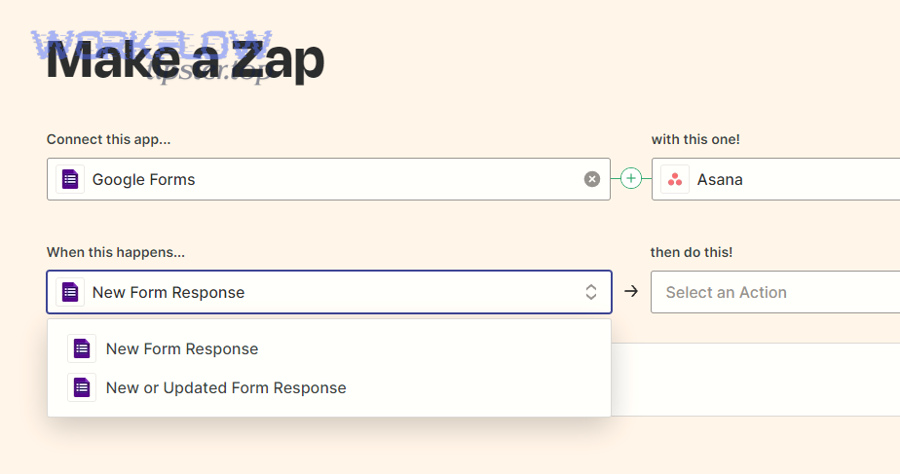
More specifically, the best method is the one that creates the right task with the least long-term fragility.
Direct no-code connector (Google Forms trigger → Asana task action)
Use this when you want the shortest path from “submit” to “task” with minimal moving parts.
Typical characteristics:
- Fast to set up
- Strong for straightforward “create task” flows
- Usually supports mapping answers into name/description and selecting destination project
This is the common “New Google Forms response → Create Asana task” pattern described in automation templates and integration pages. (zapier.com)
Google Sheets as a bridge (Google Forms → Sheets row → Asana)
Use this when you want better data hygiene and auditing, or when you need extra transformations.
Why teams choose it:
- Every response is stored as a row (easy to audit, filter, export)
- You can add computed columns (e.g., “priority score”, “routing key”, “normalized title”)
- You can create separate automations based on conditions in the sheet
Zapier’s integration listings explicitly include flows based on Google Sheets rows tied to Forms responses. (zapier.com)
Custom/API workflow (Apps Script, middleware, or internal tools)
Use this when you have strict requirements:
- Update existing tasks instead of creating new ones
- Complex conditional routing across multiple projects
- Advanced deduplication
- Strong security and logging requirements
This is higher effort and higher control—but it also has higher maintenance cost.
Evidence: According to a study by University of California, Irvine from the Department of Informatics, in 2008, interruptions pushed people into a faster working style but increased stress and time pressure—so choosing the method that minimizes manual handling reduces avoidable interruption loops. (ics.uci.edu)
How do you map Google Form fields into an Asana task correctly?
To map Google Form fields into an Asana task correctly, you should map one field to the task title, group supporting fields into a structured description, and convert categorical answers into custom fields or tags—so the task is readable, searchable, and actionable.
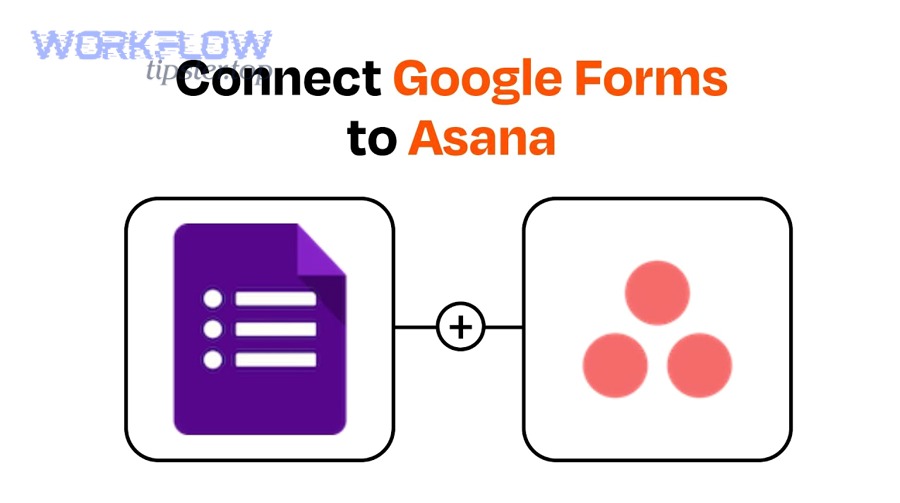
Then, once the mapping is clear, you can standardize it into a repeatable “task layout” that every submission follows.
A reliable mapping framework looks like this:
A) Task name (title) = one primary intent field
Pick a single form question that becomes the task title, such as:
- “Request summary”
- “Bug title”
- “What do you need help with?”
Best practice: prefix the title with a category token for scanning:
- [IT] Laptop access request
- [Sales] Demo request: ACME
- [Content] Landing page brief
B) Task description = structured blocks (not a wall of text)
In your connector, build the description like a mini intake template:
- Submitted by: (name / email)
- Team / category: (dropdown answer)
- Details: (long answer)
- Deadline: (date answer)
- Links / files: (URL answer)
- Consent / notes: (checkboxes)
This makes the task self-contained—meaning the assignee doesn’t have to go back to the form to understand it.
C) Custom fields = normalized, filterable attributes
Whenever the answer is meant for sorting or triage, put it into a field:
- Priority (Low/Med/High)
- Request type (Bug/Feature/Support)
- Region (NA/EU/APAC)
- SLA tier (24h/72h/1w)
If your connector can’t write custom fields directly, the “Sheets bridge” method often helps because you can normalize values first, then map them.
D) Attachments and links
Google Forms won’t always provide “attachments” in a way that maps neatly into Asana, but you can:
- Require a URL field (Drive link, screenshot link, doc link)
- Put that link into the description under a Links block
Evidence: According to UC Berkeley’s People & Culture summary referencing UC Irvine research, the average time elapsed before returning to the same task after an interruption is reported as 25 minutes and 26 seconds—so good mapping reduces back-and-forth lookup that triggers more interruptions. (hr.berkeley.edu)
How do you route submissions to the right project, section, or assignee?
There are 4 common routing patterns for Google Forms submissions into Asana—single-project routing, section-based routing, assignee-based routing, and multi-project routing—based on how your team divides ownership and how many intake streams you manage.
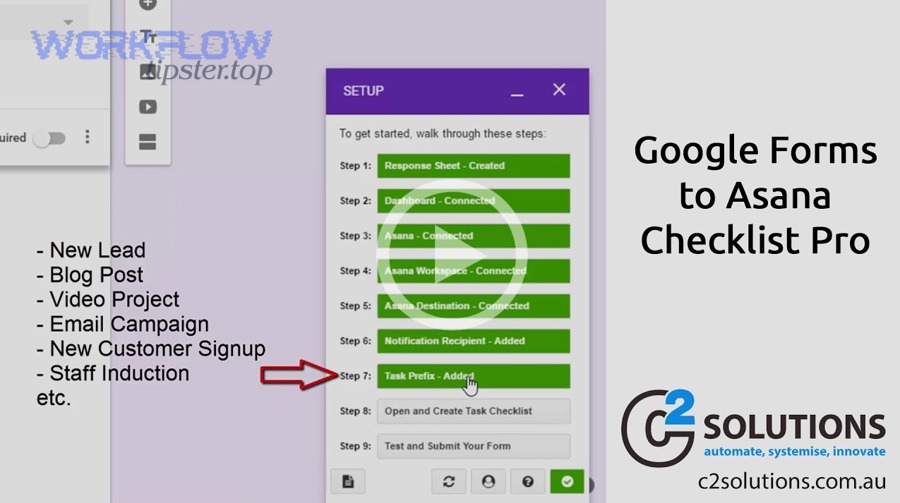
However, routing only works well when your form collects a clean routing key (like “team” or “request type”) that your automation can interpret without guesswork.
Single-project routing (simplest)
When to use: One team owns intake end-to-end.
- All tasks go into one project
- Optionally land in a single “New” section
- A triage owner assigns tasks manually
This is the best starting point because it makes failures obvious.
Section-based routing (triage lanes)
When to use: Same project, different categories.
- “Request type” determines section: Bugs / Features / Ops / Content
- The project stays unified, reporting stays easy
Asana’s Forms behavior includes mapping submitted tasks to specific sections inside a project, which aligns with this pattern. (help.asana.com)
Assignee-based routing (direct ownership)
When to use: Intake is predictable and ownership is stable.
- “Team” or “Region” determines assignee
- Example rule: If Region = EU → assign to EU ops lead
Key safeguard: always include a fallback assignee (e.g., “Intake Triage”) if a value is missing.
Multi-project routing (advanced intake hub)
When to use: Multiple teams want their own project views.
- One form feeds multiple projects based on answers
- Example: “Marketing” routes to Marketing Ops project; “IT” routes to IT Helpdesk project
This is where no-code tools like Make highlight large libraries of modules and workflows for Asana + Google Forms—useful when you need branching and multiple actions. (make.com)
To keep routing maintainable, write rules in plain language inside your automation notes, for example:
- If
Request type = Bug→ Project = “Bug Intake”, Section = “New”, Assignee = “Product Triage” - If
Request type = Access→ Project = “IT Requests”, Section = “Waiting”, Assignee = “IT Helpdesk”
That documentation prevents “tribal knowledge” from becoming a single point of failure.
How do you test, launch, and maintain a Forms-to-Asana automation without surprises?
A reliable Forms-to-Asana automation follows a 6-step operating method—test with controlled submissions, validate mapping, validate routing, launch with a soft rollout, monitor failures, and lock changes behind a simple change process—so it stays stable over time.
In addition, this maintenance mindset is what turns a one-off Zap into a trustworthy intake system.
Step 1: Create a test form and a test project first
Never start on production. Clone your real setup into a sandbox:
- Test form (copies the same fields)
- Test Asana project (same fields/sections)
Step 2: Run 5–10 test submissions that represent reality
Don’t just submit “asdf”. Use realistic cases:
- Missing optional fields
- Very long descriptions
- Non-English characters
- Different categories that trigger different routing rules
Step 3: Validate the three core outputs (your acceptance criteria)
- Task readability: Title makes sense without opening the task.
- Task completeness: Description contains every critical context block.
- Task routability: It lands in the right place with the right owner.
Zapier’s pairing and templates emphasize quick setup for “create tasks when new responses come in,” but your team’s acceptance criteria ensure it’s actually usable. (zapier.com)
Step 4: Soft-launch with a limited audience
For the first week:
- Only one department uses the form
- One person is assigned to watch the intake project daily
- Every failure becomes a documented fix
Step 5: Set monitoring triggers
Most platforms support alerts. At minimum:
- Email/Slack alert when an automation errors
- Daily digest of submissions vs. tasks created (a quick count check)
Step 6: Create a simple change policy
Automations break when schemas change. Adopt one rule:
- “If you rename a form question or an Asana custom field, you must update the automation the same day.”
Evidence: According to a study by University of California, Irvine from the Department of Informatics, in 2008, interruptions increased stress and time pressure—so monitoring and change control reduce the reactive scramble that broken intake systems create. (ics.uci.edu)
What advanced setups and edge cases should teams consider after automating form responses into tasks?
There are 4 advanced categories teams should consider after automating Google Forms responses into Asana tasks—deduplication and updates, data validation, security and access constraints, and multi-system orchestration—because scaling intake always introduces exceptions and governance needs.

Moreover, these edge cases are where you decide whether your automation stays a simple convenience or becomes an operational backbone.
How do you prevent duplicate tasks and handle updates instead of creating new tasks?
To prevent duplicates, you need a unique identifier strategy and an “update vs. create” decision rule.
Common approaches:
- Add a Submission ID (timestamp + email hash) into the task description.
- Store the submission in Google Sheets and check if an ID already exists before creating a task.
- If you must update existing tasks, you often need a more advanced workflow than “create task,” because many simple connectors are optimized for creation-first behaviors.
Community discussions frequently arise around the difference between updating tasks and creating new ones, which signals this is a common scaling pain point.
How do you validate form data so tasks arrive “ready to work”?
Validation is about reducing garbage-in:
- Use required fields for anything needed to start work (summary, requester, category).
- Use choice fields instead of free text for routing keys.
- Add formatting rules in your connector (e.g., prepend “[URGENT]” if Priority = High).
If you use the Google Sheets bridge, you can add computed columns like:
Normalized PriorityRouting OwnerDue Date (calculated)
That’s often easier than trying to “clean” data inside a connector UI.
What security and permission limits can break the workflow?
Common permission-related failures include:
- The automation account loses access to the destination project.
- The project’s custom fields are restricted to a different workspace.
- The form is owned by an employee who leaves the company, breaking connected assets.
Mitigation pattern:
- Use a shared automation owner account (or team-owned connector) that IT controls.
- Keep intake projects in a workspace where the integration has stable permissions.
How do you extend beyond Asana into multi-app intake workflows?
Once your team trusts form-to-task intake, you often expand into multi-step flows:
- Create task → notify channel → create folder → send confirmation email
- Create task → add to CRM → assign follow-up sequence
This is also where teams start connecting other intake patterns like airtable to shopify for catalog ops or google docs to doodle for scheduling workflows—because the same intake logic applies across many tools, not just one pair of apps.
Platforms like Make position Asana + Google Forms as part of broader, multi-app workflow automation libraries, which fits this “expand the pipeline” phase. (make.com)