


If you want every Google Forms submission to appear in Airtable as a clean, usable record, the core answer is to automate the handoff: capture a form response, map fields to columns, then create (or update) a record instantly—no spreadsheets-as-a-middleman required.
Next, it helps to understand what “sync” really means in this context: you’re not magically merging two apps into one—you’re defining a reliable workflow that transfers data, standardizes formats, and keeps your base consistent as responses grow.
Then, the practical question is whether you can do this without copy-paste (and without manual exports). The answer depends on your preferred method—no-code automation platforms, scripts, or an intermediate sheet—but all can remove repetitive entry if you design the mapping correctly.
Introduce a new idea: once you treat the workflow as a small “data pipeline,” you’ll start thinking in triggers, field schemas, validation, and governance—exactly what makes the automation stable at team scale.
What does it mean to “sync Google Forms to Airtable” for teams?
Syncing Google Forms to Airtable is an automated process that captures each form submission and creates (or updates) a structured record in an Airtable table, typically using a trigger → mapping → action workflow designed for shared team reporting and operations.
To better understand why teams call this “sync,” think about the job you want done: your form is the input layer (people submit answers), while your base is the system of record (teams filter, assign, analyze, and act).

What teams usually expect from a “sync”
A reliable Google Forms → Airtable sync typically implies:
- One submission = one record (with predictable rules for duplicates).
- Consistent field formatting (dates, numbers, multi-selects, attachments).
- Near real-time updates (seconds to minutes, depending on method).
- Auditability (you can trace where a record came from and when).
- Team-ready structure (views, permissions, assignments, and automations downstream).
What “sync” does not automatically guarantee
Even with the best tooling, “sync” doesn’t automatically mean:
- Two-way editing (editing Airtable won’t rewrite the submitted form response).
- Perfect schemas (bad field design in Airtable will still produce messy data).
- Zero maintenance (API changes, permission issues, and mapping drift can break workflows).
The workflow mental model (teams should align on this)
For teams, the simplest shared model is:
- Trigger: “A new form response is submitted.”
- Normalize: Clean values (trim text, parse dates, standardize categories).
- Map: Match each answer to the correct Airtable field type.
- Action: Create record (or find/update record).
- Confirm: Log success and handle failures.
If you align on that model first, your implementation choices become clearer and disagreements (“should we use Sheets?” “do we need scripts?”) become practical instead of philosophical.
Can Google Forms responses be automatically added to Airtable without copy-paste?
Yes—Google Forms responses can be automatically added to Airtable without copy-paste for at least three reasons: (1) automation platforms can listen for new responses and create records, (2) scripts can push submissions via API/webhooks, and (3) structured intermediates (like a response sheet) can be used as a stable trigger for record creation.
More importantly, the “best” approach depends on what you need to optimize: speed, governance, cost, technical ownership, or flexibility.
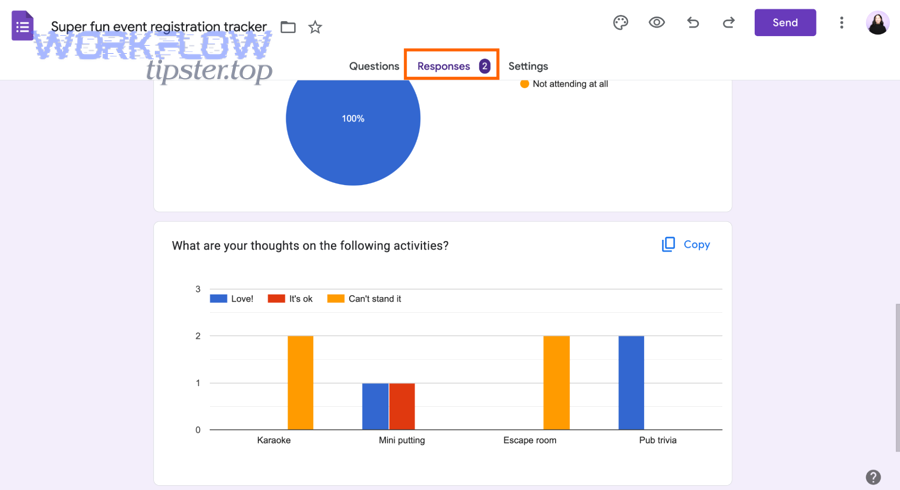
Reason 1: No-code automation platforms handle the workflow end-to-end
Platforms like Zapier or Make can:
- Detect new Google Forms submissions (directly or via connected response storage),
- Map answers to Airtable fields,
- Create new records in the right table,
- Retry or log failures depending on your plan and configuration.
Reason 2: Scripted automation gives maximum control
If your team has technical resources, scripts can:
- Validate or transform responses before they ever hit Airtable,
- Enforce a strict schema (including computed IDs, conditional mapping, and richer validation),
- Reduce dependency on third-party automation limits.
Reason 3: A structured intermediate can reduce “mapping drift”
Sometimes a response destination (commonly a response table/spreadsheet) becomes a stable staging area:
- You can standardize columns,
- Ensure consistent naming,
- Add calculated fields used by the sync,
- Troubleshoot easily when submissions spike.
Manual transcription and re-entry is consistently associated with measurable error rates in real-world data workflows. According to a study by the University of California Los Angeles from the Department of Pediatrics, in 1994, researchers found an overall transcription error rate of at least 10.2% when comparing transcribed computer-stored records against handwritten sources—highlighting how manual transfer can introduce avoidable inaccuracies. (pubmed.ncbi.nlm.nih.gov)
What are the step-by-step ways to connect Google Forms to Airtable?
Connecting Google Forms to Airtable typically follows 3 main methods: (A) no-code automation platform, (B) script/API push, and (C) response-destination workflow, chosen based on ownership, complexity, and reliability requirements.

Let’s explore the practical steps for each method so you can choose the one that fits your team.
Method A: No-code Automation Integrations (fastest to deploy)
This is the most common approach for teams that want speed and maintainability without custom code.
Steps
- Choose a trigger: “New form response.”
- Choose an action: “Create record in Airtable.”
- Connect accounts and authorize access.
- Select the Airtable base + table.
- Map each form field to the correct Airtable field.
- Test with a real submission.
- Turn on the workflow and set alerting/logging.
When this method wins
- You need something running today.
- You’re okay with platform limits/quotas.
- You want non-engineers to own basic changes.
Method B: Script/API workflow (most control, best validation)
This method is ideal when your data needs strict enforcement and transformations (IDs, normalization, conditional logic, custom dedupe logic).
Steps
- Define the Airtable schema first (field types, required fields, naming conventions).
- Capture the submission event (form submit trigger mechanism depends on your setup).
- Transform values (dates, multi-select splitting, trimming, category normalization).
- Authenticate to Airtable API securely.
- Create or update the record using an idempotent key.
- Log success/failure with a payload snapshot for debugging.
- Monitor error rates and add retries.
When this method wins
- High-volume forms.
- Strict data governance.
- Complex mapping and dedupe rules.
Method C: Response destination workflow (staging area first)
Sometimes your team benefits from a “landing zone” where you can audit and normalize before pushing to Airtable.
Steps
- Ensure responses are stored in a consistent tabular format.
- Standardize column names and formats.
- Use automation to detect new rows and push them to Airtable.
- Add a “Synced?” status + timestamp column for monitoring.
- Handle retries for failed rows.
When this method wins
- You want simple auditing.
- You expect frequent changes to the form.
- You want a buffer between intake and system-of-record.
The table below summarizes which approach fits common team constraints, so you can choose based on ownership and risk—not guesswork.
| Method | Best for | Tradeoffs | Typical team owner |
|---|---|---|---|
| No-code automation | Fast setup, standard workflows | Cost/limits, mapping drift over time | Ops / RevOps / PM |
| Script/API | Governance, custom logic, high volume | Engineering time, maintenance | Engineering / Data |
| Response destination staging | Auditing, gradual rollout | Extra layer, delayed “real-time” | Ops + Analyst |
How do you set up the core workflow (trigger → mapping → create record) correctly?
A correct core workflow uses one trigger, a stable mapping layer, and a record-creation action that enforces consistent field types, so every submission becomes usable data—not a messy pile of text fields.
More specifically, the biggest failures happen in mapping: people connect the apps, see “data appears,” and assume it’s done—then discover later that dates are strings, multi-selects break, duplicates explode, and reporting becomes unreliable.
Trigger design checklist (what to decide before mapping)
- What exactly counts as “new”? (every submit, only completed required fields, etc.)
- How will you handle edits? (most forms don’t “edit”—they resubmit)
- What’s your unique identifier? (submission ID, email, ticket number, composite key)
Mapping design checklist (where most teams win or lose)
- Convert free text into controlled categories where possible.
- Decide how to store multi-select answers (split, join, multi-select field).
- Normalize dates and time zones.
- Trim whitespace and standardize case for keys.

A practical “mapping spec” teams can align on
Before you build, write a one-page mapping spec:
- Form question → Airtable field
- Field type (single line text, long text, single select, multi select, date, checkbox, attachment)
- Transform rules (trim, split, parse, default values)
- Required? (yes/no)
- Dedupe key participation? (yes/no)
That spec becomes your team’s contract. If the form changes, you update the spec, then update the mapping—no surprises.
Example mapping table (what it contains)
This table shows a common mapping pattern and the transformation rule that keeps data clean.
| Google Forms answer type | Airtable field type | Recommended transform |
|---|---|---|
| Short answer (email) | Single line text | Lowercase + trim; validate format |
| Multiple choice | Single select | Map labels to canonical values |
| Checkboxes | Multi select | Split into array of choices |
| Date | Date | Parse to ISO; set timezone rules |
| Paragraph | Long text | Trim; keep raw value for audits |
How do you test the automation and confirm every submission becomes a clean record?
A solid test process uses 3 checks—data correctness, field-type correctness, and workflow reliability—so you can trust every submission becomes a clean Airtable record, not just “something showed up once.”

Next, treat testing like you would for any data pipeline: you’re verifying both the payload and the behavior over time.
Test 1: Data correctness (does the value match what was submitted?)
Run at least 5 test submissions that cover:
- Normal responses
- Empty optional fields
- Special characters (apostrophes, emojis, commas)
- Long text
- Multi-select edge cases
Then compare:
- The exact submitted values
- The record values in Airtable
- Any transformations you intended
Test 2: Field-type correctness (does Airtable understand the data?)
Look for issues like:
- Dates stored as text (breaks sorting and filtering)
- Numbers stored as strings (breaks rollups)
- Multi-select stored as comma-separated text
- Attachments missing or stored as raw links
Your goal: the data should be queryable and actionable, not just visible.
Test 3: Reliability (does it work repeatedly, not just once?)
- Submit 10 responses across a 30–60 minute window.
- Confirm no dropped submissions.
- Confirm response order isn’t causing misalignment.
- Confirm failure cases are logged and recoverable.
Add a monitoring pattern (simple but powerful)
Create fields like:
Submission Received AtSynced AtSync Status(Success/Failed)Sync Error(short text)Source(e.g., “Google Forms”)
This makes it easy for a non-technical teammate to see whether the pipeline is healthy.
What are the most common problems when syncing form responses to Airtable, and how do you fix them?
There are 5 common problem categories when syncing form responses to Airtable: permissions/auth, field mapping drift, duplicates, formatting/type errors, and rate/limit failures, and each has a predictable fix path.

More importantly, troubleshooting is fastest when you isolate whether the failure happened at the trigger, mapping, or create-record action.
Why do submissions stop syncing unexpectedly?
Most “it stopped working” incidents come from:
- Expired permissions / re-auth required
- App connection changed (account switched, access revoked)
- Form edited (questions renamed or removed)
- Destination schema changed (fields renamed, type changed, required field added)
- Platform outage or quota exceeded
Fix path
- Check recent changes first (form edits + table schema edits).
- Verify authorization is still valid.
- Inspect the last successful run and compare payload shape.
- Re-run with a test submission and watch where it fails.
How do you prevent duplicate records from repeated submissions?
Duplicates usually happen because the workflow always creates a new record and never checks for an existing one.
Fix path
- Choose a dedupe key (email, ticket ID, unique submission ID).
- Add a “Find record” step before “Create record.”
- If found → update; if not found → create.
- Add a unique constraint pattern (e.g., maintain a computed unique key field).
How do you handle “messy” fields (dates, multi-selects, attachments)?
These problems are usually mapping rules, not Airtable problems.
Fix path
- Dates: enforce ISO format; define timezone rules.
- Multi-select: map to an array of choice values (not a joined string).
- Attachments: ensure you’re passing a valid attachment object/link format (depends on method).
- Long text: keep raw value and a cleaned value if you need normalization.
The more manual your process, the more likely errors creep in and remain hidden until reporting fails. According to a study by the University of California Los Angeles from the Department of Pediatrics, in 1994, researchers reported an overall transcription error rate of at least 10.2% in transcribed records—supporting the case for automated capture plus validation over manual re-entry and cleanup. (pubmed.ncbi.nlm.nih.gov)
How can you optimize and govern a Google Forms → Airtable workflow for scale (beyond basic automation)?
A scalable Google Forms → Airtable workflow adds governance in four layers—schema discipline, access control, operational monitoring, and downstream automation design—so your system stays reliable as volume and collaborators grow.

In addition, scaling is where teams stop thinking “integration” and start thinking “platform”: your base becomes an operational hub, so weak structure becomes expensive.
How do you design the Airtable schema so it stays stable as the form evolves?
- Separate “raw intake” from “processed records.”
- Keep a raw JSON/text snapshot if your method supports it.
- Use controlled fields (single select, multi select) over free text whenever possible.
- Create an internal “Field Dictionary” doc: definitions, allowed values, owners.
This is also where you can connect broader workflows—e.g., if your team already runs sales ops in Pipedrive, you can standardize lead fields so your “airtable to pipedrive” handoff is predictable later.
How do you control access and protect data quality in a shared team base?
- Restrict who can edit field types and required settings.
- Use Interfaces (or locked-down views) for most team interactions.
- Protect key fields: unique IDs, timestamps, sync status.
- Add “data steward” ownership for schema changes.
How do you turn submissions into workflows (assignment, routing, notifications)?
Once records are clean, you can automate downstream steps:
- Assign owners based on category or region
- Create tasks and reminders
- Post alerts to team channels (if you’re also running “Automation Integrations” like “clickup to slack,” keep the logic consistent)
- Trigger follow-up emails or approvals
This is the moment you start seeing your base as a workflow engine, not just a table.
How do you reduce long-term maintenance and keep the integration resilient?
- Add a “Version” field for form schema versioning.
- Document mapping rules and keep them updated when the form changes.
- Add failure alerts (email/Slack) with the record payload.
- Schedule periodic test submissions (monthly) to detect silent failures.
And if your organization also runs cross-tool documentation flows—like exporting documentation from google docs to google slides for stakeholder decks, or syncing meeting outcomes into Outlook Calendar—the same governance pattern applies: stable schema, clear ownership, monitoring, and predictable mapping.