


Connecting Google Drive to Smartsheet means you keep files in Drive as the single source of truth while linking them inside Smartsheet rows and sheets, so project teams can find the right document in context without creating duplicate copies. When you do it well, “link—not upload” becomes a lightweight operating system: every task row points to the exact spec, deck, image, or worksheet the team should use.
The first thing most teams worry about is what “connect” actually changes in daily work: what counts as linking, where the links live, and how that approach stays cleaner than repeatedly uploading attachments. That definition matters because it determines whether your team ends up with one canonical Drive file—or ten near-identical versions scattered across tools.
The next worry is security and permissions: who can link, who can open, and what happens when someone is logged into the wrong Google account. If you set the access model correctly, linking files can reduce risk because you avoid uncontrolled copies and keep permissions governed at the Drive layer.
Introduce a new idea: once you understand linking, permissions, and setup, you can standardize the workflow (naming, folder strategy, row conventions) and even scale it with Automation Integrations—without drifting back into uploads and duplicates.
What does it mean to connect Google Drive to Smartsheet (and “link” files instead of uploading them)?
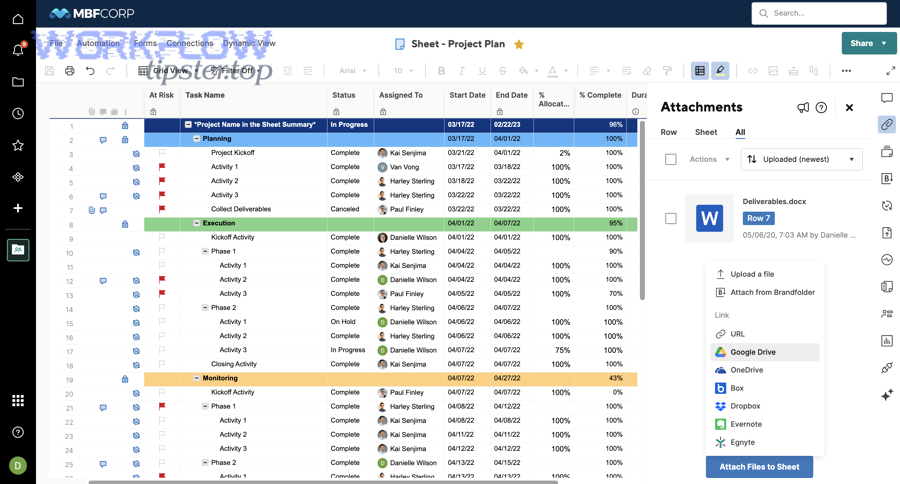
Connecting Google Drive to Smartsheet means you authorize access to your Drive account and then attach Drive files to Smartsheet rows/sheets as references, so the file stays in Drive while Smartsheet becomes the contextual “work layer” around it.
To better understand what “connect” really changes, focus on one principle: Drive remains the storage and permission authority, while Smartsheet becomes the place where work is tracked, assigned, and reviewed. In practice, you’re not moving your documents into Smartsheet. You’re placing “pointers” to them exactly where the work happens—next to tasks, approvals, and owners.
That simple model delivers two immediate benefits:
- Context over chaos: A row titled “Finalize kickoff deck” can link directly to the deck in Drive, so nobody hunts through folders or chats.
- Fewer duplicates: Teams stop uploading the same file repeatedly, which reduces version confusion and rework.
Smartsheet describes this as attaching Drive files to specific rows in a plan so files stay organized “in the context of your work,” which is exactly the intent behind linking rather than uploading.
What is the difference between linking a Drive file and uploading a file to Smartsheet?
Linking wins in version control, uploading wins in self-contained portability, and a hybrid approach is optimal when you need both a stable source and an immutable snapshot.
More specifically, the difference is not just where the file “sits,” but how teams behave around it:
- Linking (reference model):
- The file remains in Google Drive.
- Smartsheet stores a reference (attachment/link) to that Drive file.
- When the file changes in Drive, the linked file remains the same “object,” so teams don’t accidentally work from outdated copies.
- Uploading (copy model):
- A file copy is stored as an attachment in Smartsheet.
- That copy can drift away from the latest version in Drive.
- People may re-upload “final_v7” and “final_v8,” recreating the exact mess the workflow was supposed to solve.
Below is a quick comparison table showing what you’re optimizing for (and what you’re giving up). This table compares linking vs uploading across the criteria that most affect project-team outcomes.
| Criteria | Link (Not Upload) | Upload |
|---|---|---|
| Version accuracy | Strong (one canonical file) | Risk of multiple versions |
| Permission control | Centralized in Drive | Split between tools |
| External sharing | Clean if Drive sharing is managed | Can be easier for one-off sharing |
| Auditability | Better if Drive policies are enforced | Attachments can proliferate |
| Offline access | Depends on Drive settings | Attachment may be more portable |
If your title goal is “Link (Not Upload),” you’re choosing the reference model as your default, then using uploads only when there’s a specific reason.
When should project teams link files vs upload files?
There are 2 default modes project teams should use—Link by default and Upload by exception—based on whether the team needs a living document or a frozen record.
Next, use this simple grouping rule to decide:
Link files when the document is “alive” (it changes over time):
- Project plans, specs, design files, requirement docs
- Working spreadsheets, trackers, continuously updated decks
- SOPs, templates, documentation that should stay current
- Any file that multiple roles touch (PM, designer, engineer, stakeholder)
Upload files when the document must be “frozen” (it must not change):
- Signed PDFs, approvals, compliance snapshots
- Final invoices, final deliverables that must be preserved as-is
- One-time receipts or evidence where an immutable copy matters
If you want the hook to stay consistent across the article, keep repeating the same standard: link for living work, upload for locked records. That’s how teams avoid drifting back into duplicate-file habits.
Can you connect Google Drive to Smartsheet securely with the right permissions?
Yes—Google Drive to Smartsheet can be secure because it relies on controlled authorization plus Drive-based sharing, and it reduces risk by minimizing duplicate file copies, keeping access rules centralized, and making auditing easier when teams use shared drives and least-privilege roles.
However, security only stays “Yes” when you treat permissions as part of the workflow—not as an afterthought. In addition, your team needs a repeatable model for (1) who can attach/link files, (2) who can open them, and (3) how you prevent “wrong-account” access failures.
What permissions do you need in Drive and Smartsheet to link files successfully?
You need (1) Smartsheet permissions to attach and (2) Google Drive permissions to view or edit the target file, and both must be granted to the same identity a user is signed in with.
To illustrate, linking fails when people assume “I can see the Smartsheet row, so I can see the file.” That’s not how linking works. Smartsheet can show the link, but Drive decides whether you can open the file.
Use this practical mapping:
In Smartsheet (who can add the link?):
- Typically: Owner/Admin/Editor roles can attach and manage attachments (depending on plan and settings).
- Goal: Limit “attach” privileges to people who understand the folder structure and naming rules.
In Google Drive (who can open the linked file?):
- Viewer: can open/read.
- Commenter: can comment in Docs/Sheets/Slides.
- Editor: can change the document.
Best practice for project teams:
- Put shared project assets in a team-owned Shared Drive (or a controlled folder) so ownership doesn’t sit with one person who later leaves.
- Grant Viewer/Commenter widely, Editor narrowly.
- Avoid “Anyone with the link” unless your organization explicitly allows it.
For OAuth-based connections and access, Google recommends following best practices for OAuth 2.0 implementations, which aligns with the least-privilege idea you’re trying to achieve in a secure linking workflow.
Which security checks should teams complete before rolling this out company-wide?
There are 7 rollout checks teams should complete: identity clarity, shared drive policy, external sharing rules, attachment governance, naming conventions, access request flow, and audit review.
Moreover, these checks prevent the two classic failures: “It worked for me but not for others,” and “We accidentally exposed files externally.”
- Identity clarity (work vs personal accounts)
- Require a standard: “Use your company Google account only.”
- Document how to switch accounts and avoid browser profile confusion.
- Shared Drive policy
- Decide where canonical project files live.
- Confirm ownership is organizational, not personal.
- External sharing controls
- Define whether vendors/clients can be given access.
- Standardize how “request access” is handled.
- Attachment governance
- Decide who may attach links (role-based).
- Decide whether row-level attachments are required for certain statuses (e.g., “Ready for Review”).
- Naming conventions
- File naming should include project + artifact + stage (e.g., “Apollo_Spec_API_v1”).
- Folder naming should mirror your Smartsheet solution structure.
- Access request flow
- Document what happens when someone clicks a link and sees “request access.”
- Assign an owner for approvals.
- Audit review
- Periodically review sharing settings for sensitive project folders.
- Remove stale external access.
When these checks are done, “secure linking” stops being a promise and becomes a system your team can run repeatedly.
How do you set up the Google Drive–Smartsheet connection step by step?
The best setup method is to authorize your Google account, verify attachment access on a test sheet, and standardize the account-selection workflow—so the expected outcome is a reliable “link-not-upload” connection that your entire team can repeat.
Then, treat setup like a controlled onboarding sequence rather than a one-time click. If one person connects Drive incorrectly (wrong account, wrong sharing rules), the team will blame Smartsheet for what is actually an identity and governance problem.
Here’s the step-by-step flow that stays aligned with your title promise:
- Start from a controlled environment
- Use a browser profile dedicated to your work Google account.
- Avoid being signed into multiple Google accounts in the same profile.
- Authorize the connection
- Follow the Smartsheet flow that prompts you to sign into Google and grant access.
- Confirm you are authorizing the intended work account.
- Create a test sheet
- Add a row called “Drive link test.”
- Attach a Drive file you own (or one in a Shared Drive you manage).
- Test with a second user
- Share the sheet to a teammate.
- Ask them to open the linked file.
- Confirm that Drive permissions behave as expected.
- Document your “link standard”
- Where files live (folders/Shared Drive).
- How they’re named.
- Which statuses require a linked file.
Smartsheet supports attaching Drive files and describes it as a core integration path (along with Google sign-in options and related Google features).
How do you authorize the correct Google account and avoid connecting the wrong Drive?
Authorize the correct account by using a single work browser profile, confirming the Google identity shown on the consent screen, and running a “known file” test—because wrong-account connections happen when users approve access while signed into a personal Google session.
Specifically, wrong-account errors follow a predictable pattern: someone is logged into two Google accounts, clicks “Allow,” and doesn’t notice which identity approved the connection.
Use these safeguards:
- Browser profiles: Create a “Work” Chrome profile that only has your company Google login.
- Consent-screen verification: Before clicking Allow, verify the email shown on the Google OAuth consent screen is your work account.
- Known-file test: Always link a file from a folder you know exists only in your work Drive/Shared Drive.
- Team training: Teach a consistent phrase: “If the file opens in the wrong Drive, stop and switch account before proceeding.”
When teams adopt this standard, setup becomes predictable, which is exactly what you need for a scalable linking workflow.
What’s the fastest way to validate the integration is working (before you train the team)?
There are 5 fast validation checks: attach a Drive file, open it, share it, re-open it as another user, and confirm the file stays canonical even after edits—because those checks simulate real project behavior in under ten minutes.
In addition, these checks catch the hidden failures: permission gaps, wrong-account access, and broken folder governance.
Validation checklist:
- Attach a Drive file to a row and confirm it appears in the attachments panel.
- Open the file from Smartsheet and confirm it opens the correct Drive asset.
- Share the sheet to a teammate and ask them to open the same link.
- Edit the file in Drive (e.g., change a title line) and confirm the link still points to the same document.
- Move the file within the same project folder structure (if your policy allows) and confirm it remains accessible.
If any step fails, fix it before training. Training a broken workflow creates long-term distrust—and your team will revert to uploads.
How do you link (attach) Drive files to rows and sheets in Smartsheet for day-to-day work?
Linking Drive files day-to-day means attaching the right Drive asset to the right Smartsheet row at the right time, so each task stays connected to its supporting evidence and the team’s outcome is faster execution with fewer “where is the file?” interruptions.
Next, treat linking as part of your task definition, not a “nice-to-have.” If a row represents work, a linked file often represents the proof, the input, or the deliverable.
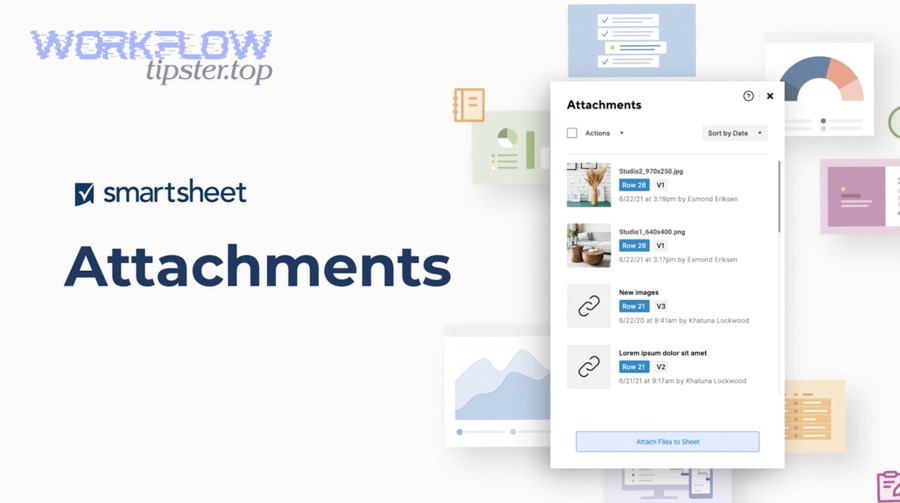
In practice, teams typically use three “attachment moments”:
- Input moment: link the spec/template before execution starts.
- Collaboration moment: link the working doc so contributors always open the same asset.
- Proof moment: link the final evidence before moving to “Done/Approved.”
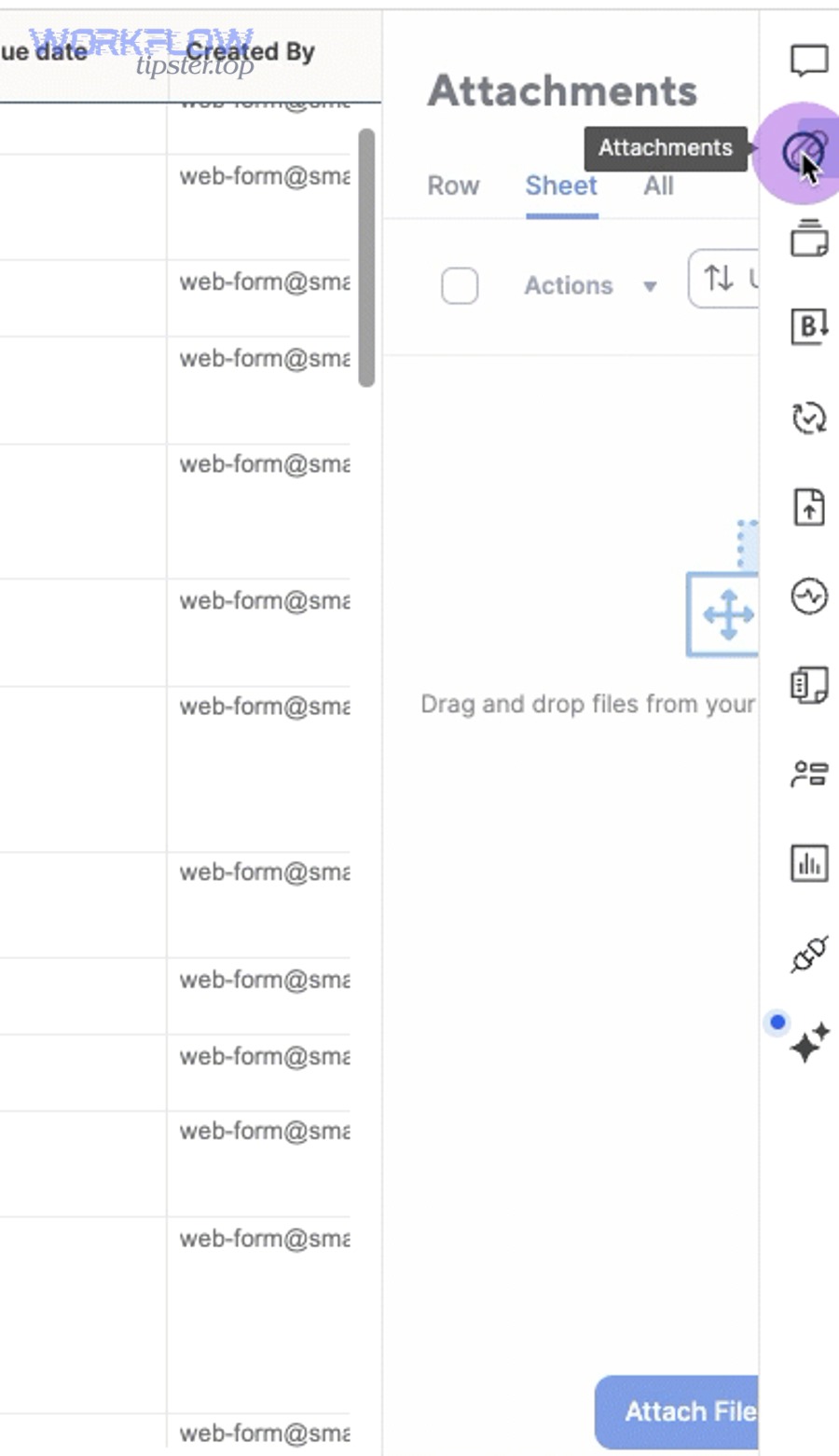
Smartsheet’s own attachments guidance emphasizes attaching and managing files directly in a sheet, including from common cloud storage providers, which aligns with using Drive links as part of a standardized workflow.
What are the best practices for organizing Drive files so Smartsheet links stay clean and searchable?
There are 4 best-practice folder models—Project Folder, Asset-Type Subfolders, Shared Drive per Department, and Template Library—based on the criterion of how often files are reused across projects.
Moreover, your Drive structure must match the way people search. If your team thinks in projects, organize by project. If they think in asset types, organize by asset type—but keep the mapping consistent.
Model 1: One Project Folder (simple, fast, most common)
- Projects / Apollo /
- 01_Specs
- 02_Design
- 03_Reports
- 04_Deliverables
- Best for: most project teams, quick onboarding, predictable linking.
Model 2: Department Shared Drive + Project Folders
- Shared Drives / Marketing / Projects / Apollo / …
- Best for: governance-heavy orgs where ownership must remain in a department.
Model 3: Asset-Type Library + Project References
- Shared Drives / Brand Assets /
- Projects link to assets rather than copying them.
- Best for: teams with reusable assets (brand, legal templates, SOPs).
Model 4: Templates separated from Work
- Templates / is read-only for most users.
- Projects copy from templates but link to working files in project folders.
Naming rules that keep links searchable:
- Use: Project_Artifact_Purpose_Status_v# (or date-based naming).
- Avoid: final_final_reallyfinal.
- Include stable keywords: project code, department, deliverable type.
When your Drive structure is stable, your Smartsheet links become stable. That’s how “link—not upload” stays true at scale.
How does linking Drive files compare to using Smartsheet attachments and proofing workflows?
Linking Drive files wins for living collaboration, Smartsheet attachments win for in-sheet packaging, and proofing workflows are optimal for structured review and approval—so the best teams use linking for work-in-progress and proofing for decision moments.
However, don’t confuse “attachments” with “uploads.” In Smartsheet, an attachment can be a Drive link or a local upload depending on how you attach it. Your title’s promise is to prefer the Drive-link path.
Use this decision logic:
- Use Drive linking when:
- Multiple people must edit the same doc.
- You want Drive’s permission model to remain authoritative.
- You want one canonical file used across tools.
- Use uploaded attachments when:
- You must preserve a fixed snapshot.
- You need a portable file that remains accessible even if Drive permissions change later.
- You’re collecting one-time artifacts (e.g., receipts).
- Use proofing/approval patterns when:
- You need structured feedback with clear sign-off.
- You need a recorded approval trail.
- You want reviews tied to status transitions.
This comparison keeps your workflow clean: Drive for truth, Smartsheet for work, approvals for decisions.
What are the most common problems when connecting Google Drive to Smartsheet, and how do you fix them?
The most common problems are access denied errors, wrong-account authorization, missing integration options, and “link breaks” caused by moved/deleted files—and you fix them by auditing permissions, standardizing identity, validating attachment settings, and enforcing a shared-drive governance model.
In addition, troubleshooting becomes easier when you stop treating symptoms and start diagnosing the system: identity → permissions → location → policy.
Below is a practical “symptom → likely cause → fix” map:
- Symptom: “Access denied” when opening a linked file
- Cause: Drive permission missing or user logged into the wrong Google account
- Fix: Grant Drive access to the correct identity; switch browser account; retest
- Symptom: Attachment source option not available
- Cause: plan/admin settings or feature availability; organization restrictions
- Fix: confirm plan capability; verify admin settings; use approved fallback methods
- Symptom: People keep uploading anyway
- Cause: no linking standard; unclear folder structure; no training
- Fix: create a “link required” status rule; train with examples; restrict attach privileges
Why do users see “access denied” or “request access” even after linking the file?
Users see “access denied” because linking does not grant permission; it only points to the file, so Drive still requires the user to have the correct access level and to be signed in with the identity that holds that access.
Especially in project teams with contractors or cross-department work, “request access” is a policy outcome—not an error. It’s Drive correctly enforcing the sharing rules you set.
Use this fix sequence:
- Confirm the user’s Google identity
- Ask: “Which Google account are you signed into when you click the link?”
- If it’s the wrong account, switch accounts and retry.
- Check Drive permission on the file
- Does the user have Viewer/Commenter/Editor access?
- If not, grant access at the folder level (preferred) rather than one-off file sharing.
- Check Shared Drive restrictions
- Some organizations restrict external access or limit sharing by group.
- Work with admins to set policy-aligned access rather than bypassing controls.
- Re-test with a known-good file
- If the known-good file opens, the problem is permission scope, not Smartsheet.
Evidence (why this matters): According to a study by the University of California, Irvine from the Department of Informatics, in 2008, people compensated for interruptions by working faster but reported more stress and time pressure—exactly the kind of hidden cost teams experience when they constantly stop to find files or request access.
If the Google Drive app/integration isn’t showing up, is there an alternative workflow?
Yes—if the Drive integration option isn’t visible, teams can still maintain a “link—not upload” workflow by using Drive share links, URL attachments, standardized folder paths, and approved automation tools that create rows containing Drive links rather than copying files.
Meanwhile, your goal should remain the same: avoid duplicate copies and keep Drive as the source of truth.
Use these alternatives in order:
Alternative 1: Paste Drive share links as URLs
- Generate a Drive share link (policy-compliant).
- Attach as a URL or place it in a dedicated “File Link” column.
- Standardize the column name so it becomes part of your reporting and filters.
Alternative 2: Use a “Link Required” checklist
- Add a checkbox column like “Drive Linked.”
- Make the workflow rule: status cannot move to “In Review” unless “Drive Linked” is checked.
Alternative 3: Approved automation
- If your org allows it, build an automation that triggers when a file is created in a specific Drive folder and then adds a Smartsheet row with the link.
- This is where Automation Integrations become a scaling strategy rather than a gimmick.
Alternative 4: Cross-tool alignment
- If your team already uses workflows like google drive to slack for file notifications, apply the same “link-first” principle in Smartsheet: notifications should point to the Drive file, not attach copies.
- If you run parallel collaboration flows such as box to slack or asana to slack, keep the same rule across systems: reference the canonical file location to reduce fragmentation.
This keeps your operating model consistent even when the UI path differs.
Contextual Border (Macro → Micro):
You can now connect Drive to Smartsheet, enforce permissions, set up the workflow, link files day-to-day, and troubleshoot common blockers (macro intent completed). Next, we shift into micro semantics: how to optimize and automate linking without creating hidden duplication, how to handle shared drives and external sharing edge cases, and how to prevent rare link failures over time.
How can teams optimize and automate Google Drive–Smartsheet workflows without creating duplicate files?
Optimizing this workflow means you design automation and governance so Drive remains the canonical repository while Smartsheet becomes the action layer—resulting in fewer manual steps, fewer duplicates, and faster handoffs without sacrificing permission control.
More importantly, optimization is not “more tools.” Optimization is less friction around the same linking principle. If automation creates copies, it breaks your title promise. If automation creates links, it strengthens it.
Which automation scenarios work best for “linking” (not copying) files between Drive and Smartsheet?
There are 4 main automation scenario types—File-to-Row, Folder-to-Workflow, Status-to-File, and Approval-to-Notification—based on the criterion of what event should trigger work tracking in Smartsheet.
To illustrate, these scenarios work because they move metadata and links, not files.
- File-to-Row (new file becomes tracked work)
- Trigger: new file added to a Drive project folder
- Action: create a new Smartsheet row with:
- File name
- Drive link
- Owner field (default or derived)
- Status = “New”
- Folder-to-Workflow (new folder becomes new project)
- Trigger: project folder created using a template structure
- Action: create or populate a Smartsheet sheet/template with prefilled folder links:
- Specs folder link
- Design folder link
- Deliverables folder link
- Status-to-File (status change drives the next document)
- Trigger: row status changes to “Ready for Review”
- Action: notify reviewer with the Drive link (not an uploaded attachment)
- Approval-to-Notification (decision pushes downstream action)
- Trigger: approval recorded in Smartsheet
- Action: send message to the team with the Drive link to the approved asset
When these scenarios are implemented correctly, the workflow becomes self-reinforcing: every automation produces links, and every human action stays aligned with “link—not upload.”
What’s the difference between native linking, share links, and automation-platform integrations?
Native linking is best for in-tool reliability, share links are best for simplicity and universality, and automation-platform integrations are best for scaling cross-system workflows—so the optimal choice depends on whether you prioritize governance, speed, or multi-app reach.
However, all three approaches can still serve your “link—not upload” strategy if you keep the output consistent: the row should contain a Drive reference, not a copied file.
Compare them by practical criteria:
- Native linking (inside Smartsheet attachment flow)
- Pros: consistent user experience, fewer moving parts
- Cons: depends on feature availability/settings; users must follow the process
- Share links (URL-based)
- Pros: works anywhere, easiest to standardize, resilient across platforms
- Cons: can become messy if not governed; permissions still must be managed in Drive
- Automation-platform integrations
- Pros: scalable, supports multi-step workflows, consistent metadata mapping
- Cons: needs admin ownership; must be designed carefully to avoid file-copy actions
If your organization already runs Automation Integrations for messaging workflows (like google drive to slack alerts for new files), treat Smartsheet as another destination for those link-based events rather than building a parallel copy-based system.
How do Shared Drives and external sharing policies change the integration strategy?
Shared Drives and external sharing policies change the strategy by shifting ownership from individuals to teams and by forcing a consistent access model—so your linking workflow becomes more stable, but only if you design explicit rules for vendors, clients, and cross-domain collaborators.
Especially in enterprise settings, Shared Drives are the difference between “links that last” and “links that die when the creator leaves.”
Use these micro-level policy rules:
- Rule 1: Canonical files live in Shared Drives
- Prevents ownership transfer chaos.
- Reduces the risk of links pointing to deprovisioned accounts.
- Rule 2: External collaborators get folder-level access where appropriate
- Avoid one-off per-file sharing unless necessary.
- Assign an internal “access owner” responsible for approvals.
- Rule 3: Separate internal and external assets
- Use a dedicated external-collaboration folder with stricter rules.
- Keep sensitive internal docs out of vendor-visible paths.
- Rule 4: Document the “request access” workflow
- Make it clear who approves and how fast.
- Turn a frustrating interruption into a known process.
This is where governance strengthens your linking promise: you’re not just attaching files; you’re designing a durable access system.
What rare “link breaks” happen over time, and how can you prevent them?
There are 5 rare link-break types—Deletion, Ownership Loss, Permission Tightening, Path Reorganization, and Lifecycle Archiving—based on the criterion of what change makes a previously valid Drive reference inaccessible.
In short, links “break” when the organization changes the file’s existence or accessibility. The prevention strategy is to manage lifecycle deliberately rather than letting file drift happen silently.
- Deletion (file removed or trashed)
- Prevention: restrict delete privileges; train teams on archive vs delete.
- Ownership loss (creator leaves the org)
- Prevention: use Shared Drives; avoid personal-drive ownership for project-critical assets.
- Permission tightening (policy change removes access)
- Prevention: audit access quarterly; document critical folders; coordinate with admins before policy shifts.
- Path reorganization (folders renamed/moved in chaotic refactors)
- Prevention: establish “do not move” rules for active projects; schedule refactors after project close.
- Lifecycle archiving (project closed, files moved to archive)
- Prevention: archive with a stable redirect strategy:
- Add an “Archive Link” column.
- Update the sheet with the new folder link once, rather than letting people discover failures row by row.
- Prevention: archive with a stable redirect strategy:
If you keep Drive as the source of truth and Smartsheet as the work layer, your long-term success depends on this micro-level discipline: link stability is a governance outcome, not an accident.