


Connecting Google Drive to Slack is a practical way to share Drive files inside conversations, keep file context visible with previews, and reduce “Where’s the doc?” back-and-forth—so your team can move from file hunting to decisions faster. (slack.com)
The first part of this guide explains what the Google Drive-to-Slack integration actually does, then walks you through a clean setup path so any teammate can share files with the right access instead of posting broken links. (slack.com)
Next, you’ll learn how Slack notifications work for Drive activity—what triggers them, how to control them, and how to prevent comment/access-request alerts from turning into noise that everyone mutes. (slack.com)
Introduce a new idea: once the basics are stable, you can decide when to keep things native versus when to use automation patterns to post targeted updates into the right channels at the right time.
What does it mean to integrate Google Drive with Slack for team collaboration?
Google Drive-to-Slack integration is a workplace app connection that lets Slack surface Drive files in conversations—via sharing tools, searchable previews, and file-activity notifications—so teams coordinate around the same document context without switching tabs. (slack.com)
To better understand why this matters, separate the integration into three “layers” that show up in day-to-day work:
- Conversation layer (Slack): where the team discusses, decides, and assigns follow-ups.
- Document layer (Google Drive): where the actual file lives, versions change, and permissions are controlled.
- Bridge layer (the integration): where Slack displays previews, supports quick actions, and sends alerts when something changes.
That bridge layer is the key: it doesn’t replace Drive, and it doesn’t store your Drive file inside Slack. Slack explicitly notes that Drive files added via the app remain stored in Google Drive (but can become searchable in Slack). (slack.com)

What capabilities do you get after connecting—sharing, previews, and file activity alerts?
There are 6 main capabilities you get after connecting Google Drive to Slack: create, import/share, preview, search, permission prompting, and activity notifications, based on whether the action is about sending a file, seeing a file, or reacting to a file update. (slack.com)
Then, map each capability to a concrete team situation:
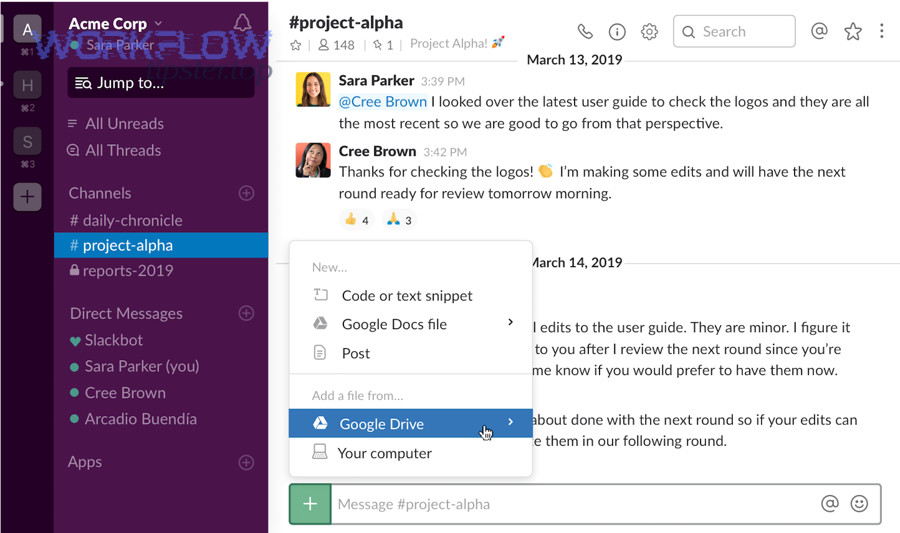
- Create new Docs/Sheets/Slides from Slack (useful when a meeting turns into “someone start a doc right now”). (slack.com)
- Import an existing Drive file into a channel/DM (useful when work already exists and you need everyone aligned). (slack.com)
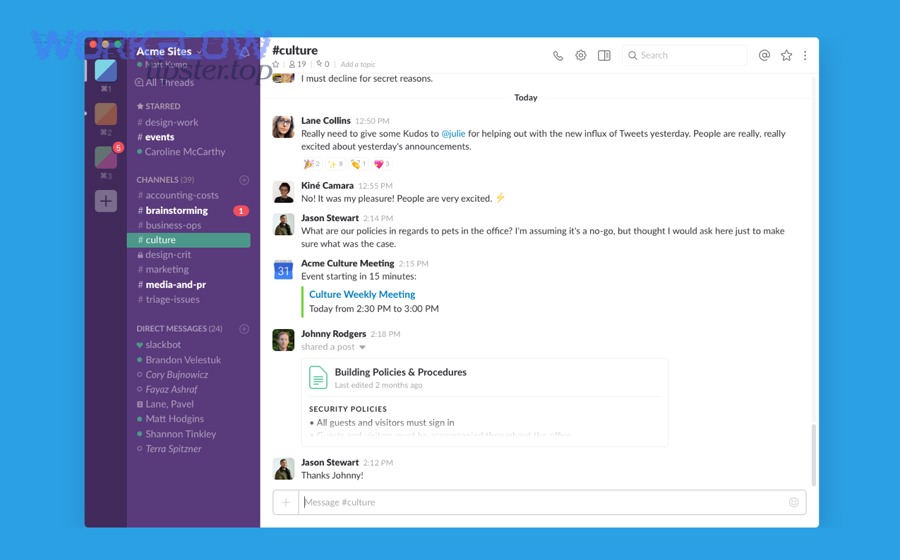
- Rich previews (unfurls) (useful when people need immediate context—title, type, quick glance—before clicking). (slack.com)
- Searchability of shared Drive files in Slack (useful for rediscovery: “that deck we shared last week”). (slack.com)
- Access/permission prompts (useful when some teammates can’t open the link; Slack can nudge you to fix access). (slack.com)
- Notifications for comments, access requests, and files shared with you (useful for staying in the loop without refreshing Drive). (slack.com)
A helpful way to remember this is: Slack helps you distribute and discuss, Drive keeps the truth and controls access, and the integration keeps context connected.
What do you still need to do in Drive vs in Slack after integration?
Slack wins in speed of sharing and discussion, Google Drive is best for file ownership, structure, and permission governance, and the integration is optimal for bridging context (preview + notify + quick fixes). (slack.com)
However, many teams confuse the boundary and end up with messy collaboration. Use this “Drive vs Slack” mental model:
- Do it in Slack when the work is communication-first: announcing a file, asking for review, collecting comments, posting an update, routing a doc to a channel, or nudging a decision.
- Do it in Drive when the work is document-first: organizing into folders/shared drives, setting long-term access rules, managing external sharing, and maintaining a canonical version.
If you keep that boundary clean, you avoid a common failure mode: a link travels fast in Slack, but permissions were never set for the audience—so half the channel sees “Request access,” and momentum dies.
Can you connect Google Drive to Slack using the native app?
Yes— you can connect Google Drive to Slack using the native Google Drive app because (1) Slack supports installing the Drive app from its marketplace/help flow, (2) members can authenticate their Google accounts to enable Drive features, and (3) the app provides built-in sharing, previews, and notifications without needing external automation tools. (slack.com)
Next, the only “make or break” detail is who has permission to install the app and how authentication is handled—because that determines whether setup is a 5-minute task or an IT ticket.
How do you install and authorize the integration step by step?
Installing and authorizing the native integration is a short setup sequence—install the Google Drive app, authenticate your Google account, grant permissions, then confirm sharing/notification settings—so Slack can display Drive previews and send file activity alerts. (slack.com)
Then, follow this clean, low-error flow (even if you’re not an admin):
- Install the Google Drive app in your Slack workspace (from the Slack Marketplace). (slack.com)
- Authenticate your Google Drive account (choose the Google account you actually use for work). (slack.com)
- Grant access when prompted so the app can connect and operate inside Slack. (slack.com)
- Open the Google Drive app inside Slack (its Home tab is where connection and settings live). (slack.com)
- Verify success with a real test: share a Drive file into a channel and confirm you see a rich preview. (slack.com)
If your organization uses centralized identity controls, Slack notes your Google account may already be connected through domain-wide authentication. (slack.com)
Who should set it up—an admin or a team member?
A team member wins for quick personal use, an admin/org owner is best for standardized rollout, and an IT-managed setup is optimal for enterprise governance and consistent security settings across multiple workspaces. (slack.com)
However, the right choice depends on how your Slack environment is managed:
- Team member setup (fastest)
- Best when: your workspace allows members to install apps and connect accounts.
- Outcome: the member connects Drive, starts sharing files, and benefits immediately.
- Admin/org-level install (most consistent)
- Best when: you want the same integration everywhere, or you have multiple workspaces under an enterprise umbrella.
- Slack explicitly notes org owners/admins in enterprise organizations can install Google Drive at the org level and add it to needed workspaces. (slack.com)
A simple rule: If you want one standard for everyone, route through an admin. If you only need it for your team and you’re allowed to install apps, start as a member.
How do you share Google Drive files in Slack the “right” way for teams?
Sharing Google Drive files in Slack “the right way” means posting a Drive link or imported file with the correct audience permissions, so the Slack preview is useful, access requests are minimized, and the channel discussion stays anchored to a single, current document version. (slack.com)
Specifically, teams need a consistent sharing habit because Slack accelerates distribution—one post can reach dozens of people—so permission mistakes scale instantly.
Which sharing methods should you use—file link, folder link, or file upload?
A Drive file link/import wins for version control, a Drive folder link is best for ongoing shared work, and a file upload is optimal only for static snapshots when you intentionally don’t want future edits to change what people see. (slack.com)
However, most collaboration problems come from choosing the wrong method:
- Use a Drive file link/import when
- You want one source of truth (the doc updates, everyone sees latest).
- You expect comments/revisions.
- You want Slack previews and searchability for that doc. (slack.com)
- Use a Drive folder link when
- The work is a stream (new files added over time).
- The channel is a “home” for a project and needs a stable folder anchor.
- Use file upload when
- You need a frozen artifact (e.g., a final PDF) and edits must not change what was approved.
To keep decisions fast, announce the “contract” in your message: “This doc is the source of truth” or “This is a final snapshot.” That tiny sentence prevents half the channel from editing the wrong thing.
What permission settings prevent “Access denied” problems?
There are 4 main permission settings that prevent “Access denied” in Slack sharing: viewer/commenter/editor roles, link-sharing scope, owner/group management, and external sharing controls, based on who needs access and whether the audience includes people outside your domain. (slack.com)
Then, apply them as a checklist before you post:
- Role level (Viewer/Commenter/Editor)
- Viewer for broad visibility, commenter for review stages, editor for active collaborators.
- Link-sharing scope
- Restricted vs anyone-in-domain vs anyone-with-link (the correct choice depends on policy and sensitivity).
- Audience alignment
- If you’re posting to a channel, make sure the channel’s typical members match the file’s intended audience.
- External sharing policy (admin-controlled)
- Google Workspace admins can manage external sharing rules at the organization level, which can block certain link-sharing behaviors. (support.google.com)
If you manage a large organization, treat Slack sharing like publishing: a channel post is a broadcast, so permissions must be set for the broadcast audience.
How do Slack notifications work for Google Drive activity?
Slack notifications for Google Drive activity are app-generated alerts that appear in Slack when Drive events happen—such as comments, access requests, or files being shared—so you can respond from the conversation layer without constantly checking Drive. (slack.com)
Moreover, notification value depends on control: if every minor edit pings people, the team learns to ignore alerts. If only meaningful events appear, Slack becomes a real operations feed for documents.
Which Drive events can trigger alerts—new files, edits, comments, access requests?
There are 3 main categories of Drive events that can trigger Slack alerts: comment activity, access requests, and sharing events, based on whether the update changes the document conversation, access state, or visibility. (slack.com)
Then decide what your team should care about:
- Comment activity (high signal for review workflows)
- Useful when: your process relies on comment threads, approvals, or Q&A.
- Slack notes you can receive comment notifications and even reply to comments through Slack flows described in its help documentation. (slack.com)
- Access requests (high urgency, often blocking)
- Useful when: people frequently hit permission barriers.
- Slack states the Drive app notifies you about access requests by default once connected. (slack.com)
- Files shared with you (awareness, but can become noisy)
- Useful when: you want a “new inbound doc” inbox in Slack.
- Slack notes these notifications are part of the default set you can enable/disable. (slack.com)
If your team wants a simple default, start with comments + access requests (because they directly unblock progress), then add sharing events only for specific roles (like project leads).
What’s the difference between “file preview” messages and “activity notifications”?
File previews win for instant context at share time, activity notifications are best for ongoing awareness and response, and a combined setup is optimal when you want the channel to function as a living “document control room.” (slack.com)
However, the two are not the same:
- File preview (unfurl) happens when someone shares a Drive file; Slack shows a rich preview and can make it searchable. (slack.com)
- Activity notification happens when something changes later (comment, access request, shared file), and the app posts an alert to the relevant Slack surface. (slack.com)
So, if your channel is missing context, improve previews. If your channel is missing follow-through (“did anyone answer that comment?”), improve notifications.
Should you automate Google Drive-to-Slack updates beyond the native integration?
Yes— you should automate Google Drive-to-Slack updates beyond the native integration because (1) automation can route file events into the right channel at the right time, (2) it can standardize message formats so updates are scannable, and (3) it reduces manual posting that causes missed files and inconsistent workflows. (zapier.com)
In addition, automation becomes the difference between “we share documents” and “we run a predictable operating system for document updates.”
This is where the phrase Automation Integrations becomes real: you’re not just connecting apps, you’re designing a repeatable behavior—when X happens in Drive, Slack hears about it in a useful way.
What are the most common Drive → Slack automation recipes for teams?
There are 5 main Drive → Slack automation recipes teams use: new file alerts, folder-based routing, review/approval nudges, handoff summaries, and exception alerts, based on what event triggers the message and who needs to see it. (zapier.com)
Then choose recipes that match your team’s operating rhythm:
- New file in a specific folder → post to a channel
- Best for: shared folders where new content must be noticed fast.
- Zapier explicitly describes a workflow that posts a Slack notification when a file is added to a specific Drive folder. (zapier.com)
- New file → DM the file owner or reviewer
- Best for: teams with clear reviewers, where a channel broadcast is overkill.
- Comment added to a doc → notify the doc’s review channel
- Best for: editorial, legal, product specs—any doc with review cycles.
- File updated → post a short “what changed” message
- Best for: living documents, weekly reports, operational checklists.
- Access request appears → route to the doc owner or IT channel
- Best for: preventing “request access” dead time from stalling delivery.
If your team also runs other integration patterns—say, connecting activecampaign to slack for lead alerts or syncing asana to notion for documentation flow—treat Drive → Slack automations the same way: keep triggers specific, keep recipients intentional, and keep messages structured so humans can scan them quickly.
Native vs no-code automation platforms—what’s better for your use case?
Native integration wins in simplicity and core sharing, no-code platforms are best for custom routing and multi-step workflows, and a hybrid approach is optimal for teams that want both low-maintenance sharing and targeted operational alerts. (slack.com)
However, you’ll choose correctly only if you compare by the criteria that actually matter:
Before the table below, here’s what it contains: a practical comparison of native Google Drive-to-Slack capabilities versus no-code automation, using the criteria teams typically care about (setup effort, control, governance, and message quality).
| Criterion | Native Google Drive app in Slack | No-code automation (example: templates/workflows) |
|---|---|---|
| Setup time | Fast (install + authenticate) (slack.com) | Moderate (design trigger + action + routing) (zapier.com) |
| Best for | Sharing, previews, built-in alerts (slack.com) | Folder-based alerts, routing logic, standardized posts (zapier.com) |
| Control over where alerts go | Limited by app behavior/settings (slack.com) | Strong (choose channel, DM, filters, formatting) (zapier.com) |
| Governance | Centralized if admin-managed in enterprise (slack.com) | Varies (often requires good internal controls) (zapier.com) |
A reliable decision rule is: Start native for baseline collaboration, then add automation only where you can name a recurring pain (missed files, wrong channel, inconsistent update formats).
Why isn’t your Google Drive-to-Slack integration working, and how do you fix it?
A Google Drive-to-Slack integration usually “isn’t working” because of authentication mismatch, permission misalignment, preview/notification settings, or event-scope confusion, and you fix it by identifying which layer is failing—account connection, file access, or Slack display/alerts. (slack.com)
Next, troubleshoot in a sequence that avoids random clicking. When you troubleshoot without structure, you often “fix” a symptom (like turning alerts off) while the real cause (like wrong audience permissions) remains.
What are the top setup mistakes that cause missing previews or failed notifications?
There are 6 top setup mistakes that cause missing previews or failed notifications: not authenticated, wrong Google account, restricted file permissions, previews disabled, notifications disabled, and expecting Slack to store Drive files, based on whether the break happens at connection, access, or display. (slack.com)
Then use this symptom → cause → fix map:
- Symptom: No Drive preview appears after sharing a link
- Symptom: People in the channel can’t open the file
- Cause: Drive permission doesn’t include that audience.
- Fix: adjust sharing so the intended team/channel has view/comment/edit access.
- Symptom: You never get comment/access-request alerts
- Symptom: You expected the Drive file to be “in Slack” forever
- Cause: misunderstanding—Slack notes files remain stored in Drive. (slack.com)
- Fix: treat Slack as the conversation and discovery surface, Drive as storage.
- Symptom: Your account is “connected” but behaves oddly
- Cause: domain-wide authentication or org-level policies may control connection behaviors. (slack.com)
- Fix: confirm with an admin how authentication is managed; reconnect if needed.
- Symptom: Automation posts duplicates or too many alerts
- Cause: trigger conditions are too broad (e.g., “new file” also triggers on moved/updated states). (zapier.com)
- Fix: narrow the trigger and add filters (e.g., only certain folders, only certain file types).
What’s the fastest way to diagnose whether the issue is Slack-side or Drive-side?
Drive-side issues win as the most common cause of access failures, Slack-side issues are best explained by missing previews/alerts, and a layered test is optimal because it isolates permission, display, and notification failures in minutes. (slack.com)
However, you can diagnose quickly with three tests—run them in order:
- Permission test (Drive-side)
- Open the file in Drive while logged in as the intended audience (or ask a teammate).
- If they can’t open it in Drive, Slack can’t fix that.
- Preview test (Slack-side display)
- Share the file into a channel and check for rich preview.
- If preview is missing, check the Drive app “File Previews” setting. (slack.com)
- Notification test (Slack-side alerts)
- Add a test comment in the doc and see if a notification appears.
- If not, check whether notifications are enabled. (slack.com)
If you diagnose in layers, you fix the root cause once—and your team stops repeating the same “request access” loop every week.
According to a study by University of California, Irvine from the Department of Informatics, in 2008, interrupted work was completed faster but led to higher stress, frustration, time pressure, and effort—showing why noisy notifications need control, not just “more alerts.” (ics.uci.edu)
How do you optimize security, governance, and advanced workflows for Google Drive-to-Slack?
Optimizing Google Drive-to-Slack means establishing governance rules for access, channel routing, and notification signal, then applying advanced collaboration patterns (shared drives, review lanes, exception handling) so the integration stays helpful at scale instead of turning into chaos. (slack.com)
Moreover, the mature version of this integration is not “everyone posts everything everywhere.” It’s the opposite: control vs chaos. You design what deserves a channel post, what belongs in a DM, and what should never notify at all.
How do you control access requests and prevent permission sprawl in busy channels?
You control access requests and prevent permission sprawl by standardizing ownership, limiting who can broaden sharing, and routing access decisions to the right owner, so the Slack channel doesn’t become a public “grant everyone access” machine. (slack.com)
Then implement three practical controls:
- Ownership clarity: every recurring doc (roadmap, weekly report, SOP) has one explicit owner responsible for permissions.
- Permission discipline: default to viewer/commenter for broad channels; reserve editor access for a small working group.
- Access-request routing: handle access requests in a dedicated place (owner DM, review channel, or IT channel), not in the main project channel.
If you do this, Slack becomes a high-signal collaboration surface, not an uncontrolled distribution amplifier.
What are best practices for Shared Drives and team folder structures when sharing to Slack?
There are 4 best-practice patterns for Shared Drives and team folder structures when sharing to Slack: project hubs, role-based subfolders, release lanes, and archive rules, based on how teams need to find, protect, and retire documents over time. (support.google.com)
Then apply patterns that match how channels behave:
- Project hub folder ↔ project channel
- One stable folder link pinned in the channel, with new files posted as they matter.
- Role-based subfolders
- Keep sensitive work (legal, finance) separate so channel sharing doesn’t accidentally broaden access.
- Release lanes (Draft → Review → Final)
- Align the channel message contract: “Draft for comments,” “Review for approval,” “Final snapshot.”
- Archive rules
- Retire old versions so Slack search doesn’t keep surfacing outdated files.
If your team already uses structured systems for other flows—like mapping asana to notion so tasks become documentation—apply the same discipline here: structure reduces cognitive load and prevents the channel from becoming a dumping ground.
How can you reduce notification noise without losing critical updates?
Reducing noise works best when you limit triggers (fewer events), improve routing (smarter destinations), and compress updates (summaries when possible)—because “more notifications” feels productive until people mute them and miss the one alert that mattered. (slack.com)
However, you don’t need a complex system to do this well. Use a three-level approach:
- Level 1: Keep native notifications for personal relevance
- Comments on docs you own, access requests you must approve. (slack.com)
- Level 2: Automate only high-signal channel posts
- New file in a critical folder → post to one channel. (zapier.com)
- Level 3: Use “digest thinking” for busy workflows
- Instead of posting every edit, post a weekly roundup or a “new files today” summary.
The outcome is predictable: fewer pings, higher trust in the pings that remain, faster response when a real blocker appears.
What edge cases appear in multi-workspace or regulated environments, and how do you plan for them?
There are 4 common edge-case clusters in multi-workspace or regulated environments: identity/auth constraints, external sharing restrictions, audit/compliance needs, and cross-channel routing conflicts, based on how organizations manage risk and access across boundaries. (slack.com)
Then plan for them proactively:
- Identity/auth constraints: domain-wide authentication may connect accounts in ways users can’t fully control (so training and admin docs matter). (slack.com)
- External sharing restrictions: org-level external sharing rules can block “anyone with link” behaviors—so your Slack sharing expectations must match policy. (support.google.com)
- Audit/compliance needs: regulated teams often need consistent access models and controlled sharing surfaces (which favors admin-managed installs and standardized folder structures).
- Routing conflicts: a file update might belong in one workspace/channel but not another, so automation rules must be scoped carefully to avoid leaking internal context.
If your organization invests heavily in other operational feeds—like routing leads via activecampaign to slack—the lesson transfers: scope, governance, and message discipline decide whether integrations scale cleanly or become risk and noise.